> ## Documentation Index
> Fetch the complete documentation index at: https://docs.presenton.ai/llms.txt
> Use this file to discover all available pages before exploring further.
# Using the AI assistant
> Make focused slide and presentation changes through conversation.
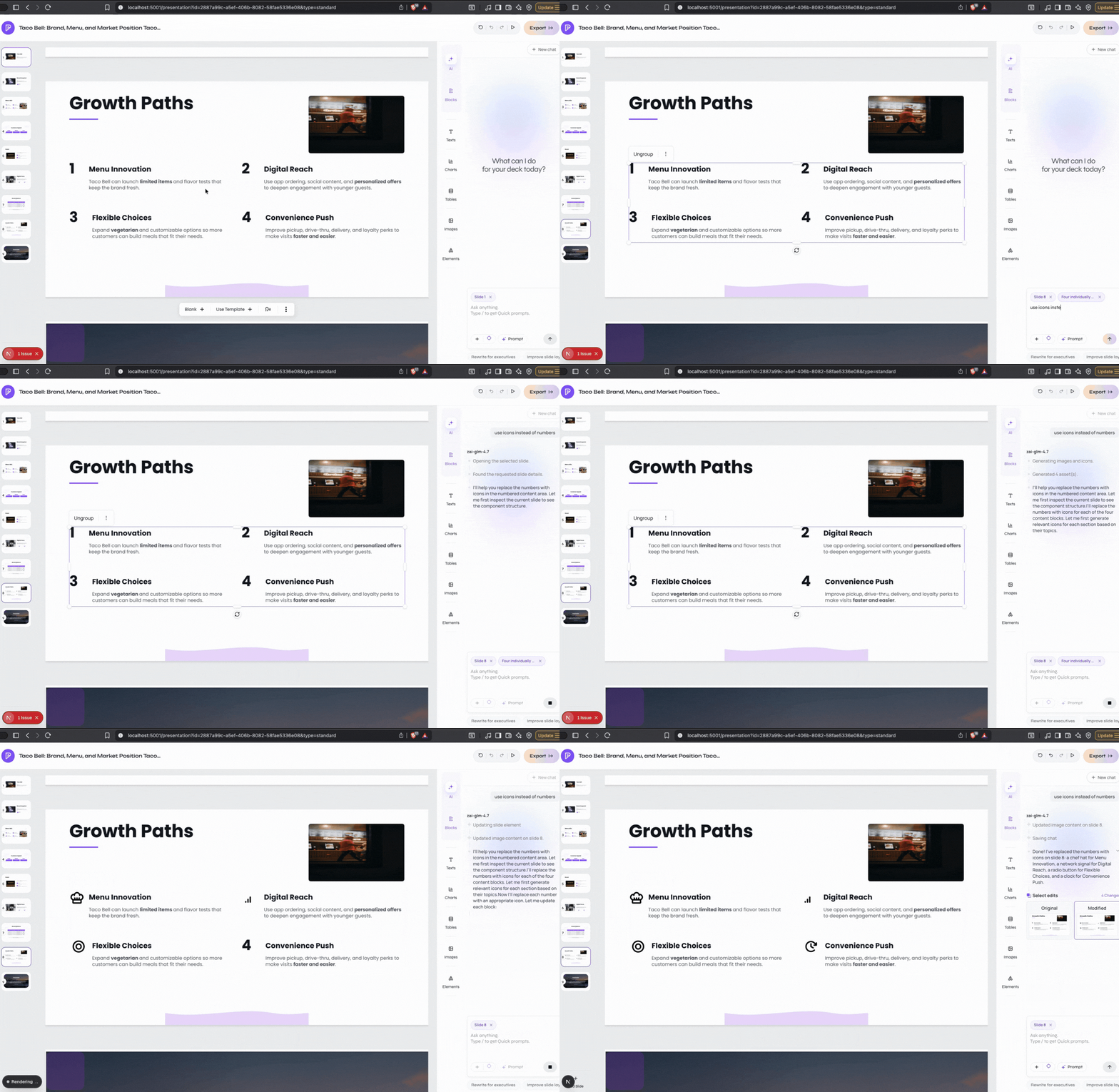
The AI Assistant workflow is shared by Cloud and open-source Presenton. Use it for changes that affect a whole slide, add or remove slides, restructure a section, or introduce a new visual. Use Select Edit when only one existing object should change.
## Ask for one reviewable outcome
| Goal | Example request |
| ---------------- | -------------------------------------------------------------------------- |
| Rewrite | `Shorten slide 2 for an executive audience. Keep all figures unchanged.` |
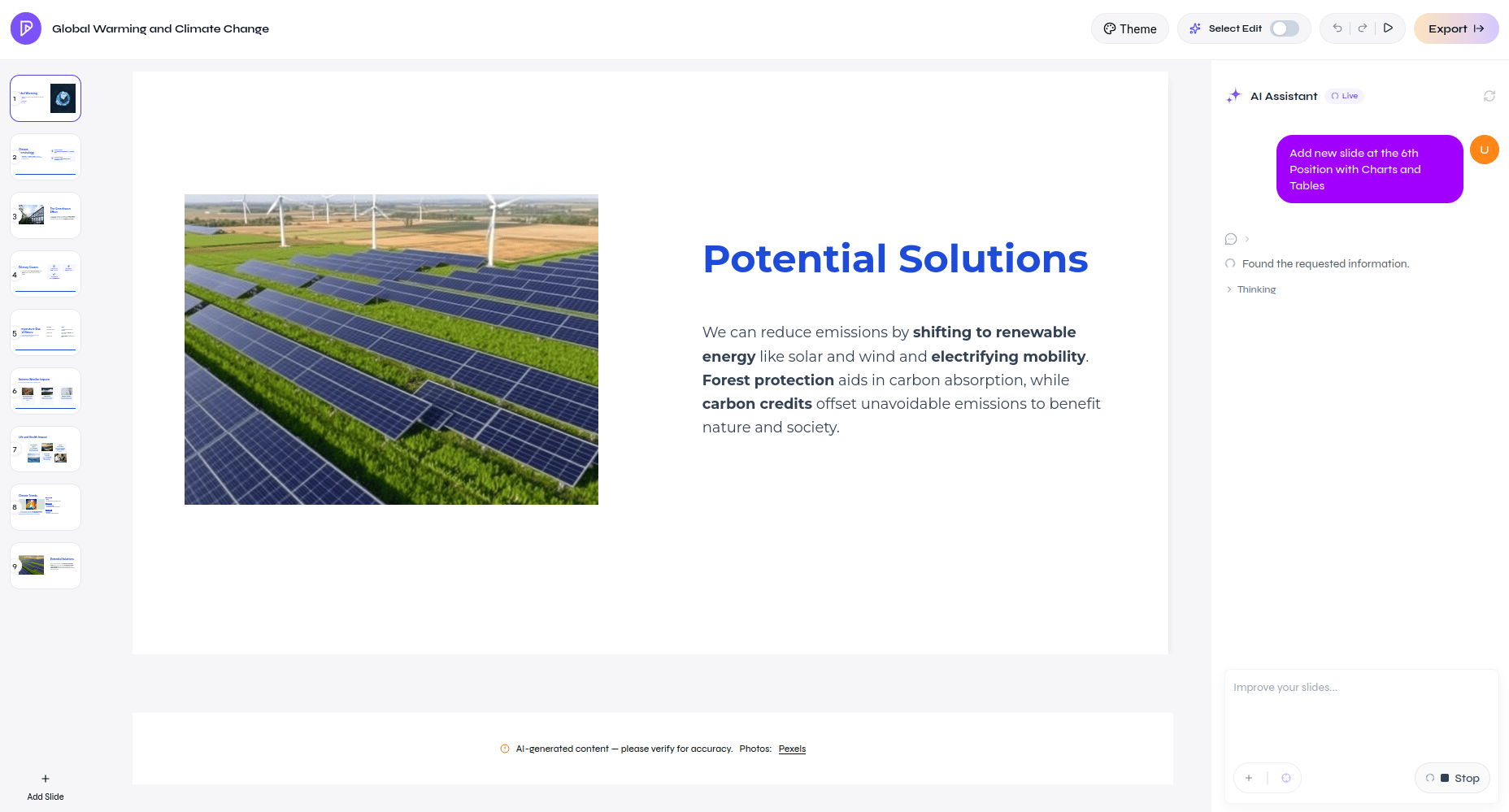
| Add a slide | `Add a decision slide after the recommendations with three options.` |
| Change structure | `Turn slide 4 into a two-column comparison without removing any criteria.` |
| Add a visual | `Create a line chart from the monthly values in the attached CSV.` |
| Match the design | `Use a template-style table that matches the surrounding slides.` |
Open a presentation, identify the target slide or section, and enter one focused request.
Let Presenton inspect the relevant presentation content, template, source material, and available conversation context.
Confirm the slide position, wording, numbers, visuals, and any content the request said to preserve.
Correct one remaining problem at a time instead of repeating the original broad request.