> ## Documentation Index
> Fetch the complete documentation index at: https://docs.presenton.ai/llms.txt
> Use this file to discover all available pages before exploring further.
# Text editing
> Rewrite and format text directly on a slide.
Text editing lets you update wording and typography without regenerating the complete slide.
Edit text directly on the canvas
## Edit text
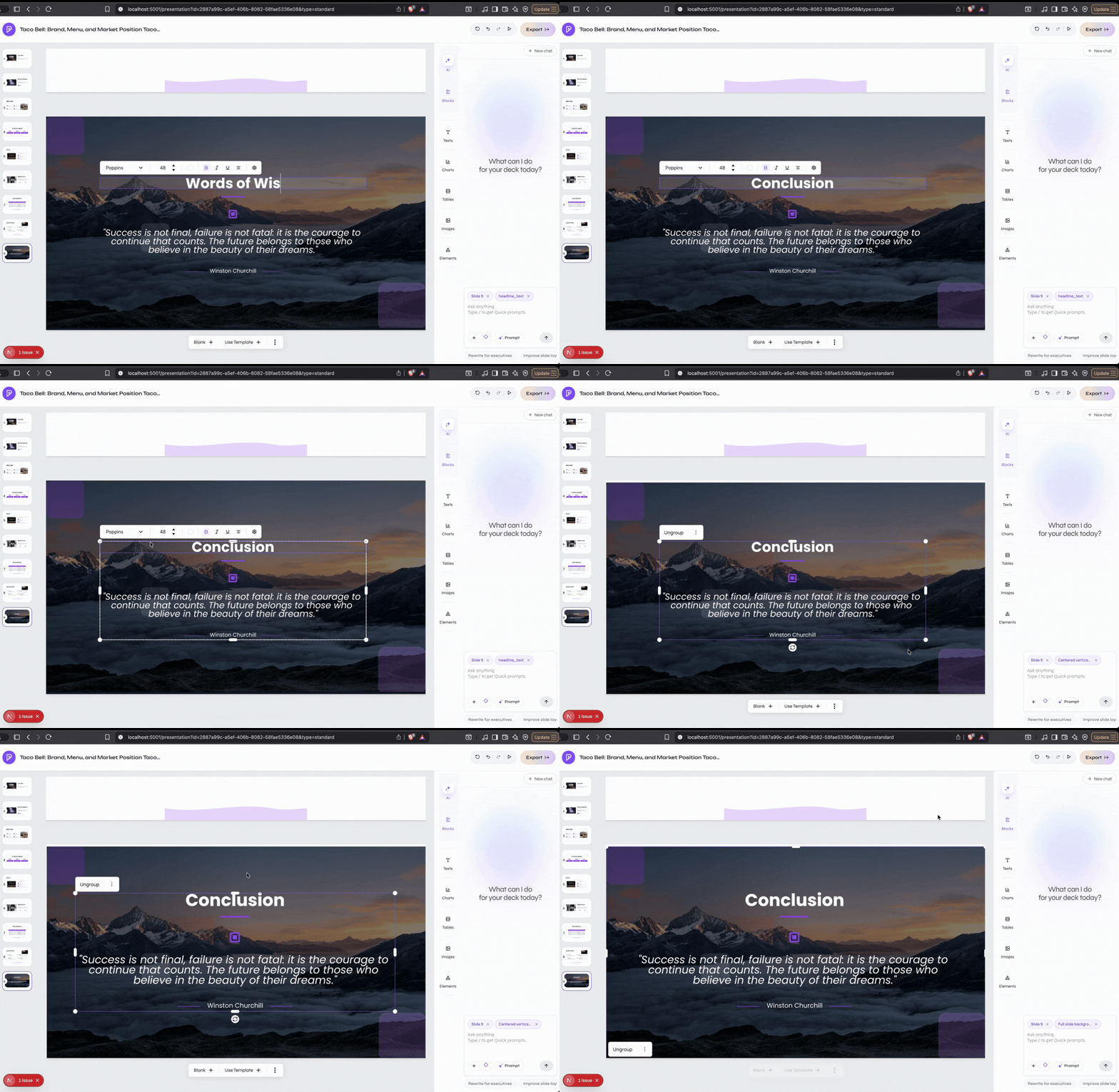
Enable **Select Edit**, then double-click the text you want to change.
Add, remove, or rewrite text. Keep the amount of content appropriate for the available space.
Adjust the font, size, weight, emphasis, color, alignment, spacing, or list formatting with the available controls.
Check wrapping, overflow, hierarchy, contrast, and alignment with nearby elements.
Use the AI editing action when you want to rewrite selected text with a prompt while keeping the edit scoped to that text element.