> ## Documentation Index
> Fetch the complete documentation index at: https://docs.presenton.ai/llms.txt
> Use this file to discover all available pages before exploring further.
# Start with Editing
> Create, open, continue editing, and export presentations.
Use the presentation editor to start a new deck, continue working on a generated deck, or open a saved presentation.
## Choose how to start
Generate a deck from a prompt, reference files, or both.
Find a saved presentation and reopen it in the editor.
## Continue editing after AI generation
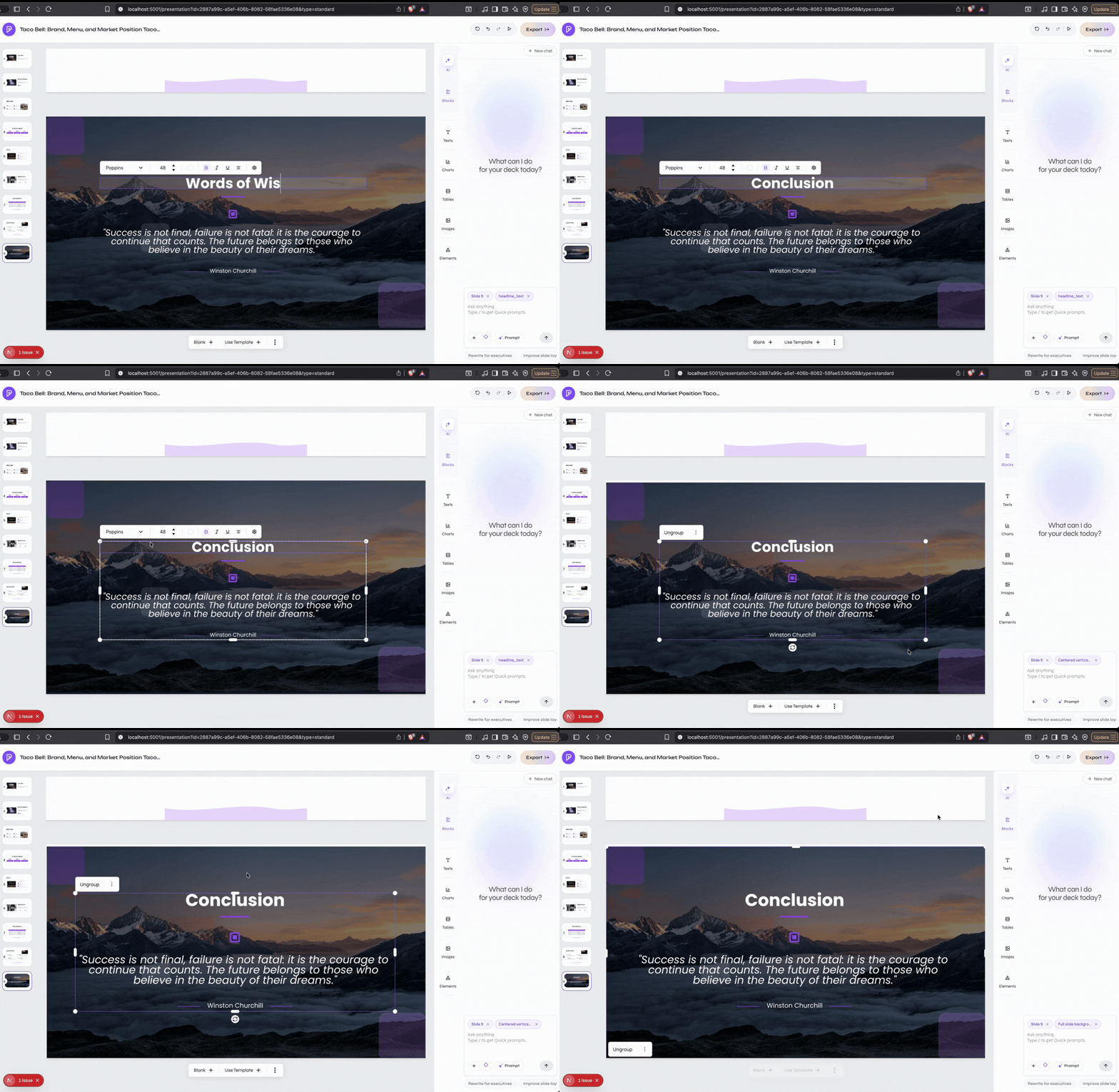
After generation finishes, the deck opens in the editor. Select a slide from the thumbnail rail, then choose the editing method that matches the change:
* Use **Select Edit** for a specific text box, image, shape, icon, table, chart, or group.
* Use the **AI Assistant** for prompt-based slide or presentation changes.
* Use slide controls to add, duplicate, delete, and reorder slides.
* Apply a saved template or adjust the slide layout when the design needs to change.
Select text and edit it directly on the slide
## Export as PPTX or PDF
When editing is complete, select **Export** and choose **Export as PPTX** or **Export as PDF**. Wait for the export to finish before downloading the file.
Edit individual elements directly on the slide.
Make focused changes with prompts.
Add, duplicate, delete, reorder, and redesign slides.
Download the finished deck as PPTX or PDF.