> ## Documentation Index
> Fetch the complete documentation index at: https://docs.presenton.ai/llms.txt
> Use this file to discover all available pages before exploring further.

# Brand colors and fonts

> Build a readable palette and resolve fonts before generation and export.

Brand settings should survive generation, editing, and export. Define a small color system, use fonts that can be rendered by Presenton, and test the exported file in the applications recipients will use.

The theme and Standard template workflows on this page are shared by Cloud and open-source Presenton.

## Configure a custom theme

<Steps>
  <Step title="Name the brand">
    Add the brand or company information used to identify the saved theme.
  </Step>

  <Step title="Build the palette">
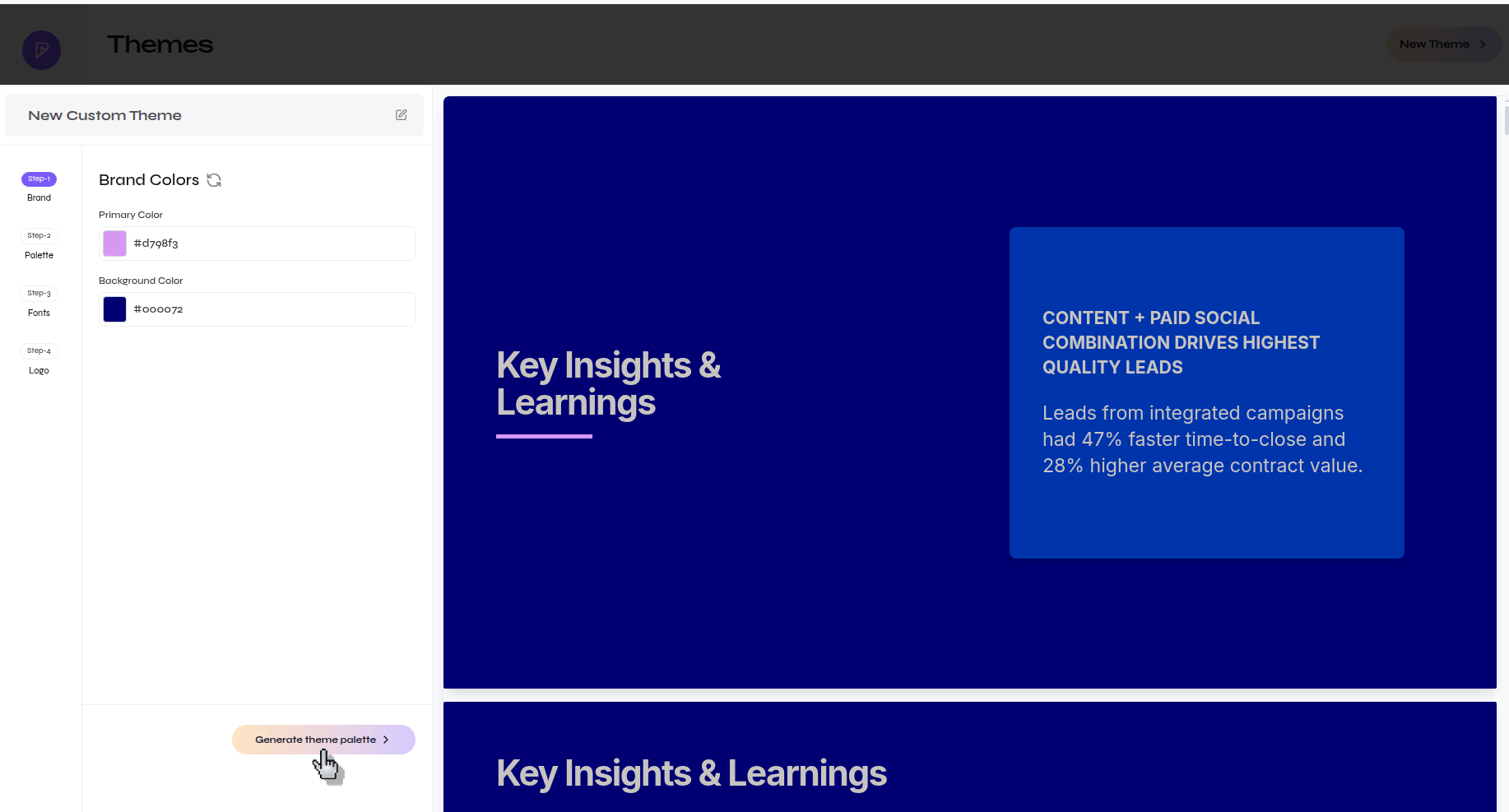
    Set background, card, primary, text, stroke, and graph colors. Use the palette generator where available, then inspect the preview rather than accepting colors blindly.

    <div className="guide-media">
      <p className="guide-media-label">Generate and refine a brand palette</p>

      <div className="guide-media-viewport">
        <img src="https://mintcdn.com/presenton-521d9e2f/WyZNN3npwarofQJS/images/cloud/create-custom-theme/brand-colors-generate-palette.png?fit=max&auto=format&n=WyZNN3npwarofQJS&q=85&s=d587c52755495adebad387fe5ccdf842" alt="Custom theme palette step with brand colors and palette generation" width="1834" height="987" data-path="images/cloud/create-custom-theme/brand-colors-generate-palette.png" />
      </div>
    </div>
  </Step>

  <Step title="Choose or upload fonts">
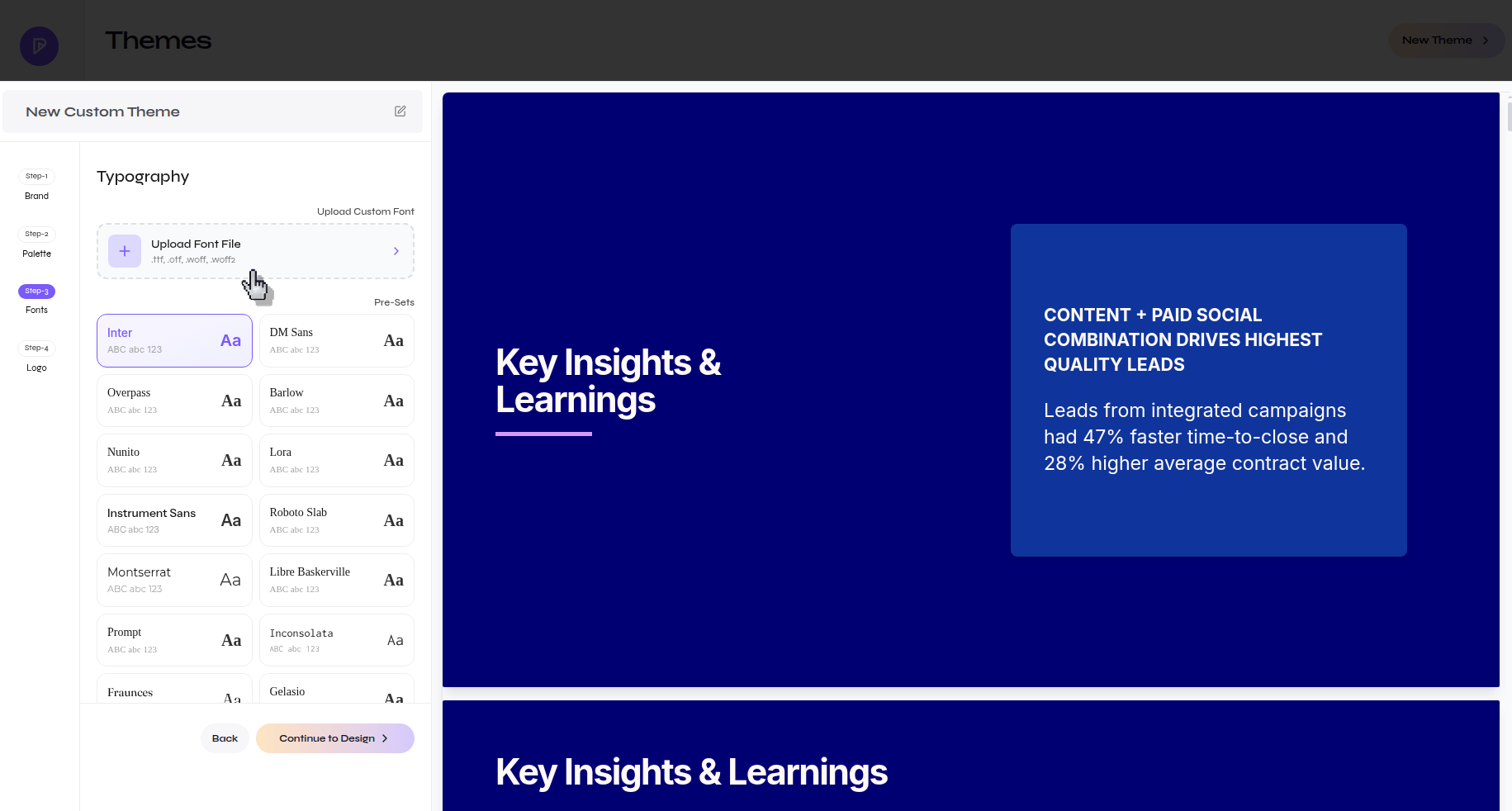
    Select readable heading and body fonts. Upload a custom font when supported and confirm it loads before continuing.

    <div className="guide-media">
      <p className="guide-media-label">Upload a custom font for the theme</p>

      <div className="guide-media-viewport">
        <img src="https://mintcdn.com/presenton-521d9e2f/WyZNN3npwarofQJS/images/cloud/create-custom-theme/fonts-step-upload-custom-font.png?fit=max&auto=format&n=WyZNN3npwarofQJS&q=85&s=564dbf2de45d1ea78c99997435b5f086" alt="Custom theme font step with a custom font upload option" width="1831" height="982" data-path="images/cloud/create-custom-theme/fonts-step-upload-custom-font.png" />
      </div>
    </div>
  </Step>

  <Step title="Add the logo and save">
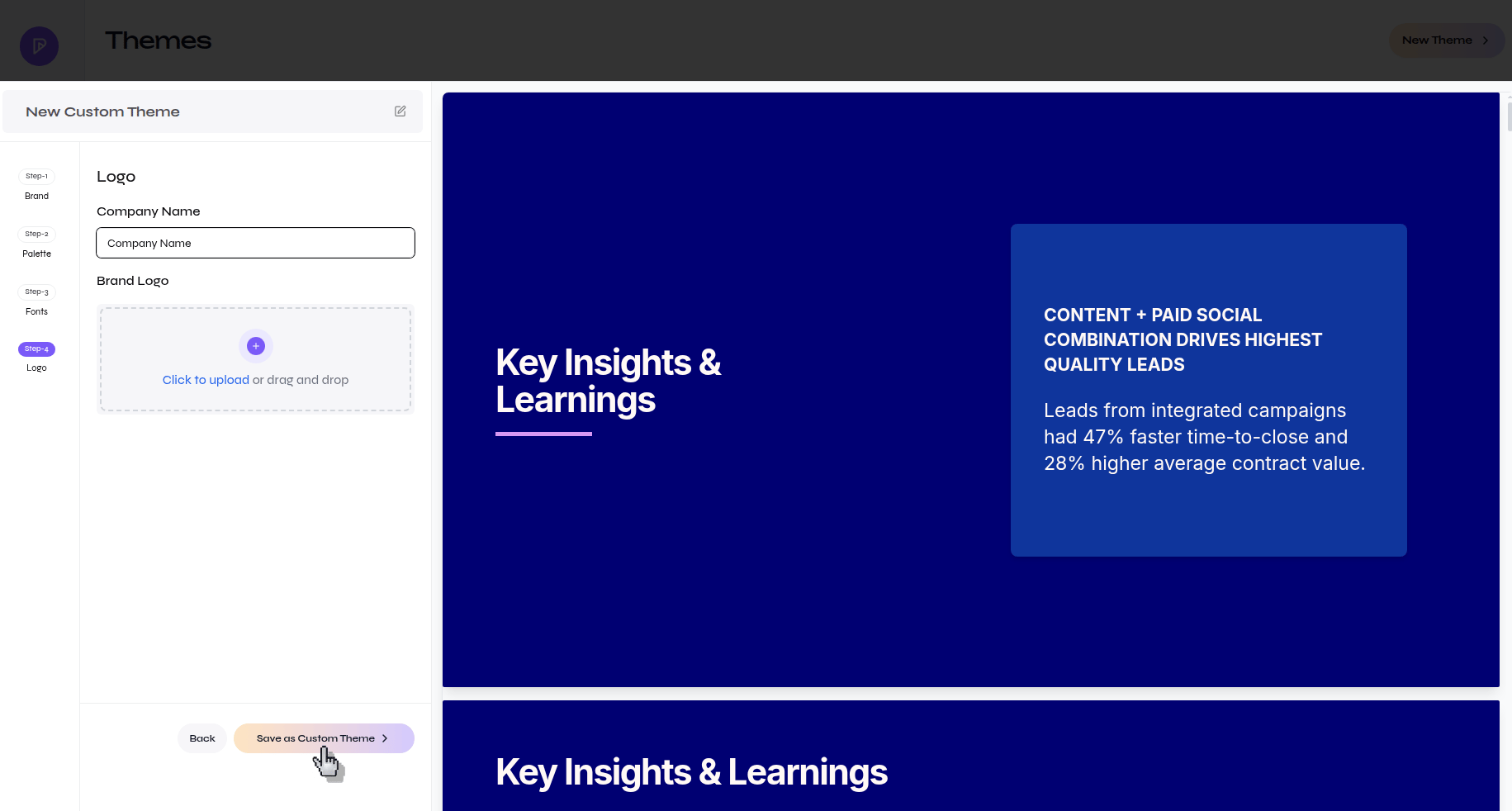
    Upload a supported logo, inspect its contrast and spacing in the preview, then save the theme.

    <div className="guide-media">
      <p className="guide-media-label">Logo step before saving a custom theme</p>

      <div className="guide-media-viewport">
        <img src="https://mintcdn.com/presenton-521d9e2f/WyZNN3npwarofQJS/images/cloud/create-custom-theme/logo-step-save-custom-theme.png?fit=max&auto=format&n=WyZNN3npwarofQJS&q=85&s=04792e10ec7e11ec778b7d1e849fe8ed" alt="Custom theme logo step with the save action" width="1831" height="982" data-path="images/cloud/create-custom-theme/logo-step-save-custom-theme.png" />
      </div>
    </div>
  </Step>
</Steps>

## Resolve template fonts

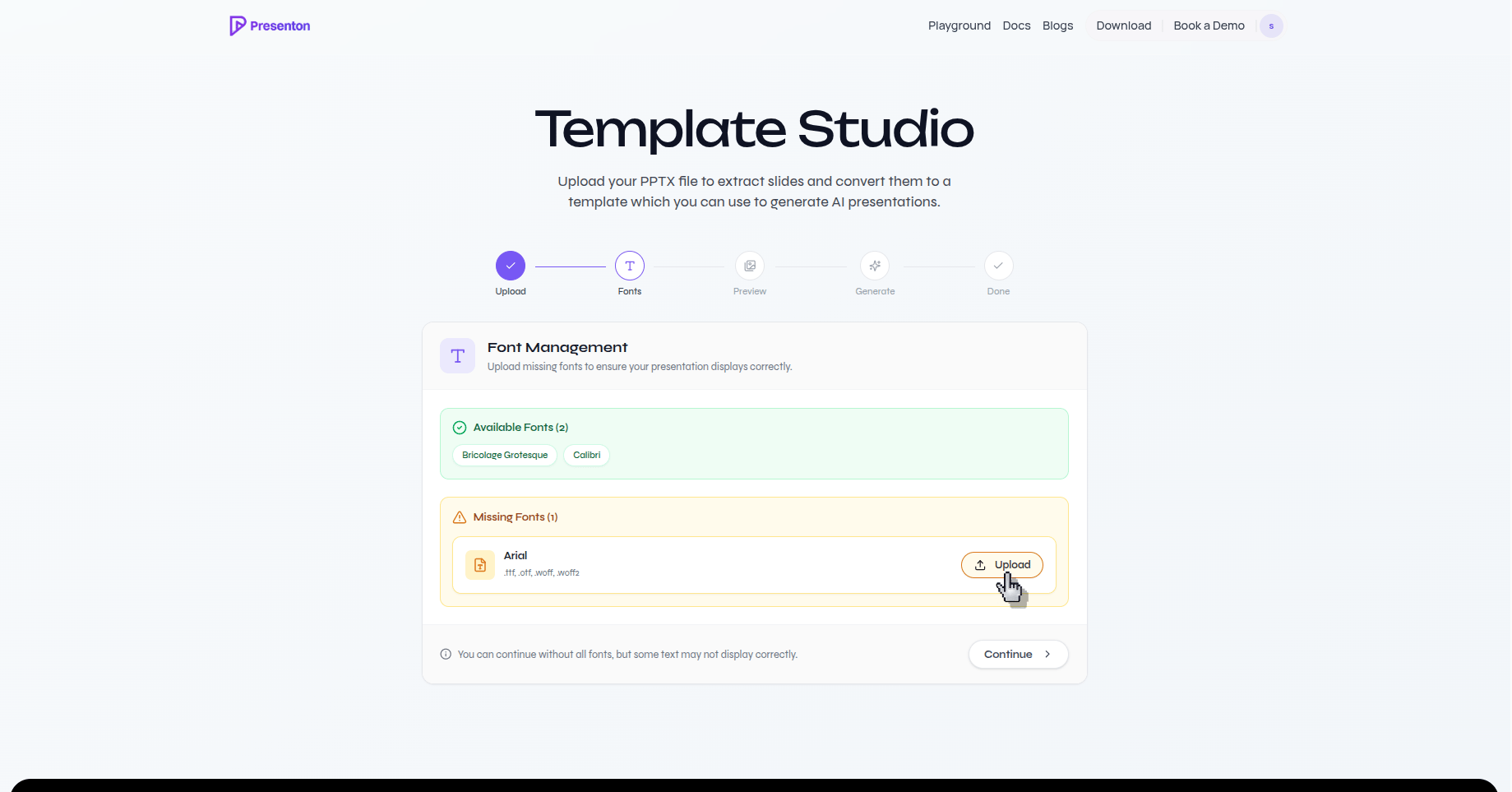
When creating a custom template from PPTX, Presenton detects the fonts referenced by the source file. Upload missing font files before generating layouts so the preview, schemas, and final exports are based on correct text metrics.

<div className="guide-media">
  <p className="guide-media-label">Resolve a missing template font</p>

  <div className="guide-media-viewport">
    <img src="https://mintcdn.com/presenton-521d9e2f/WyZNN3npwarofQJS/images/cloud/create-branded-template/missing-font-upload.png?fit=max&auto=format&n=WyZNN3npwarofQJS&q=85&s=33138fa2e126280a4b29b20328eb60a0" alt="Template Font Management screen with a missing font upload action" width="1839" height="963" data-path="images/cloud/create-branded-template/missing-font-upload.png" />
  </div>
</div>

<Warning>
  A font available in your browser may still be unavailable to an export worker or a recipient's presentation application. Always inspect an exported PPTX and PDF before distributing a branded deck.
</Warning>