> ## Documentation Index
> Fetch the complete documentation index at: https://docs.presenton.ai/llms.txt
> Use this file to discover all available pages before exploring further.

# Custom presentation templates

> Convert a filled PPTX into reusable, testable presentation layouts.

## Template workflow

Use a custom template when repeated decks must follow an existing design system. Start from a filled PPTX with representative content, not an empty master with only placeholders.

Cloud and open-source Presenton use the same Standard custom-template workflow.

## Built-in and Custom templates

Use **Built-in** templates for designs provided by Presenton. Use **Custom** templates when you want to create your own reusable template from a presentation design.

<div className="guide-media">
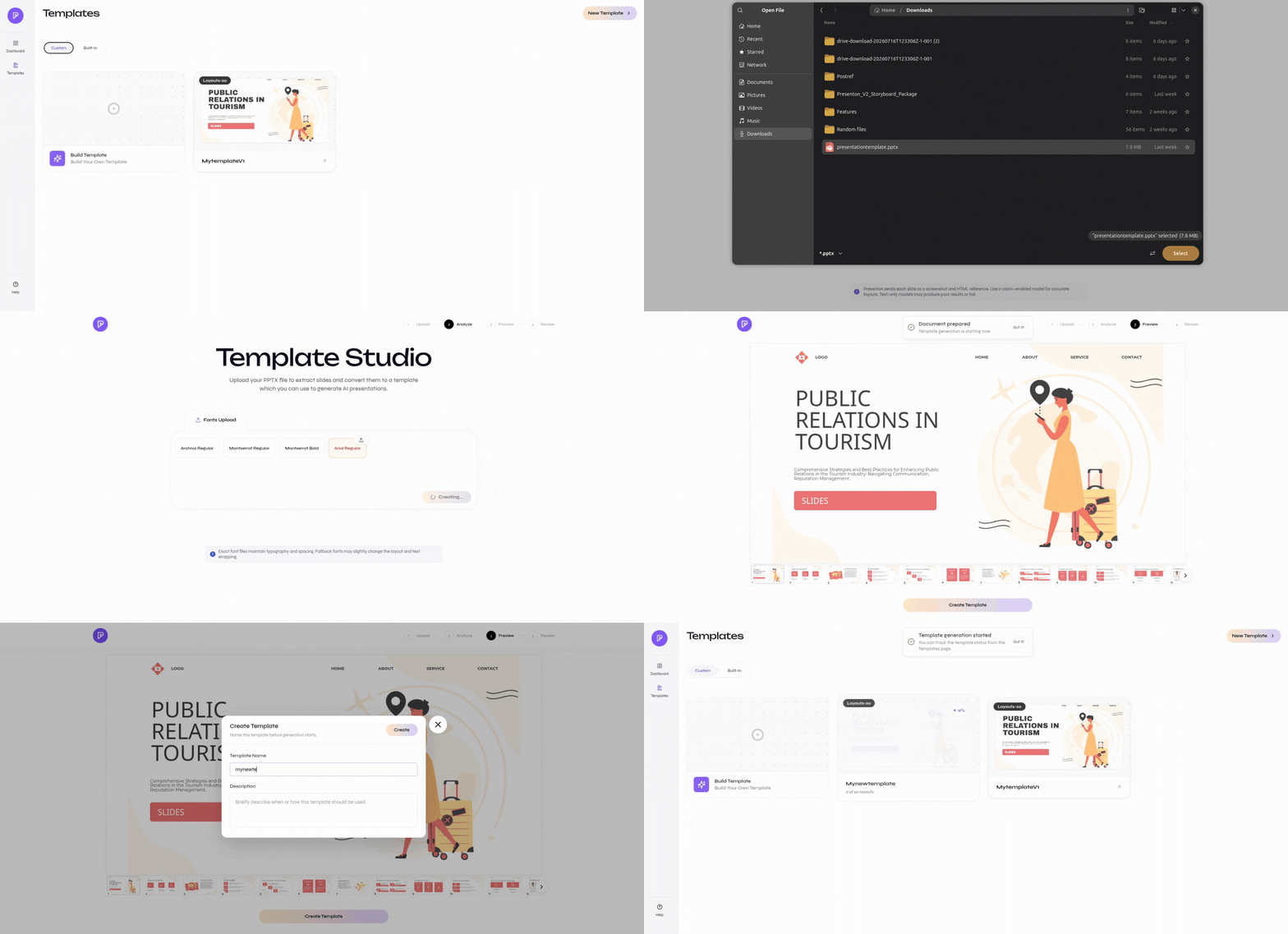
  <p className="guide-media-label">Create a custom template</p>

  <div className="guide-media-viewport">
    <img src="https://mintcdn.com/presenton-521d9e2f/isevrd3o6JPIkznF/images/templatecreation.gif?s=09c23e3ae3752c4f91b57d8b8b7a2007" alt="Create a custom template in Presenton" width="1892" height="917" data-path="images/templatecreation.gif" />
  </div>
</div>

<Steps>
  <Step title="Open the template library">
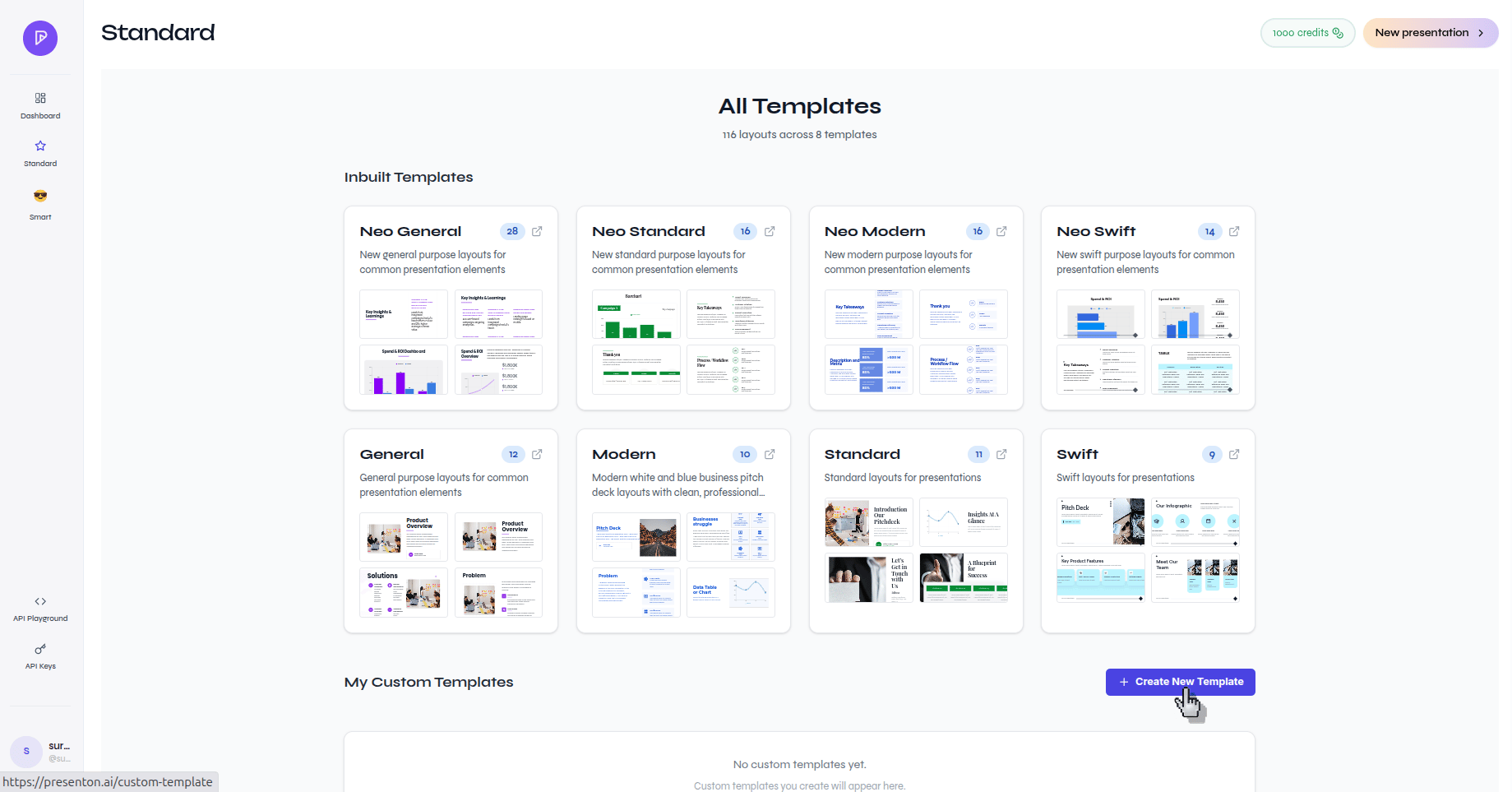
    Open **Templates**, select **Create New Template** or **New Template**, and upload the source PPTX.

    <div className="guide-media">
      <p className="guide-media-label">Start a new custom template</p>

      <div className="guide-media-viewport">
        <img src="https://mintcdn.com/presenton-521d9e2f/WyZNN3npwarofQJS/images/cloud/create-branded-template/all-templates-create-new-template.png?fit=max&auto=format&n=WyZNN3npwarofQJS&q=85&s=dc1c2b7a64332952853d8eee2e819697" alt="Template library with Create New Template" width="1839" height="963" data-path="images/cloud/create-branded-template/all-templates-create-new-template.png" />
      </div>
    </div>
  </Step>

  <Step title="Resolve fonts and preview slides">
    Select **Check Fonts**, upload missing fonts, and continue to the slide preview. Fix font issues before generating layouts.
  </Step>

  <Step title="Generate reusable layouts">
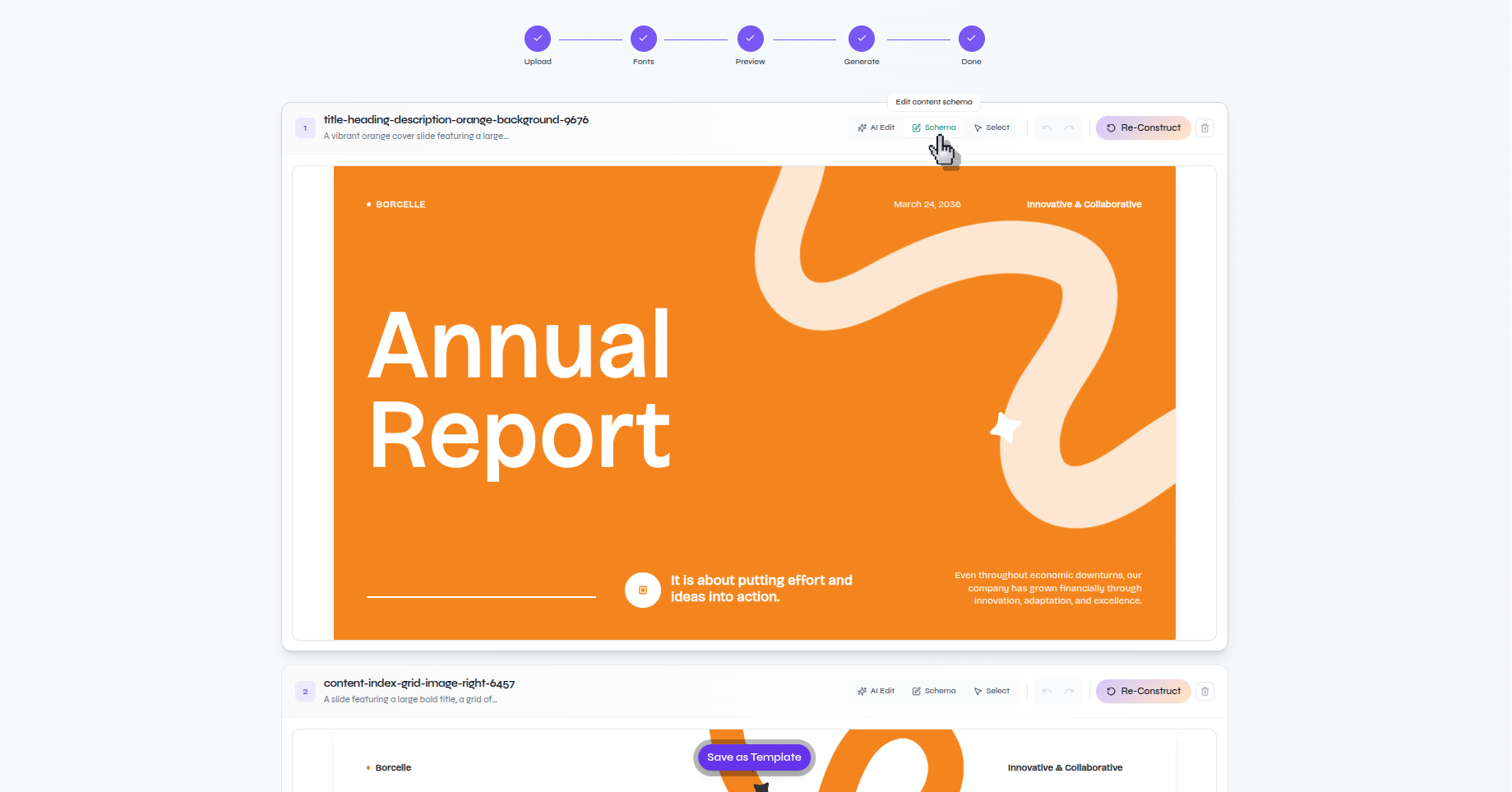
    Select **Generate Template**. Each source slide becomes a reusable layout.

    <div className="guide-media">
      <p className="guide-media-label">Layouts generated from the source PPTX</p>

      <div className="guide-media-viewport">
        <img src="https://mintcdn.com/presenton-521d9e2f/WyZNN3npwarofQJS/images/cloud/create-branded-template/generated-layouts-overview.png?fit=max&auto=format&n=WyZNN3npwarofQJS&q=85&s=60d481d430acb5072487e6bb16133ad1" alt="Generated custom-template layouts in Template Studio" width="1839" height="963" data-path="images/cloud/create-branded-template/generated-layouts-overview.png" />
      </div>
    </div>
  </Step>

  <Step title="Review schemas and content limits">
    Inspect each layout's detected fields and use realistic short and long sample content to catch overflow, weak spacing, and incorrect element roles.
  </Step>

  <Step title="Fix, save, and test">
    Correct layouts whose structure is wrong. Save the template with a clear name, generate a representative test deck, and verify object editing plus PPTX and PDF export.
  </Step>
</Steps>

<Card title="Cloud template tutorial" icon="layout-grid" href="/archive/v0.9.1-beta/cloud/tutorials/create-branded-template">
  Follow the detailed Cloud screens and validation checks.
</Card>

<Tip>
  A smaller set of distinct, reliable layouts is more useful than many near-duplicates that differ only cosmetically.
</Tip>