> ## Documentation Index
> Fetch the complete documentation index at: https://docs.presenton.ai/llms.txt
> Use this file to discover all available pages before exploring further.

# Templates

> Choose and manage reusable layouts for Standard presentations.

A template is a collection of reusable slide layouts and blocks. It controls where generated content can go and how consistently the deck follows a design system.

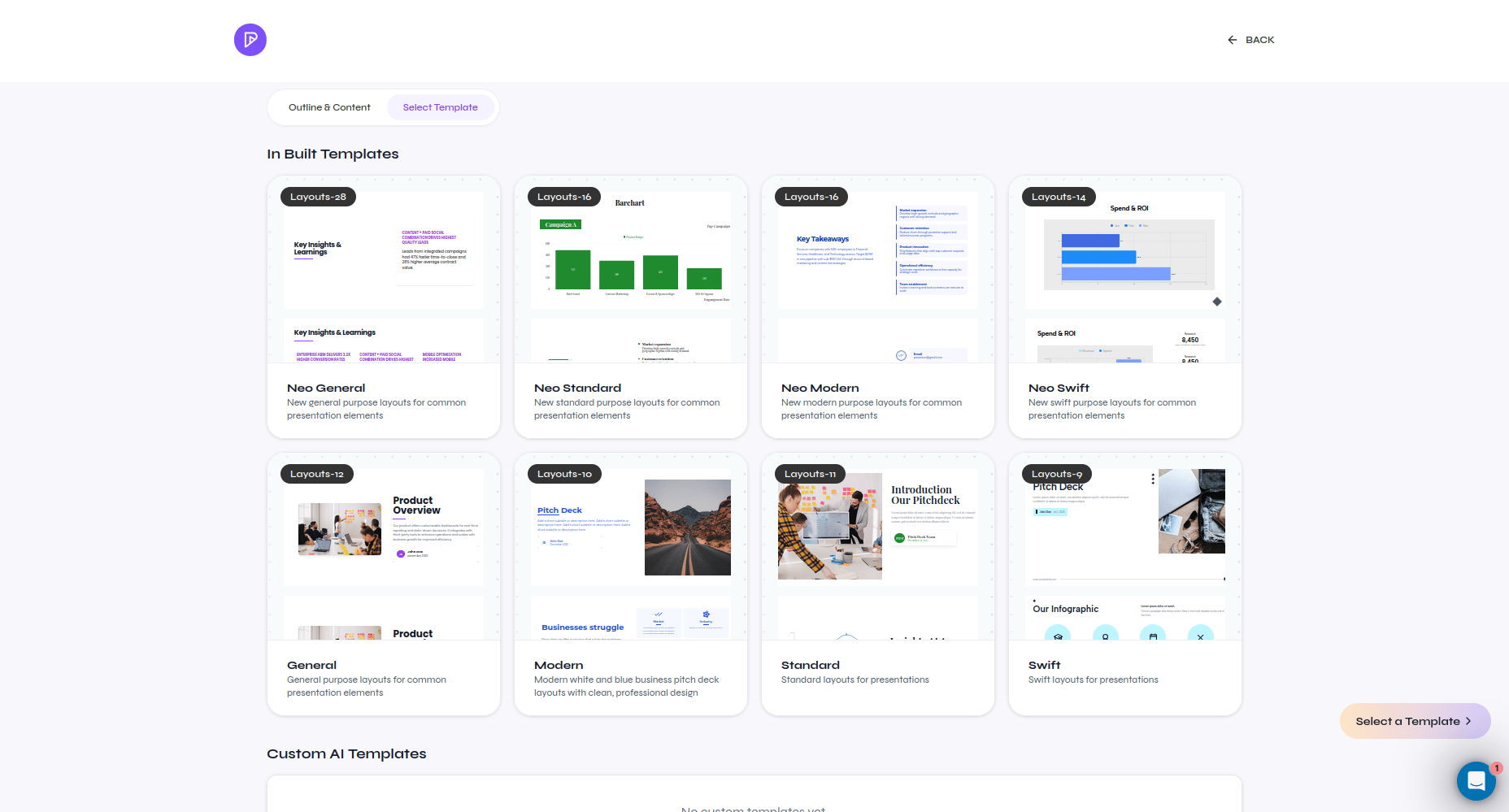
Standard presentations use the same template model in Cloud and open-source Presenton. After reviewing the outline, open **Select Template**, inspect the built-in or custom designs, and confirm one before generating.

<div className="guide-media">
  <p className="guide-media-label">Built-in and custom Standard templates</p>

  <div className="guide-media-viewport">
    <img src="https://mintcdn.com/presenton-521d9e2f/WyZNN3npwarofQJS/images/cloud/quickstart/05-choose-template.png?fit=max&auto=format&n=WyZNN3npwarofQJS&q=85&s=fae300dda75000a5795ba3852b05acf6" alt="Template gallery with built-in and custom Standard templates" width="1856" height="999" data-path="images/cloud/quickstart/05-choose-template.png" />
  </div>
</div>

Open **Templates** to browse the library, preview a design, or start the custom-template workflow. A generated Standard presentation keeps text, images, shapes, tables, charts, and other supported content as editable objects.

## Choose a strong template

* Match the audience and delivery context.
* Confirm that the available layouts cover titles, sections, content, data, visuals, and conclusions needed by the outline.
* Prefer layouts that remain readable with realistic short and long content.
* Check required fonts before relying on the template for export.
* Generate a representative test deck before adopting a custom template for repeated use.
<Note>
  Cloud Smart presentations use Smart designs instead of Standard template layouts. Smart does not change how the shared Standard editor works.
</Note>
