> ## Documentation Index
> Fetch the complete documentation index at: https://docs.presenton.ai/llms.txt
> Use this file to discover all available pages before exploring further.

# Edit PPTX with AI

> Import an existing PowerPoint presentation and edit it with AI.

<Badge color="purple">Cloud only</Badge>

## Import and edit

<Steps>
  <Step title="Upload the PPTX">
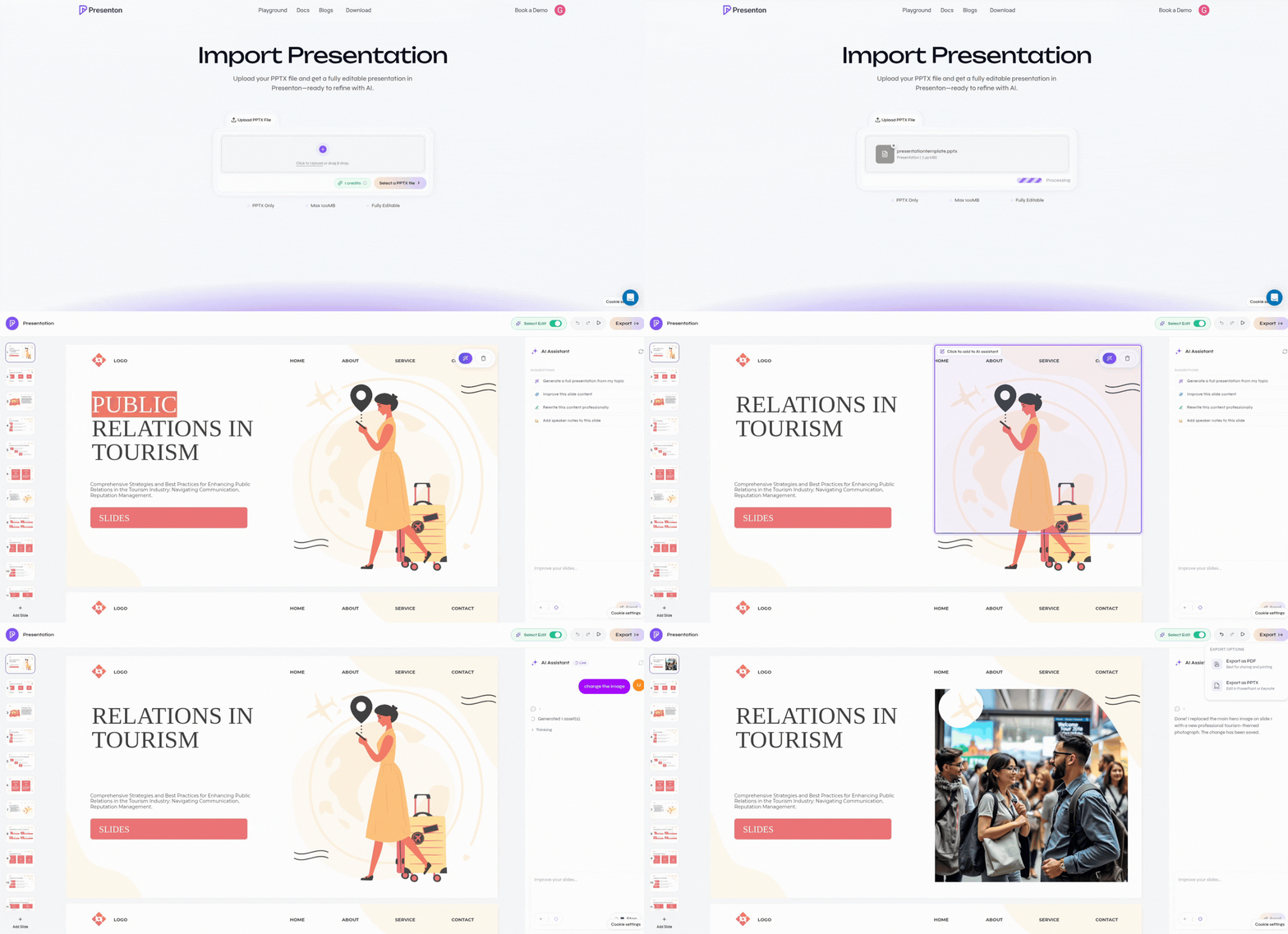
    From the dashboard, click **Edit PPTX with AI**. Select or drag in the PPTX you want to edit.

    <div className="guide-media">
      <p className="guide-media-label">Select or drag in the PowerPoint file</p>

      <div className="guide-media-viewport">
        <img src="https://mintcdn.com/presenton-521d9e2f/a7GBkBOgfm-3ZeQM/images/cloud/editwithpptx/editpptx.gif?s=9123f91a9107ddb74cbd37b17fc03184" alt="Uploading a PPTX from the Presenton Import Presentation page" width="1892" height="917" data-path="images/cloud/editwithpptx/editpptx.gif" />
      </div>
    </div>
  </Step>

  <Step title="Check fonts">
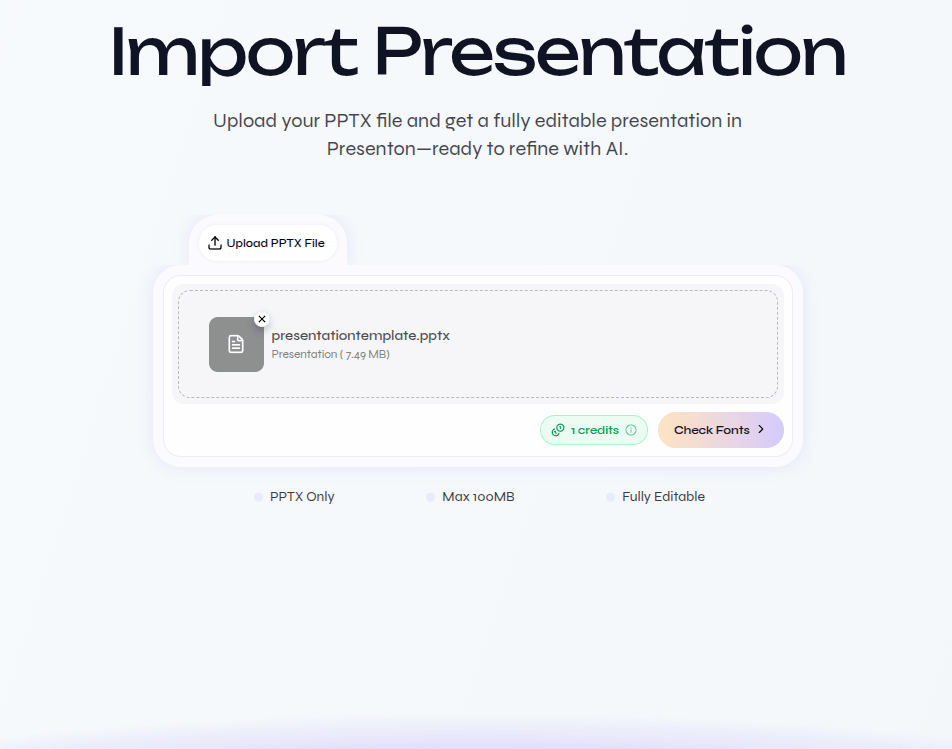
    After the file uploads, click **Check Fonts**.

    <div className="guide-media guide-media--compact">
      <p className="guide-media-label">Check the fonts used in the uploaded presentation</p>

      <div className="guide-media-viewport">
        <img src="https://mintcdn.com/presenton-521d9e2f/a7GBkBOgfm-3ZeQM/images/cloud/editwithpptx/checkfont.png?fit=max&auto=format&n=a7GBkBOgfm-3ZeQM&q=85&s=23a42b260ff8884bd91191b603d87786" alt="Uploaded PPTX with the Check Fonts button" width="952" height="749" data-path="images/cloud/editwithpptx/checkfont.png" />
      </div>
    </div>
  </Step>

  <Step title="Manage fonts">
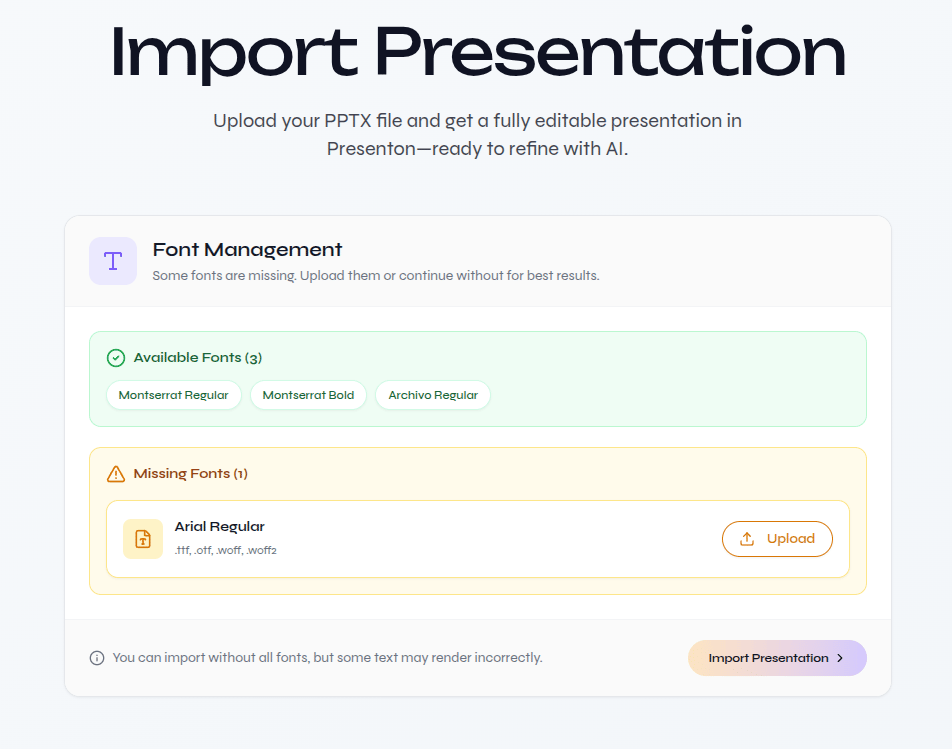
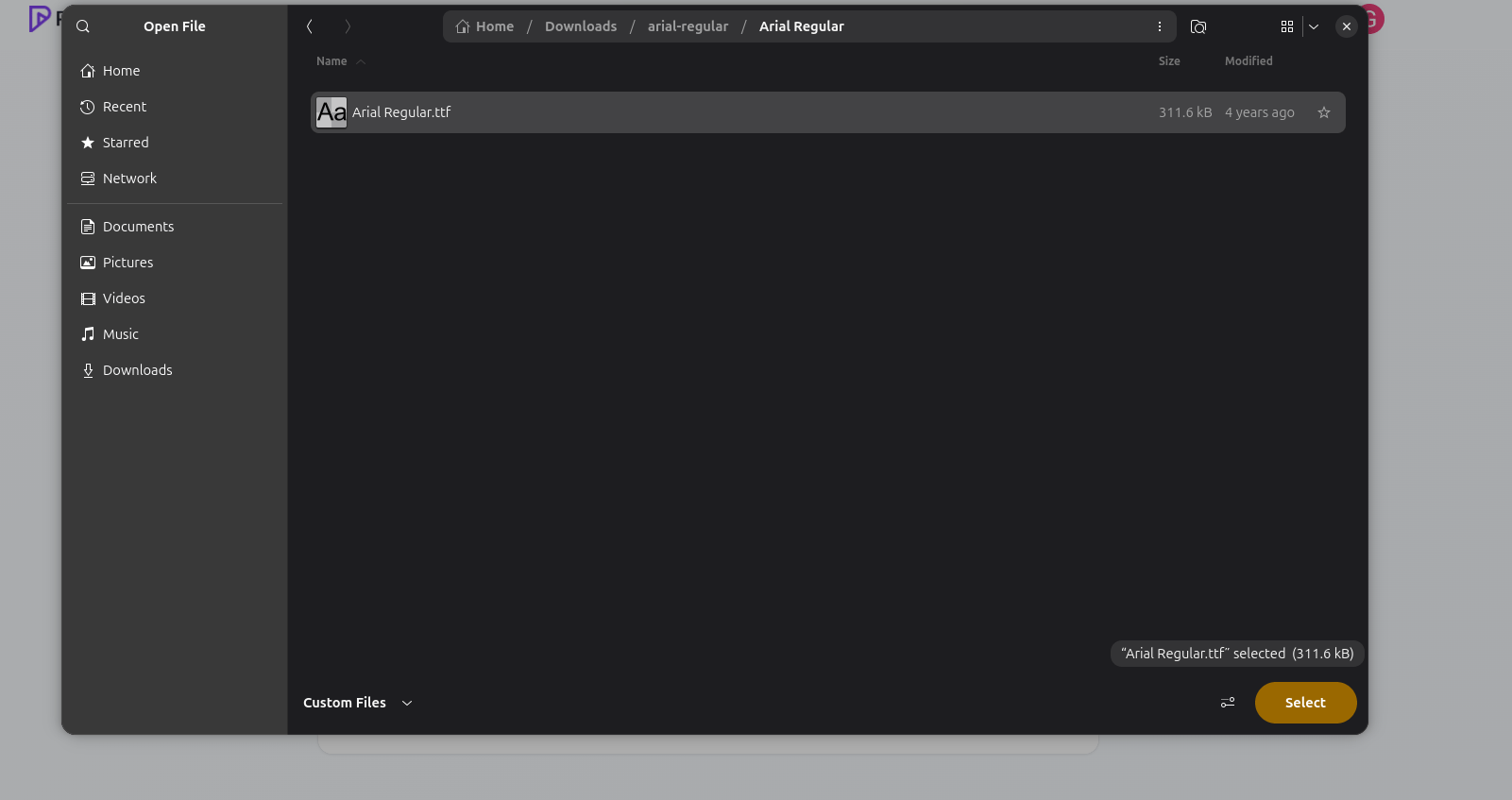
    Review **Available Fonts** and **Missing Fonts**. If a font is missing, click **Upload** and select its font file.

    <div className="guide-media guide-media--compact">
      <p className="guide-media-label">Review available and missing fonts</p>

      <div className="guide-media-viewport">
        <img src="https://mintcdn.com/presenton-521d9e2f/a7GBkBOgfm-3ZeQM/images/cloud/editwithpptx/fontmanagement.png?fit=max&auto=format&n=a7GBkBOgfm-3ZeQM&q=85&s=88494a416dc155539ad877077d7cbbf1" alt="Font Management showing available fonts and one missing font" width="952" height="749" data-path="images/cloud/editwithpptx/fontmanagement.png" />
      </div>
    </div>

    <div className="guide-media guide-media--screen">
      <p className="guide-media-label">Select the matching font file when a font is missing</p>

      <div className="guide-media-viewport">
        <img src="https://mintcdn.com/presenton-521d9e2f/a7GBkBOgfm-3ZeQM/images/cloud/editwithpptx/fontimprt.png?fit=max&auto=format&n=a7GBkBOgfm-3ZeQM&q=85&s=04754eb40a41bce90825c78281aee0bf" alt="File picker selecting the missing Arial Regular font file" width="1601" height="847" data-path="images/cloud/editwithpptx/fontimprt.png" />
      </div>
    </div>

    <Note>If every font is already available, continue without uploading a font file.</Note>
  </Step>

  <Step title="Import the presentation">
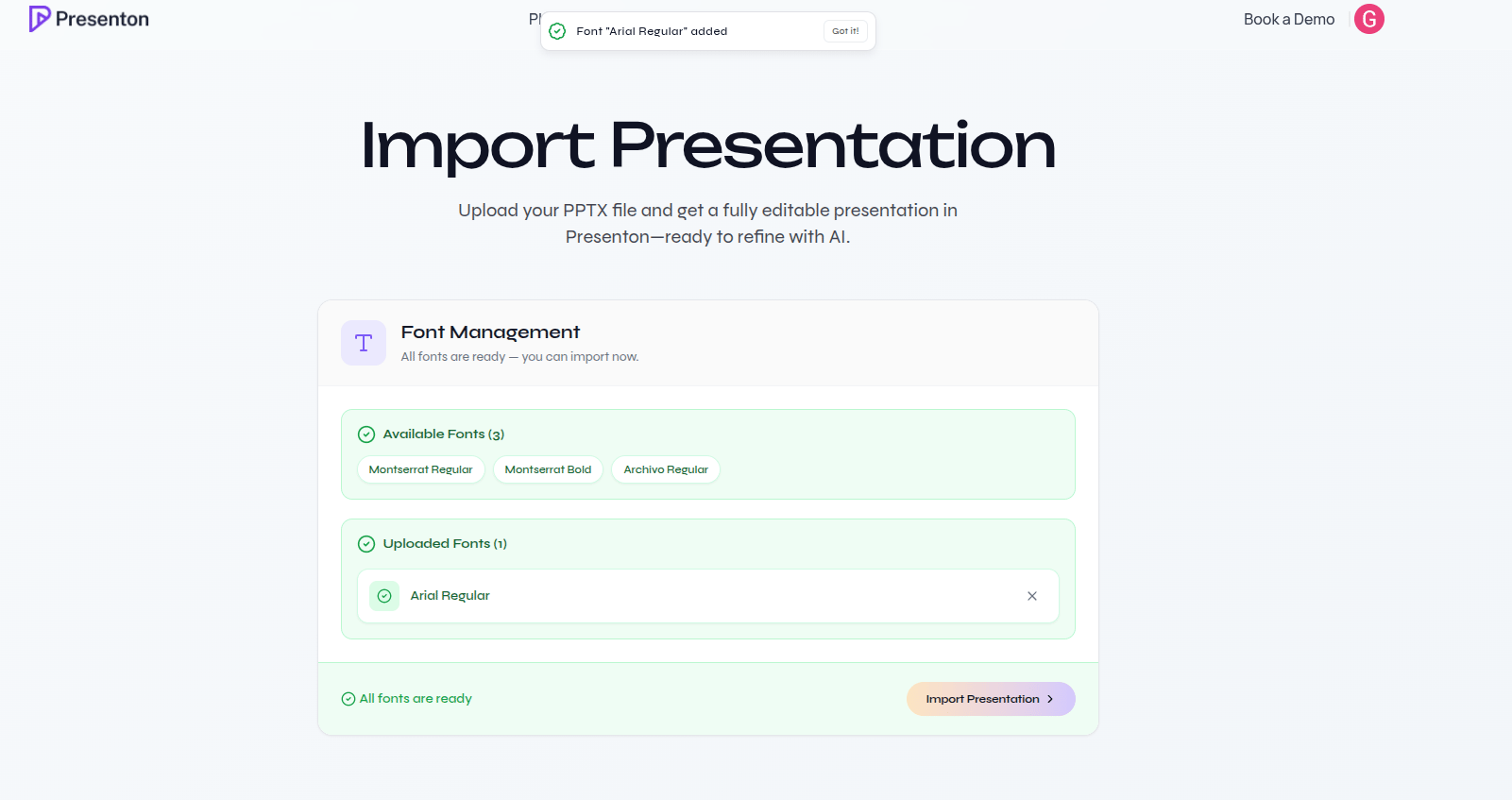
    Confirm that all fonts are ready, then click **Import Presentation**.

    <div className="guide-media guide-media--focus guide-media--focus-strong">
      <p className="guide-media-label">Import after all required fonts are ready</p>

      <div className="guide-media-viewport">
        <img src="https://mintcdn.com/presenton-521d9e2f/a7GBkBOgfm-3ZeQM/images/cloud/editwithpptx/customefontadded.png?fit=max&auto=format&n=a7GBkBOgfm-3ZeQM&q=85&s=305677697d0638aca6ebc35a9a397bf6" alt="Font Management confirming the uploaded font and showing Import Presentation" width="1601" height="847" data-path="images/cloud/editwithpptx/customefontadded.png" />
      </div>
    </div>
  </Step>

  <Step title="Edit with AI">
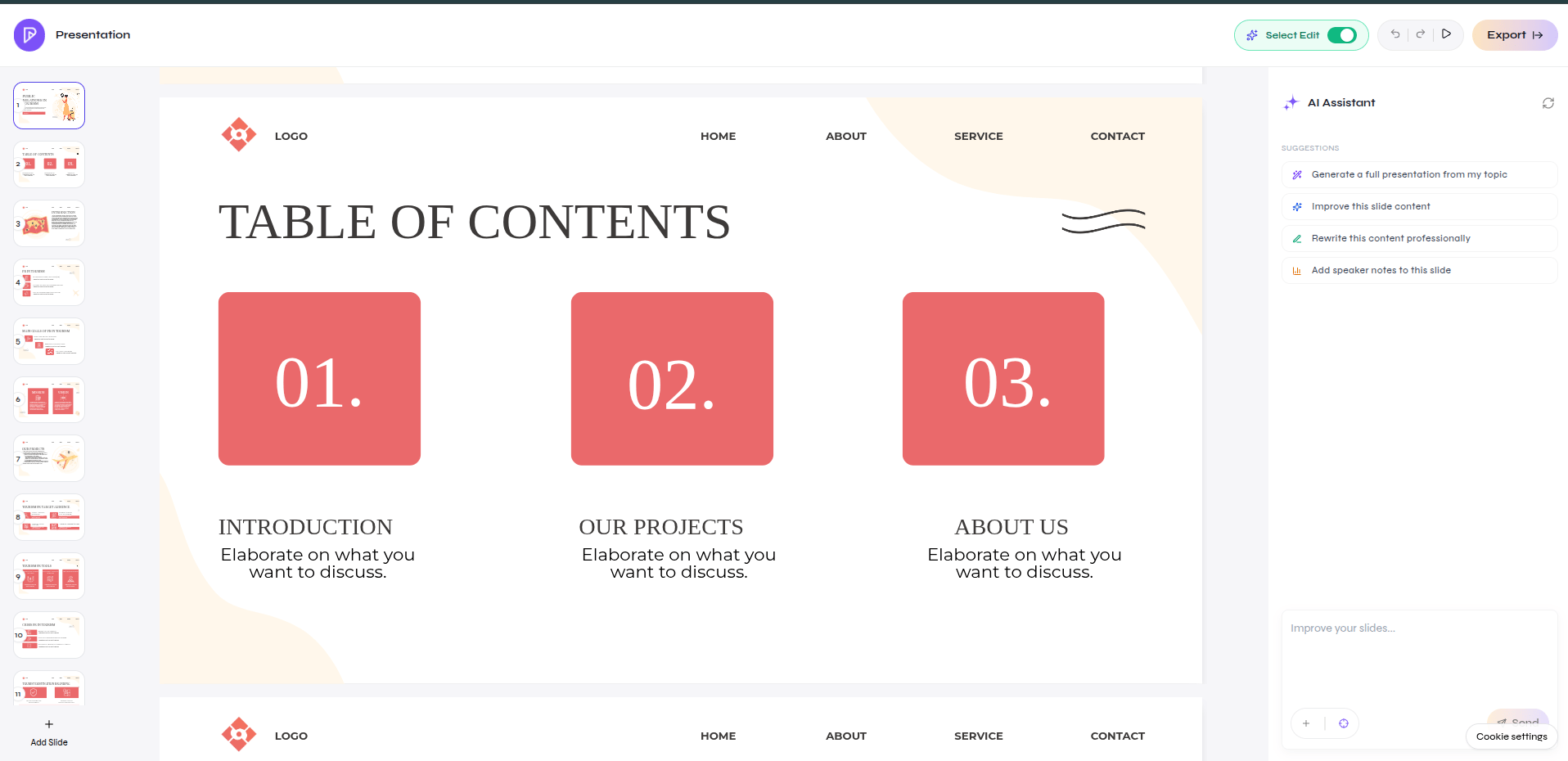
    Wait for the editable deck to open. Enable **Select Edit** for direct changes or use the **AI Assistant** to update slide content and design.

    <div className="guide-media guide-media--screen">
      <p className="guide-media-label">Edit the imported presentation directly or with AI</p>

      <div className="guide-media-viewport">
        <img src="https://mintcdn.com/presenton-521d9e2f/a7GBkBOgfm-3ZeQM/images/cloud/editwithpptx/editpptxeditor.png?fit=max&auto=format&n=a7GBkBOgfm-3ZeQM&q=85&s=fd4a3b73ca4489e014722cabf2b80096" alt="Imported PowerPoint presentation open in the Presenton Editor with Select Edit and AI Assistant" width="1916" height="930" data-path="images/cloud/editwithpptx/editpptxeditor.png" />
      </div>
    </div>
  </Step>
</Steps>