> ## Documentation Index
> Fetch the complete documentation index at: https://docs.presenton.ai/llms.txt
> Use this file to discover all available pages before exploring further.

# Create new Presentation

> Create a presentation in Presenton Cloud or open-source Presenton.

## Create a presentation

Choose **Cloud** for Presenton Cloud or **Open-source** for your local or self-hosted installation. Each tab follows the workflow from prompt to generated presentation.

## Generation essentials

| Decision          | Guidance                                                                                                                    |
| ----------------- | --------------------------------------------------------------------------------------------------------------------------- |
| Presentation type | Use **Standard** for reusable template layouts. Choose **Smart** when available and the design should adapt to the content. |
| Prompt            | Name the audience, desired outcome, scope, and facts that must remain unchanged.                                            |
| Source material   | Attach only relevant, authoritative documents, spreadsheets, images, or presentations.                                      |
| Controls          | Set the slide count, language, tone, verbosity, and structural options that carry a real requirement.                       |
| Outline           | Correct missing content, weak sequencing, unsupported claims, and unnecessary slides before generation.                     |

<Tip>
  Use the prompt to explain what to create and attachments to provide evidence. For example: `Create a seven-slide executive update from the attached report. Preserve every reported figure and end with three decisions.`
</Tip>

<Tabs>
  <Tab title="Cloud">
    <Steps>
      <Step title="Open Create new Presentation">
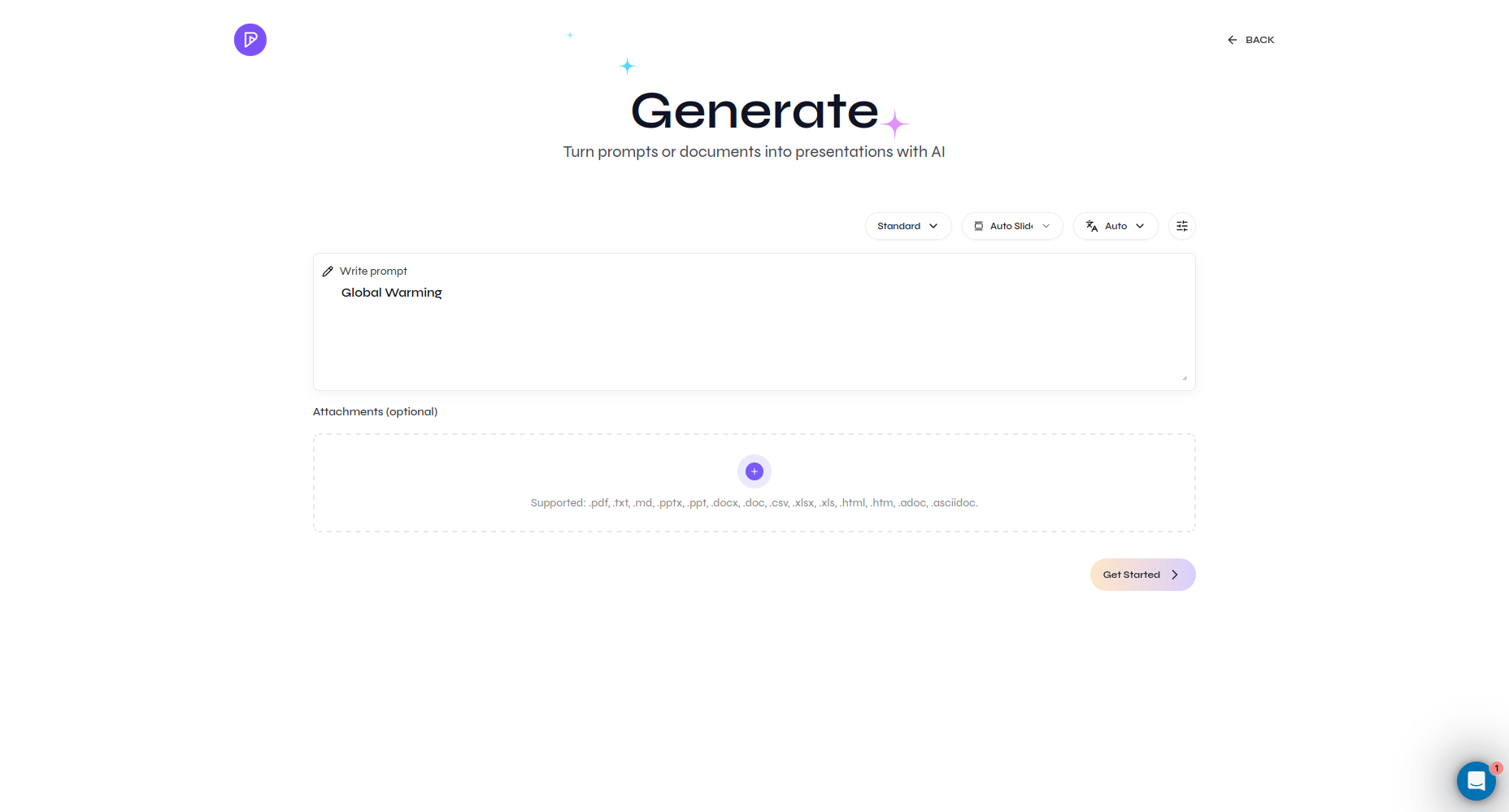
        Select **Create new Presentation** from the Cloud dashboard.

        <div className="guide-media guide-media--focus">
          <p className="guide-media-label">Open the Cloud generator</p>

          <div className="guide-media-viewport">
            <img src="https://mintcdn.com/presenton-521d9e2f/WyZNN3npwarofQJS/images/cloud/quickstart/01-open-generator.png?fit=max&auto=format&n=WyZNN3npwarofQJS&q=85&s=e4748aadd043a61b7e975493313bfe89" alt="Presenton Cloud Create new Presentation screen" width="1856" height="999" data-path="images/cloud/quickstart/01-open-generator.png" />
          </div>
        </div>
      </Step>

      <Step title="Choose Standard or Smart">
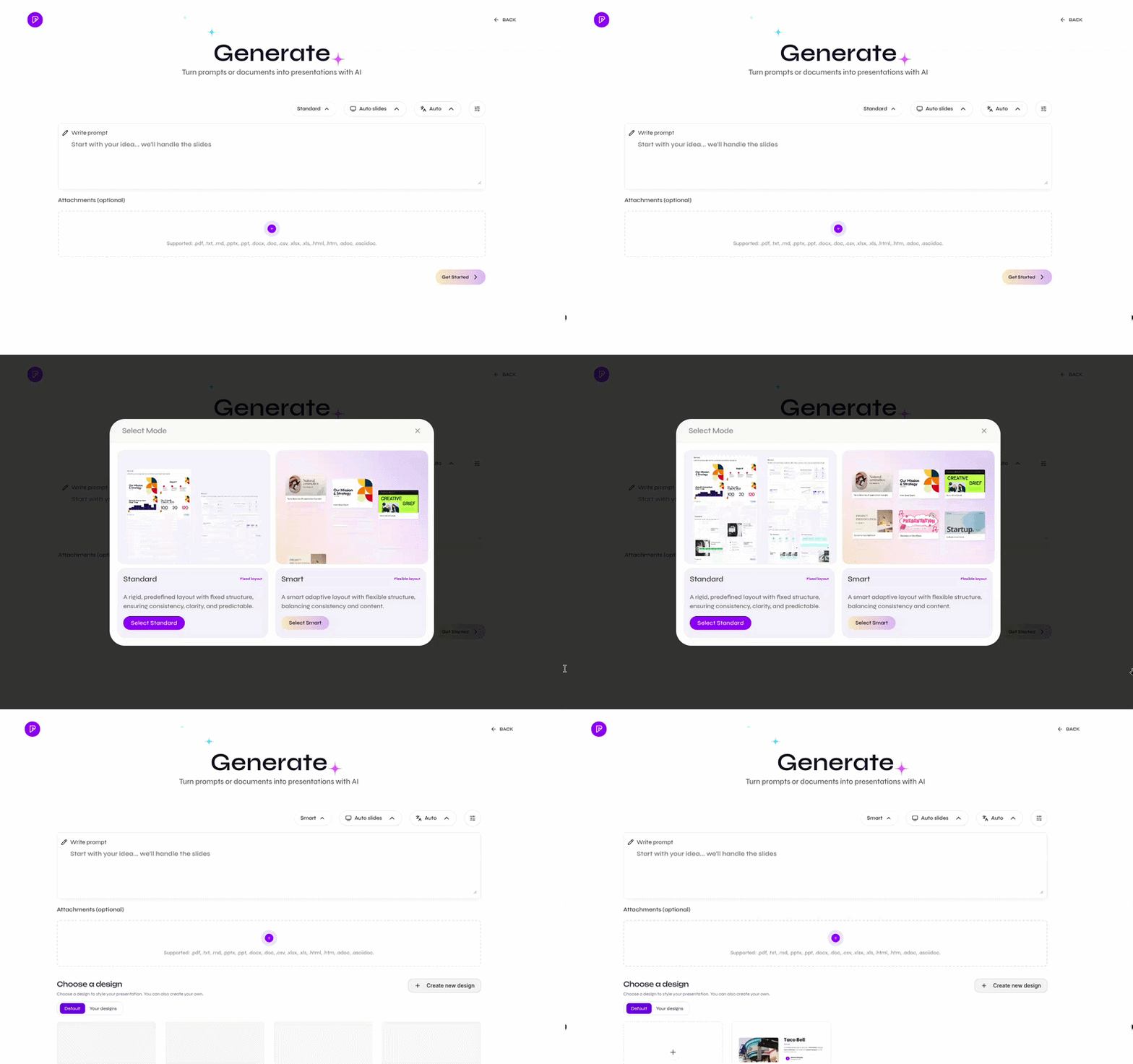
        Choose **Standard** for template-based layouts or **Smart** for content-driven composition.

        <div className="guide-media guide-media--workflow">
          <p className="guide-media-label">Switch between Standard and Smart</p>

          <div className="guide-media-viewport">
            <img src="https://mintcdn.com/presenton-521d9e2f/isevrd3o6JPIkznF/images/user-guide/creating-presentations/generation-workflow/cloud-mode-standard-smart.gif?s=460ba27e7fc29af1c687b1a57c40003f" alt="Selecting Standard and Smart presentation modes" width="800" height="502" data-path="images/user-guide/creating-presentations/generation-workflow/cloud-mode-standard-smart.gif" />
          </div>
        </div>
      </Step>

      <Step title="Set the slides and language">
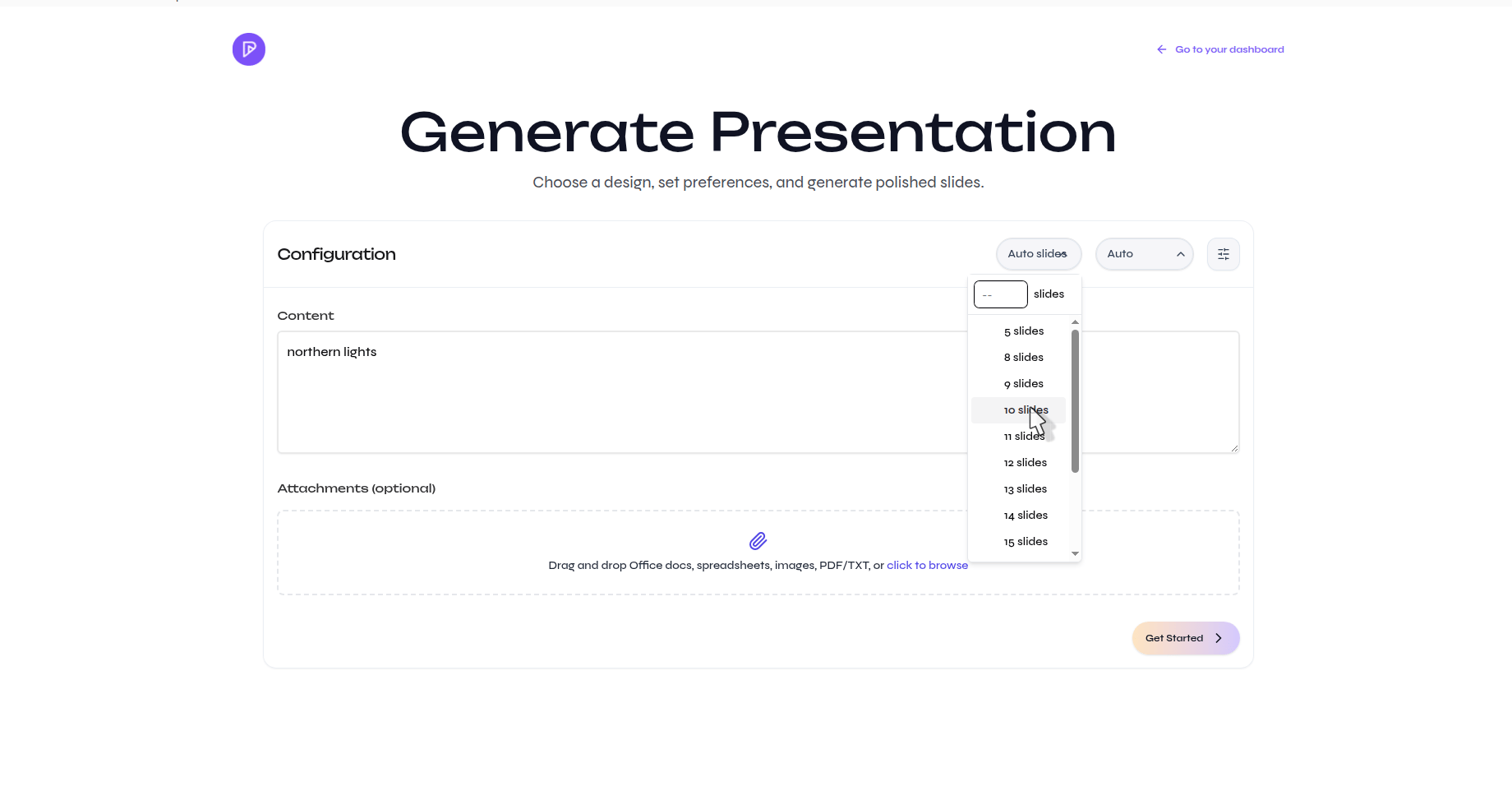
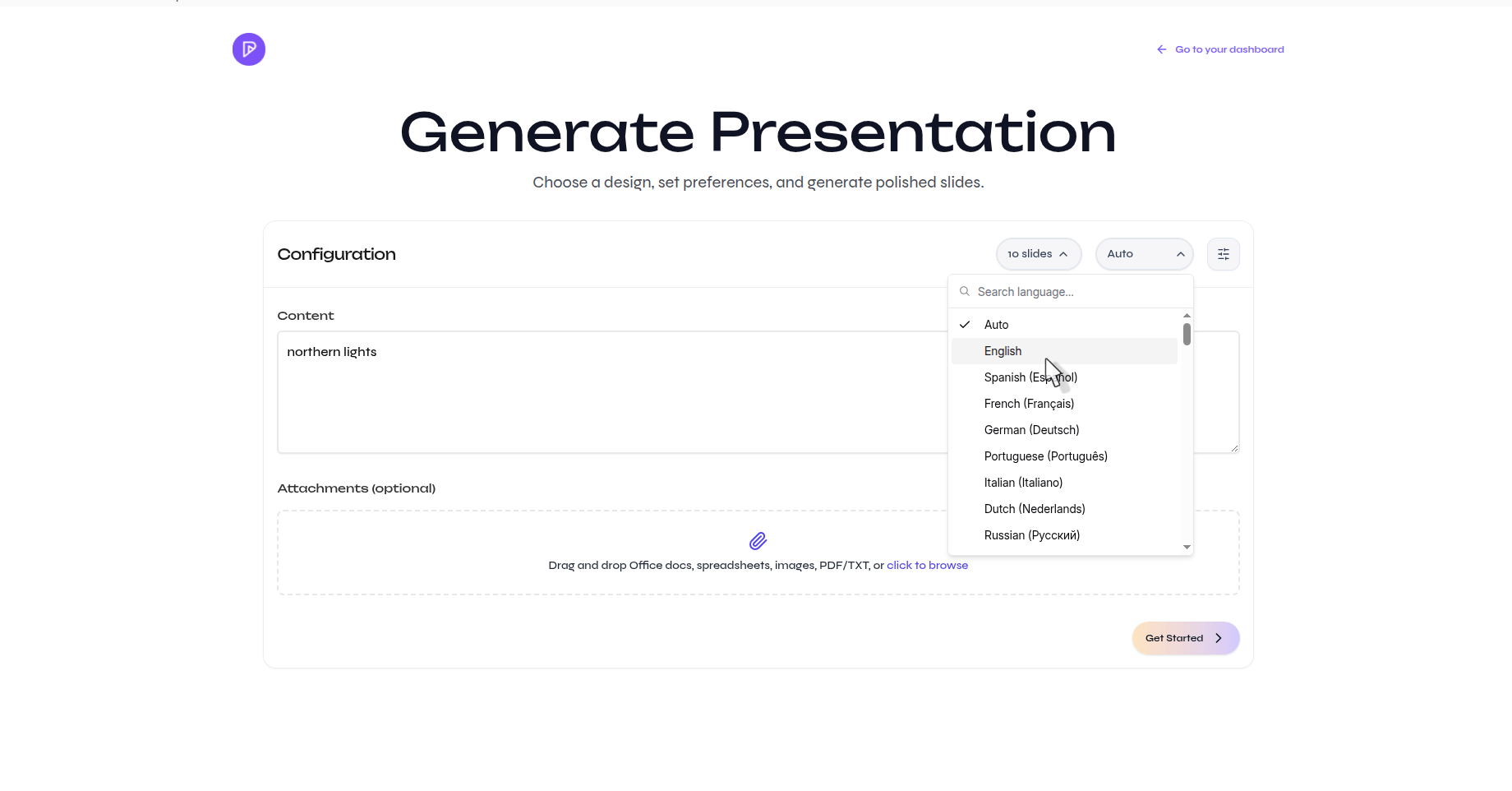
        Choose **Auto slides** or a fixed count, then select the output language.

        <div className="guide-media guide-media--focus">
          <p className="guide-media-label">Choose Auto slides or a fixed slide count</p>

          <div className="guide-media-viewport">
            <img src="https://mintcdn.com/presenton-521d9e2f/WyZNN3npwarofQJS/images/cloud/generation-controls/choose-slide-count.png?fit=max&auto=format&n=WyZNN3npwarofQJS&q=85&s=68e129e0c836bf7e9efdd44b5811f560" alt="Cloud control for choosing the number of slides" width="1840" height="962" data-path="images/cloud/generation-controls/choose-slide-count.png" />
          </div>
        </div>

        <div className="guide-media guide-media--focus">
          <p className="guide-media-label">Select the presentation language</p>

          <div className="guide-media-viewport">
            <img src="https://mintcdn.com/presenton-521d9e2f/WyZNN3npwarofQJS/images/cloud/generation-controls/choose-output-language.png?fit=max&auto=format&n=WyZNN3npwarofQJS&q=85&s=8c7732cb24f38a59598bfeeb509db9a4" alt="Cloud control for choosing the presentation language" width="1840" height="962" data-path="images/cloud/generation-controls/choose-output-language.png" />
          </div>
        </div>
      </Step>

      <Step title="Add the prompt and files">
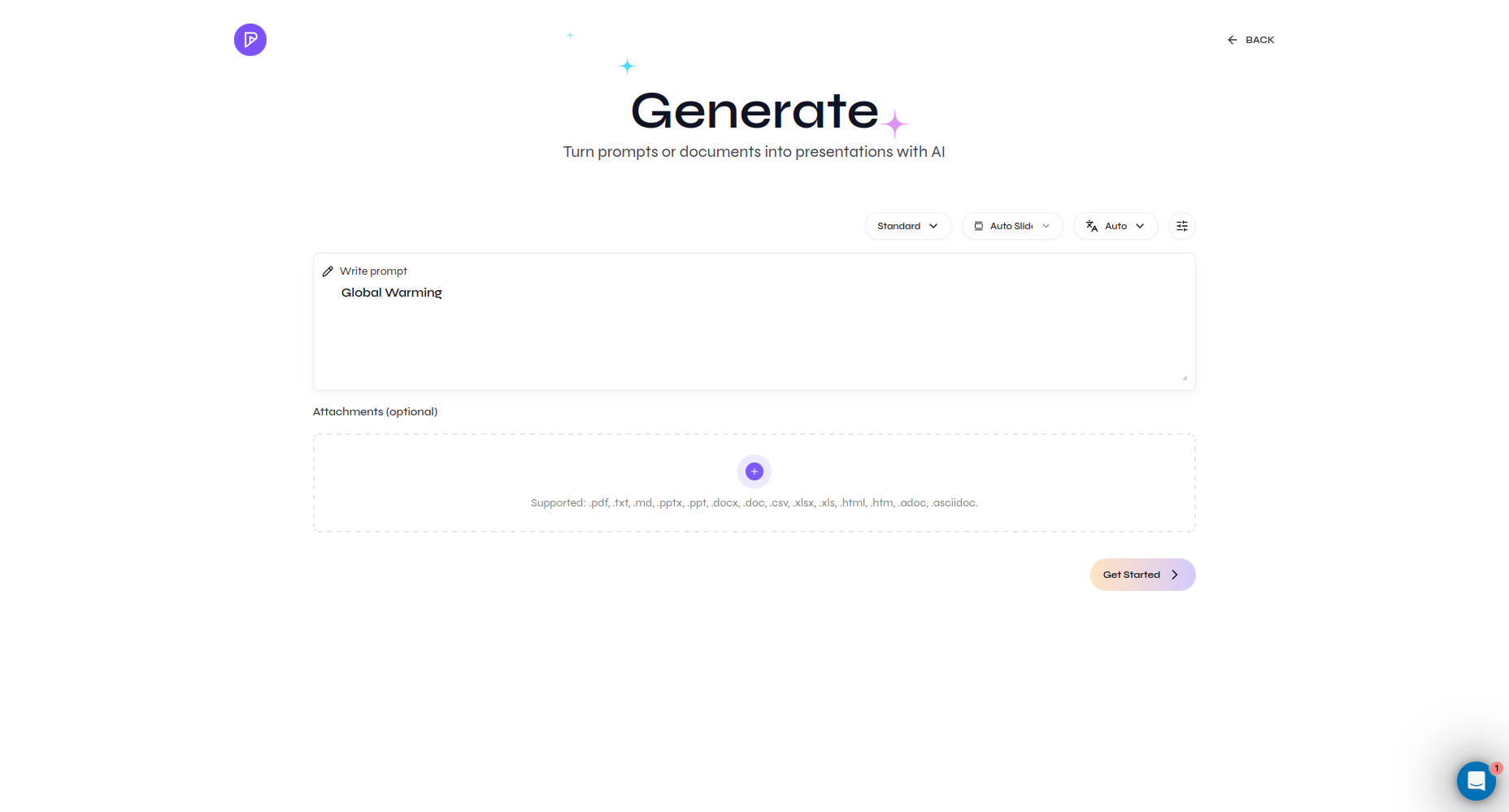
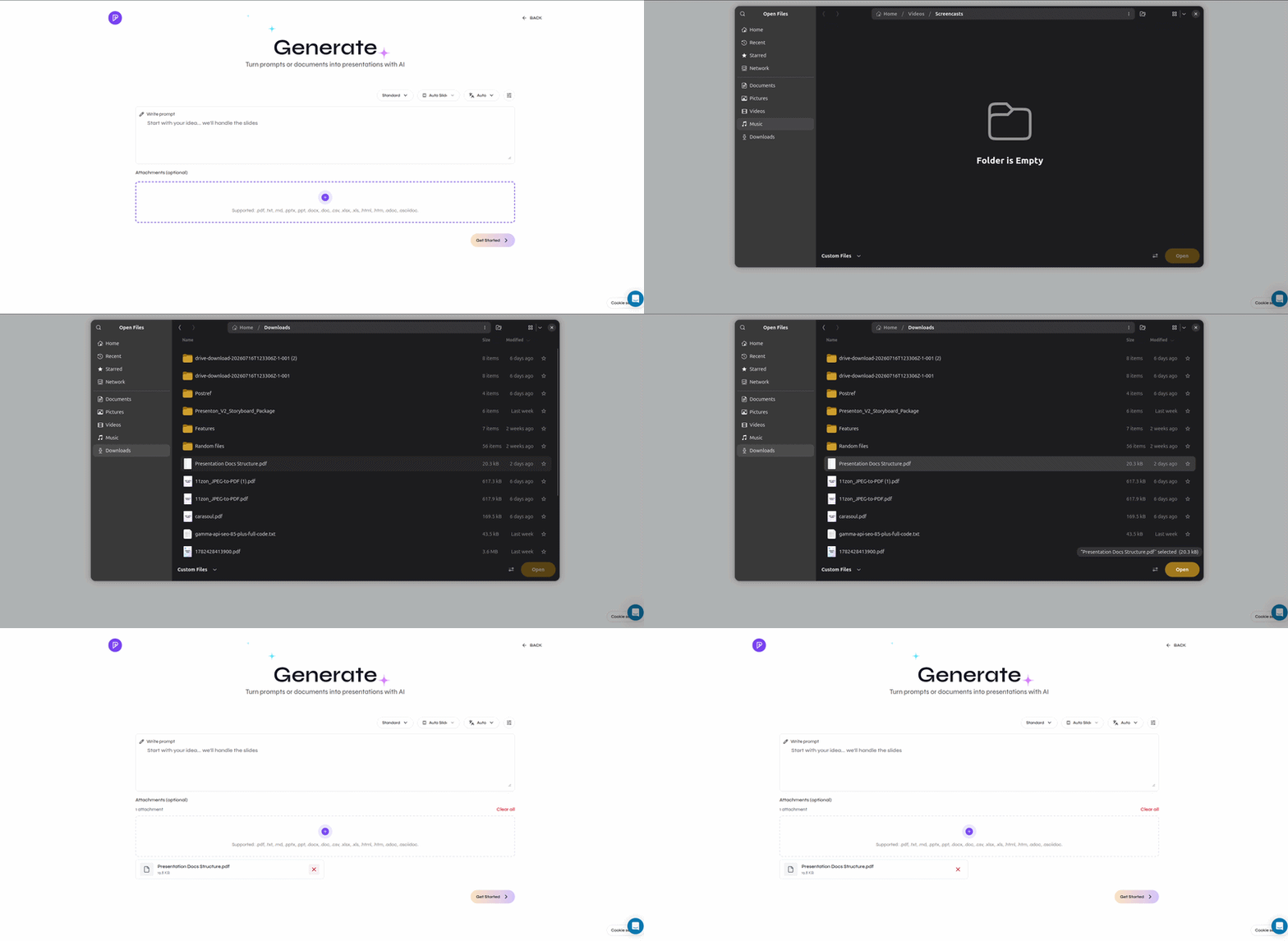
        Describe the presentation you want. Attach reference files when Presenton should use specific source material.

        <div className="guide-media guide-media--focus">
          <p className="guide-media-label">Describe the presentation you want</p>

          <div className="guide-media-viewport">
            <img src="https://mintcdn.com/presenton-521d9e2f/WyZNN3npwarofQJS/images/cloud/quickstart/02-enter-prompt.png?fit=max&auto=format&n=WyZNN3npwarofQJS&q=85&s=388ab57bdd3bb92188e7ea21c87de391" alt="Prompt entered on the Cloud generation page" width="1856" height="999" data-path="images/cloud/quickstart/02-enter-prompt.png" />
          </div>
        </div>

        <div className="guide-media">
          <p className="guide-media-label">Attach files beside the prompt</p>

          <div className="guide-media-viewport">
            <img src="https://mintcdn.com/presenton-521d9e2f/at0fMZFzkP-vbjoy/images/cloud/attachmentuplaoding.gif?s=8e033b5c3fa757900162c4b99a608a19" alt="Reference file attached beside the Cloud prompt" width="800" height="390" data-path="images/cloud/attachmentuplaoding.gif" />
          </div>
        </div>
      </Step>

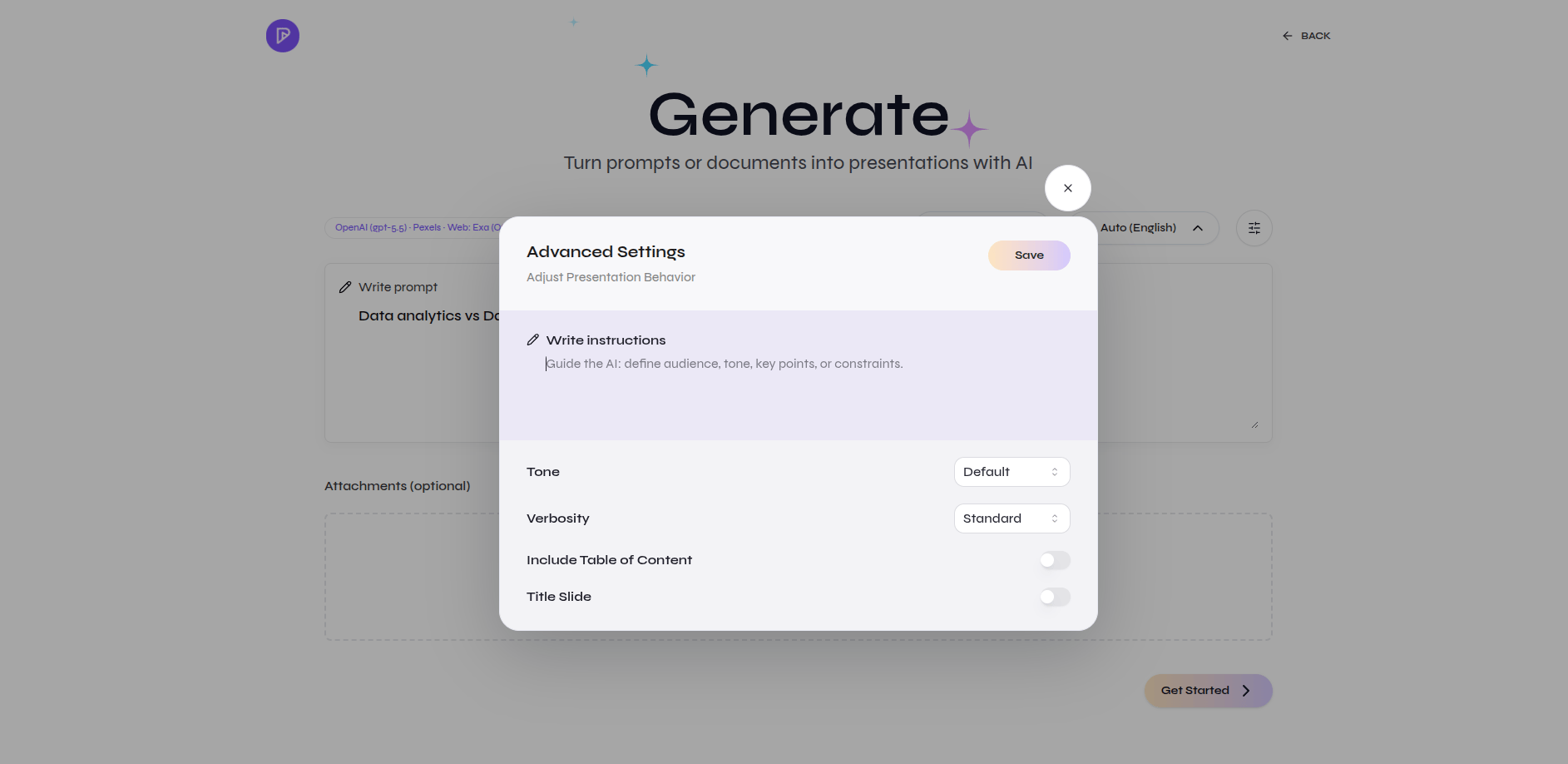
      <Step title="Review Advanced settings">
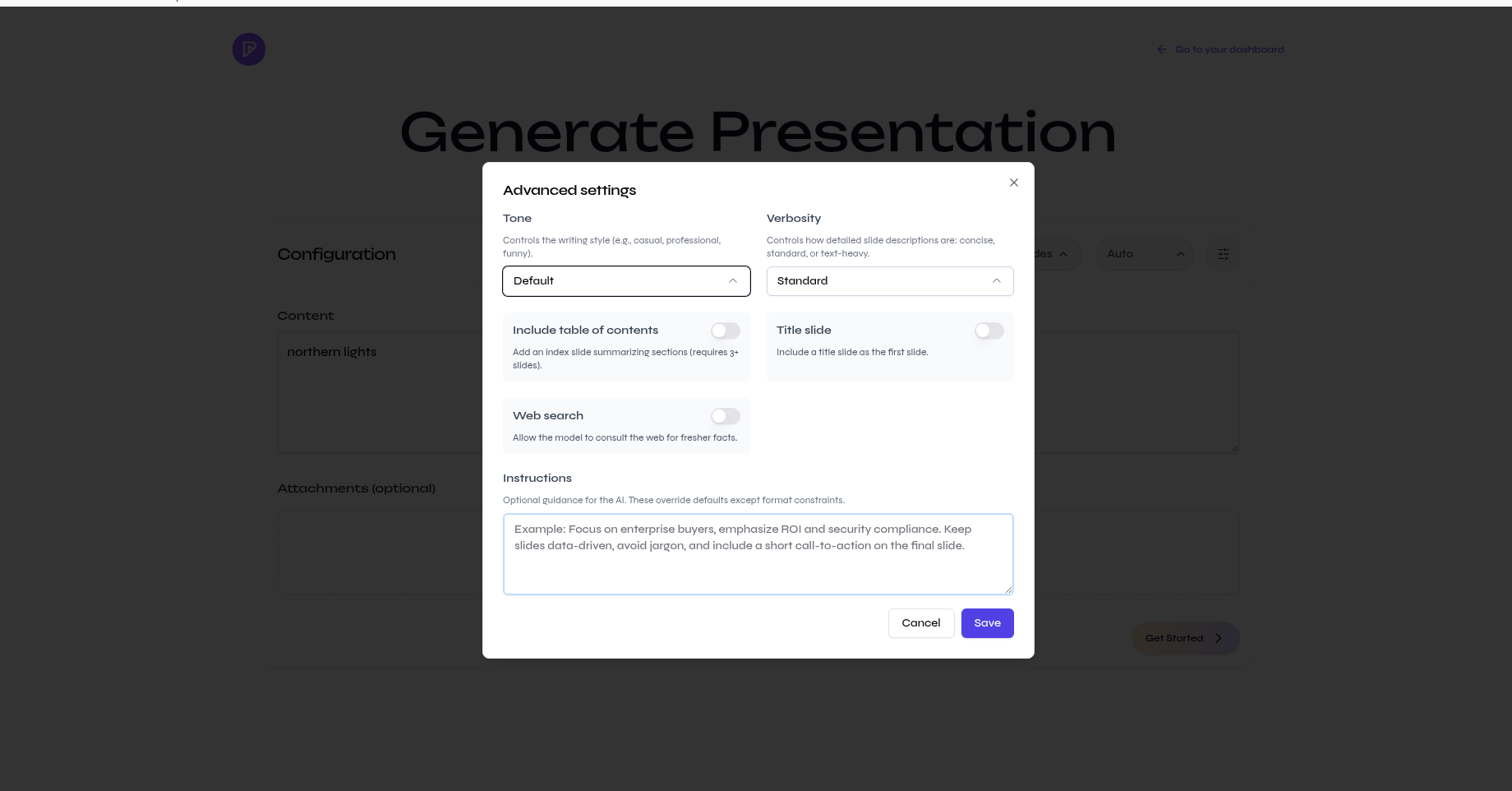
        Set tone, verbosity, title slide, table of contents, web search, or additional instructions when needed.

        <div className="guide-media guide-media--focus">
          <p className="guide-media-label">Adjust only the settings you need</p>

          <div className="guide-media-viewport">
            <img src="https://mintcdn.com/presenton-521d9e2f/WyZNN3npwarofQJS/images/cloud/generation-controls/advanced-settings-modal.png?fit=max&auto=format&n=WyZNN3npwarofQJS&q=85&s=5254b5c5de315588f35d411f432c816e" alt="Advanced settings for tone, verbosity, structure, web search, and instructions" width="1840" height="962" data-path="images/cloud/generation-controls/advanced-settings-modal.png" />
          </div>
        </div>
      </Step>

      <Step title="Get started">
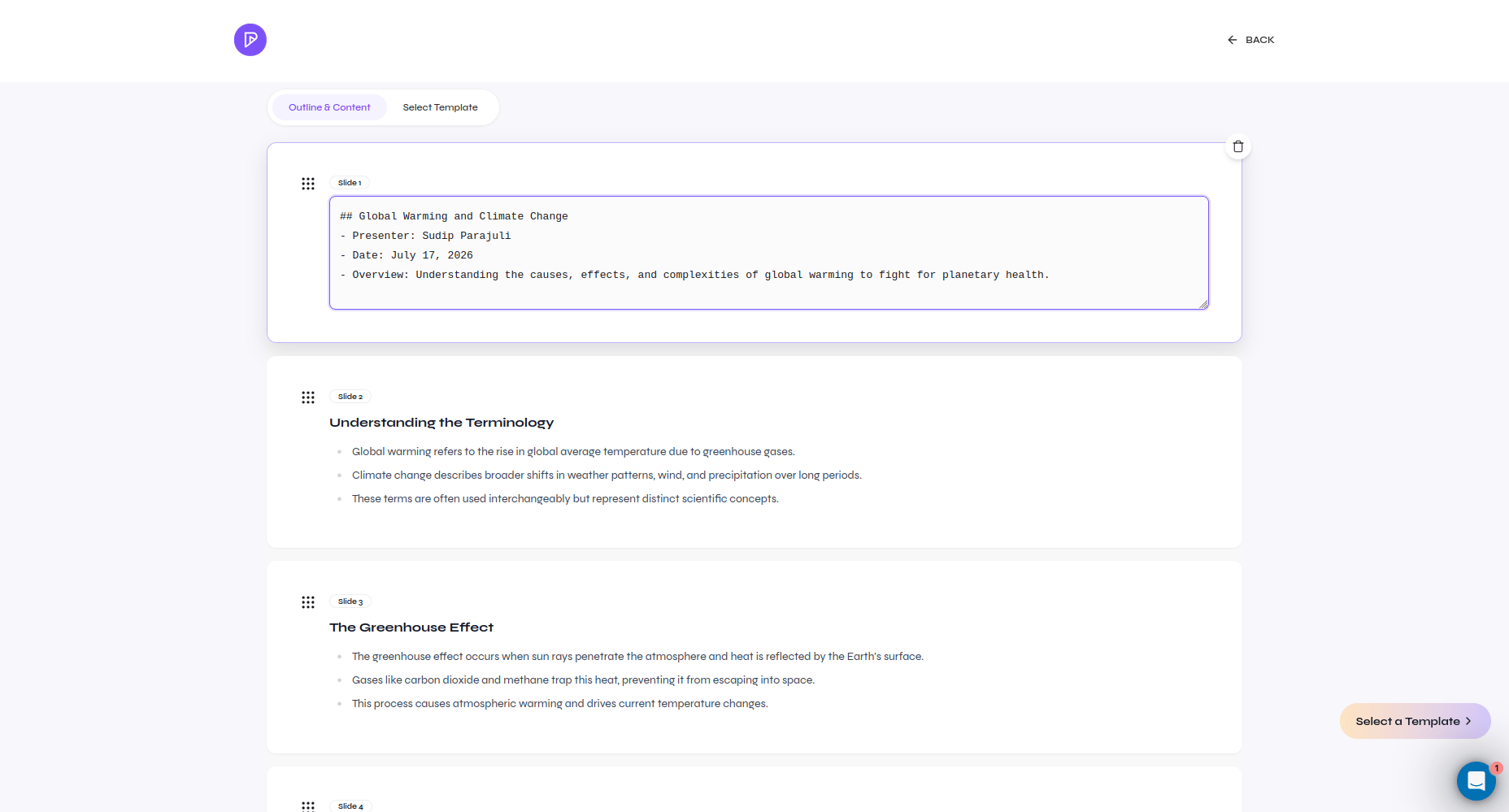
        Select **Get Started**, review the outline, and choose the design before generating the presentation.

        <div className="guide-media guide-media--focus">
          <p className="guide-media-label">Review the outline before generating slides</p>

          <div className="guide-media-viewport">
            <img src="https://mintcdn.com/presenton-521d9e2f/WyZNN3npwarofQJS/images/cloud/quickstart/04-edit-outline.png?fit=max&auto=format&n=WyZNN3npwarofQJS&q=85&s=70a70962024028cca65effafce87cf6f" alt="Generated presentation outline ready for review" width="1856" height="999" data-path="images/cloud/quickstart/04-edit-outline.png" />
          </div>
        </div>

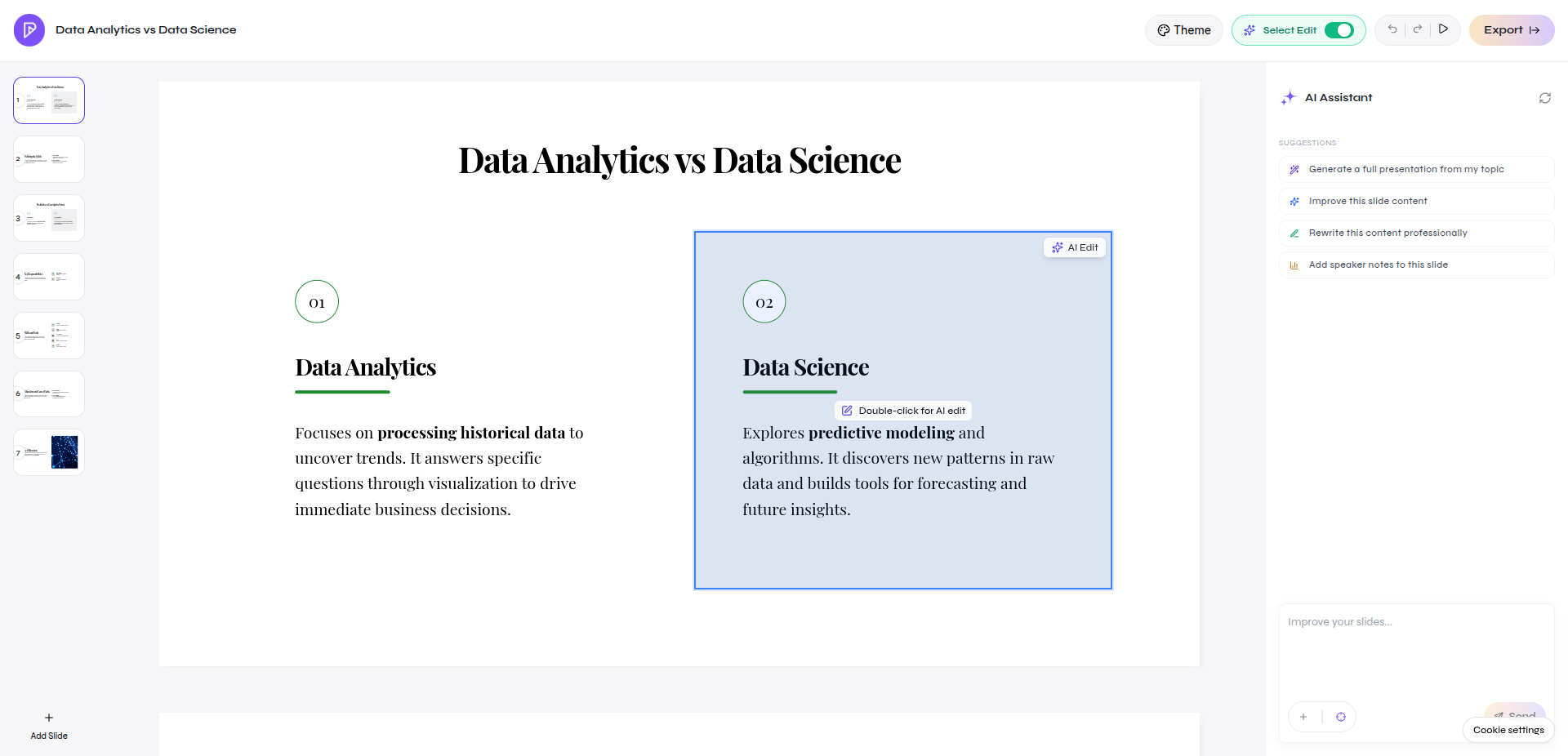
        After generation, the presentation opens in the editor.

        <div className="guide-media">
          <p className="guide-media-label">Continue in the Presenton Editor</p>

          <div className="guide-media-viewport">
            <img src="https://mintcdn.com/presenton-521d9e2f/a7GBkBOgfm-3ZeQM/images/cloud/editor.png?fit=max&auto=format&n=a7GBkBOgfm-3ZeQM&q=85&s=a8b5dcf7f1ffacbb98e2907bbae94b96" alt="Generated Cloud presentation open in the Presenton Editor" width="1920" height="926" data-path="images/cloud/editor.png" />
          </div>
        </div>
      </Step>
    </Steps>
  </Tab>

  <Tab title="Open-source">
    Complete [open-source onboarding](/archive/v0.9.1-beta/user-guide/onboarding#open-source) first.

    <Steps>
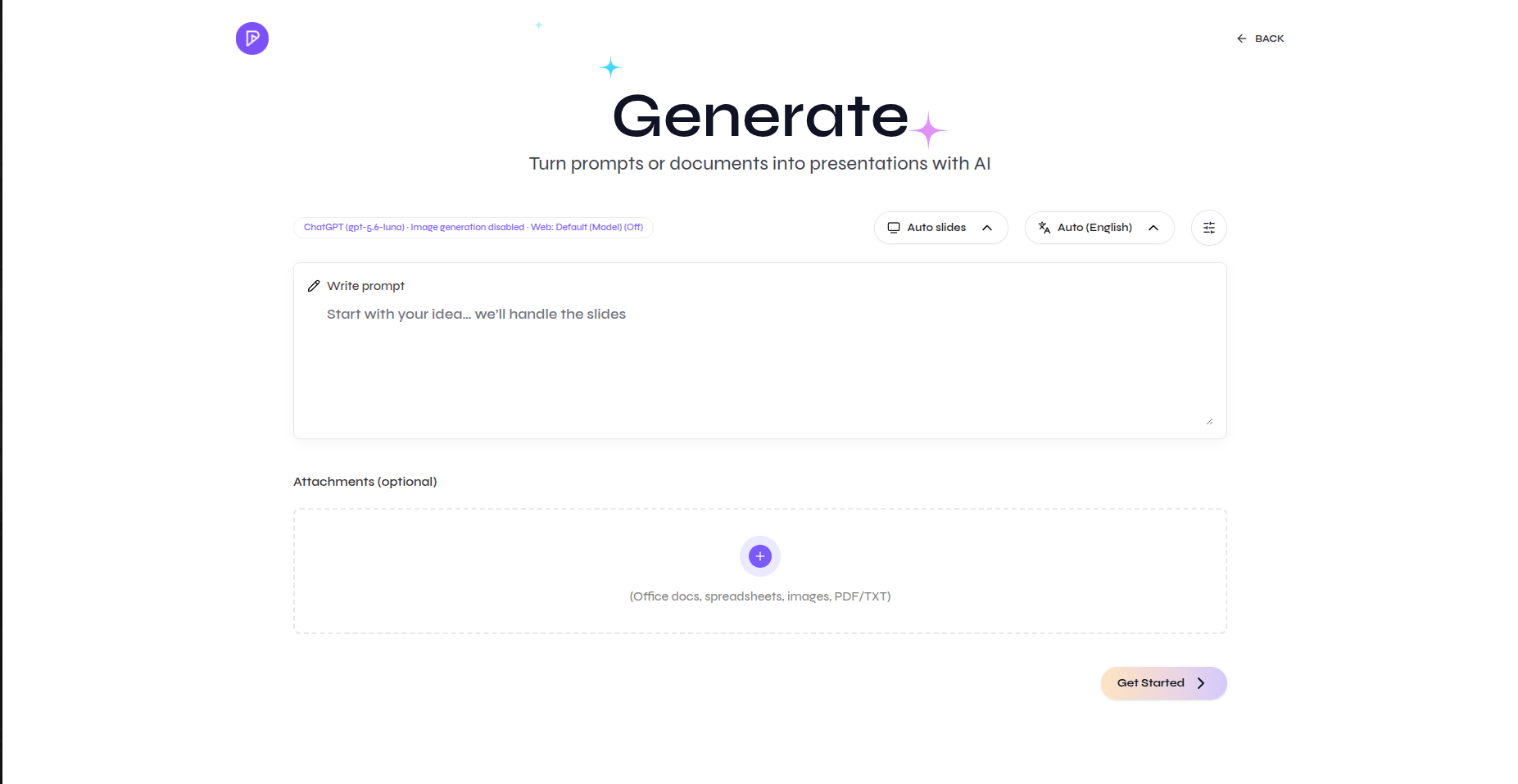
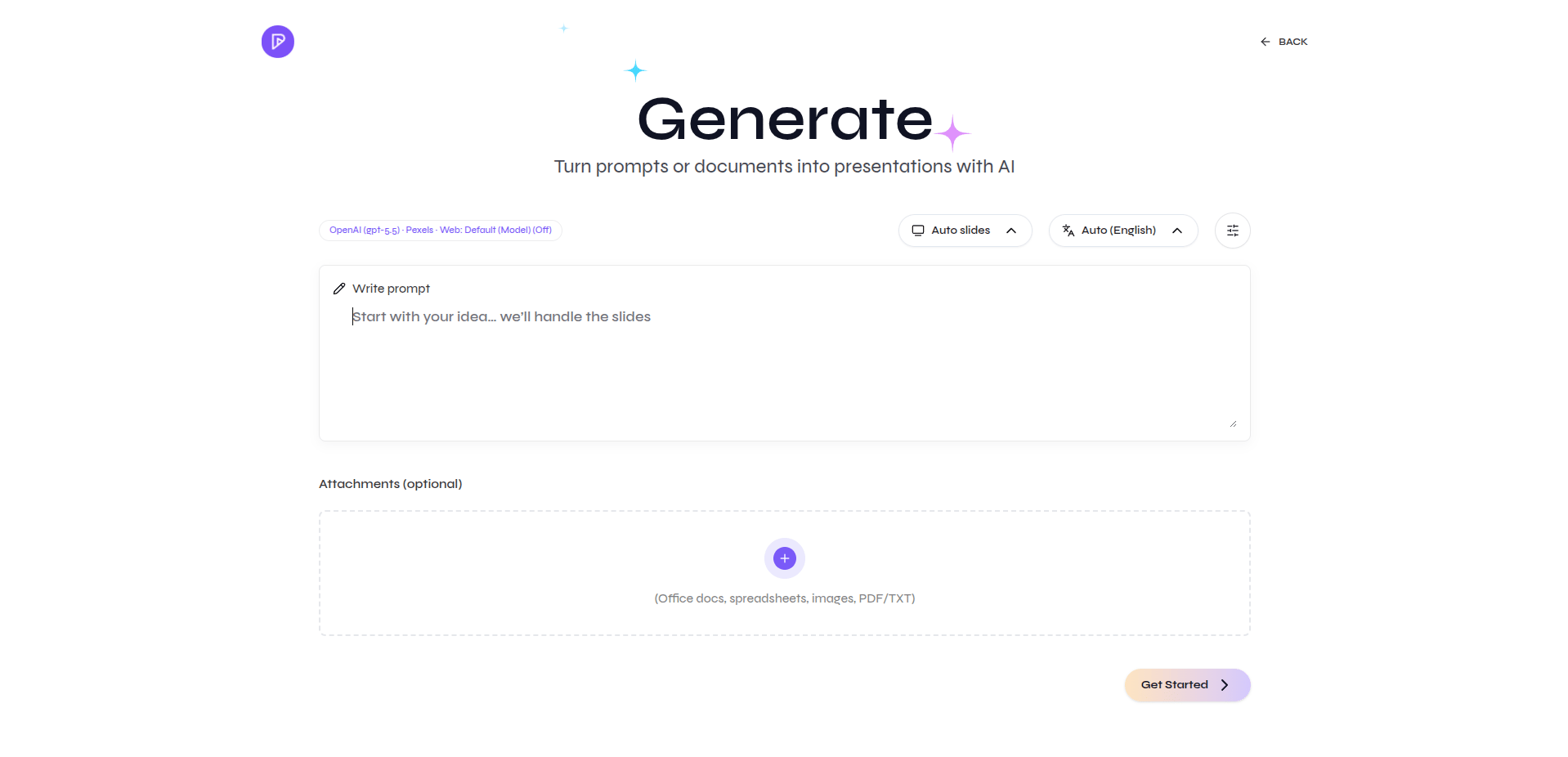
      <Step title="Open the generator">
        Start a new presentation and confirm the configured provider shown above the prompt.

        <div className="guide-media guide-media--focus">
          <p className="guide-media-label">Open the Generate page</p>

          <div className="guide-media-viewport">
            <img src="https://mintcdn.com/presenton-521d9e2f/a7GBkBOgfm-3ZeQM/images/opensource_onboarding/image-9.png?fit=max&auto=format&n=a7GBkBOgfm-3ZeQM&q=85&s=a7148bb69e750b86d18a36d81c6482a1" alt="Open-source Generate page with prompt, attachments, slide count, language, and Get Started button" width="1853" height="957" data-path="images/opensource_onboarding/image-9.png" />
          </div>
        </div>
      </Step>

      <Step title="Configure the presentation">
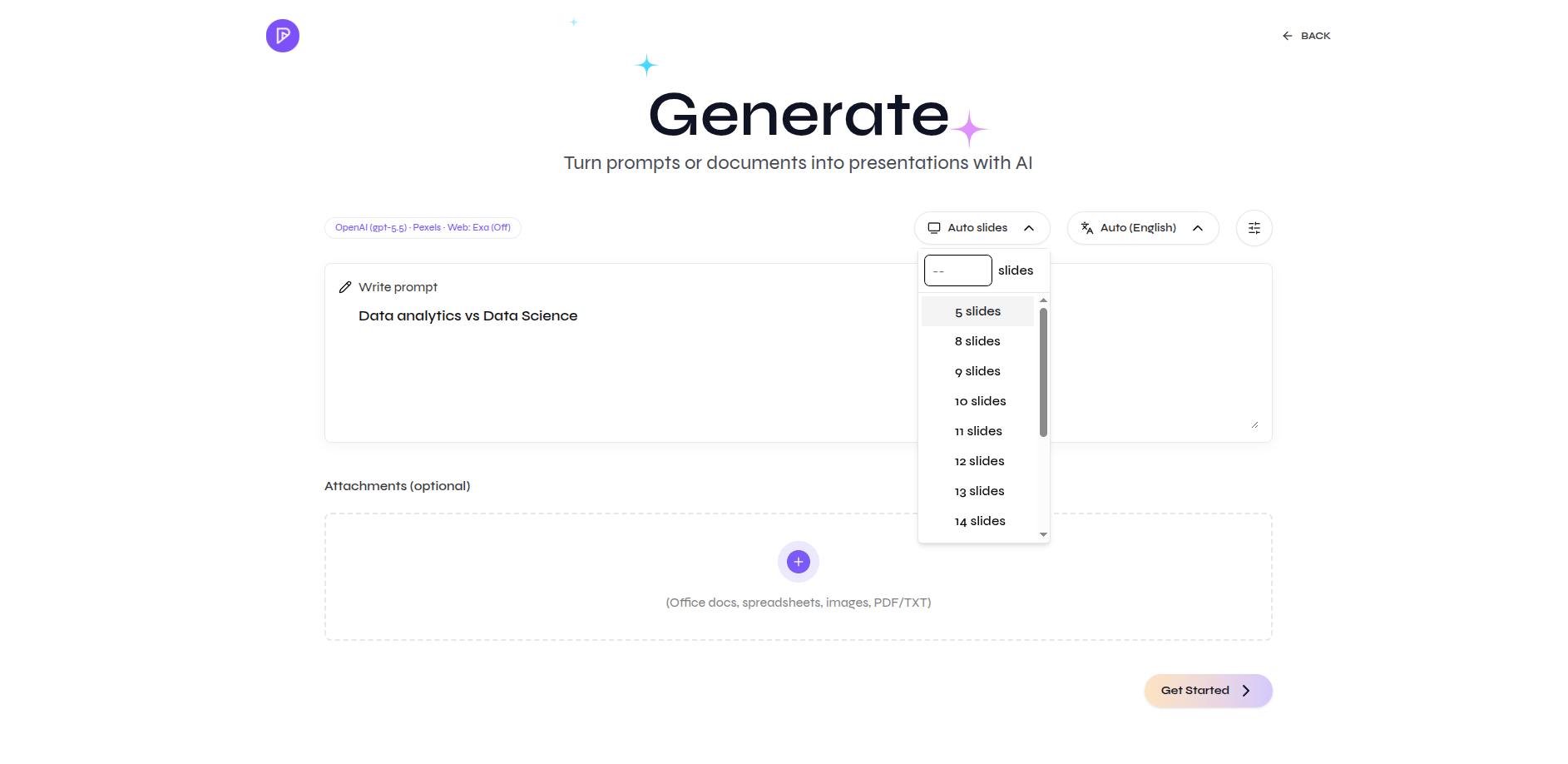
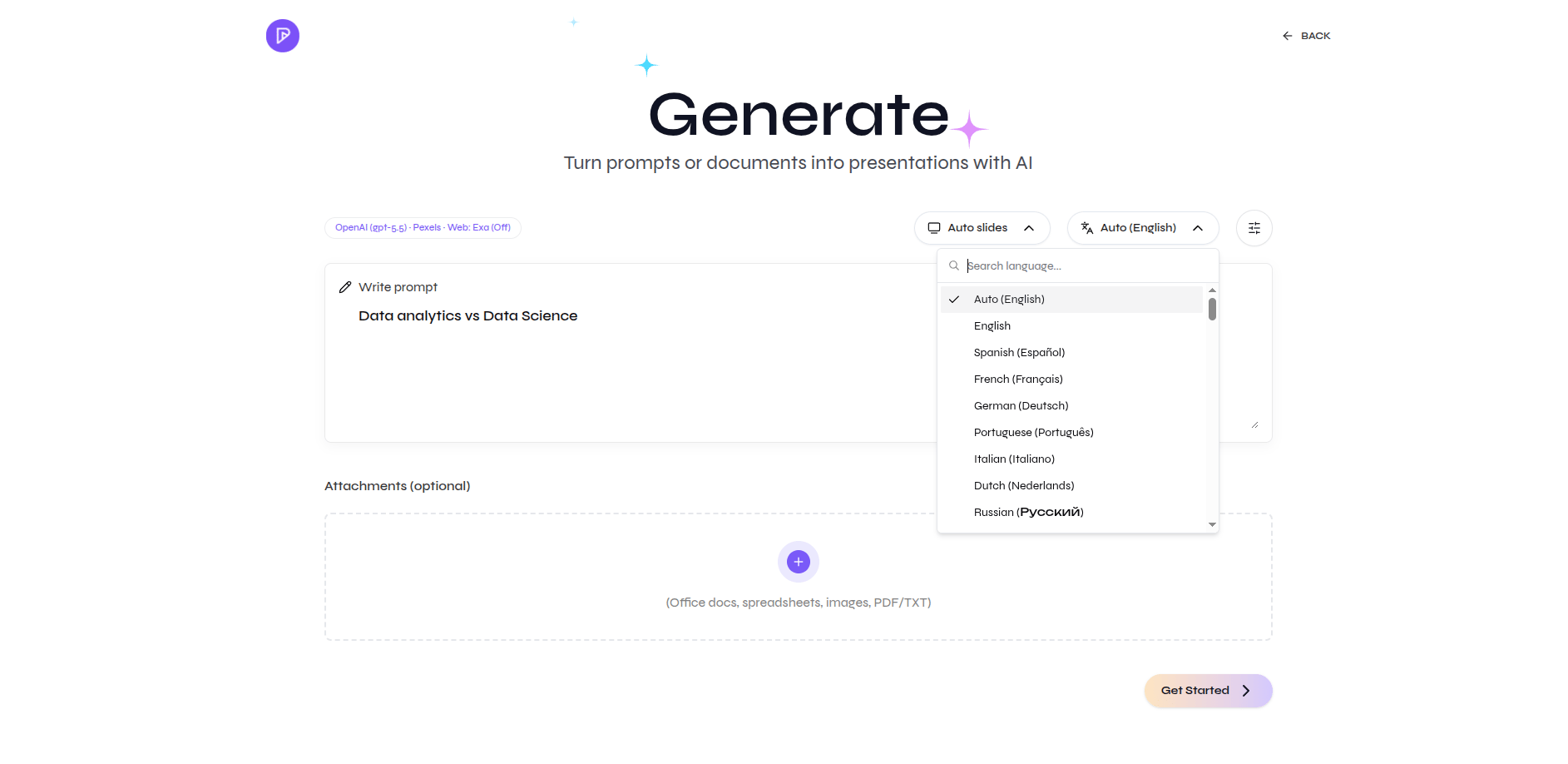
        Keep **Auto slides** or choose a slide count, select the language, and open **Advanced settings** when needed.

        <div className="guide-media guide-media--focus">
          <p className="guide-media-label">Choose Auto slides or a fixed slide count</p>

          <div className="guide-media-viewport">
            <img src="https://mintcdn.com/presenton-521d9e2f/a7GBkBOgfm-3ZeQM/images/opensource_onboarding/generate/slidenumber.png?fit=max&auto=format&n=a7GBkBOgfm-3ZeQM&q=85&s=1823f82de15e50697e8e9db9736efa7f" alt="Open-source slide count menu with Auto slides and fixed slide options" width="1885" height="918" data-path="images/opensource_onboarding/generate/slidenumber.png" />
          </div>
        </div>

        <div className="guide-media guide-media--focus">
          <p className="guide-media-label">Select the presentation language</p>

          <div className="guide-media-viewport">
            <img src="https://mintcdn.com/presenton-521d9e2f/a7GBkBOgfm-3ZeQM/images/opensource_onboarding/generate/langauge.png?fit=max&auto=format&n=a7GBkBOgfm-3ZeQM&q=85&s=ca1fb490a8d62679d07e0a92bde6b65f" alt="Open-source language menu with Auto English and language options" width="1885" height="918" data-path="images/opensource_onboarding/generate/langauge.png" />
          </div>
        </div>

        <div className="guide-media guide-media--focus">
          <p className="guide-media-label">Review Advanced settings when needed</p>

          <div className="guide-media-viewport">
            <img src="https://mintcdn.com/presenton-521d9e2f/a7GBkBOgfm-3ZeQM/images/opensource_onboarding/generate/advancesetting.png?fit=max&auto=format&n=a7GBkBOgfm-3ZeQM&q=85&s=492181f39f41d7a02c9adf641481ce99" alt="Open-source Advanced Settings modal with instructions, tone, verbosity, table of contents, and title slide" width="1885" height="918" data-path="images/opensource_onboarding/generate/advancesetting.png" />
          </div>
        </div>
      </Step>

      <Step title="Add the prompt and files">
        Enter a prompt, upload reference files, or use both.

        <div className="guide-media guide-media--focus">
          <p className="guide-media-label">Upload supporting files below the prompt</p>

          <div className="guide-media-viewport">
            <img src="https://mintcdn.com/presenton-521d9e2f/isevrd3o6JPIkznF/images/user-guide/creating-presentations/generation-workflow/open-source-upload.png?fit=max&auto=format&n=isevrd3o6JPIkznF&q=85&s=ce8eb24e76149049f03cdd834e879249" alt="Open-source file upload area" width="1918" height="926" data-path="images/user-guide/creating-presentations/generation-workflow/open-source-upload.png" />
          </div>
        </div>
      </Step>

      <Step title="Get started">
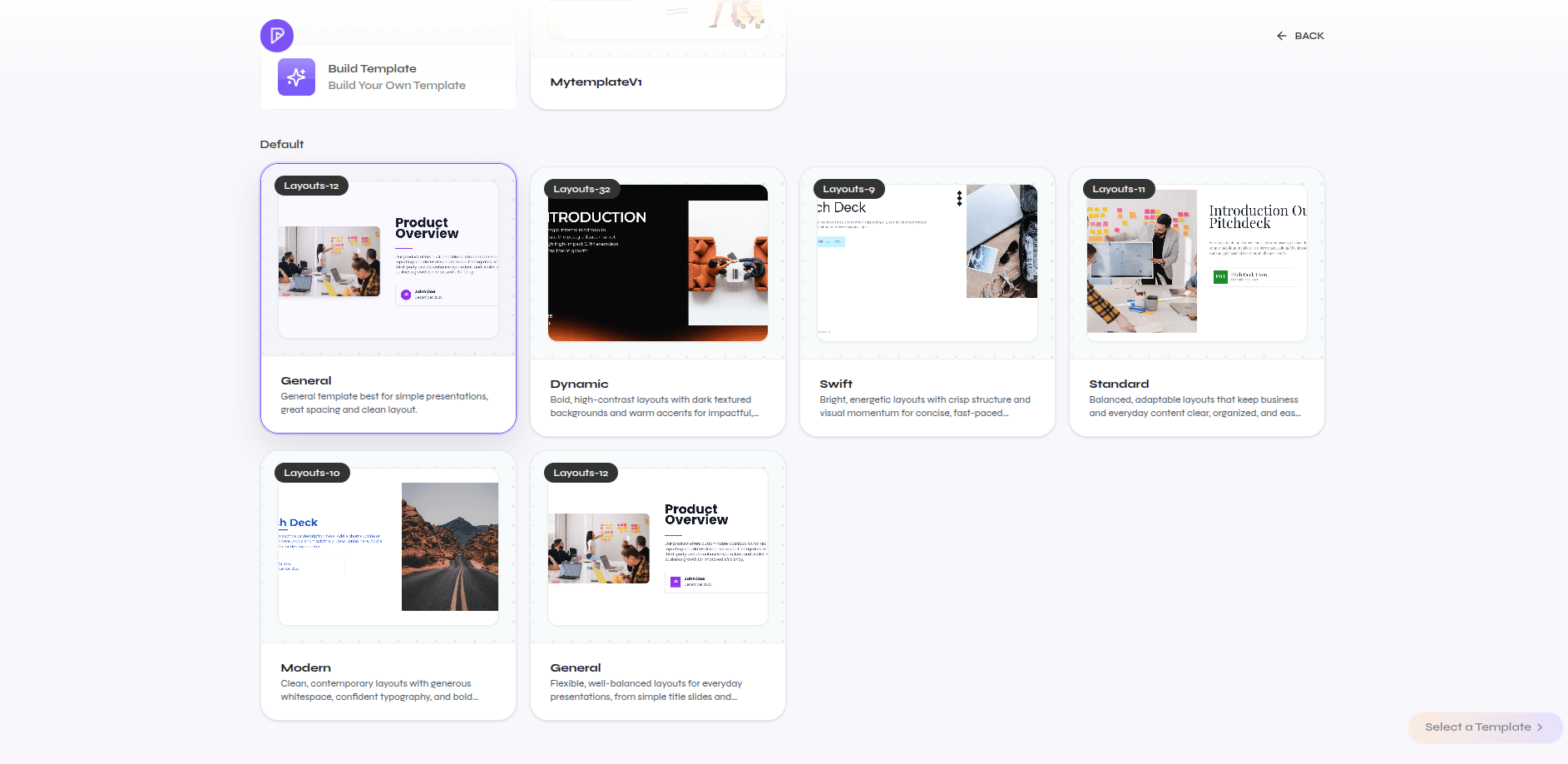
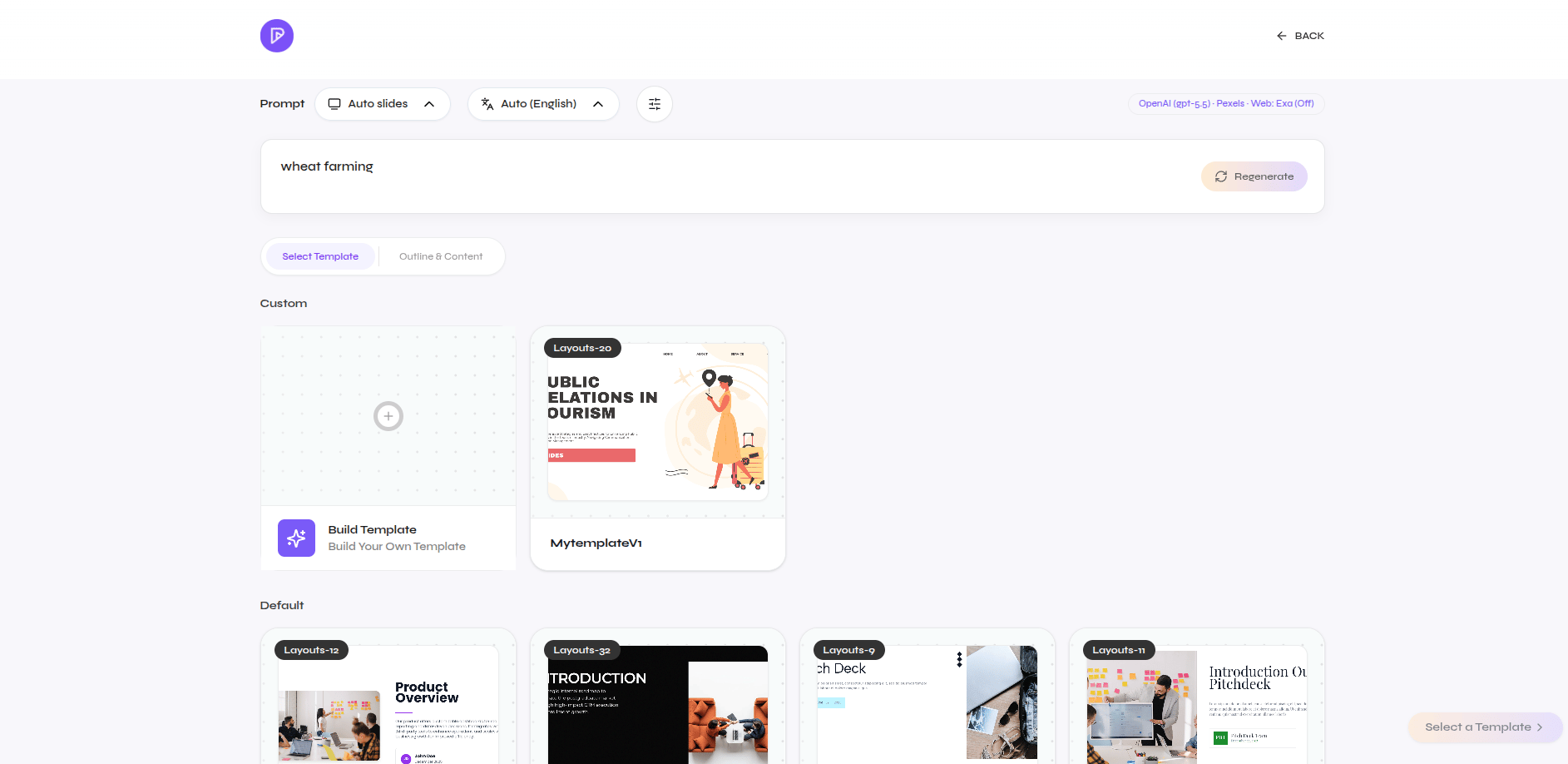
        Select **Get Started**, choose a template, review the outline, and generate the presentation.

        Use **Built-in** for templates provided by Presenton. Use **Custom** when you want to create or reuse your own template.

        <div className="guide-media guide-media--focus">
          <p className="guide-media-label">Choose a Built-in template from Presenton</p>

          <div className="guide-media-viewport">
            <img src="https://mintcdn.com/presenton-521d9e2f/a7GBkBOgfm-3ZeQM/images/opensource_onboarding/generate/defaulttemplate.png?fit=max&auto=format&n=a7GBkBOgfm-3ZeQM&q=85&s=bcb31da99d2a8e80ae08b45f31b26920" alt="Open-source default template gallery" width="1885" height="918" data-path="images/opensource_onboarding/generate/defaulttemplate.png" />
          </div>
        </div>

        <div className="guide-media guide-media--focus">
          <p className="guide-media-label">Choose or build your own Custom template</p>

          <div className="guide-media-viewport">
            <img src="https://mintcdn.com/presenton-521d9e2f/a7GBkBOgfm-3ZeQM/images/opensource_onboarding/generate/custometemplate.png?fit=max&auto=format&n=a7GBkBOgfm-3ZeQM&q=85&s=9219d561e2b61312fad9fc1e9de7302c" alt="Open-source custom template area with Build Template and saved custom template" width="1885" height="918" data-path="images/opensource_onboarding/generate/custometemplate.png" />
          </div>
        </div>

        [Follow the complete template creation workflow](/archive/v0.9.1-beta/user-guide/template-creation)

        <div className="guide-media guide-media--workflow">
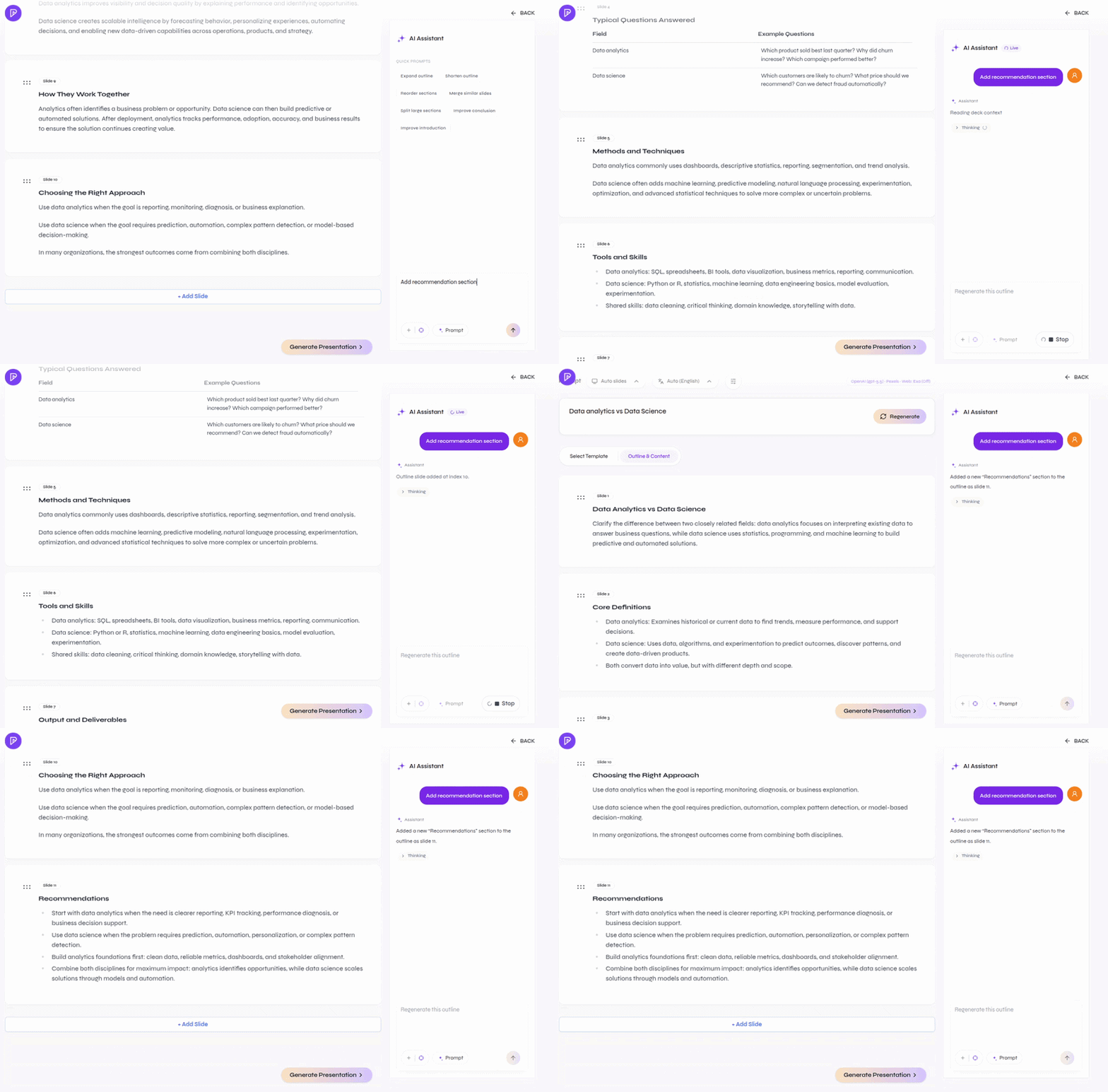
          <p className="guide-media-label">Review and edit the outline with AI</p>

          <div className="guide-media-viewport">
            <img src="https://mintcdn.com/presenton-521d9e2f/a7GBkBOgfm-3ZeQM/images/opensource_onboarding/generate/outlineandaieditingoutline.gif?s=88d3cda4816c3a1e5eb4b665fae3dcad" alt="Open-source outline review with AI editing before generating the presentation" width="800" height="526" data-path="images/opensource_onboarding/generate/outlineandaieditingoutline.gif" />
          </div>
        </div>

        After generation, the presentation opens in the editor.

        <div className="guide-media">
          <p className="guide-media-label">Continue in the Presenton Editor</p>

          <div className="guide-media-viewport">
            <img src="https://mintcdn.com/presenton-521d9e2f/a7GBkBOgfm-3ZeQM/images/cloud/editor.png?fit=max&auto=format&n=a7GBkBOgfm-3ZeQM&q=85&s=a8b5dcf7f1ffacbb98e2907bbae94b96" alt="Generated open-source presentation open in the Presenton Editor" width="1920" height="926" data-path="images/cloud/editor.png" />
          </div>
        </div>
      </Step>
    </Steps>
  </Tab>
</Tabs>

## Verify source-based presentations

* Compare important names, dates, claims, and figures with the original files.
* Recalculate totals, percentages, and changes shown in tables or charts.
* Confirm units, reporting periods, category labels, and data sources.
* Review image relevance, cropping, and usage rights.
* Inspect the exported PPTX or PDF for overflow, clipping, and layout changes.