> ## Documentation Index
> Fetch the complete documentation index at: https://docs.presenton.ai/llms.txt
> Use this file to discover all available pages before exploring further.

# Blocks and layout

> Find and add reusable content blocks.

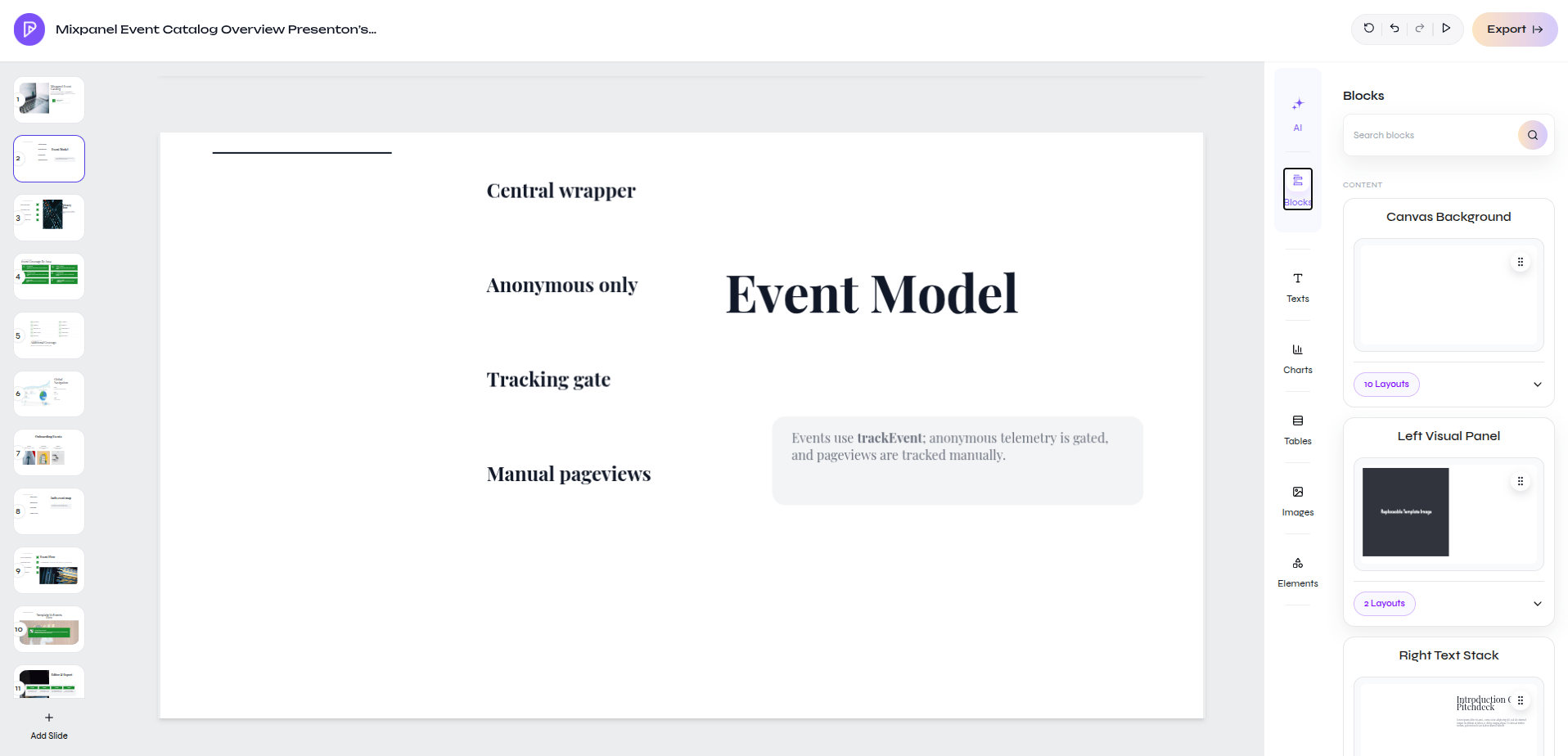
Blocks are reusable slide sections with one or more layout variants.

<div className="guide-media guide-media--screen">
  <p className="guide-media-label">Browse block families beside the active slide</p>

  <div className="guide-media-viewport">
    <img src="https://mintcdn.com/presenton-521d9e2f/isevrd3o6JPIkznF/images/user-guide/editing-and-refining/canvas/block-layouts.png?fit=max&auto=format&n=isevrd3o6JPIkznF&q=85&s=e926b792b462d2515508c23b3c8a472a" alt="Presentation editor with the Blocks panel open and reusable block families listed" width="1916" height="924" data-path="images/user-guide/editing-and-refining/canvas/block-layouts.png" />
  </div>
</div>

## Add a block

<Steps>
  <Step title="Open Blocks">
    Select **Blocks** in the editor rail.
  </Step>

  <Step title="Find the content pattern">
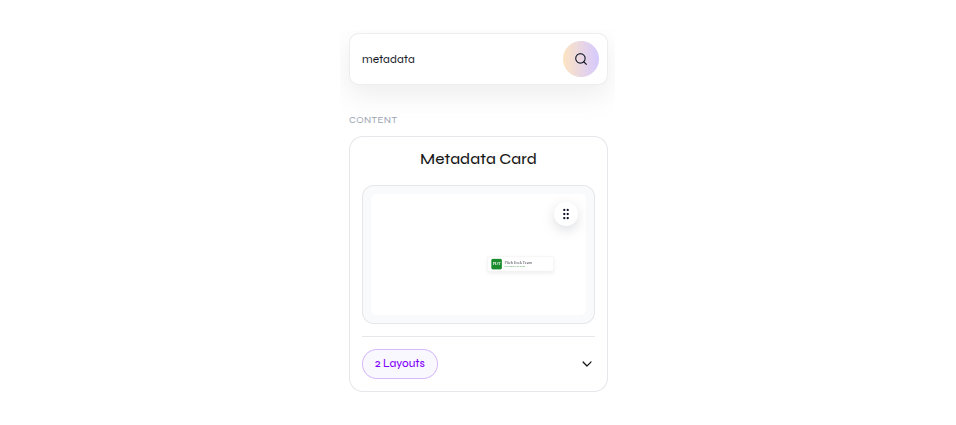
    Search by purpose, such as `metadata`, or browse the available block families.
  </Step>

  <Step title="Review layout variants">
    Expand the layout count on a block card and choose the variant that matches the slide.
  </Step>

  <Step title="Check the result">
    Confirm that the inserted content fits the slide and follows the surrounding design.
  </Step>
</Steps>

<div className="guide-media guide-media--panel">
  <p className="guide-media-label">Search result for a Metadata Card with two layouts</p>

  <div className="guide-media-viewport">
    <img src="https://mintcdn.com/presenton-521d9e2f/isevrd3o6JPIkznF/images/user-guide/editing-and-refining/canvas/block-library-panel.png?fit=max&auto=format&n=isevrd3o6JPIkznF&q=85&s=506669653b8e3a8b6edfbde669d5932c" alt="Blocks panel showing a metadata search result and a Metadata Card with two layouts" width="956" height="425" data-path="images/user-guide/editing-and-refining/canvas/block-library-panel.png" />
  </div>
</div>

<Card title="Edit individual elements" icon="arrows-up-down-left-right" href="/archive/v0.9.1-beta/user-guide/editing-and-refining/canvas/drag-and-drop">
  Move or resize an inserted element on the canvas.
</Card>