> ## Documentation Index
> Fetch the complete documentation index at: https://docs.presenton.ai/llms.txt
> Use this file to discover all available pages before exploring further.

# Shapes and lines

> Add basic shapes, arrows, and lines.

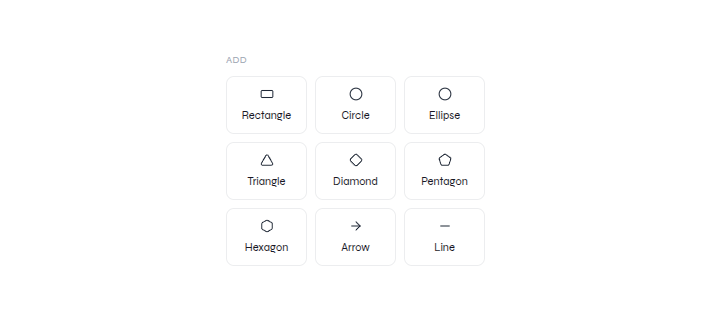
Open **Elements** to add a **Rectangle**, **Circle**, **Ellipse**, **Triangle**, **Diamond**, **Pentagon**, **Hexagon**, **Arrow**, or **Line**.

<div className="guide-media guide-media--panel">
  <p className="guide-media-label">Basic shapes and lines in the Elements panel</p>

  <div className="guide-media-viewport">
    <img src="https://mintcdn.com/presenton-521d9e2f/isevrd3o6JPIkznF/images/user-guide/editing-and-refining/canvas/element-library-panel.png?fit=max&auto=format&n=isevrd3o6JPIkznF&q=85&s=068616f73d3bcab31b9749cc8757c7f0" alt="Elements panel with rectangle, circle, ellipse, triangle, diamond, pentagon, hexagon, arrow, and line options" width="709" height="315" data-path="images/user-guide/editing-and-refining/canvas/element-library-panel.png" />
  </div>
</div>

<Steps>
  <Step title="Add the element">
    Select the required shape, arrow, or line from **Elements**.
  </Step>

  <Step title="Place it">
    Move, resize, or rotate the selected element on the canvas.
  </Step>

  <Step title="Review the composition">
    Confirm it supports the content and does not obscure text or data.
  </Step>
</Steps>

<Card title="Transform canvas elements" icon="arrows-up-down-left-right" href="/archive/v0.9.1-beta/user-guide/editing-and-refining/canvas/drag-and-drop">
  Watch the verified resize, rotate, and reposition workflow.
</Card>
