> ## Documentation Index
> Fetch the complete documentation index at: https://docs.presenton.ai/llms.txt
> Use this file to discover all available pages before exploring further.

# Context-aware editing

> Keep an AI edit attached to the intended slide.

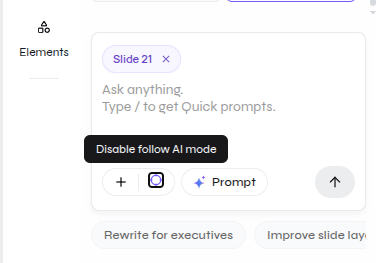
The assistant composer shows the current slide as a chip. In the supplied capture, **Slide 21** is selected and Follow AI mode is enabled.

<div className="guide-media guide-media--panel guide-media--compact">
  <p className="guide-media-label">Selected slide scope and Follow AI mode in the assistant composer</p>

  <div className="guide-media-viewport">
    <img src="https://mintcdn.com/presenton-521d9e2f/isevrd3o6JPIkznF/images/user-guide/editing-and-refining/ai/selected-slide-scope.png?fit=max&auto=format&n=isevrd3o6JPIkznF&q=85&s=7ef4dbd206816520f8c45f65e8d4369a" alt="AI assistant composer showing the Slide 21 scope chip and Follow AI mode control" width="376" height="263" data-path="images/user-guide/editing-and-refining/ai/selected-slide-scope.png" />
  </div>
</div>

## Before sending a prompt

1. Open the intended slide.
2. Confirm the slide chip in the composer.
3. State the target again in the prompt.
4. Describe what must remain unchanged.
5. Review the edited slide and its neighbors.

<div className="asset-placeholder">
  <div className="asset-placeholder-inner">
    <p className="asset-placeholder-kicker">Capture needed</p>
    <p className="asset-placeholder-title">Component-only AI editing</p>
    <p className="asset-placeholder-description">The supplied media verifies slide scope but does not show a complete component-selection workflow.</p>
  </div>
</div>