> ## Documentation Index
> Fetch the complete documentation index at: https://docs.presenton.ai/llms.txt
> Use this file to discover all available pages before exploring further.
# Export presentations
> Download a reviewed presentation as PPTX or PDF and verify the result.
Use PPTX when recipients need an editable presentation file. Use PDF when fixed visual delivery, printing, or broad viewing compatibility matters more than editability.
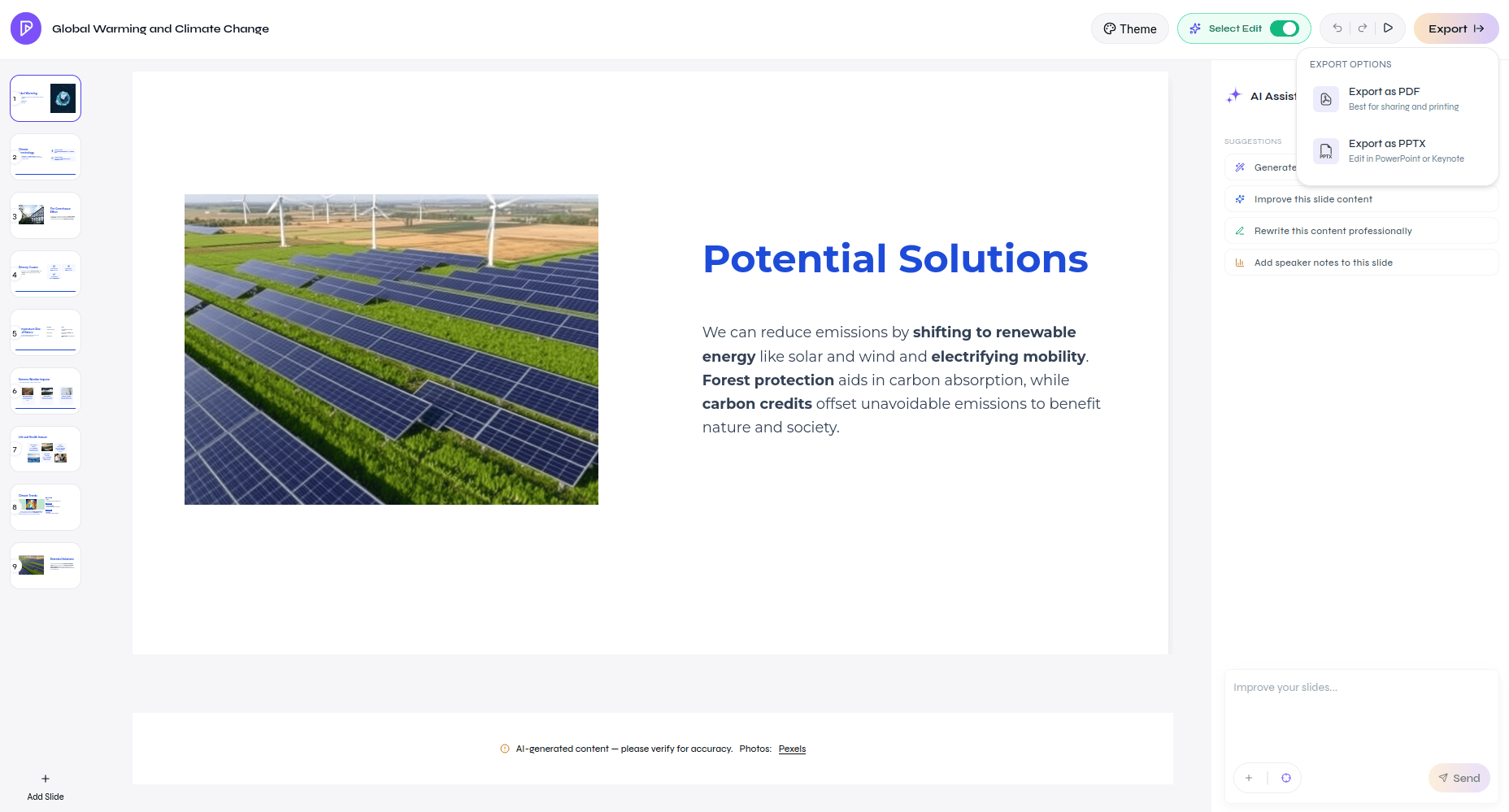
Cloud and open-source Presenton use the same export controls. In the presentation editor, select **Export**, then choose **Export as PDF** or **Export as PPTX**. Wait until generation finishes before downloading the file.
Export a presentation as PDF or PPTX
## Final export check
Check slide order, text overflow, image crops, chart labels, table cells, and object layers.
Choose PPTX for continued editing or PDF for a stable viewing copy. Export both when recipients need both workflows.
Inspect every slide in the target application. Font substitution and text wrapping can differ from the browser preview.
Make changes in Presenton, export again, and distribute only the verified file.
Do not treat a successful download as visual validation. Always open the exported file before sharing it.