> ## Documentation Index
> Fetch the complete documentation index at: https://docs.presenton.ai/llms.txt
> Use this file to discover all available pages before exploring further.

# Documents

> Turn reports, briefs, PDFs, presentations, spreadsheets, text, and images into a grounded deck.

Use a document when the presentation must follow existing facts or a known narrative. The most reliable workflow combines a focused source with a short instruction explaining what the audience needs from it.

## Supported source files

The visible source-file list differs between the live Cloud and open-source screens. Always follow the list shown by the product you are using.

<Tabs>
  <Tab title="Cloud">
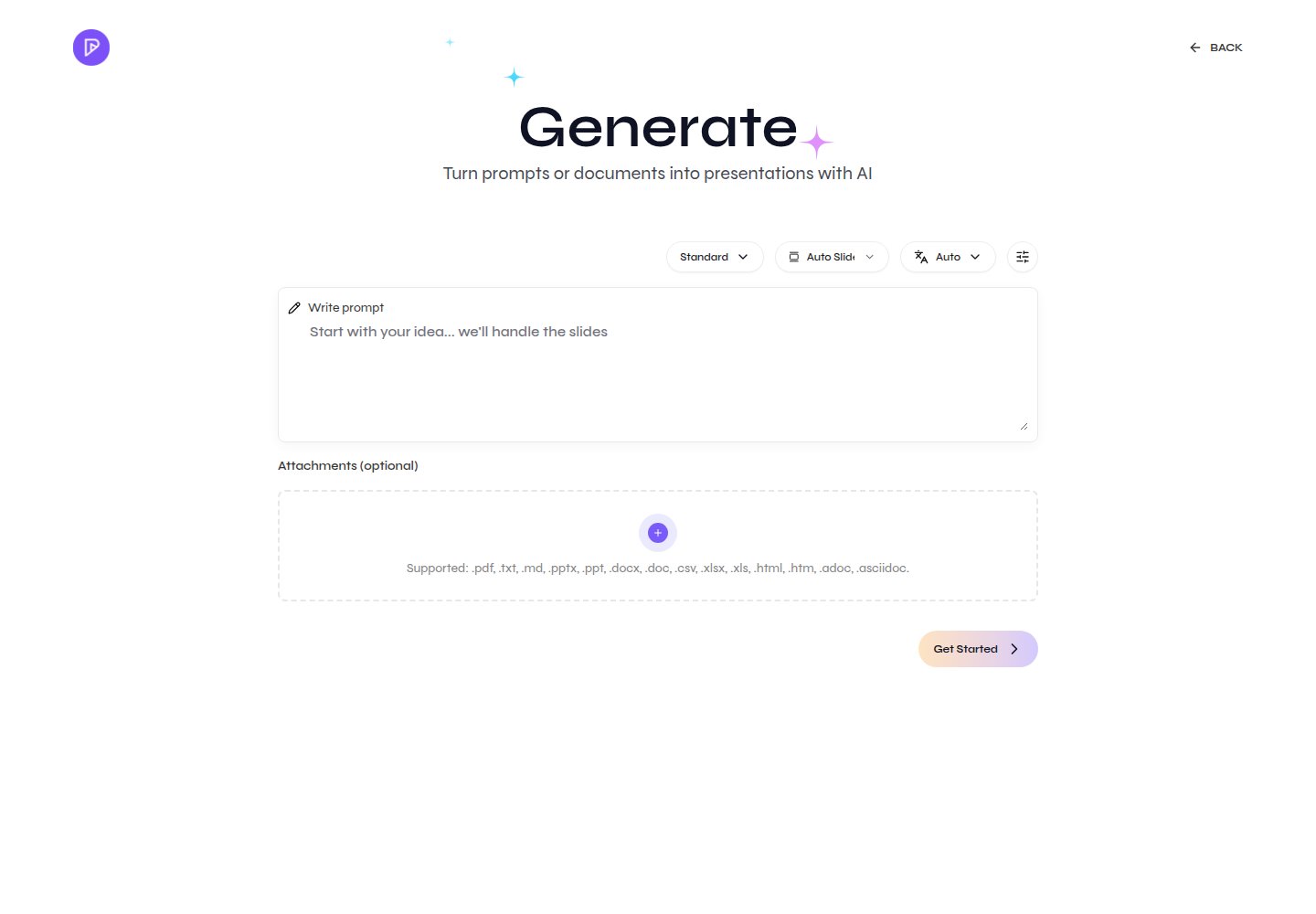
    The current Cloud Generate screen advertises these extensions:

    `.pdf`, `.txt`, `.md`, `.pptx`, `.ppt`, `.docx`, `.doc`, `.csv`, `.xlsx`, `.xls`, `.html`, `.htm`, `.adoc`, and `.asciidoc`.

    <img src="https://mintcdn.com/presenton-521d9e2f/isevrd3o6JPIkznF/images/user-guide/creating-presentations/generation-workflow/cloud-create-new-presentation-live.png?fit=max&auto=format&n=isevrd3o6JPIkznF&q=85&s=76d310aa97a0fa1b2622c31bc3217c70" alt="Generate page with the prompt, presentation controls, attachment area, and supported source-file formats" width="1440" height="1000" data-path="images/user-guide/creating-presentations/generation-workflow/cloud-create-new-presentation-live.png" />

    <div className="guide-image-label">Attach documents and review supported source formats</div>
  </Tab>

  <Tab title="Open-source">
    The current open-source Generate screen describes the upload area as accepting **Office docs, spreadsheets, images, PDF/TXT**. The exact extensions and processing behavior are controlled by the installed release and deployment configuration.

    The current local upload component accepts up to eight supporting files. Remove unrelated or duplicate files before uploading.
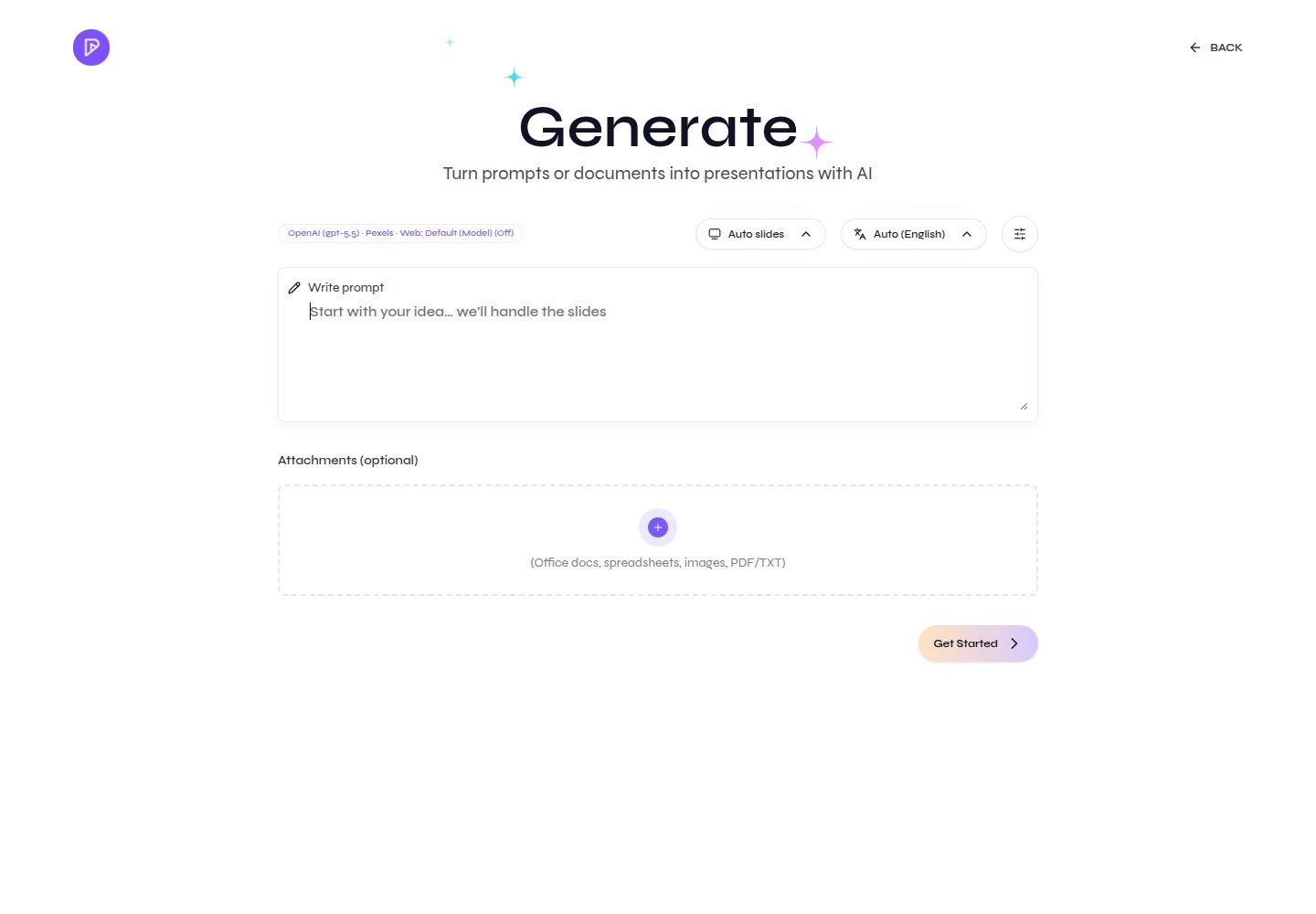
    <img src="https://mintcdn.com/presenton-521d9e2f/isevrd3o6JPIkznF/images/user-guide/creating-presentations/generation-workflow/open-source-dashboard-live.png?fit=max&auto=format&n=isevrd3o6JPIkznF&q=85&s=0cf9e1b512e84d01ea44db687a275d34" alt="Generate page with the prompt, provider summary, attachment area, and source categories" width="1440" height="1000" data-path="images/user-guide/creating-presentations/generation-workflow/open-source-dashboard-live.png" />

    <div className="guide-image-label">Attach office documents, spreadsheets, images, PDFs, or text</div>
  </Tab>
</Tabs>

## Prepare the source

* Use one authoritative file for the first attempt.
* Remove unrelated appendices, duplicate versions, and hidden spreadsheet sheets.
* Note the names, dates, figures, and conclusions that must remain exact.
* Prefer selectable text. Scanned PDFs and images depend on OCR quality.
* Use clear headings and labels so extracted sections retain their meaning.

## Generate from a document

Cloud and open-source use the same document-to-presentation sequence, with product-specific source lists and provider behavior.

<Steps>
  <Step title="Open Generate">
    Start a new presentation and open the Generate page.
  </Step>

  <Step title="Attach the source">
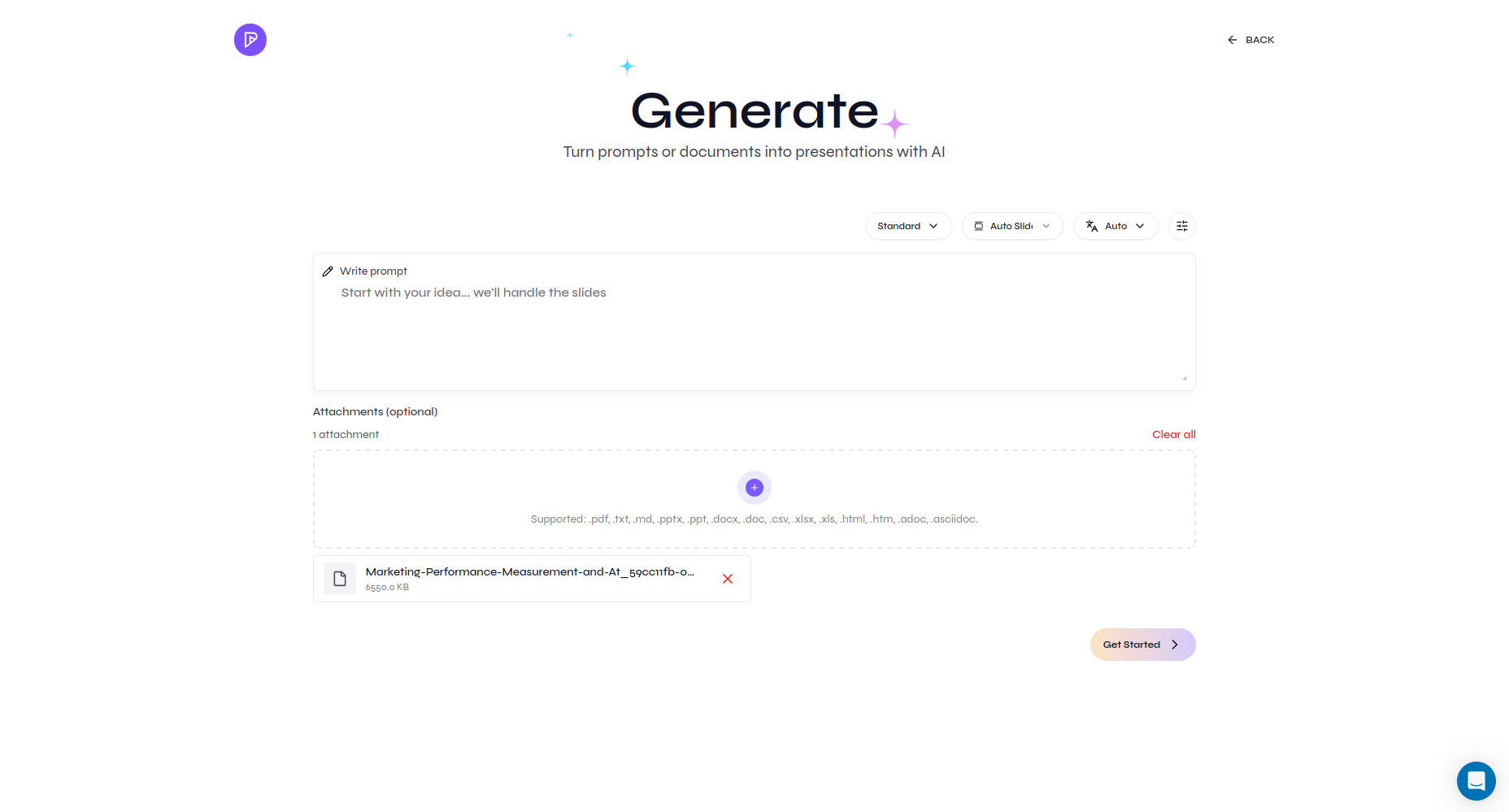
    Select **Attachments (optional)** or drop one or more files accepted by the active product into the upload area. Wait until each filename appears, then choose an explicit output language. You can clear all attachments or remove an individual file before continuing.

    <img src="https://mintcdn.com/presenton-521d9e2f/WyZNN3npwarofQJS/images/cloud/create-from-document/01-upload-document.png?fit=max&auto=format&n=WyZNN3npwarofQJS&q=85&s=f32282f1aef74d74198f34cdc637652f" alt="Generate page with an attached source document" width="1856" height="999" data-path="images/cloud/create-from-document/01-upload-document.png" />

    <div className="guide-image-label">A source document ready to process</div>
  </Step>

  <Step title="Explain how to use it">
    Add a prompt that names the audience, desired outcome, priority sections, and facts that must be preserved.
  </Step>

  <Step title="Process the source">
    Set the remaining controls and select **Get Started**. Presenton uploads and decomposes the files, then requests outline generation. Large or scanned sources can take longer.
  </Step>

  <Step title="Review the outline against the source">
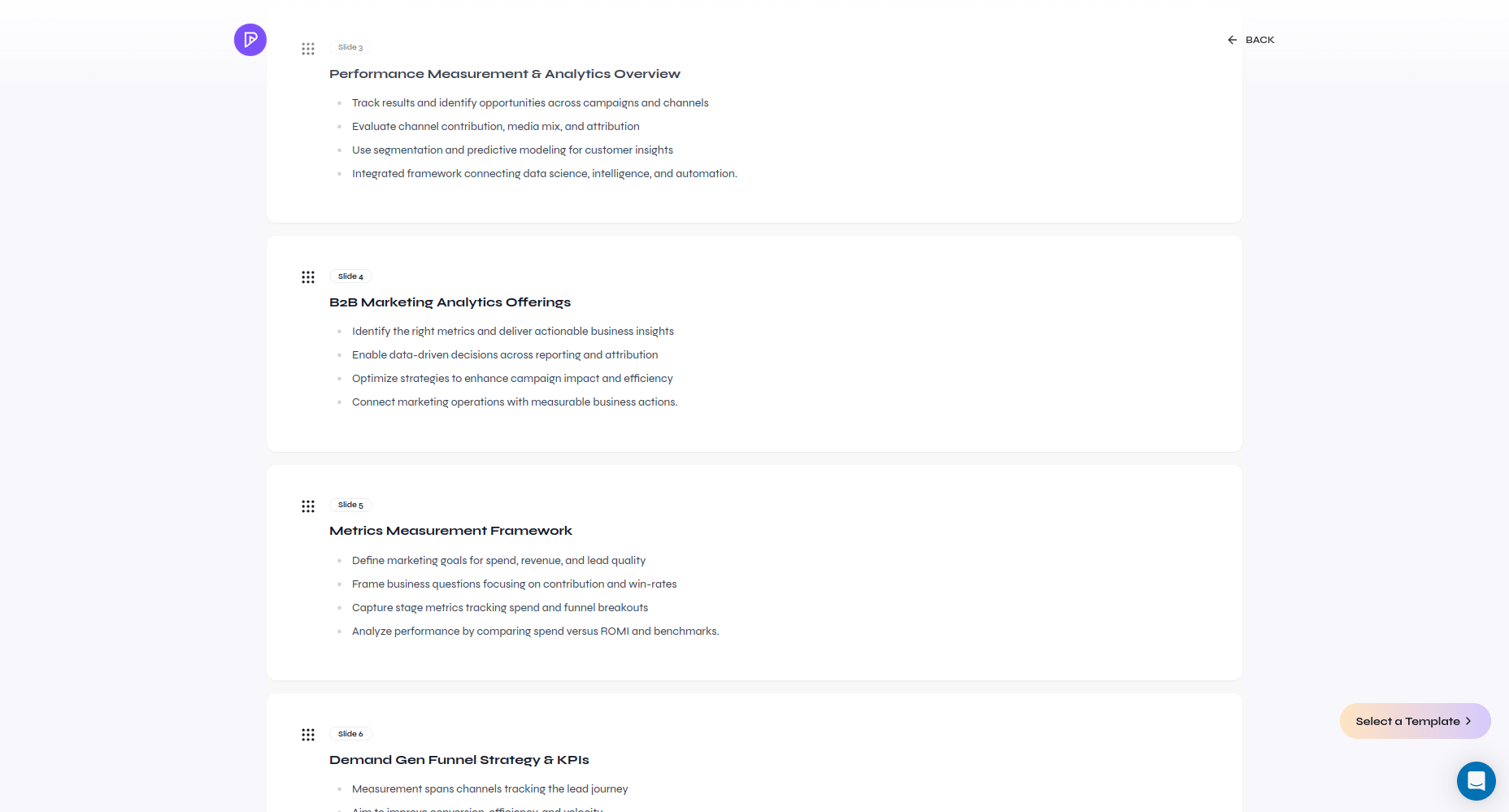
    Correct omissions, unsupported claims, and sequencing before choosing the presentation design.

    <img src="https://mintcdn.com/presenton-521d9e2f/WyZNN3npwarofQJS/images/cloud/create-from-document/03-review-document-outline.png?fit=max&auto=format&n=WyZNN3npwarofQJS&q=85&s=a3eabfafd7afebeaea15b807c035fbc0" alt="Presentation outline generated from an uploaded document" width="1856" height="999" data-path="images/cloud/create-from-document/03-review-document-outline.png" />

    <div className="guide-image-label">Review the generated outline before choosing a design</div>

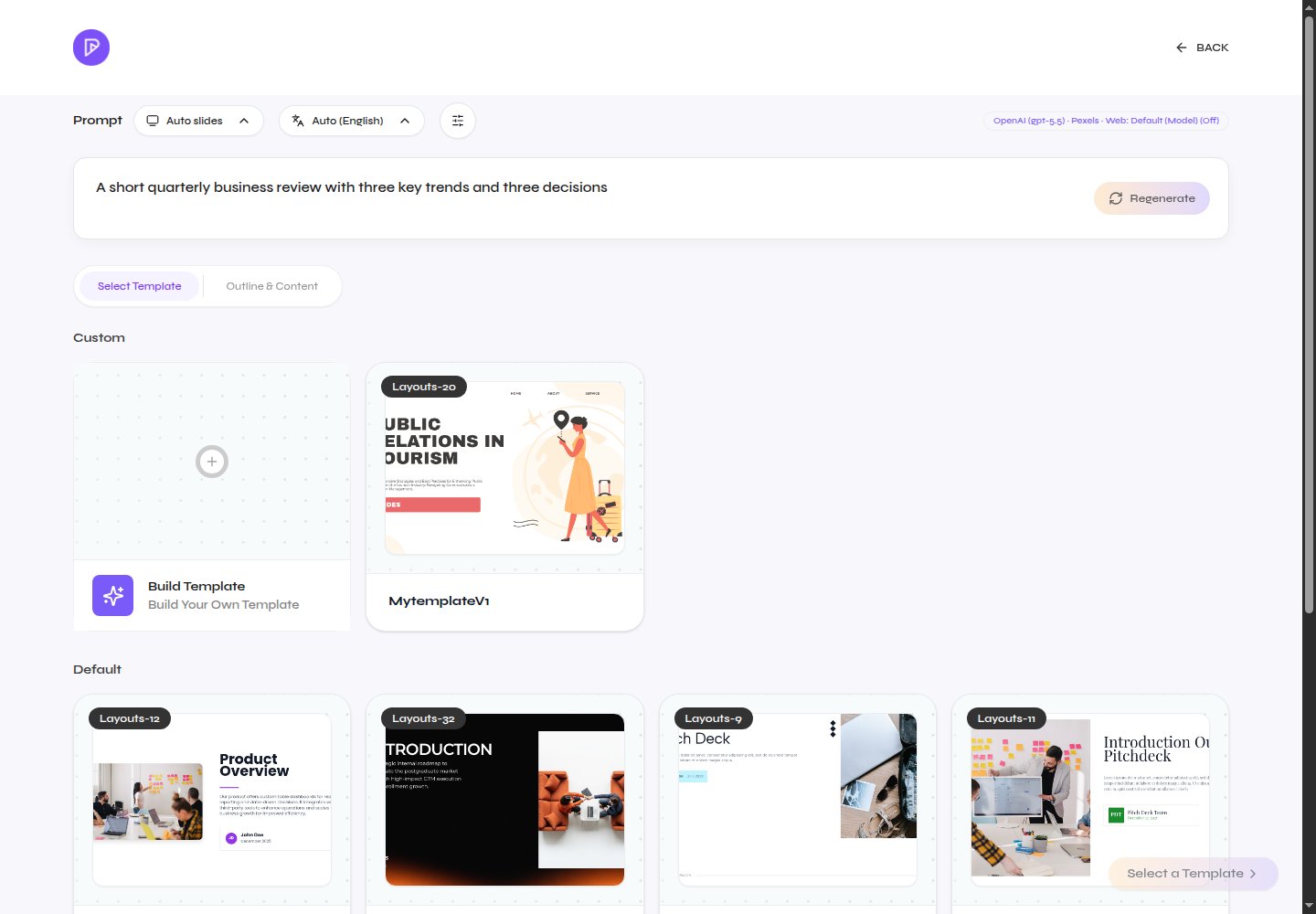
    <img src="https://mintcdn.com/presenton-521d9e2f/isevrd3o6JPIkznF/images/user-guide/creating-presentations/generation-workflow/open-source-outline-live.png?fit=max&auto=format&n=isevrd3o6JPIkznF&q=85&s=f46ac14c0f8937fcf0cbf16cfd70861d" alt="Outline with editable content, template selection, and presentation controls" width="1440" height="1000" data-path="images/user-guide/creating-presentations/generation-workflow/open-source-outline-live.png" />

    <div className="guide-image-label">Review the outline and choose a template</div>
  </Step>

  <Step title="Generate and verify">
    Compare the finished slides with the source, then export and inspect the result.
  </Step>
</Steps>

<Note>
  Open-source document parsing, OCR, supported file behavior, and limits depend on the services configured by the deployment administrator. When files are attached, the current browser flow requires an explicit language instead of **Auto**. Cloud account limits can also change independently of the visible file-extension list.
</Note>

<Warning>
  Verify every important number, date, name, chart, table, and claim against the original file. Document grounding reduces guesswork but does not replace review.
</Warning>