> ## Documentation Index
> Fetch the complete documentation index at: https://docs.presenton.ai/llms.txt
> Use this file to discover all available pages before exploring further.
# Images and media
> Use uploaded, stock, generated, and editable visuals in presentation slides.
Choose visuals for evidence or explanation. Product screenshots, diagrams, charts, and specific photographs usually communicate more than generic decorative images. Add the visual during generation when it belongs to the story, or replace it later from the editor.
## Provider availability
| Product | How image sources are provided |
| ----------- | -------------------------------------------------------------------------------------------------------------- |
| Cloud | Image generation and search are provided by the Cloud configuration shown in the product |
| Open-source | The deployment owner configures the image provider, credentials, URLs, and whether image generation is enabled |
The current self-hosted provider configuration includes stock providers such as Pexels and Pixabay, generated-image providers such as DALL-E 3, GPT Image 1.5, Gemini Flash, and NanoBanana Pro, and configurable options such as ComfyUI, Open WebUI, or a custom OpenAI-compatible image endpoint. Only use providers that are enabled in your product or deployment.
The provider setup differs, but image editing in the Standard presentation editor is shared.
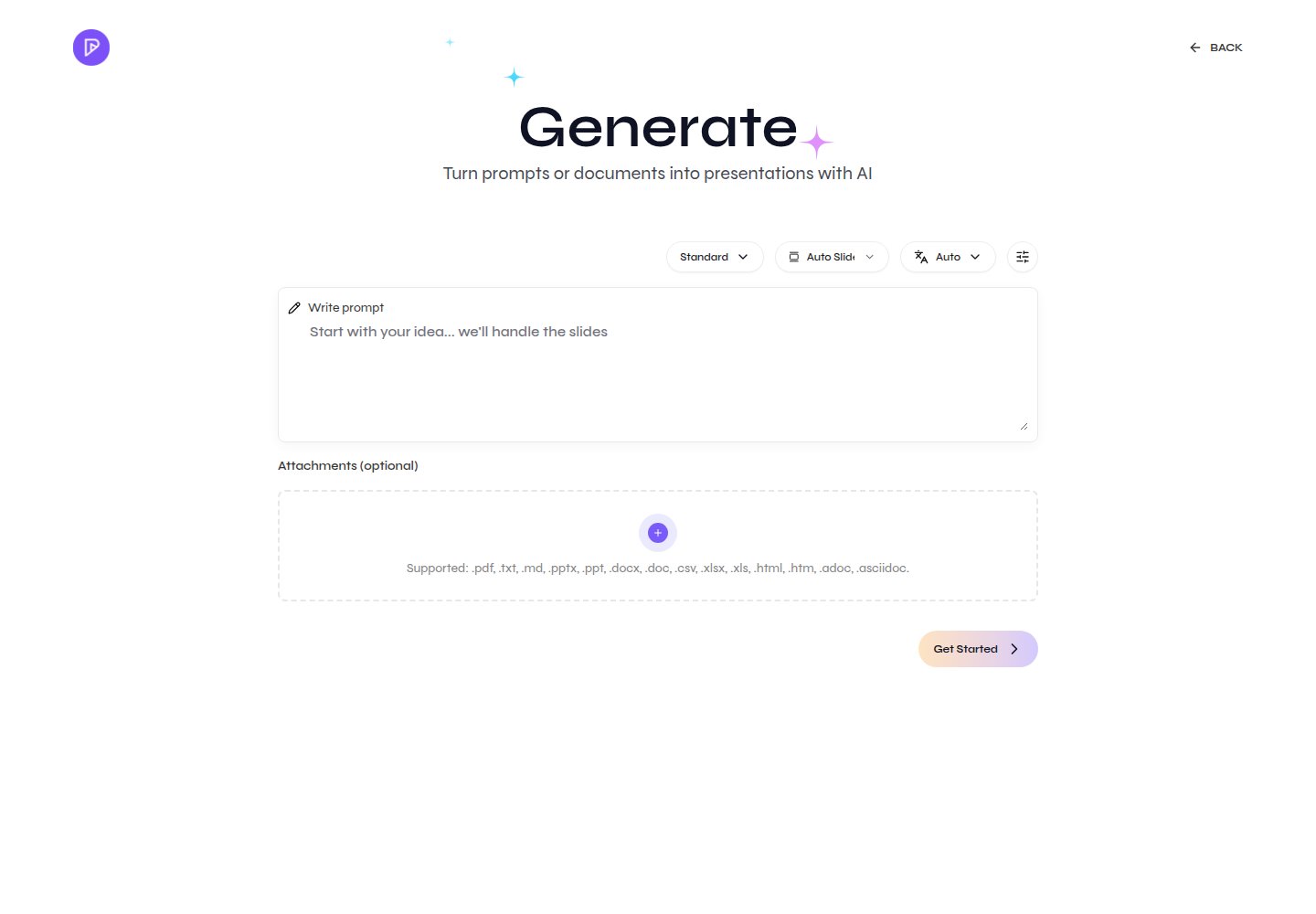
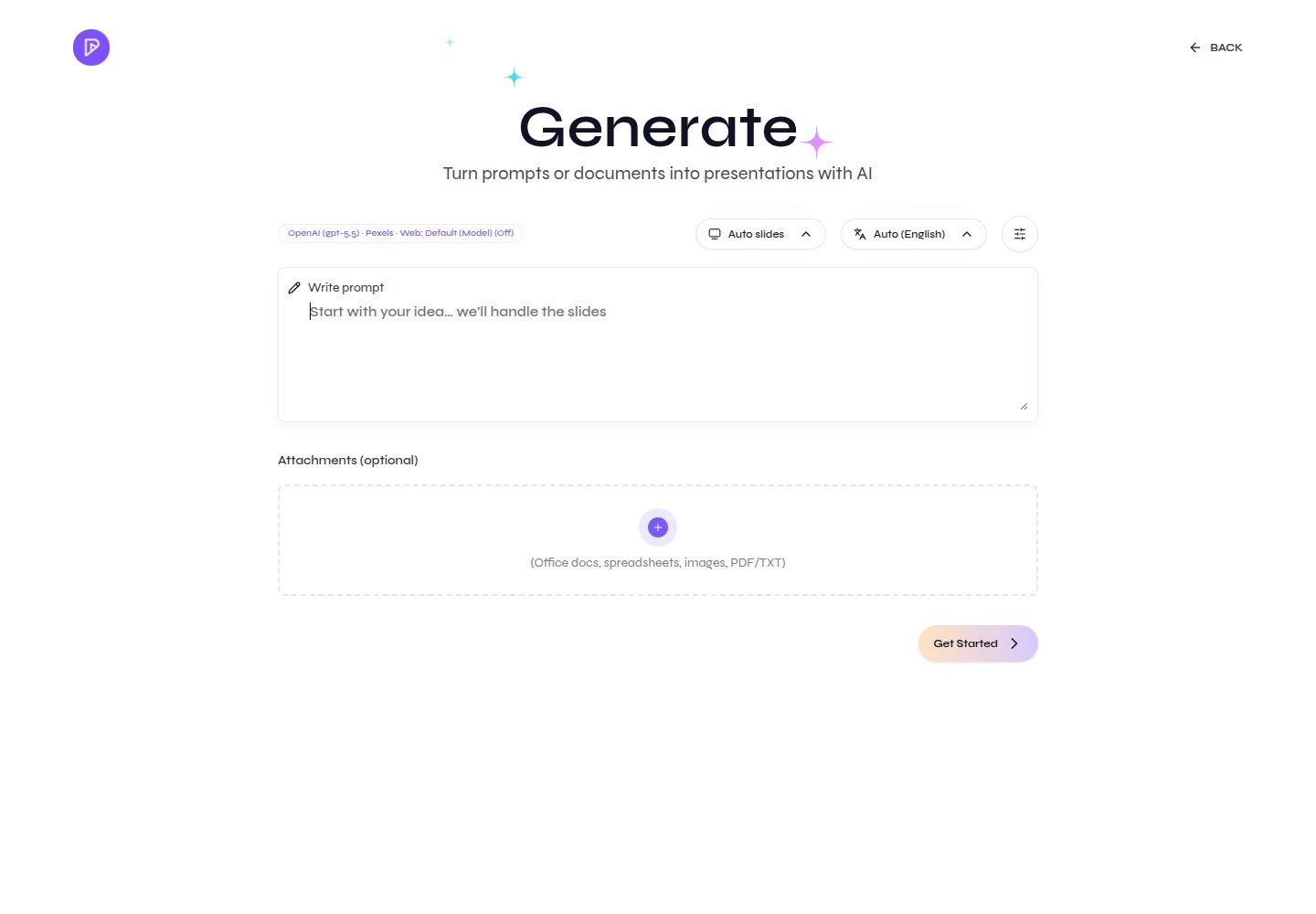
Add an image file as source material
Add image files from the source upload area
## Edit images and icons
Enable **Select Edit**, then select the image or icon. Select the image again to open **Update Image**. The panel has three tabs:
* **Stock search** or **AI Generate**: search Pexels/Pixabay when a stock provider is configured, or describe an image for the configured image-generation provider. Generated-image history can be available when stock search is not active.
* **Upload**: upload an image, choose it from the uploaded-image library, or delete an uploaded asset. The current editor upload limit is 5 MB per image.
* **Edit**: replace the image and choose **Fill**, **Contain**, or **Stretch**. Use **Focus point** to control which part remains visible when the image is fitted or cropped.
The canvas controls also support direct image positioning and the element-specific crop, zoom, flip, opacity, rounded-corner, and supported-icon color controls.
Review provider, credential, endpoint, and image-generation settings for a self-hosted deployment.
## Choose the right visual
| Visual | Best use |
| ------------------- | ------------------------------------------------- |
| Uploaded screenshot | Product state, evidence, or a process step |
| Stock photograph | A real place, person, object, or familiar concept |
| Generated image | A custom scene, illustration, or visual metaphor |
| Icon | A compact label or simple concept |
| Chart | A pattern, comparison, distribution, or trend |
| Table | Exact values or a structured comparison |
Always check relevance, cropping, legibility, source rights, and exported fidelity.