> ## Documentation Index
> Fetch the complete documentation index at: https://docs.presenton.ai/llms.txt
> Use this file to discover all available pages before exploring further.

# API Playground

> Configure a presentation request, test it, or copy the API code.

<Badge color="purple">Cloud only</Badge>

## Configure and run a request

<Steps>
  <Step title="Open API Playground">
    Select **API Playground** from the Presenton Cloud dashboard.
  </Step>

  <Step title="Choose the content format">
    <Tabs>
      <Tab title="Presentation Content">
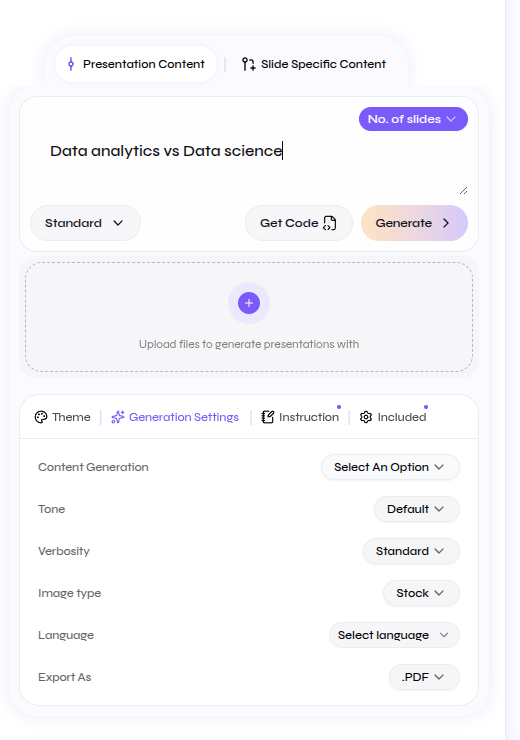
        Use one prompt for the full presentation. Presenton decides how to divide the content across the selected number of slides.

        <div className="guide-media guide-media--detail guide-media--detail-narrow">
          <p className="guide-media-label">Write one prompt for the full deck</p>

          <div className="guide-media-viewport">
            <img src="https://mintcdn.com/presenton-521d9e2f/isevrd3o6JPIkznF/images/user-guide/cloud/api-playground-closeups/presentation-content.png?fit=max&auto=format&n=isevrd3o6JPIkznF&q=85&s=43919236b108731a722548507e3882c1" alt="Close-up of API Playground using Presentation Content with one prompt for the full deck" width="520" height="740" data-path="images/user-guide/cloud/api-playground-closeups/presentation-content.png" />
          </div>
        </div>
      </Tab>

      <Tab title="Slide Specific Content">
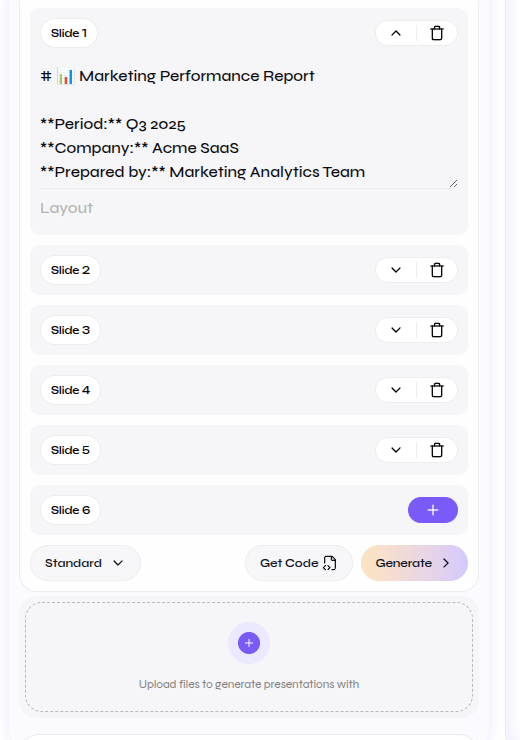
        Use a separate content block for every slide. Add or remove slide blocks when you need exact control over the deck structure.

        <div className="guide-media guide-media--detail guide-media--detail-narrow">
          <p className="guide-media-label">Provide content for each slide</p>

          <div className="guide-media-viewport">
            <img src="https://mintcdn.com/presenton-521d9e2f/isevrd3o6JPIkznF/images/user-guide/cloud/api-playground-closeups/slide-specific-content.png?fit=max&auto=format&n=isevrd3o6JPIkznF&q=85&s=b5af21a52b021d776104ac59a1f76e45" alt="Close-up of API Playground using Slide Specific Content with separate content blocks for each slide" width="520" height="740" data-path="images/user-guide/cloud/api-playground-closeups/slide-specific-content.png" />
          </div>
        </div>
      </Tab>
    </Tabs>
  </Step>

  <Step title="Add content and generation options">
    Enter the presentation prompt or add content to each slide. Upload reference files when the request should use source material.

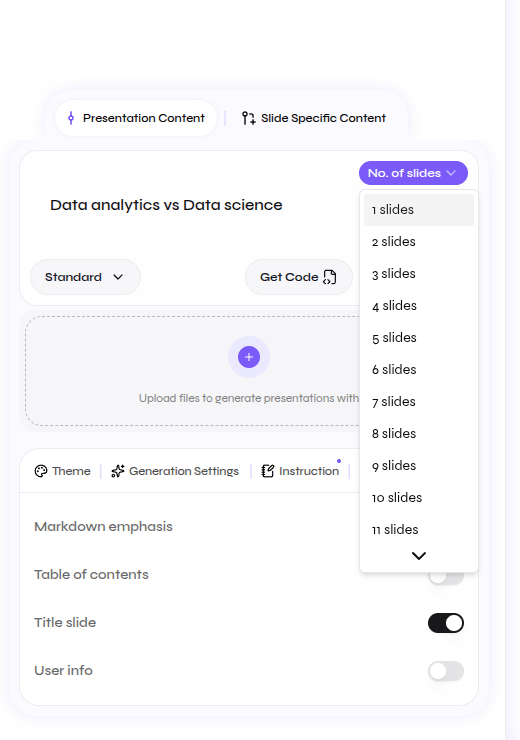
    For **Presentation Content**, choose the number of slides. Then select **Standard** for template-based layouts or **Smart** for content-driven composition.

    <div className="guide-media guide-media--detail guide-media--detail-narrow">
      <p className="guide-media-label">Choose the slide count for Presentation Content</p>

      <div className="guide-media-viewport">
        <img src="https://mintcdn.com/presenton-521d9e2f/isevrd3o6JPIkznF/images/user-guide/cloud/api-playground-closeups/slide-count.png?fit=max&auto=format&n=isevrd3o6JPIkznF&q=85&s=59a6f729532b3a6ba8d7708f0965315d" alt="Close-up of the API Playground slide-count menu for a Presentation Content request" width="520" height="740" data-path="images/user-guide/cloud/api-playground-closeups/slide-count.png" />
      </div>
    </div>
  </Step>

  <Step title="Customize the request">
    Use only the settings required for the result you want.

    <AccordionGroup>
      <Accordion title="Generation Settings">
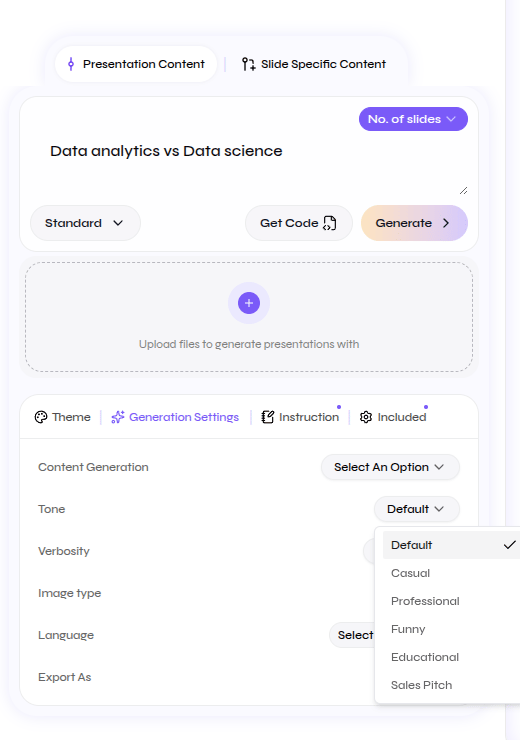
        Set content generation, tone, verbosity, image type, language, and export format.

        <div className="guide-media guide-media--detail guide-media--detail-narrow">
          <p className="guide-media-label">Set tone, verbosity, media, language, and export format</p>

          <div className="guide-media-viewport">
            <img src="https://mintcdn.com/presenton-521d9e2f/isevrd3o6JPIkznF/images/user-guide/cloud/api-playground-closeups/generation-settings.png?fit=max&auto=format&n=isevrd3o6JPIkznF&q=85&s=b0a03fe6d1913d25876c6fc7b4477d66" alt="Close-up of API Playground Generation Settings with the tone menu open" width="520" height="740" data-path="images/user-guide/cloud/api-playground-closeups/generation-settings.png" />
          </div>
        </div>
      </Accordion>

      <Accordion title="Instruction">
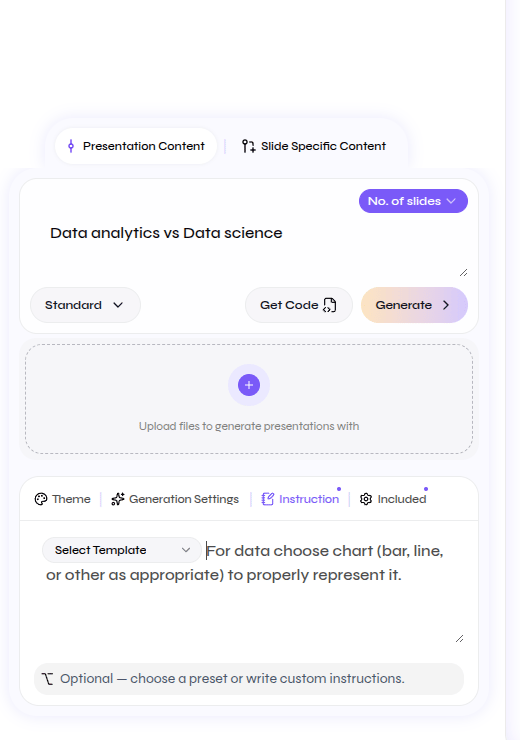
        Choose an instruction preset or write custom instructions for the presentation.

        <div className="guide-media guide-media--detail guide-media--detail-narrow">
          <p className="guide-media-label">Add a preset or custom instruction</p>

          <div className="guide-media-viewport">
            <img src="https://mintcdn.com/presenton-521d9e2f/isevrd3o6JPIkznF/images/user-guide/cloud/api-playground-closeups/instruction-settings.png?fit=max&auto=format&n=isevrd3o6JPIkznF&q=85&s=0f83427ddca96ce23d85190fa69b3410" alt="Close-up of the API Playground Instruction tab with custom presentation instructions" width="520" height="740" data-path="images/user-guide/cloud/api-playground-closeups/instruction-settings.png" />
          </div>
        </div>
      </Accordion>

      <Accordion title="Included">
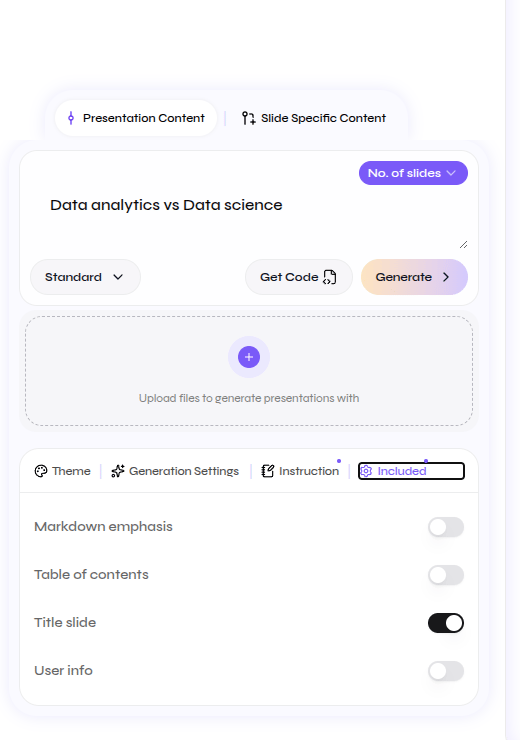
        Choose whether to include Markdown emphasis, a table of contents, a title slide, and user information.

        <div className="guide-media guide-media--detail guide-media--detail-narrow">
          <p className="guide-media-label">Choose the optional presentation sections</p>

          <div className="guide-media-viewport">
            <img src="https://mintcdn.com/presenton-521d9e2f/isevrd3o6JPIkznF/images/user-guide/cloud/api-playground-closeups/included-settings.png?fit=max&auto=format&n=isevrd3o6JPIkznF&q=85&s=f885f2b0d65e17cf89512faab7b3a207" alt="Close-up of the API Playground Included tab with optional presentation sections" width="520" height="740" data-path="images/user-guide/cloud/api-playground-closeups/included-settings.png" />
          </div>
        </div>
      </Accordion>
    </AccordionGroup>
  </Step>

  <Step title="Generate or get code">
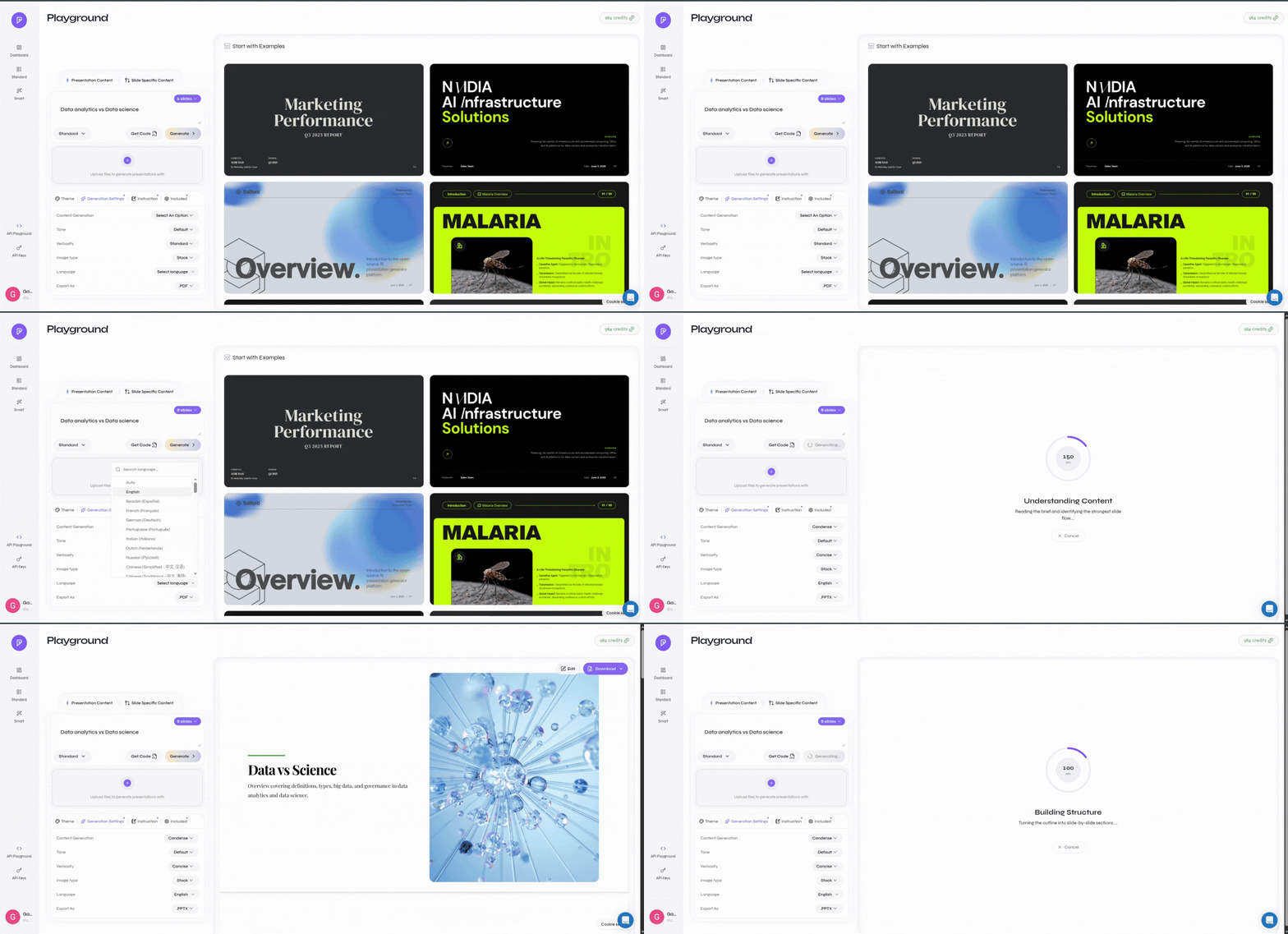
    Select **Generate** to run the request and review the presentation in Presenton.

    Select **Get Code** when the configuration is ready to use in your application or automation. Test with **Generate** first when you want to confirm the output before integrating it.

    <div className="guide-media">
      <p className="guide-media-label">Follow the complete Playground workflow</p>

      <div className="guide-media-viewport">
        <img src="https://mintcdn.com/presenton-521d9e2f/at0fMZFzkP-vbjoy/images/cloud/apiplayground/apiplayground.gif?s=06b43ee0e469a13a8e92a31276483e9c" alt="Complete API Playground workflow from configuration to Generate and Get Code" width="1892" height="917" data-path="images/cloud/apiplayground/apiplayground.gif" />
      </div>
    </div>
  </Step>
</Steps>