> ## Documentation Index
> Fetch the complete documentation index at: https://docs.presenton.ai/llms.txt
> Use this file to discover all available pages before exploring further.

# Images and icons

> Add and edit image content.

## Add an image layout

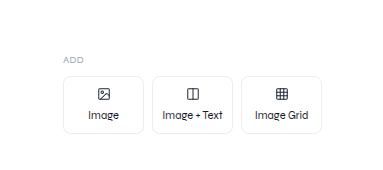
Open **Images**, then choose **Image**, **Image + Text**, or **Image Grid**.

<video className="doc-video" controls preload="metadata" playsInline src="https://mintcdn.com/presenton-521d9e2f/isevrd3o6JPIkznF/images/user-guide/editing-and-refining/guided/images-elements-workflow.mp4?fit=max&auto=format&n=isevrd3o6JPIkznF&q=85&s=9976082a56f923e3b138f908fd1f5c81" data-path="images/user-guide/editing-and-refining/guided/images-elements-workflow.mp4">
  Your browser does not support the video tag.
</video>

<div className="guide-media guide-media--panel">
  <p className="guide-media-label">Image layouts available from the editor rail</p>

  <div className="guide-media-viewport">
    <img src="https://mintcdn.com/presenton-521d9e2f/isevrd3o6JPIkznF/images/user-guide/editing-and-refining/canvas/image-library-panel.png?fit=max&auto=format&n=isevrd3o6JPIkznF&q=85&s=5e1460578fd6d597790ba85907906cdb" alt="Images panel with Image, Image plus Text, and Image Grid options" width="383" height="170" data-path="images/user-guide/editing-and-refining/canvas/image-library-panel.png" />
  </div>
</div>

## Edit an image

<div className="guide-media guide-media--workflow">
  <p className="guide-media-label">Add an image, replace its content, and adjust its presentation</p>

  <div className="guide-media-viewport">
    <video className="doc-video" controls preload="metadata" src="https://mintcdn.com/presenton-521d9e2f/ajRRt4DeFK4Rgl49/images/user-guide/editing-and-refining/canvas/image-editing.mp4?fit=max&auto=format&n=ajRRt4DeFK4Rgl49&q=85&s=c856c08114c645e429ab8693d50c5424" data-path="images/user-guide/editing-and-refining/canvas/image-editing.mp4">
      Your browser does not support the video tag.
    </video>
  </div>
</div>

1. Select the image element.
2. Use the image controls shown for the selection to replace or adjust it.
3. Resize or reposition the frame when needed.
4. Confirm the subject remains visible and the image does not cover nearby content.

<div className="asset-placeholder">
  <div className="asset-placeholder-inner">
    <p className="asset-placeholder-kicker">Capture needed</p>
    <p className="asset-placeholder-title">Icon editing</p>
    <p className="asset-placeholder-description">The supplied media does not show an icon picker or icon-specific controls. Add a verified product capture before documenting this workflow.</p>
  </div>
</div>