> ## Documentation Index
> Fetch the complete documentation index at: https://docs.presenton.ai/llms.txt
> Use this file to discover all available pages before exploring further.

# Template Editing

> Edit a saved template's text behavior, schema, reconstruction, and layout metadata.

Template Editing starts **after** [Template Creation](/archive/v0.9.2-beta/user-guide/template-creation). Use it to test and refine how a saved template behaves when Presenton generates new content.

## Watch the template-editing workflow

This narrated walkthrough covers editing template text and schema limits, reconstructing a slide, checking layout metadata, and saving the refined template.

<video className="doc-video" controls preload="metadata" playsInline src="https://mintcdn.com/presenton-521d9e2f/isevrd3o6JPIkznF/images/user-guide/editing-and-refining/guided/template-editing-workflow.mp4?fit=max&auto=format&n=isevrd3o6JPIkznF&q=85&s=3b20bcfe9bb5ab65e30bbdd1644342bc" data-path="images/user-guide/editing-and-refining/guided/template-editing-workflow.mp4">
  Your browser does not support the video tag.
</video>

## Editing workflow

<Steps>
  <Step title="Select a slide">
    Choose a template slide from the thumbnail rail.
  </Step>

  <Step title="Test its text behavior">
    Edit text on the canvas or adjust its schema content and character limits.
  </Step>

  <Step title="Reconstruct when required">
    Rebuild a slide when its template construction or rendering is incomplete.
  </Step>

  <Step title="Review layout metadata">
    Open **Layouts** to inspect slide IDs and descriptions.
  </Step>

  <Step title="Save">
    Review the reconstructed slide and select **Save**.
  </Step>
</Steps>

## Edit text and schema behavior

<div className="guide-media guide-media--workflow">
  <p className="guide-media-label">Select template slides, edit canvas text, and verify the schema beside the slide</p>

  <div className="guide-media-viewport">
    <video className="doc-video" controls preload="metadata" src="https://mintcdn.com/presenton-521d9e2f/isevrd3o6JPIkznF/images/user-guide/editing-and-refining/template-editor/schema-and-text.mp4?fit=max&auto=format&n=isevrd3o6JPIkznF&q=85&s=791ef13784c5ff6dee7b1065c1250d03" data-path="images/user-guide/editing-and-refining/template-editor/schema-and-text.mp4">
      Your browser does not support the video tag.
    </video>
  </div>
</div>

<Tabs>
  <Tab title="Canvas text">
    1. Select a text element on the template slide.
    2. Replace its sample content.
    3. Use the visible text toolbar when the template typography or text box needs adjustment.
    4. Check the updated slide at the expected content length.
  </Tab>

  <Tab title="Schema">
    1. Open **Schema** and expand the required text field.
    2. Update **Content** with representative sample text.
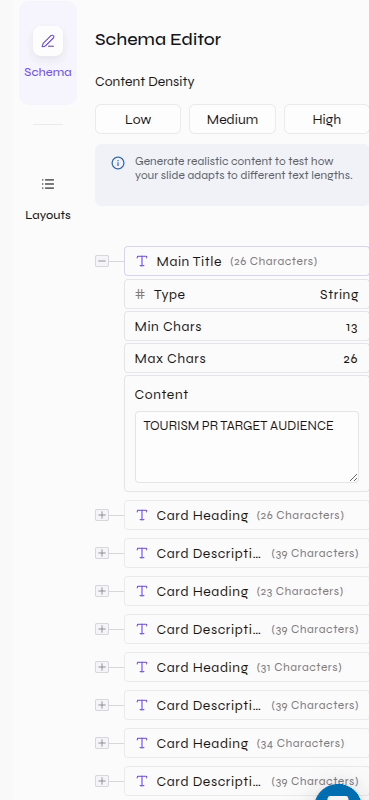
    3. Set **Min Chars** and **Max Chars** to the expected content range.
    4. Test **Low**, **Medium**, and **High** content density to see how the layout behaves at different text lengths.
  </Tab>
</Tabs>

<div className="guide-media guide-media--panel guide-media--compact">
  <p className="guide-media-label">Schema controls for content density, type, character bounds, and sample content</p>

  <div className="guide-media-viewport">
    <img src="https://mintcdn.com/presenton-521d9e2f/isevrd3o6JPIkznF/images/user-guide/editing-and-refining/template-editor/schema-panel.png?fit=max&auto=format&n=isevrd3o6JPIkznF&q=85&s=bcaaf82112365303045c8d710696a7ab" alt="Schema Editor showing Low, Medium, and High content density plus a Main Title string with minimum characters, maximum characters, and sample content" width="369" height="800" data-path="images/user-guide/editing-and-refining/template-editor/schema-panel.png" />
  </div>
</div>

<Tip>
  Use realistic short and long samples. The goal is to confirm that generated text remains readable without breaking the intended layout.
</Tip>

## Reconstruct a slide

Use **Re-Construct** when a slide is blank, partially rendered, or has a template-construction issue.

<div className="guide-media guide-media--panel guide-media--compact">
  <p className="guide-media-label">Slide actions</p>

  <div className="guide-media-viewport">
    <img src="https://mintcdn.com/presenton-521d9e2f/isevrd3o6JPIkznF/images/user-guide/editing-and-refining/template-editor/slide-actions.png?fit=max&auto=format&n=isevrd3o6JPIkznF&q=85&s=91703d8f2c0620bf783d7d08ec4351a4" alt="Re-Construct and Copy ID controls below the active template slide" width="426" height="104" data-path="images/user-guide/editing-and-refining/template-editor/slide-actions.png" />
  </div>
</div>

<Tabs>
  <Tab title="Start reconstruction">
    <div className="guide-media guide-media--workflow">
      <p className="guide-media-label">Start Re-Construct and wait while the canvas rebuilds</p>

      <div className="guide-media-viewport">
        <video className="doc-video" controls preload="metadata" src="https://mintcdn.com/presenton-521d9e2f/isevrd3o6JPIkznF/images/user-guide/editing-and-refining/template-editor/reconstruct-start.mp4?fit=max&auto=format&n=isevrd3o6JPIkznF&q=85&s=686739cc38292756b2d73e0aca6544fb" data-path="images/user-guide/editing-and-refining/template-editor/reconstruct-start.mp4">
          Your browser does not support the video tag.
        </video>
      </div>
    </div>
  </Tab>

  <Tab title="Review the result">
    <div className="guide-media guide-media--workflow">
      <p className="guide-media-label">The reconstructed slide returns to the canvas with a completion message</p>

      <div className="guide-media-viewport">
        <video className="doc-video" controls preload="metadata" src="https://mintcdn.com/presenton-521d9e2f/isevrd3o6JPIkznF/images/user-guide/editing-and-refining/template-editor/reconstruct-complete.mp4?fit=max&auto=format&n=isevrd3o6JPIkznF&q=85&s=412839fb819f960ae4127175170501b0" data-path="images/user-guide/editing-and-refining/template-editor/reconstruct-complete.mp4">
          Your browser does not support the video tag.
        </video>
      </div>
    </div>
  </Tab>
</Tabs>

After reconstruction, verify the slide content, text bounds, object placement, and schema before saving.

## Inspect Deck Layouts

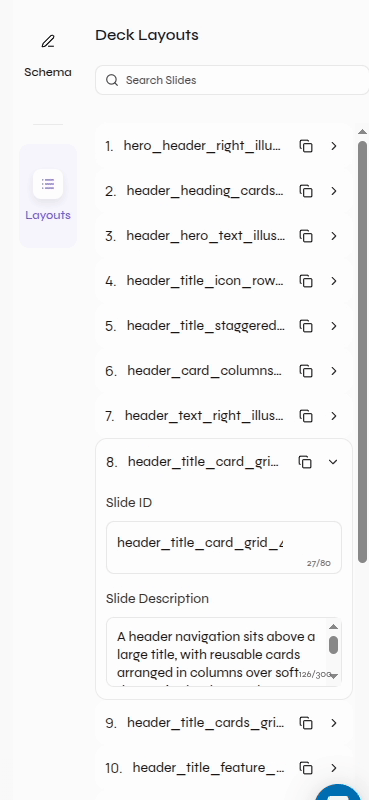
Open **Layouts** to search the template's reusable slide layouts.

<div className="guide-media guide-media--workflow">
  <p className="guide-media-label">Open Deck Layouts, expand a layout, and inspect its ID and description</p>

  <div className="guide-media-viewport">
    <video className="doc-video" controls preload="metadata" src="https://mintcdn.com/presenton-521d9e2f/isevrd3o6JPIkznF/images/user-guide/editing-and-refining/template-editor/layout-metadata.mp4?fit=max&auto=format&n=isevrd3o6JPIkznF&q=85&s=44e5ecdecad0077c13f01d9eeb70e654" data-path="images/user-guide/editing-and-refining/template-editor/layout-metadata.mp4">
      Your browser does not support the video tag.
    </video>
  </div>
</div>

<div className="guide-media guide-media--panel guide-media--compact">
  <p className="guide-media-label">Deck Layouts list with search, copy controls, Slide ID, and Slide Description</p>

  <div className="guide-media-viewport">
    <img src="https://mintcdn.com/presenton-521d9e2f/isevrd3o6JPIkznF/images/user-guide/editing-and-refining/template-editor/layouts-panel.png?fit=max&auto=format&n=isevrd3o6JPIkznF&q=85&s=d2324441eebf5b386d4df990e723e04c" alt="Deck Layouts panel showing searchable layout names, copy controls, an expanded Slide ID, and Slide Description" width="369" height="800" data-path="images/user-guide/editing-and-refining/template-editor/layouts-panel.png" />
  </div>
</div>

For each important layout:

1. Confirm the **Slide ID** identifies the layout clearly.
2. Confirm the **Slide Description** matches the visible structure and intended use.
3. Use the copy control when the layout ID is needed elsewhere.

## Save the template

<div className="guide-media guide-media--panel guide-media--compact">
  <p className="guide-media-label">Template-level actions</p>

  <div className="guide-media-viewport">
    <img src="https://mintcdn.com/presenton-521d9e2f/isevrd3o6JPIkznF/images/user-guide/editing-and-refining/template-editor/template-actions.png?fit=max&auto=format&n=isevrd3o6JPIkznF&q=85&s=8747108d2b984a40a87fdda0926641c7" alt="Template actions with Copy ID, undo, redo, Delete Template, and Save" width="544" height="90" data-path="images/user-guide/editing-and-refining/template-editor/template-actions.png" />
  </div>
</div>

Select **Save** after reviewing the edited slides and layout metadata. **Copy ID** copies the template identifier; undo and redo are available beside it.

<Warning>
  **Delete Template** removes the template. Use it only when deletion is intended.
</Warning>

<Card title="Template Creation" icon="wand-magic-sparkles" href="/archive/v0.9.2-beta/user-guide/template-creation">
  Return to the separate workflow for creating a template from an existing PPTX.
</Card>