> ## Documentation Index
> Fetch the complete documentation index at: https://docs.presenton.ai/llms.txt
> Use this file to discover all available pages before exploring further.

# Managing presentations

> Find, review, organize, and export presentations from the dashboard.

Use the dashboard to start new work, find saved presentations, open a deck in the editor, and export the reviewed result as a PDF or PPTX file.

## Watch the workflow

<video className="doc-video" controls preload="metadata" playsInline src="https://mintcdn.com/presenton-521d9e2f/oSISzG16Qh-yjB8A/images/user-guide/managing-presentations/managing-presentations.mp4?fit=max&auto=format&n=oSISzG16Qh-yjB8A&q=85&s=e4762e5392e5bd7f14d3430447559c48" data-path="images/user-guide/managing-presentations/managing-presentations.mp4">
  <track default kind="captions" src="/images/user-guide/managing-presentations/managing-presentations.vtt" srcLang="en" label="English" />

  Your browser does not support the video tag.
</video>

## Manage presentations from the dashboard

The dashboard action row starts the main workflows: create a presentation, begin from a blank deck, import a PPTX for AI editing, or open the API Playground.

<div className="guide-media guide-media--detail">
  <p className="guide-media-label">Dashboard actions for creating, importing, and using the API Playground</p>

  <div className="guide-media-viewport">
    <img src="https://mintcdn.com/presenton-521d9e2f/isevrd3o6JPIkznF/images/user-guide/managing-presentations/dashboard-actions.webp?fit=max&auto=format&n=isevrd3o6JPIkznF&q=85&s=9e9ffb8e99883073002e83104faea9e5" alt="Presenton dashboard action row with Create new Presentation, Blank Presentation, Edit PPTX with AI, and API Playground" width="1335" height="210" data-path="images/user-guide/managing-presentations/dashboard-actions.webp" />
  </div>
</div>

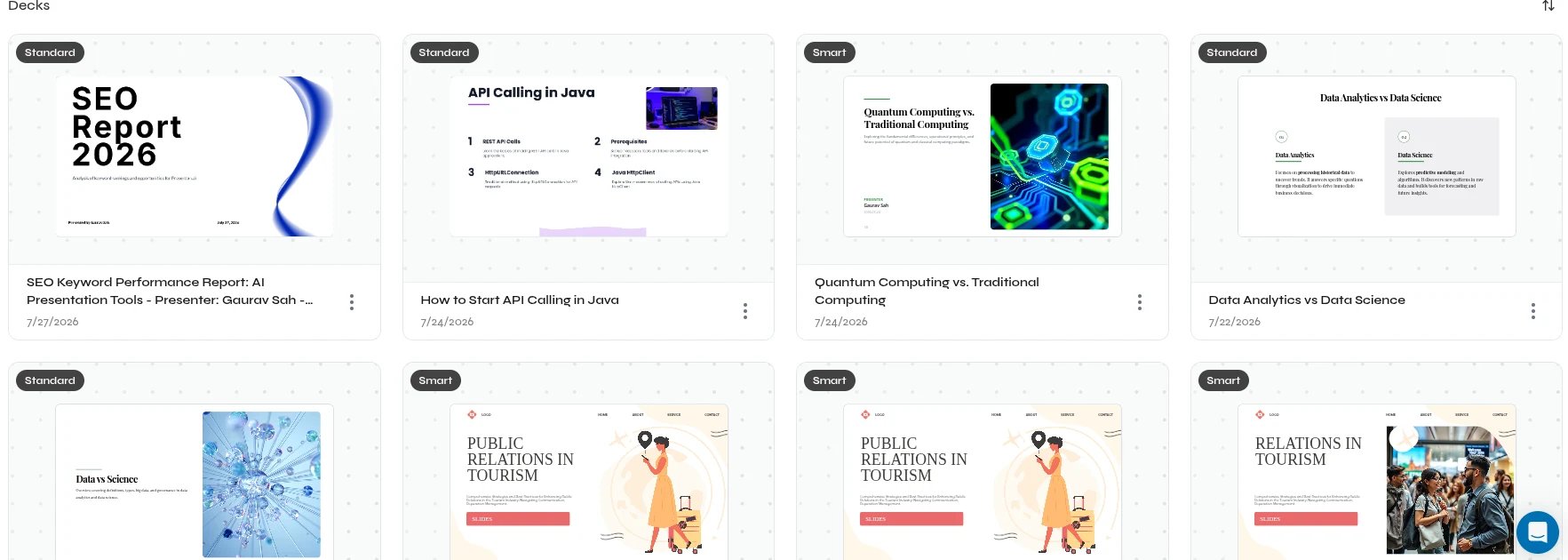
The **Decks** section shows a preview, title, presentation type, and creation date for every saved presentation. Select a card to open it in the editor. Use the three-dot menu for actions that apply to that deck.

<div className="guide-media guide-media--detail">
  <p className="guide-media-label">Saved presentations in the Decks section</p>

  <div className="guide-media-viewport">
    <img src="https://mintcdn.com/presenton-521d9e2f/isevrd3o6JPIkznF/images/user-guide/managing-presentations/dashboard-decks-clean.webp?fit=max&auto=format&n=isevrd3o6JPIkznF&q=85&s=f3561cb0e6b2b97af75732729bf1f62a" alt="Presenton Decks section with saved presentation cards, previews, titles, dates, and presentation types" width="1765" height="630" data-path="images/user-guide/managing-presentations/dashboard-decks-clean.webp" />
  </div>
</div>

Cloud and open-source use the same presentation editor controls for naming, editing, and exporting. Use the dashboard actions visible in the current account or release to open or remove saved presentations. Cloud manages application storage. A self-hosted deployment owner must keep its persistent application storage available across upgrades and container replacement.

## Before exporting

* Review the story, slide order, and titles.
* Verify important numbers, names, and claims.
* Check text density, line wrapping, and content near slide edges.
* Inspect charts, tables, images, and custom fonts.
* Open the exported file once before sharing it.

<CardGroup cols={2}>
  <Card title="Find and organize" icon="folder-open" href="/archive/v0.9.2-beta/user-guide/managing-presentations/find-and-organize-presentations">
    Open, rename, and remove presentations.
  </Card>

  <Card title="Export presentations" icon="file-export" href="/archive/v0.9.2-beta/user-guide/managing-presentations/export-presentations">
    Create and verify PPTX or PDF output.
  </Card>
</CardGroup>
