> ## Documentation Index
> Fetch the complete documentation index at: https://docs.presenton.ai/llms.txt
> Use this file to discover all available pages before exploring further.

# Start with Editing

> Open a presentation, choose the right editing tool, and export the result.

Use the editor after AI generation or when reopening a saved presentation. The workspace has three parts:

* **Slide rail:** select the slide to edit.
* **Canvas:** review and edit the active slide.
* **Editor rail:** add blocks, text, charts, tables, images, elements, or open AI.

## Watch the editing workflow

This narrated walkthrough shows how to select a slide, edit text and objects on the canvas, add content from the editor rail, use AI for a focused change, and review the result.

<video className="doc-video" controls preload="metadata" playsInline src="https://mintcdn.com/presenton-521d9e2f/isevrd3o6JPIkznF/images/user-guide/editing-and-refining/guided/start-editing.mp4?fit=max&auto=format&n=isevrd3o6JPIkznF&q=85&s=bdf86acfe1be56152c5f9a1aac5d1ce5" data-path="images/user-guide/editing-and-refining/guided/start-editing.mp4">
  Your browser does not support the video tag.
</video>

## Edit a presentation

<Steps>
  <Step title="Open the slide">
    Select a thumbnail from the slide rail.
  </Step>

  <Step title="Choose an editing path">
    Use the canvas for direct changes, AI for a focused request, or the slide rail to add a slide.
  </Step>

  <Step title="Make one change">
    Edit the selected content, then check the result before moving to another element.
  </Step>

  <Step title="Review and export">
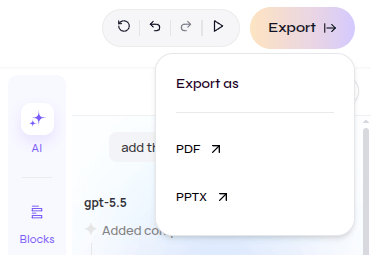
    Confirm the slide sequence, content, and layout. Select **Export**, then choose **PDF** or **PPTX**.
  </Step>
</Steps>

## Choose the right tool

<CardGroup cols={2}>
  <Card title="Canvas editor" icon="object-group" href="/archive/v0.9.2-beta/user-guide/editing-and-refining/canvas-editor">
    Add or directly edit blocks, text, images, shapes, tables, and charts.
  </Card>

  <Card title="AI assistant" icon="sparkles" href="/archive/v0.9.2-beta/user-guide/editing-and-refining/ai-assistant">
    Describe one focused change for the active slide.
  </Card>

  <Card title="Slide Editing" icon="images" href="/archive/v0.9.2-beta/user-guide/editing-and-refining/slide-editing">
    Select a slide or add a new one from the slide rail.
  </Card>

  <Card title="Template Editing" icon="layer-group" href="/archive/v0.9.2-beta/user-guide/editing-and-refining/template-editing">
    Refine schema behavior, reconstruction, and layout metadata in a saved template.
  </Card>
</CardGroup>

## Export the result

<div className="guide-media guide-media--panel guide-media--compact">
  <p className="guide-media-label">Export options verified in the editor</p>

  <div className="guide-media-viewport">
    <img src="https://mintcdn.com/presenton-521d9e2f/isevrd3o6JPIkznF/images/user-guide/editing-and-refining/overview/export-menu.png?fit=max&auto=format&n=isevrd3o6JPIkznF&q=85&s=fb8fa0ad9302f71bdcc7bb0a0eeb4ed7" alt="Export menu with PDF and PPTX options" width="371" height="255" data-path="images/user-guide/editing-and-refining/overview/export-menu.png" />
  </div>
</div>

Select **Export**, then choose **PDF** or **PPTX**. Open the downloaded file and check text wrapping, image crops, chart labels, table values, and object positions.