> ## Documentation Index
> Fetch the complete documentation index at: https://docs.presenton.ai/llms.txt
> Use this file to discover all available pages before exploring further.

# Template creation

> Turn a PowerPoint design into a reusable presentation template.

Create a template from a filled PowerPoint presentation when you want generated decks to follow an existing design. Each source slide can become a reusable layout.

<Tip>
  Use a presentation with representative content instead of an empty slide master. Distinct slide designs help Template Studio identify useful layouts.
</Tip>

## Complete workflow

This short walkthrough shows how to open Template Studio, upload a filled PowerPoint presentation, review the detected fonts and source slides, and turn its layouts into a reusable template.

<video className="doc-video" controls preload="metadata" playsInline src="https://mintcdn.com/presenton-521d9e2f/oSISzG16Qh-yjB8A/user_guide_assests/template-creation.mp4?fit=max&auto=format&n=oSISzG16Qh-yjB8A&q=85&s=51b40cce7b8a1fedd2dded24f847db70" data-path="user_guide_assests/template-creation.mp4">
  Your browser does not support the video tag.
</video>

## Create the template step by step

<Steps>
  <Step title="Open the template library">
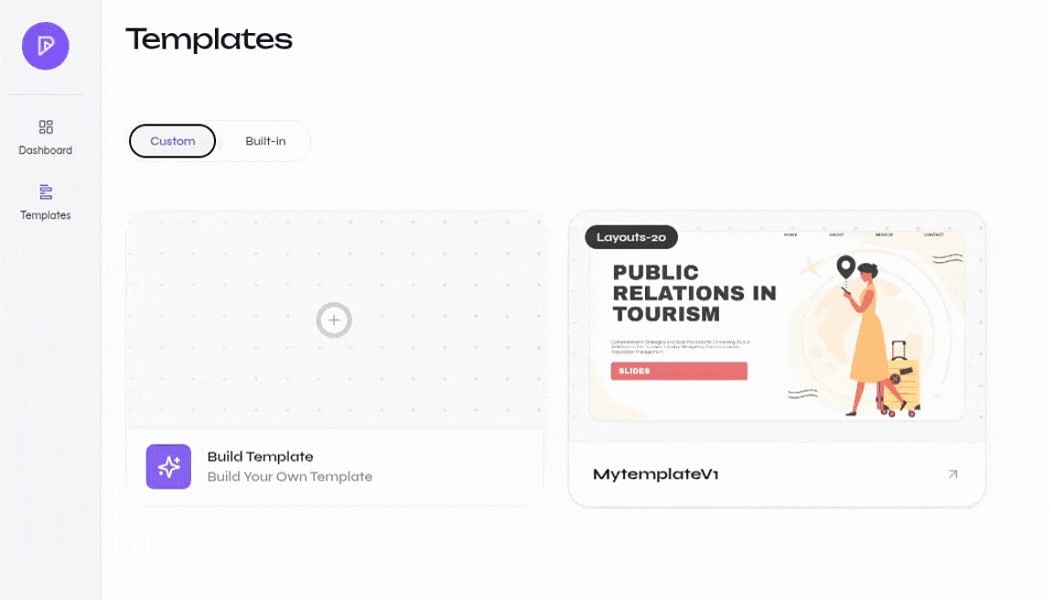
    Open **Templates** and select **Build Template** or **New Template**.

    <div className="guide-media guide-media--detail">
      <p className="guide-media-label">Open the custom template library</p>

      <div className="guide-media-viewport">
        <img src="https://mintcdn.com/presenton-521d9e2f/oSISzG16Qh-yjB8A/images/user-guide/template-creation/closeups/template-library.png?fit=max&auto=format&n=oSISzG16Qh-yjB8A&q=85&s=988ef6795a7673f796d52b8a9bffe2b0" alt="Close-up of the Templates page with the Build Template card, a custom template, and New Template button" width="1050" height="600" data-path="images/user-guide/template-creation/closeups/template-library.png" />
      </div>
    </div>
  </Step>

  <Step title="Upload the PowerPoint file">
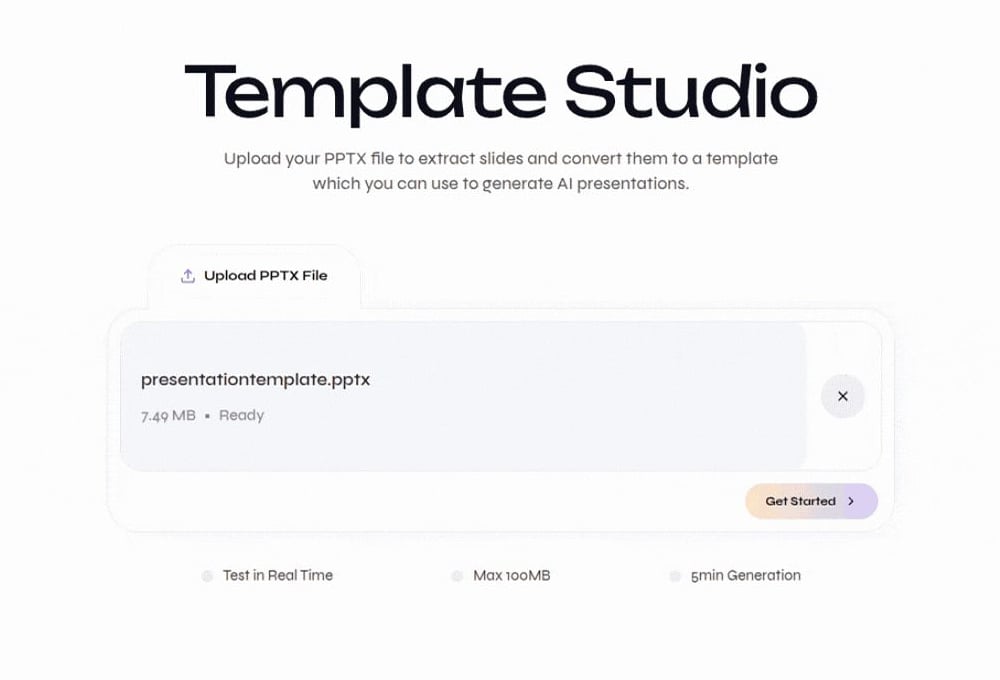
    Select **Upload PPTX File**, choose the presentation you want to reuse, and wait until its status changes to **Ready**. Select **Get Started** to continue.

    <div className="guide-media guide-media--detail">
      <p className="guide-media-label">PPTX file ready for Template Studio</p>

      <div className="guide-media-viewport">
        <img src="https://mintcdn.com/presenton-521d9e2f/oSISzG16Qh-yjB8A/images/user-guide/template-creation/closeups/upload-pptx.png?fit=max&auto=format&n=oSISzG16Qh-yjB8A&q=85&s=f89b8b269a963460e2c642cdcfa132fd" alt="Close-up of Template Studio showing an uploaded PPTX file ready to process" width="1000" height="680" data-path="images/user-guide/template-creation/closeups/upload-pptx.png" />
      </div>
    </div>
  </Step>

  <Step title="Review the detected fonts">
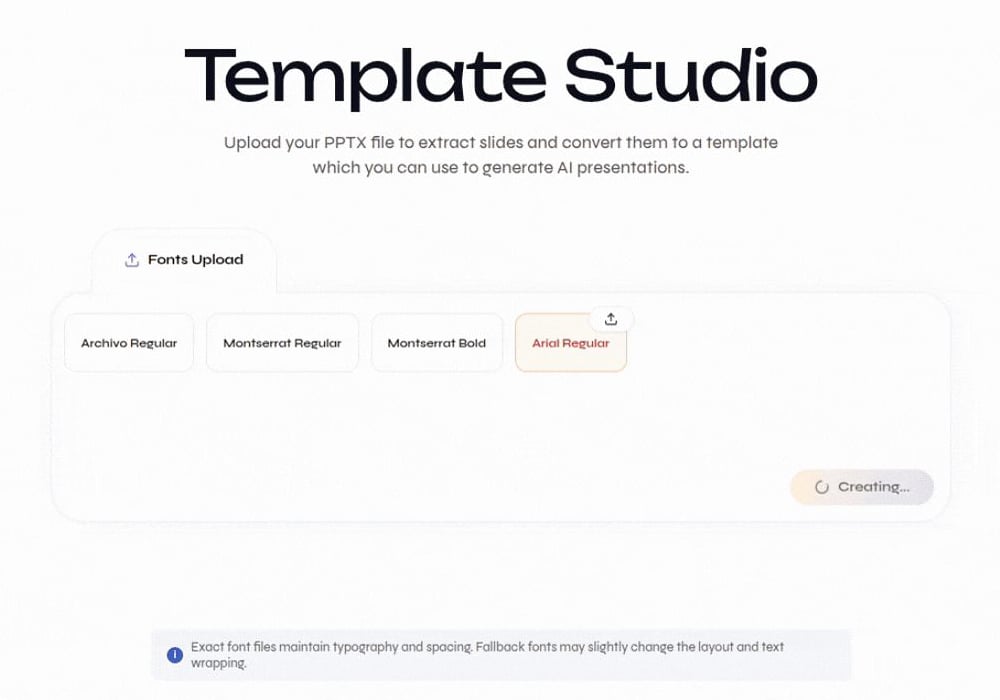
    Template Studio analyzes the fonts used by the presentation. Upload any missing font files shown in the font list so text keeps its intended typography, spacing, and wrapping.

    <div className="guide-media guide-media--detail">
      <p className="guide-media-label">Review detected fonts and upload missing files</p>

      <div className="guide-media-viewport">
        <img src="https://mintcdn.com/presenton-521d9e2f/oSISzG16Qh-yjB8A/images/user-guide/template-creation/closeups/review-fonts.png?fit=max&auto=format&n=oSISzG16Qh-yjB8A&q=85&s=4f73e958a23b0fa536abbb4704350f61" alt="Close-up of Template Studio font analysis with detected fonts and a missing font upload control" width="1000" height="700" data-path="images/user-guide/template-creation/closeups/review-fonts.png" />
      </div>
    </div>
  </Step>

  <Step title="Preview the source slides">
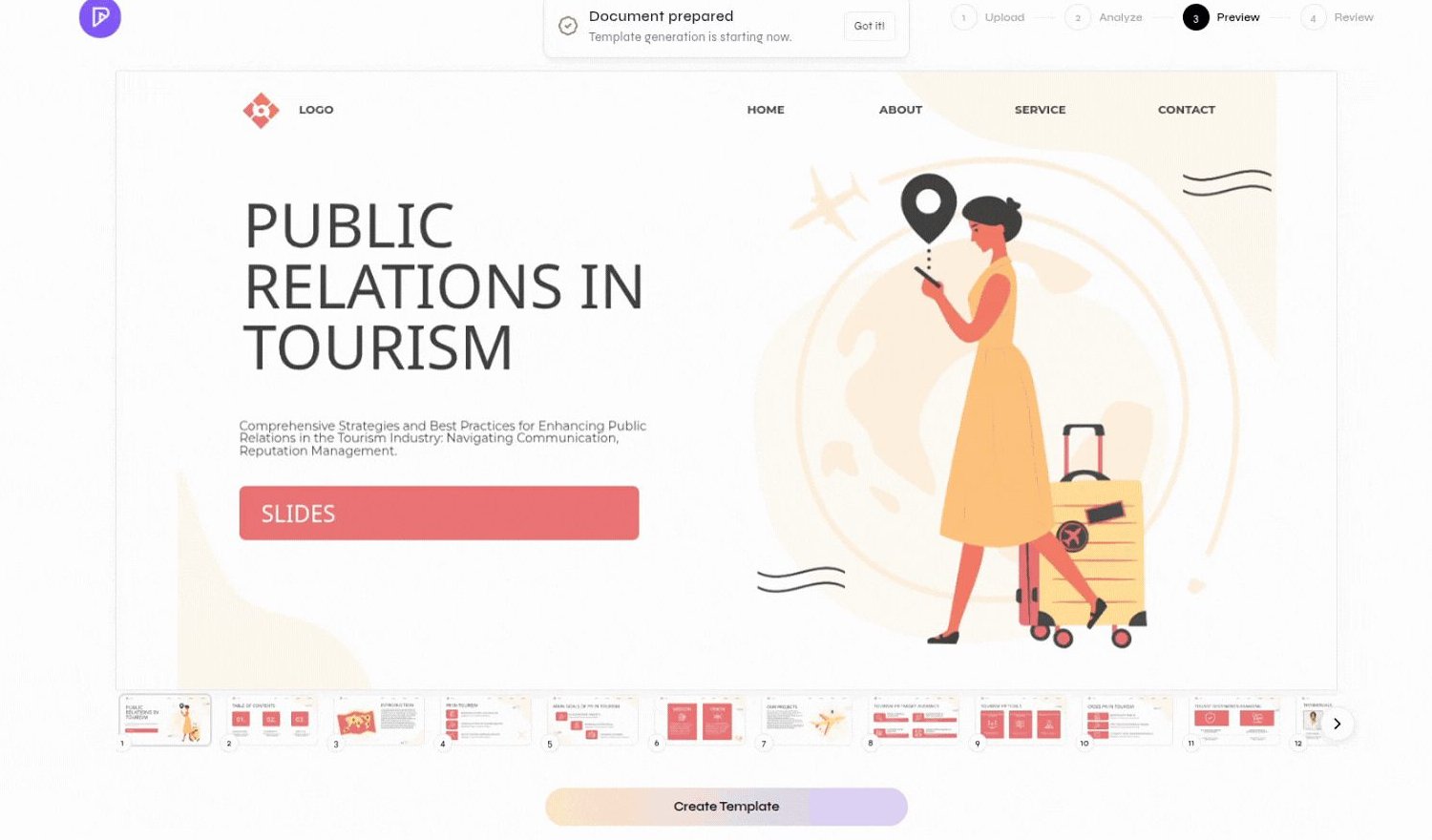
    Inspect the slide thumbnails and the large preview. Confirm that the presentation contains the layouts you want to reuse, then select **Create Template**.

    <div className="guide-media guide-media--detail">
      <p className="guide-media-label">Preview source slides before creating layouts</p>

      <div className="guide-media-viewport">
        <img src="https://mintcdn.com/presenton-521d9e2f/oSISzG16Qh-yjB8A/images/user-guide/template-creation/closeups/preview-slides.png?fit=max&auto=format&n=oSISzG16Qh-yjB8A&q=85&s=0fd8474d40199240d63fdd6d92bb85d8" alt="Close-up of Template Studio with a source slide, thumbnails, and Create Template action" width="1500" height="880" data-path="images/user-guide/template-creation/closeups/preview-slides.png" />
      </div>
    </div>
  </Step>

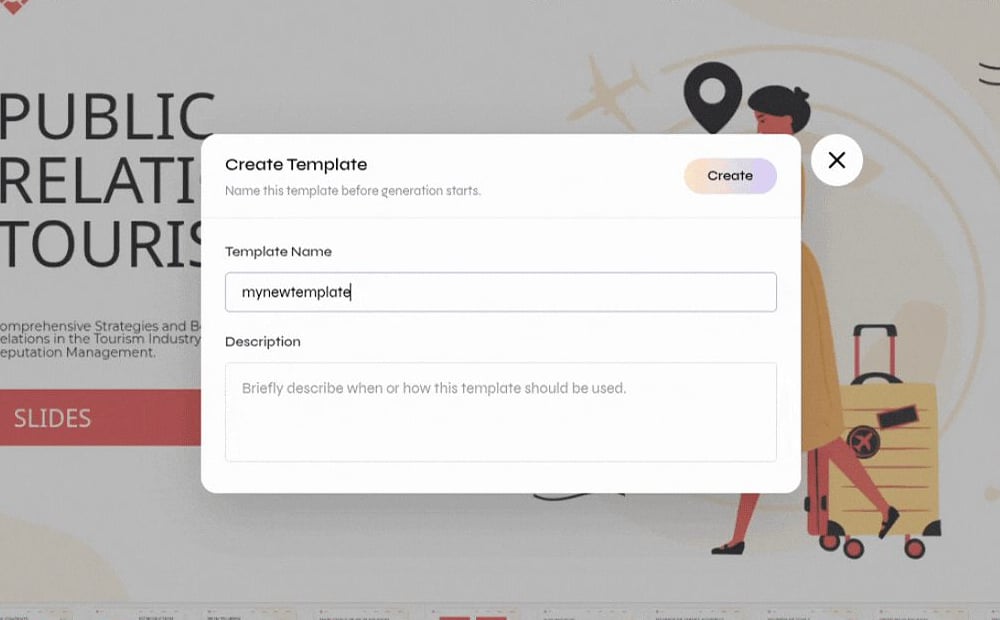
  <Step title="Name the template">
    Enter a clear template name. Add a description that explains when the design should be used, then select **Create**.

    <div className="guide-media guide-media--detail">
      <p className="guide-media-label">Enter the template name and description</p>

      <div className="guide-media-viewport">
        <img src="https://mintcdn.com/presenton-521d9e2f/oSISzG16Qh-yjB8A/images/user-guide/template-creation/closeups/name-template.png?fit=max&auto=format&n=oSISzG16Qh-yjB8A&q=85&s=a2a70f22ed42dd611465bdfecc15e66c" alt="Close-up of the Create Template dialog with template name and description fields" width="1000" height="620" data-path="images/user-guide/template-creation/closeups/name-template.png" />
      </div>
    </div>
  </Step>

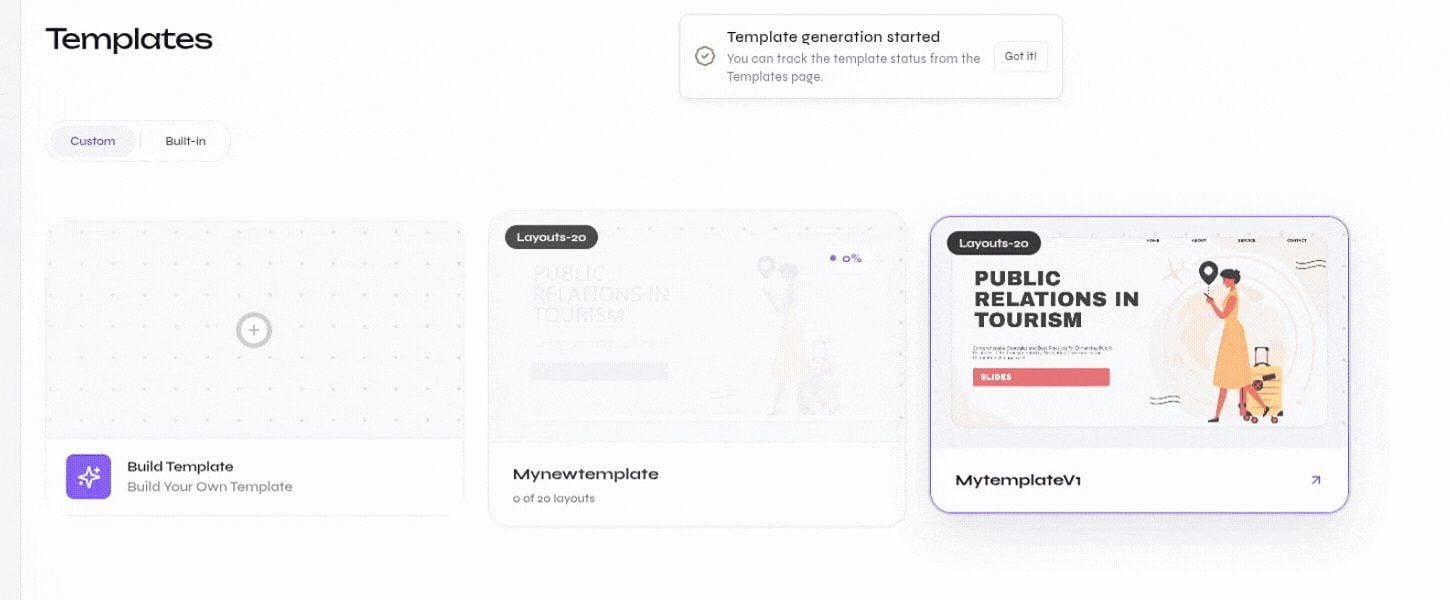
  <Step title="Monitor template generation">
    The template appears in the **Custom** library while its layouts are generated. Wait for generation to finish before using it in a presentation.

    <div className="guide-media guide-media--detail">
      <p className="guide-media-label">Template generation progress in the Custom library</p>

      <div className="guide-media-viewport">
        <img src="https://mintcdn.com/presenton-521d9e2f/oSISzG16Qh-yjB8A/images/user-guide/template-creation/closeups/generation-status.png?fit=max&auto=format&n=oSISzG16Qh-yjB8A&q=85&s=129d6c483e5737504263414433b3363d" alt="Close-up of the Custom template library showing layout generation progress" width="1450" height="600" data-path="images/user-guide/template-creation/closeups/generation-status.png" />
      </div>
    </div>
  </Step>
</Steps>

## Verify the result

After generation finishes, open the template and review its layouts. Create a short test presentation and check that text remains readable, visual elements are positioned correctly, and the exported PPTX matches the intended design.

<Tip>
  A smaller collection of reliable, distinct layouts is more useful than many near-duplicate slides.
</Tip>