> ## Documentation Index
> Fetch the complete documentation index at: https://docs.presenton.ai/llms.txt
> Use this file to discover all available pages before exploring further.
# Edit a slide with a prompt
> Update a single Cloud slide by describing the change you want in the prompt editor.
Use a prompt to update the currently selected slide in Presenton Cloud when you want to rewrite text, change the title, or improve the slide content without editing each element manually.
## Before you start
* Open the presentation in the Presenton editor.
* Select the slide you want to change from the slide list.
Prompt-based editing updates only the selected slide, so make sure the correct slide is active before you submit the change.
## Edit a slide with a prompt
In the editor, click the selected slide and open the floating slide actions in the top-right area of the canvas.
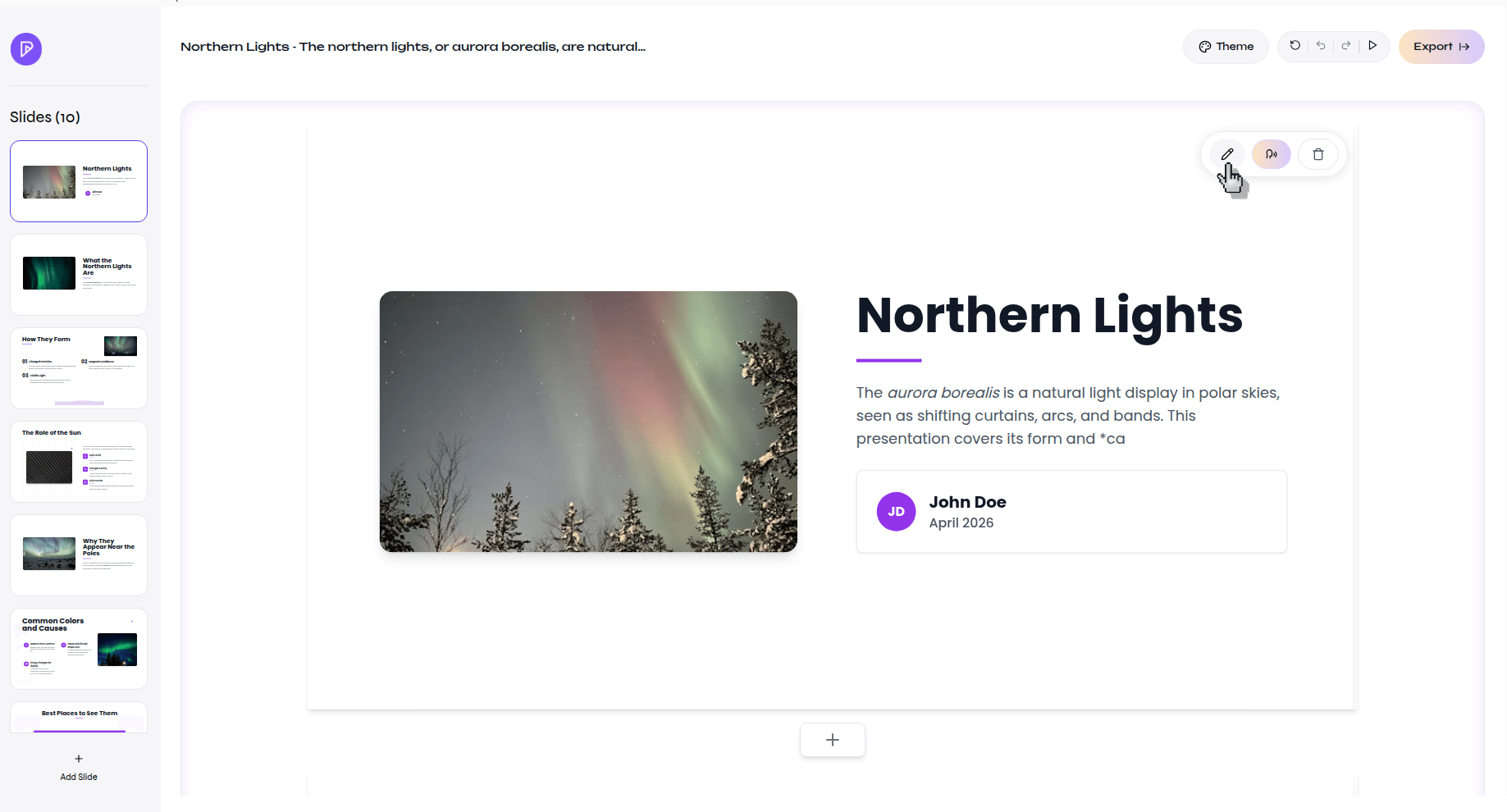 Select the prompt-based update action to open the **Update slide** panel.
In the prompt box, enter a clear instruction for how the slide should be updated, then click **Update**.
Select the prompt-based update action to open the **Update slide** panel.
In the prompt box, enter a clear instruction for how the slide should be updated, then click **Update**.
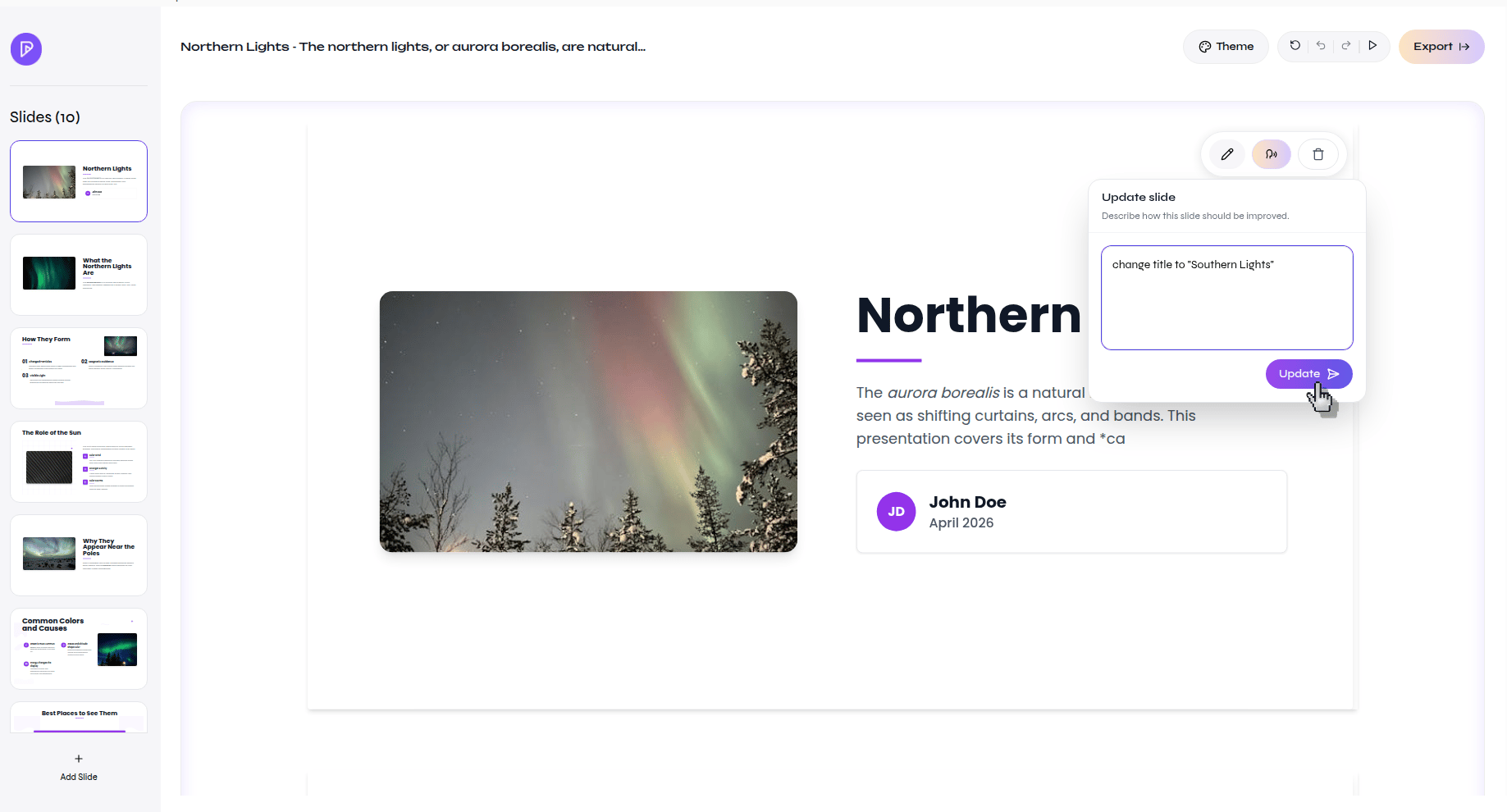 Wait for Presenton to apply the change, then review the slide content to confirm it matches your request.
## Verify the result
The selected slide updates in the editor and reflects the prompt you submitted.
## Next steps
* [Create a presentation](/cloud/quickstart)
* [Create a Template in Standard Mode](/cloud/tutorials/create-branded-template)
Wait for Presenton to apply the change, then review the slide content to confirm it matches your request.
## Verify the result
The selected slide updates in the editor and reflects the prompt you submitted.
## Next steps
* [Create a presentation](/cloud/quickstart)
* [Create a Template in Standard Mode](/cloud/tutorials/create-branded-template)