> ## Documentation Index
> Fetch the complete documentation index at: https://docs.presenton.ai/llms.txt
> Use this file to discover all available pages before exploring further.
# Presentation context
> Give editing requests enough context without relying on hidden assumptions.
Presentation context is the information available when Presenton interprets an editing request. Depending on the workflow, it can include the current deck, source material, outline, and recent instructions.
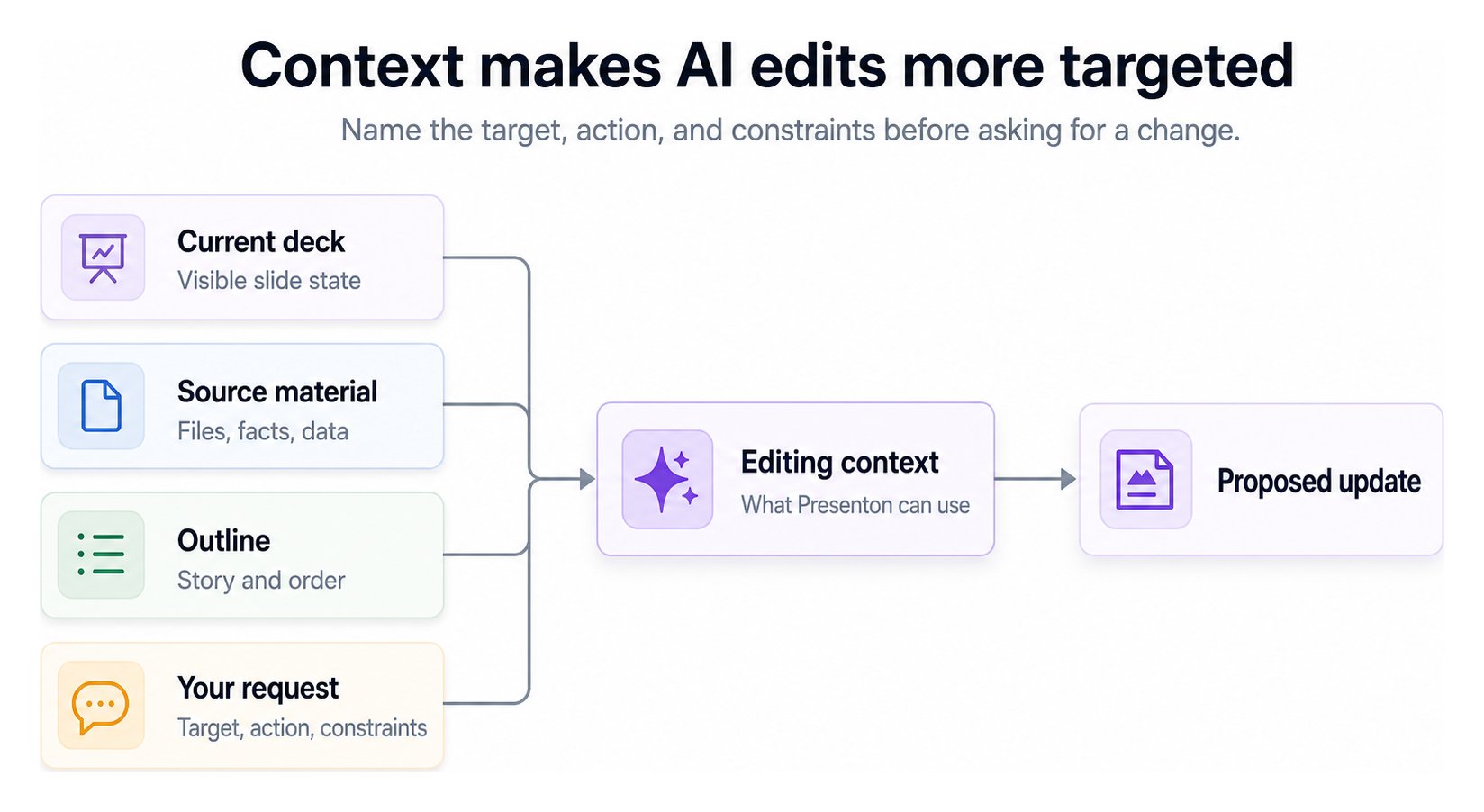 Context helps with follow-up instructions such as “make this slide more concise” or “use the same tone in the next section.” It is not a guarantee that every earlier detail will be recalled or preserved.
## Write an actionable edit request
Use this pattern:
```text theme={null}
On slide 4, shorten the three risk descriptions to one sentence each.
Keep the risk names, owners, dates, and severity unchanged.
Use a direct executive tone.
```
| Include | Example |
| -------------- | --------------------------------------------- |
| Target | “On slide 4” or “in the pricing section” |
| Action | “Shorten,” “replace,” “add,” or “restructure” |
| Constraint | “Keep every figure unchanged” |
| Desired result | “Use three concise bullets” |
## Protect important information
* Repeat exact facts that must survive an edit.
* Name the slide, section, or element being changed.
* Point to the relevant source when the request depends on it.
* Split unrelated changes into separate requests.
* Review the visible result after every AI-assisted edit.
Treat the saved presentation—not assumed model memory—as the record of the current deck. If a detail matters, make it explicit in the request and verify it afterward.
## Context and persistence
Cloud manages application storage for the hosted workflow. In a self-hosted deployment, keep `/app_data` persistent so presentations, uploads, generated assets, settings, and local application state survive container replacement.
Configure persistence for a self-hosted deployment.
Context helps with follow-up instructions such as “make this slide more concise” or “use the same tone in the next section.” It is not a guarantee that every earlier detail will be recalled or preserved.
## Write an actionable edit request
Use this pattern:
```text theme={null}
On slide 4, shorten the three risk descriptions to one sentence each.
Keep the risk names, owners, dates, and severity unchanged.
Use a direct executive tone.
```
| Include | Example |
| -------------- | --------------------------------------------- |
| Target | “On slide 4” or “in the pricing section” |
| Action | “Shorten,” “replace,” “add,” or “restructure” |
| Constraint | “Keep every figure unchanged” |
| Desired result | “Use three concise bullets” |
## Protect important information
* Repeat exact facts that must survive an edit.
* Name the slide, section, or element being changed.
* Point to the relevant source when the request depends on it.
* Split unrelated changes into separate requests.
* Review the visible result after every AI-assisted edit.
Treat the saved presentation—not assumed model memory—as the record of the current deck. If a detail matters, make it explicit in the request and verify it afterward.
## Context and persistence
Cloud manages application storage for the hosted workflow. In a self-hosted deployment, keep `/app_data` persistent so presentations, uploads, generated assets, settings, and local application state survive container replacement.
Configure persistence for a self-hosted deployment.