> ## Documentation Index
> Fetch the complete documentation index at: https://docs.presenton.ai/llms.txt
> Use this file to discover all available pages before exploring further.
# Create a template in Standard mode
> Convert a filled PPTX into a reusable Presenton template by uploading the deck, resolving fonts, generating layouts, reviewing schema, and saving the result.
Use Standard mode when you want Presenton to learn a finished presentation design from a PPTX and turn each source slide into a reusable layout for future AI-generated decks.
## How Standard mode works
In Standard mode, Presenton processes your source PPTX slide by slide.
* Each filled source slide is converted into a reusable slide layout.
* AI identifies text, images, icons, and other editable regions on the slide.
* Presenton creates an internal schema for each layout so future presentations can keep the same design while replacing the content.
Do not upload an empty template deck. Standard mode works best when the PPTX already contains real, filled slides with different layout types that AI can learn from and extrapolate.
## Before you start
* Prepare a `.pptx` file that contains representative slides for the layouts you want to reuse.
* Include real content in those slides instead of blank placeholders.
* Make sure the deck includes the visual variety you want the template to support, such as title slides, section slides, image slides, charts, or closing slides.
* Keep the source file under the upload limits shown in Template Studio.
If the deck uses custom fonts, keep those font files ready before you start. Presenton first looks for fonts referenced in the PPTX and tries to load them automatically. You only need to upload the fonts that cannot be resolved.
## Create a template in Standard mode
### Open Standard mode
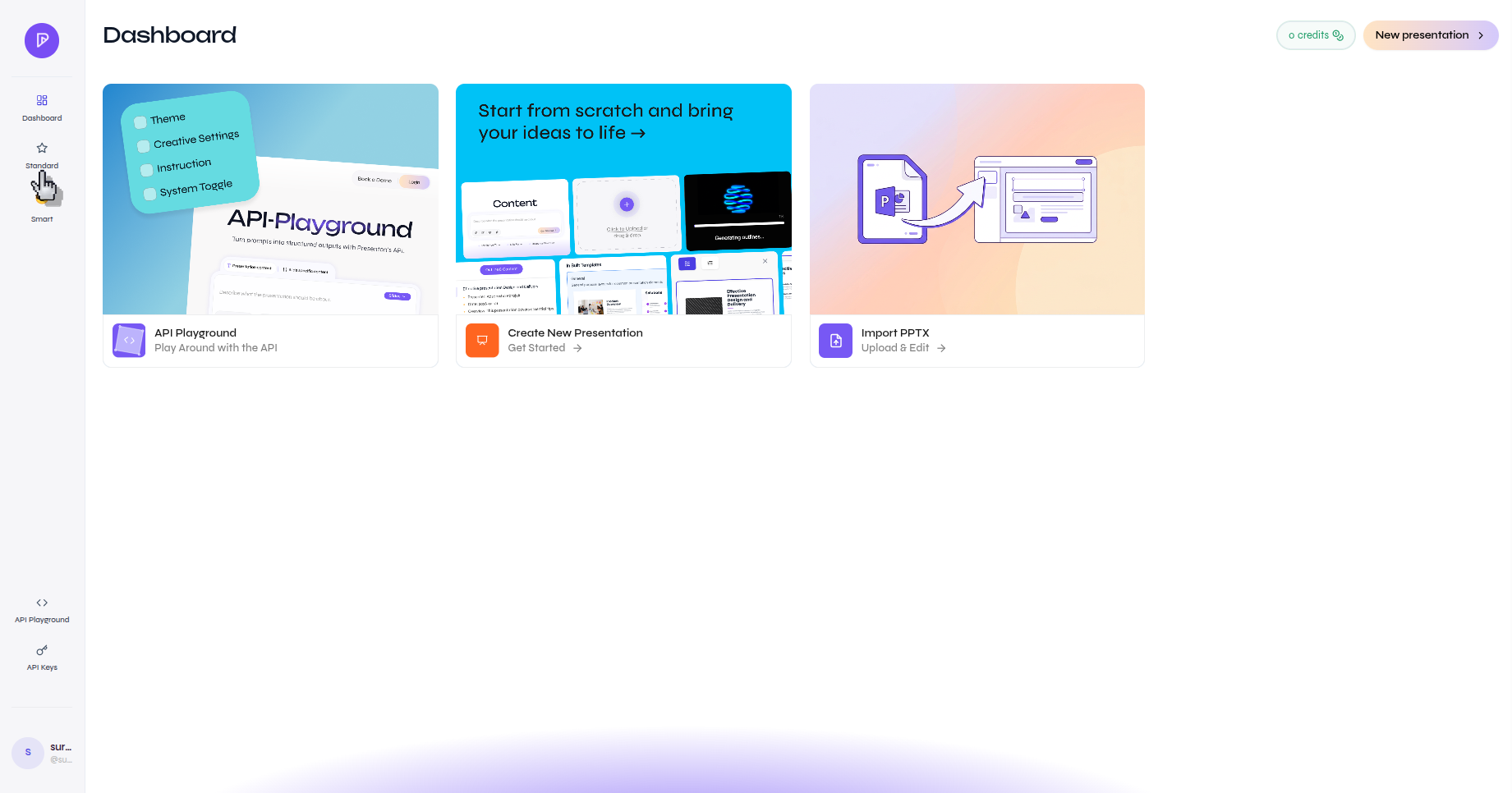
From the main dashboard, open the left navigation and select **Standard**.
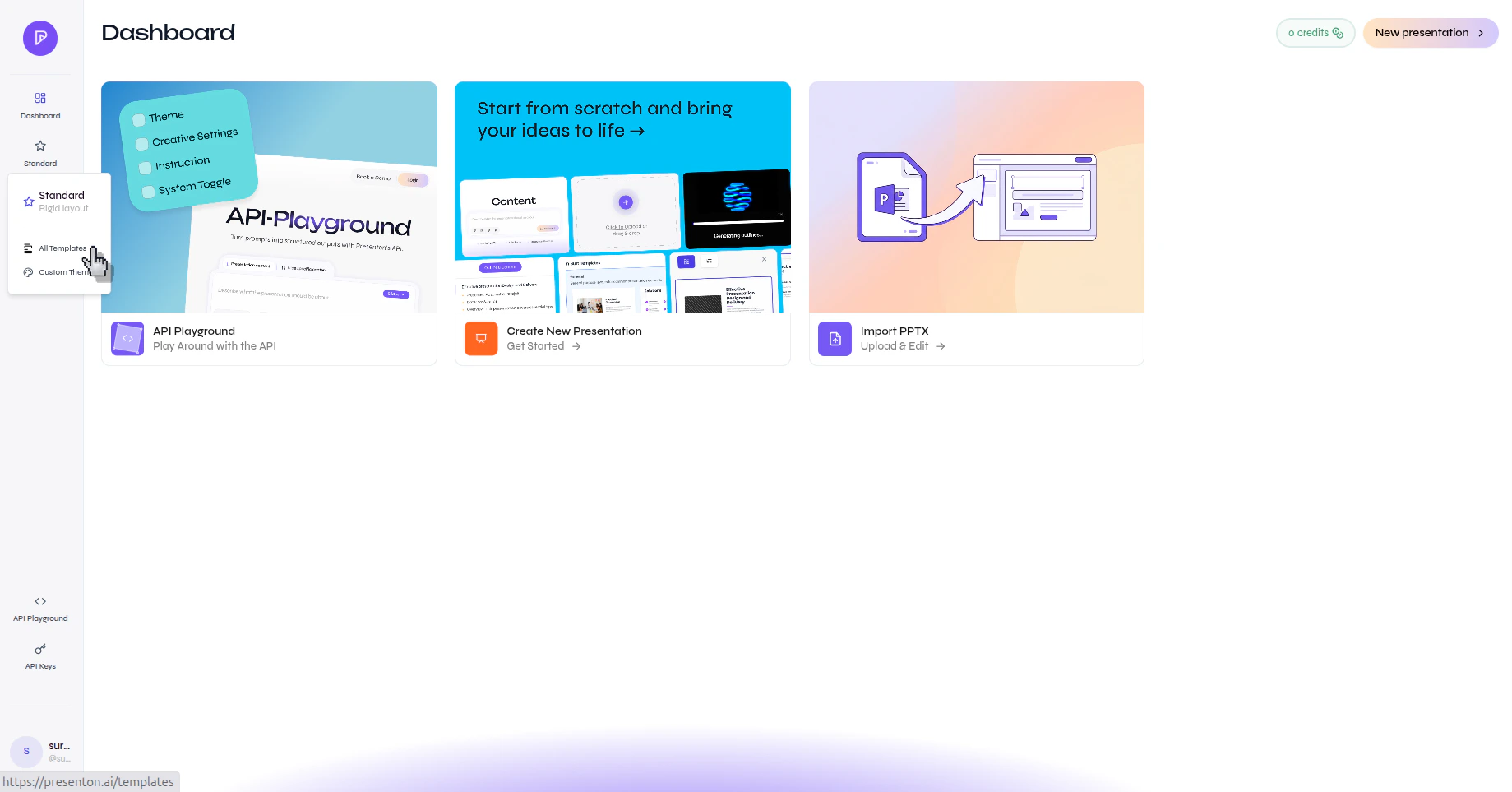
 In the Standard menu, select **All Templates**.
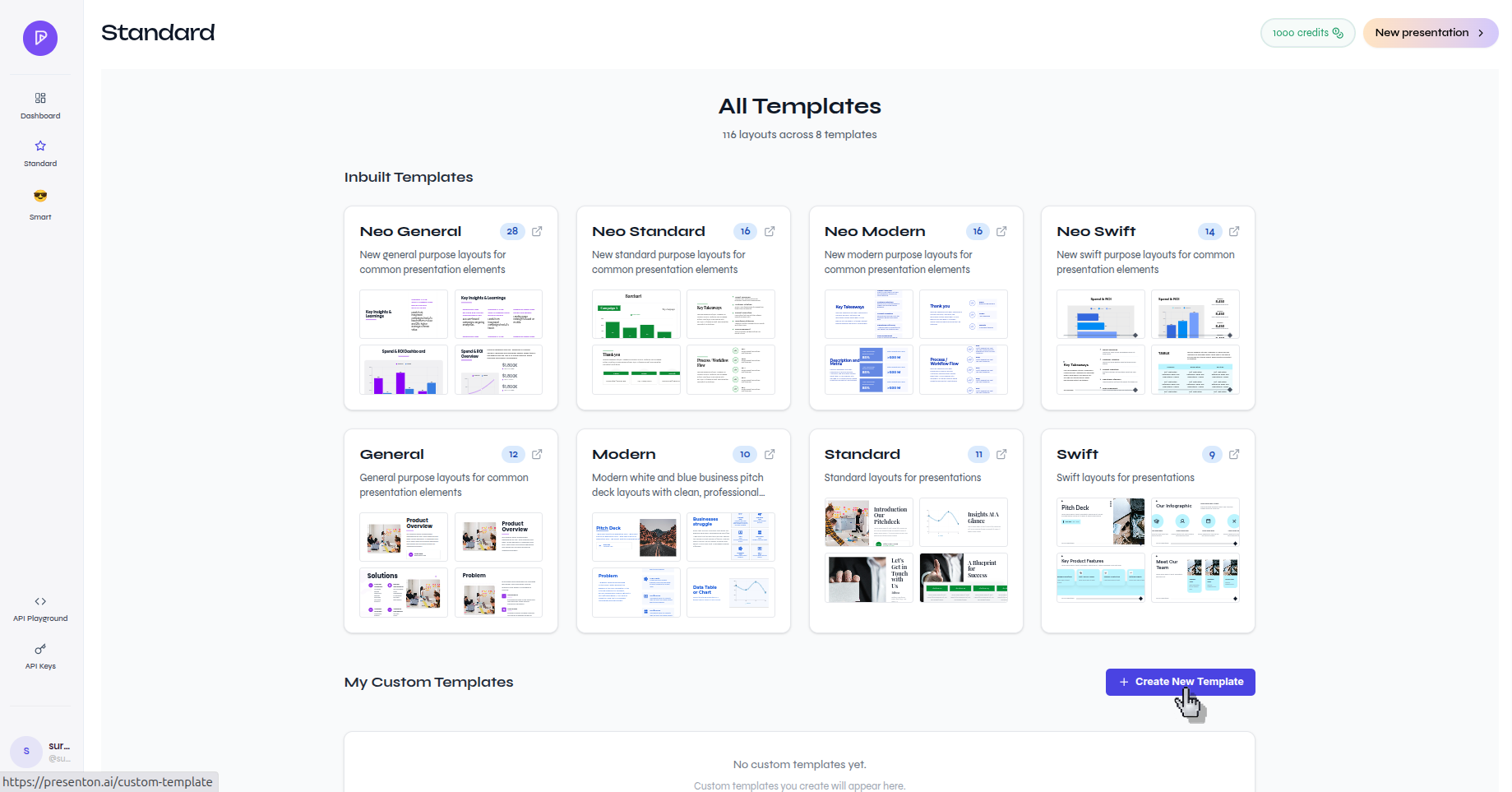
 On the templates page, click **Create New Template**.
 ### Upload the PPTX and resolve fonts
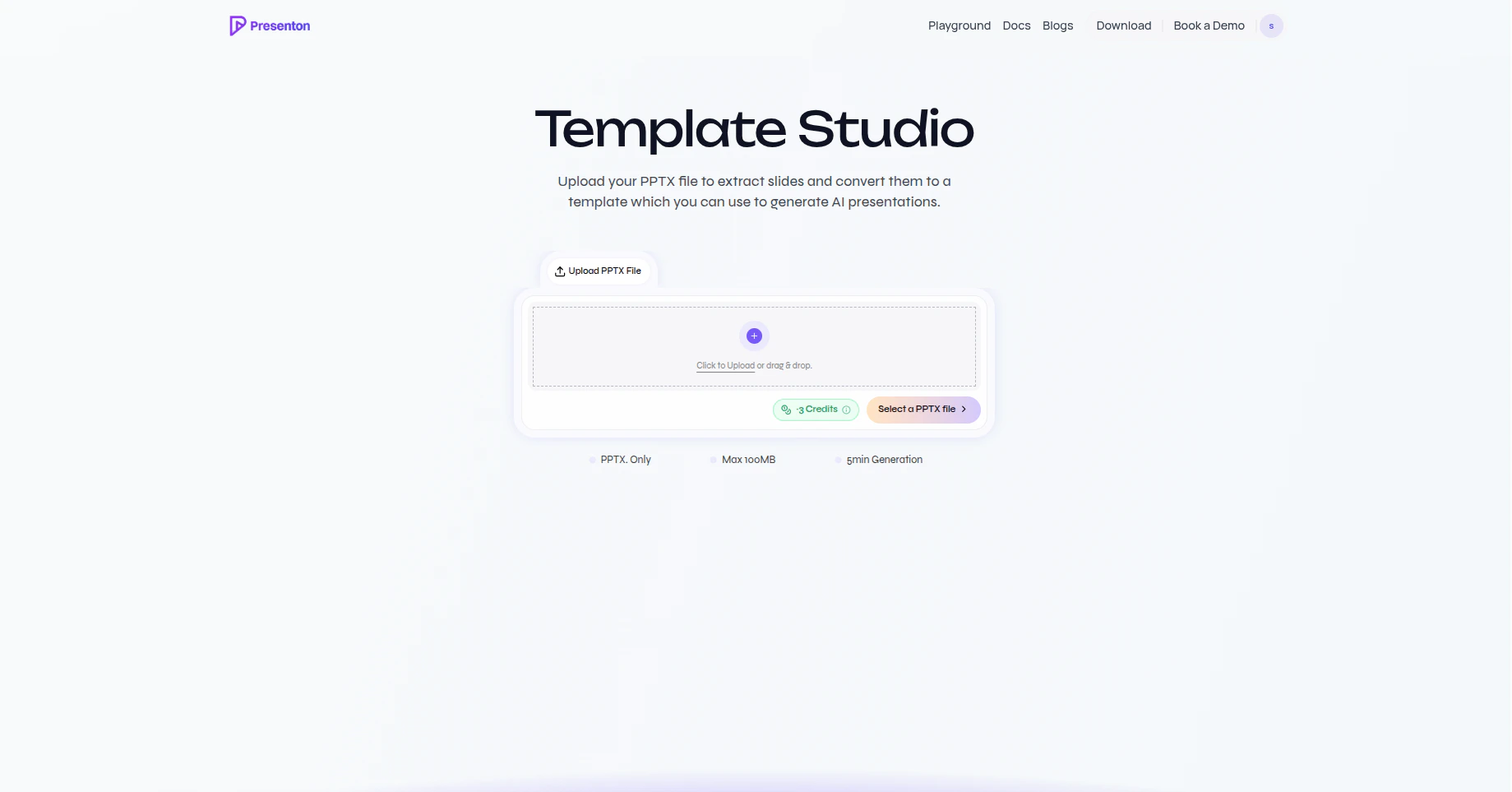
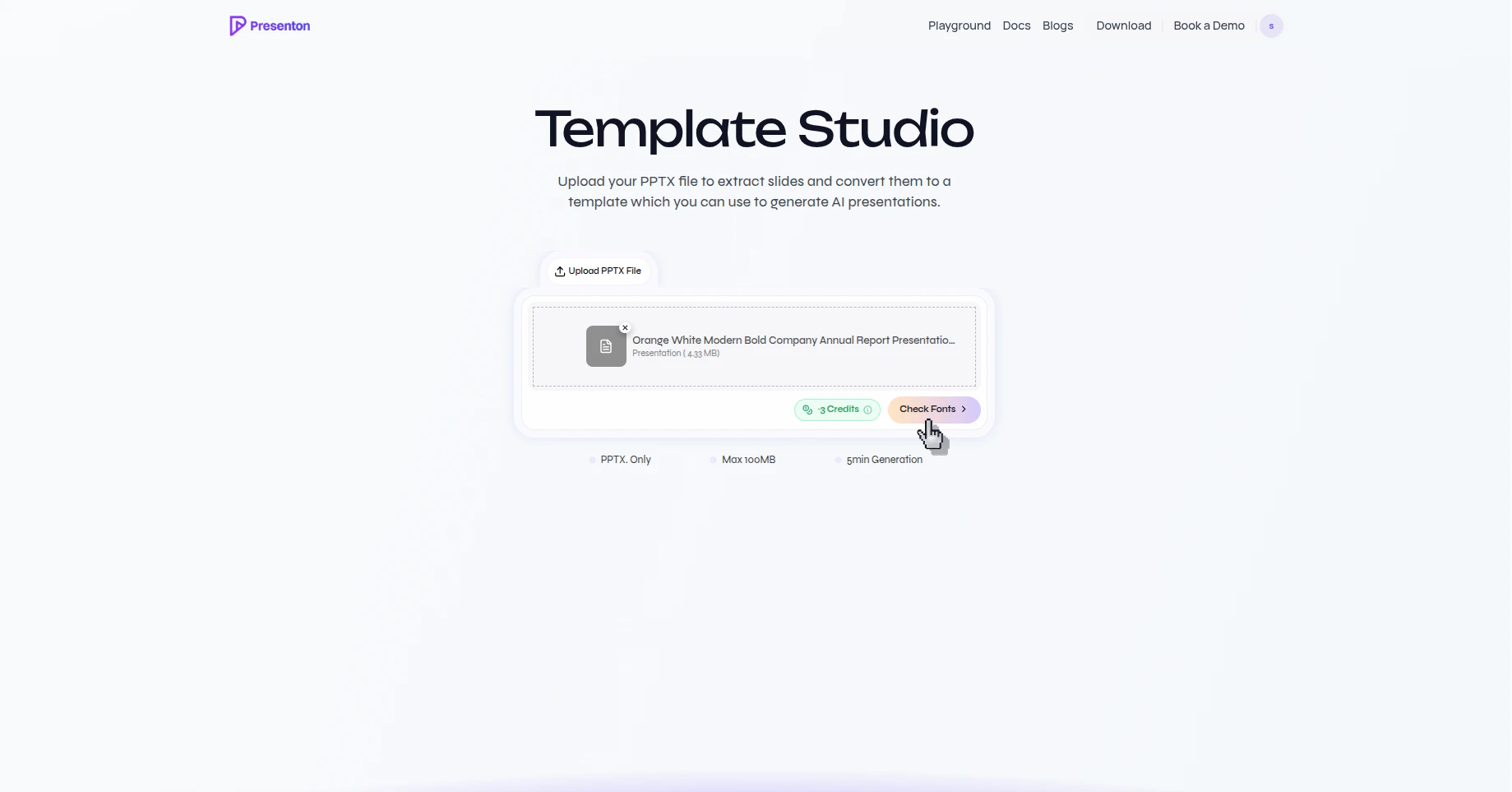
In **Template Studio**, upload the PowerPoint file you want to convert into a template.
### Upload the PPTX and resolve fonts
In **Template Studio**, upload the PowerPoint file you want to convert into a template.
 After the file is attached, click **Check Fonts**.
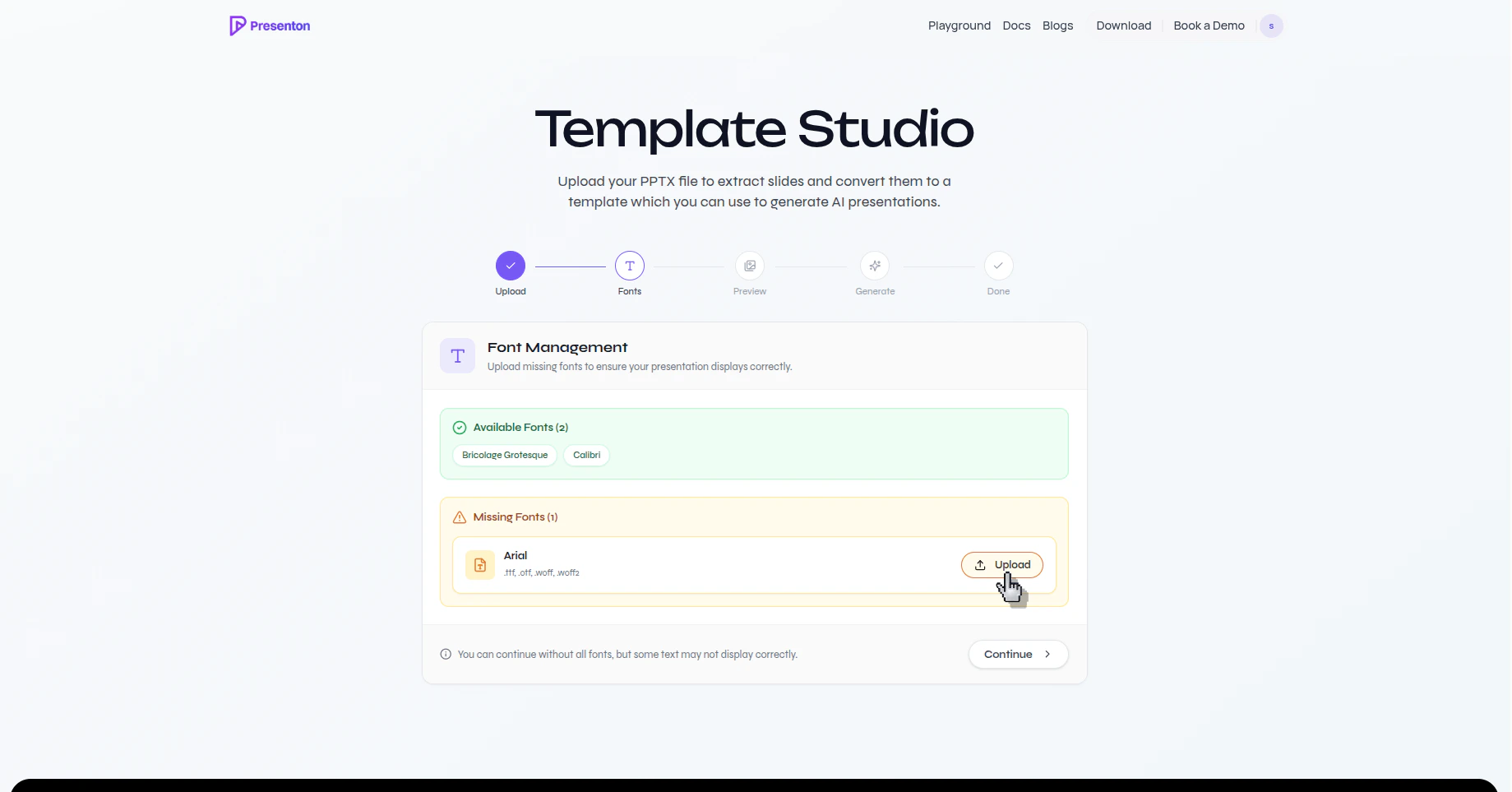
 Review the **Font Management** screen. If a font is missing, upload the font file so the slides render correctly.
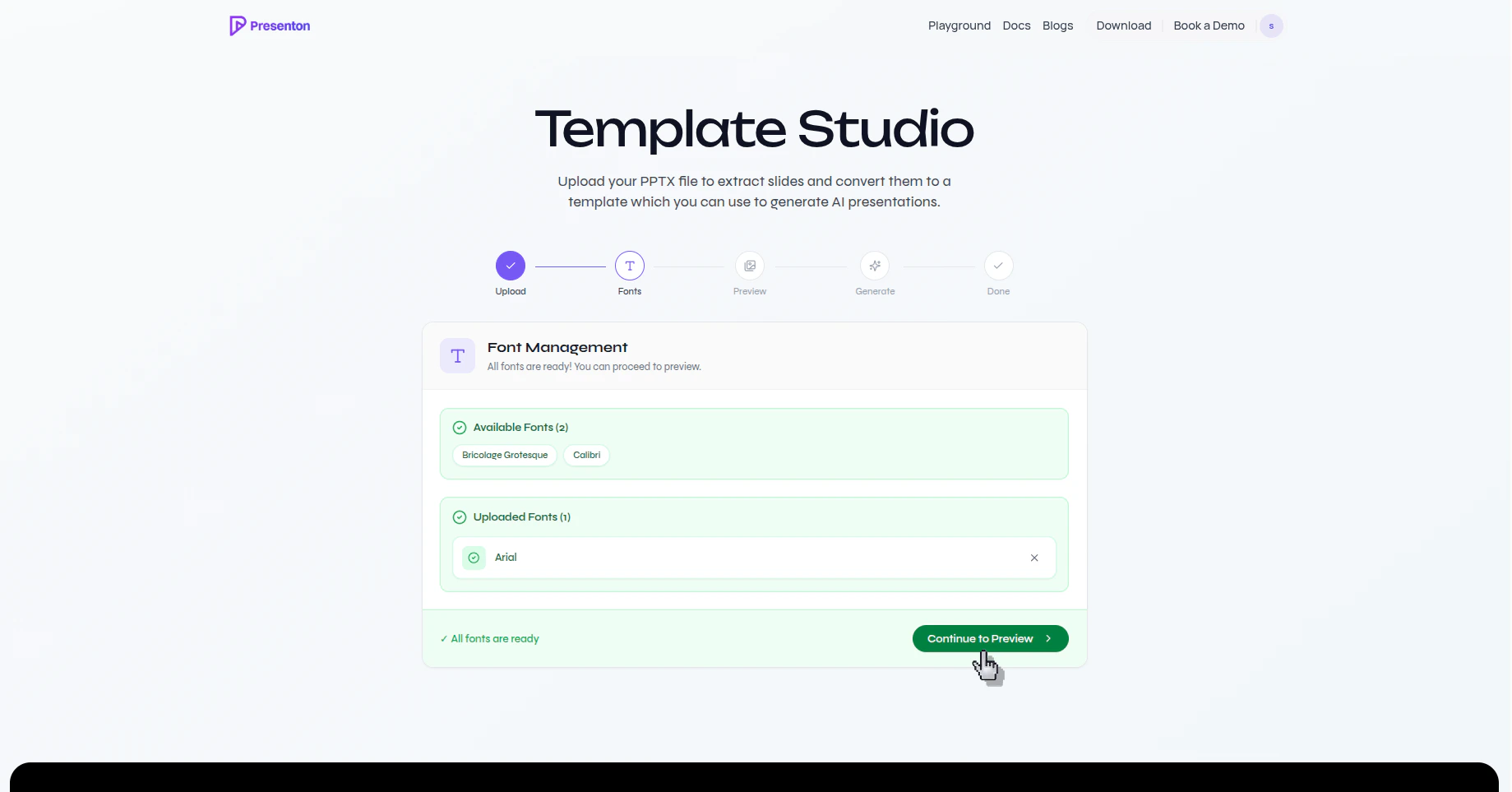
 When the fonts are available, click **Continue to Preview**.
 Presenton reads the fonts declared in the PPTX first. If a font can be found publicly, it is loaded automatically. If not, you are prompted to upload the missing font yourself. You can continue without every font, but the preview and generated layouts may not match the source deck accurately.
### Preview the converted slides
In **Slide Preview**, check whether the slide still looks correct after the fonts have been applied. Pay close attention to text spacing, wrapping, and alignment.
Presenton reads the fonts declared in the PPTX first. If a font can be found publicly, it is loaded automatically. If not, you are prompted to upload the missing font yourself. You can continue without every font, but the preview and generated layouts may not match the source deck accurately.
### Preview the converted slides
In **Slide Preview**, check whether the slide still looks correct after the fonts have been applied. Pay close attention to text spacing, wrapping, and alignment.
 This preview stage is your last clean checkpoint before layout generation. If text already looks wrong here, fix fonts first instead of generating layouts with incorrect rendering.
### Generate layouts from the source slides
When the preview looks correct, click **Generate Template**. Presenton converts the PPTX slides into reusable layouts one by one.
This preview stage is your last clean checkpoint before layout generation. If text already looks wrong here, fix fonts first instead of generating layouts with incorrect rendering.
### Generate layouts from the source slides
When the preview looks correct, click **Generate Template**. Presenton converts the PPTX slides into reusable layouts one by one.
 Each source slide becomes its own template layout. That is why the source PPTX should contain filled examples of every layout type you want to support later.
### Review the schema for each layout
On a generated layout, click **Schema** to inspect the fields Presenton detected on that slide.
Each source slide becomes its own template layout. That is why the source PPTX should contain filled examples of every layout type you want to support later.
### Review the schema for each layout
On a generated layout, click **Schema** to inspect the fields Presenton detected on that slide.
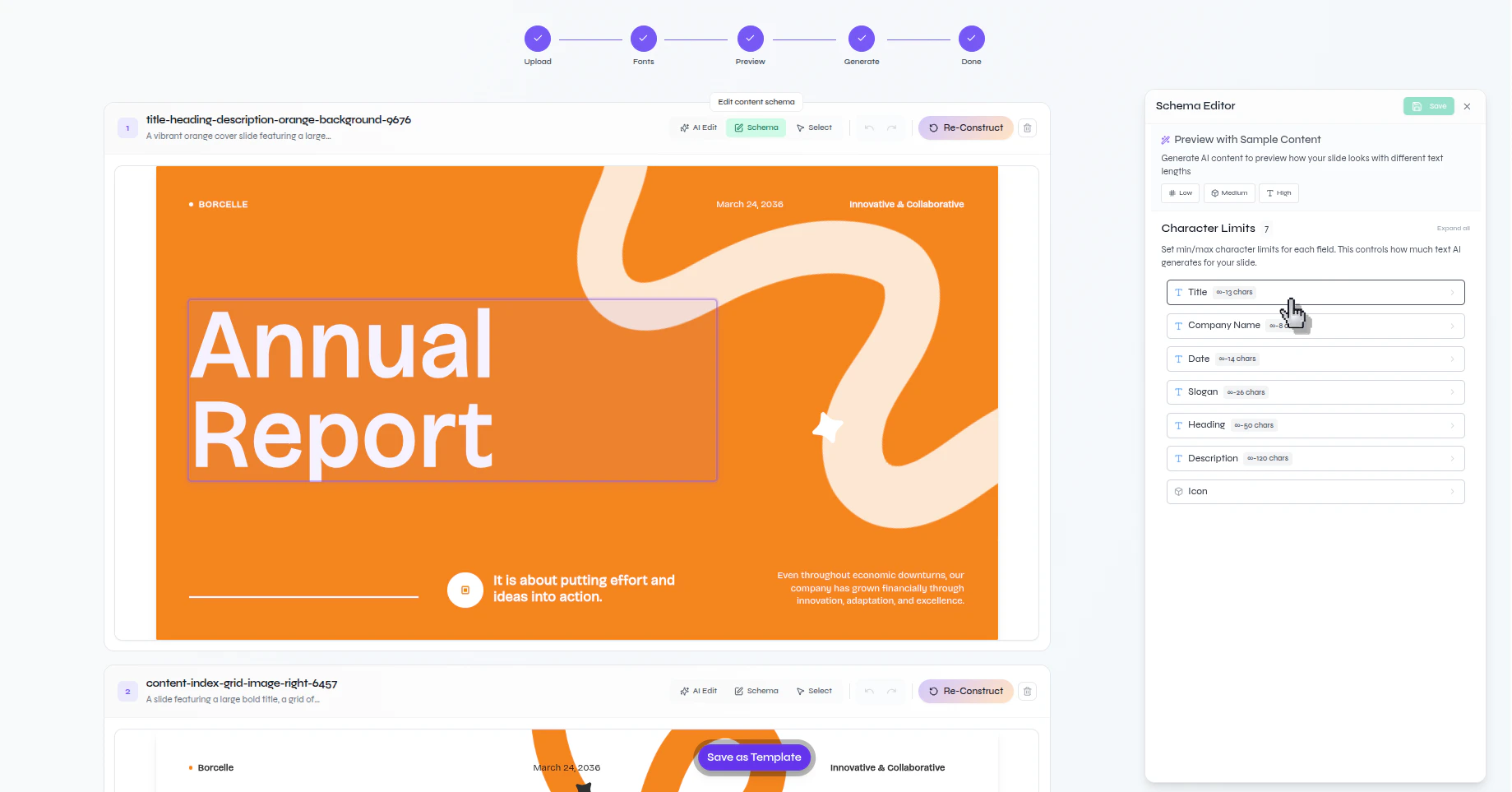 Review the min and max character limits for each field, then update them where needed so future generated content fits the layout more reliably.
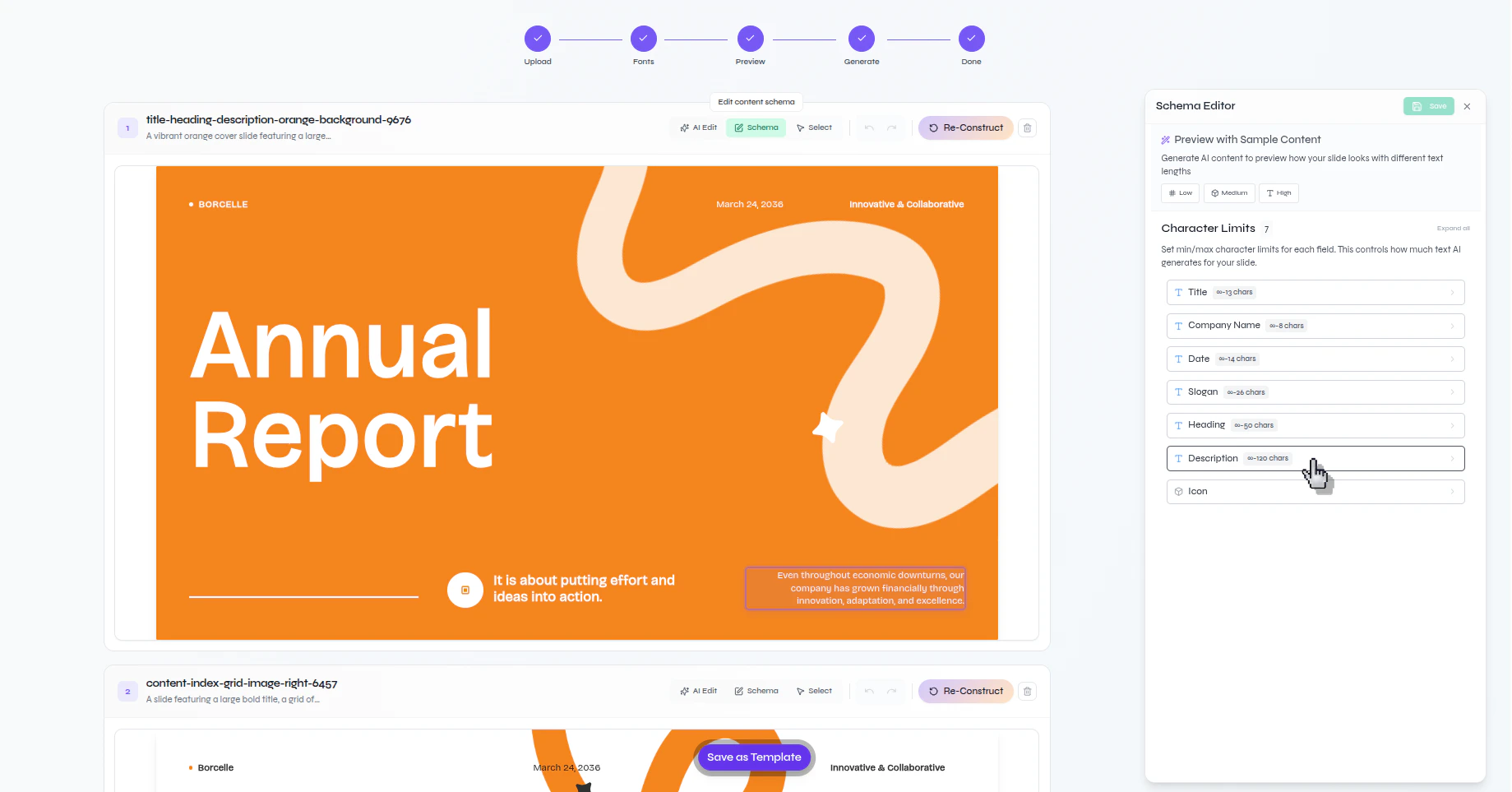 The schema is the contract Presenton uses later when it fills this layout with new content. If the limits are too tight, generated content may become unnaturally short. If they are too loose, text can overflow or weaken the design.
### Fix layout issues and stress-test the result
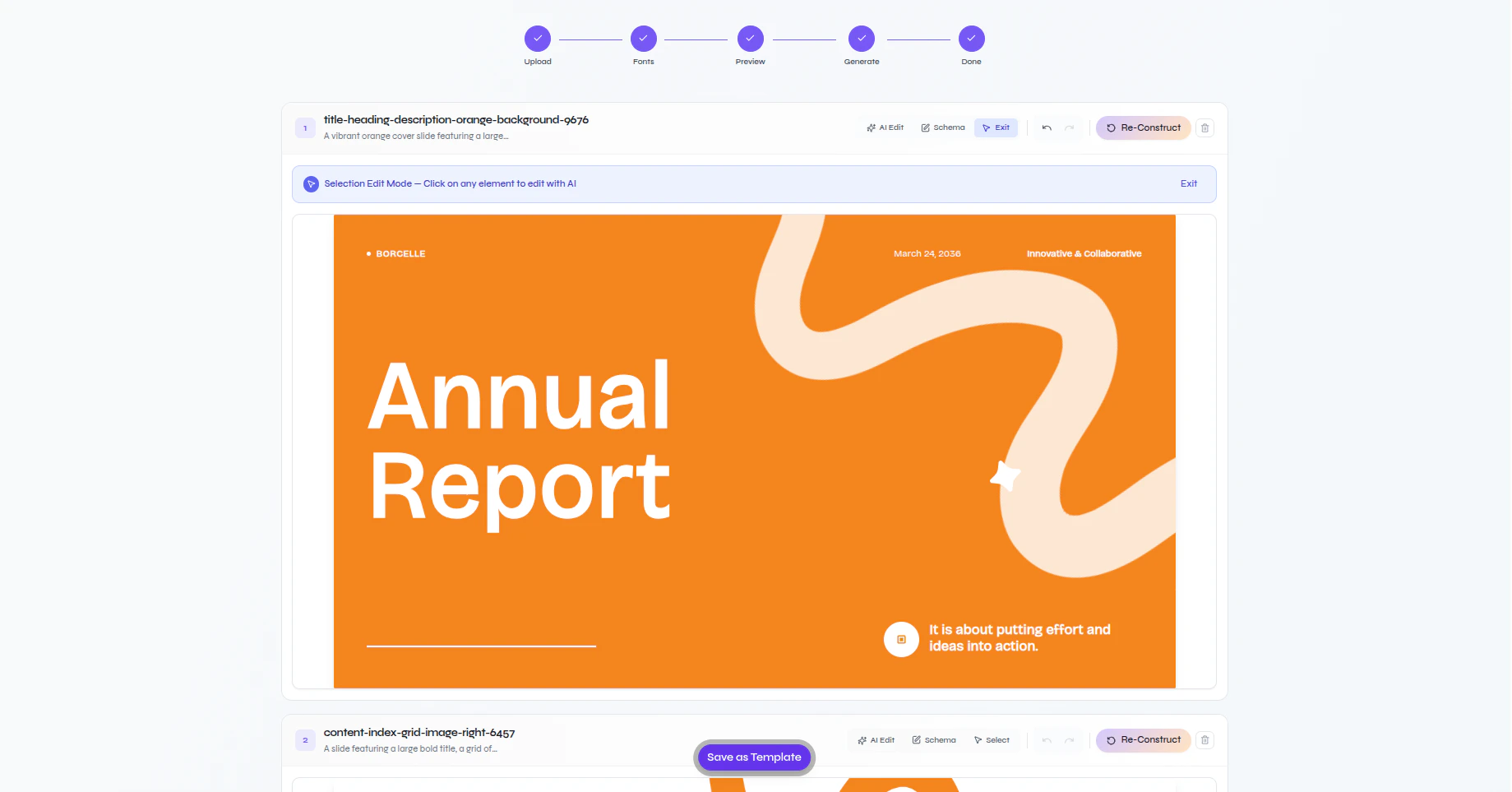
If a generated layout needs correction, click **Select** so you can edit individual elements on the slide.
The schema is the contract Presenton uses later when it fills this layout with new content. If the limits are too tight, generated content may become unnaturally short. If they are too loose, text can overflow or weaken the design.
### Fix layout issues and stress-test the result
If a generated layout needs correction, click **Select** so you can edit individual elements on the slide.
 Click the element you want to change, describe the edit in the prompt, and apply it.
 Confirm that the selected element changed in the way you intended.
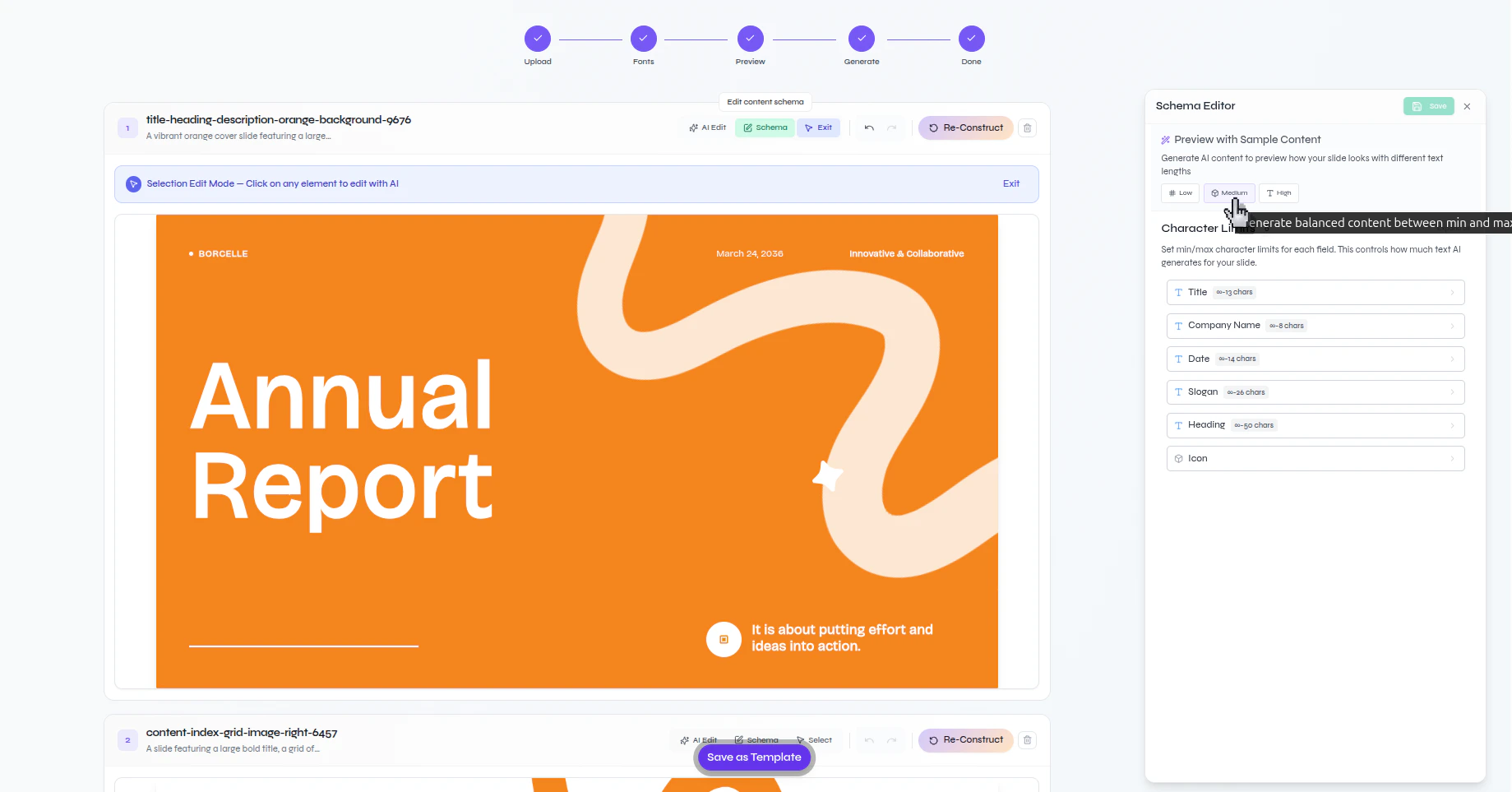
 In the schema editor, use **Low**, **Medium**, or **High** to fill the layout with arbitrary sample content and test how it behaves.
 Review the generated sample content on the slide. If text overflows, important areas feel too sparse, or the composition breaks, adjust the schema or edit the layout again.
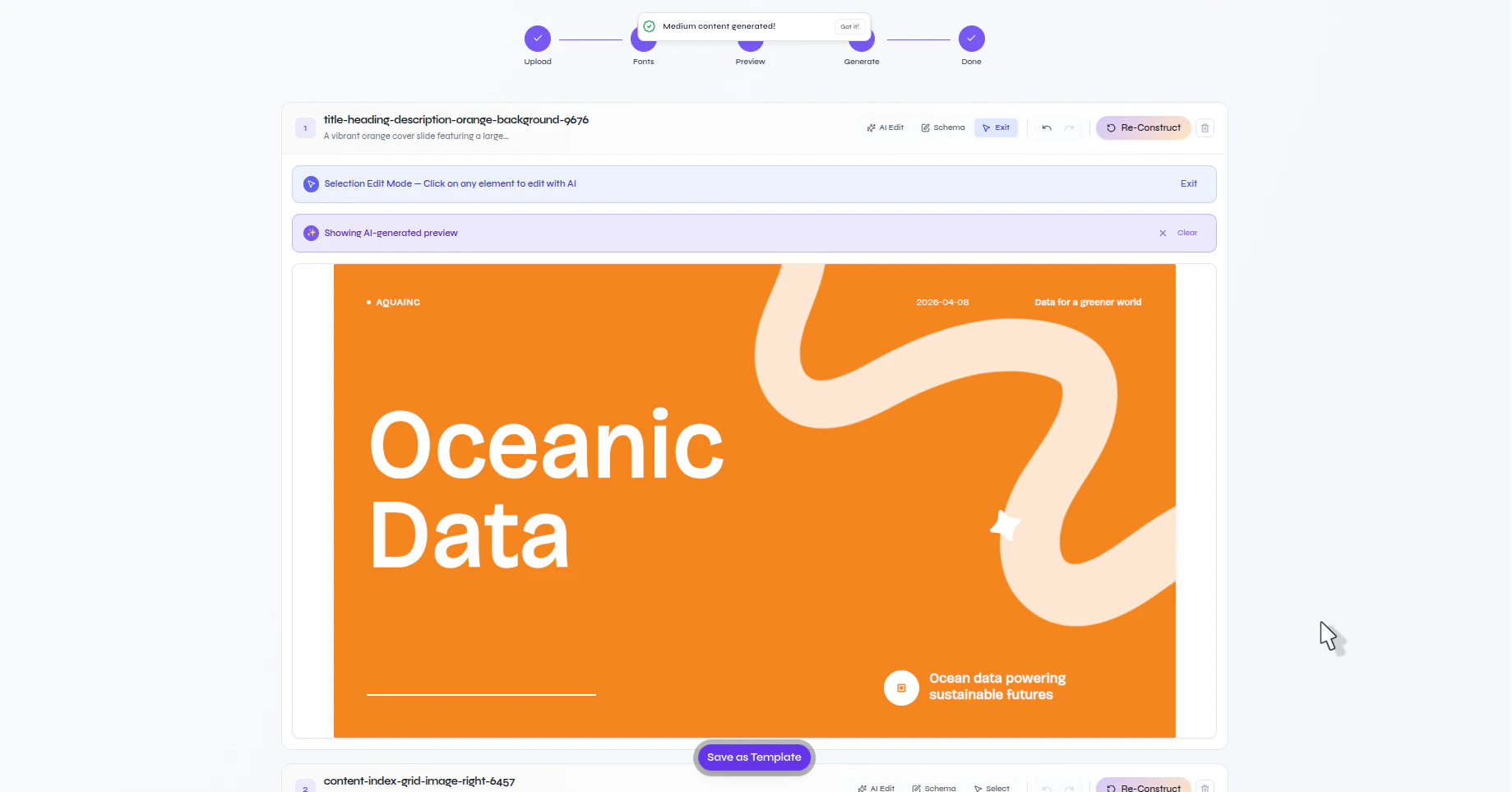 Use `Low`, `Medium`, and `High` repeatedly while reviewing each layout. This is the fastest way to catch overflow, weak spacing, and unrealistic field limits before you save the template. If the slide was interpreted incorrectly at a structural level, use **Re-Construct** for that layout before saving.
### Save the template
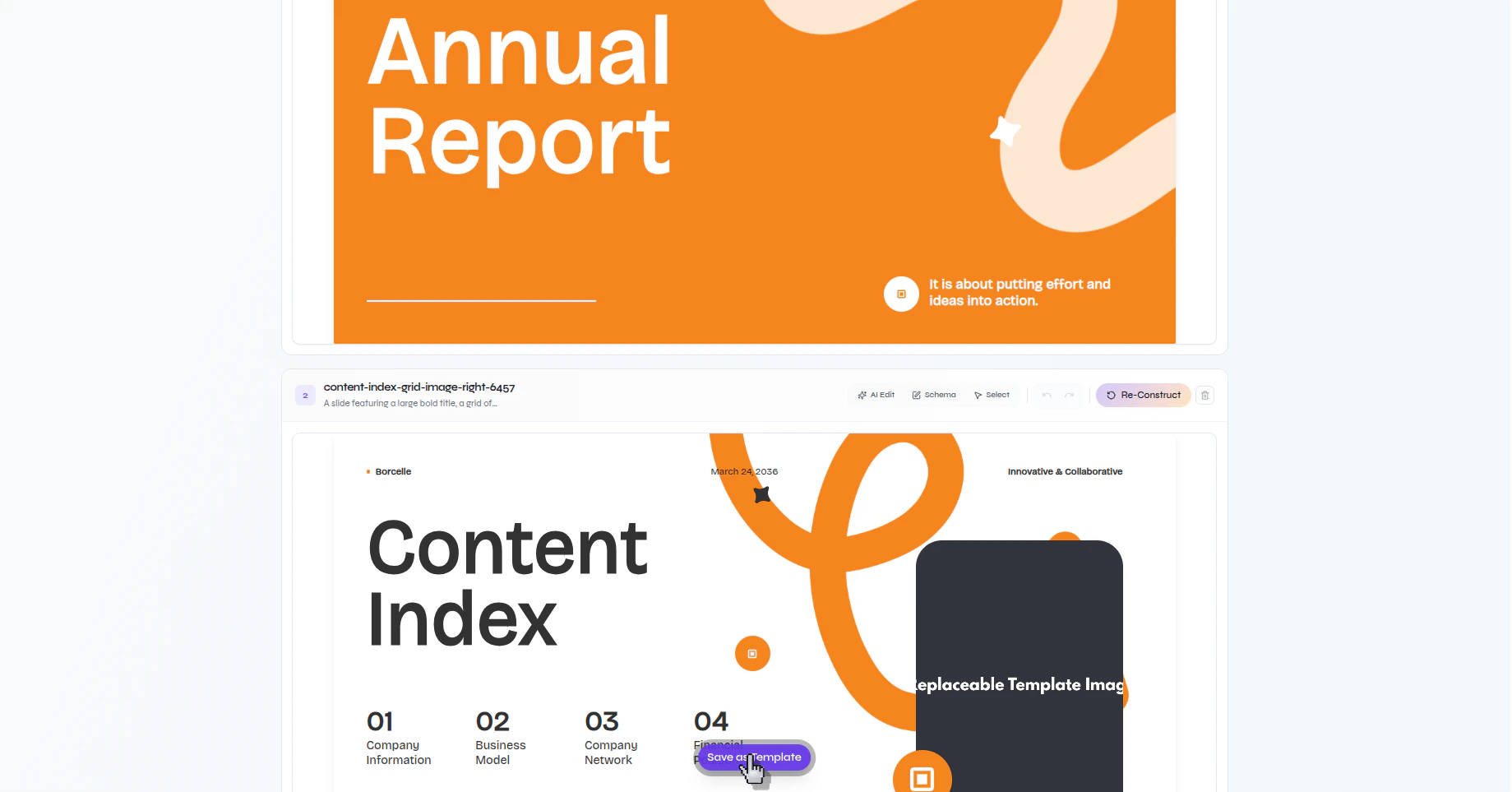
Once the layouts look correct, click **Save as Template**.
Use `Low`, `Medium`, and `High` repeatedly while reviewing each layout. This is the fastest way to catch overflow, weak spacing, and unrealistic field limits before you save the template. If the slide was interpreted incorrectly at a structural level, use **Re-Construct** for that layout before saving.
### Save the template
Once the layouts look correct, click **Save as Template**.
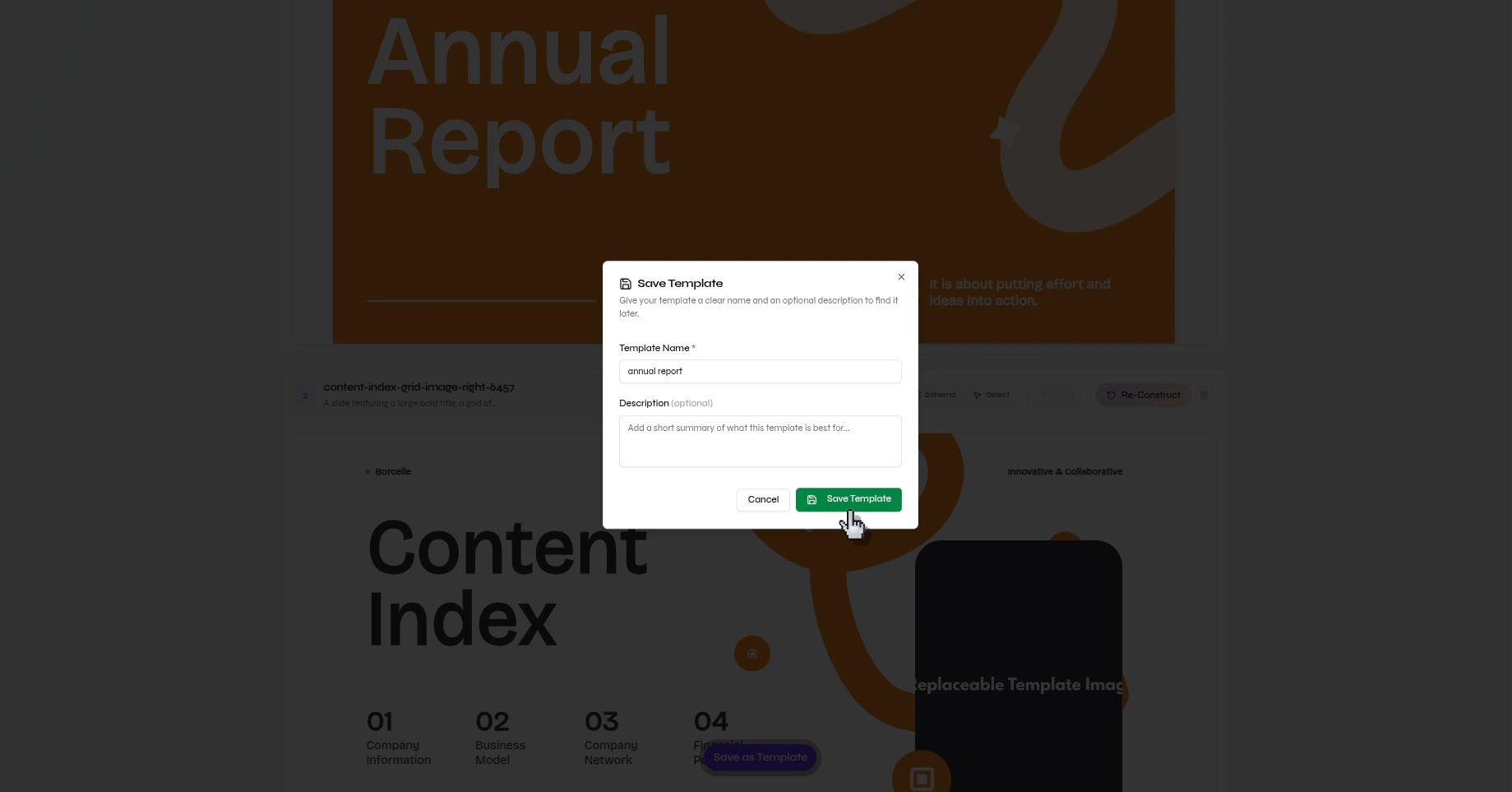
 Enter a template name, add an optional description, and click **Save Template**.
 ## Verify the result
Your custom template is saved and can be selected later when you generate a new presentation from templates.
## Next steps
* [Test the saved template with a new generated presentation](/help/create-presentation.mdx)
## Verify the result
Your custom template is saved and can be selected later when you generate a new presentation from templates.
## Next steps
* [Test the saved template with a new generated presentation](/help/create-presentation.mdx)