> ## Documentation Index
> Fetch the complete documentation index at: https://docs.presenton.ai/llms.txt
> Use this file to discover all available pages before exploring further.

# Create a Presentation

> Generate a new presentation in Presenton by entering a topic/prompt, files, choosing settings, and selecting a template.

Create a new presentation in Presenton by describing your topic, adjusting the generation settings, and choosing a template for the finished deck.

## Before you start

* [Download and Install Presenton](/help/download-and-install-presenton-desktop-application.mdx)

<Note>
  You can start with just a topic, or add files and instructions if you want the generated slides to follow source material more closely.
</Note>

## Create a presentation

<Steps>
  <Step title="Enter your presentation topic/prompt">
    In the **Content** field, describe what the presentation should cover.
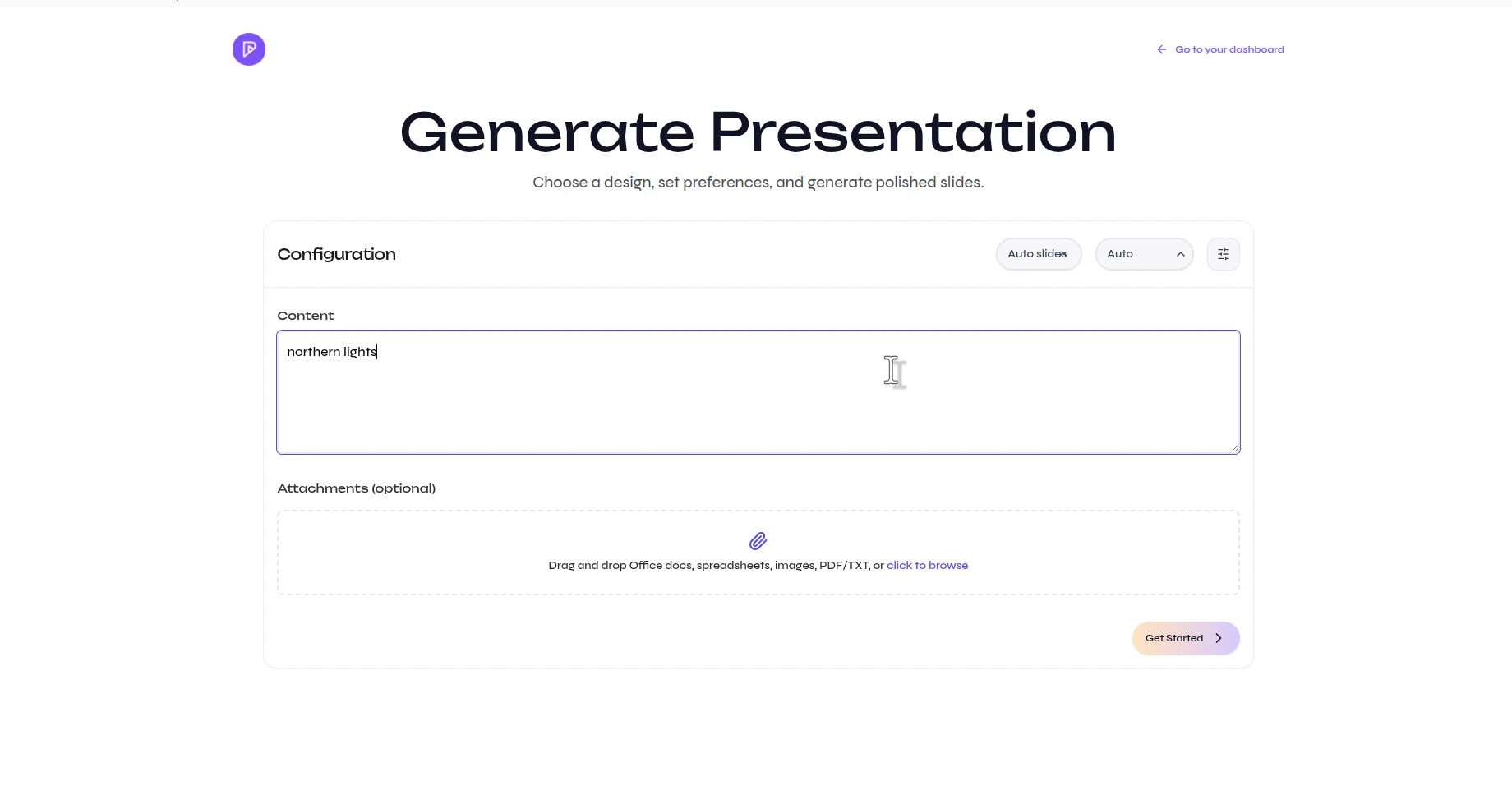
    <Frame caption="Enter the topic or prompt for the presentation">
      <img src="https://mintcdn.com/presenton-521d9e2f/whE4rRPgwZesTlPZ/images/help/create-a-presentation/enter-presentation-topic.png?fit=max&auto=format&n=whE4rRPgwZesTlPZ&q=85&s=f16377c8c64ed0d702644987766e6775" alt="Presenton Generate Presentation page with the Content field filled with a sample topic" width="1840" height="962" data-path="images/help/create-a-presentation/enter-presentation-topic.png" />
    </Frame>
  </Step>

  <Step title="Choose how many slides to generate (Optional)">
    Open the slide count menu and select the number of slides you want in the presentation.
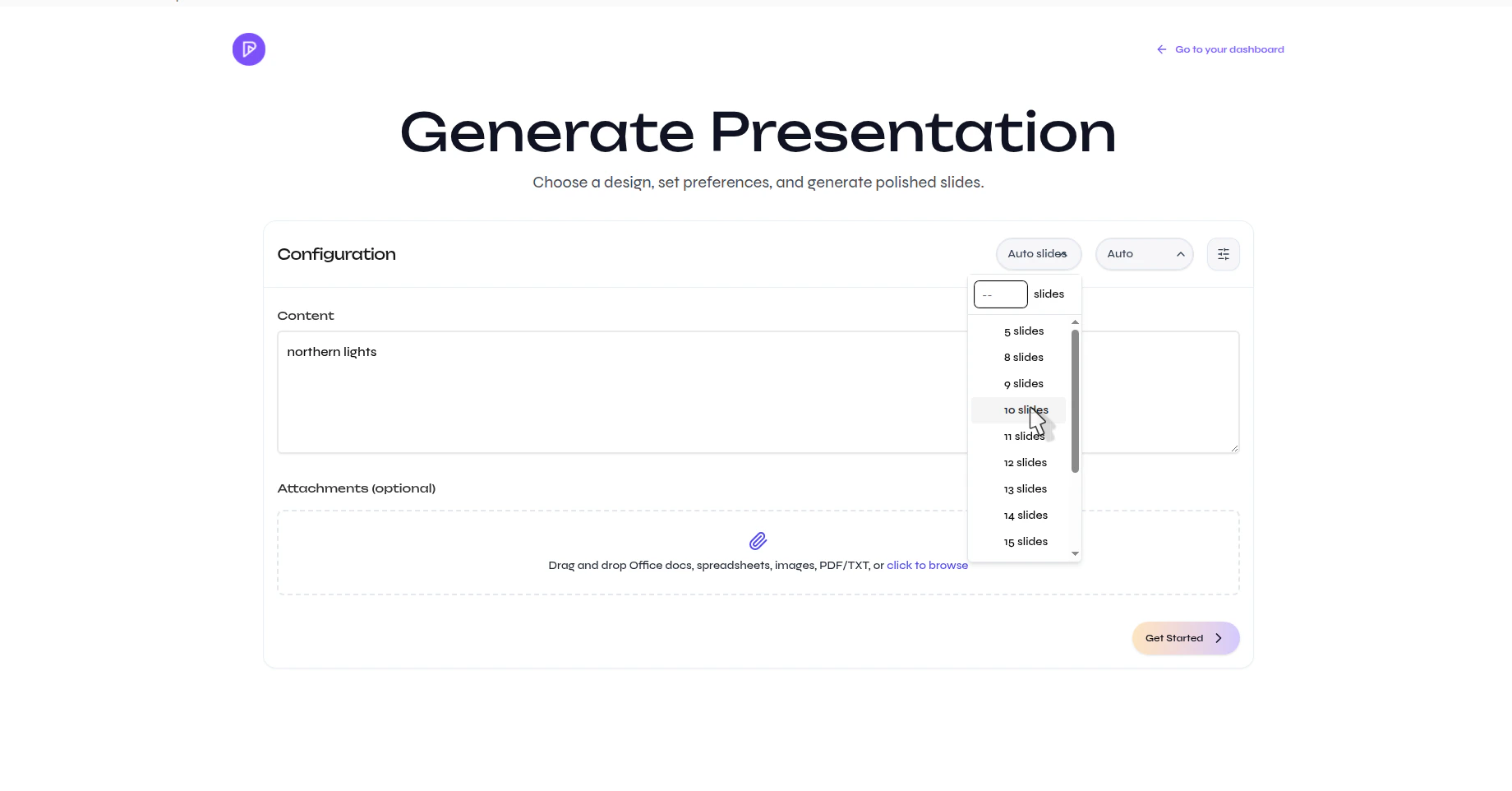
    <Frame caption="Select the number of slides to generate">
      <img src="https://mintcdn.com/presenton-521d9e2f/whE4rRPgwZesTlPZ/images/help/create-a-presentation/choose-slide-count.png?fit=max&auto=format&n=whE4rRPgwZesTlPZ&q=85&s=c4f286431d0b24bcc0e84b8fdb677158" alt="Presenton Generate Presentation page with the slide count dropdown open and multiple slide-count options visible" width="1840" height="962" data-path="images/help/create-a-presentation/choose-slide-count.png" />
    </Frame>
  </Step>

  <Step title="Choose the output language (Optional)">
    Open the language menu and select the language the presentation should use.
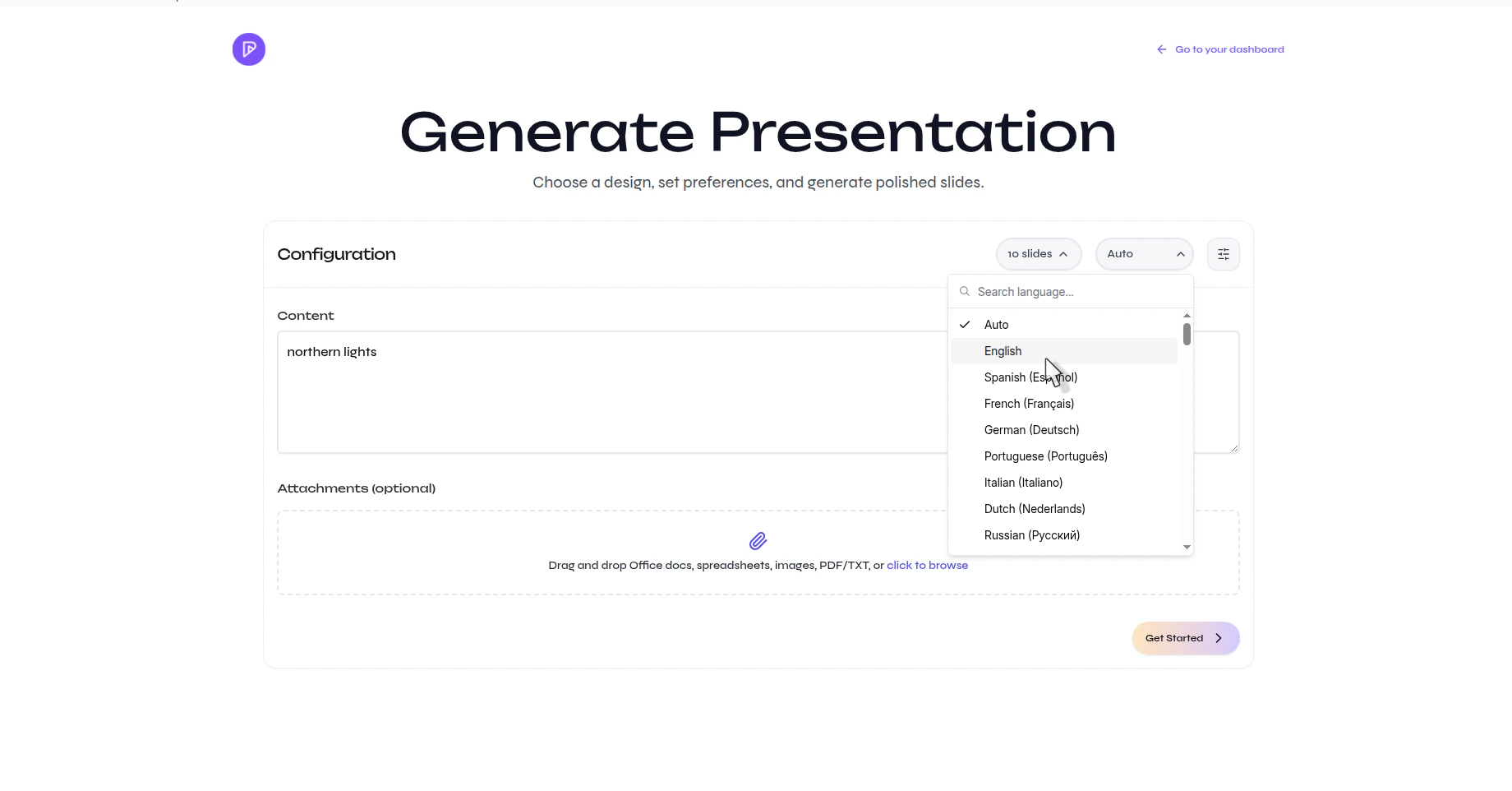
    <Frame caption="Choose the language for the generated presentation">
      <img src="https://mintcdn.com/presenton-521d9e2f/whE4rRPgwZesTlPZ/images/help/create-a-presentation/choose-output-language.png?fit=max&auto=format&n=whE4rRPgwZesTlPZ&q=85&s=be6625da6eed762e363adb63adf1e335" alt="Presenton Generate Presentation page with the language dropdown open and multiple language options visible" width="1840" height="962" data-path="images/help/create-a-presentation/choose-output-language.png" />
    </Frame>
  </Step>

  <Step title="Adjust advanced settings if needed (Optional)">
    Select the settings icon to open **Advanced settings**, then update options such as tone, verbosity, table of contents, title slide, web search, or extra instructions.
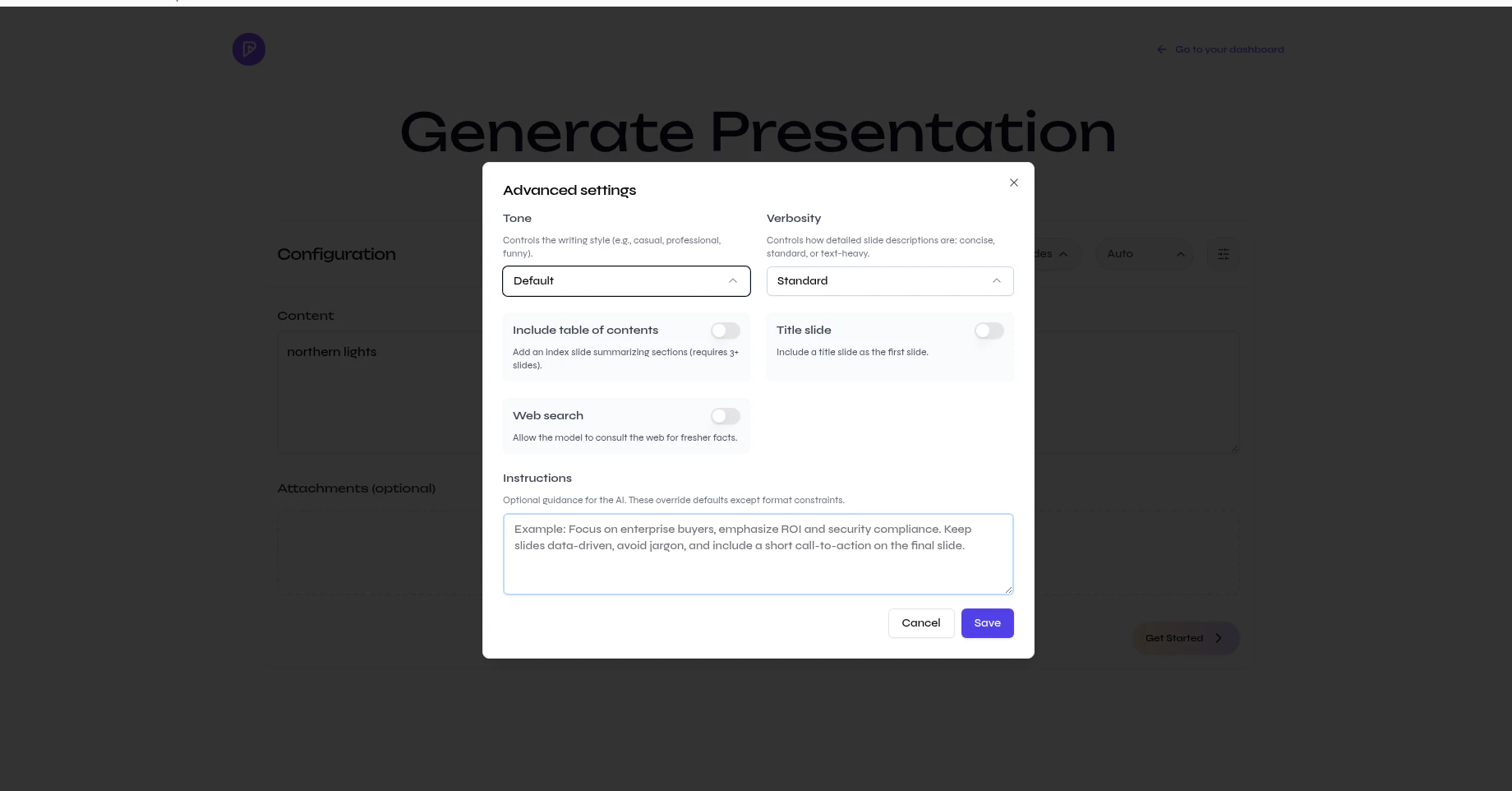
    <Frame caption="Optional advanced settings for the generated presentation">
      <img src="https://mintcdn.com/presenton-521d9e2f/whE4rRPgwZesTlPZ/images/help/create-a-presentation/advanced-settings-modal.png?fit=max&auto=format&n=whE4rRPgwZesTlPZ&q=85&s=81c332f4565b81cec60561faf67e7c44" alt="Presenton advanced settings modal showing options for tone, verbosity, table of contents, title slide, web search, and instructions" width="1840" height="962" data-path="images/help/create-a-presentation/advanced-settings-modal.png" />
    </Frame>
  </Step>

  <Step title="Add source files if you want to guide the content (optional)">
    In **Attachments (optional)**, drag files into the upload area or browse for them manually.
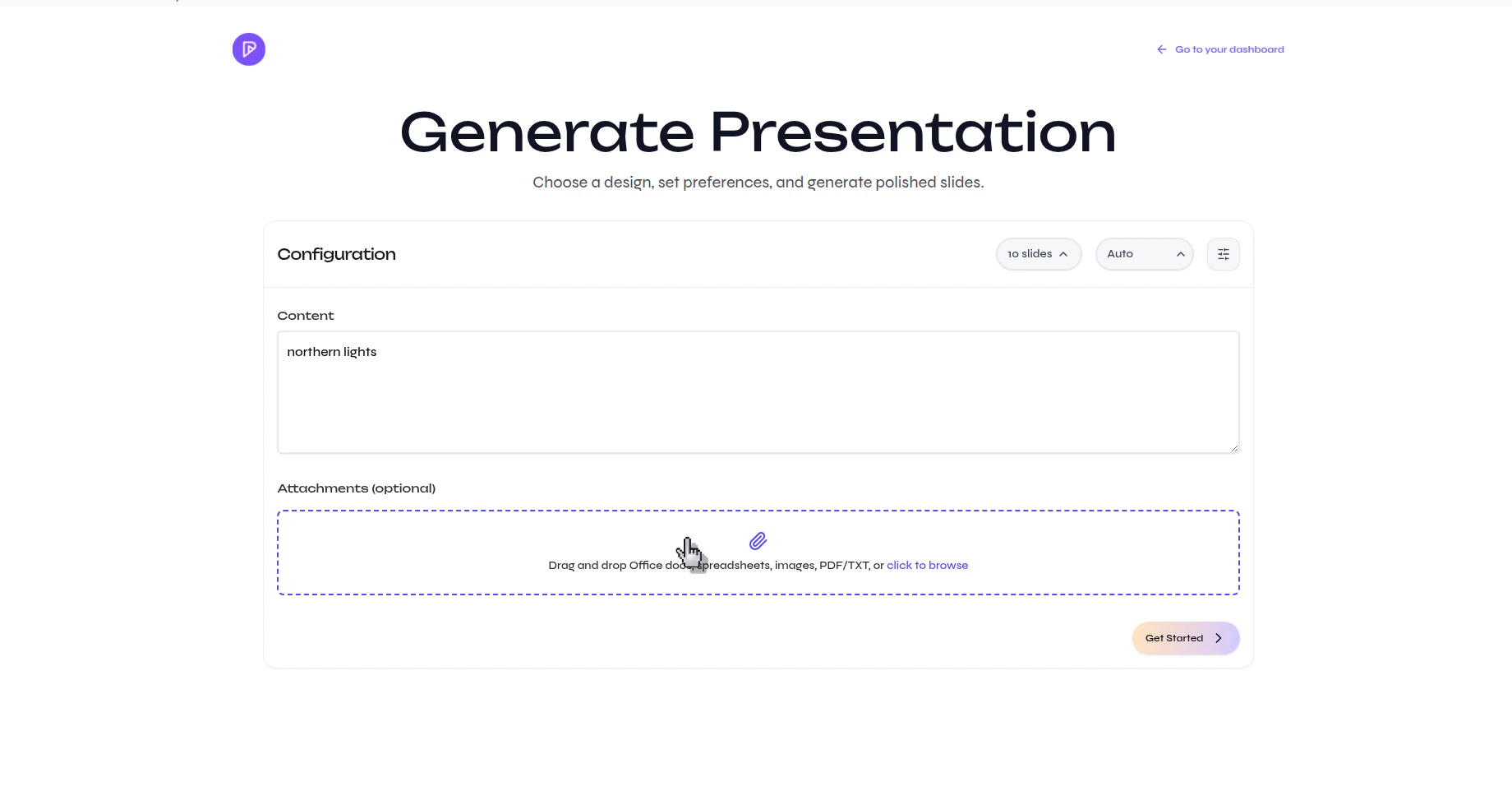
    <Frame caption="Add optional source files before generating the presentation">
      <img src="https://mintcdn.com/presenton-521d9e2f/whE4rRPgwZesTlPZ/images/help/create-a-presentation/optional-attachments-area.png?fit=max&auto=format&n=whE4rRPgwZesTlPZ&q=85&s=d9fb89f3629c0ed197f0d388b579ddeb" alt="Presenton Generate Presentation page showing the optional attachments area for uploading supporting files" width="1840" height="962" data-path="images/help/create-a-presentation/optional-attachments-area.png" />
    </Frame>
  </Step>

  <Step title="Generate the presentation outline">
    Click **Get Started**. Presenton generates the outline and slide content for the presentation.
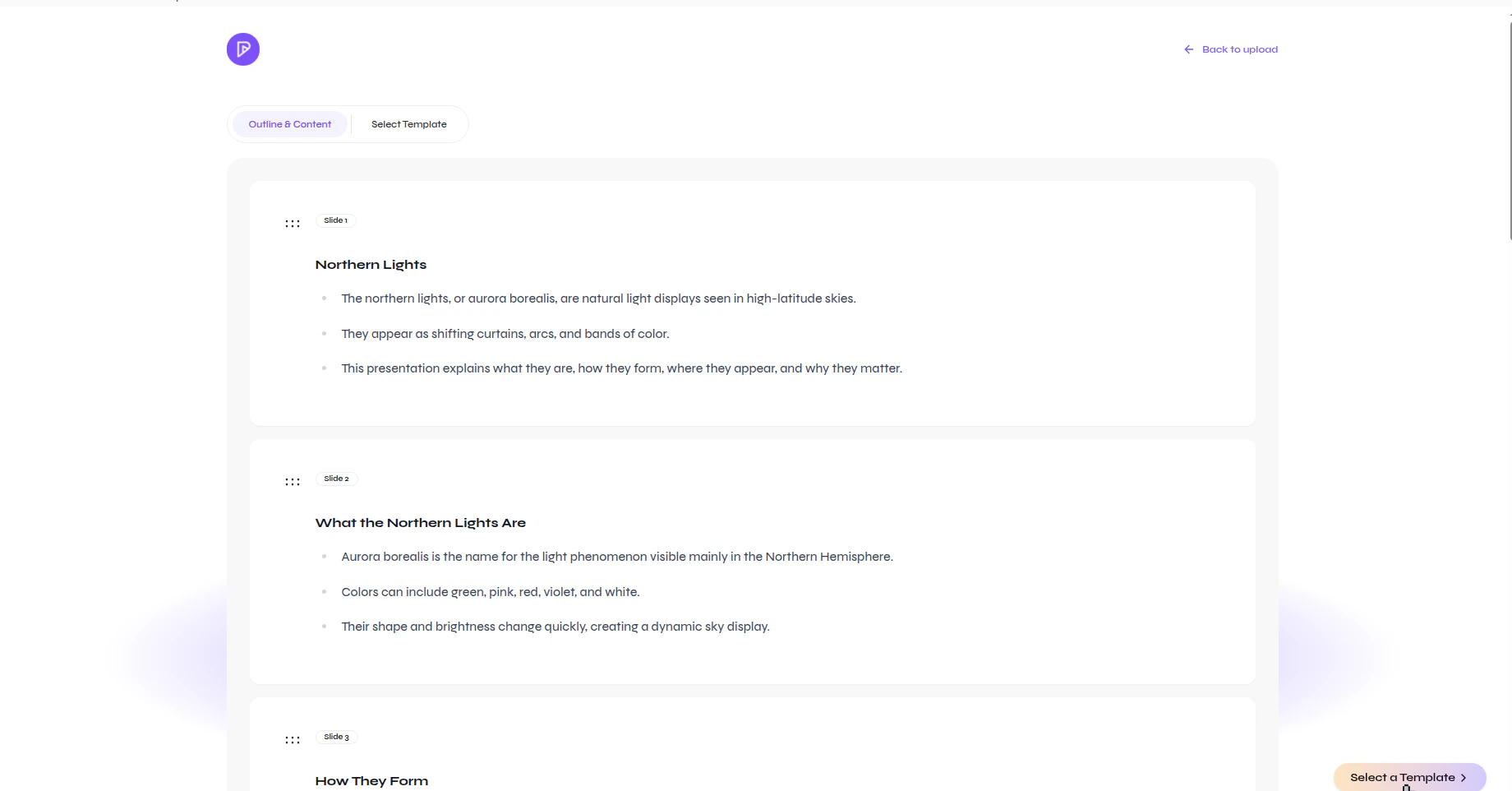
    <img src="https://mintcdn.com/presenton-521d9e2f/whE4rRPgwZesTlPZ/images/help/create-a-presentation/review-generated-outline.png?fit=max&auto=format&n=whE4rRPgwZesTlPZ&q=85&s=f936f0e8b00f382a8a5b5b67855f2b47" alt="Presenton outline and content view showing multiple generated slides and their draft content" width="1840" height="962" data-path="images/help/create-a-presentation/review-generated-outline.png" />
  </Step>

  <Step title="Open the template gallery">
    Select **Select Template** to switch from the outline view to the available presentation templates.
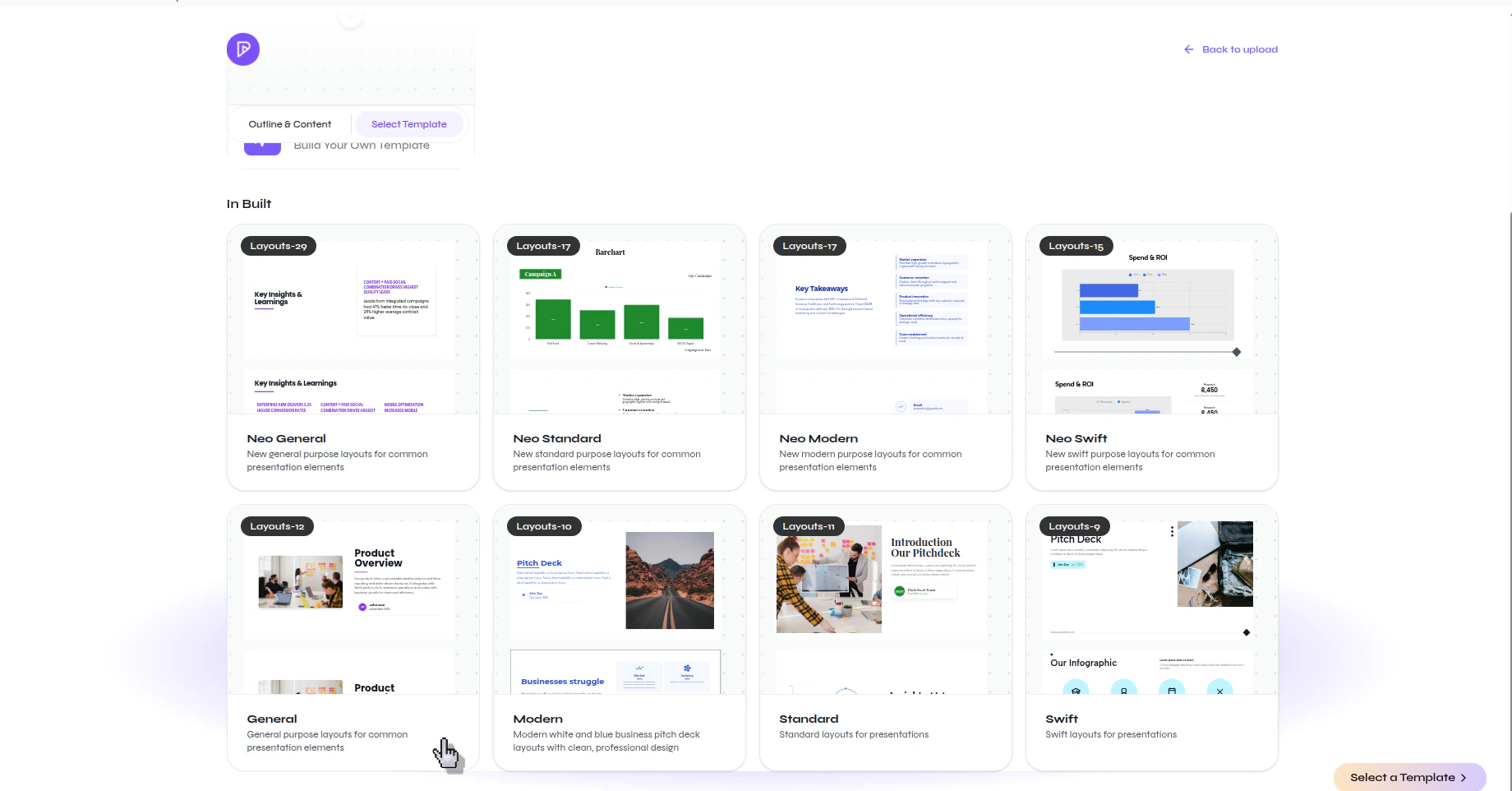
    <Frame caption="Open the template gallery after the outline is generated">
      <img src="https://mintcdn.com/presenton-521d9e2f/whE4rRPgwZesTlPZ/images/help/create-a-presentation/open-template-gallery.png?fit=max&auto=format&n=whE4rRPgwZesTlPZ&q=85&s=ba8531f06808d2384c426632cd516b28" alt="Presenton template gallery showing multiple built-in templates for a generated presentation" width="1840" height="962" data-path="images/help/create-a-presentation/open-template-gallery.png" />
    </Frame>
  </Step>

  <Step title="Confirm to generate presentation">
    Review the available templates, then click \*\*Generate Presentation \*\*to apply the design you want.
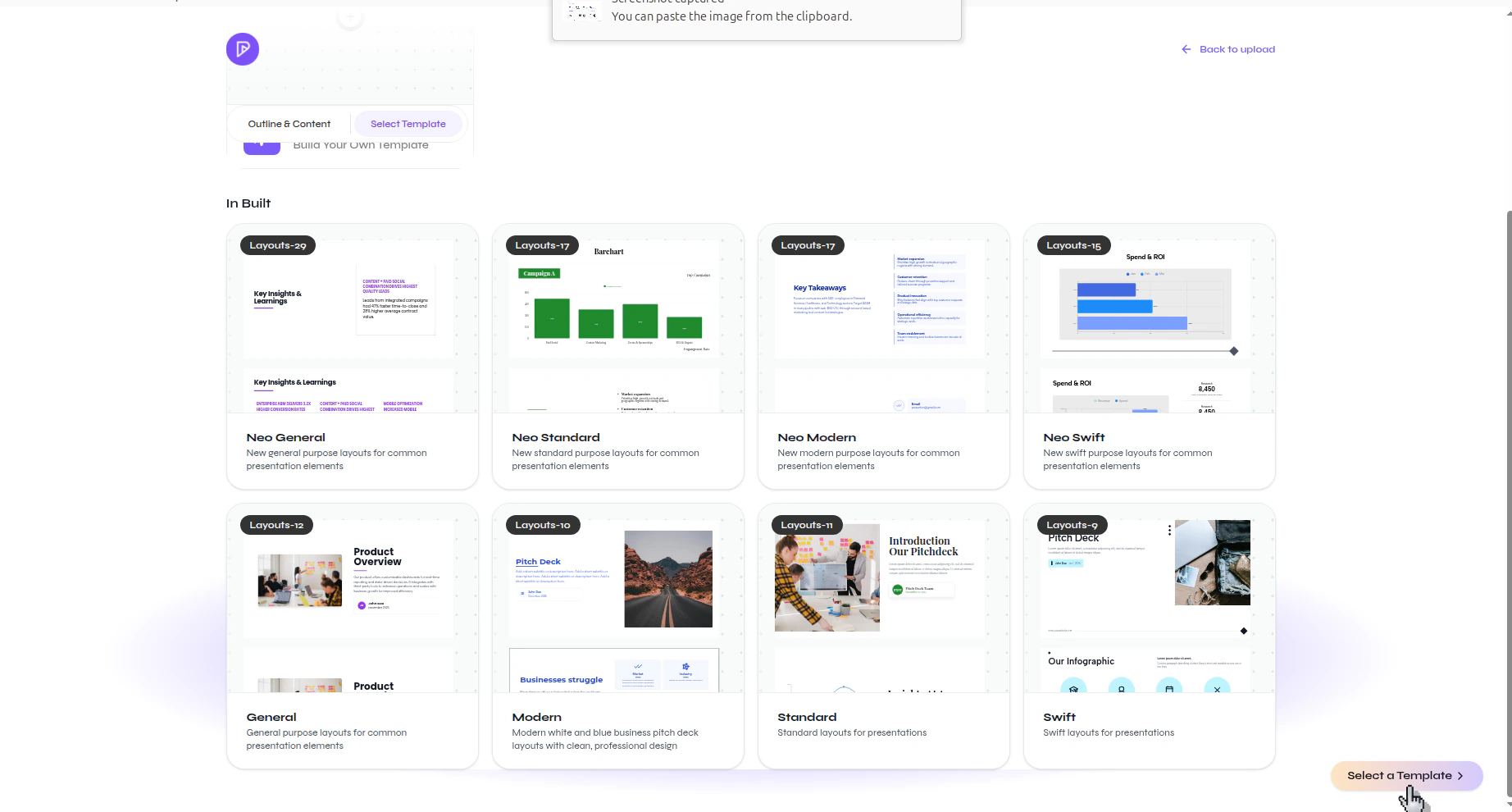
    <Frame caption="Apply the selected template to the generated presentation">
      <img src="https://mintcdn.com/presenton-521d9e2f/whE4rRPgwZesTlPZ/images/help/create-a-presentation/select-template-button.png?fit=max&auto=format&n=whE4rRPgwZesTlPZ&q=85&s=8c21135cb3c9f6068f551390a779aee3" alt="Presenton template gallery with the Select a Template button visible in the bottom-right corner" width="1844" height="990" data-path="images/help/create-a-presentation/select-template-button.png" />
    </Frame>
  </Step>

  <Step title="Wait for the presentation editor to open">
    After the template is applied, Presenton opens the finished presentation in the editor so you can review and continue working on it.
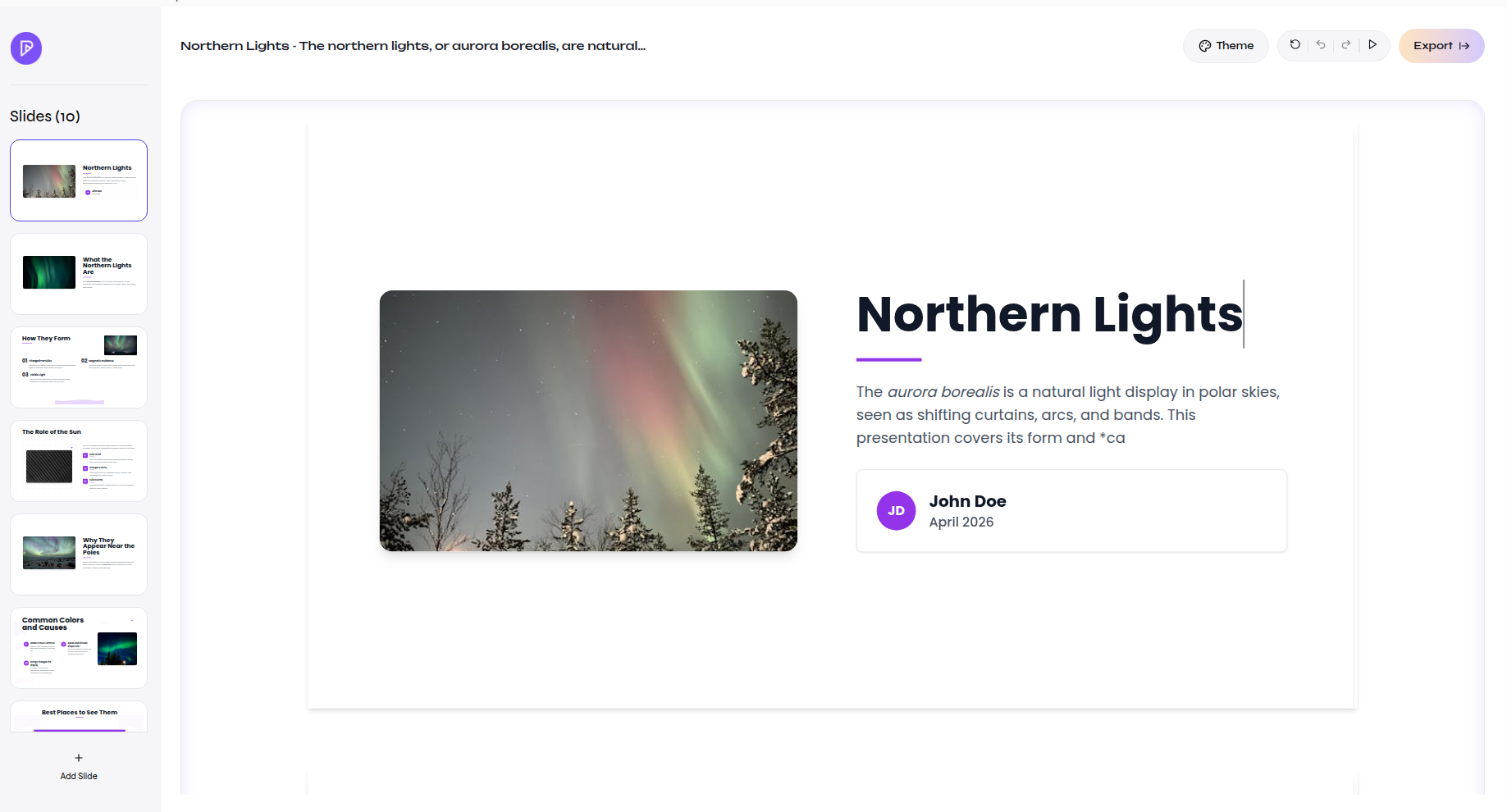
    <Frame caption="A generated presentation opened in the editor">
      <img src="https://mintcdn.com/presenton-521d9e2f/whE4rRPgwZesTlPZ/images/help/create-a-presentation/presentation-editor.png?fit=max&auto=format&n=whE4rRPgwZesTlPZ&q=85&s=a9130335df224c6093b5bbdb582ea6d8" alt="Presenton presentation editor showing a generated deck with slide thumbnails on the left and the selected slide on the canvas" width="1837" height="990" data-path="images/help/create-a-presentation/presentation-editor.png" />
    </Frame>
  </Step>
</Steps>

## Verify the result

<Check>
  Your new presentation opens in the editor with generated slides, a selected design, and the slide list visible on the left.
</Check>
