> ## Documentation Index
> Fetch the complete documentation index at: https://docs.presenton.ai/llms.txt
> Use this file to discover all available pages before exploring further.
# Download and install Presenton
> Download Presenton from the website, choose your operating system, and run the installer to open the desktop app on your computer.
Download and install for MacOS, Windows & Linux.
## Before you start
* Make sure you have permission to install apps on your device.
* Keep an internet connection available until the installer finishes downloading.
The download page lets you choose a platform before downloading the installer.
## Download and install Presenton
On the Presenton website, select **Download** from the top navigation.
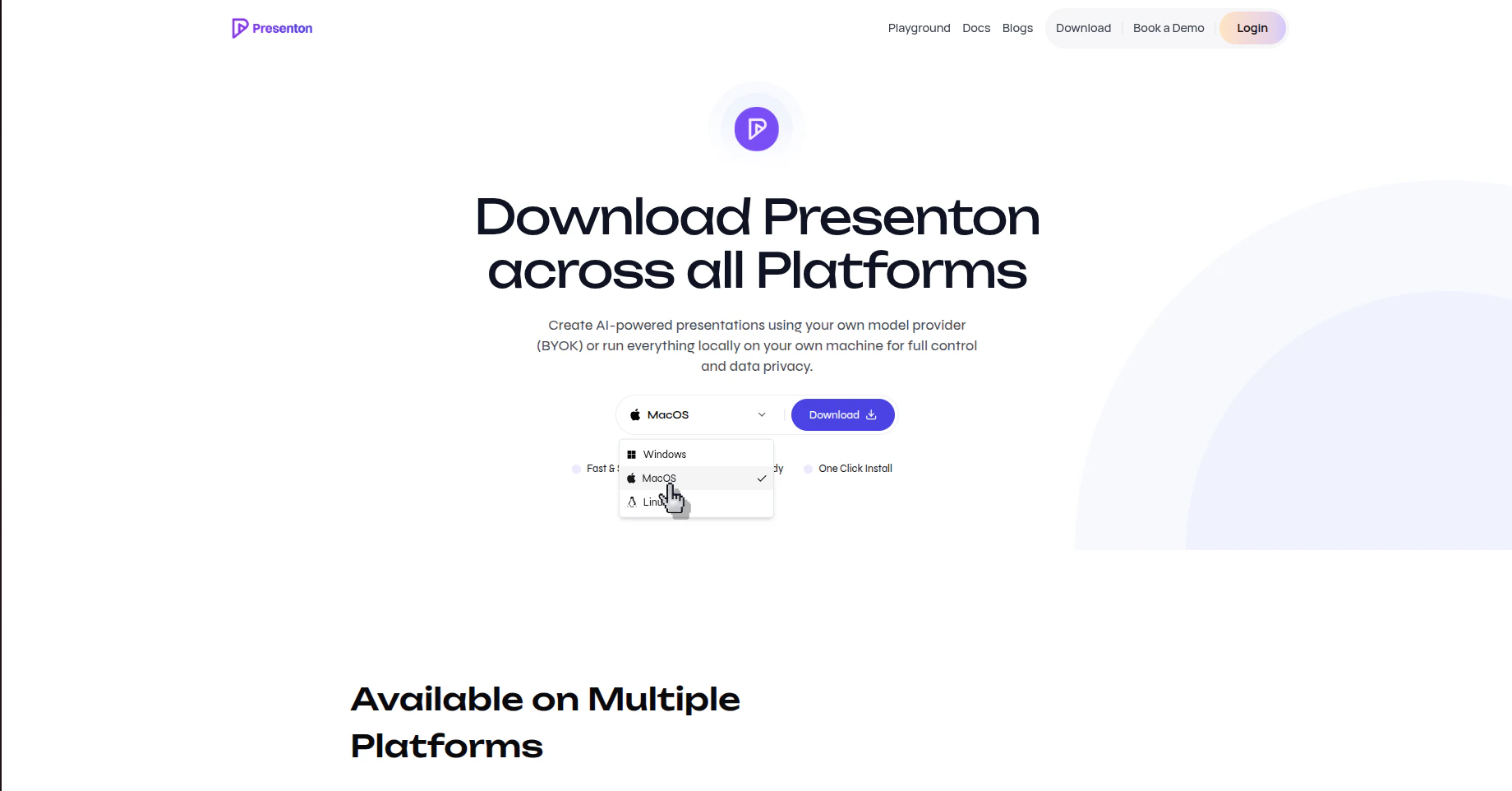
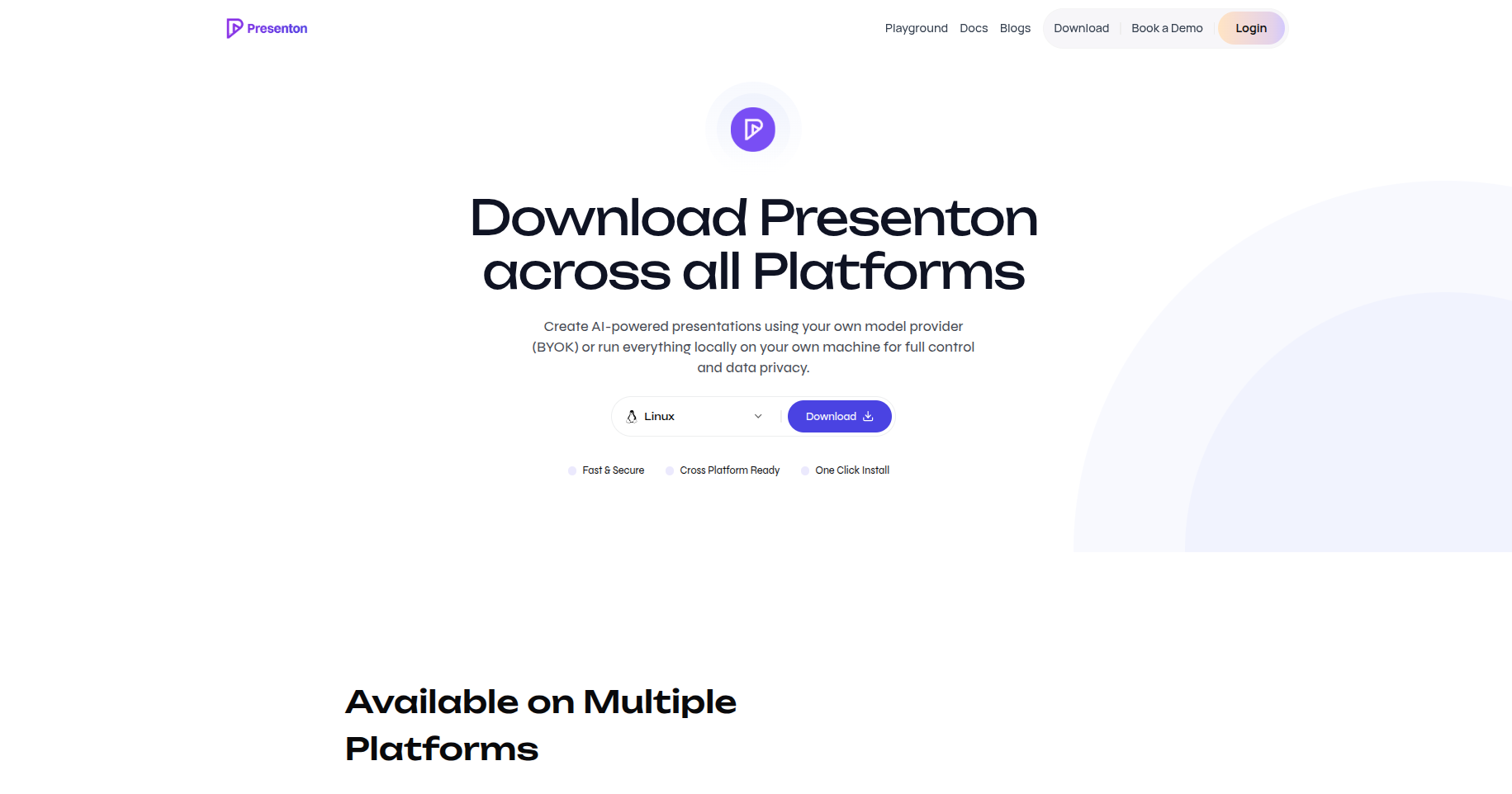 Open the platform selector and choose **Windows**, **macOS**, or **Linux**.
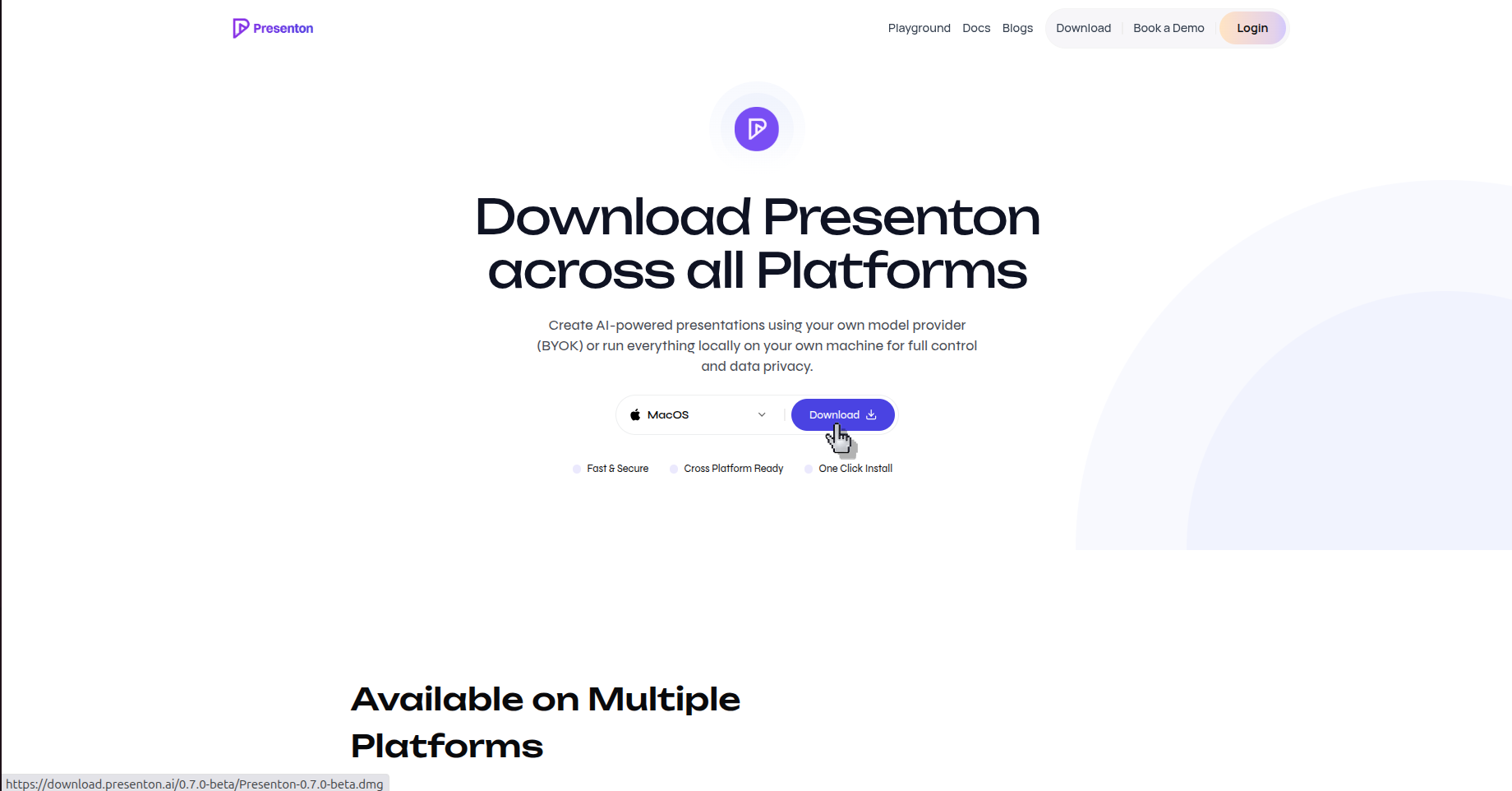
 After selecting your platform, click **Download** and wait for the installer file to finish downloading.
 Open the downloaded file and follow the installation prompts shown by your operating system.
Launch Presenton from your applications list or app launcher after the installation completes.
## Verify the result
Presenton opens on your computer and is ready for you to sign in or continue setup.
## Next steps
* [Create your first presentation](/help/create-presentation.mdx)
Open the downloaded file and follow the installation prompts shown by your operating system.
Launch Presenton from your applications list or app launcher after the installation completes.
## Verify the result
Presenton opens on your computer and is ready for you to sign in or continue setup.
## Next steps
* [Create your first presentation](/help/create-presentation.mdx)