> ## Documentation Index
> Fetch the complete documentation index at: https://docs.presenton.ai/llms.txt
> Use this file to discover all available pages before exploring further.

# Get a Pexels API key

> Sign in to Pexels, open the Image & Video API section, and copy your API key for use in Presenton or other integrations.

Get your Pexels API key from your [Pexels](https://pexels.com) account when you need image access for Presenton or another integration that uses the Pexels API.

## Before you start

* Make sure you can sign in to your Pexels account.
* Use the account that should own the API key.

<Warning>
  Treat the API key like a secret. Do not share it publicly or paste it into unsecured places.
</Warning>

## Get a [Pexels](https://pexels.com) API key

<Steps>
  <Step title="Open the Pexels account menu">
    On the Pexels website, open the account menu in the top-right corner and select **Log in** if you are not already signed in.
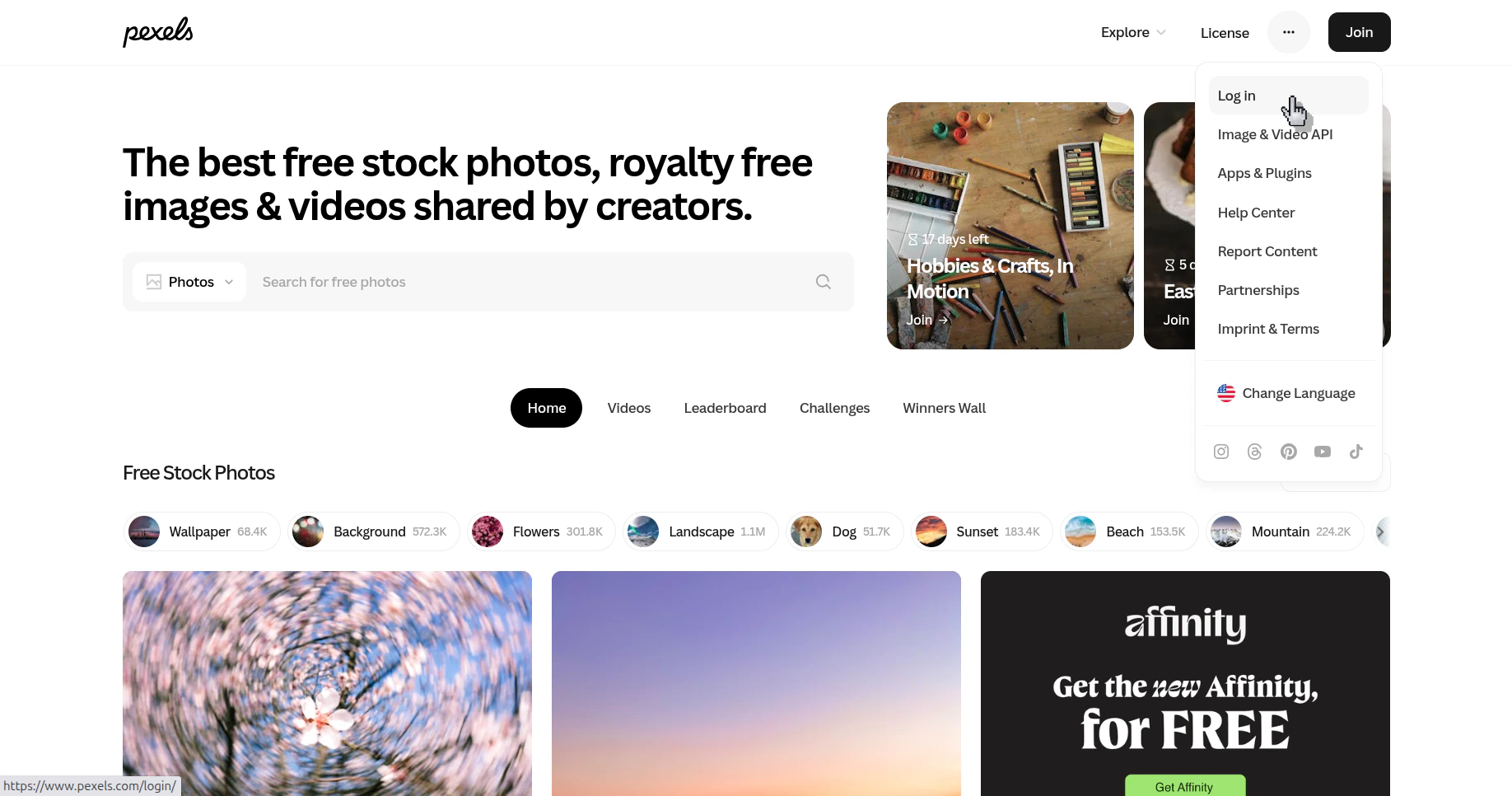
    <Frame caption="Open the Pexels account menu and go to the login page">
      <img src="https://mintcdn.com/presenton-521d9e2f/ONZQO4kKwqeMGuob/images/help/get-a-pexels-api-key/open-pexels-login-menu.png?fit=max&auto=format&n=ONZQO4kKwqeMGuob&q=85&s=2a40a49ed5bd0c69c111457143c4198d" alt="Pexels home page with the account menu open and the Log in option visible" width="1836" height="966" data-path="images/help/get-a-pexels-api-key/open-pexels-login-menu.png" />
    </Frame>
  </Step>

  <Step title="Sign in to your Pexels account">
    Log in with your email or one of the available sign-in providers.
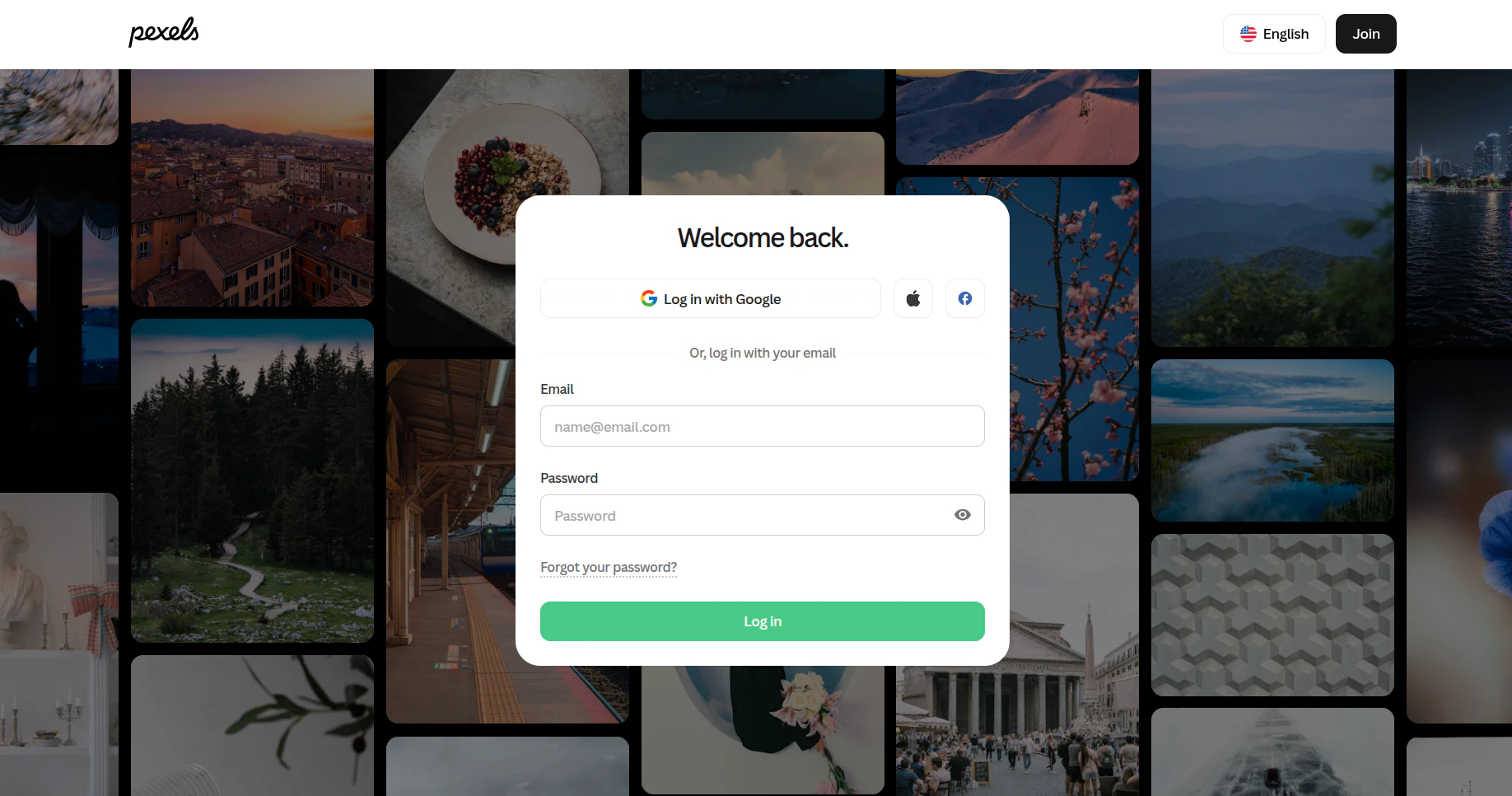
    <Frame caption="Sign in to the Pexels account that will own the API key">
      <img src="https://mintcdn.com/presenton-521d9e2f/ONZQO4kKwqeMGuob/images/help/get-a-pexels-api-key/pexels-login-page.png?fit=max&auto=format&n=ONZQO4kKwqeMGuob&q=85&s=bba618deb5060e07604f35ff99846dfe" alt="Pexels login page with email and password fields and sign-in options" width="1836" height="966" data-path="images/help/get-a-pexels-api-key/pexels-login-page.png" />
    </Frame>
  </Step>

  <Step title="Open the Image & Video API section">
    After signing in, open the account menu again and select **Image & Video API**.
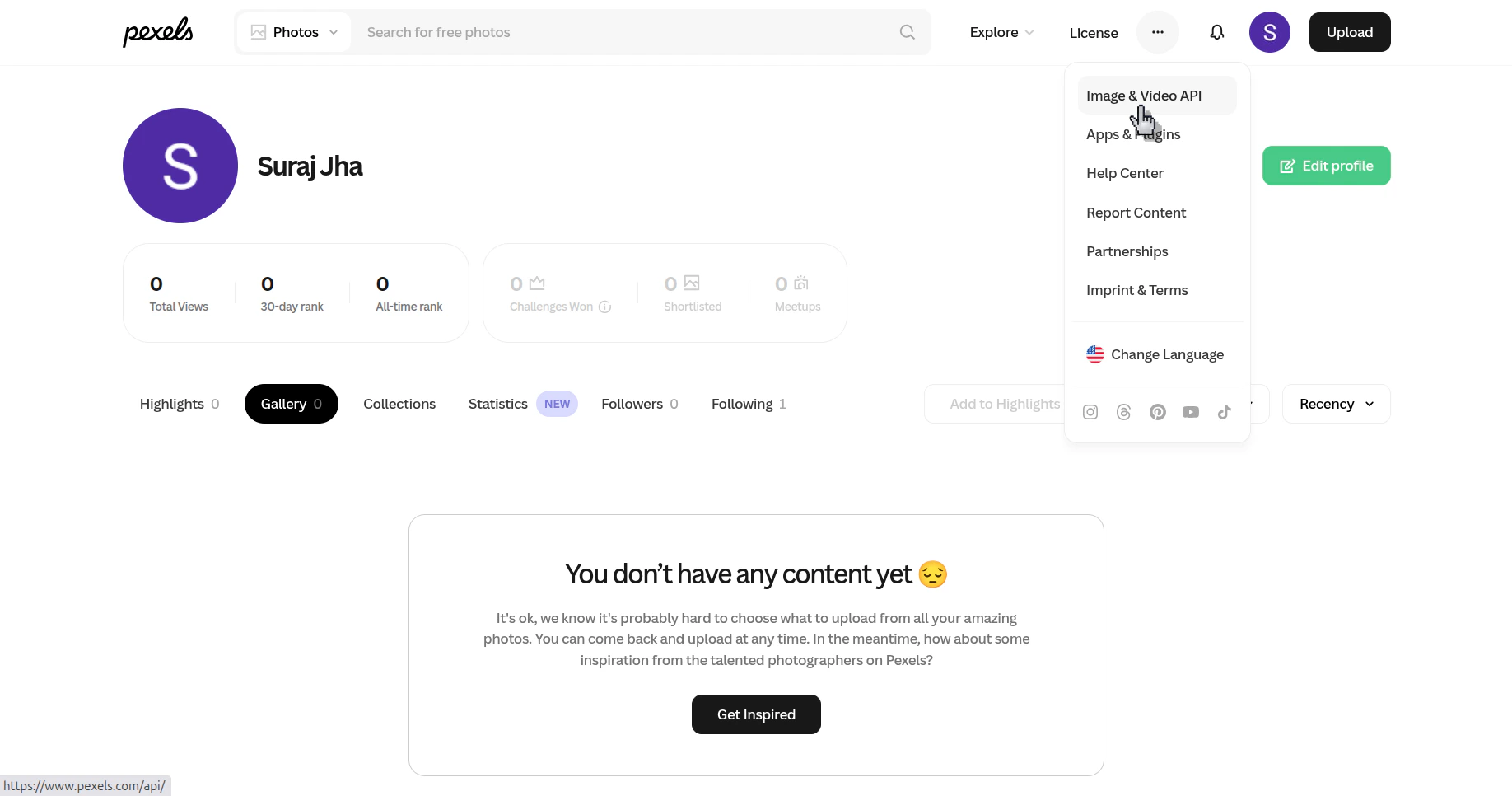
    <Frame caption="Open the API area from the Pexels account menu">
      <img src="https://mintcdn.com/presenton-521d9e2f/ONZQO4kKwqeMGuob/images/help/get-a-pexels-api-key/open-image-and-video-api.png?fit=max&auto=format&n=ONZQO4kKwqeMGuob&q=85&s=18e0e7e466d8b36c9267e27ab9025cee" alt="Pexels account page with the account menu open and the Image and Video API option highlighted" width="1836" height="966" data-path="images/help/get-a-pexels-api-key/open-image-and-video-api.png" />
    </Frame>
  </Step>

  <Step title="Open your API key page">
    On the Pexels API page, click **Your API Key**.
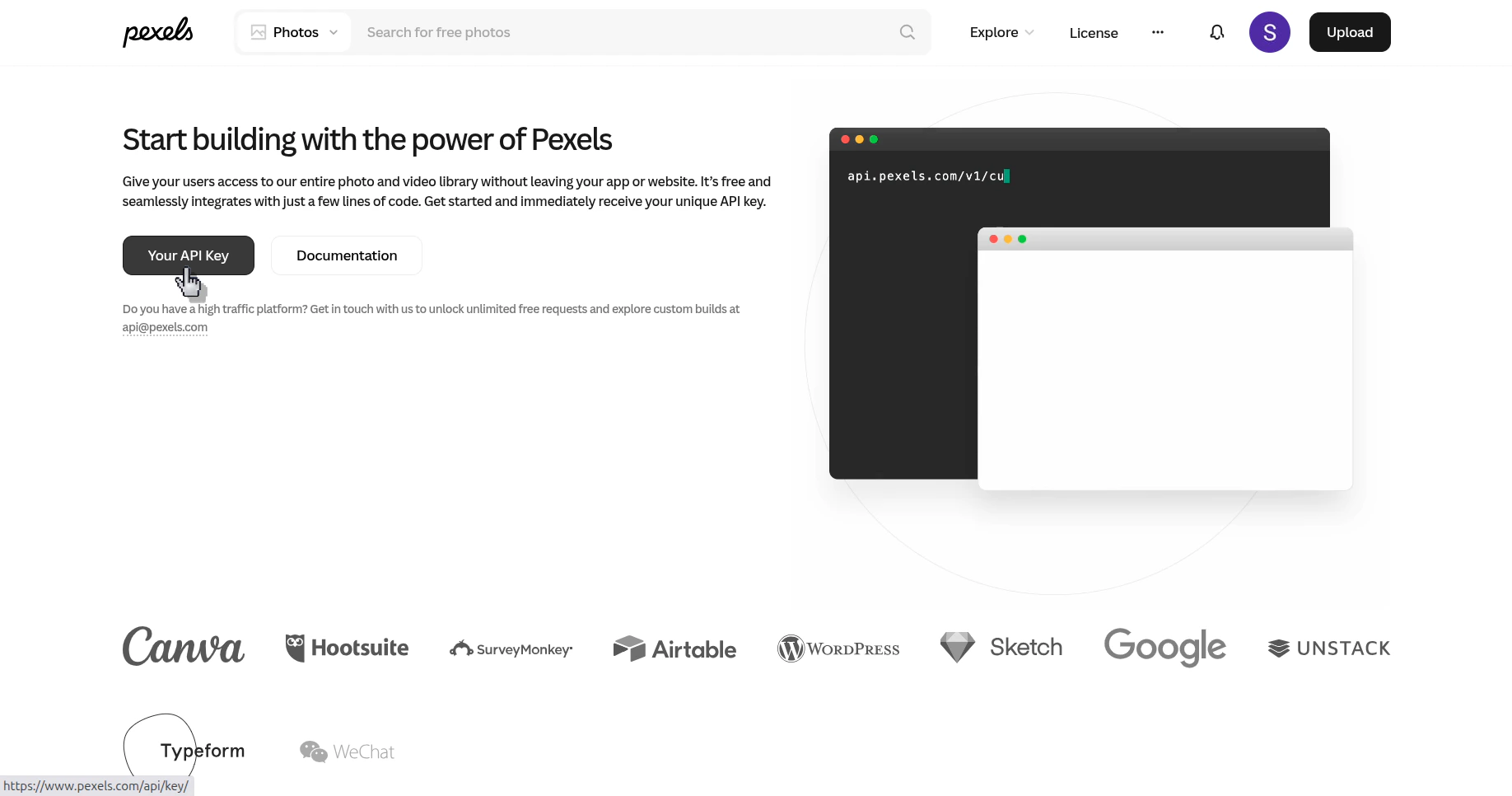
    <Frame caption="Open the page that shows your personal Pexels API key">
      <img src="https://mintcdn.com/presenton-521d9e2f/ONZQO4kKwqeMGuob/images/help/get-a-pexels-api-key/open-your-api-key-page.png?fit=max&auto=format&n=ONZQO4kKwqeMGuob&q=85&s=974e463a3ffc8bd095b735acad9256c7" alt="Pexels API page with the Your API Key button visible" width="1836" height="966" data-path="images/help/get-a-pexels-api-key/open-your-api-key-page.png" />
    </Frame>
  </Step>

  <Step title="Copy the API key">
    On the **Your API Key** page, use the copy button to copy the key.
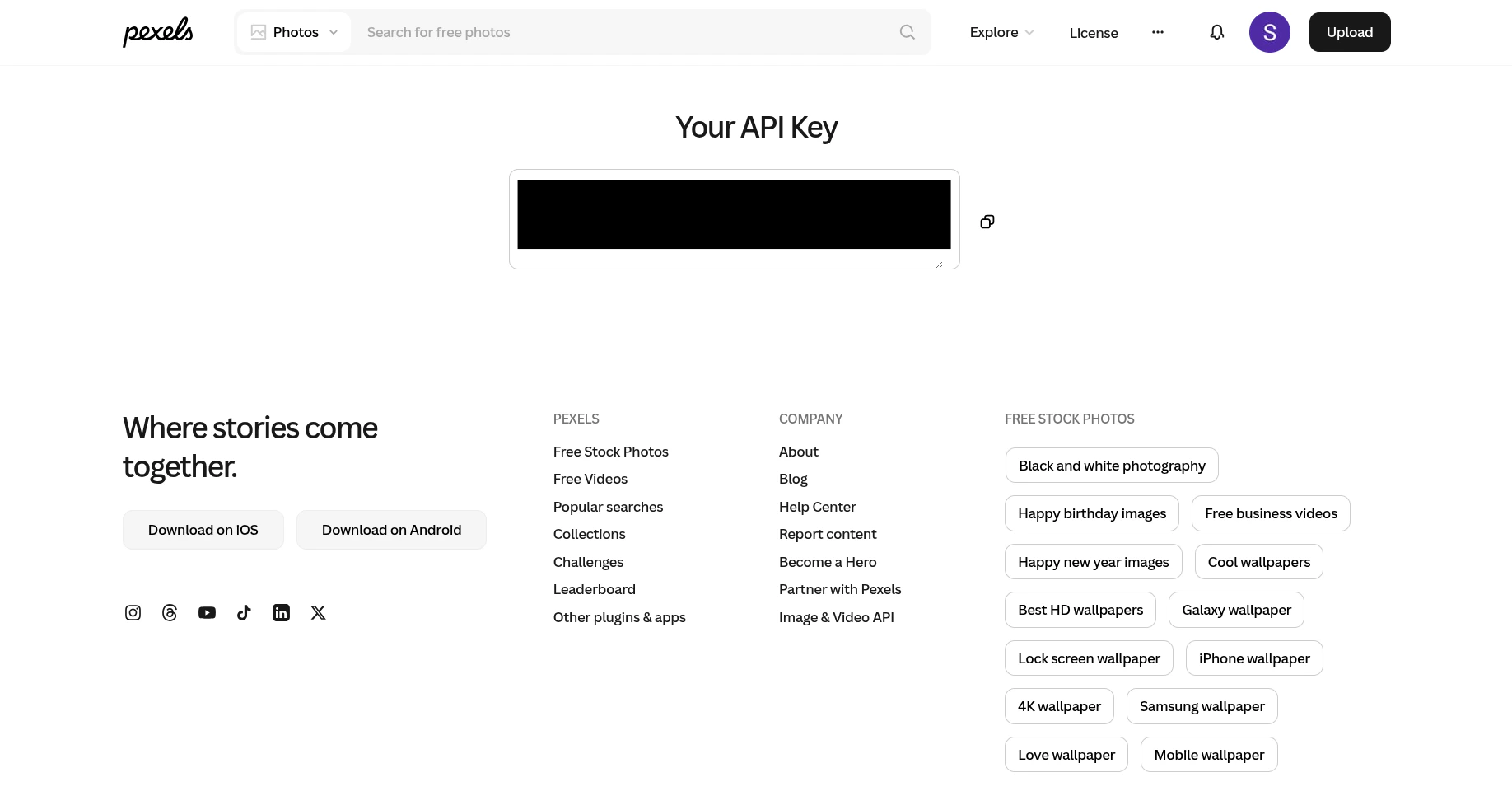
    <Frame caption="Copy the API key from the Pexels account">
      <img src="https://mintcdn.com/presenton-521d9e2f/ONZQO4kKwqeMGuob/images/help/get-a-pexels-api-key/copy-pexels-api-key.png?fit=max&auto=format&n=ONZQO4kKwqeMGuob&q=85&s=1d9c808afc478f3330c228295e098625" alt="Pexels Your API Key page showing the API key field and a copy icon" width="1836" height="966" data-path="images/help/get-a-pexels-api-key/copy-pexels-api-key.png" />
    </Frame>
  </Step>
</Steps>

## Verify the result

<Check>
  You can copy the Pexels API key from your account and paste it into the place where the integration asks for it.
</Check>
