> ## Documentation Index
> Fetch the complete documentation index at: https://docs.presenton.ai/llms.txt
> Use this file to discover all available pages before exploring further.
# Get a Pixabay API key
> Sign in to Pixabay, open the API area, and find your API key in the API documentation reference section.
Get your Pixabay API key from the Pixabay API documentation when you need to connect Pixabay to Presenton or another image integration.
## Before you start
* Make sure you can sign in to your [Pixabay](https://pixabay.com) account.
* Use the account that should own the API access.
Treat the API key like a secret. Do not share it publicly or include it in unsecured documents or screenshots.
## Get a [Pixabay](https://pixabay.com) API key
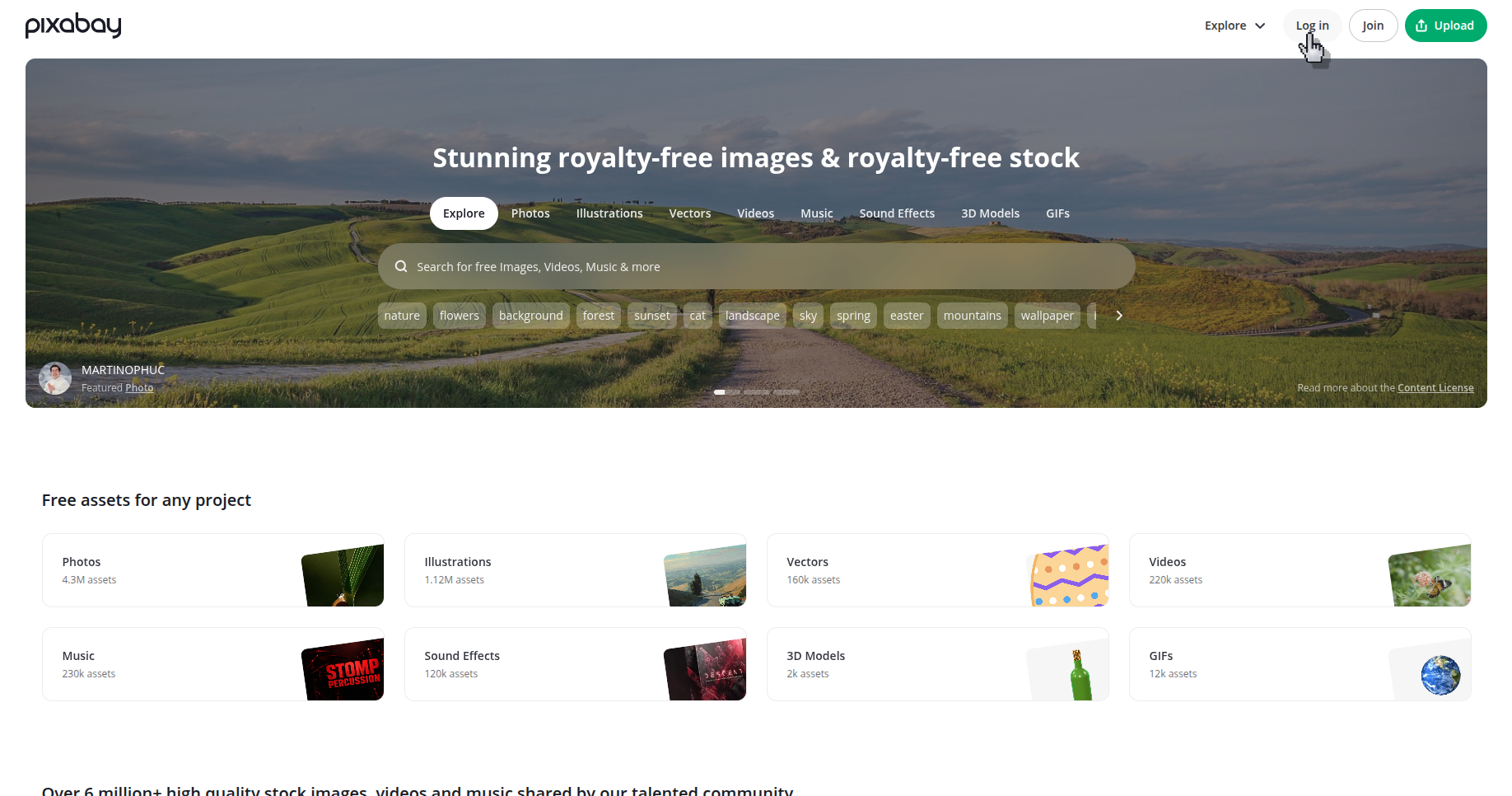
On the Pixabay website, click **Log in** and sign in to your account if you are not already logged in.
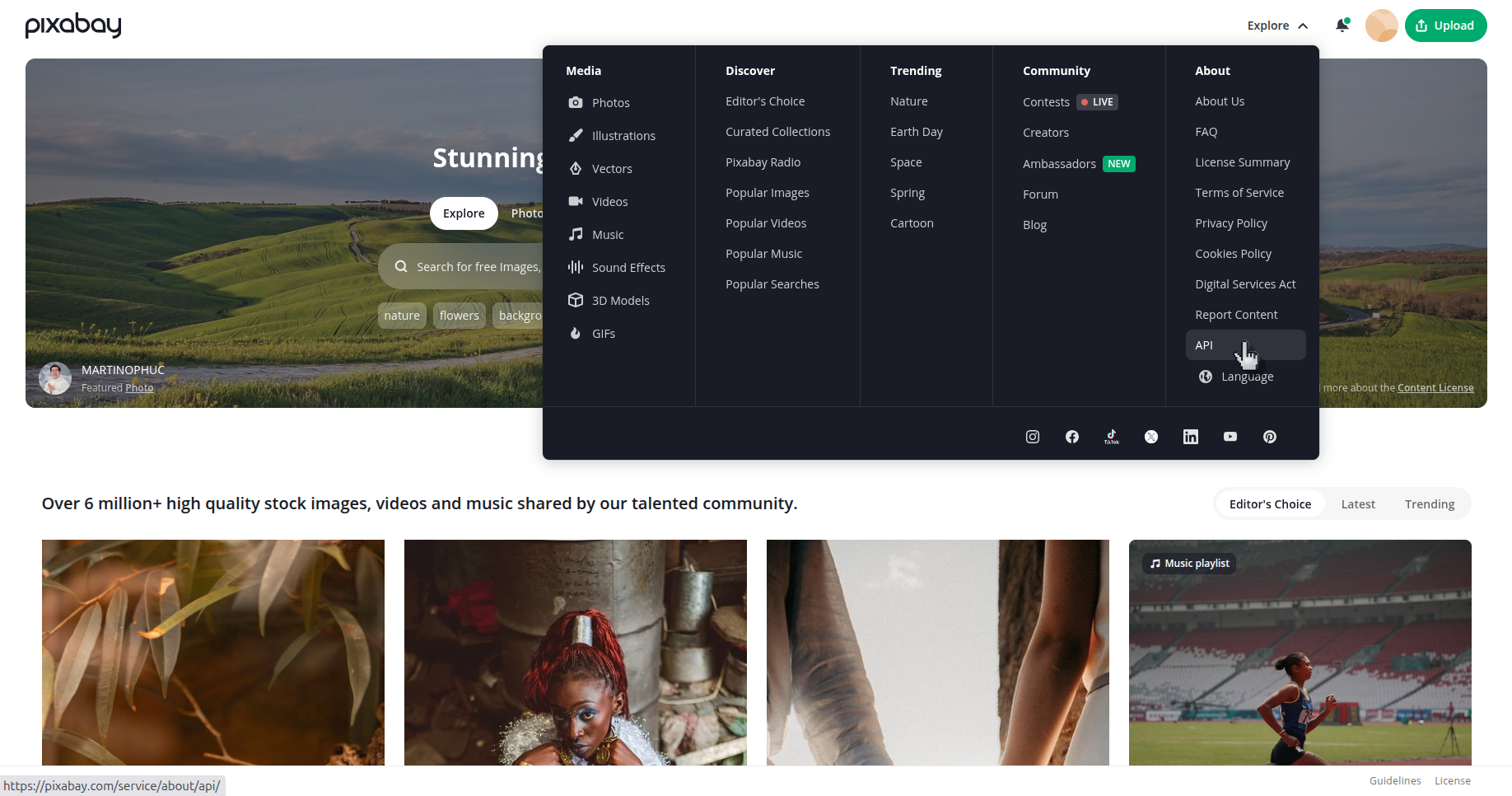
 After signing in, click on **Explore** and open the site navigation menu and select **API**.
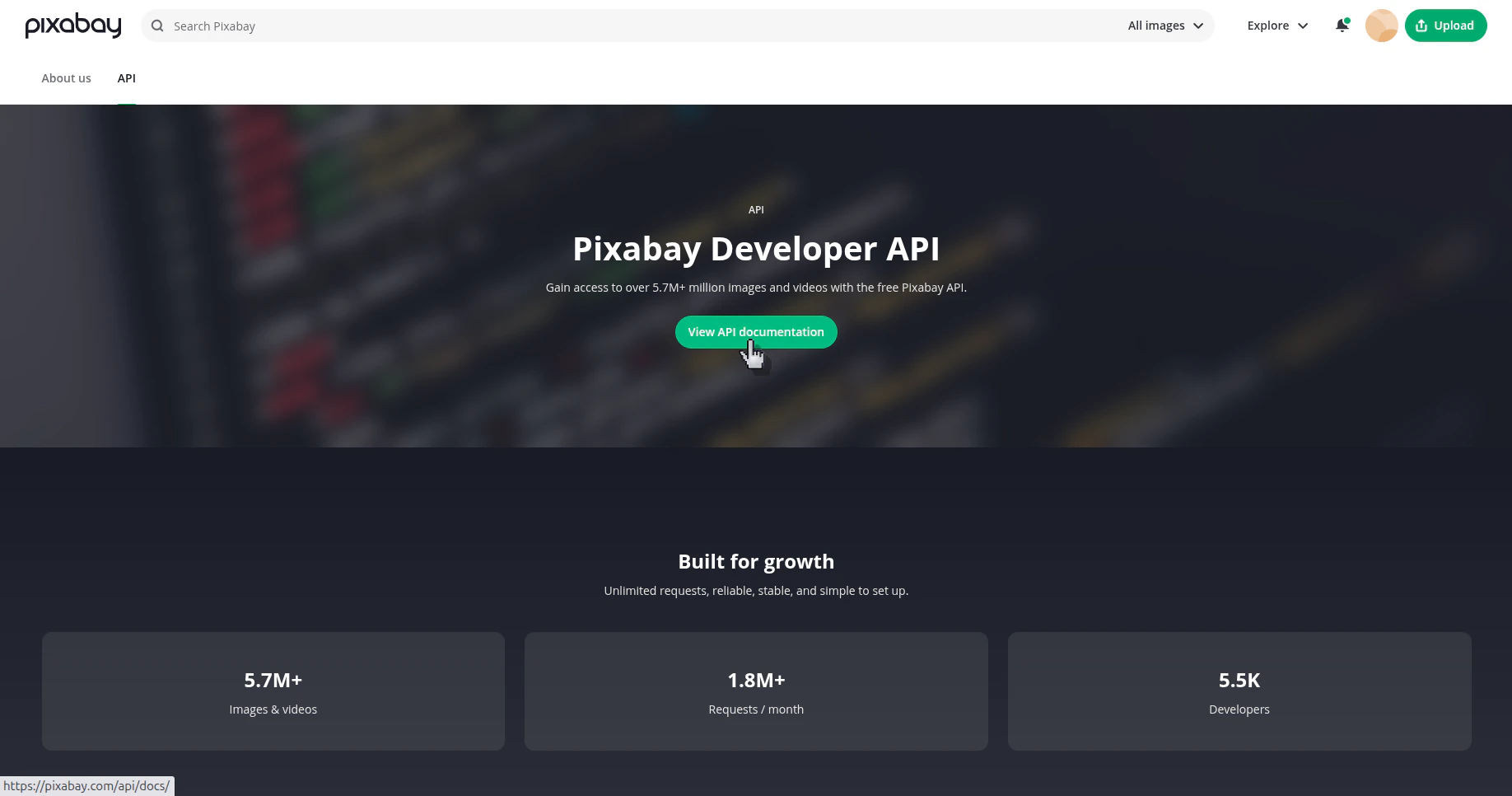
 On the Pixabay Developer API page, click **View API documentation**.
 In the documentation page, scroll down to the API reference section, then look for the **Search Images** endpoint and the required `key` parameter.
 The API key reference is not at the top of the documentation page. You need to scroll down to the API reference area to reach the `key` field.
## Verify the result
You can locate your Pixabay API key in the API documentation reference and use it where the integration asks for the key value.
The API key reference is not at the top of the documentation page. You need to scroll down to the API reference area to reach the `key` field.
## Verify the result
You can locate your Pixabay API key in the API documentation reference and use it where the integration asks for the key value.