> ## Documentation Index
> Fetch the complete documentation index at: https://docs.presenton.ai/llms.txt
> Use this file to discover all available pages before exploring further.
# Install the desktop app
> Install the Presenton Open Source desktop app on Windows, macOS, or Linux.
Use the desktop app when you want to run Presenton Open Source on Windows, macOS, or Linux without setting up the Docker deployment manually.
## Before you start
* Make sure you have permission to install apps on your device.
* Keep an internet connection available until the installer finishes downloading.
| Platform | Available package |
| ------------------- | ----------------- |
| macOS Apple Silicon | arm64 `.dmg` |
| Windows | x64 `.exe` |
| Linux | x64 `.deb` |
The download page lets you choose a platform before downloading the installer.
## Download and install Presenton
Go to [presenton.ai/download](https://presenton.ai/download), or select **Download** from the Presenton website navigation.
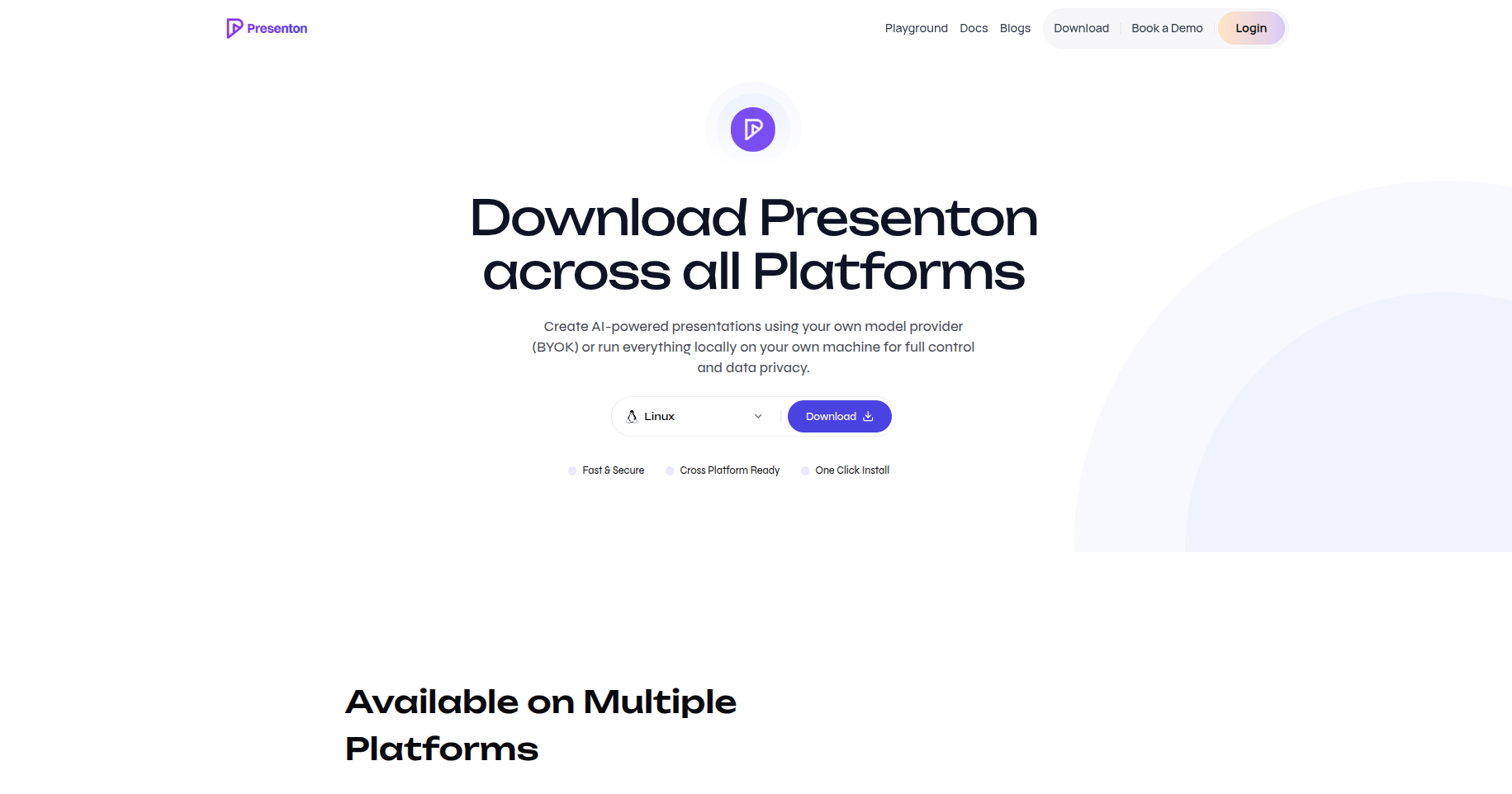 Open the platform selector and choose **Windows**, **macOS**, or **Linux**.
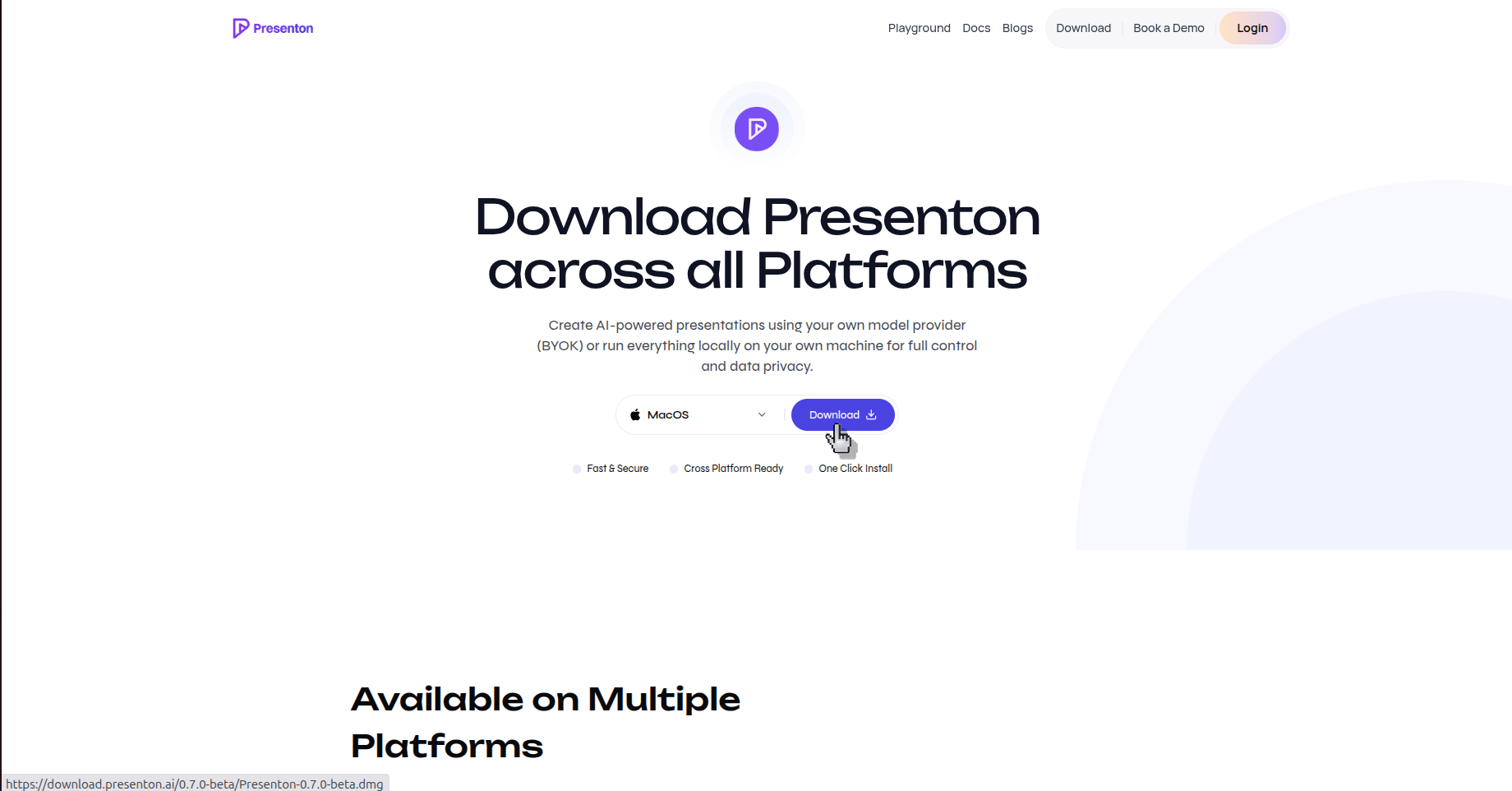
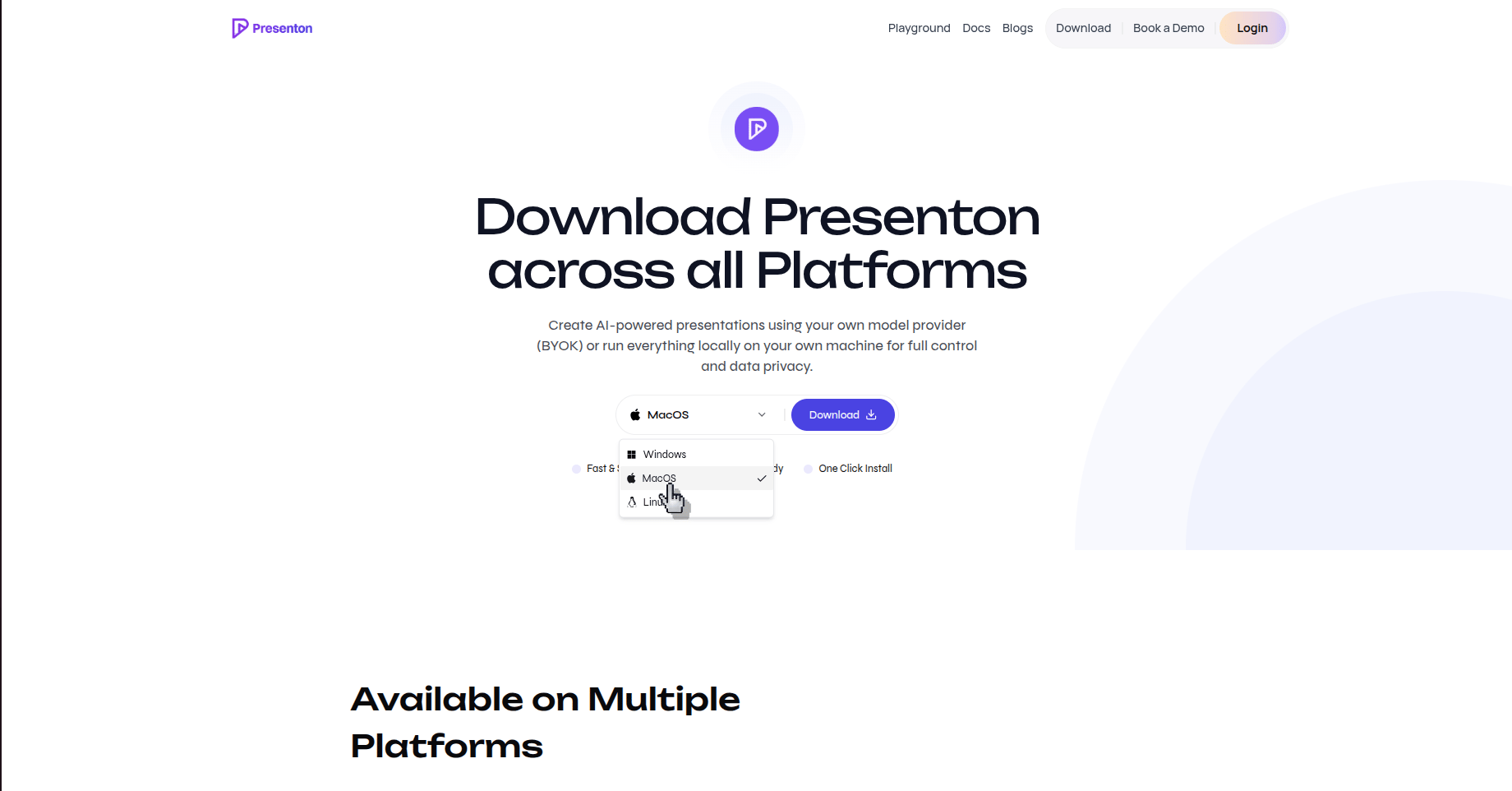 After selecting your platform, click **Download** and wait for the installer file to finish downloading.
 Open the downloaded file and follow the installation prompts shown by your operating system.
Launch Presenton from your applications list or app launcher after the installation completes.
## Verify the result
Presenton opens on your computer and is ready for local setup and presentation creation.
## Build the desktop app from source
Use this path when you are developing Presenton or need to create the installer yourself.
### Prerequisites
* Node.js LTS and npm
* Python 3.11
* `uv`
* Git
Clone the repository and prepare the Electron environment:
```bash theme={null}
git clone https://github.com/presenton/presenton.git
cd presenton/electron
npm run setup:env
npm run dev
```
Create production assets and platform packages with:
```bash theme={null}
npm run build:all
npm run dist
```
Packaging requirements vary by operating system. Build and test the target package on a compatible platform, and inspect the Electron build output when signing or packaging fails.
The desktop runtime is intended for local interactive use. Its MCP server is disabled and authentication is disabled by default to avoid desktop-runtime authentication conflicts. Use the Docker or web deployment for an MCP-accessible instance.
## Next steps
* [Create your first presentation](/open-source/v0.9.0-beta/tutorials/create-first-presentation)
* [Configure text providers](/open-source/v0.9.0-beta/configuration/text-providers)
* [Install the self-hosted web application](/open-source/v0.9.0-beta/quickstart)
Open the downloaded file and follow the installation prompts shown by your operating system.
Launch Presenton from your applications list or app launcher after the installation completes.
## Verify the result
Presenton opens on your computer and is ready for local setup and presentation creation.
## Build the desktop app from source
Use this path when you are developing Presenton or need to create the installer yourself.
### Prerequisites
* Node.js LTS and npm
* Python 3.11
* `uv`
* Git
Clone the repository and prepare the Electron environment:
```bash theme={null}
git clone https://github.com/presenton/presenton.git
cd presenton/electron
npm run setup:env
npm run dev
```
Create production assets and platform packages with:
```bash theme={null}
npm run build:all
npm run dist
```
Packaging requirements vary by operating system. Build and test the target package on a compatible platform, and inspect the Electron build output when signing or packaging fails.
The desktop runtime is intended for local interactive use. Its MCP server is disabled and authentication is disabled by default to avoid desktop-runtime authentication conflicts. Use the Docker or web deployment for an MCP-accessible instance.
## Next steps
* [Create your first presentation](/open-source/v0.9.0-beta/tutorials/create-first-presentation)
* [Configure text providers](/open-source/v0.9.0-beta/configuration/text-providers)
* [Install the self-hosted web application](/open-source/v0.9.0-beta/quickstart)