> ## Documentation Index
> Fetch the complete documentation index at: https://docs.presenton.ai/llms.txt
> Use this file to discover all available pages before exploring further.
# Fonts
> Detect, resolve, and verify the fonts used by a custom presentation template.
Template Studio detects the fonts used in an uploaded PowerPoint presentation and helps make them available to the generated custom template.
Presenton provides fonts available through Google Fonts. If the PPTX uses a font that is not available, Template Studio lets you upload the font file manually.
This workflow manages fonts for custom templates. Template Studio does not provide color configuration during template creation; colors and other visual styling come from the uploaded PowerPoint design.
## How font detection works
When you upload a filled `.pptx`, Template Studio reads the fonts referenced by its slides.
| Detection result | What happens |
| -------------------------------------- | -------------------------------------------------------------------------- |
| Font is available through Google Fonts | Presenton makes the font available automatically |
| Font is not available | Template Studio shows it as missing and provides an upload control |
| Missing font is not uploaded | A fallback font may change text width, wrapping, spacing, and slide layout |
## Review and resolve template fonts
Open **Templates**, start a new template, and upload the filled PPTX that contains your branded slide designs.
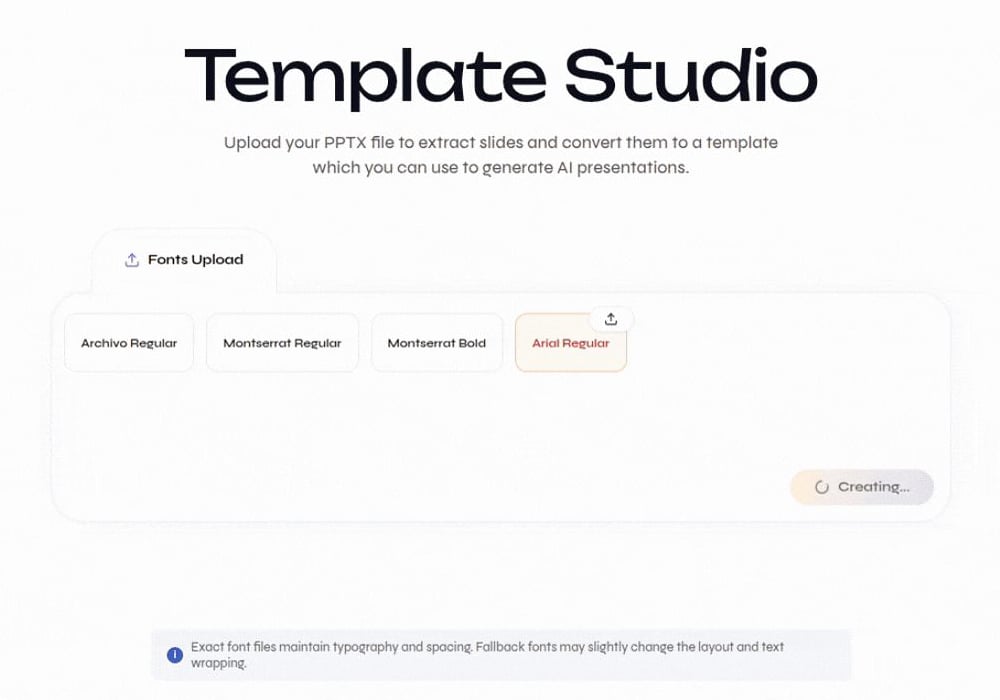
After the file is ready, continue to the font review step. Template Studio analyzes the fonts referenced by the presentation.
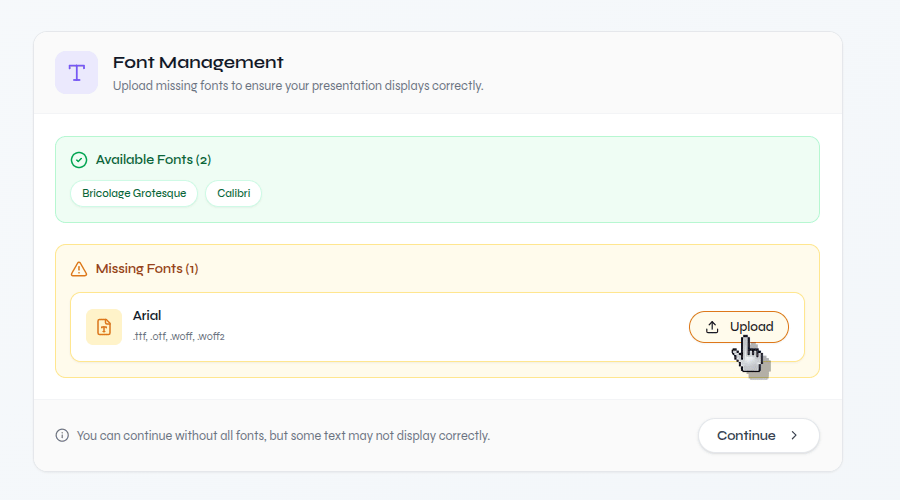
Check the font list. Fonts available through Google Fonts are provided by Presenton. Fonts that cannot be found are marked for manual upload.
Review detected fonts and identify missing files
Use the upload control beside each missing font and select the corresponding font file from your computer.
Upload a font that Presenton could not resolve
When the required fonts are available, continue to preview. Inspect titles, body text, line breaks, spacing, and alignment before creating the template.
## Choose the correct font file
* Upload the font family and weight requested by Template Studio.
* Use a font file that your organization is permitted to use and distribute.
* Keep regular, medium, semibold, bold, and italic variants available when the source deck uses them.
* Do not substitute a similarly named font without checking every affected slide.
Font files are licensed assets. Confirm that your font license permits use in the deployment, generated presentations, and exported files.
## Verify font fidelity
After the template is generated:
1. Open its layouts and check short and long sample text.
2. Confirm headings and body text use the intended family and weight.
3. Look for unexpected wrapping, clipping, overflow, and alignment changes.
4. Generate a short Standard presentation with the custom template.
5. Export both PPTX and PDF and inspect them in the applications your audience will use.
Upload the source PPTX and create the reusable template.
Test text behavior and character limits after generation.