> ## Documentation Index
> Fetch the complete documentation index at: https://docs.presenton.ai/llms.txt
> Use this file to discover all available pages before exploring further.

# Create new Presentation

> Create a presentation in Presenton Cloud or open-source Presenton.

## Create a presentation

Choose **Cloud** for Presenton Cloud or **Open-source** for your local or self-hosted installation. Each tab follows the workflow from prompt to generated presentation.

## Watch the workflow

<video className="doc-video" controls preload="metadata" playsInline src="https://mintcdn.com/presenton-521d9e2f/oSISzG16Qh-yjB8A/user_guide_assests/Create%20a%20New%20Presentation%20in%20Presenton.mp4?fit=max&auto=format&n=oSISzG16Qh-yjB8A&q=85&s=603c687bf548843cbe9b5e36806a5491" data-path="user_guide_assests/Create a New Presentation in Presenton.mp4">
  Your browser does not support the video tag.
</video>

## Generation essentials

| Decision          | Guidance                                                                                                                    |
| ----------------- | --------------------------------------------------------------------------------------------------------------------------- |
| Presentation type | Use **Standard** for reusable template layouts. Choose **Smart** when available and the design should adapt to the content. |
| Prompt            | Name the audience, desired outcome, scope, and facts that must remain unchanged.                                            |
| Source material   | Attach only relevant, authoritative documents, spreadsheets, images, or presentations.                                      |
| Controls          | Set the slide count, language, tone, verbosity, and structural options that carry a real requirement.                       |
| Outline           | Correct missing content, weak sequencing, unsupported claims, and unnecessary slides before generation.                     |

<Tip>
  Use the prompt to explain what to create and attachments to provide evidence. For example: `Create a seven-slide executive update from the attached report. Preserve every reported figure and end with three decisions.`
</Tip>

<Tabs>
  <Tab title="Cloud">
    <Steps>
      <Step title="Open Create new Presentation">
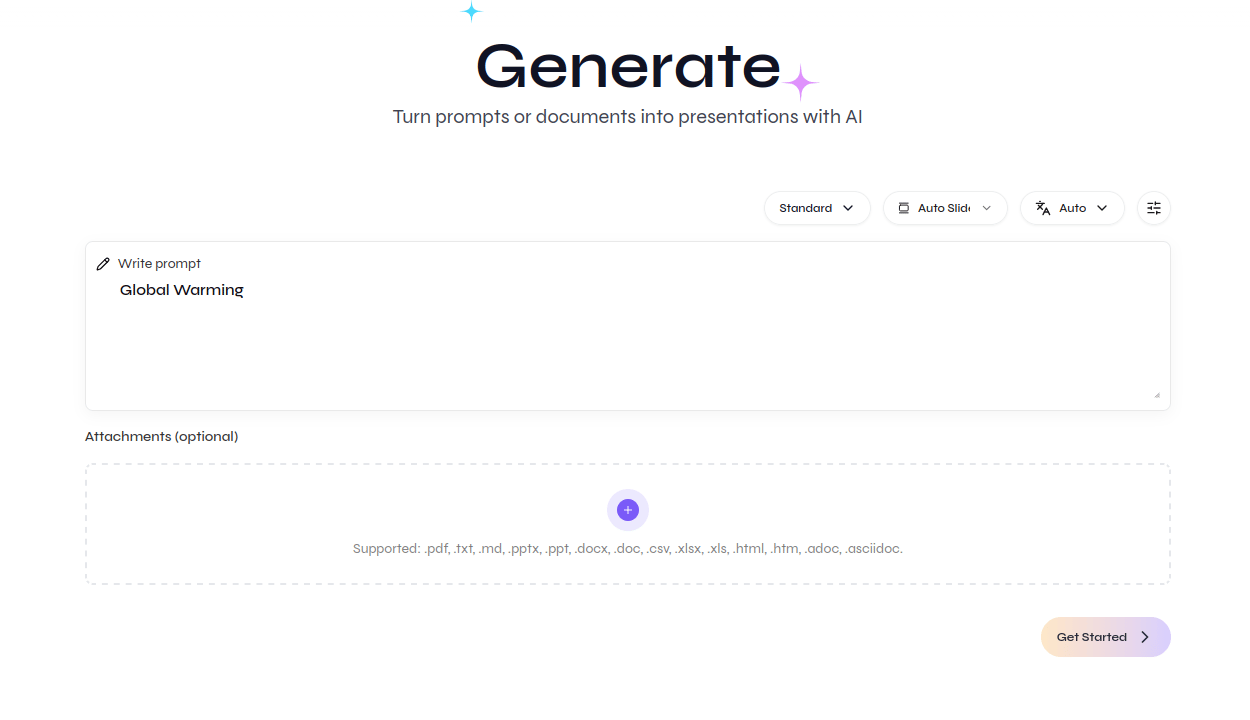
        Select **Create new Presentation** from the Cloud dashboard.

        <div className="guide-media guide-media--detail">
          <p className="guide-media-label">Open the Cloud generator</p>

          <div className="guide-media-viewport">
            <img src="https://mintcdn.com/presenton-521d9e2f/isevrd3o6JPIkznF/images/user-guide/creating-presentations/cloud-closeups/generate-overview.png?fit=max&auto=format&n=isevrd3o6JPIkznF&q=85&s=8bc4ca2ab98c38a9213a6f4bff07d7bf" alt="Close-up of the Presenton Cloud generator with prompt, attachments, controls, and Get Started" width="1250" height="720" data-path="images/user-guide/creating-presentations/cloud-closeups/generate-overview.png" />
          </div>
        </div>
      </Step>

      <Step title="Choose Standard or Smart">
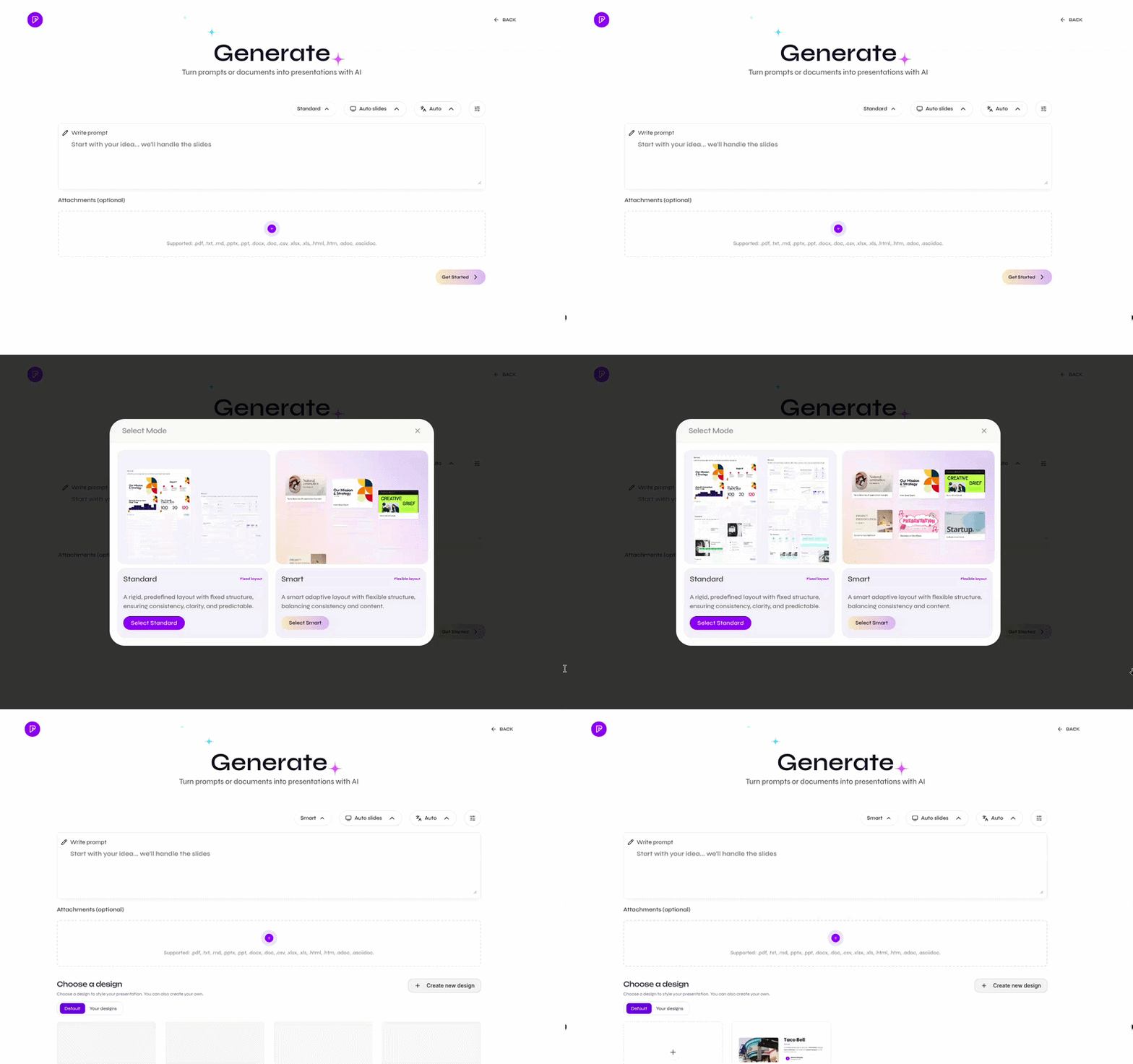
        Choose **Standard** for template-based layouts or **Smart** for content-driven composition.

        <div className="guide-media guide-media--workflow">
          <p className="guide-media-label">Switch between Standard and Smart</p>

          <div className="guide-media-viewport">
            <img src="https://mintcdn.com/presenton-521d9e2f/isevrd3o6JPIkznF/images/user-guide/creating-presentations/generation-workflow/cloud-mode-standard-smart.gif?s=460ba27e7fc29af1c687b1a57c40003f" alt="Selecting Standard and Smart presentation modes" width="800" height="502" data-path="images/user-guide/creating-presentations/generation-workflow/cloud-mode-standard-smart.gif" />
          </div>
        </div>
      </Step>

      <Step title="Set the slides and language">
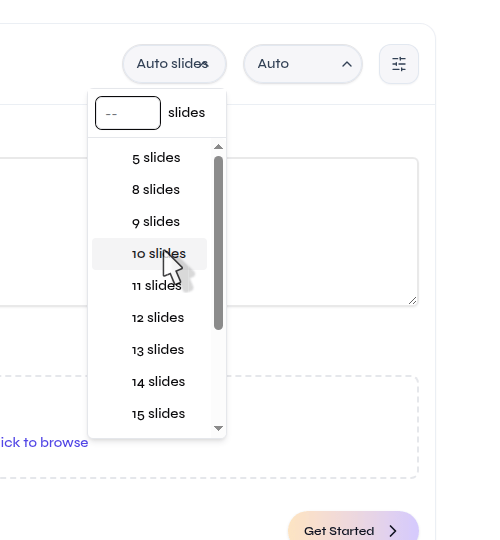
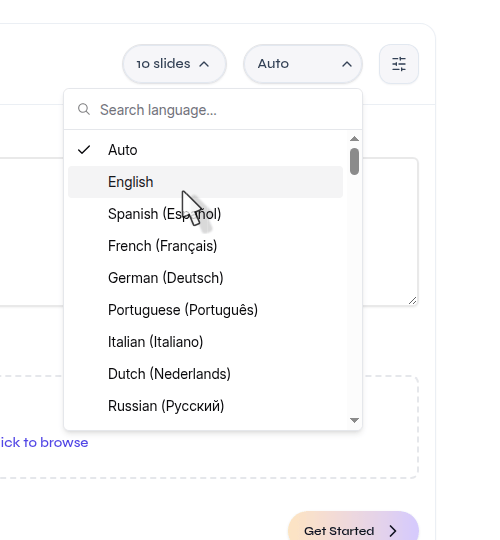
        Choose **Auto slides** or a fixed count, then select the output language.

        <div className="guide-media guide-media--detail guide-media--detail-narrow">
          <p className="guide-media-label">Choose Auto slides or a fixed slide count</p>

          <div className="guide-media-viewport">
            <img src="https://mintcdn.com/presenton-521d9e2f/isevrd3o6JPIkznF/images/user-guide/creating-presentations/cloud-closeups/slide-count-menu.png?fit=max&auto=format&n=isevrd3o6JPIkznF&q=85&s=f30adee1b751c9d3323406fbcf2326d2" alt="Close-up of the Cloud slide-count control and fixed slide options" width="500" height="540" data-path="images/user-guide/creating-presentations/cloud-closeups/slide-count-menu.png" />
          </div>
        </div>

        <div className="guide-media guide-media--detail guide-media--detail-narrow">
          <p className="guide-media-label">Select the presentation language</p>

          <div className="guide-media-viewport">
            <img src="https://mintcdn.com/presenton-521d9e2f/isevrd3o6JPIkznF/images/user-guide/creating-presentations/cloud-closeups/language-menu.png?fit=max&auto=format&n=isevrd3o6JPIkznF&q=85&s=8c3259d11abded9dfcb14cc3a5c1ef11" alt="Close-up of the Cloud output-language menu" width="500" height="540" data-path="images/user-guide/creating-presentations/cloud-closeups/language-menu.png" />
          </div>
        </div>
      </Step>

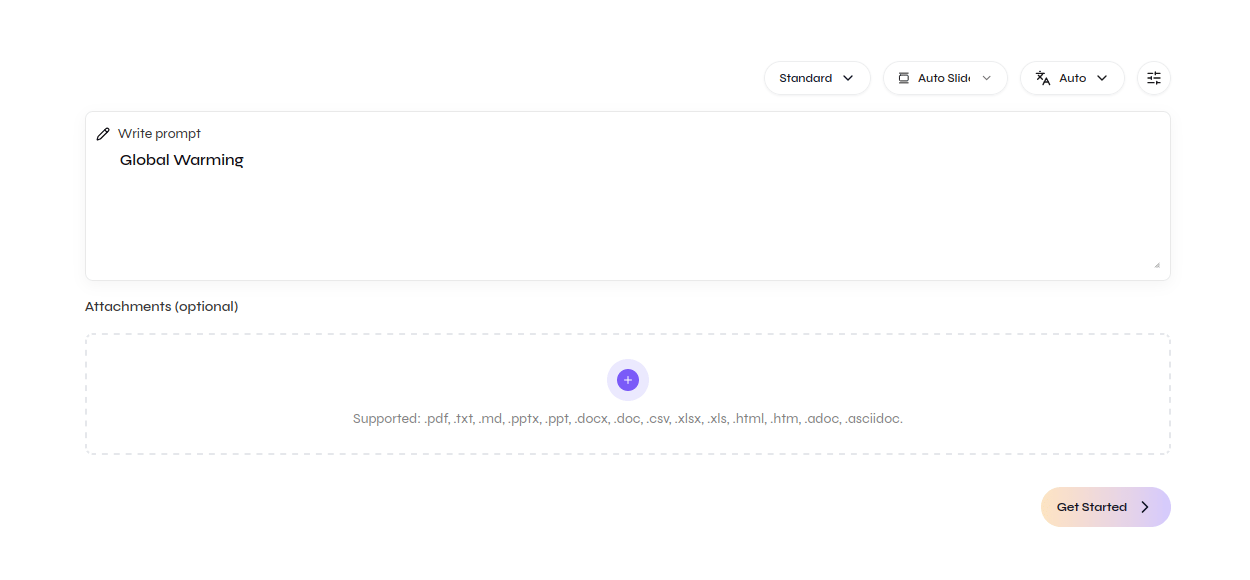
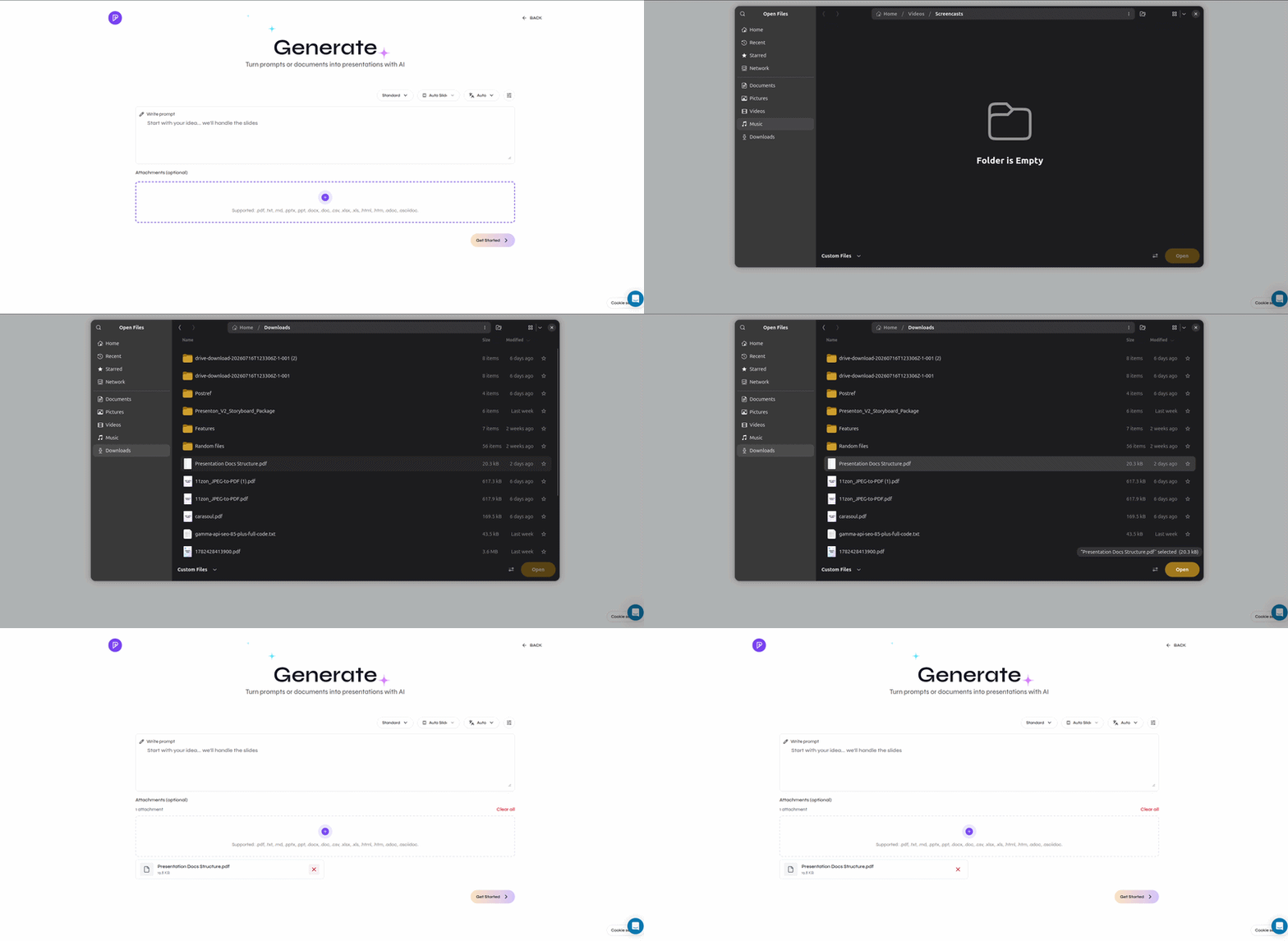
      <Step title="Add the prompt and files">
        Describe the presentation you want. Attach reference files when Presenton should use specific source material.

        <div className="guide-media guide-media--detail">
          <p className="guide-media-label">Describe the presentation you want</p>

          <div className="guide-media-viewport">
            <img src="https://mintcdn.com/presenton-521d9e2f/isevrd3o6JPIkznF/images/user-guide/creating-presentations/cloud-closeups/prompt-and-attachments.png?fit=max&auto=format&n=isevrd3o6JPIkznF&q=85&s=d486140a7c850652d9e8492b22f29500" alt="Close-up of the Cloud prompt and attachment areas with a presentation topic entered" width="1250" height="580" data-path="images/user-guide/creating-presentations/cloud-closeups/prompt-and-attachments.png" />
          </div>
        </div>

        <div className="guide-media">
          <p className="guide-media-label">Attach files beside the prompt</p>

          <div className="guide-media-viewport">
            <img src="https://mintcdn.com/presenton-521d9e2f/at0fMZFzkP-vbjoy/images/cloud/attachmentuplaoding.gif?s=8e033b5c3fa757900162c4b99a608a19" alt="Reference file attached beside the Cloud prompt" width="800" height="390" data-path="images/cloud/attachmentuplaoding.gif" />
          </div>
        </div>
      </Step>

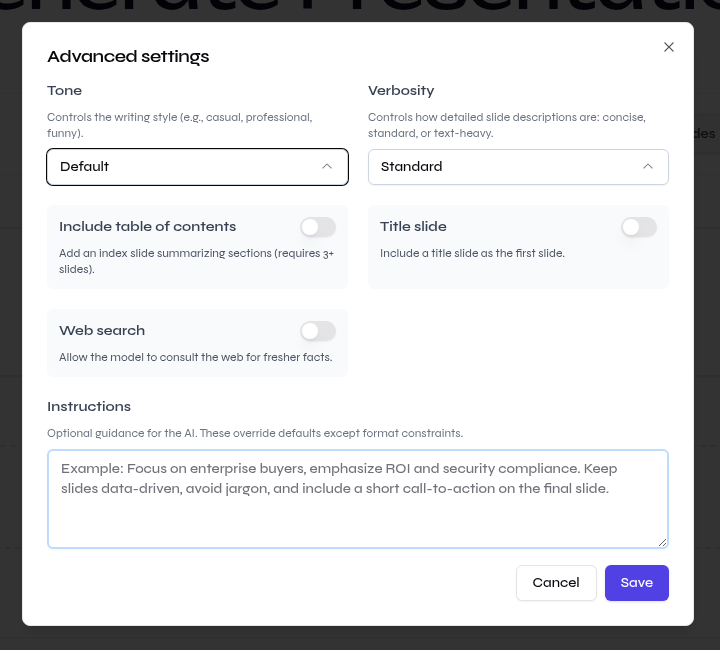
      <Step title="Review Advanced settings">
        Set tone, verbosity, title slide, table of contents, web search, or additional instructions when needed.

        <div className="guide-media guide-media--detail guide-media--detail-narrow">
          <p className="guide-media-label">Adjust only the settings you need</p>

          <div className="guide-media-viewport">
            <img src="https://mintcdn.com/presenton-521d9e2f/isevrd3o6JPIkznF/images/user-guide/creating-presentations/cloud-closeups/advanced-settings.png?fit=max&auto=format&n=isevrd3o6JPIkznF&q=85&s=f42fa69ae988c139bf41d8a708af7dfb" alt="Close-up of Advanced settings for tone, verbosity, structure, web search, and instructions" width="720" height="650" data-path="images/user-guide/creating-presentations/cloud-closeups/advanced-settings.png" />
          </div>
        </div>
      </Step>

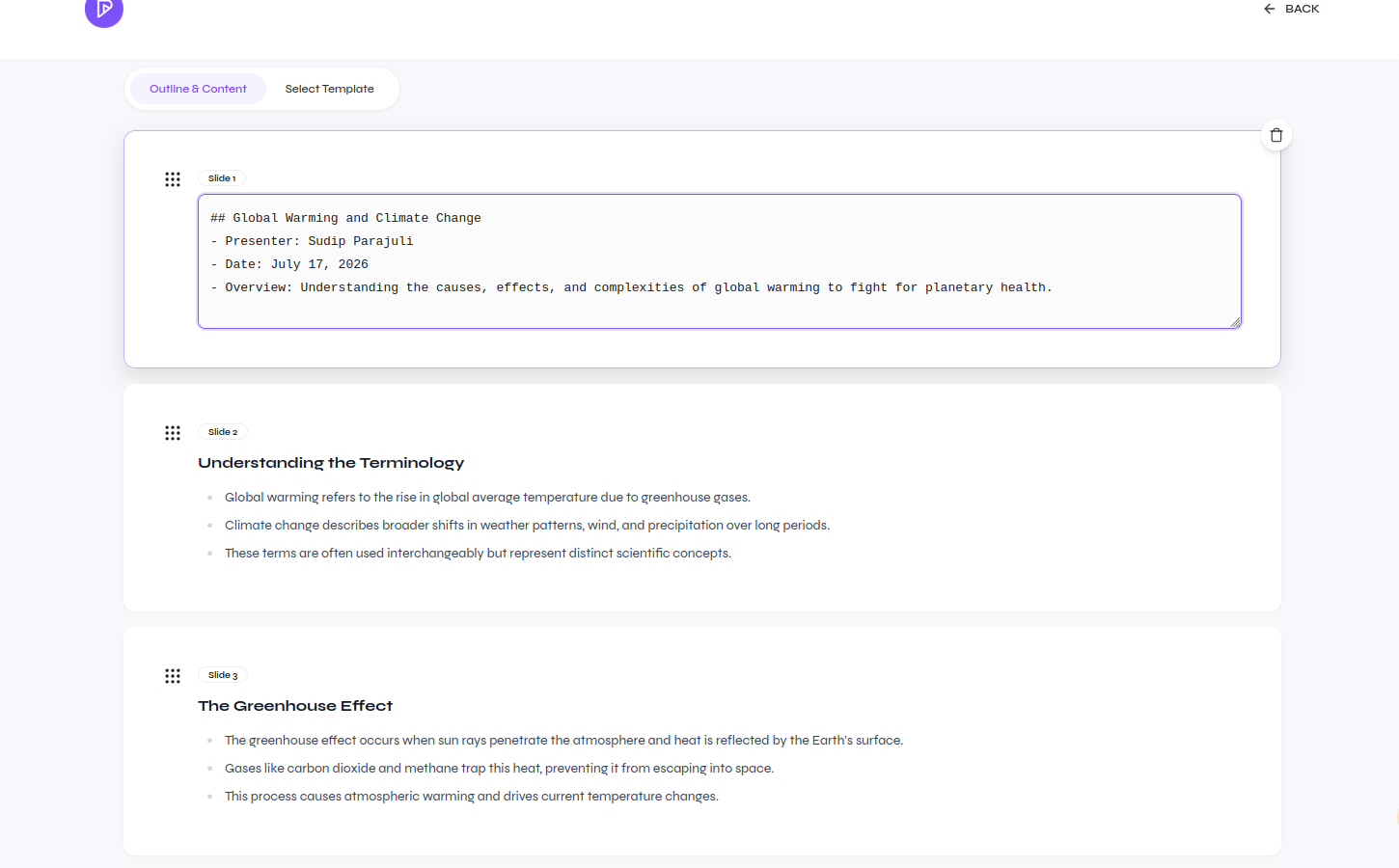
      <Step title="Get started">
        Select **Get Started**, review the outline, and choose the design before generating the presentation.

        <div className="guide-media guide-media--detail">
          <p className="guide-media-label">Review the outline before generating slides</p>

          <div className="guide-media-viewport">
            <img src="https://mintcdn.com/presenton-521d9e2f/isevrd3o6JPIkznF/images/user-guide/creating-presentations/cloud-closeups/outline-review.png?fit=max&auto=format&n=isevrd3o6JPIkznF&q=85&s=f1fd689a8e50b06dcff72d77dc9f8c65" alt="Close-up of a generated presentation outline ready for review" width="1450" height="900" data-path="images/user-guide/creating-presentations/cloud-closeups/outline-review.png" />
          </div>
        </div>

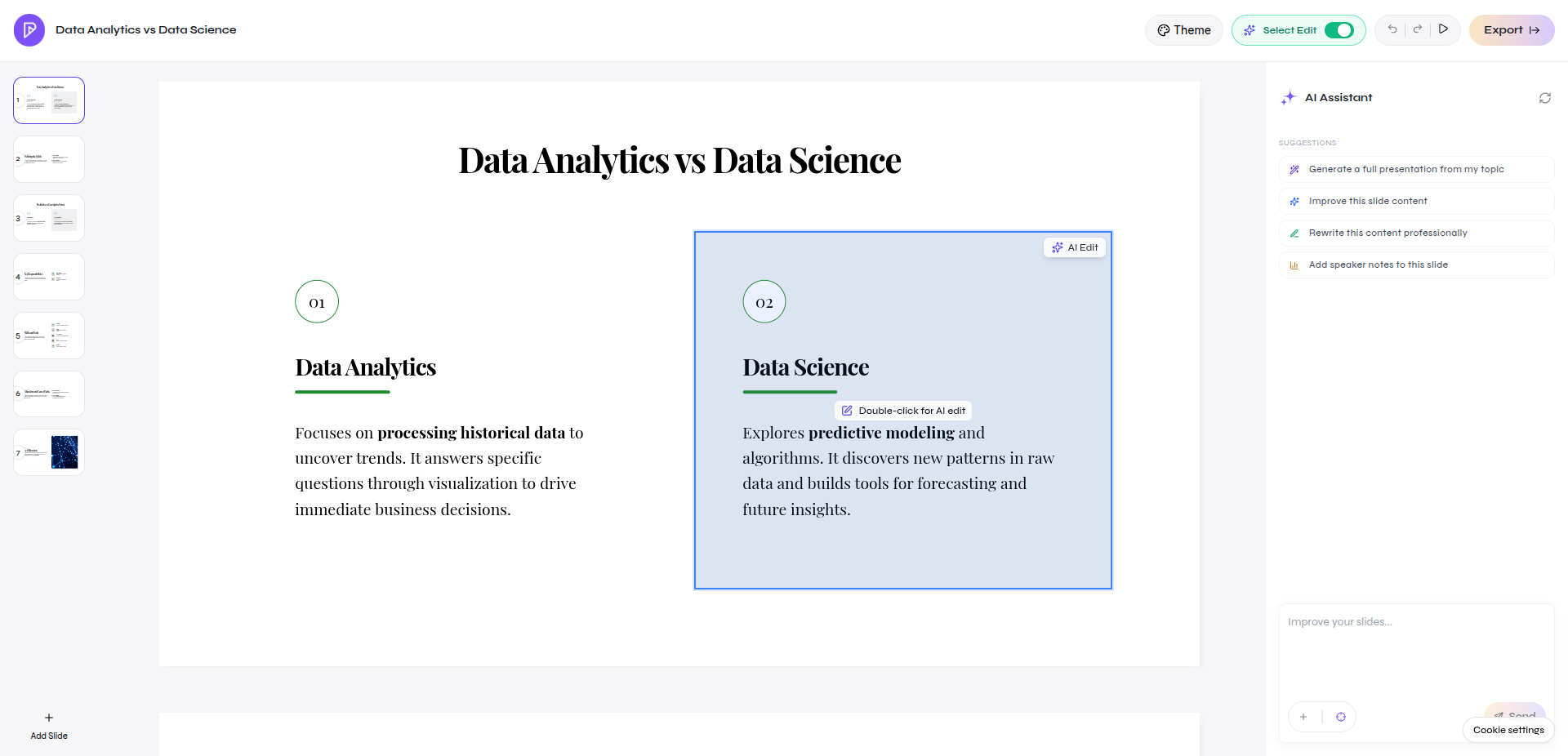
        After generation, the presentation opens in the editor.

        <div className="guide-media">
          <p className="guide-media-label">Continue in the Presenton Editor</p>

          <div className="guide-media-viewport">
            <img src="https://mintcdn.com/presenton-521d9e2f/a7GBkBOgfm-3ZeQM/images/cloud/editor.png?fit=max&auto=format&n=a7GBkBOgfm-3ZeQM&q=85&s=a8b5dcf7f1ffacbb98e2907bbae94b96" alt="Generated Cloud presentation open in the Presenton Editor" width="1920" height="926" data-path="images/cloud/editor.png" />
          </div>
        </div>
      </Step>
    </Steps>
  </Tab>

  <Tab title="Open-source">
    Complete [open-source onboarding](/user-guide/onboarding#open-source) first.

    <Steps>
      <Step title="Open the generator">
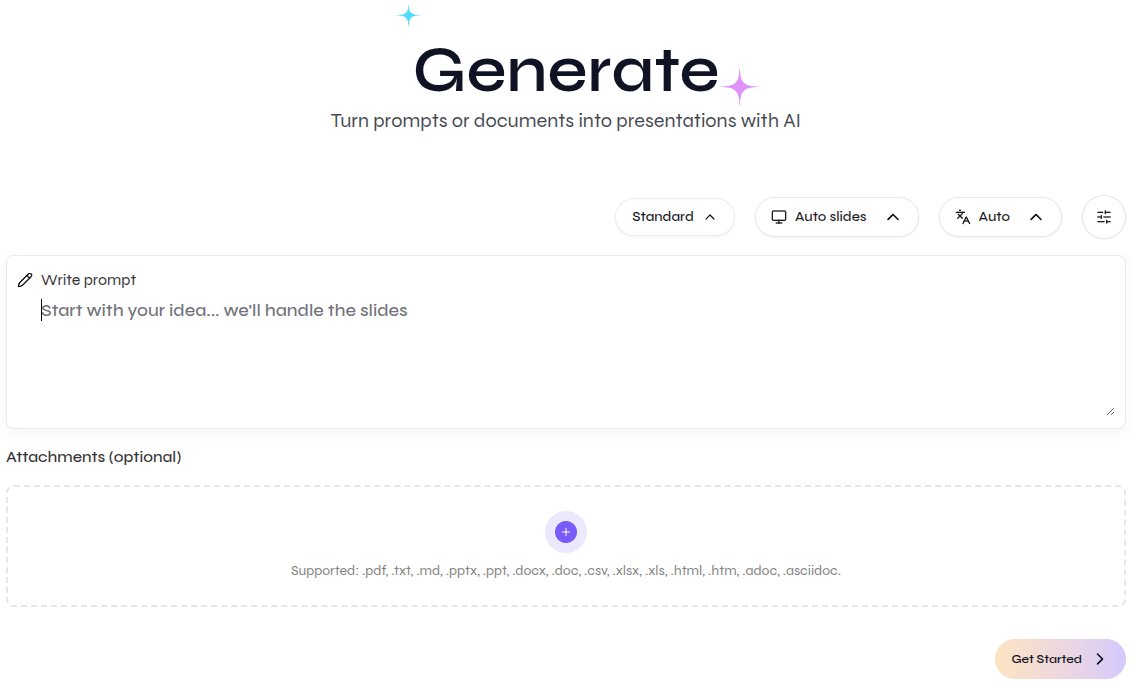
        Start a new presentation and confirm the configured provider shown above the prompt.

        <div className="guide-media guide-media--detail">
          <p className="guide-media-label">Open the Generate page</p>

          <div className="guide-media-viewport">
            <img src="https://mintcdn.com/presenton-521d9e2f/isevrd3o6JPIkznF/images/user-guide/creating-presentations/generation-workflow/open-source-generate-overview.png?fit=max&auto=format&n=isevrd3o6JPIkznF&q=85&s=7b8e5b5685f247de5467f57ec28b6151" alt="Close-up of the open-source Generate page with Standard mode, prompt, attachments, and Get Started" width="1133" height="686" data-path="images/user-guide/creating-presentations/generation-workflow/open-source-generate-overview.png" />
          </div>
        </div>
      </Step>

      <Step title="Configure the presentation">
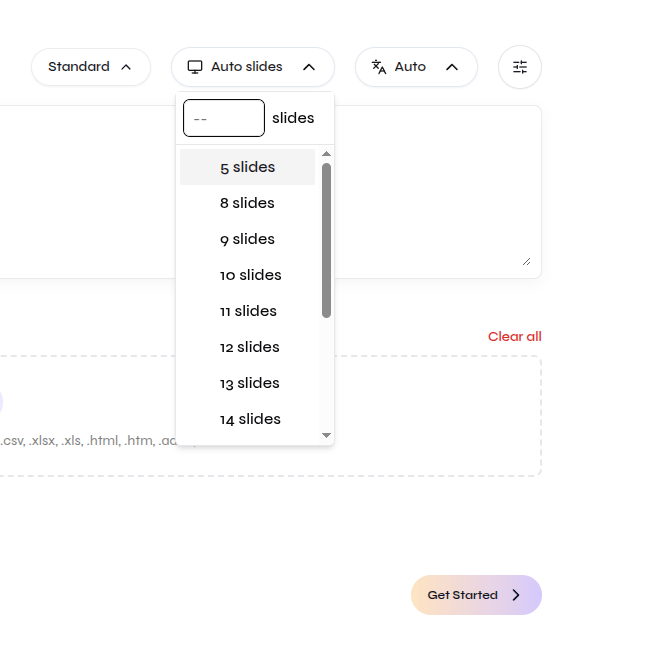
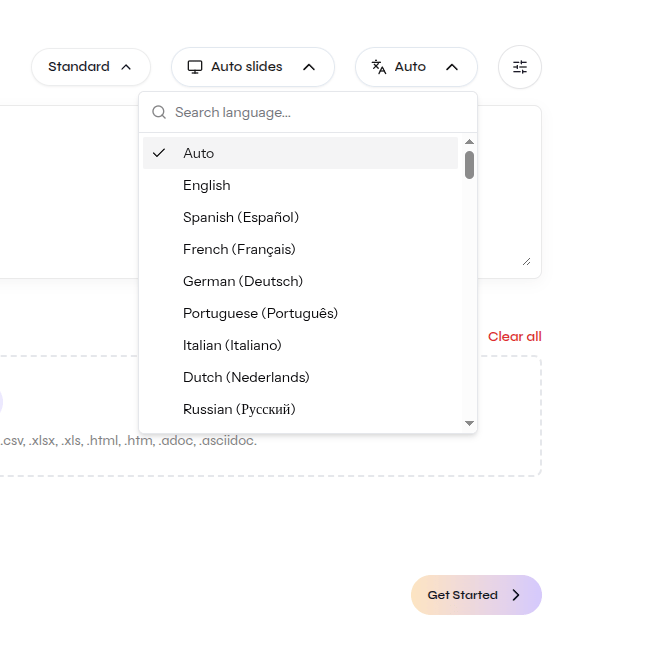
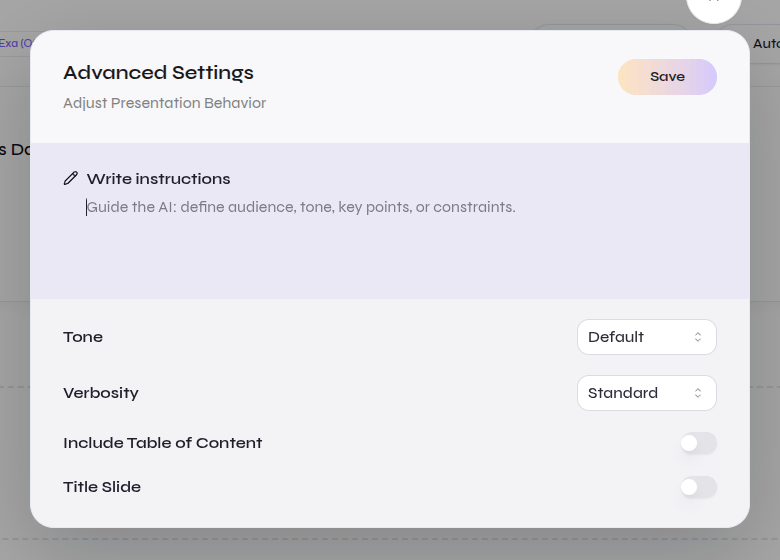
        Keep **Auto slides** or choose a slide count, select the language, and open **Advanced settings** when needed.

        <div className="guide-media guide-media--detail guide-media--control-strip">
          <p className="guide-media-label">Generation controls above the prompt</p>

          <div className="guide-media-viewport">
            <img src="https://mintcdn.com/presenton-521d9e2f/isevrd3o6JPIkznF/images/user-guide/creating-presentations/generation-workflow/open-source-basic-controls.png?fit=max&auto=format&n=isevrd3o6JPIkznF&q=85&s=62b58732c845a4be7abe773451b34c1b" alt="Open-source controls for Standard mode, slide count, language, and advanced settings" width="548" height="103" data-path="images/user-guide/creating-presentations/generation-workflow/open-source-basic-controls.png" />
          </div>
        </div>

        <div className="guide-media guide-media--detail guide-media--detail-narrow">
          <p className="guide-media-label">Choose Auto slides or a fixed slide count</p>

          <div className="guide-media-viewport">
            <img src="https://mintcdn.com/presenton-521d9e2f/isevrd3o6JPIkznF/images/user-guide/creating-presentations/generation-workflow/open-source-slide-count-menu.png?fit=max&auto=format&n=isevrd3o6JPIkznF&q=85&s=db32303013d50318dc8d7cd461270cc0" alt="Close-up of the open-source slide-count menu with fixed slide options" width="646" height="668" data-path="images/user-guide/creating-presentations/generation-workflow/open-source-slide-count-menu.png" />
          </div>
        </div>

        <div className="guide-media guide-media--detail guide-media--detail-narrow">
          <p className="guide-media-label">Select the presentation language</p>

          <div className="guide-media-viewport">
            <img src="https://mintcdn.com/presenton-521d9e2f/isevrd3o6JPIkznF/images/user-guide/creating-presentations/generation-workflow/open-source-language-menu.png?fit=max&auto=format&n=isevrd3o6JPIkznF&q=85&s=eb42728b90a24b99f54c31a609e06f34" alt="Close-up of the open-source language menu with Auto and supported output languages" width="646" height="668" data-path="images/user-guide/creating-presentations/generation-workflow/open-source-language-menu.png" />
          </div>
        </div>

        <div className="guide-media guide-media--detail guide-media--detail-narrow">
          <p className="guide-media-label">Review Advanced settings when needed</p>

          <div className="guide-media-viewport">
            <img src="https://mintcdn.com/presenton-521d9e2f/isevrd3o6JPIkznF/images/user-guide/creating-presentations/generation-workflow/open-source-advanced-settings.png?fit=max&auto=format&n=isevrd3o6JPIkznF&q=85&s=dc15ffd93d870b2c33b01f309fd912cf" alt="Close-up of open-source Advanced Settings with instructions, tone, verbosity, table of contents, and title slide" width="780" height="560" data-path="images/user-guide/creating-presentations/generation-workflow/open-source-advanced-settings.png" />
          </div>
        </div>
      </Step>

      <Step title="Add the prompt and files">
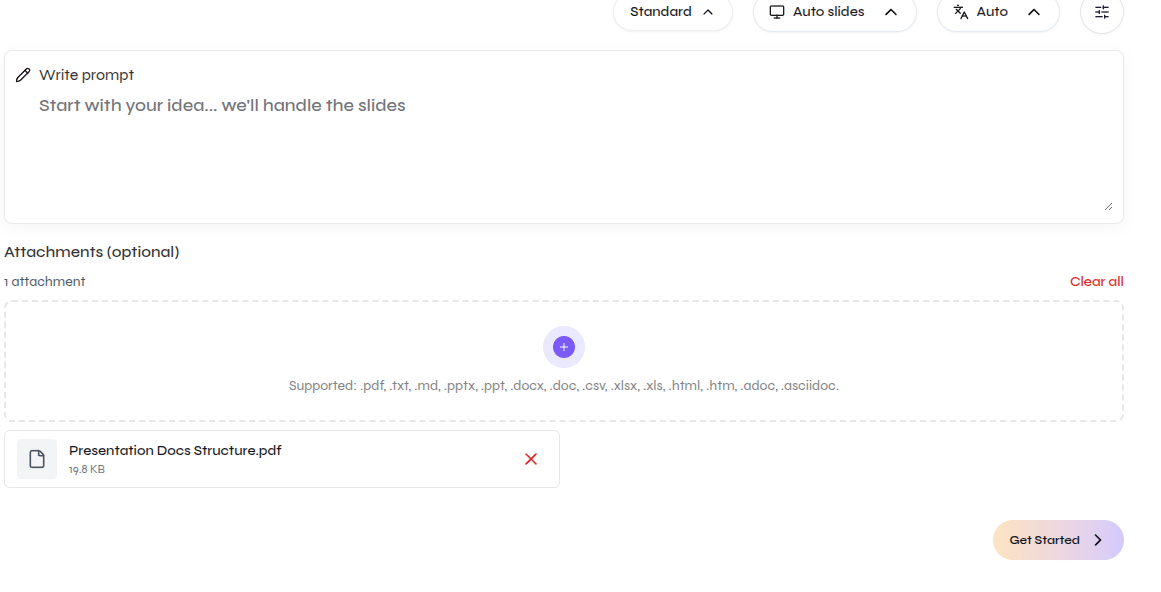
        Enter a prompt, upload reference files, or use both.

        <div className="guide-media guide-media--detail">
          <p className="guide-media-label">Prompt and attached source file ready for generation</p>

          <div className="guide-media-viewport">
            <img src="https://mintcdn.com/presenton-521d9e2f/isevrd3o6JPIkznF/images/user-guide/creating-presentations/generation-workflow/open-source-prompt-attachment.png?fit=max&auto=format&n=isevrd3o6JPIkznF&q=85&s=1acd3253de02a9afd96e461d213e7986" alt="Open-source Generate page with the prompt area and an attached PDF source document" width="1161" height="592" data-path="images/user-guide/creating-presentations/generation-workflow/open-source-prompt-attachment.png" />
          </div>
        </div>
      </Step>

      <Step title="Get started">
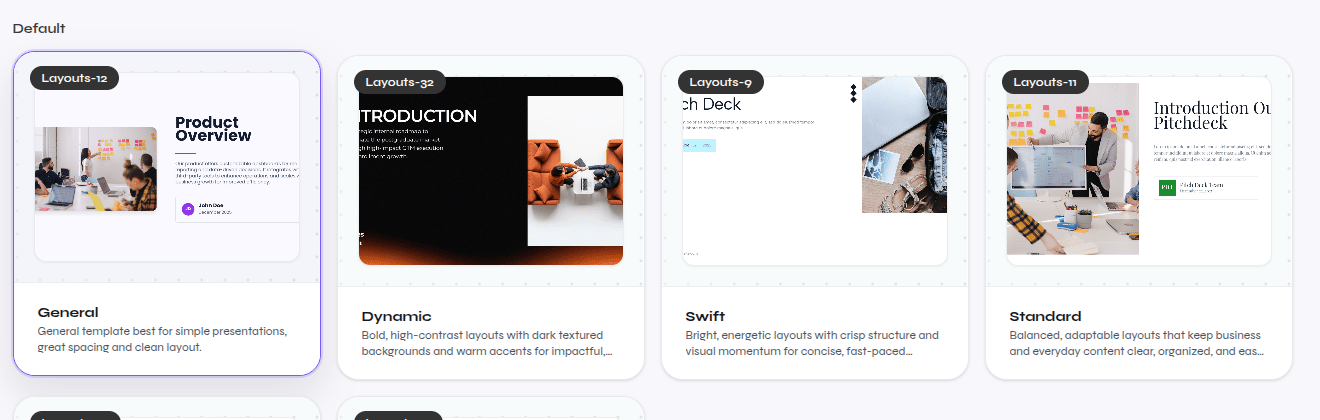
        Select **Get Started**, choose a template, review the outline, and generate the presentation.

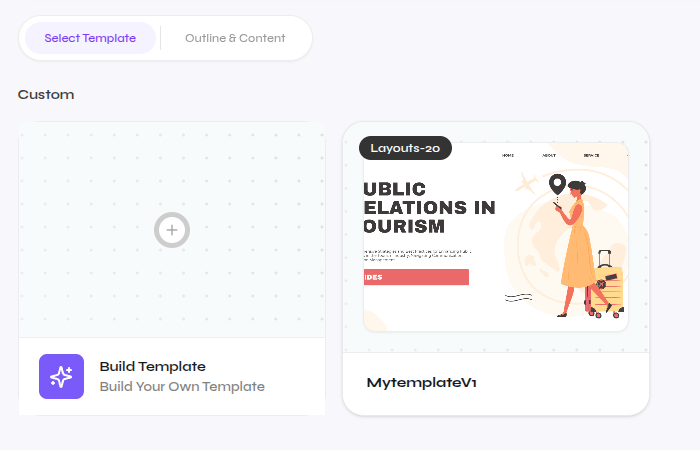
        Use **Built-in** for templates provided by Presenton. Use **Custom** when you want to create or reuse your own template.

        <div className="guide-media guide-media--detail">
          <p className="guide-media-label">Choose a Built-in template from Presenton</p>

          <div className="guide-media-viewport">
            <img src="https://mintcdn.com/presenton-521d9e2f/isevrd3o6JPIkznF/images/user-guide/creating-presentations/generation-workflow/open-source-built-in-templates.png?fit=max&auto=format&n=isevrd3o6JPIkznF&q=85&s=d2fba926d97fb3bbed9706488fae8e72" alt="Close-up of the open-source built-in template gallery" width="1320" height="420" data-path="images/user-guide/creating-presentations/generation-workflow/open-source-built-in-templates.png" />
          </div>
        </div>

        <div className="guide-media guide-media--detail">
          <p className="guide-media-label">Choose or build your own Custom template</p>

          <div className="guide-media-viewport">
            <img src="https://mintcdn.com/presenton-521d9e2f/isevrd3o6JPIkznF/images/user-guide/creating-presentations/generation-workflow/open-source-custom-templates.png?fit=max&auto=format&n=isevrd3o6JPIkznF&q=85&s=e7e2262d157874ae8a5f54d0e4f82466" alt="Close-up of the open-source custom template area with Build Template and a saved custom template" width="700" height="450" data-path="images/user-guide/creating-presentations/generation-workflow/open-source-custom-templates.png" />
          </div>
        </div>

        [Follow the complete template creation workflow](/user-guide/template-creation)

        <div className="guide-media guide-media--workflow">
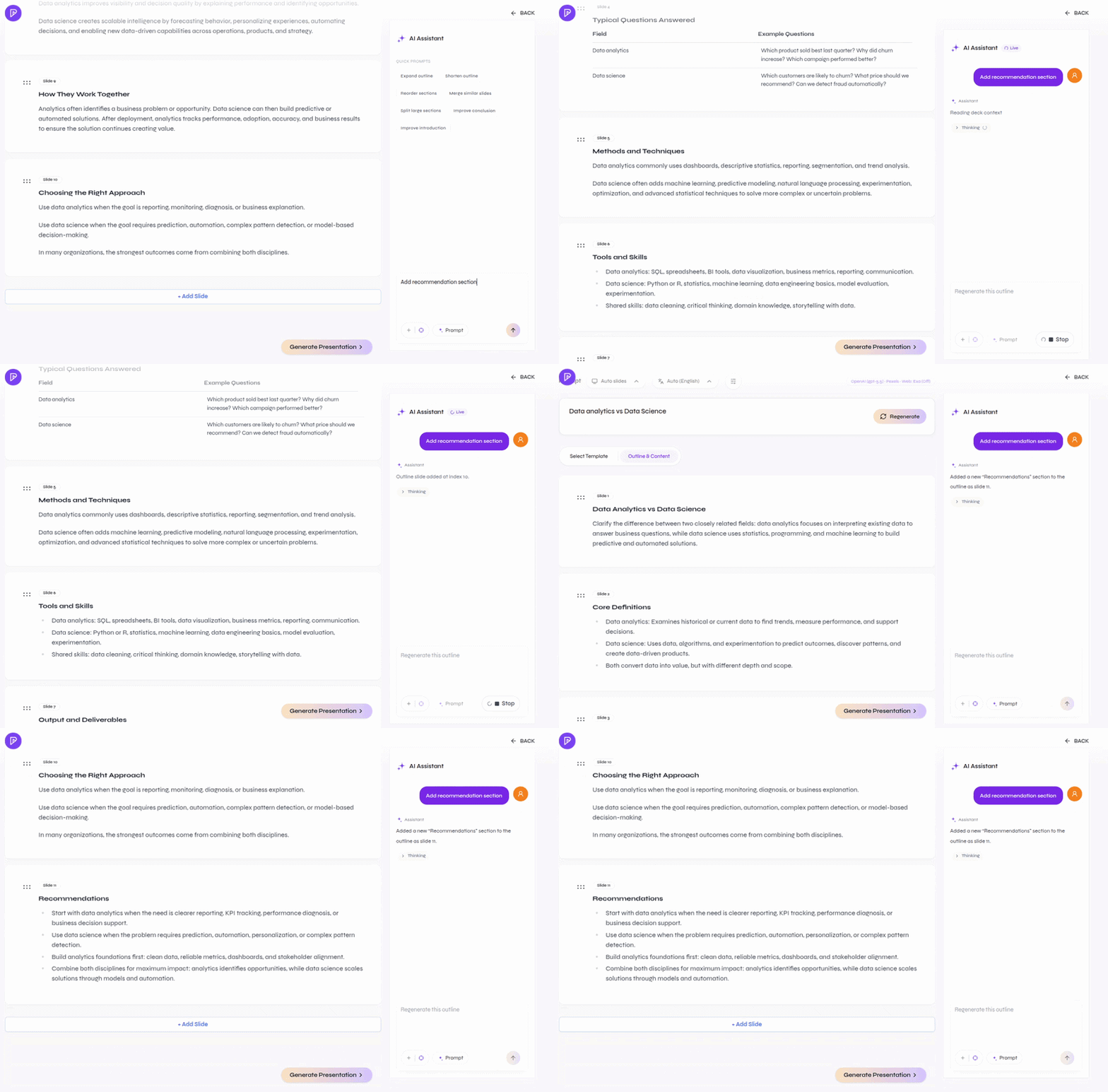
          <p className="guide-media-label">Review and edit the outline with AI</p>

          <div className="guide-media-viewport">
            <img src="https://mintcdn.com/presenton-521d9e2f/a7GBkBOgfm-3ZeQM/images/opensource_onboarding/generate/outlineandaieditingoutline.gif?s=88d3cda4816c3a1e5eb4b665fae3dcad" alt="Open-source outline review with AI editing before generating the presentation" width="800" height="526" data-path="images/opensource_onboarding/generate/outlineandaieditingoutline.gif" />
          </div>
        </div>

        After generation, the presentation opens in the editor.

        <div className="guide-media">
          <p className="guide-media-label">Continue in the Presenton Editor</p>

          <div className="guide-media-viewport">
            <img src="https://mintcdn.com/presenton-521d9e2f/a7GBkBOgfm-3ZeQM/images/cloud/editor.png?fit=max&auto=format&n=a7GBkBOgfm-3ZeQM&q=85&s=a8b5dcf7f1ffacbb98e2907bbae94b96" alt="Generated open-source presentation open in the Presenton Editor" width="1920" height="926" data-path="images/cloud/editor.png" />
          </div>
        </div>
      </Step>
    </Steps>
  </Tab>
</Tabs>

## Verify source-based presentations

* Compare important names, dates, claims, and figures with the original files.
* Recalculate totals, percentages, and changes shown in tables or charts.
* Confirm units, reporting periods, category labels, and data sources.
* Review image relevance, cropping, and usage rights.
* Inspect the exported PPTX or PDF for overflow, clipping, and layout changes.

<CardGroup cols={2}>
  <Card title="Refine the presentation" icon="pen-to-square" href="/user-guide/presentation-editor">
    Choose direct Canvas editing or the AI assistant for the changes you still need.
  </Card>

  <Card title="Export the result" icon="file-export" href="/user-guide/managing-presentations/export-presentations">
    Download the verified presentation as PPTX or PDF.
  </Card>
</CardGroup>