> ## Documentation Index
> Fetch the complete documentation index at: https://docs.presenton.ai/llms.txt
> Use this file to discover all available pages before exploring further.

# Context-aware editing

> Target an AI change to the selected slide or canvas element.

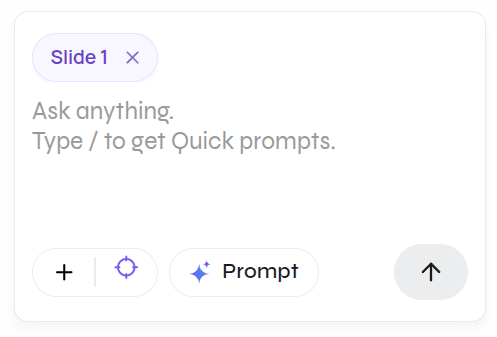
Select the content first, then prompt the assistant. Presenton adds the active slide and selected canvas element to the composer as context chips, making the intended scope visible before the request is sent.

<video className="doc-video doc-video--compact" controls preload="metadata" playsInline src="https://mintcdn.com/presenton-521d9e2f/isevrd3o6JPIkznF/images/user-guide/editing-and-refining/ai/context-aware-editing.mp4?fit=max&auto=format&n=isevrd3o6JPIkznF&q=85&s=c97b23766605b3f01fd118a88064283e" data-path="images/user-guide/editing-and-refining/ai/context-aware-editing.mp4">
  <track default kind="captions" src="/images/user-guide/editing-and-refining/ai/context-aware-editing.vtt" srcLang="en" label="English" />

  Your browser does not support the video tag.
</video>

## Edit the selected content

1. Open the slide you want to change.
2. Select the text, image, shape, or other canvas element.
3. Check the chips above the prompt. The recording shows both **Slide 1** and the selected ungrouped component.
4. Describe the requested change and send the prompt.
5. Review the edited element and the rest of the slide before continuing.

The example changes the selected cover title to **SEO Report 2026**. The assistant reports the completed edit in the same conversation.

<div className="guide-media guide-media--detail guide-media--detail-narrow">
  <p className="guide-media-label">The slide chip makes the current prompt scope visible</p>

  <div className="guide-media-viewport">
    <img src="https://mintcdn.com/presenton-521d9e2f/isevrd3o6JPIkznF/images/user-guide/editing-and-refining/ai/slide-scope-chip.png?fit=max&auto=format&n=isevrd3o6JPIkznF&q=85&s=c2c8755b3df9d45fa562388c4d072272" alt="Assistant composer showing Slide 1 as the selected scope" width="497" height="337" data-path="images/user-guide/editing-and-refining/ai/slide-scope-chip.png" />
  </div>
</div>

## Check scope before every prompt

* Remove a chip when that slide or element should not be part of the request.
* Name the intended object in the prompt when the change must be precise.
* Restate anything that must remain unchanged.
* Verify the visible result; a context chip guides the request but does not replace review.