> ## Documentation Index
> Fetch the complete documentation index at: https://docs.presenton.ai/llms.txt
> Use this file to discover all available pages before exploring further.

# Start With Presenton

> Learn what Presenton is and choose Cloud or open-source setup.

## About Presenton

Presenton helps you create editable presentations from a prompt, reference files, or one of your existing presentations.

## See the complete workflow

<video className="doc-video" controls preload="metadata" playsInline src="https://mintcdn.com/presenton-521d9e2f/oSISzG16Qh-yjB8A/images/welcomevideo/Presenton_-_We_kept_hearing__Generating_the_deck_is_great_but_I_still_need_to_e_1vFog1.mp4?fit=max&auto=format&n=oSISzG16Qh-yjB8A&q=85&s=0fb56b5d79a32494be99a8a2d392b680" data-path="images/welcomevideo/Presenton_-_We_kept_hearing__Generating_the_deck_is_great_but_I_still_need_to_e_1vFog1.mp4">
  Your browser does not support the video tag.
</video>

<CardGroup cols={2}>
  <Card title="Generate from your content" icon="wand-magic-sparkles" href="/user-guide/create-new-presentation">
    Create a presentation from a topic, brief, document, or other supported file.
  </Card>

  <Card title="Turn your own PPTX into a template" icon="file-powerpoint" href="/user-guide/branding-and-design/templates">
    Keep its layouts and branding, generate new presentations with the template, and edit the content with AI.
  </Card>

  <Card title="Edit with AI" icon="pen-to-square" href="/user-guide/presentation-editor">
    Update slide content and design directly or ask the AI Assistant to make changes.
  </Card>

  <Card title="Export a file" icon="file-export" href="/user-guide/managing-presentations/export-presentations">
    Export the finished presentation as PPTX or PDF.
  </Card>
</CardGroup>

## Setup

<Tabs>
  <Tab title="Cloud">
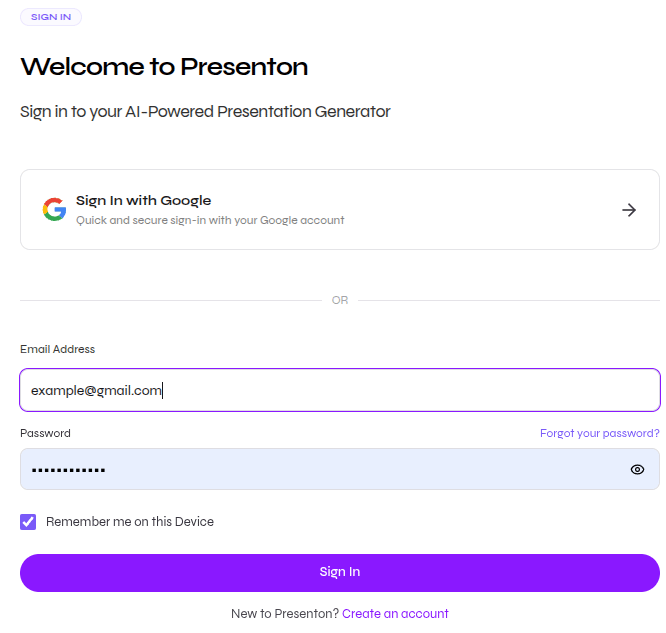
    Use the managed version of Presenton. No installation or AI provider configuration is required.

    1. Open [Presenton Cloud](https://presenton.ai/auth/login).
    2. Register or log in.
    3. Continue to the dashboard.

    <div className="guide-media guide-media--compact">
      <p className="guide-media-label">Register or sign in to Presenton Cloud</p>

      <div className="guide-media-viewport">
        <img src="https://mintcdn.com/presenton-521d9e2f/a7GBkBOgfm-3ZeQM/images/cloud/login-dashboard/cloudlogin.png?fit=max&auto=format&n=a7GBkBOgfm-3ZeQM&q=85&s=aae22162d4e4e461f47ceb9c05cd3890" alt="Presenton Cloud registration and login page" width="666" height="633" data-path="images/cloud/login-dashboard/cloudlogin.png" />
      </div>
    </div>
  </Tab>

  <Tab title="Open-source">
    Choose one of two ways to run open-source Presenton:

    <div className="setup-choice-grid">
      <Card title="Download the desktop app" icon="download" href="https://presenton.ai/download">
        Install Presenton on Windows, macOS, or Linux. Choose this for local use without managing Docker.
      </Card>

      <div className="setup-choice-or" aria-label="or">OR</div>

      <Card title="Host with Docker" icon="docker" href="/hosting/overview">
        Run Presenton in Docker on your computer or server. Choose this for a hosted or shared deployment.
      </Card>
    </div>

    Need detailed instructions? Read [Install the desktop app](/self-hosted/tutorials/install-desktop-app) or [Hosting Presenton](/hosting/overview).
  </Tab>
</Tabs>

<Card title="Next: Onboarding flow" icon="arrow-right" href="/user-guide/onboarding" />
