> ## Documentation Index
> Fetch the complete documentation index at: https://docs.presenton.ai/llms.txt
> Use this file to discover all available pages before exploring further.
# Create Presentation Templates with AI (no code required)
> Use Presenton’s built-in generator to turn a PPTX into a reusable template, then generate multiple AI presentations from it.
## Overview
Presenton generates presentations from templates. A template is a TSX component paired with a Zod schema. The schema defines the content fields the AI must produce; those fields are then referenced in the component’s HTML.
Template generation happens in two stages:
* **Generate slide layouts**: Create slide layouts using HTML and Tailwind CSS with placeholder text and images.
* **Convert layouts to a template**: Turn the HTML/Tailwind into a TSX component with a Zod schema and React-specific code.
## Steps
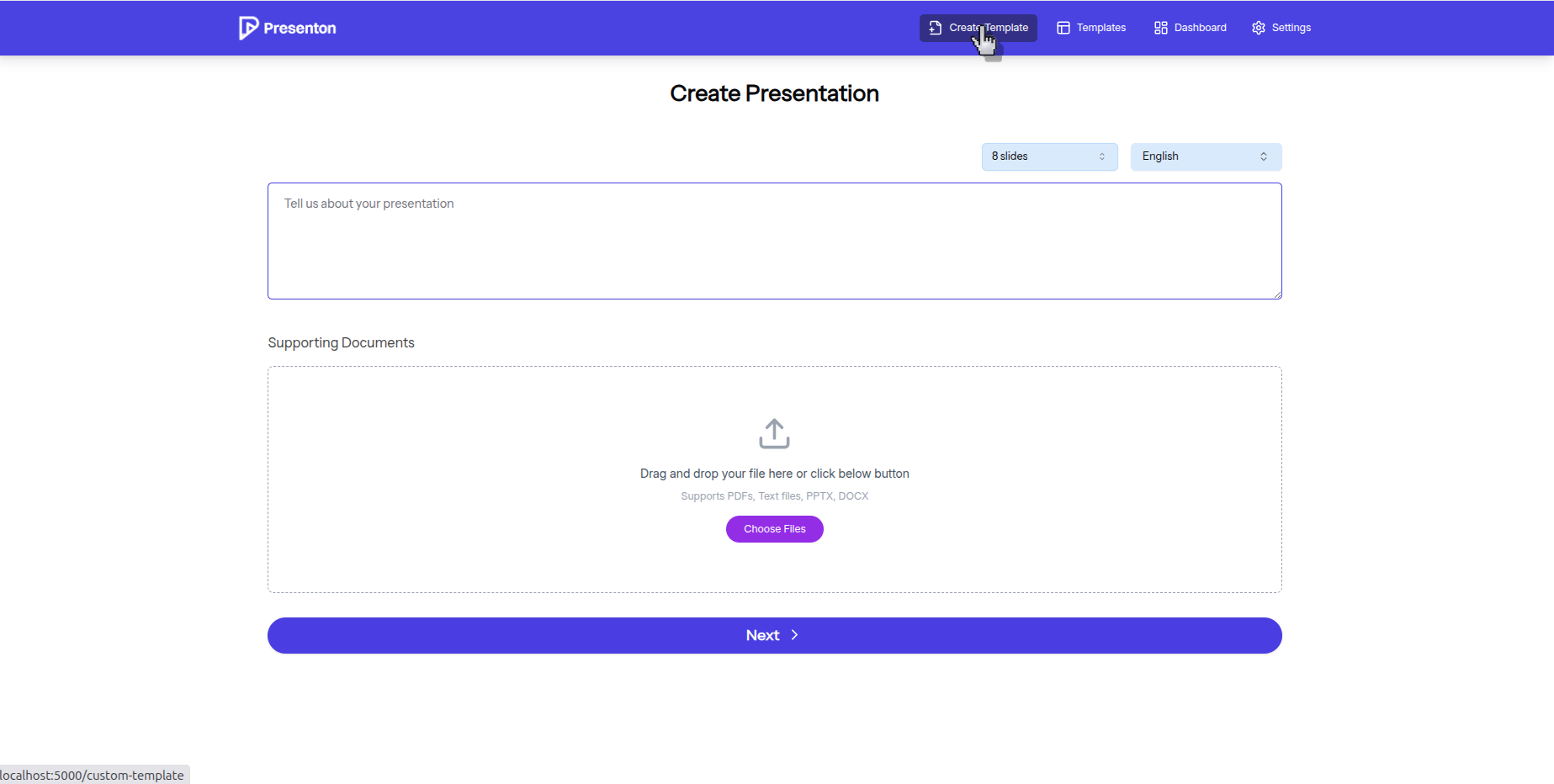
1. On the Upload page (/upload), click Create Template in the navbar.
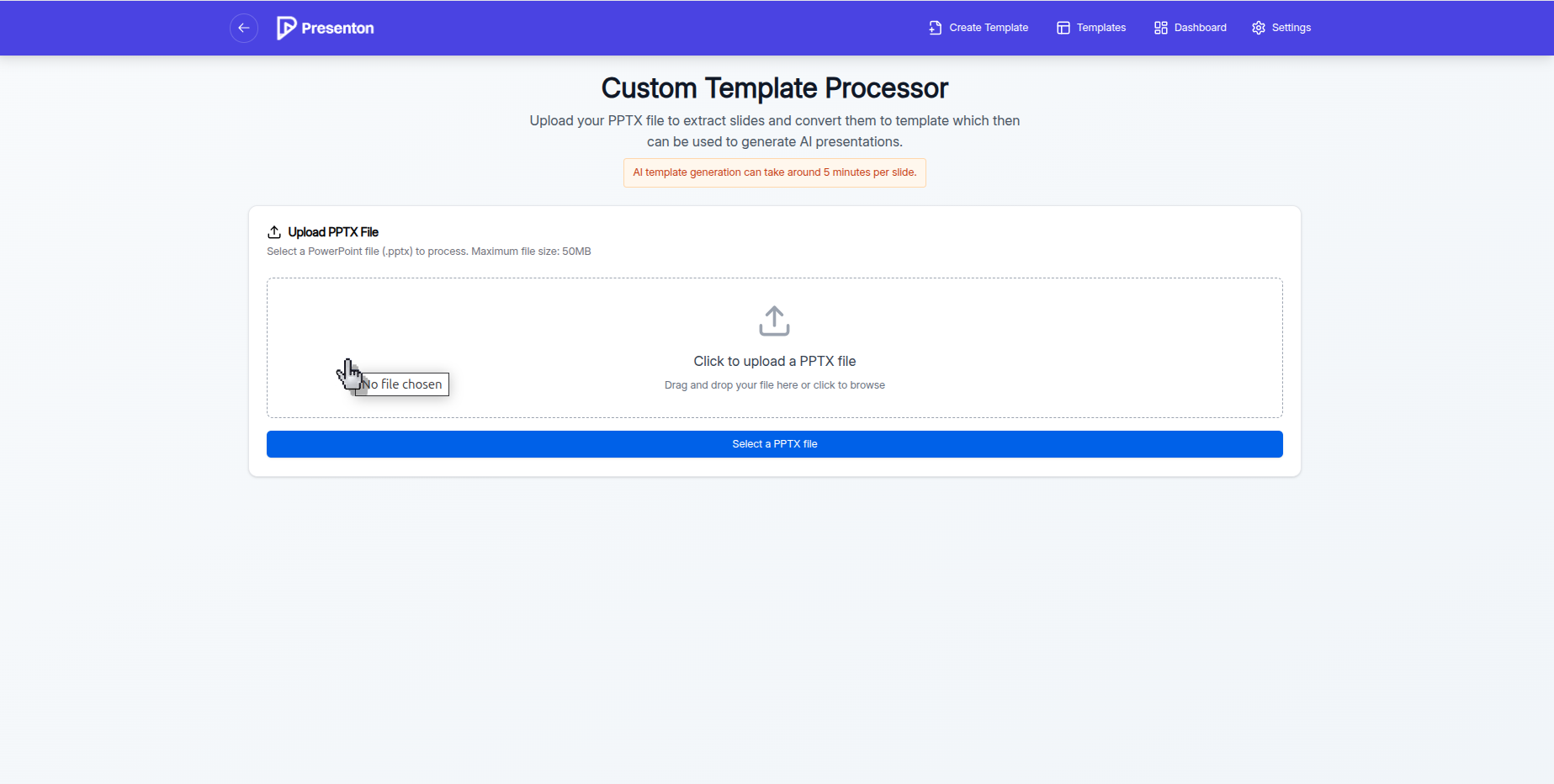
 2. Upload your PPTX file.
 3. Fonts: Presenton automatically loads open-source fonts from Google Fonts. If your deck uses custom fonts, upload those when prompted.
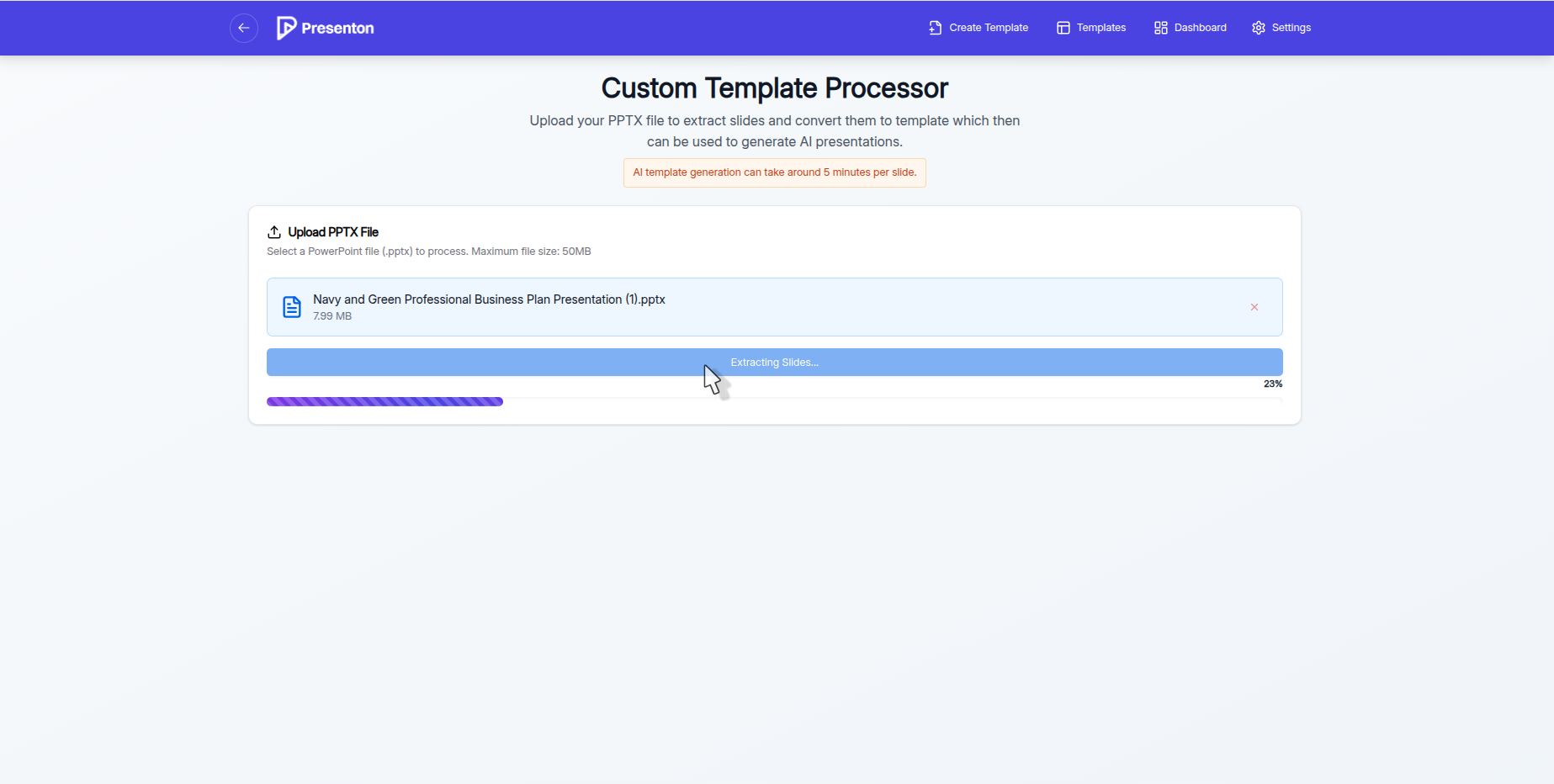
4. Click Process File to start. Processing takes about 5 minutes per slide to generate layouts.
* Note: Presenton currently supports GPT-5 only via the OpenAI API. Other providers (e.g., OpenRouter) are not supported.
3. Fonts: Presenton automatically loads open-source fonts from Google Fonts. If your deck uses custom fonts, upload those when prompted.
4. Click Process File to start. Processing takes about 5 minutes per slide to generate layouts.
* Note: Presenton currently supports GPT-5 only via the OpenAI API. Other providers (e.g., OpenRouter) are not supported.
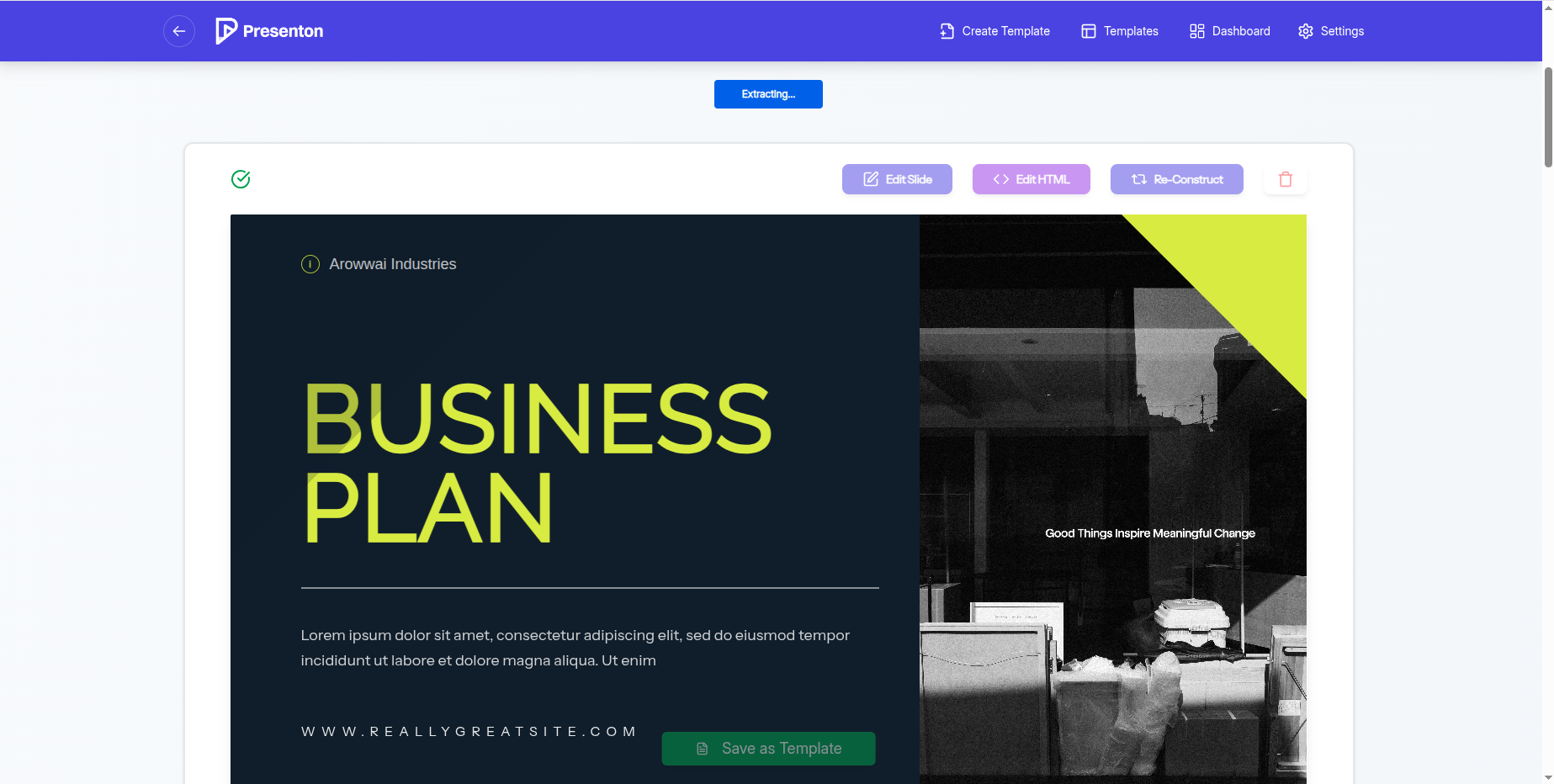 5. Refine the slide layouts (optional):
* Edit Slide: Click to draw on the slide or provide a prompt to modify the layout.
* Edit HTML: Click Edit HTML to open the code sidebar and make direct HTML/Tailwind edits.
5. Refine the slide layouts (optional):
* Edit Slide: Click to draw on the slide or provide a prompt to modify the layout.
* Edit HTML: Click Edit HTML to open the code sidebar and make direct HTML/Tailwind edits.
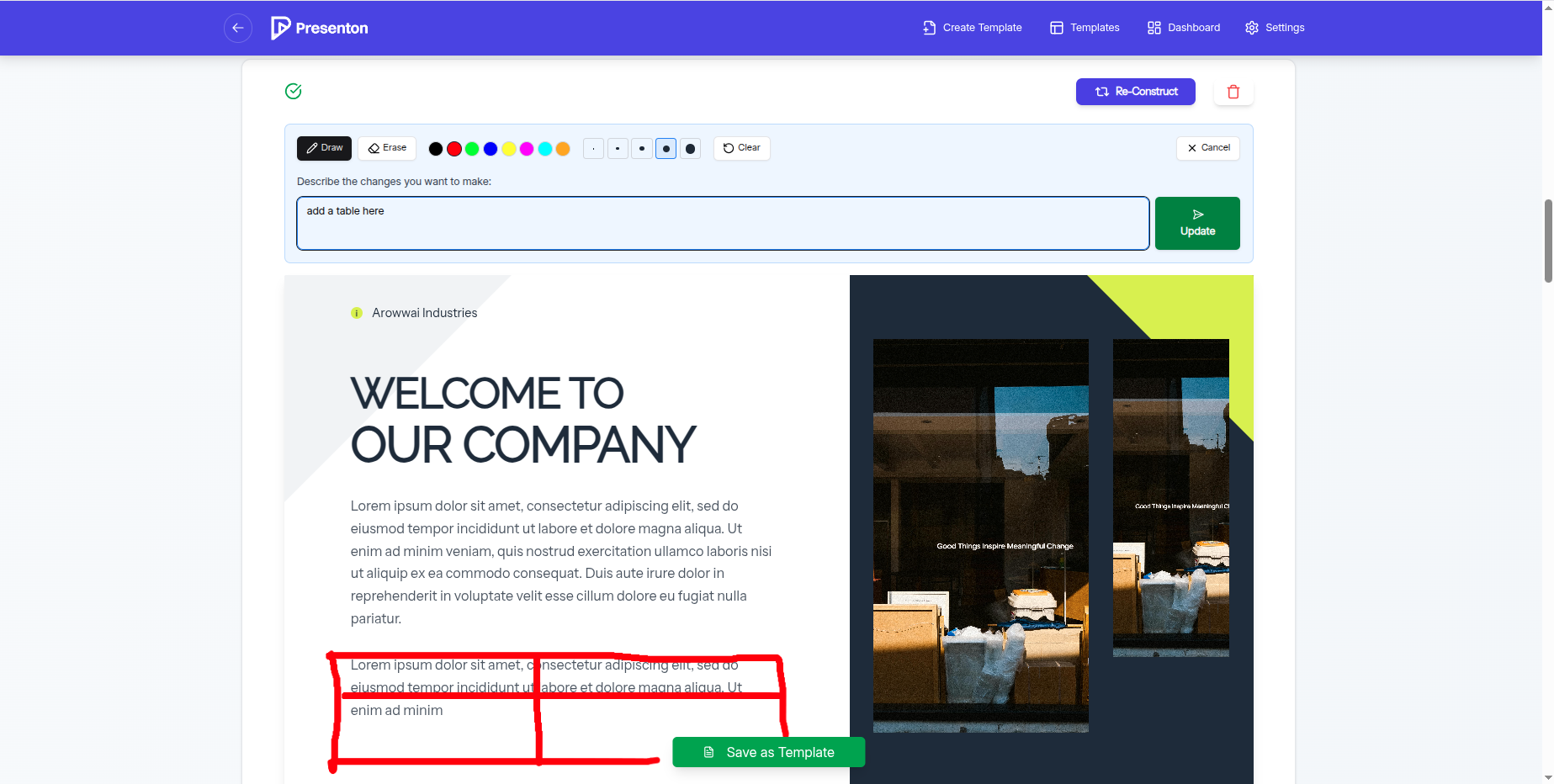
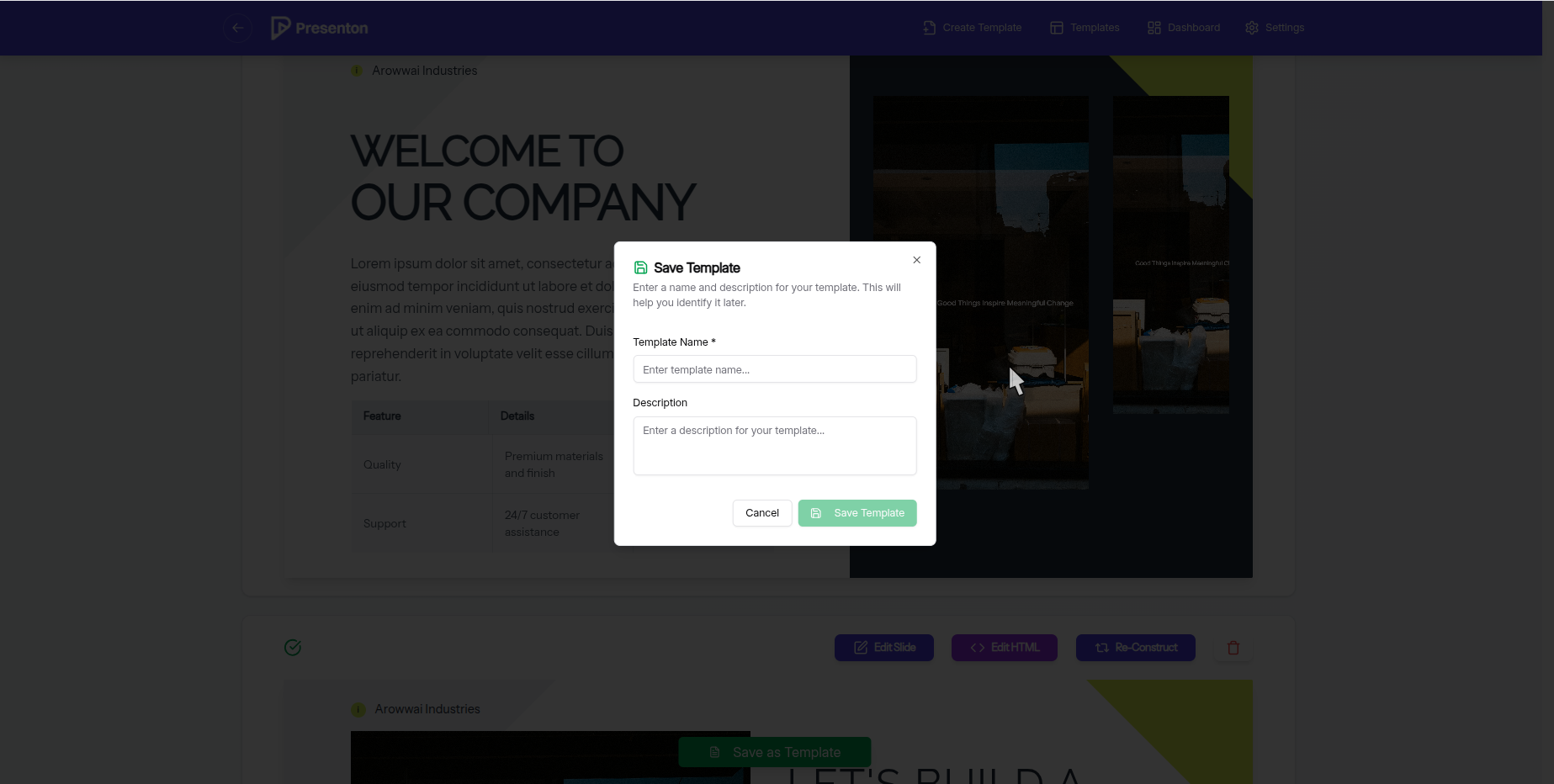
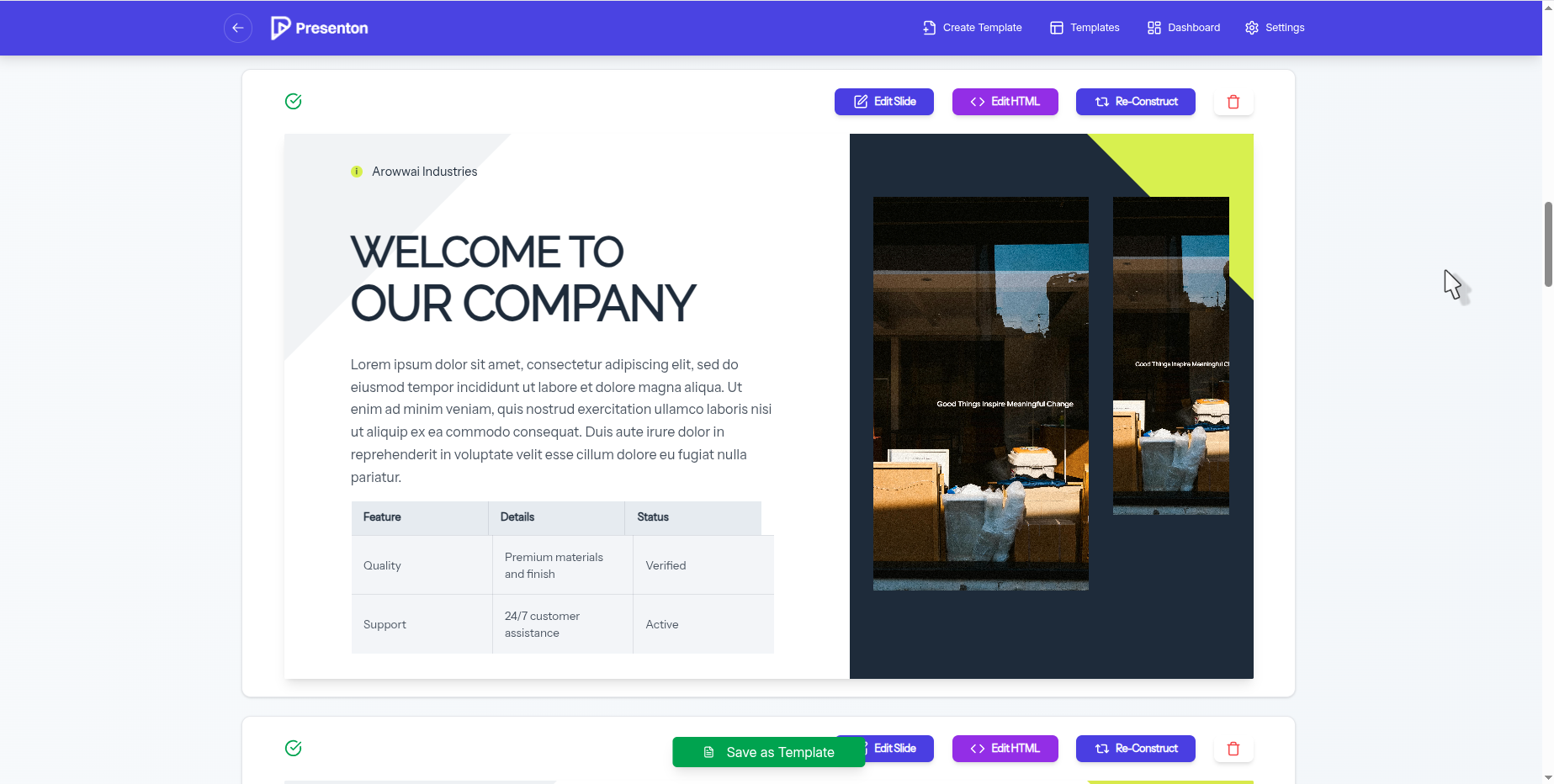 6. Click Save as Template to convert the layout into a TSX template with a Zod schema. Provide a Template Name and Template Description.
 7. To edit the template’s TSX or schema later, go to the template preview page (/template-preview).
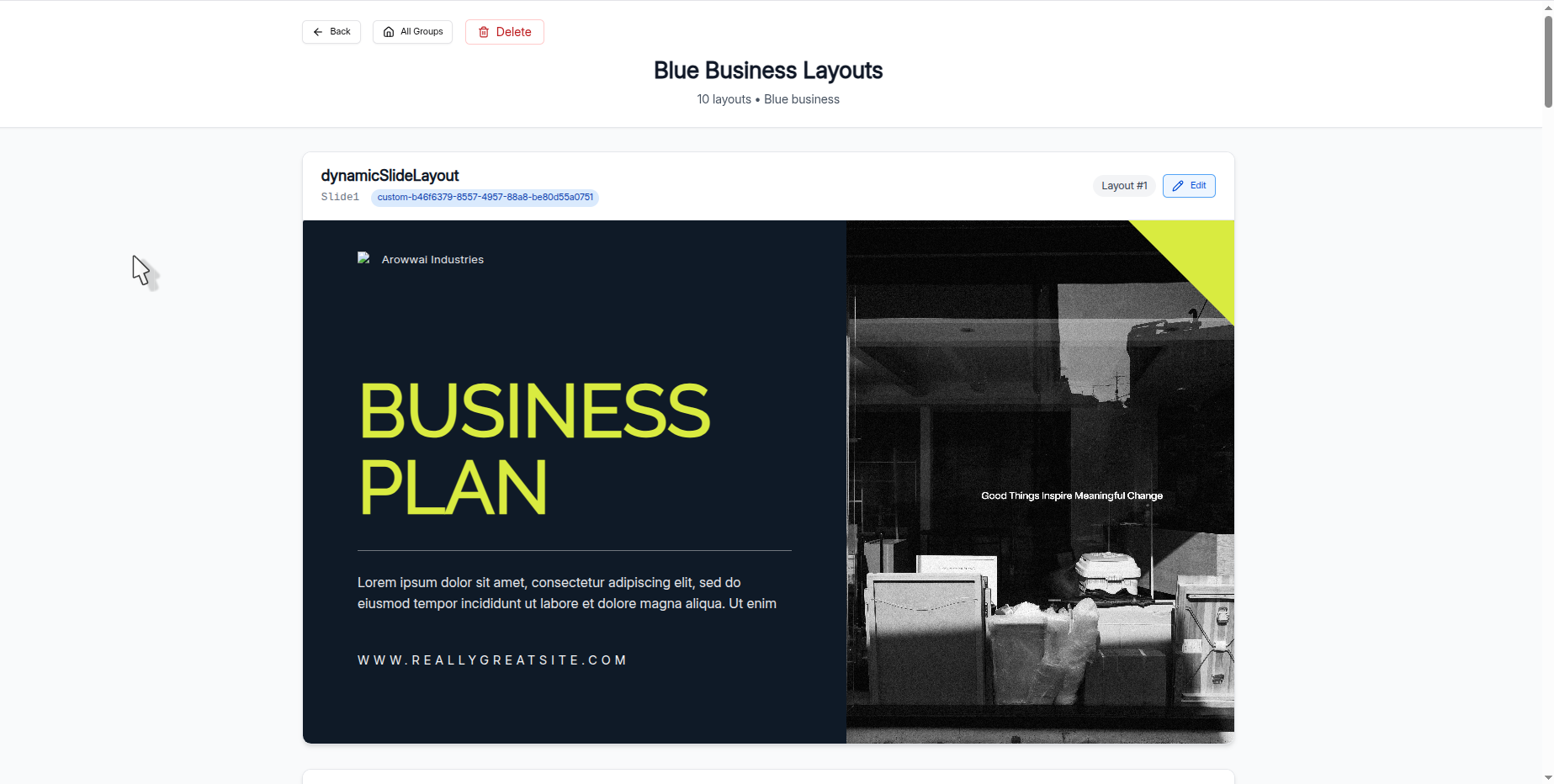
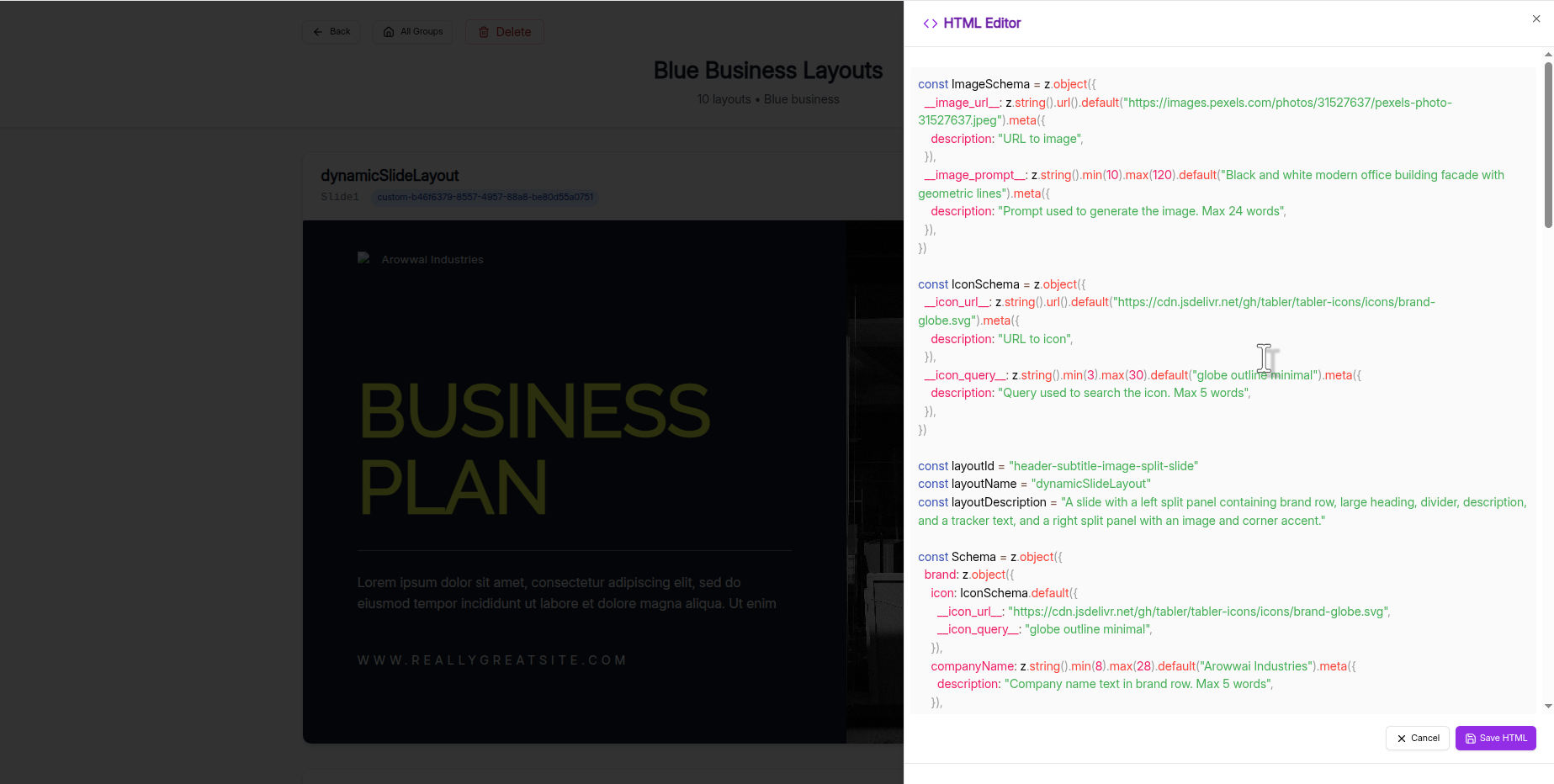 8. Use your new template to generate presentations, just like the built-in templates.
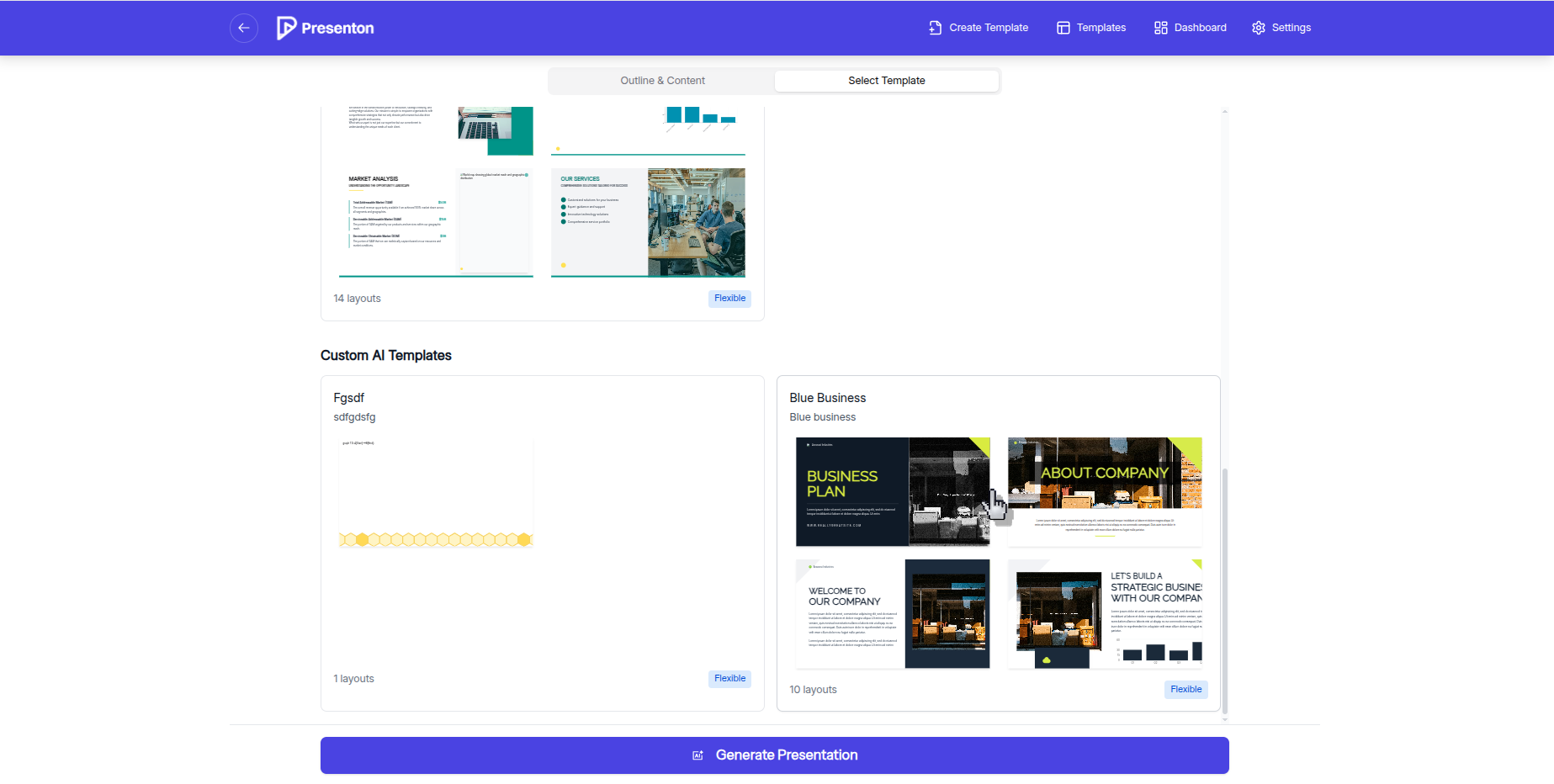 With your PPTX converted into a template, you can rapidly generate consistent, on-brand presentations and refine them anytime with visual or code edits. Start with a layout, save it as a template, and reuse it across projects to save hours while maintaining high quality.