

Template workflow
Use a custom template when repeated decks must follow an existing design system. Start from a filled PPTX with representative content, not an empty master with only placeholders. Cloud and open-source Presenton use the same Standard custom-template workflow.Built-in and Custom templates
Use Built-in templates for designs provided by Presenton. Use Custom templates when you want to create your own reusable template from a presentation design.Create a custom template
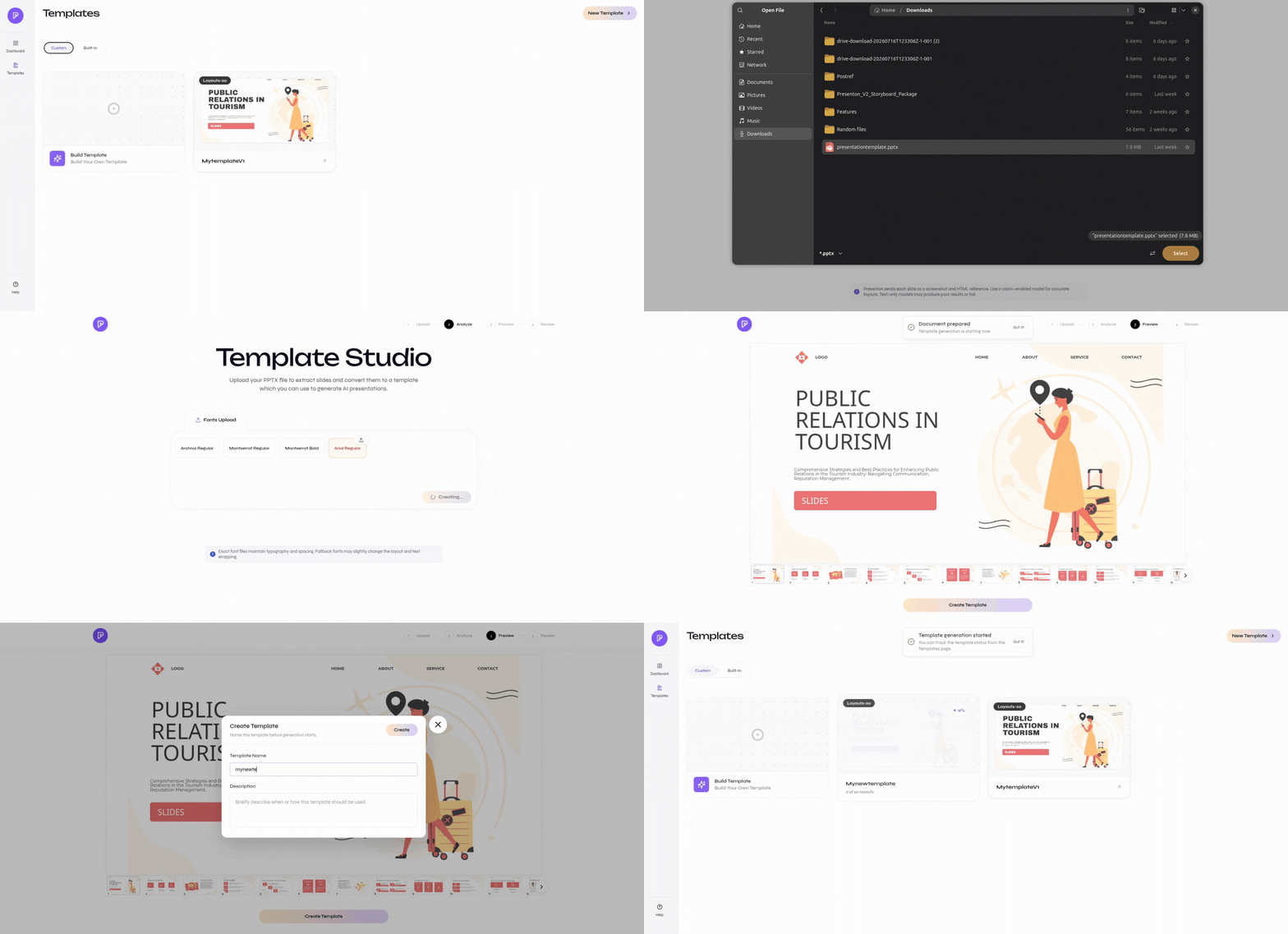
1
Open the template library
Open Templates, select Create New Template or New Template, and upload the source PPTX.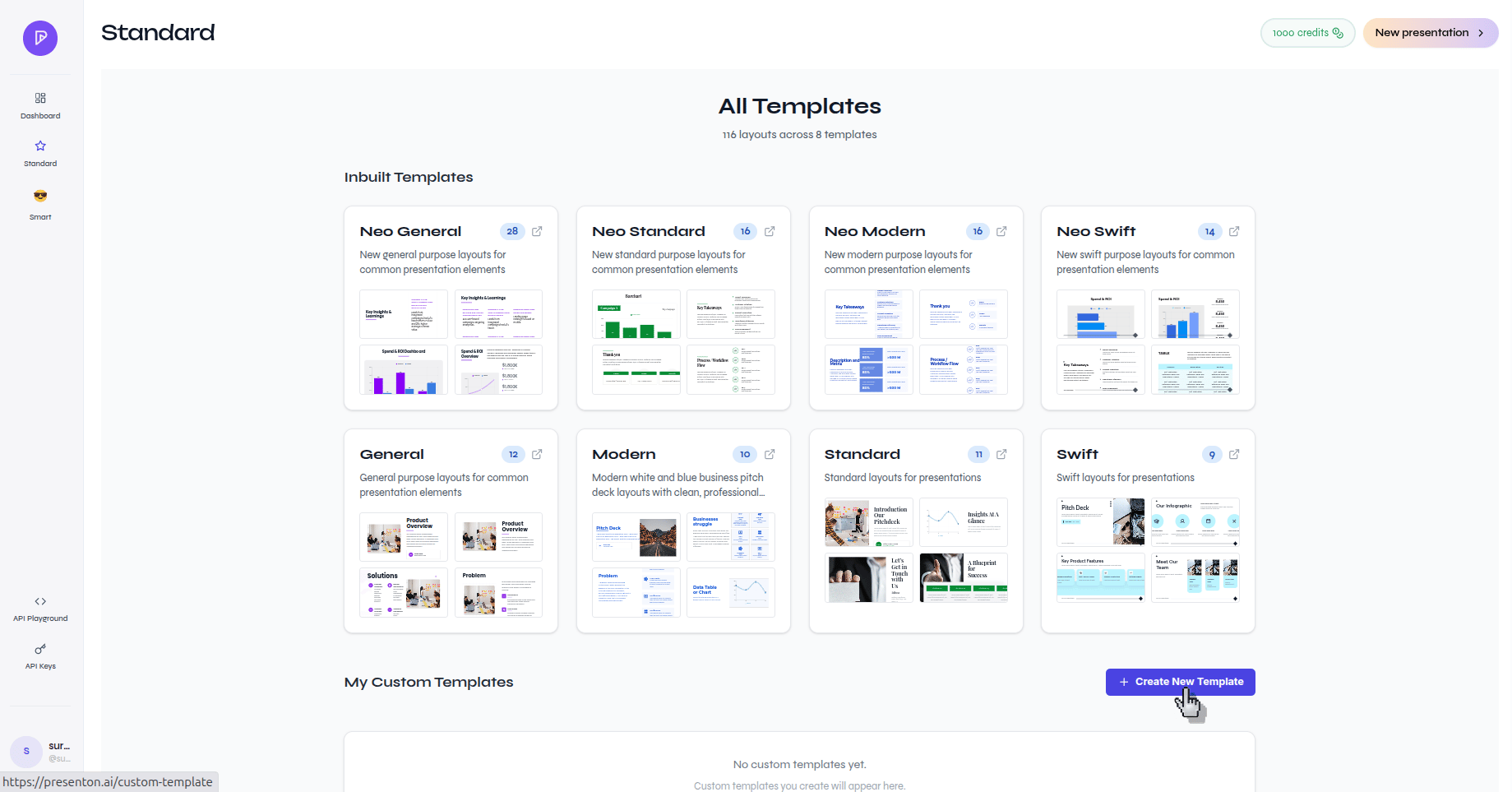
Start a new custom template
2
Resolve fonts and preview slides
Select Check Fonts, upload missing fonts, and continue to the slide preview. Fix font issues before generating layouts.
3
Generate reusable layouts
Select Generate Template. Each source slide becomes a reusable layout.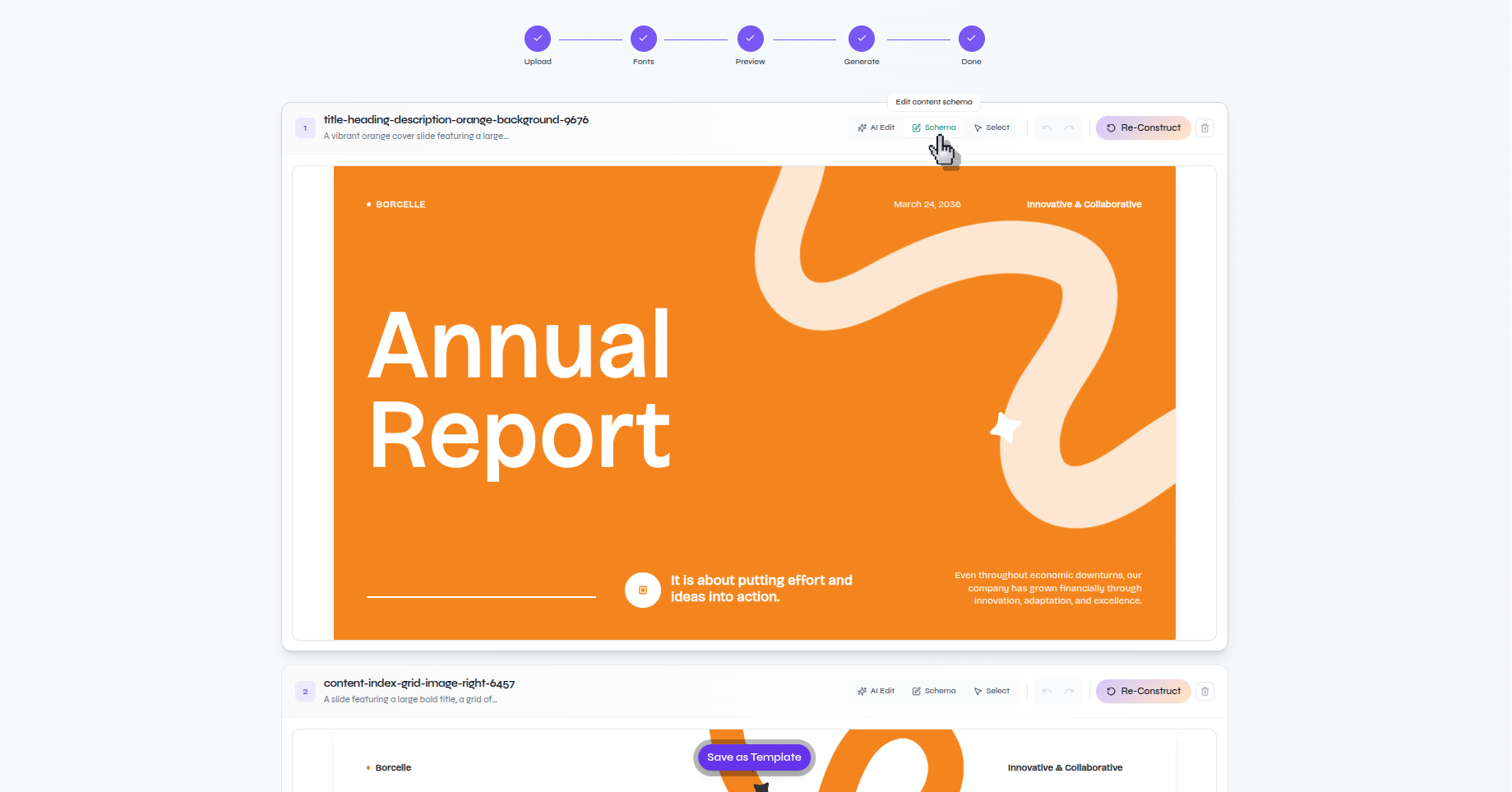
Layouts generated from the source PPTX
4
Review schemas and content limits
Inspect each layout’s detected fields and use realistic short and long sample content to catch overflow, weak spacing, and incorrect element roles.
5
Fix, save, and test
Correct layouts whose structure is wrong. Save the template with a clear name, generate a representative test deck, and verify object editing plus PPTX and PDF export.
Cloud template tutorial
Follow the detailed Cloud screens and validation checks.