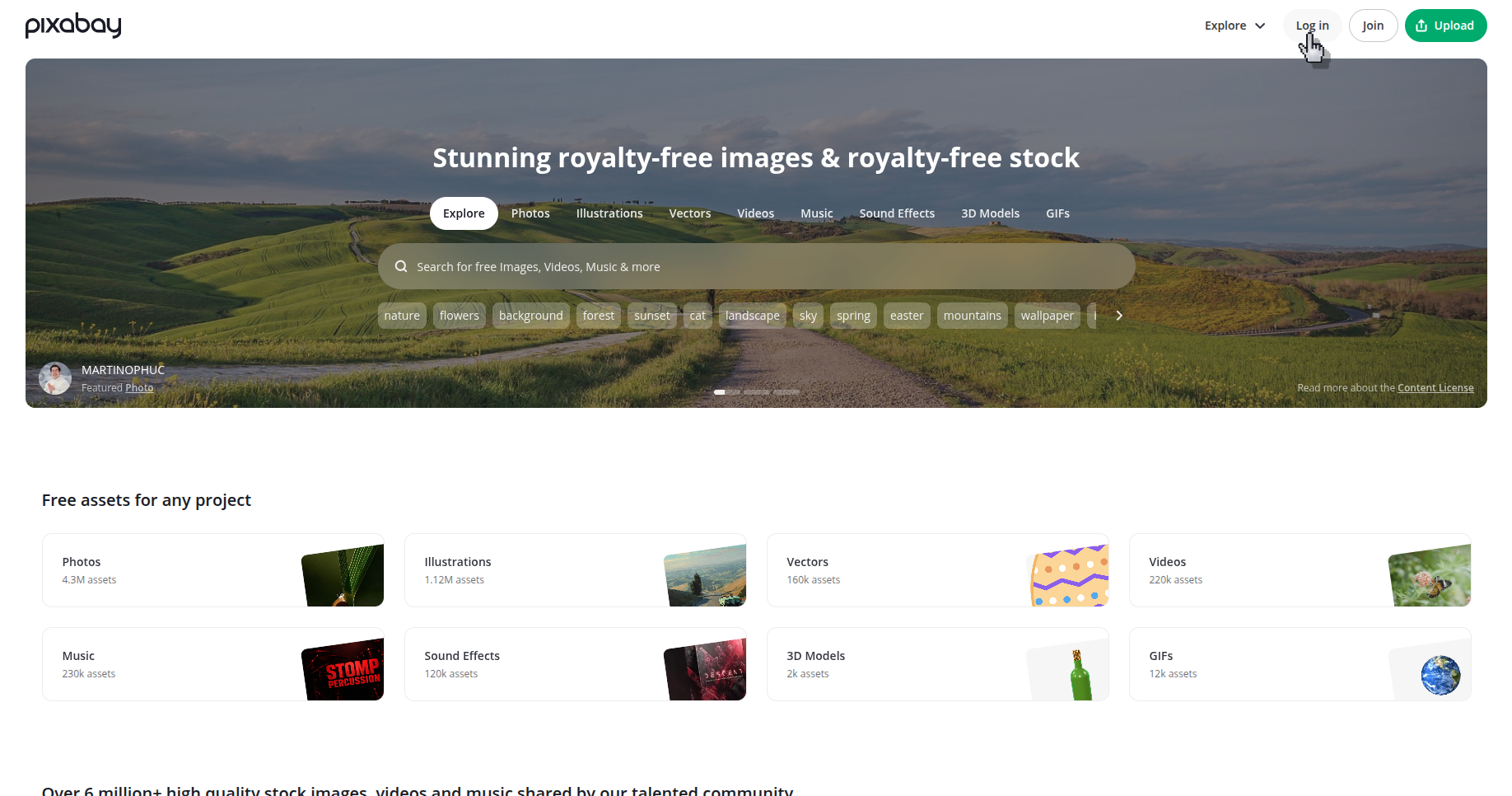
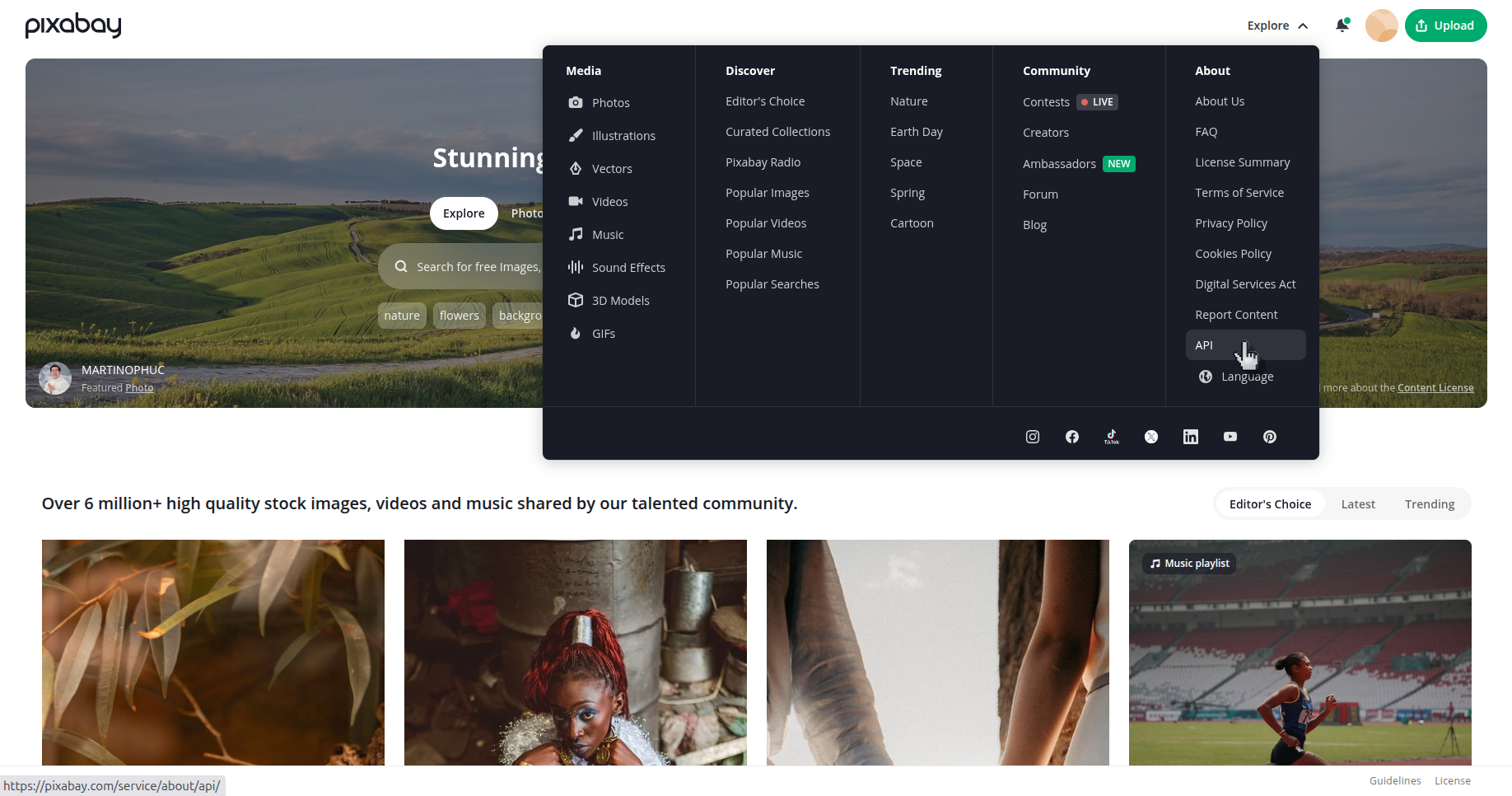
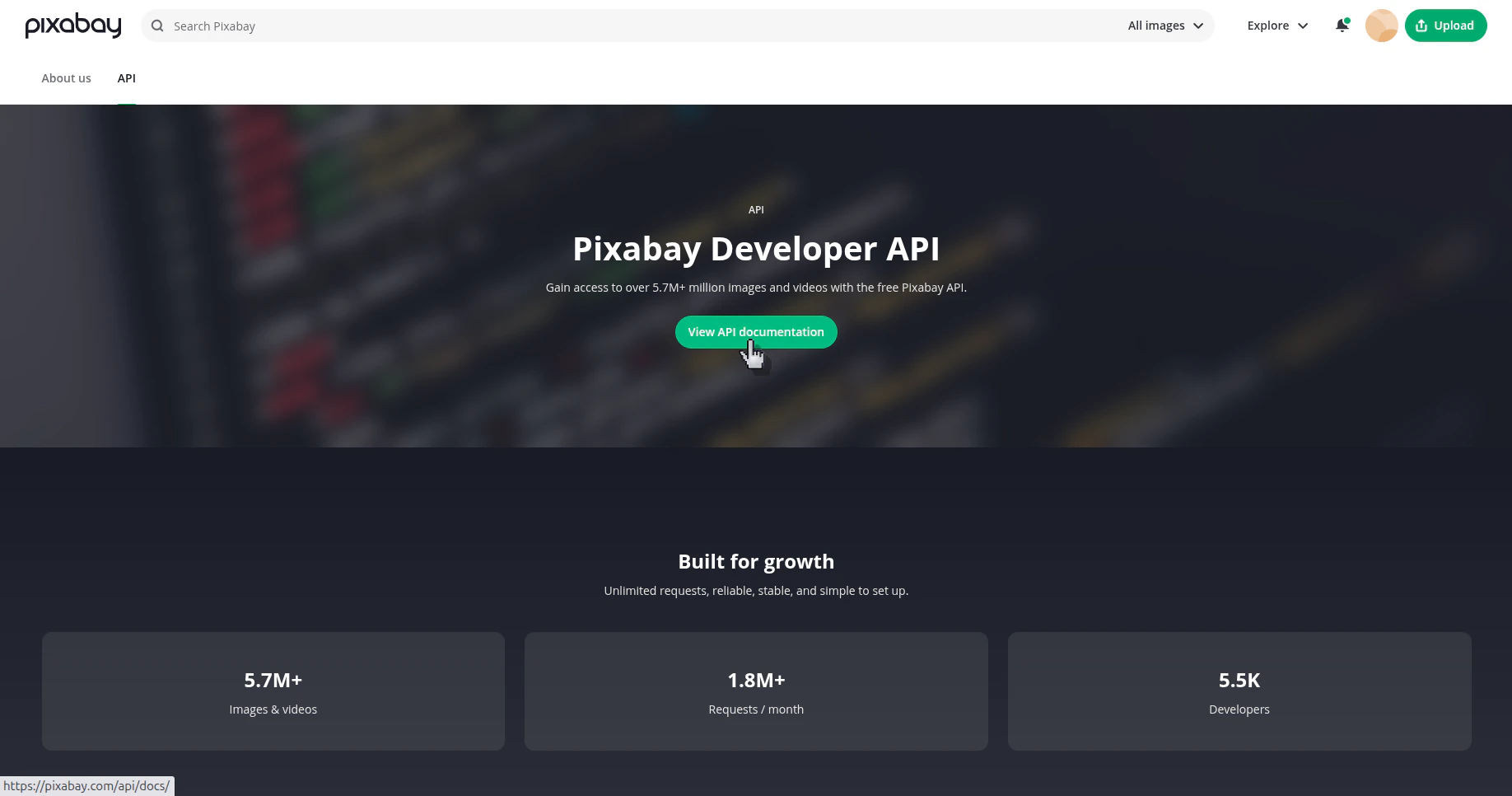
You can locate your Pixabay API key in the API documentation reference and use it where the integration asks for the key value.
Was this page helpful?
{"docsConfig":{"theme":"mint","$schema":"https://mintlify.com/docs.json","name":"Presenton Documentation","description":"Documentation for Presenton across Cloud and self-hosted deployment modes","colors":{"primary":"#4a2ea6","light":"#5b39cb","dark":"#3a2481"},"logo":{"light":"https://mintcdn.com/presenton-521d9e2f/3kat7EdtHDWkbP-4/logo/light.svg?fit=max\u0026auto=format\u0026n=3kat7EdtHDWkbP-4\u0026q=85\u0026s=4ea621bfc3fa6c8efa7ce5ddf50a6fd6","dark":"https://mintcdn.com/presenton-521d9e2f/3kat7EdtHDWkbP-4/logo/dark.svg?fit=max\u0026auto=format\u0026n=3kat7EdtHDWkbP-4\u0026q=85\u0026s=63b881003915cdd76f285a61d814ad3b"},"favicon":"https://mintcdn.com/presenton-521d9e2f/VhgMvfGY7SybPYID/favicon.png?fit=max\u0026auto=format\u0026n=VhgMvfGY7SybPYID\u0026q=85\u0026s=438b15ebb92b95132630097824aaa57e","api":{"playground":{"display":"interactive"},"examples":{"defaults":"required","languages":["curl","python","javascript"]}},"navbar":{"links":[{"href":"/archive","label":"Archive"},{"href":"mailto:suraj@presenton.ai","label":"Support"}],"primary":{"type":"button","label":"Open Presenton","href":"https://presenton.ai/dashboard"}},"footer":{"socials":{"github":"https://github.com/presenton/presenton"}},"integrations":{"ga4":{"measurementId":"G-E3P4G8FTE7"},"mixpanel":{"projectToken":"8d18db4af7e30a81de55e2cb055f41e6"}},"styling":{"latex":false},"navigation":{"global":{"anchors":[{"anchor":"Home","icon":"house","href":"/"},{"anchor":"Version archive","icon":"box-archive","href":"/archive"},{"anchor":"Community","icon":"discord","href":"https://discord.gg/xmJkX8G6"},{"anchor":"Blog","icon":"newspaper","href":"https://presenton.ai/blogs"}]},"pages":[]}},"deployment":{"deploymentMetadataValue":{"subdomain":"presenton-521d9e2f","hasAudioNarration":false,"actualSubdomain":"presenton-521d9e2f","customDomains":["docs.presenton.ai"],"gitSource":{"type":"github","owner":"presenton","repo":"presenton_docs","deployBranch":"main","contentDirectory":"","isPrivate":true,"mountPath":"","label":""},"chroma":{"liveDeploymentHistoryId":"6abb576fbf1f6d84d6791dd9","collectionId":"bb7290c7-6da2-4575-9168-eb3c3051c7f8","schemaVersion":"v3","latestBuiltDeploymentHistoryId":"6abb576fbf1f6d84d6791dd9"},"feedback":{"thumbs":true},"entitlements":{},"buildId":"6abb576fbf1f6d84d6791dd9","clientVersion":"0.0.3971","searchFilterCounts":[{"language":"default","tag":"API Documentation","count":264},{"language":"default","tag":"API reference","count":261},{"language":"default","tag":"Cloud API","count":156},{"language":"default","tag":"Open Source API","count":105},{"language":"default","tag":"Files and Images","count":56},{"language":"default","tag":"Webhook","count":38},{"language":"default","tag":"User Guide","count":30},{"language":"default","tag":"Generate Presentation Async","count":28},{"language":"default","tag":"Generate Presentation using JSON (Without AI)","count":28},{"language":"default","tag":"Manage Presentations","count":21}]},"assistantConfig":{},"basePath":"","hasChatPermissions":false,"hasWebMcpPermissions":false,"toggles":[{"name":"kill-isr","enabled":true,"variant":{"name":"disabled","enabled":false,"feature_enabled":true},"impressionData":false},{"name":"agent-mintlify-slack","enabled":true,"variant":{"name":"disabled","enabled":false,"feature_enabled":true},"impressionData":false},{"name":"editor-v7-file-tree","enabled":true,"variant":{"name":"disabled","enabled":false,"feature_enabled":true},"impressionData":false},{"name":"agent-integrations-settings","enabled":true,"variant":{"name":"disabled","enabled":false,"feature_enabled":true},"impressionData":false},{"name":"automations-pr-grouping","enabled":true,"variant":{"name":"disabled","enabled":false,"feature_enabled":true},"impressionData":false},{"name":"custom-prefix","enabled":true,"variant":{"name":"disabled","enabled":false,"feature_enabled":true},"impressionData":false},{"name":"analytics-v7","enabled":true,"variant":{"name":"disabled","enabled":false,"feature_enabled":true},"impressionData":false},{"name":"user-flows-analytics","enabled":true,"variant":{"name":"disabled","enabled":false,"feature_enabled":true},"impressionData":false},{"name":"no-publish-flow","enabled":true,"variant":{"name":"disabled","enabled":false,"feature_enabled":true},"impressionData":false},{"name":"workos-onboarding","enabled":true,"variant":{"name":"disabled","enabled":false,"feature_enabled":true},"impressionData":false},{"name":"llms-txt-v2","enabled":true,"variant":{"name":"disabled","enabled":false,"feature_enabled":true},"impressionData":false},{"name":"pause-universal-search-reconcile","enabled":true,"variant":{"name":"disabled","enabled":false,"feature_enabled":true},"impressionData":false},{"name":"snapshot-serving-live","enabled":true,"variant":{"name":"disabled","enabled":false,"feature_enabled":true},"impressionData":false},{"name":"stripTemperatureMiddleware","enabled":true,"variant":{"name":"disabled","enabled":false,"feature_enabled":true},"impressionData":false},{"name":"per-site-search-delta","enabled":true,"variant":{"name":"disabled","enabled":false,"feature_enabled":true},"impressionData":false},{"name":"support-platform-pylon-zendesk","enabled":true,"variant":{"name":"disabled","enabled":false,"feature_enabled":true},"impressionData":false},{"name":"snapshot-serving","enabled":true,"variant":{"name":"disabled","enabled":false,"feature_enabled":true},"impressionData":false},{"name":"instant-rollback","enabled":true,"variant":{"name":"disabled","enabled":false,"feature_enabled":true},"impressionData":false},{"name":"granular-notifications-server","enabled":true,"variant":{"name":"disabled","enabled":false,"feature_enabled":true},"impressionData":false},{"name":"granular-notifications","enabled":true,"variant":{"name":"disabled","enabled":false,"feature_enabled":true},"impressionData":false},{"name":"editor-private-page-search","enabled":true,"variant":{"name":"disabled","enabled":false,"feature_enabled":true},"impressionData":false},{"name":"automations-fable","enabled":true,"variant":{"name":"disabled","enabled":false,"feature_enabled":true},"impressionData":false},{"name":"fixed-ai-action-pricing","enabled":true,"variant":{"name":"disabled","enabled":false,"feature_enabled":true},"impressionData":false},{"name":"automation-resolve-merge-conflict","enabled":true,"variant":{"name":"disabled","enabled":false,"feature_enabled":true},"impressionData":false},{"name":"scoped-publishing","enabled":true,"variant":{"name":"disabled","enabled":false,"feature_enabled":true},"impressionData":false},{"name":"mintql","enabled":true,"variant":{"name":"disabled","enabled":false,"feature_enabled":true},"impressionData":false},{"name":"page-level-analytics","enabled":true,"variant":{"name":"disabled","enabled":false,"feature_enabled":true},"impressionData":false},{"name":"editor-version-history-v2","enabled":true,"variant":{"name":"disabled","enabled":false,"feature_enabled":true},"impressionData":false},{"name":"editor-nav-generations","enabled":true,"variant":{"name":"disabled","enabled":false,"feature_enabled":true},"impressionData":false},{"name":"billing-page-v2","enabled":true,"variant":{"name":"disabled","enabled":false,"feature_enabled":true},"impressionData":false},{"name":"workspace-projects","enabled":true,"variant":{"name":"disabled","enabled":false,"feature_enabled":true},"impressionData":false},{"name":"assistant-v5","enabled":true,"variant":{"name":"disabled","enabled":false,"feature_enabled":true},"impressionData":false},{"name":"byok-sep-25","enabled":true,"variant":{"name":"disabled","enabled":false,"feature_enabled":true},"impressionData":false},{"name":"fork-pr-previews","enabled":true,"variant":{"name":"disabled","enabled":false,"feature_enabled":true},"impressionData":false},{"name":"revalidation-jwt","enabled":true,"variant":{"name":"disabled","enabled":false,"feature_enabled":true},"impressionData":false},{"name":"vite-origin","enabled":true,"variant":{"name":"disabled","enabled":false,"feature_enabled":true},"impressionData":false},{"name":"editor-agent-model-picker","enabled":true,"variant":{"name":"disabled","enabled":false,"feature_enabled":true},"impressionData":false},{"name":"billing-updated-9-15","enabled":true,"variant":{"name":"disabled","enabled":false,"feature_enabled":true},"impressionData":false},{"name":"workos-sso-scim","enabled":true,"variant":{"name":"disabled","enabled":false,"feature_enabled":true},"impressionData":false},{"name":"hobby-abuse-scan","enabled":true,"variant":{"name":"disabled","enabled":false,"feature_enabled":true},"impressionData":false},{"name":"dashboard-inbox","enabled":true,"variant":{"name":"disabled","enabled":false,"feature_enabled":true},"impressionData":false},{"name":"workos-signup","enabled":true,"variant":{"name":"disabled","enabled":false,"feature_enabled":true},"impressionData":false},{"name":"workos-enabled","enabled":true,"variant":{"name":"disabled","enabled":false,"feature_enabled":true},"impressionData":false}],"isAtlas":false,"googleFontsInlined":false},"customCss":[{"filePath":"brand/image-generation-kit/tokens.css","content":":root{--presenton-purple:#7a5af8;--presenton-primary-100:#f4ebff;--presenton-blue-light-500:#0ba5ec;--presenton-text-800:#333333;--presenton-text-700:#4c4c4c;--presenton-base-gray-200:#f6f6f9;--presenton-border-gray:#f0f0f1;--presenton-white:#ffffff;--presenton-deep-indigo:#24184f;--presenton-completion-yellow:#f1f36b;--presenton-logo-violet:#7a3be8;--presenton-logo-blue:#5146e5;--presenton-image-font:\"Manrope\", ui-sans-serif, system-ui, sans-serif;--presenton-image-letter-spacing:0;--presenton-image-surface-radius:12px;--presenton-image-surface-border:1px solid var(--presenton-border-gray)}"},{"filePath":"remotion/api-flow-illustrations/src/index.css","content":"*{box-sizing:border-box}body,html{margin:0;background:#faf9ff}"},{"filePath":"style.css","content":"@font-face{font-family:\"Manrope\";font-style:normal;font-weight:400;font-display:swap;src:url(https://fonts.gstatic.com/s/manrope/v20/xn7_YHE41ni1AdIRqAuZuw1Bx9mbZk79FO_F.ttf) format(\"truetype\")}@font-face{font-family:\"Manrope\";font-style:normal;font-weight:500;font-display:swap;src:url(https://fonts.gstatic.com/s/manrope/v20/xn7_YHE41ni1AdIRqAuZuw1Bx9mbZk7PFO_F.ttf) format(\"truetype\")}@font-face{font-family:\"Manrope\";font-style:normal;font-weight:600;font-display:swap;src:url(https://fonts.gstatic.com/s/manrope/v20/xn7_YHE41ni1AdIRqAuZuw1Bx9mbZk4jE-_F.ttf) format(\"truetype\")}@font-face{font-family:\"Manrope\";font-style:normal;font-weight:700;font-display:swap;src:url(https://fonts.gstatic.com/s/manrope/v20/xn7_YHE41ni1AdIRqAuZuw1Bx9mbZk4aE-_F.ttf) format(\"truetype\")}@font-face{font-family:\"Manrope\";font-style:normal;font-weight:800;font-display:swap;src:url(https://fonts.gstatic.com/s/manrope/v20/xn7_YHE41ni1AdIRqAuZuw1Bx9mbZk59E-_F.ttf) format(\"truetype\")}html:not([data-current-path=\"/\"]):not(.dark),html:not([data-current-path=\"/\"]):not(.dark) body{background-color:rgb(var(--background-light))!important}html.dark:not([data-current-path=\"/\"]),html.dark:not([data-current-path=\"/\"]) body{background-color:rgb(var(--background-dark))!important}.home-card-landing{box-sizing:border-box;width:100%;max-width:70rem;margin:0 auto;padding:0}html[data-current-path=\"/\"],html[data-current-path=\"/\"] body{overflow-x:hidden!important}html[data-current-path=\"/\"]:not(.dark),html[data-current-path=\"/\"]:not(.dark) body{background-color:#faf9ff!important}html.dark[data-current-path=\"/\"],html.dark[data-current-path=\"/\"] body{background-color:rgb(var(--background-dark))!important}html[data-current-path=\"/\"] #content-area>div.sticky.bottom-0,html[data-current-path=\"/\"] #sidebar{display:none!important}html[data-current-path=\"/\"] #content-container{box-sizing:border-box!important;width:100%!important;max-width:none!important;min-height:0!important;height:auto!important;margin-left:0!important;margin-right:0!important;overflow-x:clip!important}html[data-current-path=\"/\"] #content-area,html[data-current-path=\"/\"] #content-container>div{box-sizing:border-box!important;width:100%!important;max-width:none!important;min-height:0!important;height:auto!important;padding-bottom:0!important}html[data-current-path=\"/\"] #content-container>div{display:block!important;gap:0!important;padding-top:2rem!important}html[data-current-path=\"/\"] #content-area{flex:0 0 auto!important;flex-grow:0!important;margin-left:auto!important;margin-right:auto!important;padding-left:1.5rem!important;padding-right:1.5rem!important}html[data-current-path=\"/\"] #content-area>#header{display:none}html[data-current-path=\"/\"] #content{width:100%!important;max-width:100%!important;margin-top:0!important;margin-bottom:0!important;padding-bottom:0!important;overflow-x:clip!important}html[data-current-path=\"/\"] .feedback-toolbar{margin-top:2rem!important}html[data-current-path=\"/\"] #footer{display:none!important}.home-card-hero{max-width:40rem;margin:0 auto 2.25rem;text-align:center}.home-card-headline{margin:0;color:#17131f;font-family:inherit;font-size:2.25rem;font-weight:700;letter-spacing:0;line-height:1.15;text-wrap:nowrap}.home-card-headline span{color:#765cf0}.home-card-hero p{max-width:none;margin:.85rem auto 0;color:#536075;font-size:1rem;line-height:1.5;white-space:nowrap}.home-card-grid{box-sizing:border-box;display:grid;grid-template-columns:repeat(3,minmax(0,1fr));grid-auto-rows:17.45rem;justify-content:center;gap:1rem;width:100%;max-width:100%}.home-card{position:relative;box-sizing:border-box;display:flex;min-width:0;min-height:0;flex-direction:column;height:100%;overflow:hidden;border:1px solid #dfe3e8;border-radius:.9375rem;background:#fff;color:inherit!important;text-decoration:none!important;box-shadow:none!important;transform:none!important}.home-card-hitarea,.home-card-hitarea:active,.home-card-hitarea:hover,.home-card-hitarea:visited{position:absolute;inset:0;z-index:3;display:block;margin:0!important;padding:0!important;border:0!important;border-radius:inherit;background:0 0!important;color:transparent!important;text-decoration:none!important;box-shadow:none!important;outline-offset:3px}.home-card:hover{border-color:#dfe3e8;background:#fff;box-shadow:none!important;transform:none!important}.home-card:has(.home-card-hitarea:focus-visible){outline:3px solid rgba(118,92,240,.28);outline-offset:3px}.home-card-media{position:relative;flex:0 0 9.95rem;overflow:hidden;height:9.95rem;border-bottom:1px solid #e7e9ec;background:#f7f8f8}.home-card img,.home-card-art{display:block;width:100%;object-fit:cover}.home-card-art{height:100%}.home-card-art-dark{display:none}.home-card img{height:9.95rem;border-bottom:0;background:#15121f}.home-card-body{flex:0 0 7.5rem;min-height:0;box-sizing:border-box;padding:.95rem 1rem 1rem;background:#fff}.home-card-title{margin:0;color:#172033!important;font-size:1rem;font-weight:650;letter-spacing:0;line-height:1.3}.home-card-body p{margin:.45rem 0 0;color:#4e5c70;font-size:.94rem;line-height:1.32}.asset-placeholder{box-sizing:border-box;display:grid;min-height:9rem;width:100%;align-items:center;margin:1.25rem 0 1.75rem;border:1px dashed #cfc7f3;border-radius:.65rem;background:#faf9ff;color:#172033}.asset-placeholder-inner{max-width:38rem;padding:1.4rem 1.5rem;text-align:left}.asset-placeholder-kicker{margin:0 0 .4rem;color:#765cf0;font-size:.78rem;font-weight:700;letter-spacing:.08em;text-transform:uppercase}.asset-placeholder-title{margin:0;color:#172033;font-size:1.05rem;font-weight:650;line-height:1.35}.asset-placeholder-description{margin:.45rem 0 0;color:#536075;font-size:.92rem;line-height:1.45}.guide-media{width:100%;margin:1.35rem 0 1.75rem}.guide-media-label{display:flex;align-items:center;gap:.55rem;margin:0 0 .7rem!important;font-size:.88rem;font-weight:650;letter-spacing:-.005em;line-height:1.35}.guide-media-label::before{width:.25rem;height:1rem;flex:0 0 auto;border-radius:9999px;background:#765cf0;content:\"\"}.guide-media-viewport{overflow:hidden;width:100%;border-radius:.55rem}.guide-media img,.guide-media video{display:block;width:100%;height:auto;margin:0!important;border:0!important;border-radius:.55rem;background:0 0!important;box-shadow:none!important}.guide-media--screen .guide-media-viewport{aspect-ratio:1.92/1}.guide-media--focus img,.guide-media--screen img{height:100%;object-fit:cover}.guide-media--focus .guide-media-viewport{aspect-ratio:2.08/1}.guide-media--focus img{object-position:46% 50%;transform:scale(1.14)}.guide-media--focus-left img{object-position:40% 50%;transform:scale(1.2)}.guide-media--focus-strong img{object-position:50% 50%;transform:scale(1.42)}.guide-media--panel .guide-media-viewport{overflow:hidden;border:1px solid #e5e7eb;background:#fff}.guide-media--panel img{width:100%;height:auto;object-fit:contain;object-position:center;transform:none}.guide-media--compact{max-width:38rem;margin-right:auto;margin-left:auto}.guide-media--menu-shot{max-width:30rem}.guide-media--compact .guide-media-label{justify-content:flex-start}.guide-media--workflow .guide-media-viewport{aspect-ratio:1.65/1}.guide-media--workflow img{height:100%;object-fit:cover}.guide-media--detail{max-width:48rem;margin-right:auto;margin-left:auto}.guide-media--detail .guide-media-viewport{overflow:hidden;border:1px solid #e5e7eb;border-radius:.7rem;background:#f8fafc}.guide-media--detail img{width:100%;height:auto;object-fit:contain;object-position:center;transform:none}.guide-media--detail-narrow{max-width:36rem}.guide-media--control-strip{max-width:34rem}.guide-media--control-strip .guide-media-viewport{padding:1rem}@media (max-width:640px){.guide-media--focus .guide-media-viewport,.guide-media--screen .guide-media-viewport{aspect-ratio:1.55/1}.guide-media--focus img{transform:scale(1.3)}.guide-media--focus-strong img{transform:scale(1.55)}}.setup-choice-grid{display:grid;grid-template-columns:minmax(0,1fr) auto minmax(0,1fr);align-items:stretch;gap:.75rem;margin:1.25rem 0}.setup-choice-grid>a{margin:0!important}.setup-choice-or{display:grid;place-items:center;align-self:center;width:2.25rem;height:2.25rem;border:1px solid #ded9f8;border-radius:9999px;background:#f7f5ff;color:#5b39cb;font-size:.72rem;font-weight:700;letter-spacing:.04em}@media (max-width:720px){.setup-choice-grid{grid-template-columns:1fr}.setup-choice-or{justify-self:center}}.doc-video{display:block;width:100%;max-width:100%;border:1px solid #dfe3e8;border-radius:.5rem;background:#fff}.doc-video--compact,.doc-video--detail{max-width:48rem;margin-right:auto;margin-left:auto}.doc-video--detail{max-width:34rem}@media (min-width:1025px) and (max-height:880px){html[data-current-path=\"/\"] #content-container>div{padding-top:1.35rem!important}.home-card-landing{max-width:62rem}.home-card-hero{margin-bottom:1.55rem}.home-card-headline{font-size:2.05rem}.home-card-hero p{margin-top:.65rem;font-size:.98rem}.home-card-grid{grid-auto-rows:15.9rem}.home-card-media{flex-basis:8.85rem;height:8.85rem}.home-card img{height:8.85rem}.home-card-body{flex-basis:7.05rem;padding:.85rem .95rem .9rem}.home-card-title{font-size:.96rem}.home-card-body p{font-size:.91rem;line-height:1.3}}@media (min-width:1025px) and (max-height:760px){html[data-current-path=\"/\"] #content-container>div{padding-top:.9rem!important}.home-card-landing{max-width:60rem}.home-card-hero{margin-bottom:1.25rem}.home-card-headline{font-size:1.95rem}.home-card-hero p{margin-top:.55rem;font-size:.94rem}.home-card-grid{grid-auto-rows:15.25rem}.home-card-media{flex-basis:8.4rem;height:8.4rem}.home-card img{height:8.4rem}.home-card-body{flex-basis:6.85rem;padding:.75rem .9rem .85rem}}.welcome-diagram,.welcome-video{display:block;width:100%;margin:1.25rem 0 2rem}.welcome-video{border-radius:1.25rem;background:#0f0f14;outline:1px solid rgba(91,57,203,.16);box-shadow:0 18px 40px rgba(26,18,51,.12)}.welcome-diagram{height:auto;border-radius:1rem}.welcome-workflow-minimal{display:grid;grid-template-columns:repeat(3,minmax(0,1fr));gap:0;margin:1.25rem 0 2rem;border:1px solid #e7e2f2;border-radius:1rem;overflow:hidden;background:#fff}.welcome-workflow-minimal div{min-width:0;padding:1rem;border-left:1px solid #eeeaf7}.welcome-workflow-minimal div:first-child{border-left:0}.welcome-workflow-minimal span{display:inline-flex;align-items:center;justify-content:center;width:1.6rem;height:1.6rem;margin-bottom:.55rem;border-radius:999px;background:#f5f1ff;color:#5b39cb;font-size:.75rem;font-weight:750}.welcome-workflow-minimal p{margin:0;color:#5c5668;font-size:.92rem;line-height:1.55}.audience-tabs{margin-top:1rem}.audience-tabs [role=tablist]{display:grid!important;grid-template-columns:repeat(3,minmax(0,1fr));gap:.75rem;margin-bottom:0!important;padding:.625rem!important;border:1px solid #e5e0f2!important;border-radius:1.25rem;background:#faf9fd}.audience-tabs [role=tab]{display:flex!important;min-width:0;min-height:5.5rem;align-items:center;justify-content:center;gap:.75rem;margin:0!important;padding:1rem 1.25rem!important;border:1px solid transparent!important;border-radius:.875rem!important;color:#4b4657;font-size:1.05rem!important;font-weight:650!important;line-height:1.25;transition:transform 160ms ease,background-color 160ms ease,border-color 160ms ease,box-shadow 160ms ease,color 160ms ease}.audience-tabs [role=tab]::after,.audience-tabs [role=tab]::before{display:none!important;content:none!important}.audience-tabs [role=tab]>span{border-bottom:0!important;text-decoration:none!important;box-shadow:none!important}.audience-tabs [role=tab] *,.audience-tabs [role=tab][aria-selected=true] *{border-bottom-color:transparent!important;text-decoration:none!important;box-shadow:none!important}.audience-tabs [role=tab]:hover{border-color:#d7cdfc!important;background:#f3f0ff;color:#4a2ea6;transform:translateY(-1px)}.audience-tabs [role=tab][aria-selected=true]{border-color:#b5a4f5!important;background:#fff;color:#4a2ea6;box-shadow:0 8px 24px rgba(74,46,166,.14)}.audience-tabs [role=tab]:focus-visible{outline:3px solid rgba(91,57,203,.25);outline-offset:2px}.audience-tabs [role=tab] img,.audience-tabs [role=tab] svg,.audience-tabs tab-icon,.audience-tabs tab-icon img{width:2rem!important;height:2rem!important;flex:0 0 2rem}.audience-tabs [role=tabpanel]{padding:1.75rem .25rem .25rem!important}html.dark .audience-tabs [role=tablist]{border-color:#302b3d!important;background:#15131b}html.dark .home-card-headline{color:#f5f1ff}html.dark .home-card-headline span{color:#a78bfa}html.dark .home-card-hero p{color:#b9b1c7}html.dark .home-card,html.dark .home-card:hover{border-color:#2b2b31;background:#17171b}html.dark .home-card:hover{box-shadow:none!important;transform:none!important}html.dark .home-card-media{border-bottom-color:#2b2b31;background:#1b1b20}html.dark .home-card-art-light{display:none}html.dark .home-card-art-dark{display:block}html.dark .home-card-title{color:#f5f1ff!important}html.dark .home-card-body{background:#17171b}html.dark .home-card-body p{color:#b8b1c5}html.dark .asset-placeholder{border-color:#554684;background:#191622;color:#f2eff8}html.dark .asset-placeholder-title{color:#f2eff8}html.dark .asset-placeholder-description{color:#bbb4c9}html.dark .welcome-workflow-minimal{border-color:#302b3d;background:#15131b}html.dark .welcome-workflow-minimal div{border-left-color:#302b3d}html.dark .welcome-workflow-minimal span{background:#241b3b;color:#c7baff}html.dark .welcome-workflow-minimal p{color:#b6afc4}.api-flow-finish,.api-flow-hero,.api-flow-hero h2,.api-flow-products,.api-flow-visual{font-family:\"Manrope\",ui-sans-serif,system-ui,sans-serif;letter-spacing:0}.api-flow-hero{position:relative;box-sizing:border-box;overflow:hidden;width:100%;margin:.75rem 0 2.25rem;padding:2.75rem;border:1px solid rgba(209,196,255,.34);border-radius:16px;background:radial-gradient(circle at 88% 10%,rgba(73,197,255,.32),transparent 28%),radial-gradient(circle at 8% 105%,rgba(186,104,255,.42),transparent 34%),linear-gradient(135deg,#171038 0,#35207d 52%,#6743e8 100%);color:#fff;box-shadow:0 24px 60px rgba(56,35,131,.22),inset 0 1px 0 rgba(255,255,255,.12)}.api-flow-hero::after,.api-flow-hero::before{position:absolute;content:\"\";pointer-events:none}.api-flow-hero::before{inset:0;background-image:linear-gradient(rgba(255,255,255,.045) 1px,transparent 1px),linear-gradient(90deg,rgba(255,255,255,.045) 1px,transparent 1px);background-size:42px 42px;mask-image:linear-gradient(110deg,rgba(0,0,0,.78),transparent 76%)}.api-flow-hero::after{top:-8.75rem;right:-7rem;width:20rem;height:20rem;border:1px solid rgba(255,255,255,.18);border-radius:50%;box-shadow:0 0 0 2.75rem rgba(255,255,255,.035),0 0 0 5.5rem rgba(255,255,255,.025)}.api-flow-hero>*{position:relative;z-index:1}.api-flow-hero .api-flow-eyebrow{display:inline-flex;align-items:center;gap:.55rem;margin:0 0 1.25rem;color:#e7e0ff;font-size:.72rem;font-weight:800;line-height:1.4;letter-spacing:.11em}.api-flow-hero .api-flow-eyebrow::before{width:.5rem;height:.5rem;border-radius:50%;background:#54d6f6;box-shadow:0 0 0 .28rem rgba(84,214,246,.14);content:\"\"}.api-flow-hero h2{max-width:40rem;margin:0!important;color:#fff!important;font-size:clamp(2rem,4.2vw,3.25rem);font-weight:750;letter-spacing:-.035em;line-height:1.08}.api-flow-hero>p:not(.api-flow-eyebrow){max-width:43rem;margin:1.15rem 0 1.75rem!important;color:#ddd5f8!important;font-size:1.03rem;line-height:1.7}.api-flow-products{display:grid;max-width:35rem;grid-template-columns:repeat(2,minmax(0,1fr));gap:.7rem}.api-flow-product{display:flex;min-width:0;align-items:flex-start;box-sizing:border-box;flex-direction:column;padding:.8rem .95rem;border:1px solid rgba(255,255,255,.2);border-radius:10px;background:rgba(18,12,51,.28);box-shadow:inset 0 1px 0 rgba(255,255,255,.06);backdrop-filter:blur(10px)}.api-flow-product>.api-flow-product-name{margin:0!important;color:#fff!important;font-size:.92rem;font-weight:750;line-height:1.35}.api-flow-product>.api-flow-product-meta{margin:.18rem 0 0!important;color:#cbc2ee!important;font-size:.72rem;line-height:1.4}.api-flow-visual{width:100%;margin:1.25rem 0 1.6rem}.api-flow-visual img{display:block;width:100%;height:auto;aspect-ratio:auto;margin:0!important;border:0!important;border-radius:0;background:0 0;object-fit:contain;box-shadow:none!important}.api-flow-visual p{margin:.55rem 0 0!important;color:#667085!important;font-size:.78rem;line-height:1.45}.api-flow-finish{margin:4.5rem 0 1.5rem;padding:1.35rem 0;border-top:2px solid #7a5af8;border-bottom:1px solid #ded9f8}.api-flow-finish p{margin:0!important;color:#172033!important;font-size:1rem;font-weight:750;line-height:1.4}.api-flow-finish span{display:block;margin-top:.45rem;color:#667085;font-size:.84rem;line-height:1.5}html.dark .api-flow-hero{border-color:rgba(197,181,255,.28)}html.dark .api-flow-finish span,html.dark .api-flow-visual p{color:#b8b1c5!important}html.dark .api-flow-finish p{color:#f5f1ff!important}html.dark .api-flow-finish{border-bottom-color:#3e3558}@media (max-width:640px){.api-flow-hero{padding:1.65rem;border-radius:12px}.api-flow-hero h2{font-size:2rem}.api-flow-products{grid-template-columns:1fr}}html.dark .audience-tabs [role=tab]{color:#cbc6d6}html.dark .audience-tabs [role=tab]:hover{border-color:#554684!important;background:#211b31;color:#c7baff}html.dark .audience-tabs [role=tab][aria-selected=true]{border-color:#765cf0!important;background:#241b3b;color:#ddd5ff;box-shadow:0 8px 26px rgba(0,0,0,.3)}@media (max-width:1024px){html[data-current-path=\"/\"] #content-container>div{padding-top:1.75rem!important}html[data-current-path=\"/\"] #content-area{padding-left:1.25rem!important;padding-right:1.25rem!important}.home-card-landing{max-width:46rem}.home-card-hero{max-width:36rem;margin-bottom:2rem}.home-card-headline{font-size:2.1rem;text-wrap:balance}.home-card-grid{grid-template-columns:repeat(2,minmax(0,1fr));grid-auto-rows:auto}.home-card{height:auto}.home-card-media{flex:0 0 auto;height:auto;aspect-ratio:2.3/1}.home-card img{height:100%}.home-card-body{flex:0 0 auto;padding:1rem 1rem 1.05rem}.home-card-hero p{max-width:36rem;white-space:normal}}@media (max-width:820px){html[data-current-path=\"/\"] #content-container>div{padding-top:9.35rem!important;padding-bottom:2.5rem!important}html[data-current-path=\"/\"] #content{padding-bottom:2.5rem!important}}@media (max-width:720px){html[data-current-path=\"/\"] #content-container>div{padding-top:9rem!important;padding-bottom:2.75rem!important}html[data-current-path=\"/\"] #content-area{padding-left:1rem!important;padding-right:1rem!important}.home-card-hero,.home-card-landing{max-width:31.5rem}.home-card-hero{margin-bottom:1.9rem}.home-card-headline{font-size:2rem;line-height:1.18;text-wrap:balance;white-space:normal}.home-card-hero p{max-width:30rem;margin-top:.75rem;line-height:1.45;white-space:normal}.home-card-grid{grid-template-columns:minmax(0,1fr);max-width:31.5rem;margin-left:auto;margin-right:auto;gap:1.15rem}.home-card-media{flex-basis:clamp(8.75rem,28vw,10rem);height:clamp(8.75rem,28vw,10rem);aspect-ratio:auto}.home-card-body{padding:1rem 1rem 1.05rem}}@media (max-width:640px){.home-card-landing{padding-top:.15rem;padding-bottom:.5rem}.home-card-hero{margin-bottom:1.8rem;text-align:center}.home-card-hero p{margin-left:auto;margin-right:auto;white-space:normal}.home-card{min-height:0;height:auto}.welcome-workflow-minimal{grid-template-columns:1fr}.welcome-workflow-minimal div{border-left:0;border-top:1px solid #eeeaf7}.welcome-workflow-minimal div:first-child{border-top:0}.audience-tabs [role=tablist]{grid-template-columns:1fr;gap:.5rem}.audience-tabs [role=tab]{min-height:4.25rem;justify-content:flex-start;padding:.875rem 1rem!important}}@media (max-width:480px){html[data-current-path=\"/\"] #content-container>div{padding-top:8.85rem!important;padding-bottom:3.25rem!important}html[data-current-path=\"/\"] #content{padding-bottom:3.25rem!important}html[data-current-path=\"/\"] #content-area{padding-left:.875rem!important;padding-right:.875rem!important}.home-card-grid,.home-card-landing{max-width:20.5rem}.home-card-headline{font-size:1.85rem;line-height:1.18}.home-card-hero p{max-width:20rem;font-size:.95rem;margin-top:.85rem}.home-card-grid{gap:1rem}.home-card-media{flex-basis:clamp(8.5rem,37vw,9.5rem);height:clamp(8.5rem,37vw,9.5rem)}.home-card-body{padding:.9rem .95rem 1rem}.home-card-title{font-size:.98rem}.home-card-body p{font-size:.93rem;line-height:1.34}}@media (max-width:360px){.home-card-grid,.home-card-landing{max-width:100%}.home-card-headline{font-size:1.7rem}}figure:has(figcaption){margin:1.5rem 0;padding:0;border:0;background:0 0;box-shadow:none}.guide-image-label,figcaption{display:block;max-width:100%;margin:.75rem auto 0;padding:0;color:#3f3f46;font-size:.95rem;font-style:italic;font-weight:600;line-height:1.35;text-align:center}"}],"page":{"pagePath":"hosting/provider-api-keys/get-pixabay-api-key","slug":"/hosting/provider-api-keys/get-pixabay-api-key","pageMetadata":{"title":"Get a Pixabay API key","description":"Sign in to Pixabay, open the API area, and find your API key in the API documentation reference section.","sidebarTitle":"Get Pixabay API key","icon":"key-round","keywords":["pixabay api key","pixabay integration","image api key","api documentation"],"href":"/hosting/provider-api-keys/get-pixabay-api-key"},"description":{"compiledSource":"\"use strict\";\nconst {jsx: _jsx} = arguments[0];\nconst {useMDXComponents: _provideComponents} = arguments[0];\nfunction _createMdxContent(props) {\n const _components = {\n p: \"p\",\n ..._provideComponents(),\n ...props.components\n };\n return _jsx(_components.p, {\n children: \"Sign in to Pixabay, open the API area, and find your API key in the API documentation reference section.\"\n });\n}\nfunction MDXContent(props = {}) {\n const {wrapper: MDXLayout} = {\n ..._provideComponents(),\n ...props.components\n };\n return MDXLayout ? _jsx(MDXLayout, {\n ...props,\n children: _jsx(_createMdxContent, {\n ...props\n })\n }) : _createMdxContent(props);\n}\nreturn {\n default: MDXContent\n};\n","frontmatter":{},"scope":{}},"pageType":"default","mdx":{"mdxSource":{"compiledSource":"\"use strict\";const{Fragment:_Fragment,jsx:_jsx,jsxs:_jsxs}=arguments[0];const{useMDXComponents:_provideComponents}=arguments[0];function _createMdxContent(props){const _components={a:`a`,code:`code`,li:`li`,p:`p`,strong:`strong`,ul:`ul`,..._provideComponents(),...props.components},{Check,Frame,Heading,Note,OptimizedImage,Step,Steps,Warning}=_components;if(!Check)_missingMdxReference(`Check`,true);if(!Frame)_missingMdxReference(`Frame`,true);if(!Heading)_missingMdxReference(`Heading`,true);if(!Note)_missingMdxReference(`Note`,true);if(!OptimizedImage)_missingMdxReference(`OptimizedImage`,true);if(!Step)_missingMdxReference(`Step`,true);if(!Steps)_missingMdxReference(`Steps`,true);if(!Warning)_missingMdxReference(`Warning`,true);return _jsxs(_Fragment,{children:[_jsx(_components.p,{children:`Get your Pixabay API key from the Pixabay API documentation when you need to connect Pixabay to Presenton or another image integration.`}),`\n`,_jsx(Heading,{level:`2`,id:`before-you-start`,children:`Before you start`}),`\n`,_jsxs(_components.ul,{children:[`\n`,_jsxs(_components.li,{children:[`Make sure you can sign in to your `,_jsx(_components.a,{href:`https://pixabay.com`,children:`Pixabay`}),` account.`]}),`\n`,_jsx(_components.li,{children:`Use the account that should own the API access.`}),`\n`]}),`\n`,_jsx(Warning,{children:_jsx(_components.p,{children:`Treat the API key like a secret. Do not share it publicly or include it in unsecured documents or screenshots.`})}),`\n`,_jsxs(Heading,{level:`2`,id:`get-a-pixabay-api-key`,children:[`Get a `,_jsx(_components.a,{href:`https://pixabay.com`,children:`Pixabay`}),` API key`]}),`\n`,_jsxs(Steps,{children:[_jsxs(Step,{title:`Open Pixabay and sign in`,children:[_jsxs(_components.p,{children:[`On the Pixabay website, click `,_jsx(_components.strong,{children:`Log in`}),` and sign in to your account if you are not already logged in.`]}),_jsx(Frame,{caption:`Open the Pixabay login flow from the home page`,children:_jsx(OptimizedImage,{src:`https://mintcdn.com/presenton-521d9e2f/ONZQO4kKwqeMGuob/images/help/get-a-pixabay-api-key/open-pixabay-login-page.png?fit=max\u0026auto=format\u0026n=ONZQO4kKwqeMGuob\u0026q=85\u0026s=aff1a975b6f075ed293bdbec6f5d4f44`,alt:`Pixabay home page with the Log in button visible in the top-right corner`,\"data-og-width\":`1836`,width:`1836`,\"data-og-height\":`966`,height:`966`,\"data-path\":`images/help/get-a-pixabay-api-key/open-pixabay-login-page.png`,\"data-optimize\":`true`,\"data-opv\":`3`,srcset:`https://mintcdn.com/presenton-521d9e2f/ONZQO4kKwqeMGuob/images/help/get-a-pixabay-api-key/open-pixabay-login-page.png?w=280\u0026fit=max\u0026auto=format\u0026n=ONZQO4kKwqeMGuob\u0026q=85\u0026s=fc8f20c0d5b1ef45588e1a93c35180fe 280w, https://mintcdn.com/presenton-521d9e2f/ONZQO4kKwqeMGuob/images/help/get-a-pixabay-api-key/open-pixabay-login-page.png?w=560\u0026fit=max\u0026auto=format\u0026n=ONZQO4kKwqeMGuob\u0026q=85\u0026s=a3b4f3f7463f65aa96b3c8ed31a09852 560w, https://mintcdn.com/presenton-521d9e2f/ONZQO4kKwqeMGuob/images/help/get-a-pixabay-api-key/open-pixabay-login-page.png?w=840\u0026fit=max\u0026auto=format\u0026n=ONZQO4kKwqeMGuob\u0026q=85\u0026s=7d355837ab71e31103a33c2b57795e97 840w, https://mintcdn.com/presenton-521d9e2f/ONZQO4kKwqeMGuob/images/help/get-a-pixabay-api-key/open-pixabay-login-page.png?w=1100\u0026fit=max\u0026auto=format\u0026n=ONZQO4kKwqeMGuob\u0026q=85\u0026s=e553ff27ee8da5e4adba13d28b6befed 1100w, https://mintcdn.com/presenton-521d9e2f/ONZQO4kKwqeMGuob/images/help/get-a-pixabay-api-key/open-pixabay-login-page.png?w=1650\u0026fit=max\u0026auto=format\u0026n=ONZQO4kKwqeMGuob\u0026q=85\u0026s=f5164c14325d605c075301b0734b4d67 1650w, https://mintcdn.com/presenton-521d9e2f/ONZQO4kKwqeMGuob/images/help/get-a-pixabay-api-key/open-pixabay-login-page.png?w=2500\u0026fit=max\u0026auto=format\u0026n=ONZQO4kKwqeMGuob\u0026q=85\u0026s=61af3161f1b6029bd2b74be545cd9bfa 2500w`})})]}),_jsxs(Step,{title:`Open the Pixabay API page`,children:[_jsxs(_components.p,{children:[`After signing in, click on `,_jsx(_components.strong,{children:`Explore`}),` and open the site navigation menu and select `,_jsx(_components.strong,{children:`API`}),`.`]}),_jsx(Frame,{caption:`Open the API page from the Pixabay navigation menu`,children:_jsx(OptimizedImage,{src:`https://mintcdn.com/presenton-521d9e2f/ONZQO4kKwqeMGuob/images/help/get-a-pixabay-api-key/open-pixabay-api-page.png?fit=max\u0026auto=format\u0026n=ONZQO4kKwqeMGuob\u0026q=85\u0026s=f54100ebba7db8d7f7c775448f276582`,alt:`Pixabay navigation menu open with the API link visible in the About column`,\"data-og-width\":`1836`,width:`1836`,\"data-og-height\":`966`,height:`966`,\"data-path\":`images/help/get-a-pixabay-api-key/open-pixabay-api-page.png`,\"data-optimize\":`true`,\"data-opv\":`3`,srcset:`https://mintcdn.com/presenton-521d9e2f/ONZQO4kKwqeMGuob/images/help/get-a-pixabay-api-key/open-pixabay-api-page.png?w=280\u0026fit=max\u0026auto=format\u0026n=ONZQO4kKwqeMGuob\u0026q=85\u0026s=d24ab884314ac208e02ac03afab884fa 280w, https://mintcdn.com/presenton-521d9e2f/ONZQO4kKwqeMGuob/images/help/get-a-pixabay-api-key/open-pixabay-api-page.png?w=560\u0026fit=max\u0026auto=format\u0026n=ONZQO4kKwqeMGuob\u0026q=85\u0026s=d1820eed8f2c47e753858bd28b533fff 560w, https://mintcdn.com/presenton-521d9e2f/ONZQO4kKwqeMGuob/images/help/get-a-pixabay-api-key/open-pixabay-api-page.png?w=840\u0026fit=max\u0026auto=format\u0026n=ONZQO4kKwqeMGuob\u0026q=85\u0026s=1896035e266f88dfc14dd68cc795e4b0 840w, https://mintcdn.com/presenton-521d9e2f/ONZQO4kKwqeMGuob/images/help/get-a-pixabay-api-key/open-pixabay-api-page.png?w=1100\u0026fit=max\u0026auto=format\u0026n=ONZQO4kKwqeMGuob\u0026q=85\u0026s=75298adc350f74f45172d8abd1a58cf1 1100w, https://mintcdn.com/presenton-521d9e2f/ONZQO4kKwqeMGuob/images/help/get-a-pixabay-api-key/open-pixabay-api-page.png?w=1650\u0026fit=max\u0026auto=format\u0026n=ONZQO4kKwqeMGuob\u0026q=85\u0026s=0a6da542bff4b226302a57c6cd4175d6 1650w, https://mintcdn.com/presenton-521d9e2f/ONZQO4kKwqeMGuob/images/help/get-a-pixabay-api-key/open-pixabay-api-page.png?w=2500\u0026fit=max\u0026auto=format\u0026n=ONZQO4kKwqeMGuob\u0026q=85\u0026s=838647f1c9bcbfb9a02bfe8aef3710ad 2500w`})})]}),_jsxs(Step,{title:`Open the API documentation`,children:[_jsxs(_components.p,{children:[`On the Pixabay Developer API page, click `,_jsx(_components.strong,{children:`View API documentation`}),`.`]}),_jsx(Frame,{caption:`Open the Pixabay API documentation page`,children:_jsx(OptimizedImage,{src:`https://mintcdn.com/presenton-521d9e2f/ONZQO4kKwqeMGuob/images/help/get-a-pixabay-api-key/open-api-documentation.png?fit=max\u0026auto=format\u0026n=ONZQO4kKwqeMGuob\u0026q=85\u0026s=4a91e90c7b56a04fdcf29f9616ca5f6c`,alt:`Pixabay Developer API page with the View API documentation button visible`,\"data-og-width\":`1836`,width:`1836`,\"data-og-height\":`966`,height:`966`,\"data-path\":`images/help/get-a-pixabay-api-key/open-api-documentation.png`,\"data-optimize\":`true`,\"data-opv\":`3`,srcset:`https://mintcdn.com/presenton-521d9e2f/ONZQO4kKwqeMGuob/images/help/get-a-pixabay-api-key/open-api-documentation.png?w=280\u0026fit=max\u0026auto=format\u0026n=ONZQO4kKwqeMGuob\u0026q=85\u0026s=40c54f776a3bc666e5403bfe0a70433d 280w, https://mintcdn.com/presenton-521d9e2f/ONZQO4kKwqeMGuob/images/help/get-a-pixabay-api-key/open-api-documentation.png?w=560\u0026fit=max\u0026auto=format\u0026n=ONZQO4kKwqeMGuob\u0026q=85\u0026s=d1fe5e8d1443b72d738d1ed9fac59dfc 560w, https://mintcdn.com/presenton-521d9e2f/ONZQO4kKwqeMGuob/images/help/get-a-pixabay-api-key/open-api-documentation.png?w=840\u0026fit=max\u0026auto=format\u0026n=ONZQO4kKwqeMGuob\u0026q=85\u0026s=38c62014ac42bfc7e1963fb0c4e94d02 840w, https://mintcdn.com/presenton-521d9e2f/ONZQO4kKwqeMGuob/images/help/get-a-pixabay-api-key/open-api-documentation.png?w=1100\u0026fit=max\u0026auto=format\u0026n=ONZQO4kKwqeMGuob\u0026q=85\u0026s=5e3a3a92bccad15b9eadde3b351372c2 1100w, https://mintcdn.com/presenton-521d9e2f/ONZQO4kKwqeMGuob/images/help/get-a-pixabay-api-key/open-api-documentation.png?w=1650\u0026fit=max\u0026auto=format\u0026n=ONZQO4kKwqeMGuob\u0026q=85\u0026s=5a7f17f7376b6618008b82fad43300f2 1650w, https://mintcdn.com/presenton-521d9e2f/ONZQO4kKwqeMGuob/images/help/get-a-pixabay-api-key/open-api-documentation.png?w=2500\u0026fit=max\u0026auto=format\u0026n=ONZQO4kKwqeMGuob\u0026q=85\u0026s=2b3acc6c488482c9872749f98477c059 2500w`})})]}),_jsxs(Step,{title:`Scroll to the API reference and find the key parameter`,children:[_jsxs(_components.p,{children:[`In the documentation page, scroll down to the API reference section, then look for the `,_jsx(_components.strong,{children:`Search Images`}),` endpoint and the required `,_jsx(_components.code,{children:`key`}),` parameter.`]}),_jsx(Frame,{caption:`Scroll down in the API documentation until the API reference shows the key parameter`,children:_jsx(OptimizedImage,{src:`https://mintcdn.com/presenton-521d9e2f/ONZQO4kKwqeMGuob/images/help/get-a-pixabay-api-key/find-api-key-in-api-reference.png?fit=max\u0026auto=format\u0026n=ONZQO4kKwqeMGuob\u0026q=85\u0026s=7ba51534df9004cc275b2d28f68ed276`,alt:`Pixabay API documentation scrolled to the Search Images reference showing the required key parameter and API key value`,\"data-og-width\":`1836`,width:`1836`,\"data-og-height\":`966`,height:`966`,\"data-path\":`images/help/get-a-pixabay-api-key/find-api-key-in-api-reference.png`,\"data-optimize\":`true`,\"data-opv\":`3`,srcset:`https://mintcdn.com/presenton-521d9e2f/ONZQO4kKwqeMGuob/images/help/get-a-pixabay-api-key/find-api-key-in-api-reference.png?w=280\u0026fit=max\u0026auto=format\u0026n=ONZQO4kKwqeMGuob\u0026q=85\u0026s=4d8b5cd543d1c4f8d72a7ffbd15e8031 280w, https://mintcdn.com/presenton-521d9e2f/ONZQO4kKwqeMGuob/images/help/get-a-pixabay-api-key/find-api-key-in-api-reference.png?w=560\u0026fit=max\u0026auto=format\u0026n=ONZQO4kKwqeMGuob\u0026q=85\u0026s=705cf787b5bd85d2217648183da18053 560w, https://mintcdn.com/presenton-521d9e2f/ONZQO4kKwqeMGuob/images/help/get-a-pixabay-api-key/find-api-key-in-api-reference.png?w=840\u0026fit=max\u0026auto=format\u0026n=ONZQO4kKwqeMGuob\u0026q=85\u0026s=399a21d71cd4b4c159ab260c9ac384f6 840w, https://mintcdn.com/presenton-521d9e2f/ONZQO4kKwqeMGuob/images/help/get-a-pixabay-api-key/find-api-key-in-api-reference.png?w=1100\u0026fit=max\u0026auto=format\u0026n=ONZQO4kKwqeMGuob\u0026q=85\u0026s=39b1755a36f4e2d2267751a4688f98f3 1100w, https://mintcdn.com/presenton-521d9e2f/ONZQO4kKwqeMGuob/images/help/get-a-pixabay-api-key/find-api-key-in-api-reference.png?w=1650\u0026fit=max\u0026auto=format\u0026n=ONZQO4kKwqeMGuob\u0026q=85\u0026s=ace295a9fae88899cdb67fc155ab932c 1650w, https://mintcdn.com/presenton-521d9e2f/ONZQO4kKwqeMGuob/images/help/get-a-pixabay-api-key/find-api-key-in-api-reference.png?w=2500\u0026fit=max\u0026auto=format\u0026n=ONZQO4kKwqeMGuob\u0026q=85\u0026s=8cd575923913d14c82fc10663dca3eac 2500w`})})]})]}),`\n`,_jsx(Note,{children:_jsxs(_components.p,{children:[`The API key reference is not at the top of the documentation page. You need to scroll down to the API reference area to reach the `,_jsx(_components.code,{children:`key`}),` field.`]})}),`\n`,_jsx(Heading,{level:`2`,id:`verify-the-result`,children:`Verify the result`}),`\n`,_jsx(Check,{children:_jsx(_components.p,{children:`You can locate your Pixabay API key in the API documentation reference and use it where the integration asks for the key value.`})})]})}function MDXContent(props={}){const{wrapper:MDXLayout}={..._provideComponents(),...props.components};return MDXLayout?_jsx(MDXLayout,{...props,children:_jsx(_createMdxContent,{...props})}):_createMdxContent(props)}return{default:MDXContent};function _missingMdxReference(id,component){throw new Error(`Expected `+(component?`component`:`object`)+\" `\"+id+\"` to be defined: you likely forgot to import, pass, or provide it.\")}","frontmatter":{},"scope":{"config":{},"pageMetadata":{"title":"Get a Pixabay API key","description":"Sign in to Pixabay, open the API area, and find your API key in the API documentation reference section.","sidebarTitle":"Get Pixabay API key","icon":"key-round","keywords":["pixabay api key","pixabay integration","image api key","api documentation"],"href":"/hosting/provider-api-keys/get-pixabay-api-key"}}},"mdxSourceWithNoJs":null},"mdxExtracts":{"tableOfContents":[{"title":"Before you start","slug":"before-you-start","depth":2,"children":[]},{"title":"Get a Pixabay API key","slug":"get-a-pixabay-api-key","depth":2,"children":[]},{"title":"Verify the result","slug":"verify-the-result","depth":2,"children":[]}],"codeExamples":{}},"jsLinks":[],"subdomain":"presenton-521d9e2f","siteName":"Presenton Documentation","title":"Get a Pixabay API key - Presenton Documentation","navMaps":{"firstHrefInVersion":{"v0.9.7-beta":{"href":"/hosting/provider-api-keys/get-pixabay-api-key","matchLevel":0},"v0.9.6-beta":{"href":"/archive/v0.9.6-beta/hosting/environment-variables","matchLevel":2},"v0.9.4-beta":{"href":"/archive/v0.9.4-beta/hosting/environment-variables","matchLevel":2},"v0.9.3-beta":{"href":"/archive/v0.9.3-beta/hosting/environment-variables","matchLevel":2},"v0.9.2-beta":{"href":"/archive/v0.9.2-beta/hosting/environment-variables","matchLevel":2},"v0.9.1-beta":{"href":"/archive/v0.9.1-beta/hosting/environment-variables","matchLevel":2},"v0.9.0-beta":{"href":"/archive/v0.9.0-beta/hosting/environment-variables","matchLevel":2}},"firstHrefInLanguage":{}},"lastModified":"2026-07-28T06:35:28.600Z","originalFileLocation":"hosting/provider-api-keys/get-pixabay-api-key.mdx"},"headHtml":"\u003cscript data-mint-head>(function(){var d=document.documentElement,p=null;if(!p){try{p=localStorage.getItem(\"isDarkMode\")}catch(e){}if(p==='true')p='dark';else if(p==='false')p='light';if(p!=='light'\u0026\u0026p!=='dark'\u0026\u0026p!=='system')p=\"system\"}var r=p==='system'?(matchMedia(\"(prefers-color-scheme: dark)\").matches?'dark':'light'):p;d.classList.remove(r==='dark'?'light':'dark');d.classList.add(r);d.setAttribute(\"data-theme-preference\",p)})();\u003c/script>\u003cmeta data-mint-head name=\"description\" content=\"Sign in to Pixabay, open the API area, and find your API key in the API documentation reference section.\">\u003cmeta data-mint-head name=\"application-name\" content=\"Presenton Documentation\">\u003cmeta data-mint-head name=\"generator\" content=\"Mintlify\">\u003clink data-mint-head rel=\"icon\" type=\"image/png\" sizes=\"192x192\" href=\"/mintlify-assets/_mintlify/favicons/presenton-521d9e2f/u2WRiJLwFNmuulkb/_generated/favicon/android-chrome-192x192.png\" media=\"(prefers-color-scheme: light)\">\u003clink data-mint-head rel=\"apple-touch-icon\" type=\"image/png\" sizes=\"180x180\" href=\"/mintlify-assets/_mintlify/favicons/presenton-521d9e2f/u2WRiJLwFNmuulkb/_generated/favicon/apple-touch-icon.png\">\u003clink data-mint-head rel=\"icon\" type=\"image/png\" sizes=\"16x16\" href=\"/mintlify-assets/_mintlify/favicons/presenton-521d9e2f/u2WRiJLwFNmuulkb/_generated/favicon/favicon-16x16.png\" media=\"(prefers-color-scheme: light)\">\u003clink data-mint-head rel=\"icon\" type=\"image/png\" sizes=\"32x32\" href=\"/mintlify-assets/_mintlify/favicons/presenton-521d9e2f/u2WRiJLwFNmuulkb/_generated/favicon/favicon-32x32.png\" media=\"(prefers-color-scheme: light)\">\u003clink data-mint-head rel=\"shortcut icon\" type=\"image/x-icon\" href=\"/mintlify-assets/_mintlify/favicons/presenton-521d9e2f/u2WRiJLwFNmuulkb/_generated/favicon/favicon.ico\" media=\"(prefers-color-scheme: light)\">\u003clink data-mint-head rel=\"icon\" type=\"image/png\" sizes=\"192x192\" href=\"/mintlify-assets/_mintlify/favicons/presenton-521d9e2f/u2WRiJLwFNmuulkb/_generated/favicon-dark/android-chrome-192x192.png\" media=\"(prefers-color-scheme: dark)\">\u003clink data-mint-head rel=\"icon\" type=\"image/png\" sizes=\"16x16\" href=\"/mintlify-assets/_mintlify/favicons/presenton-521d9e2f/u2WRiJLwFNmuulkb/_generated/favicon-dark/favicon-16x16.png\" media=\"(prefers-color-scheme: dark)\">\u003clink data-mint-head rel=\"icon\" type=\"image/png\" sizes=\"32x32\" href=\"/mintlify-assets/_mintlify/favicons/presenton-521d9e2f/u2WRiJLwFNmuulkb/_generated/favicon-dark/favicon-32x32.png\" media=\"(prefers-color-scheme: dark)\">\u003clink data-mint-head rel=\"shortcut icon\" type=\"image/x-icon\" href=\"/mintlify-assets/_mintlify/favicons/presenton-521d9e2f/u2WRiJLwFNmuulkb/_generated/favicon-dark/favicon.ico\" media=\"(prefers-color-scheme: dark)\">\u003cmeta data-mint-head property=\"og:title\" content=\"Get a Pixabay API key - Presenton Documentation\">\u003cmeta data-mint-head property=\"og:description\" content=\"Sign in to Pixabay, open the API area, and find your API key in the API documentation reference section.\">\u003cmeta data-mint-head property=\"og:site_name\" content=\"Presenton Documentation\">\u003cmeta data-mint-head property=\"og:url\" content=\"https://docs.presenton.ai/hosting/provider-api-keys/get-pixabay-api-key\">\u003cmeta data-mint-head property=\"og:type\" content=\"website\">\u003cmeta data-mint-head property=\"og:image\" content=\"https://presenton-521d9e2f.mintlify.app/_mintlify/api/og/v2?division=AI%2C+images%2C+and+search\u0026amp;title=Get+a+Pixabay+API+key\u0026amp;description=Sign+in+to+Pixabay%2C+open+the+API+area%2C+and+find+your+API+key+in+the+API+documentation+reference+section.\u0026amp;theme=3a4fbf817a1c3be95d4063de\u0026amp;signature=d8c8f20dfd3c7d0621ffb087a24ba1b6195e8e961c1caf97d509555a34e58fe1\">\u003cmeta data-mint-head property=\"og:image:width\" content=\"1200\">\u003cmeta data-mint-head property=\"og:image:height\" content=\"630\">\u003cmeta data-mint-head name=\"twitter:card\" content=\"summary_large_image\">\u003cmeta data-mint-head name=\"twitter:title\" content=\"Get a Pixabay API key - Presenton Documentation\">\u003cmeta data-mint-head name=\"twitter:description\" content=\"Sign in to Pixabay, open the API area, and find your API key in the API documentation reference section.\">\u003cmeta data-mint-head name=\"twitter:image\" content=\"https://presenton-521d9e2f.mintlify.app/_mintlify/api/og/v2?division=AI%2C+images%2C+and+search\u0026amp;title=Get+a+Pixabay+API+key\u0026amp;description=Sign+in+to+Pixabay%2C+open+the+API+area%2C+and+find+your+API+key+in+the+API+documentation+reference+section.\u0026amp;theme=3a4fbf817a1c3be95d4063de\u0026amp;signature=d8c8f20dfd3c7d0621ffb087a24ba1b6195e8e961c1caf97d509555a34e58fe1\">\u003cmeta data-mint-head name=\"twitter:image:width\" content=\"1200\">\u003cmeta data-mint-head name=\"twitter:image:height\" content=\"630\">\u003cmeta data-mint-head name=\"msapplication-config\" content=\"/mintlify-assets/_mintlify/favicons/presenton-521d9e2f/u2WRiJLwFNmuulkb/_generated/favicon/browserconfig.xml\">\u003cmeta data-mint-head name=\"apple-mobile-web-app-title\" content=\"Presenton Documentation\">\u003cmeta data-mint-head name=\"msapplication-TileColor\" content=\"#4a2ea6\">\u003clink data-mint-head rel=\"canonical\" href=\"https://docs.presenton.ai/hosting/provider-api-keys/get-pixabay-api-key\">\u003clink data-mint-head rel=\"alternate\" type=\"application/xml\" href=\"/sitemap.xml\">\u003clink data-mint-head rel=\"alternate\" type=\"text/markdown\" href=\"/hosting/provider-api-keys/get-pixabay-api-key.md\">\u003cscript data-mint-head type=\"application/ld+json\">{\"@context\":\"https://schema.org\",\"@graph\":[{\"@type\":\"Organization\",\"@id\":\"https://docs.presenton.ai/#organization\",\"name\":\"Presenton Documentation\",\"url\":\"https://docs.presenton.ai\",\"logo\":{\"@type\":\"ImageObject\",\"url\":\"https://mintcdn.com/presenton-521d9e2f/3kat7EdtHDWkbP-4/logo/light.svg?fit=max\u0026auto=format\u0026n=3kat7EdtHDWkbP-4\u0026q=85\u0026s=4ea621bfc3fa6c8efa7ce5ddf50a6fd6\"}},{\"@type\":\"WebSite\",\"@id\":\"https://docs.presenton.ai#website\",\"name\":\"Presenton Documentation\",\"url\":\"https://docs.presenton.ai\",\"publisher\":{\"@id\":\"https://docs.presenton.ai/#organization\"}},{\"@type\":\"WebPage\",\"@id\":\"https://docs.presenton.ai/hosting/provider-api-keys/get-pixabay-api-key#webpage\",\"url\":\"https://docs.presenton.ai/hosting/provider-api-keys/get-pixabay-api-key\",\"name\":\"Get a Pixabay API key\",\"description\":\"Sign in to Pixabay, open the API area, and find your API key in the API documentation reference section.\",\"dateModified\":\"2026-07-28T06:35:28.600Z\",\"isPartOf\":{\"@id\":\"https://docs.presenton.ai#website\"},\"breadcrumb\":{\"@id\":\"https://docs.presenton.ai/hosting/provider-api-keys/get-pixabay-api-key#breadcrumb\"}},{\"@type\":\"BreadcrumbList\",\"@id\":\"https://docs.presenton.ai/hosting/provider-api-keys/get-pixabay-api-key#breadcrumb\",\"itemListElement\":[{\"@type\":\"ListItem\",\"position\":1,\"name\":\"Configure\",\"item\":\"https://docs.presenton.ai/hosting/environment-variables\"},{\"@type\":\"ListItem\",\"position\":2,\"name\":\"AI, images, and search\",\"item\":\"https://docs.presenton.ai/self-hosted/core-concepts/providers\"},{\"@type\":\"ListItem\",\"position\":3,\"name\":\"Get a Pixabay API key\",\"item\":\"https://docs.presenton.ai/hosting/provider-api-keys/get-pixabay-api-key\"}]},{\"@type\":[\"Article\",\"TechArticle\"],\"@id\":\"https://docs.presenton.ai/hosting/provider-api-keys/get-pixabay-api-key#article\",\"headline\":\"Get a Pixabay API key\",\"name\":\"Get a Pixabay API key\",\"description\":\"Sign in to Pixabay, open the API area, and find your API key in the API documentation reference section.\",\"url\":\"https://docs.presenton.ai/hosting/provider-api-keys/get-pixabay-api-key\",\"mainEntityOfPage\":{\"@id\":\"https://docs.presenton.ai/hosting/provider-api-keys/get-pixabay-api-key#webpage\"},\"dateModified\":\"2026-07-28T06:35:28.600Z\",\"keywords\":\"pixabay api key, pixabay integration, image api key, api documentation\",\"publisher\":{\"@id\":\"https://docs.presenton.ai/#organization\"},\"isPartOf\":{\"@id\":\"https://docs.presenton.ai#website\"}}]}\u003c/script>\u003cscript data-mint-head type=\"application/ld+json\">{\"@context\":\"https://schema.org\",\"@type\":\"WebSite\",\"name\":\"Presenton Documentation\",\"creator\":{\"@type\":\"Organization\",\"name\":\"Mintlify\",\"url\":\"https://mintlify.com\"}}\u003c/script>","siteName":"Presenton Documentation","nav":{"global":{"anchors":[{"anchor":"Home","icon":"house","href":"/"},{"anchor":"Version archive","icon":"box-archive","href":"/archive"},{"anchor":"Community","icon":"discord","href":"https://discord.gg/xmJkX8G6"},{"anchor":"Blog","icon":"newspaper","href":"https://presenton.ai/blogs"}]},"versions":[{"version":"v0.9.7-beta","default":true,"tag":"Current","tabs":[{"tab":"Home","icon":"house","pages":[{"title":"Home","href":""}]},{"tab":"General","icon":"sparkles","pages":[{"title":"General","href":"/general/overview"}]},{"tab":"User Guide","icon":"book-open","pages":[{"title":"User Guide","href":"/user-guide/start-with-presenton"}]},{"tab":"Hosting","icon":"server","groups":[{"group":"Getting started","icon":"rocket","pages":[{"title":"Self Host Presenton in Five Minutes","icon":"rocket","href":"/hosting/overview"}]},{"group":"Deploy","icon":"cloud-arrow-up","pages":[{"title":"Deploy with Docker","icon":"docker","href":"/hosting/docker"},{"title":"One-click cloud deployment","icon":"cloud-arrow-up","href":"/hosting/one-click-deployments"},{"title":"System requirements","icon":"microchip","href":"/hosting/system-requirements"}]},{"group":"Configure","icon":"sliders","pages":[{"title":"Environment variables","icon":"rectangle-terminal","href":"/hosting/environment-variables"},{"group":"AI, images, and search","icon":"sparkles","pages":[{"title":"Choose your AI providers","icon":"microchip","href":"/self-hosted/core-concepts/providers"},{"title":"Configure by goal","icon":"list-check","href":"/self-hosted/configuration/recipes"},{"title":"Text providers","icon":"microchip","href":"/self-hosted/configuration/text-providers"},{"title":"Use a local model with Ollama","icon":"server","href":"/hosting/providers/ollama"},{"title":"Configure Amazon Bedrock","icon":"cloud","href":"/hosting/providers/amazon-bedrock"},{"title":"Images and web search","icon":"images","href":"/self-hosted/configuration/images-and-search"},{"title":"Use ComfyUI for presentation images","icon":"image","description":"Connect Presenton Open Source to a reachable ComfyUI server and an API-format image workflow.","href":"/self-hosted/configuration/comfyui"},{"title":"Get a Pixabay API key","sidebarTitle":"Get Pixabay API key","icon":"key-round","href":"/hosting/provider-api-keys/get-pixabay-api-key"},{"title":"Get a Pexels API key","description":"Sign in to Pexels, open the Image \u0026 Video API section, and copy your API key for use in Presenton or other integrations.","sidebarTitle":"Get Pexels API key","icon":"key-round","href":"/hosting/provider-api-keys/get-pexels-api-key"}]},{"title":"Authentication","icon":"shield-keyhole","href":"/self-hosted/configuration/authentication"},{"title":"Storage and processing","icon":"database","href":"/self-hosted/configuration/storage-and-processing"},{"title":"Presentation memory","icon":"brain","href":"/hosting/memory"},{"group":"MCP","icon":"plug","pages":[{"title":"Connect an MCP client","icon":"plug","href":"/hosting/mcp"}]}]},{"group":"Enterprise","icon":"building","pages":[{"title":"Enterprise support","icon":"building","href":"/hosting/enterprise"}]}]},{"tab":"API Documentation","icon":"brackets-curly","pages":[{"title":"API Documentation","href":"/api-guides/presentation-generation-flows"}]},{"tab":"Troubleshooting","icon":"screwdriver-wrench","pages":[{"title":"Troubleshooting","href":"/troubleshooting"}]}]},{"version":"v0.9.6-beta","tag":"Archived","pages":[{"title":"v0.9.6-beta","href":"/archive/v0.9.6-beta/hosting/environment-variables"}]},{"version":"v0.9.4-beta","tag":"Archived","pages":[{"title":"v0.9.4-beta","href":"/archive/v0.9.4-beta/hosting/environment-variables"}]},{"version":"v0.9.3-beta","tag":"Archived","pages":[{"title":"v0.9.3-beta","href":"/archive/v0.9.3-beta/hosting/environment-variables"}]},{"version":"v0.9.2-beta","tag":"Archived","pages":[{"title":"v0.9.2-beta","href":"/archive/v0.9.2-beta/hosting/environment-variables"}]},{"version":"v0.9.1-beta","tag":"Archived","pages":[{"title":"v0.9.1-beta","href":"/archive/v0.9.1-beta/hosting/environment-variables"}]},{"version":"v0.9.0-beta","tag":"Archived","pages":[{"title":"v0.9.0-beta","href":"/archive/v0.9.0-beta/hosting/environment-variables"}]}]},"title":"Get a Pixabay API key - Presenton Documentation","buildId":"dpl_DFJrtvUi8HS5F9nkooKuDJsuD5BM","deploymentId":"dpl_DFJrtvUi8HS5F9nkooKuDJsuD5BM","dynamics":["07c022d89b","a74be98ba7"],"chunks":["Frame-COGkNuA6.js","DynamicMarkdown-85clUA0i.js","zoom-image-lightbox-BZxD9MAj.js","lightbox-handle-r17bVUz3.js"]}