

Complete workflow
The animation below shows the entire process, from opening the template library to starting template generation.Create a reusable template from a PowerPoint presentation
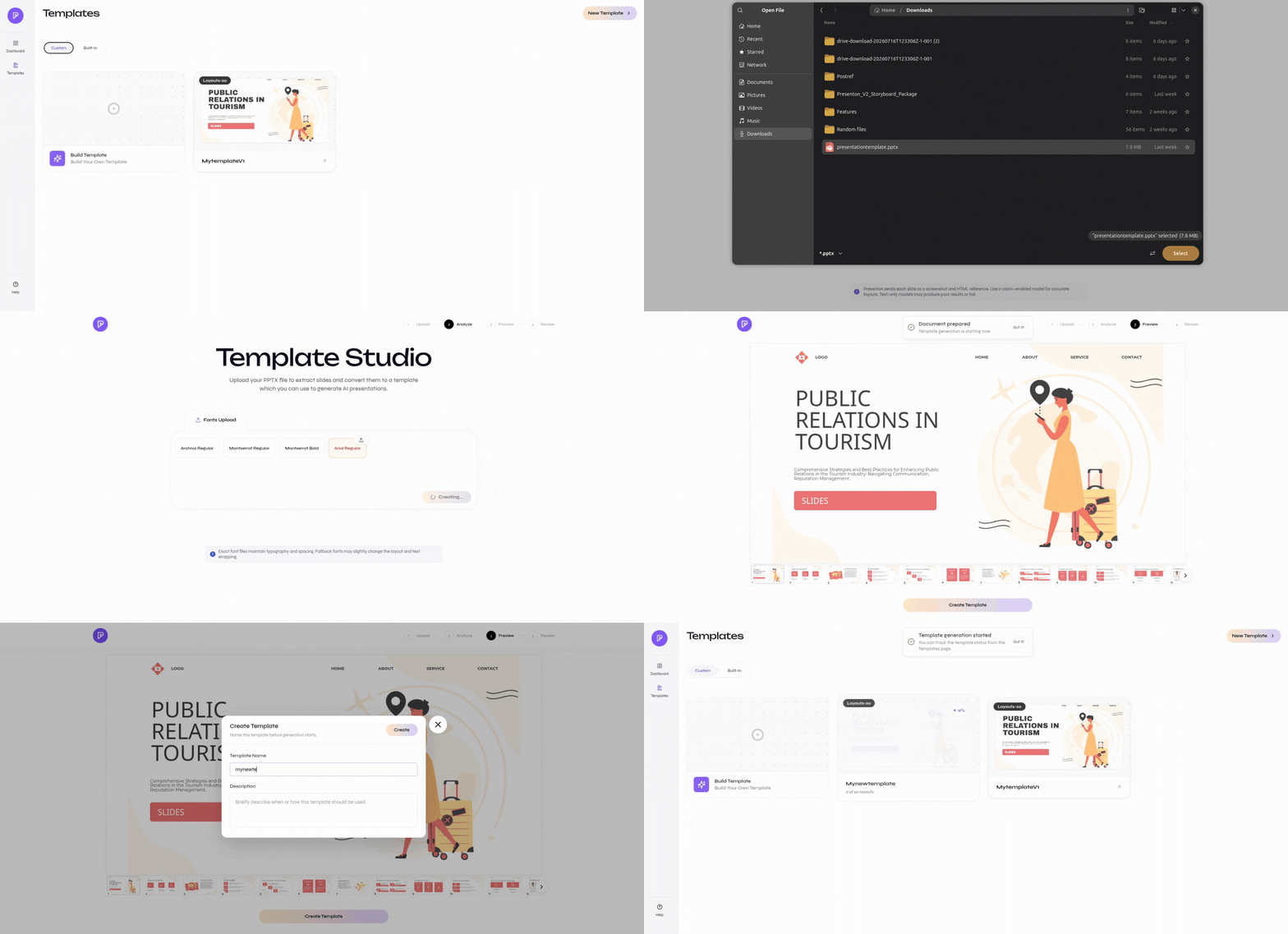
Create the template step by step
1
Open the template library
Open Templates and select Build Template or New Template.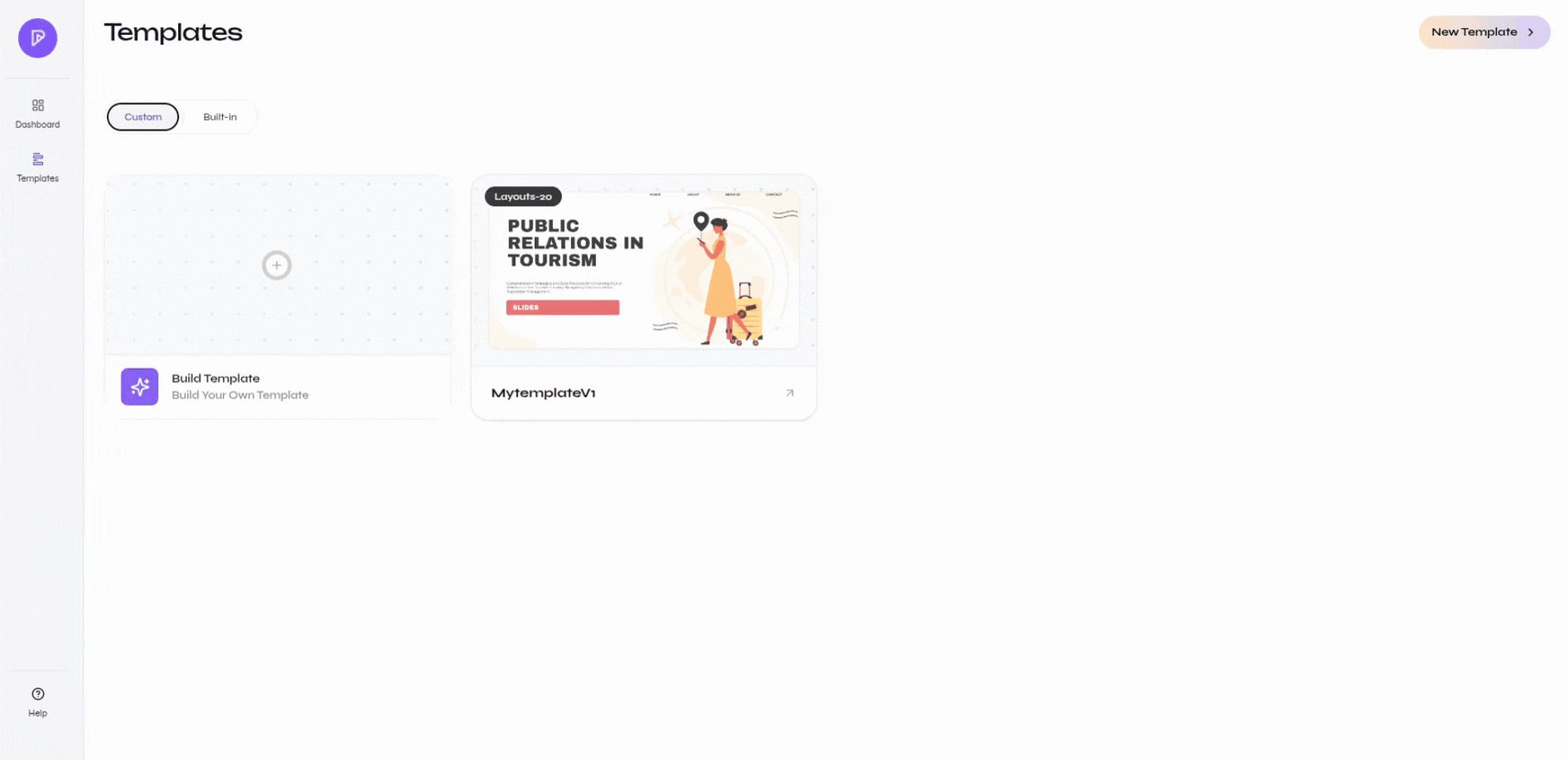
Open the custom template library
2
Upload the PowerPoint file
Select Upload PPTX File, choose the presentation you want to reuse, and wait until its status changes to Ready. Select Get Started to continue.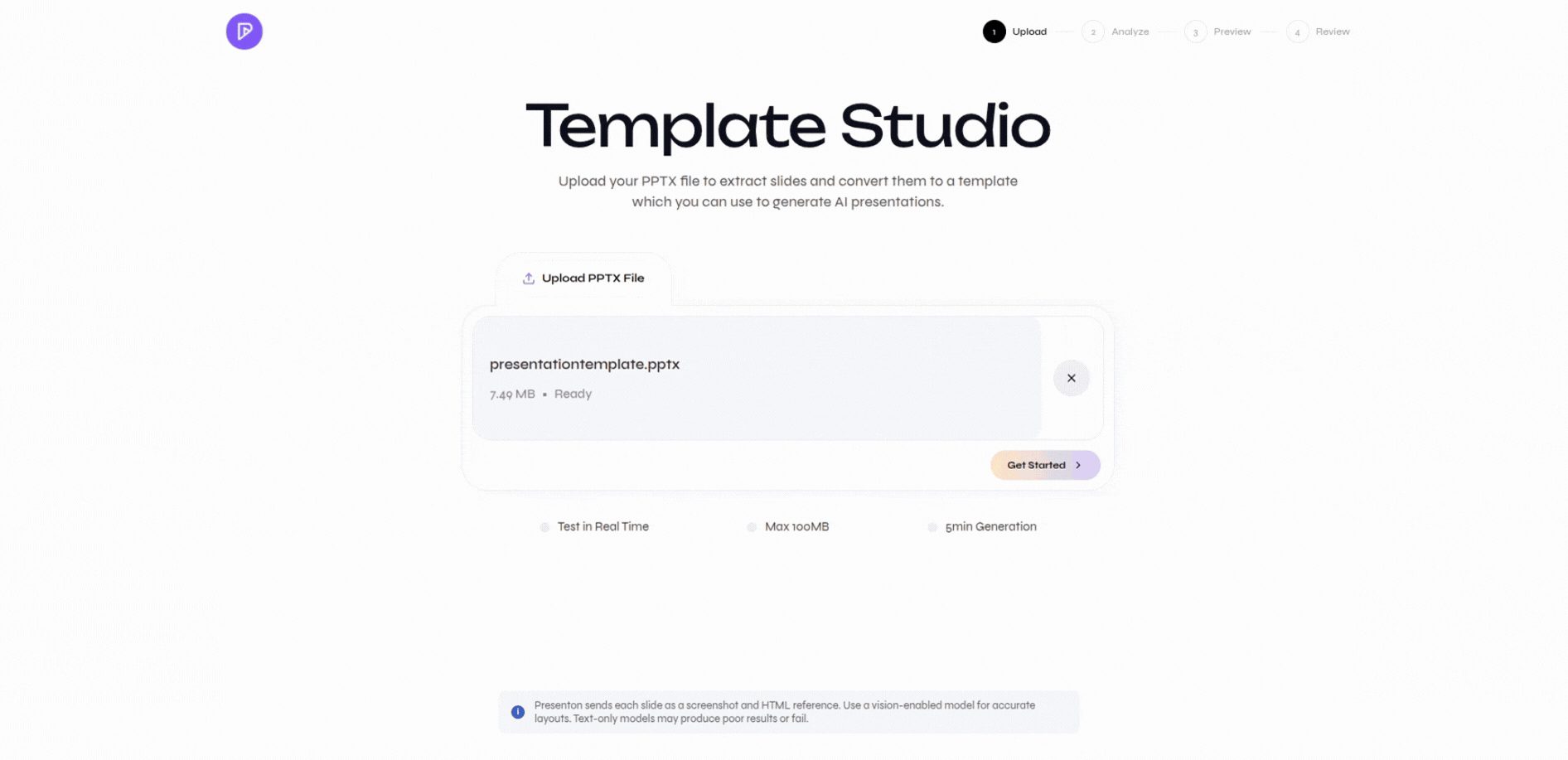
PPTX file ready for Template Studio
3
Review the detected fonts
Template Studio analyzes the fonts used by the presentation. Upload any missing font files shown in the font list so text keeps its intended typography, spacing, and wrapping.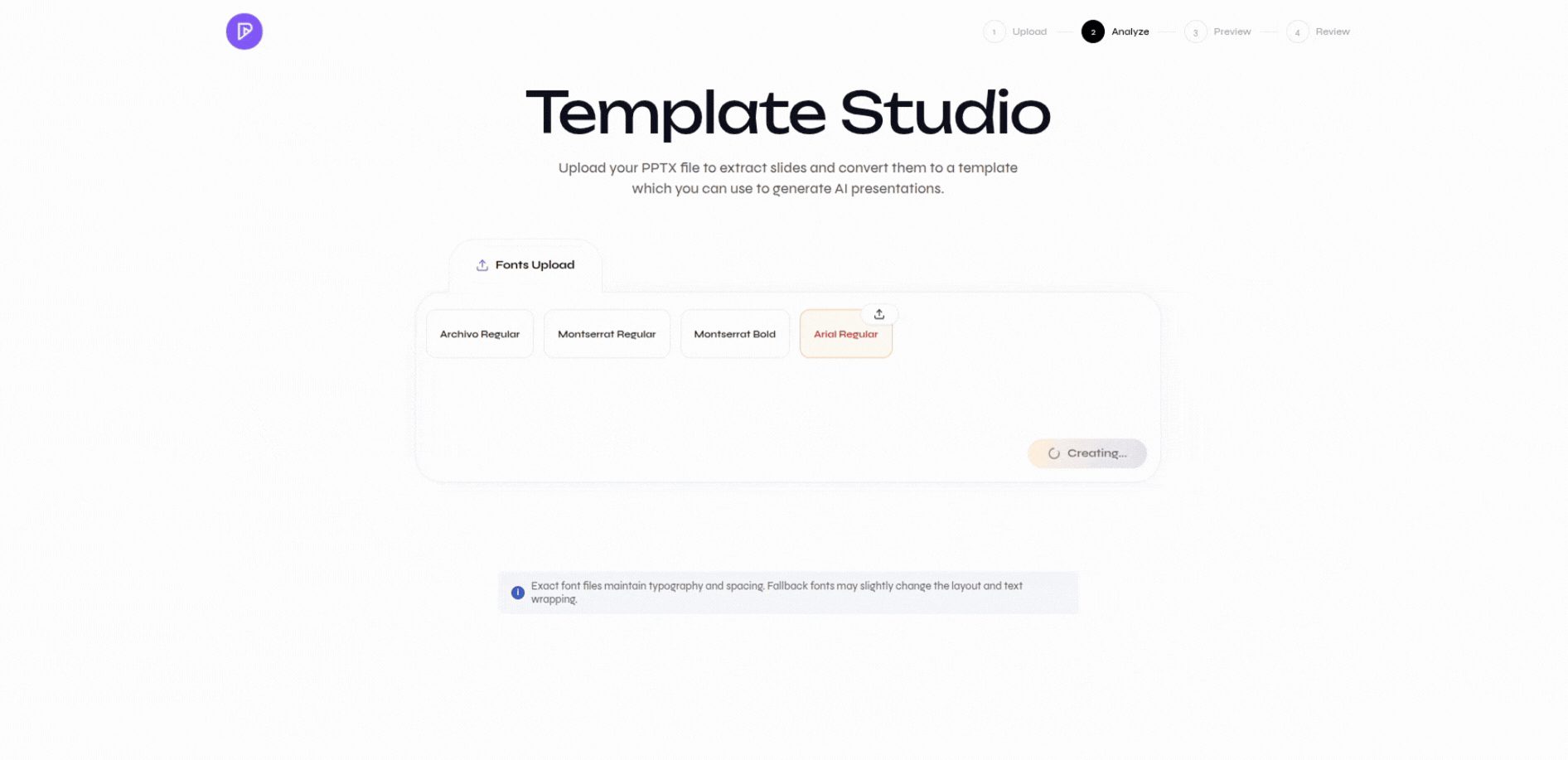
Review detected fonts and upload missing files
4
Preview the source slides
Inspect the slide thumbnails and the large preview. Confirm that the presentation contains the layouts you want to reuse, then select Create Template.
Preview source slides before creating layouts
5
Name the template
Enter a clear template name. Add a description that explains when the design should be used, then select Create.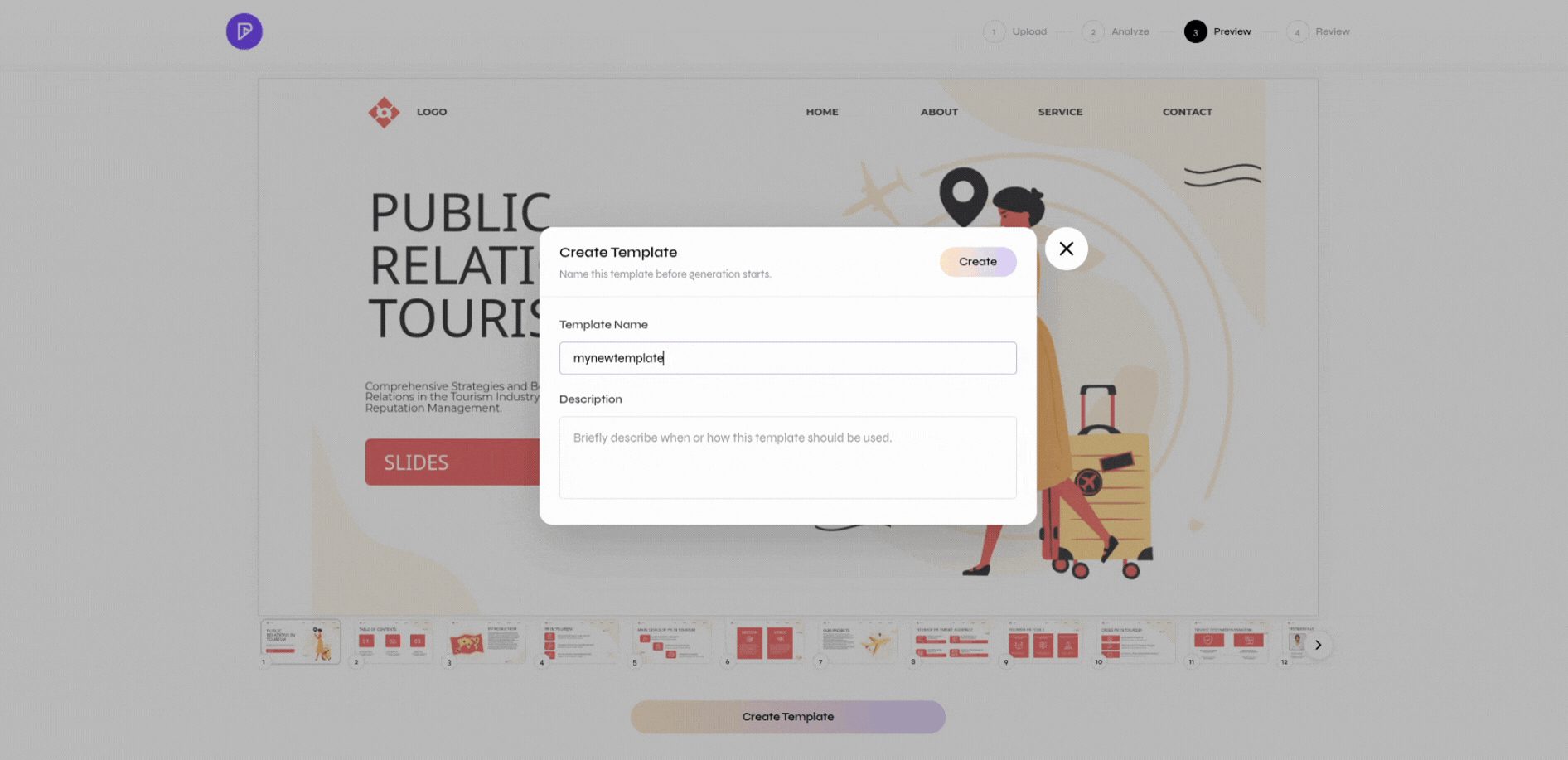
Enter the template name and description
6
Monitor template generation
The template appears in the Custom library while its layouts are generated. Wait for generation to finish before using it in a presentation.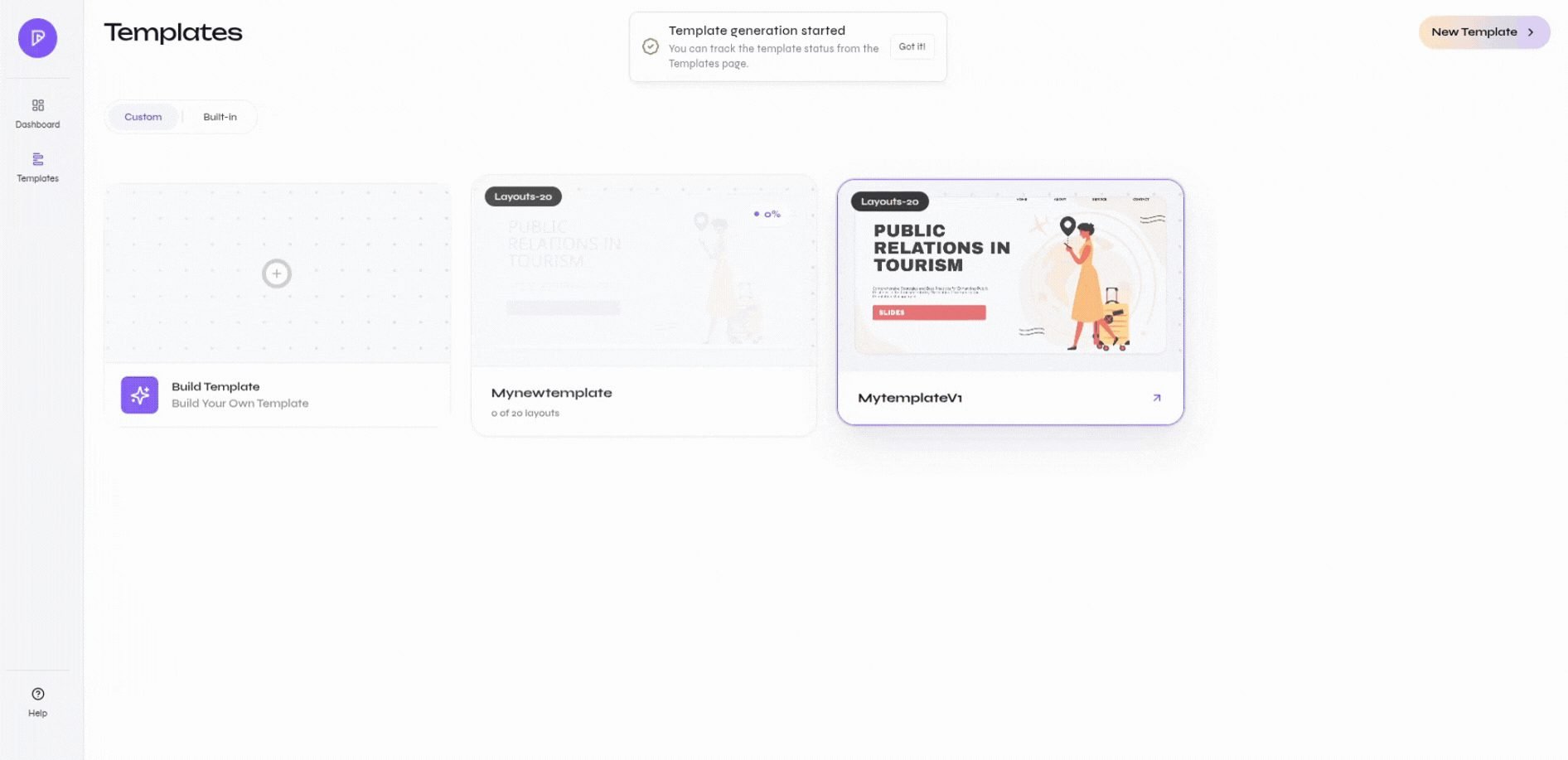
Template generation progress in the Custom library