

Create a presentation
Choose Cloud for Presenton Cloud or Open-source for your local or self-hosted installation. Each tab follows the workflow from prompt to generated presentation.Generation essentials
- Cloud
- Open-source
1
Open Create new Presentation
Select Create new Presentation from the Cloud dashboard.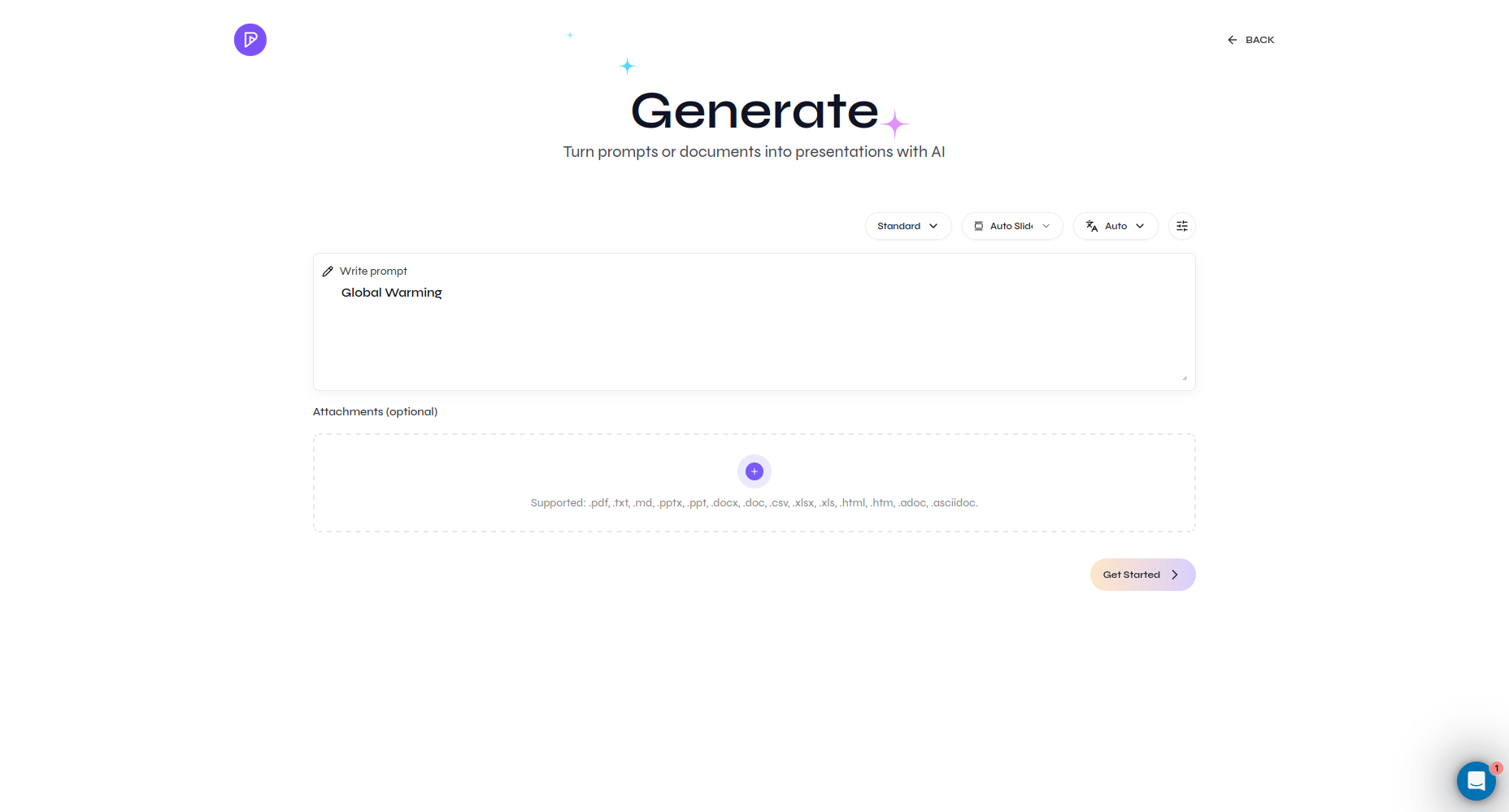
Open the Cloud generator
2
Choose Standard or Smart
Choose Standard for template-based layouts or Smart for content-driven composition.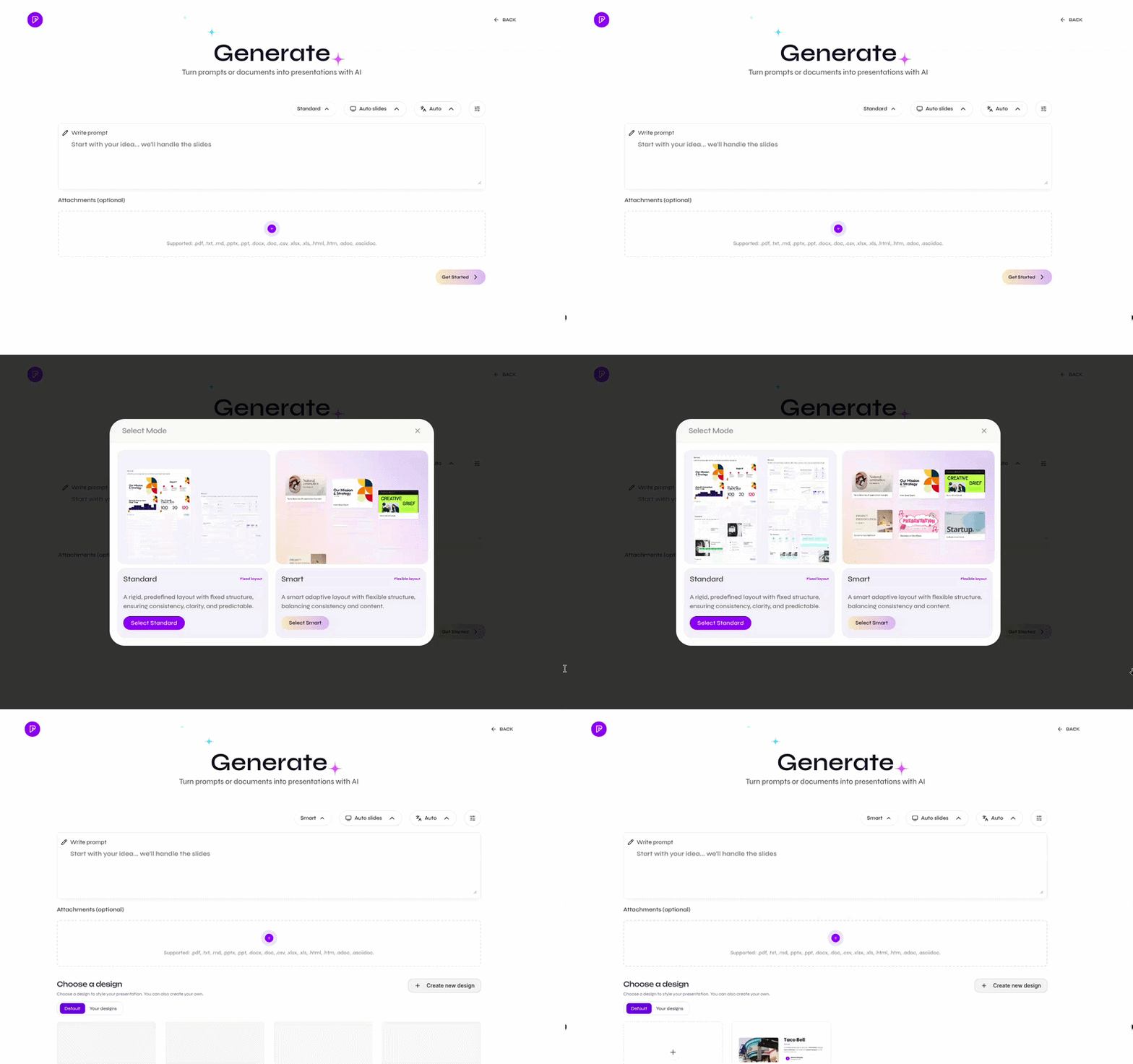
Switch between Standard and Smart
3
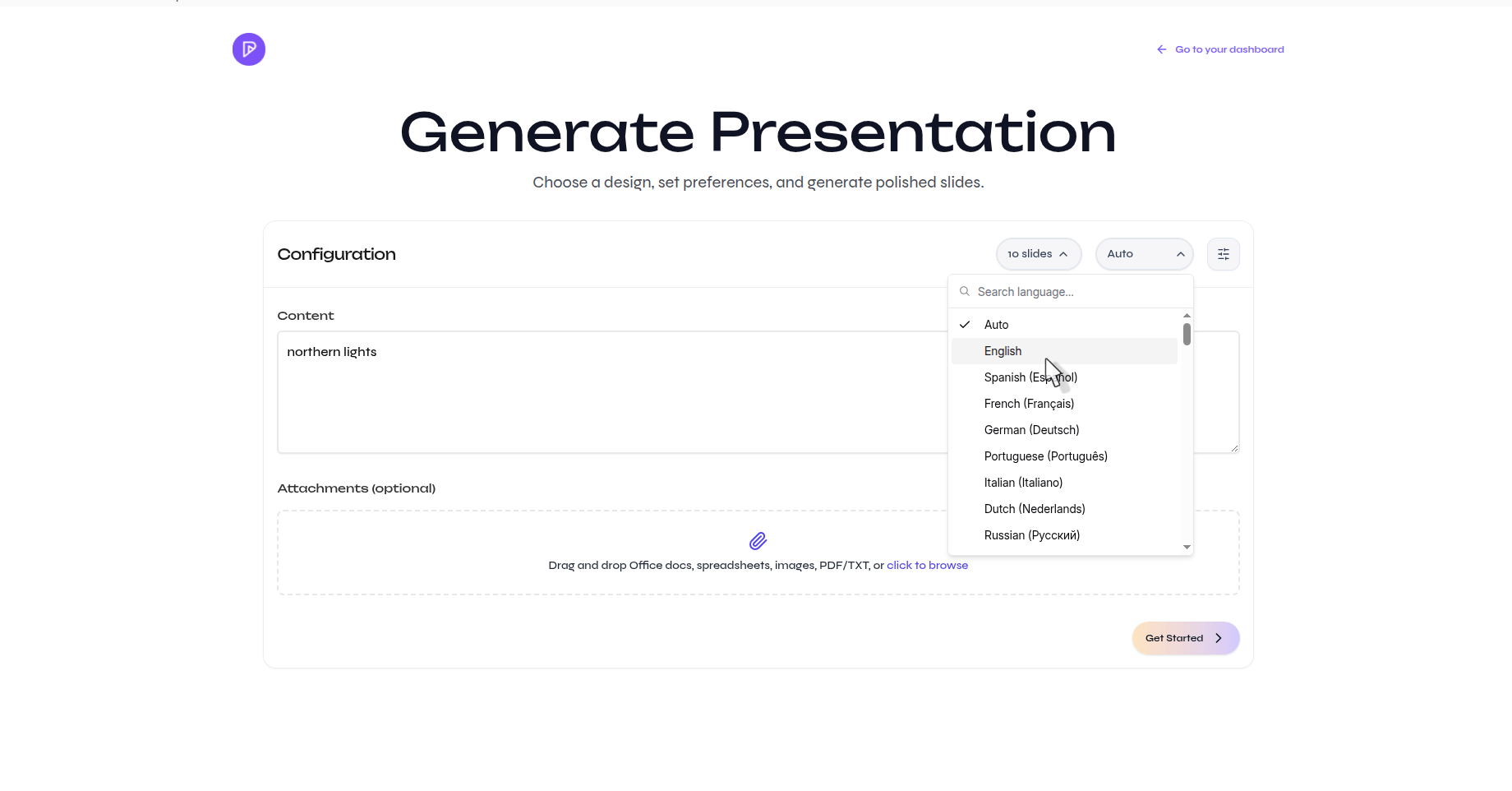
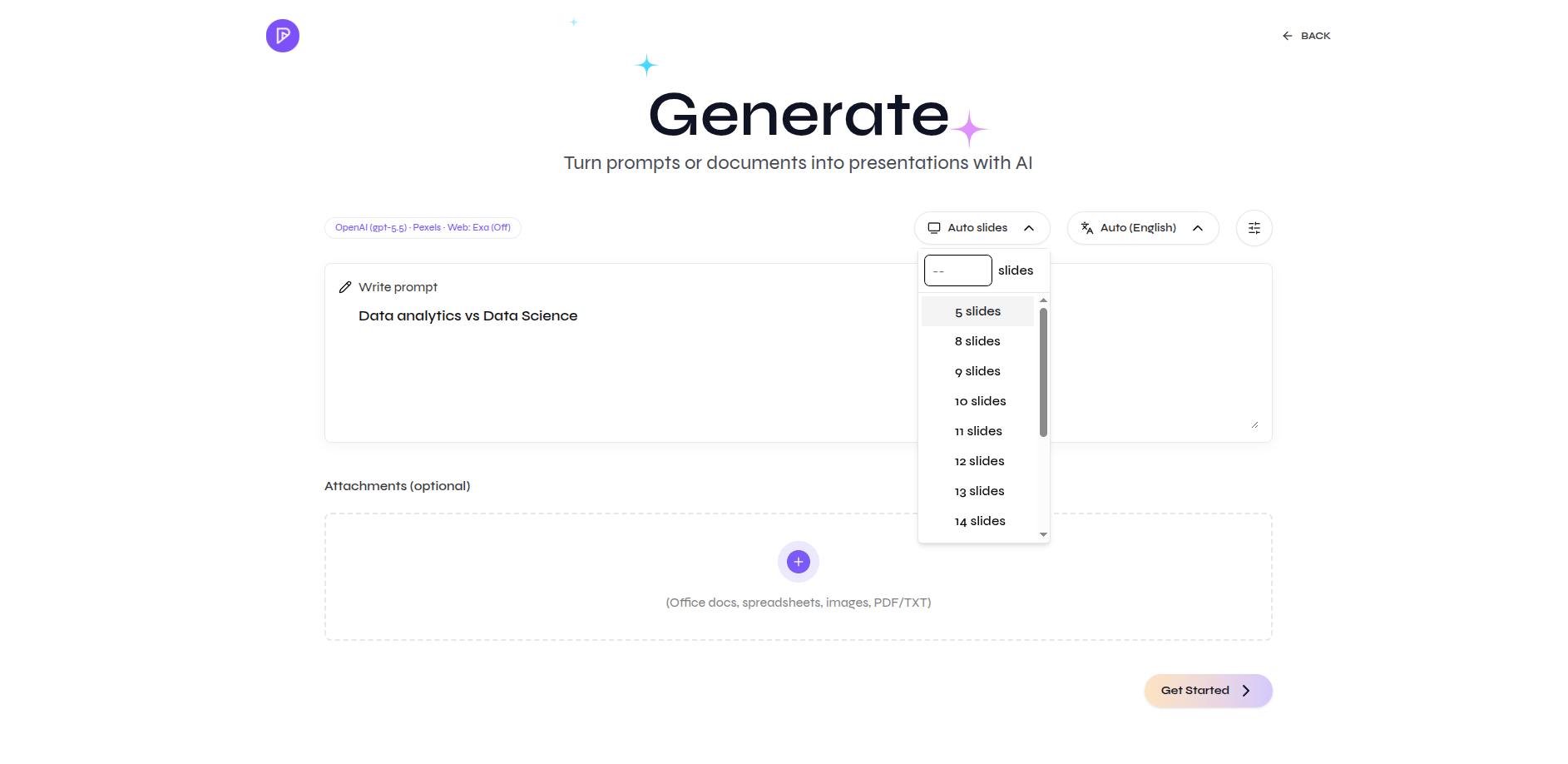
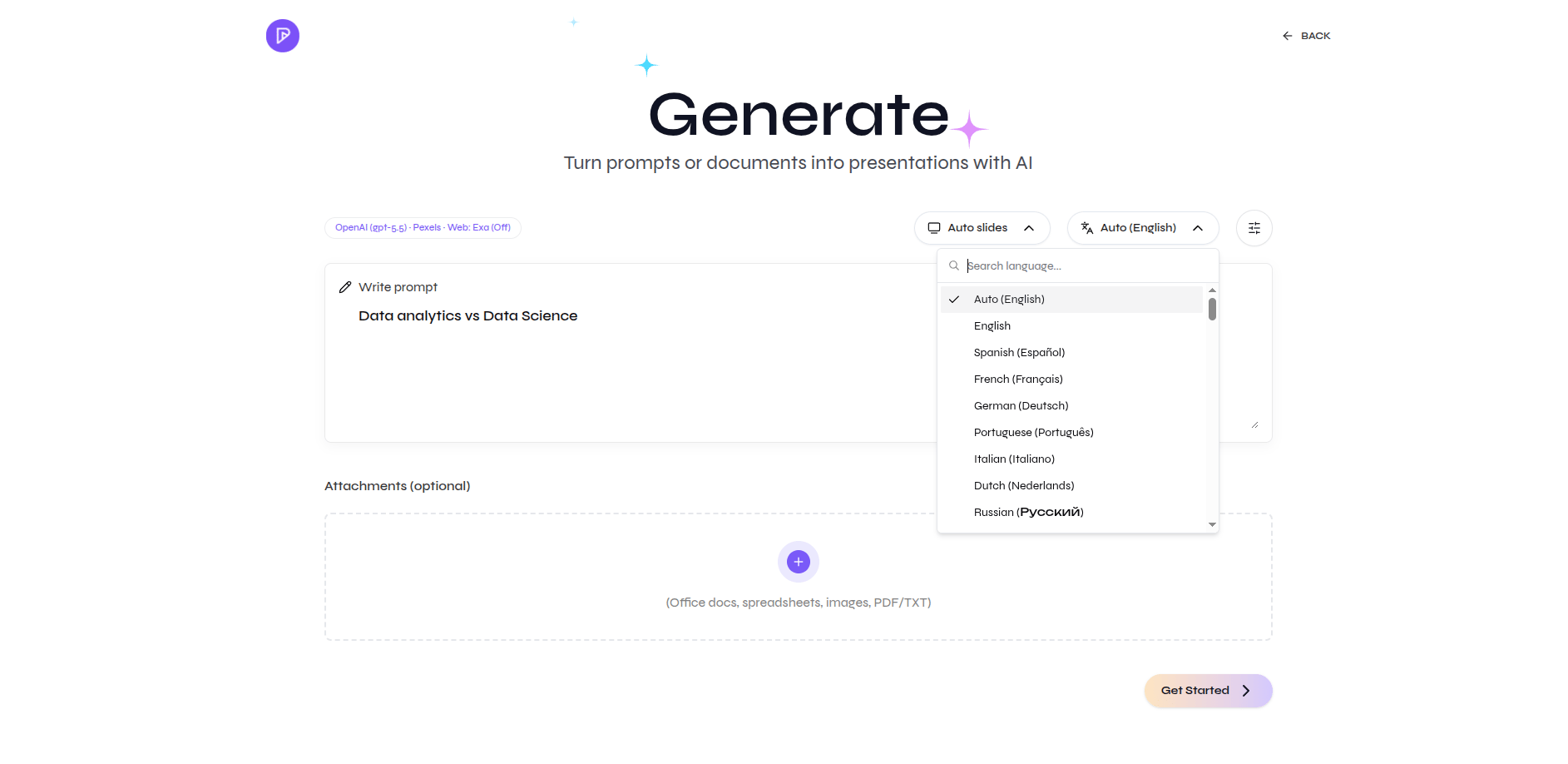
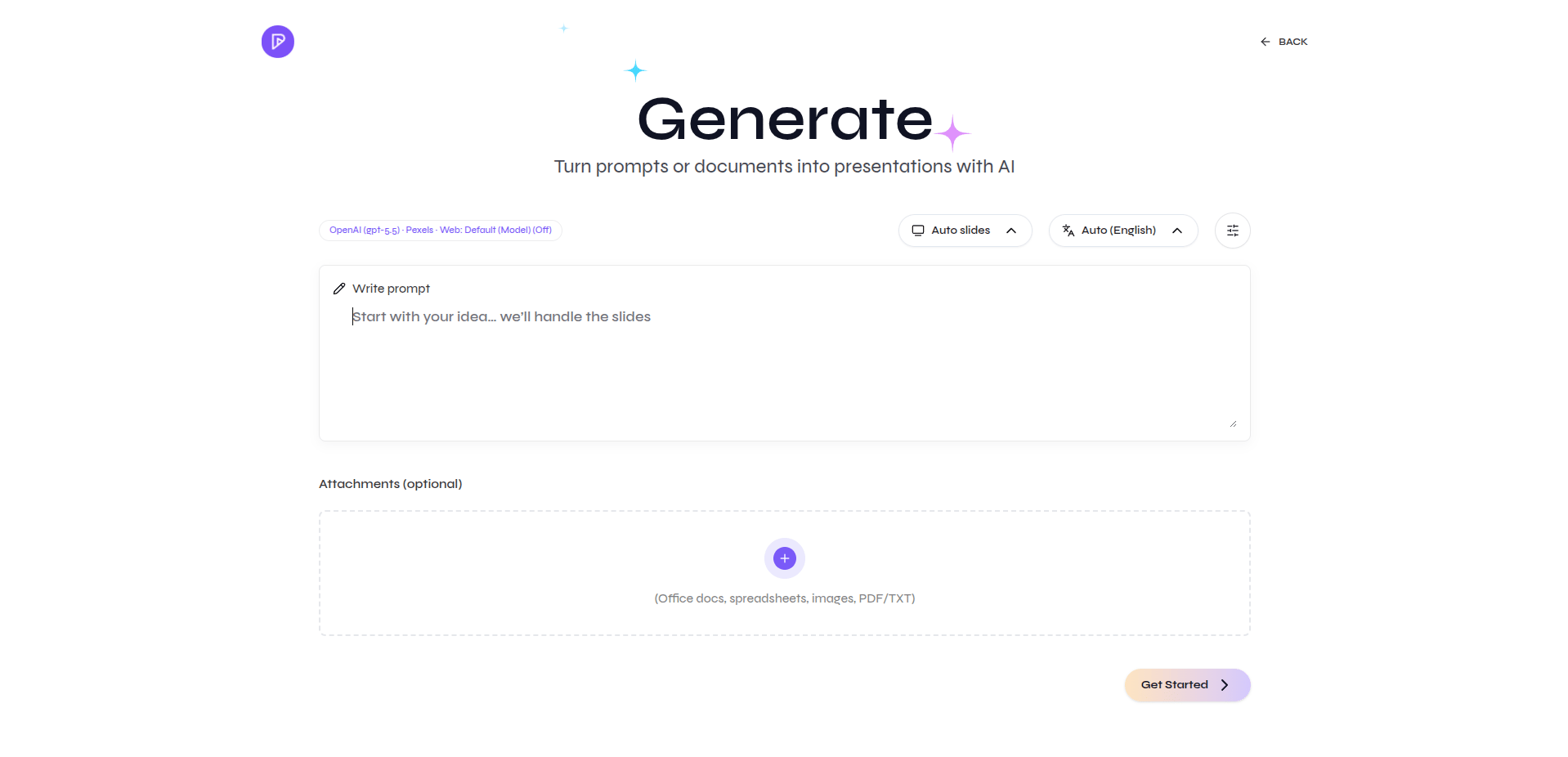
Set the slides and language
Choose Auto slides or a fixed count, then select the output language.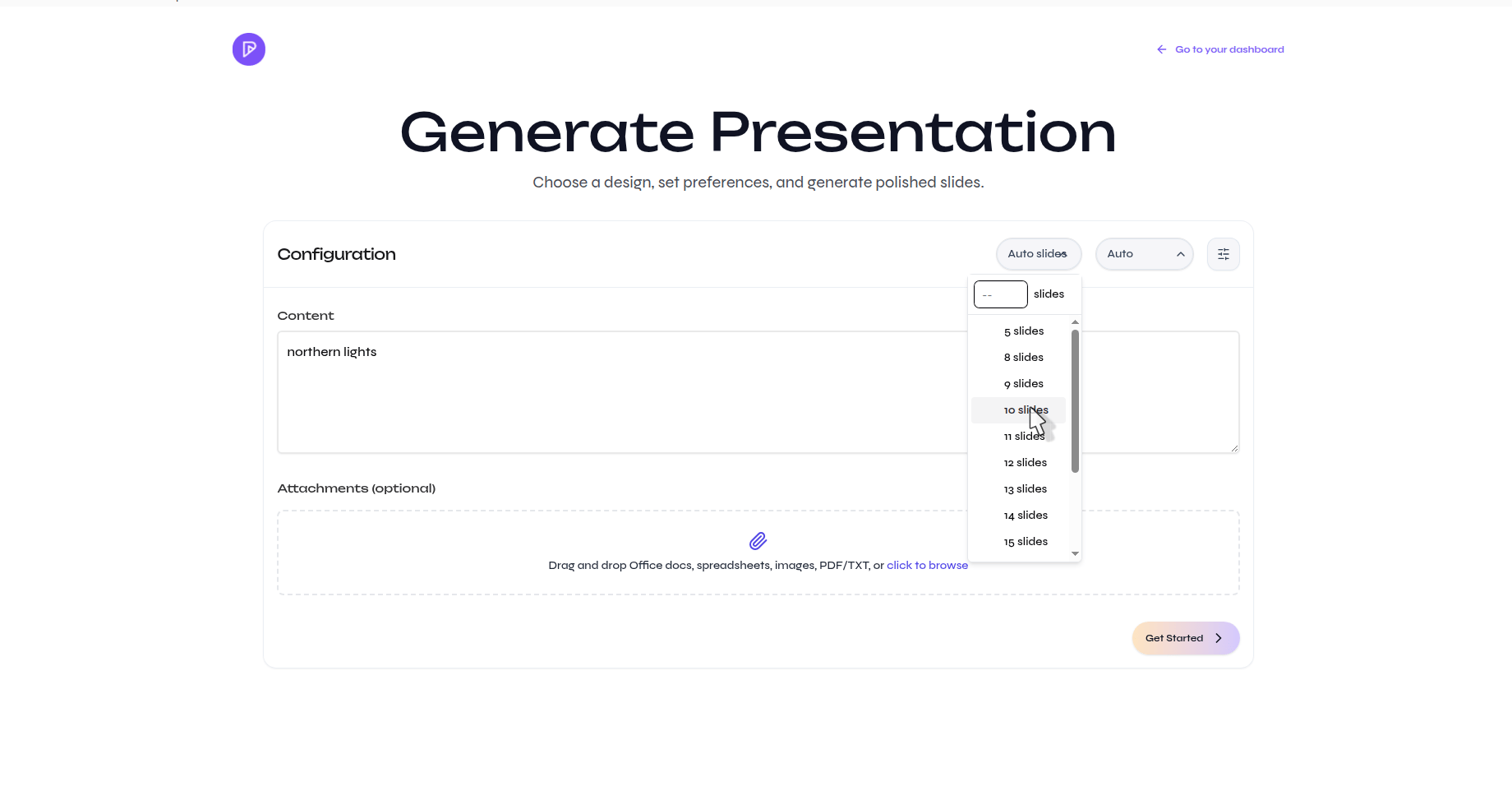
Choose Auto slides or a fixed slide count
Select the presentation language
4
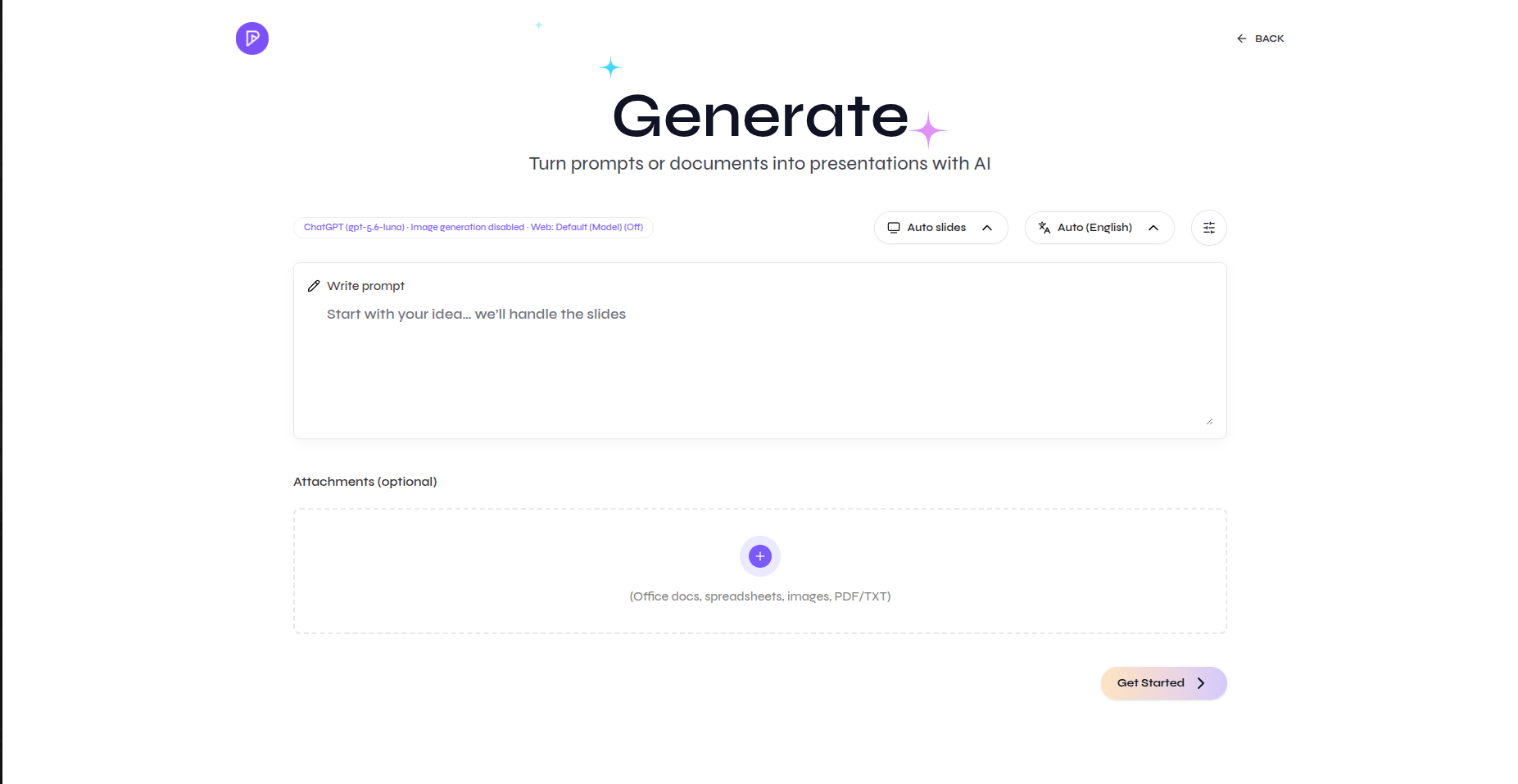
Add the prompt and files
Describe the presentation you want. Attach reference files when Presenton should use specific source material.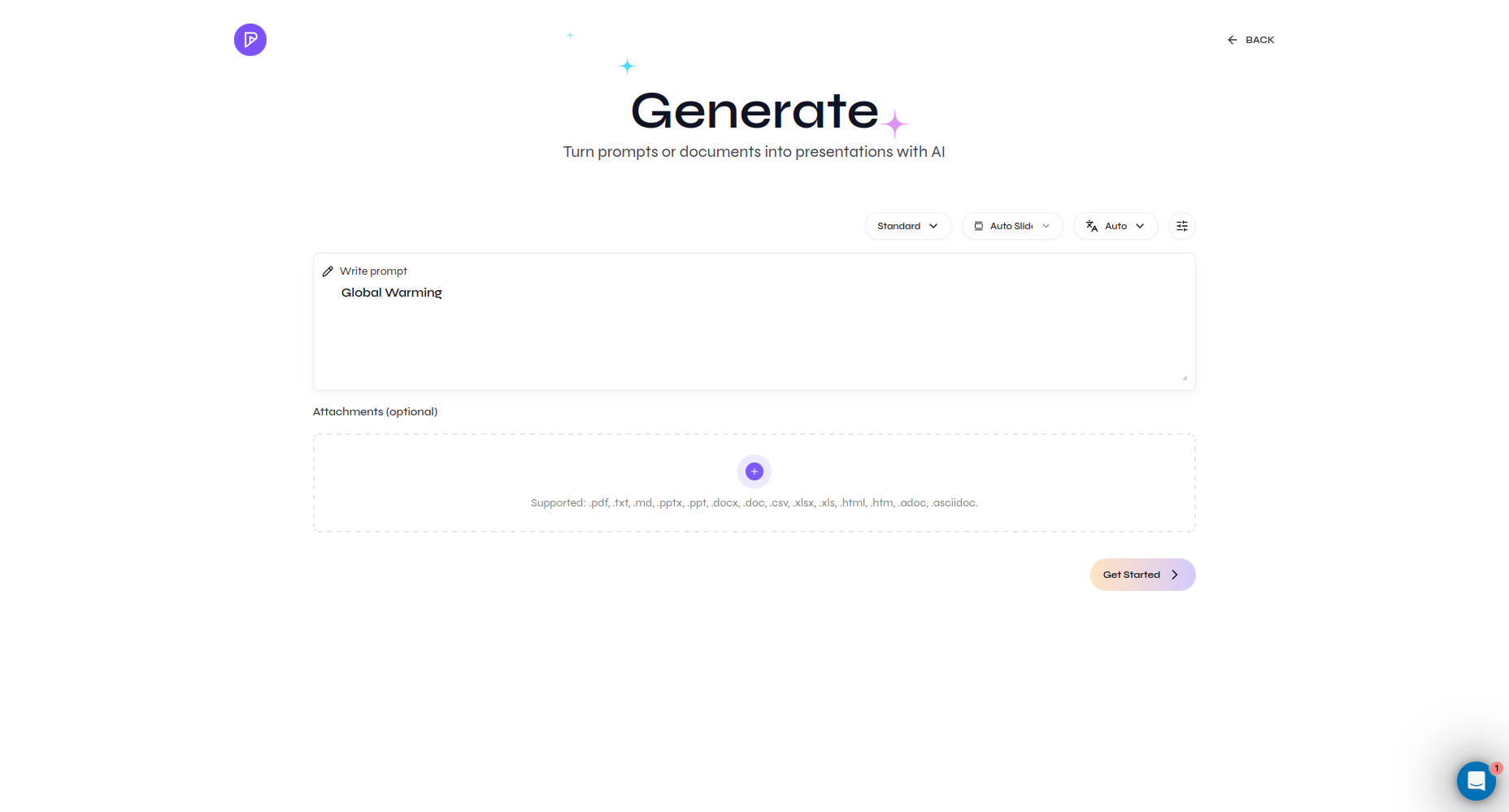
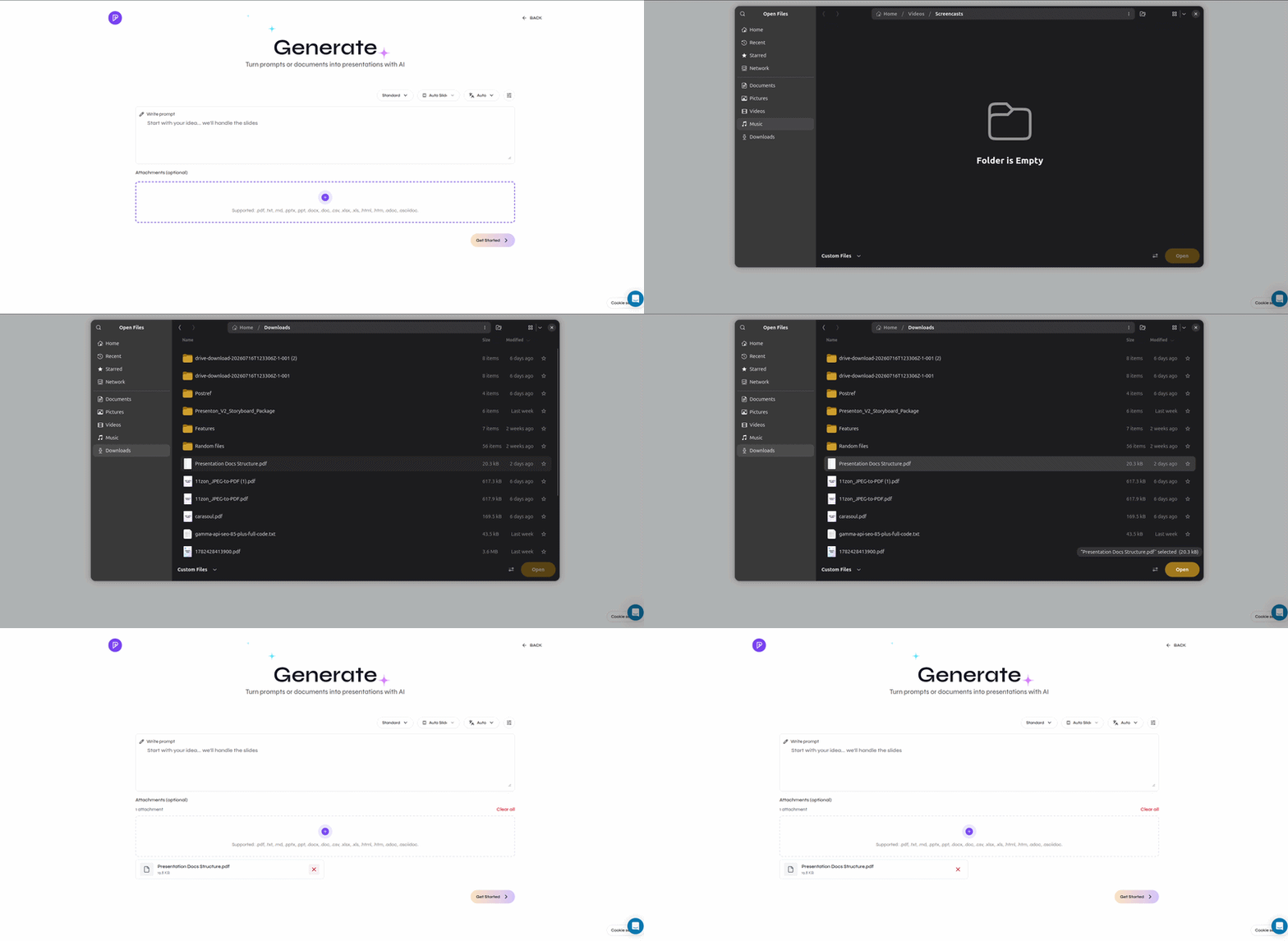
Describe the presentation you want
Attach files beside the prompt
5
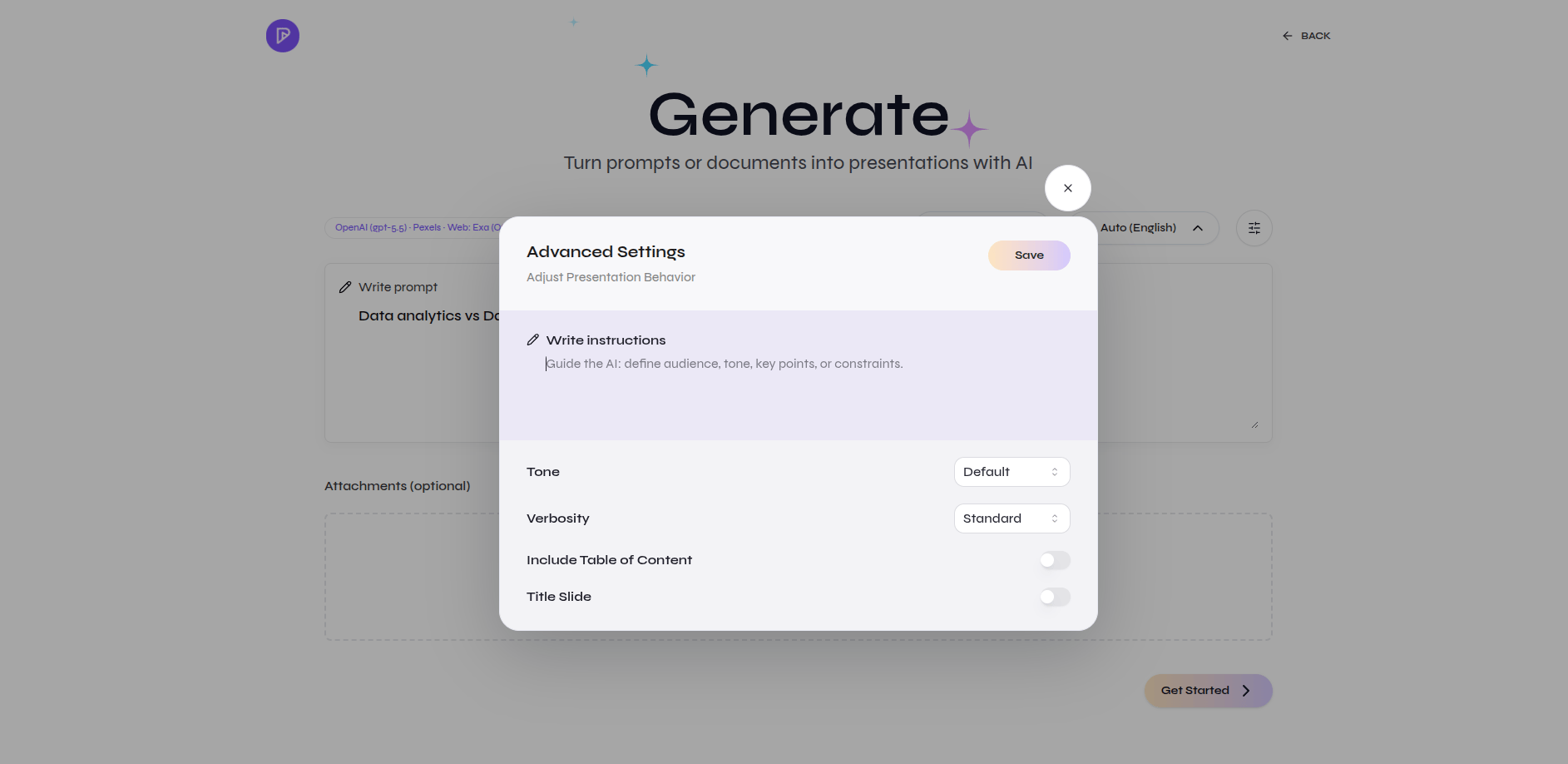
Review Advanced settings
Set tone, verbosity, title slide, table of contents, web search, or additional instructions when needed.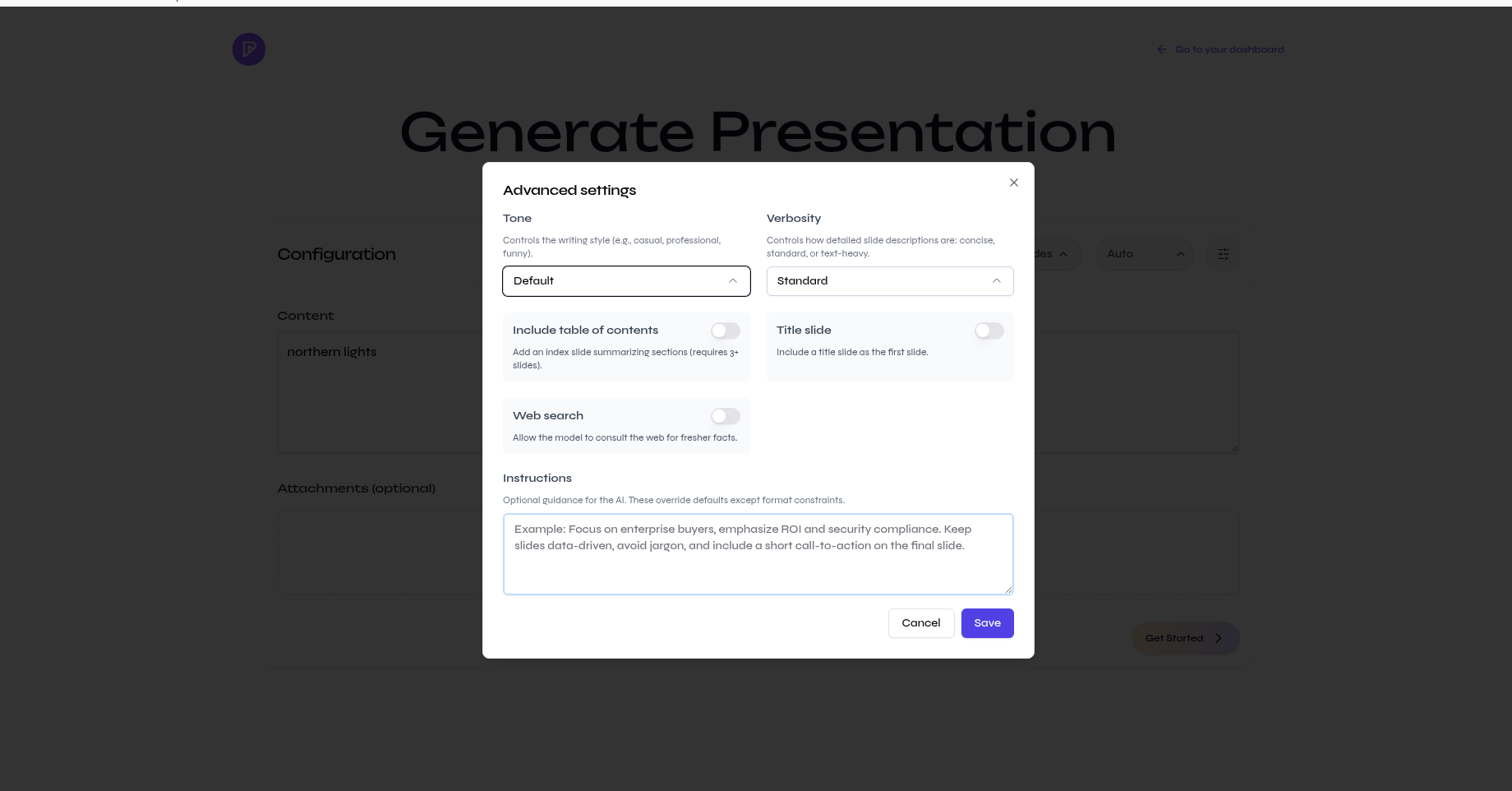
Adjust only the settings you need
6
Get started
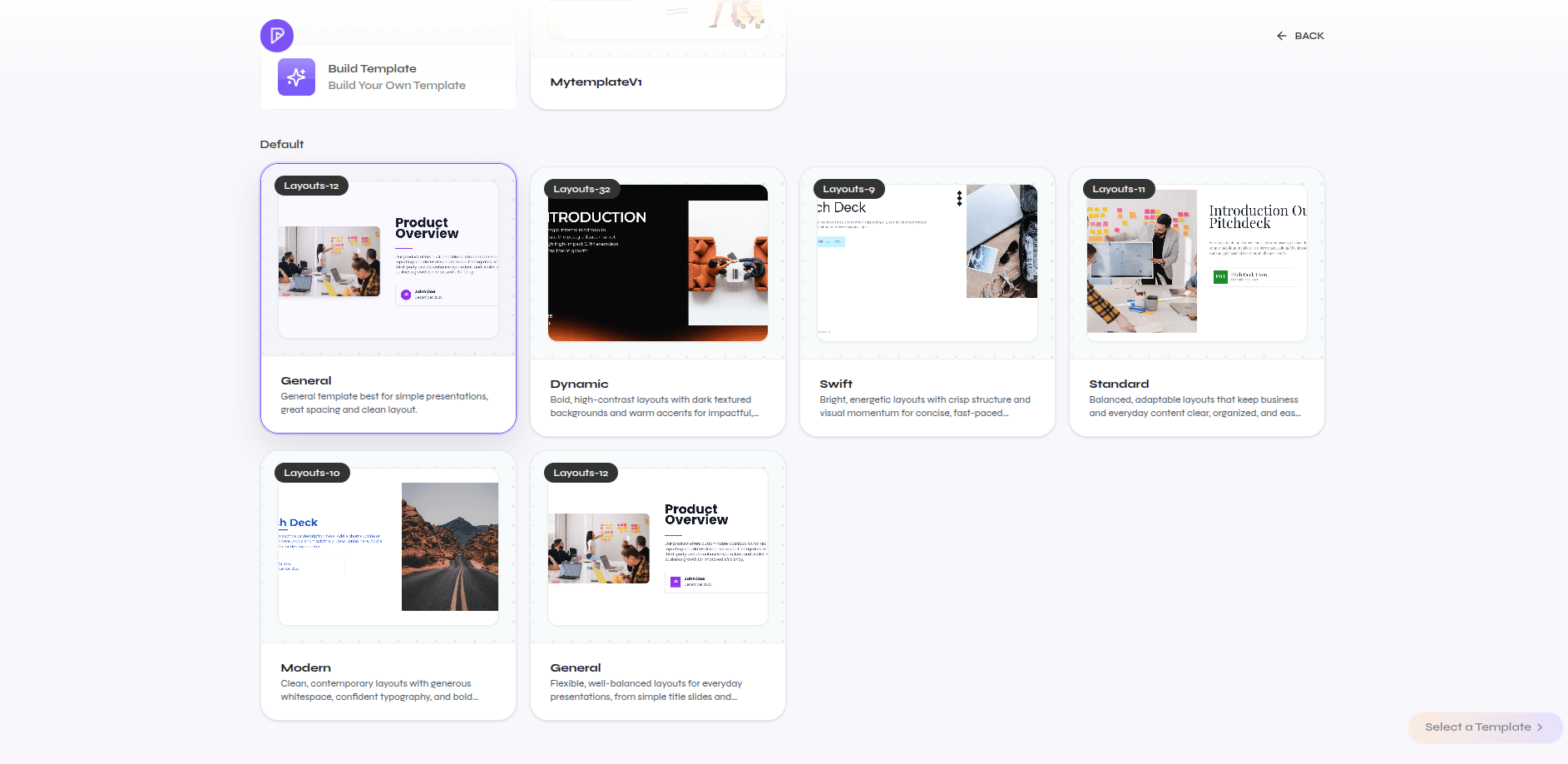
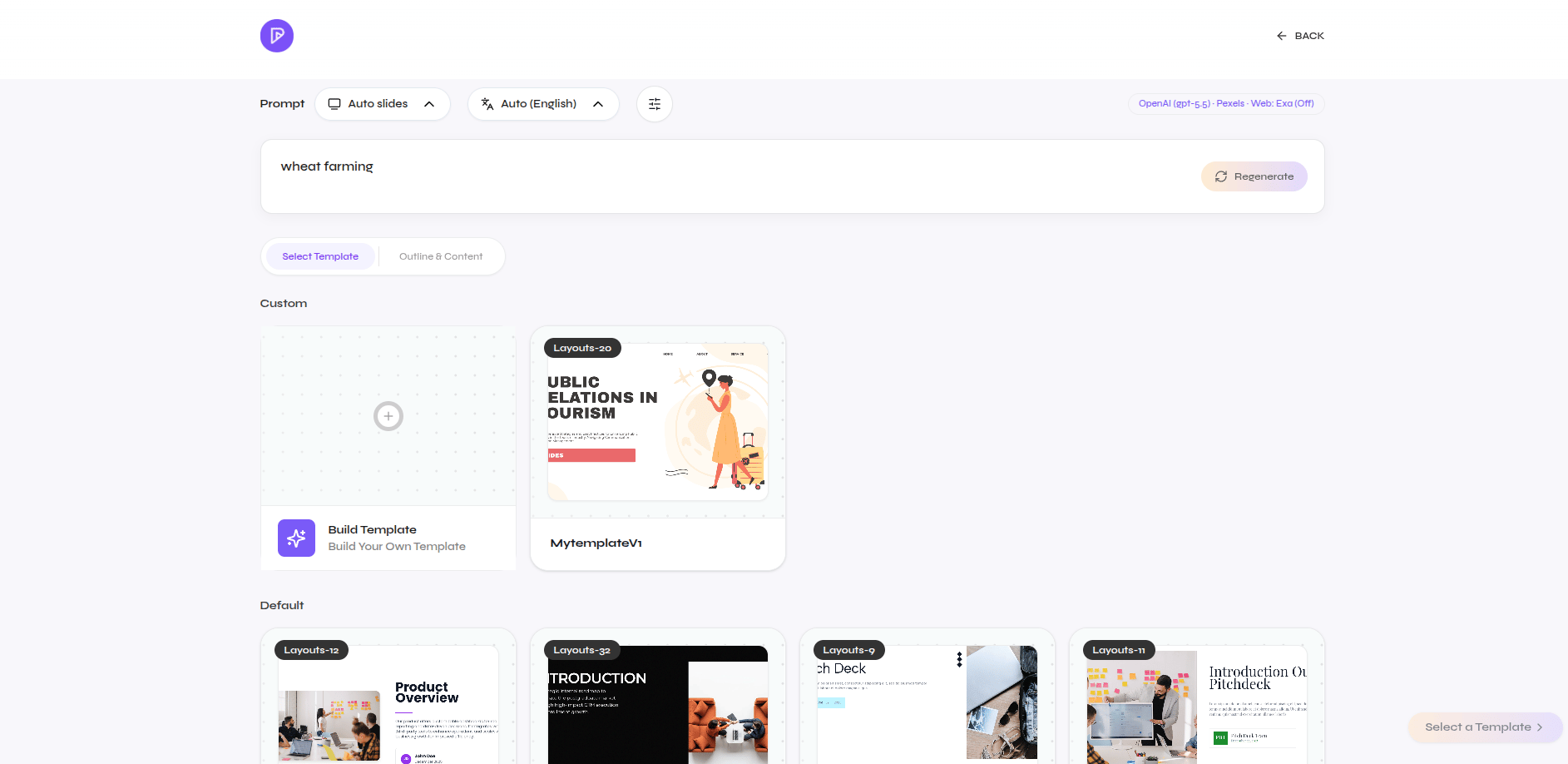
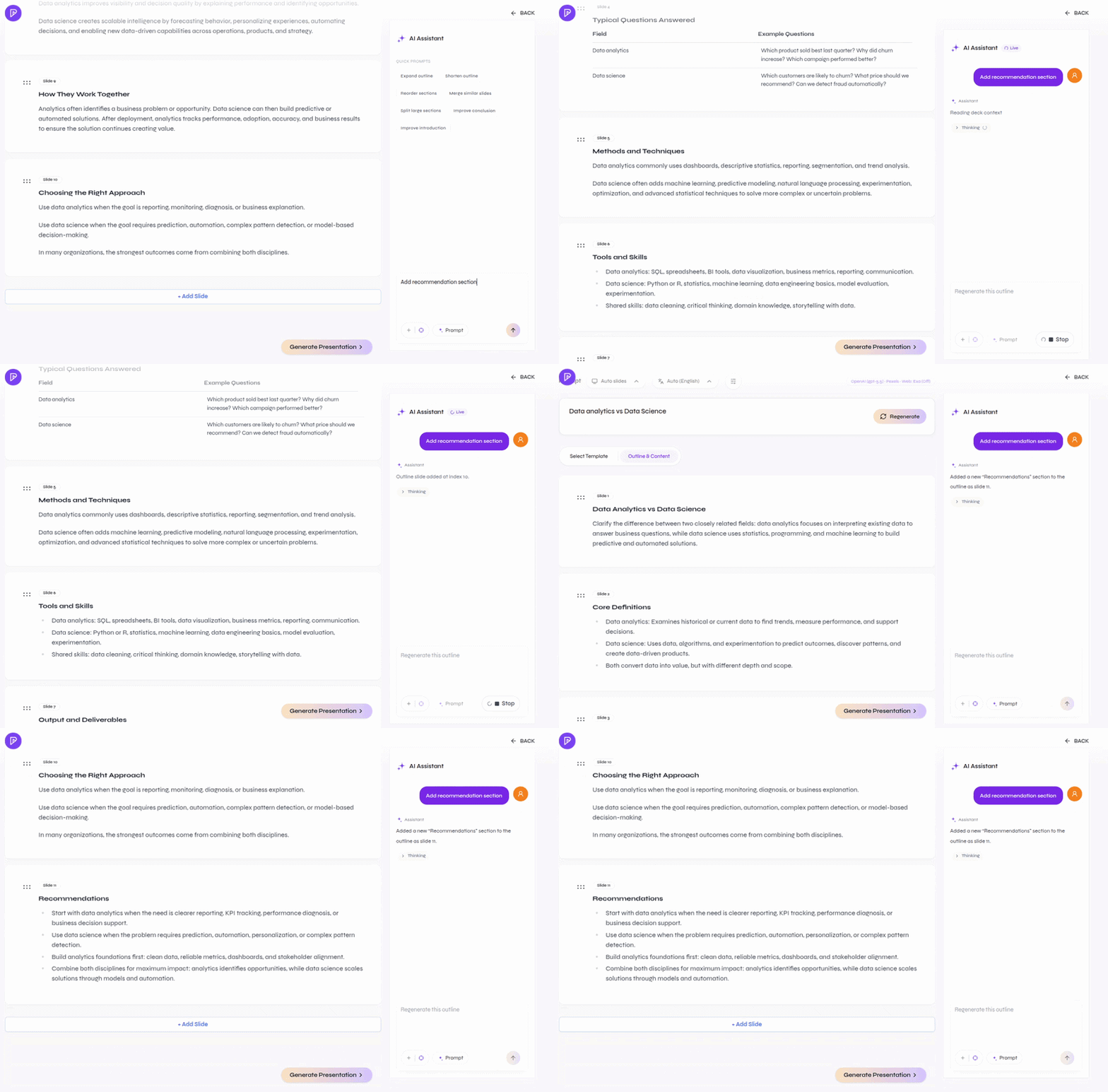
Select Get Started, review the outline, and choose the design before generating the presentation.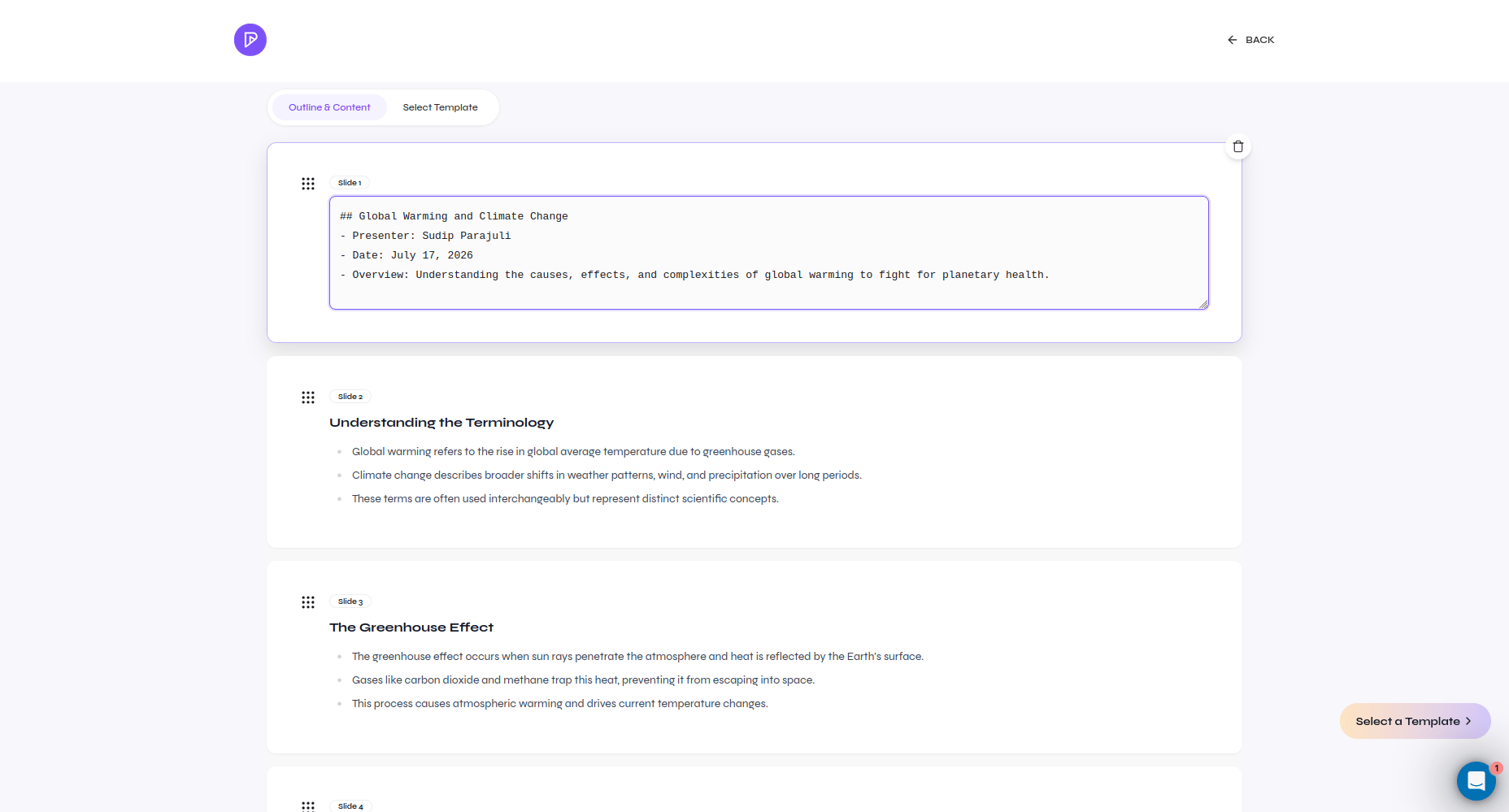
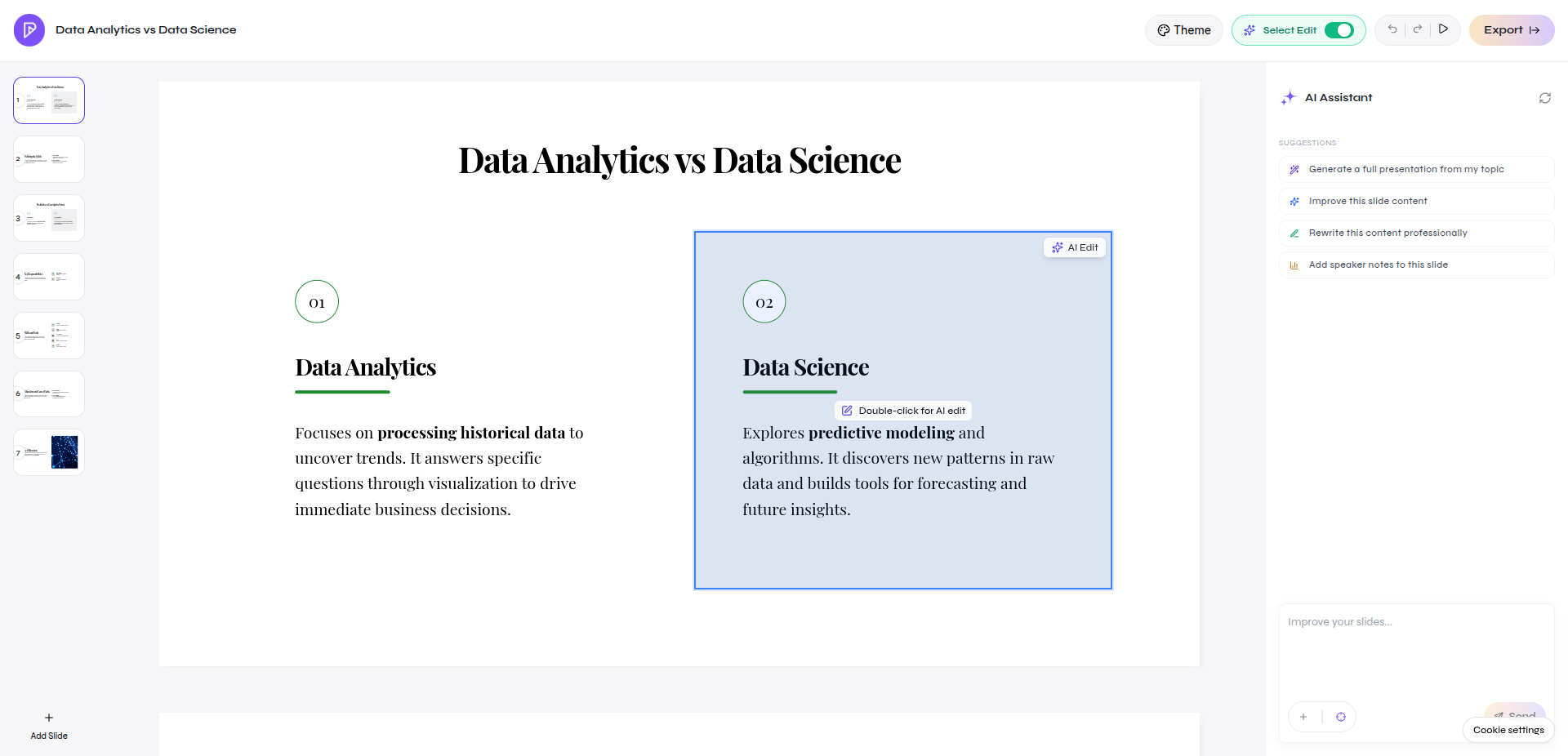
Review the outline before generating slides
Continue in the Presenton Editor
Verify source-based presentations
- Compare important names, dates, claims, and figures with the original files.
- Recalculate totals, percentages, and changes shown in tables or charts.
- Confirm units, reporting periods, category labels, and data sources.
- Review image relevance, cropping, and usage rights.
- Inspect the exported PPTX or PDF for overflow, clipping, and layout changes.