

Before you start
- Open the presentation in the Presenton editor.
- Select the slide you want to change from the slide list.
Prompt-based editing updates only the selected slide, so make sure the correct slide is active before you submit the change.
Edit a slide with a prompt
1
Open the slide editing actions
In the editor, click the selected slide and open the floating slide actions in the top-right area of the canvas.
2
Open the prompt editor for the slide
Select the prompt-based update action to open the Update slide panel.
3
Describe the change you want
In the prompt box, enter a clear instruction for how the slide should be updated, then click Update.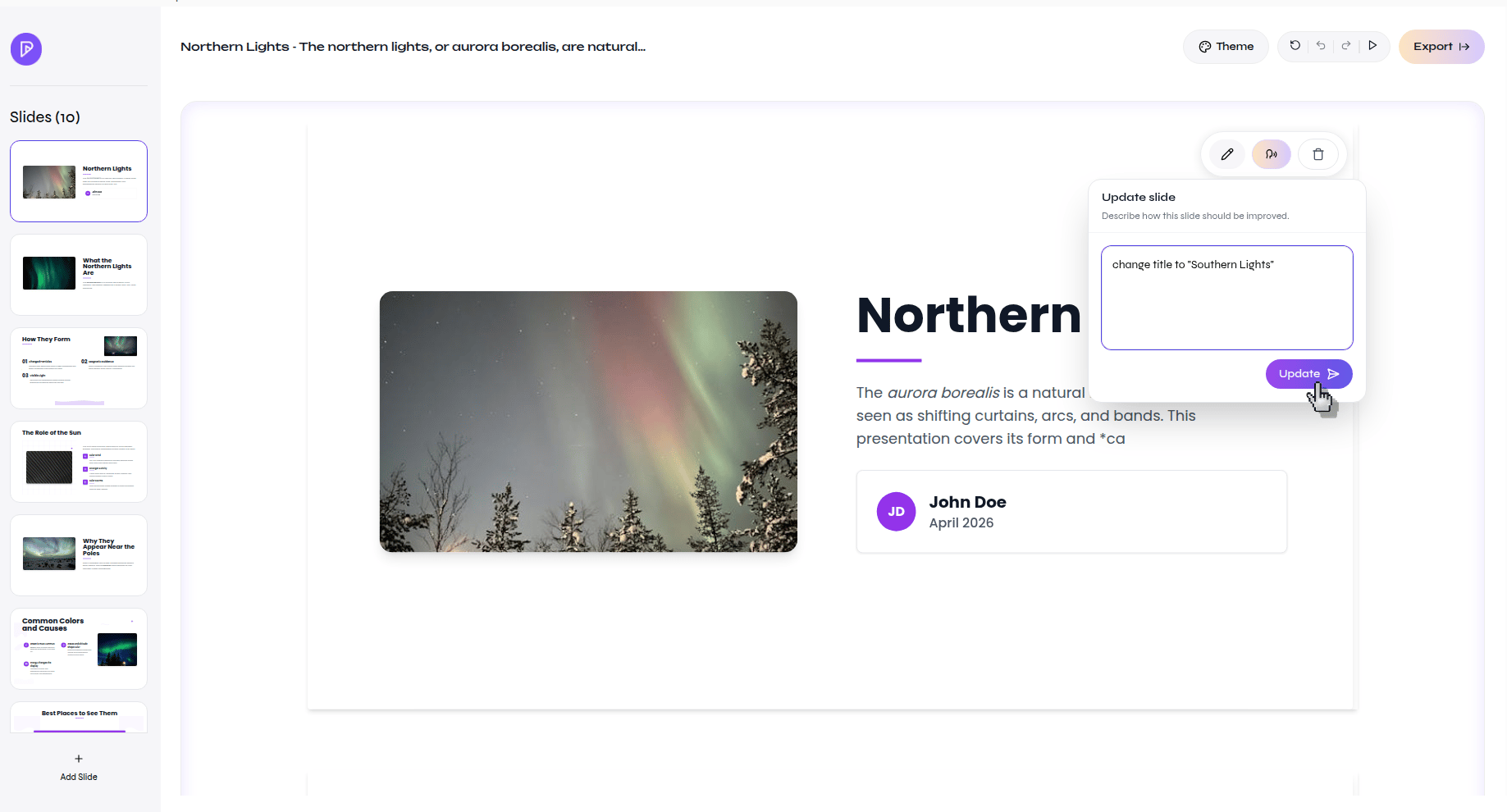
4
Review the updated slide
Wait for Presenton to apply the change, then review the slide content to confirm it matches your request.
Verify the result
The selected slide updates in the editor and reflects the prompt you submitted.