Create a custom theme in Presenton when you want future presentations to follow your brand colors, typography, and logo instead of the built-in theme styles.

Before you start

  • Decide on your primary brand color and background color before you begin.
  • Keep your company name ready if you want it to appear in the theme.
  • Prepare your logo file and any custom font files if your brand uses them.
Presenton builds a theme in four stages: Brand, Palette, Fonts, and Logo. You can review the live preview while moving through each step.

Create a new theme

Open the Themes area
1

Open Themes from the sidebar

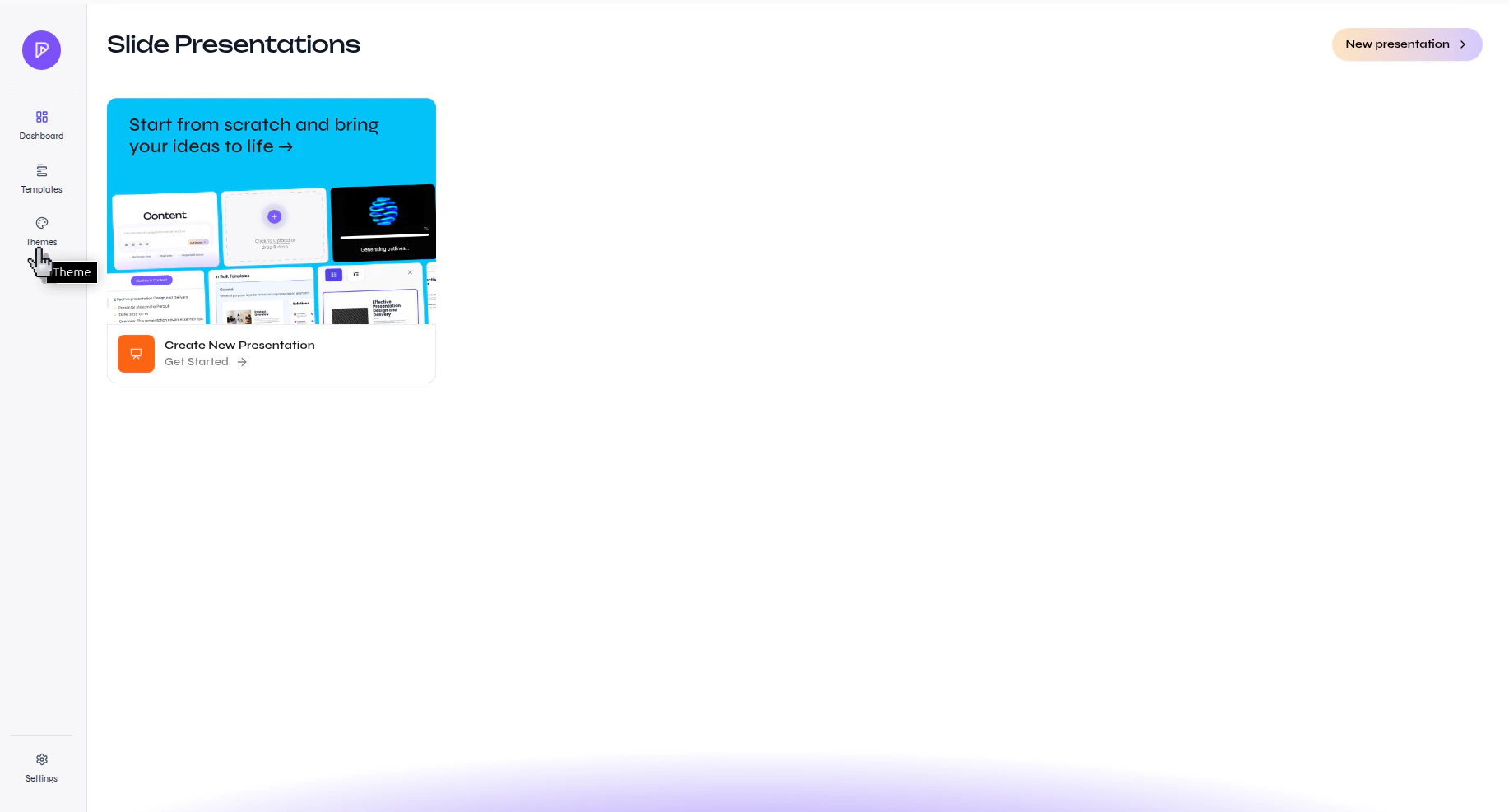
In the left navigation, click Themes.
Presenton Slide Presentations page with the Themes option highlighted in the left sidebar
2

Start a new custom theme

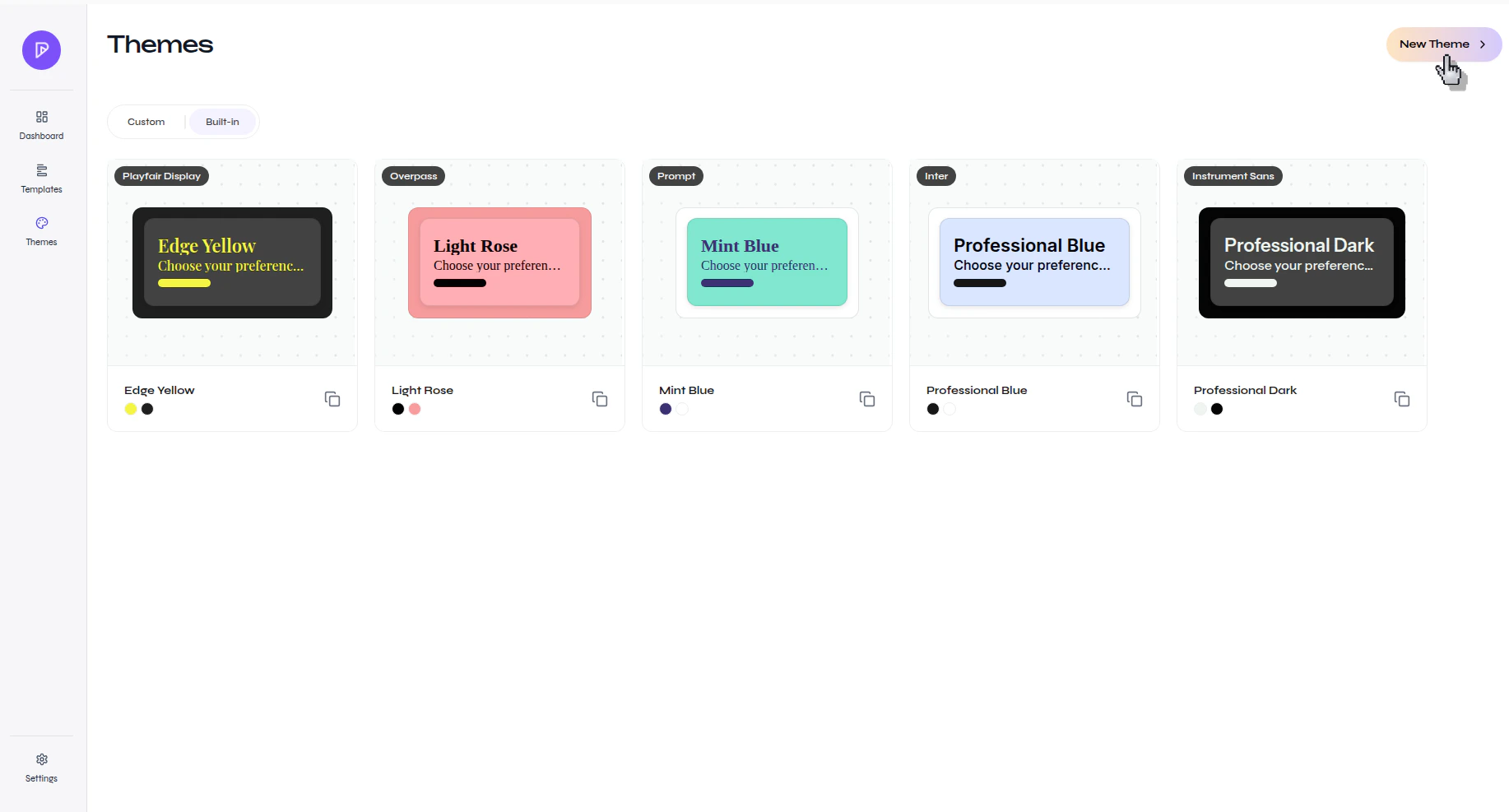
On the Themes page, click New Theme.
Presenton Themes page showing built-in themes and the New Theme button in the top-right corner

Set the brand colors

1

Enter the base brand colors

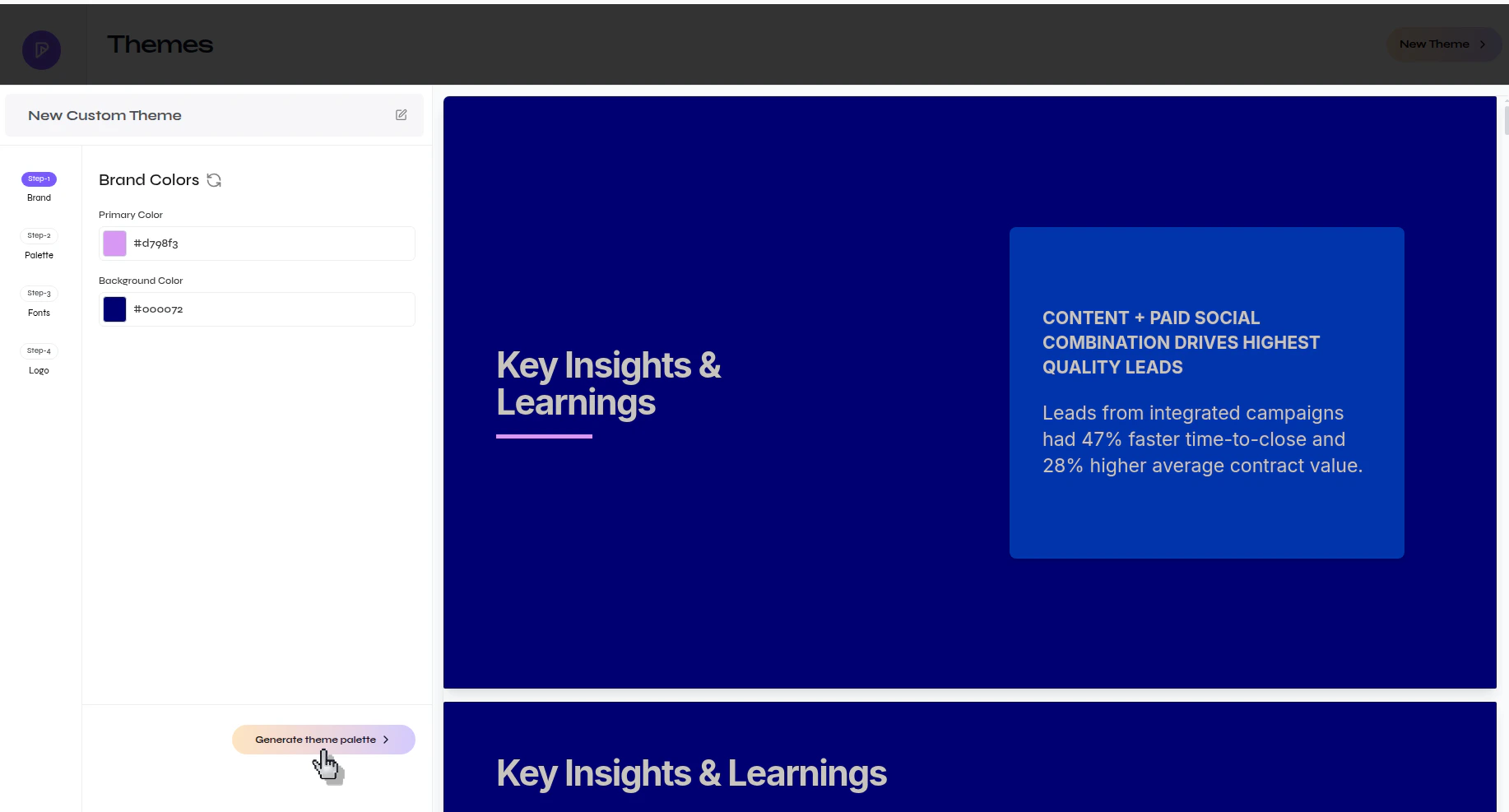
In the Brand Colors step, set your Primary Color and Background Color, then click Generate theme palette.
Presenton New Custom Theme flow on the Brand step with Primary Color and Background Color fields and a Generate theme palette button
Start with colors that already work well together in your brand. Presenton uses these inputs to generate the broader palette for cards, text, and chart accents.

Review and refine the generated palette

1

Check the generated palette values

Review the generated colors for background text, primary text, card color, and chart accents. Update any values that need adjustment.
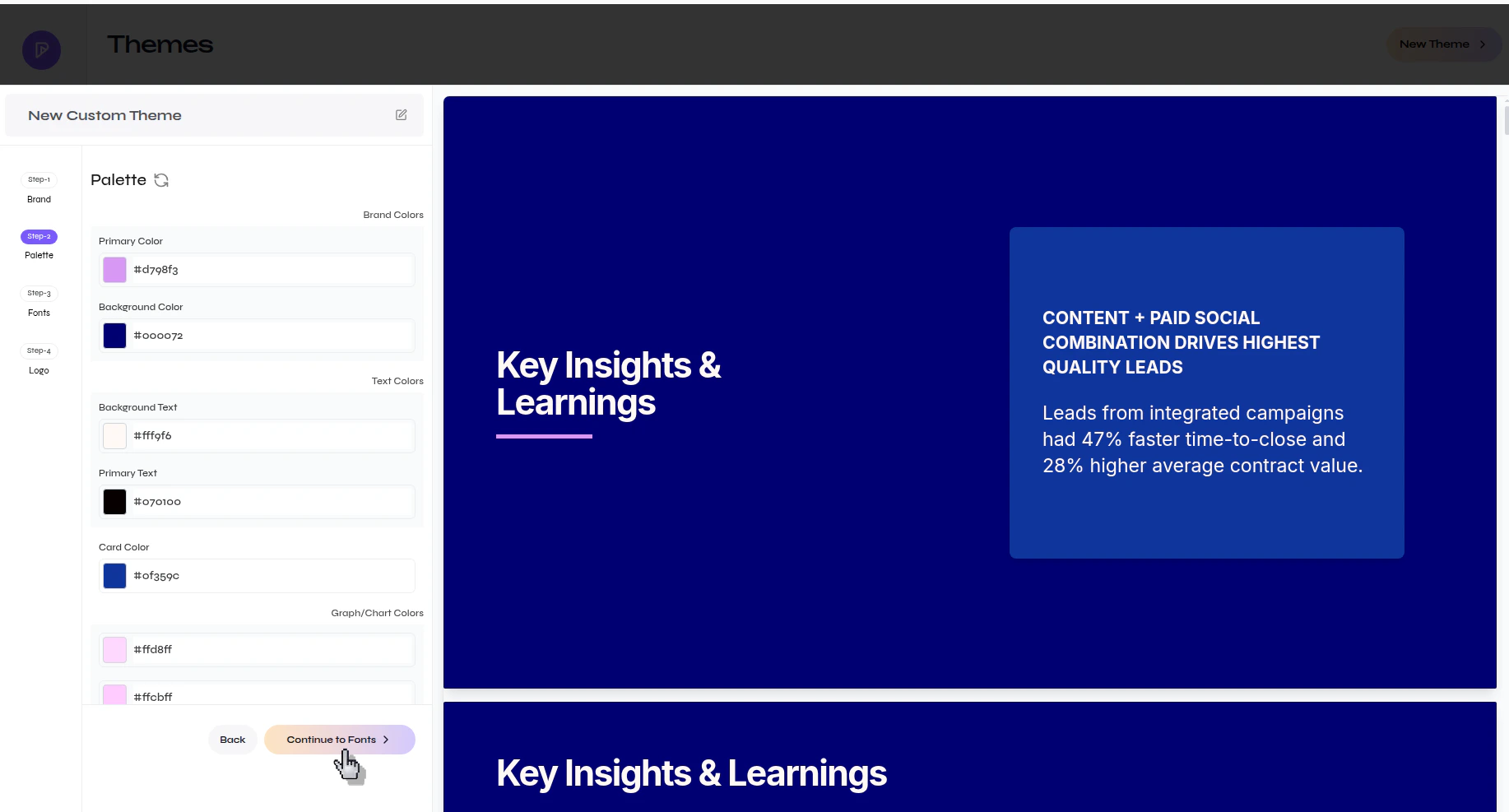
Presenton Palette step showing generated color values for text, cards, and graph or chart colors with a Continue to Fonts button
2

Continue to the font step

When the palette looks correct in the preview, click Continue to Fonts.
Use this step to catch contrast problems early. If the preview text becomes hard to read against the background, adjust the palette before continuing.

Choose the typography

1

Pick a preset font or upload a custom font

In the Typography step, either choose one of the preset fonts or upload your own font file.
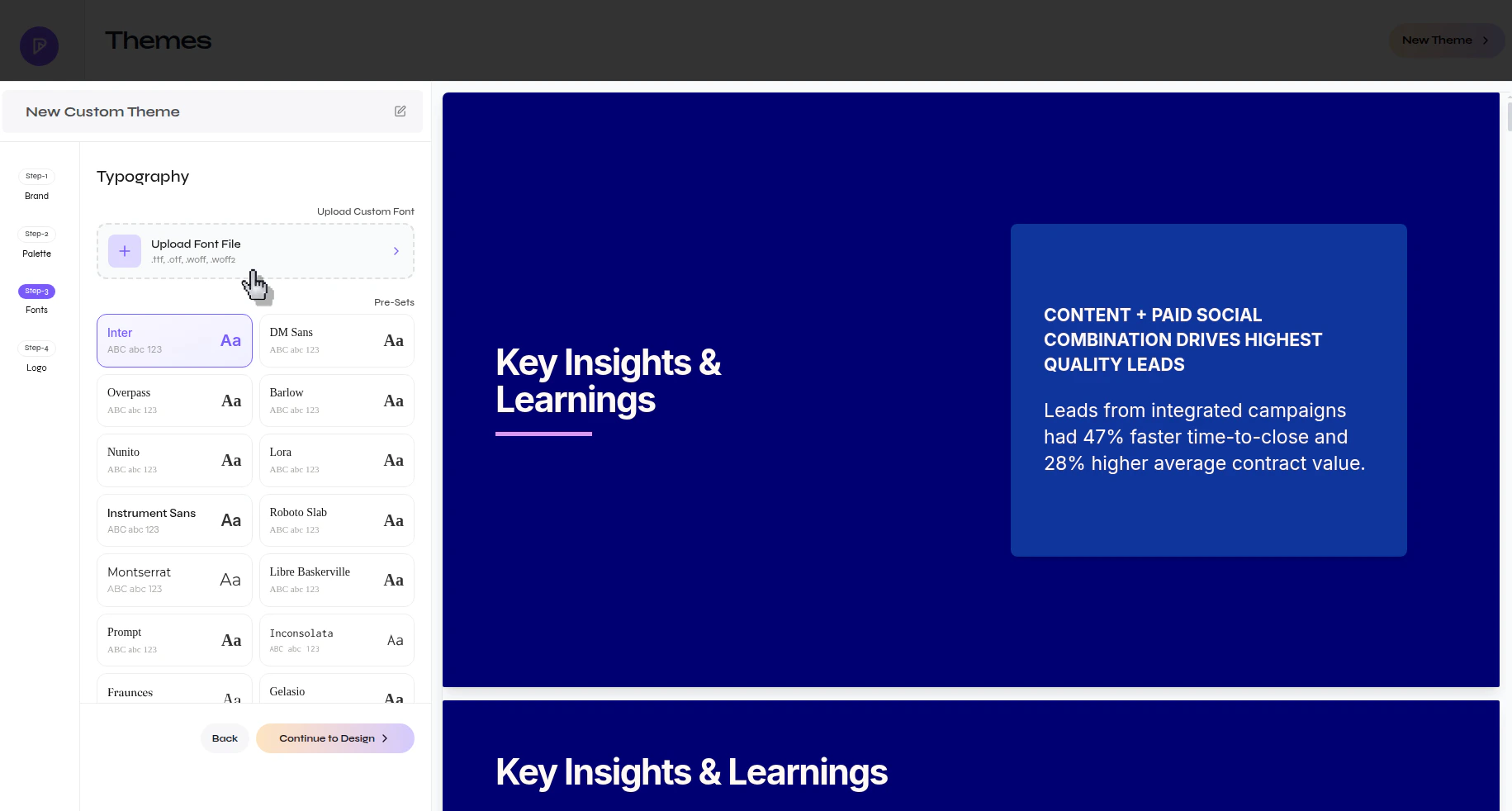
Presenton Typography step showing preset font options and an Upload Font File area for custom fonts
2

Continue after confirming the font choice

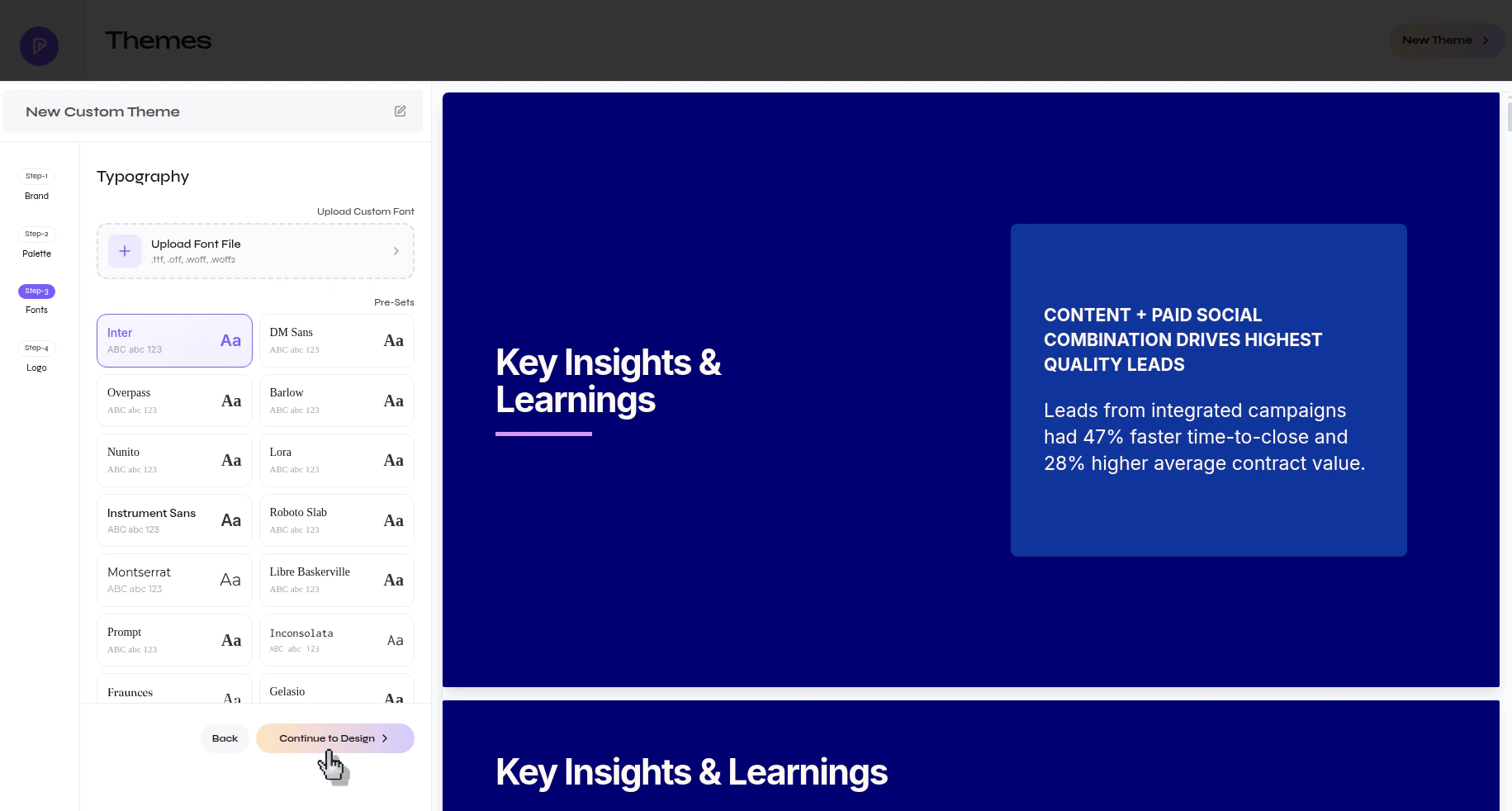
Review the live preview with your selected font, then click Continue to Design to move to the last step.
Presenton Typography step with a selected font and the Continue to Design button visible
If your brand depends on a specific typeface, upload the actual font file instead of choosing a visually similar preset.

Add branding details and save the theme

1

Enter the company name and upload the logo

In the final step, enter the Company Name and upload the Brand Logo if you want those elements to appear in the theme.
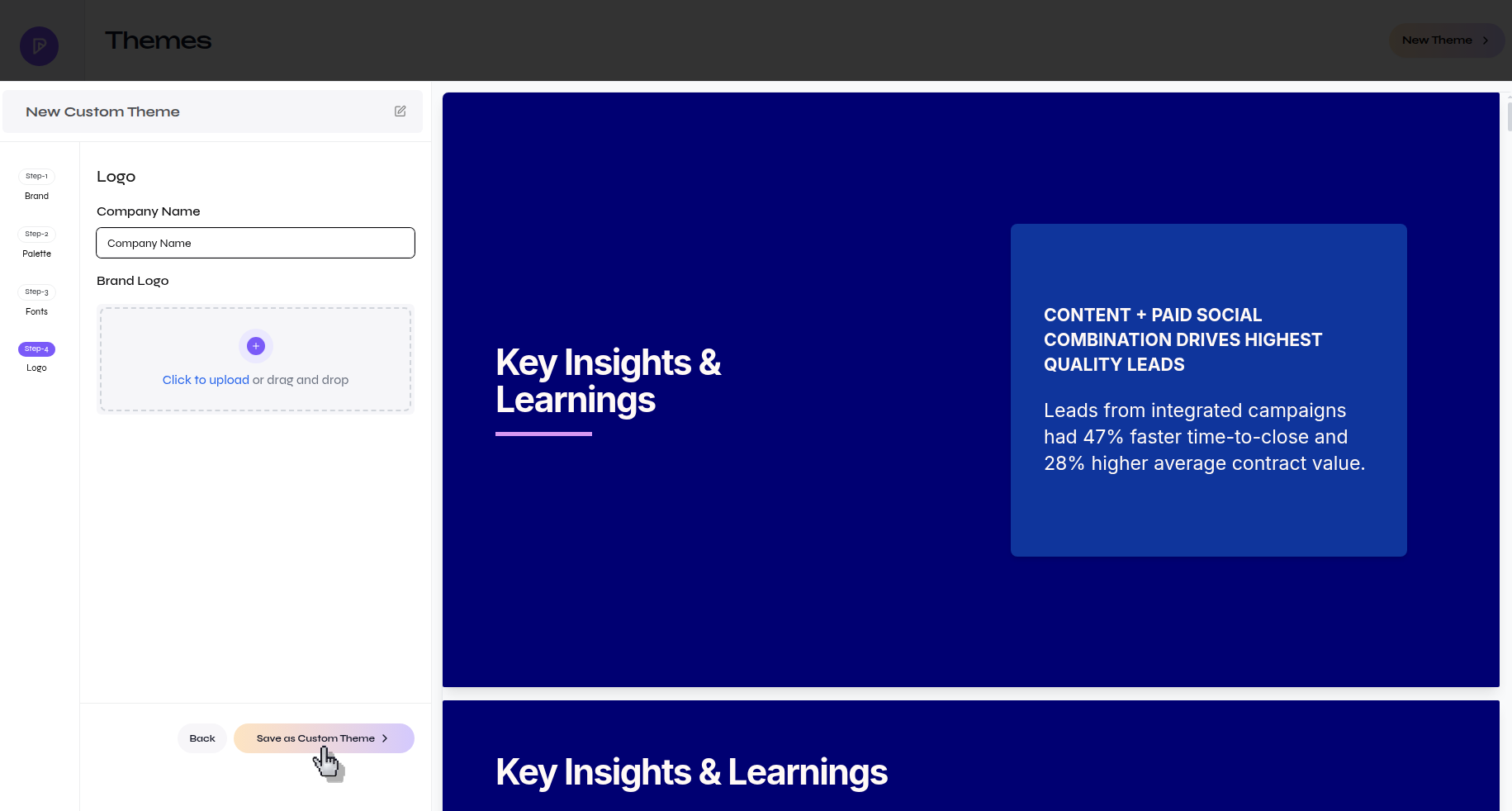

Presenton final theme step showing fields for Company Name and Brand Logo and the Save as Custom Theme button
2

Save the custom theme

Click Save as Custom Theme to create the new theme.
3

Confirm that the theme appears in your custom themes

After saving, return to the Themes page and verify that the new theme is listed under the Custom tab.
Presenton Themes page with the Custom tab selected and a newly created custom theme card visible

Apply the new theme to a presentation

1

Open the presentation editor and open the theme picker

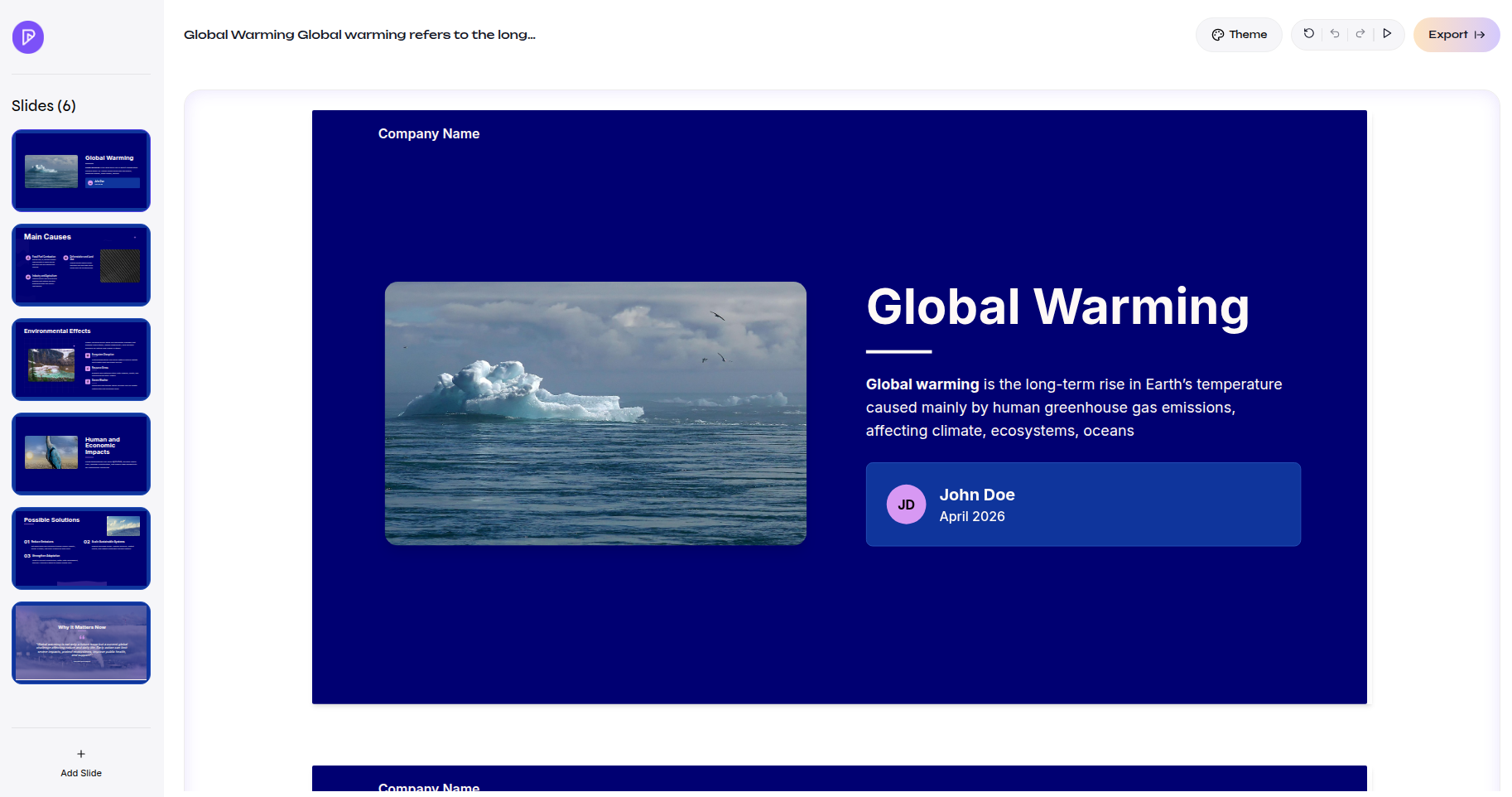
In the editor, click Theme in the top toolbar.
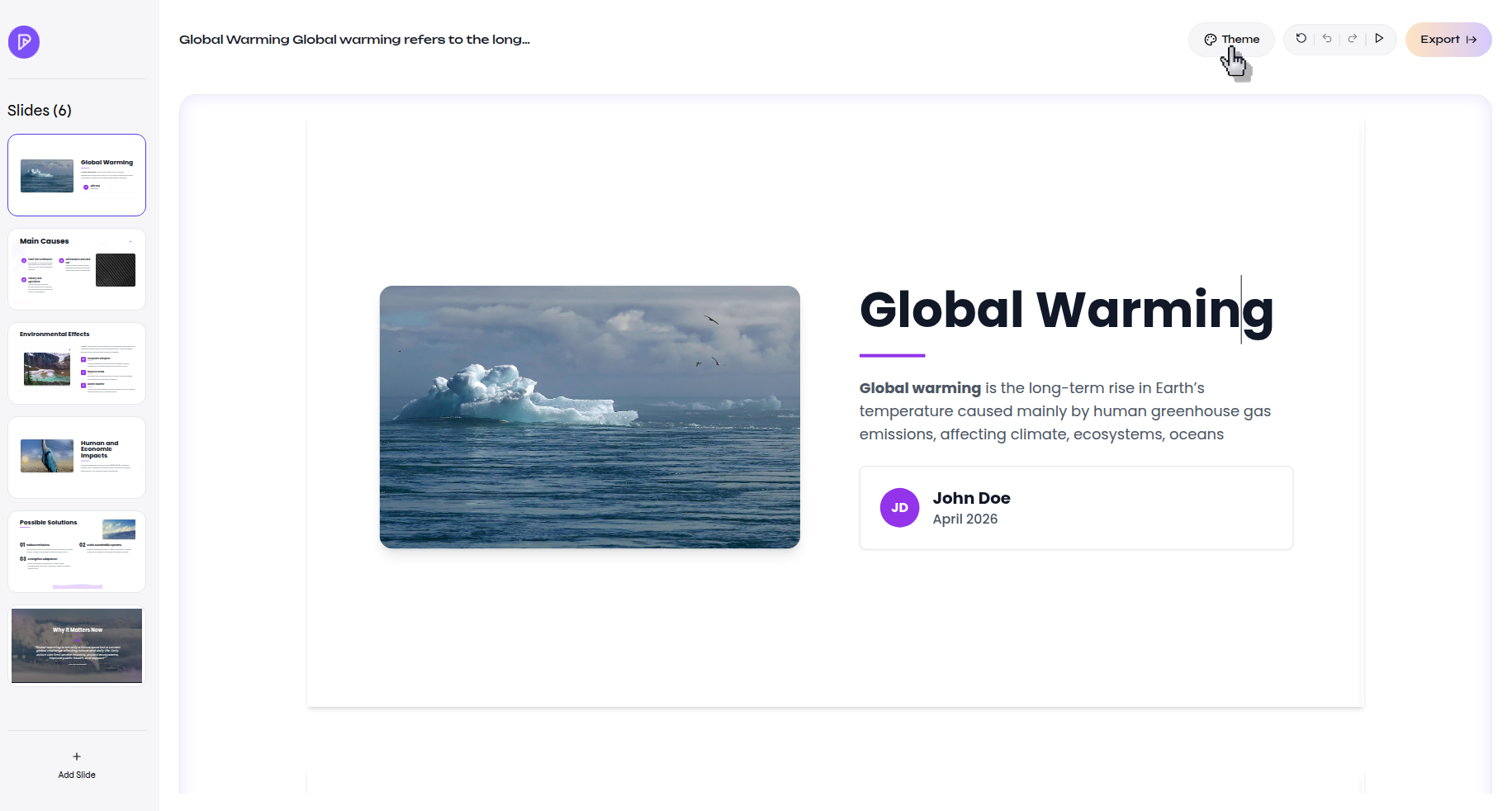
Presenton presentation editor with the Theme button highlighted in the top toolbar
2

Select the custom theme

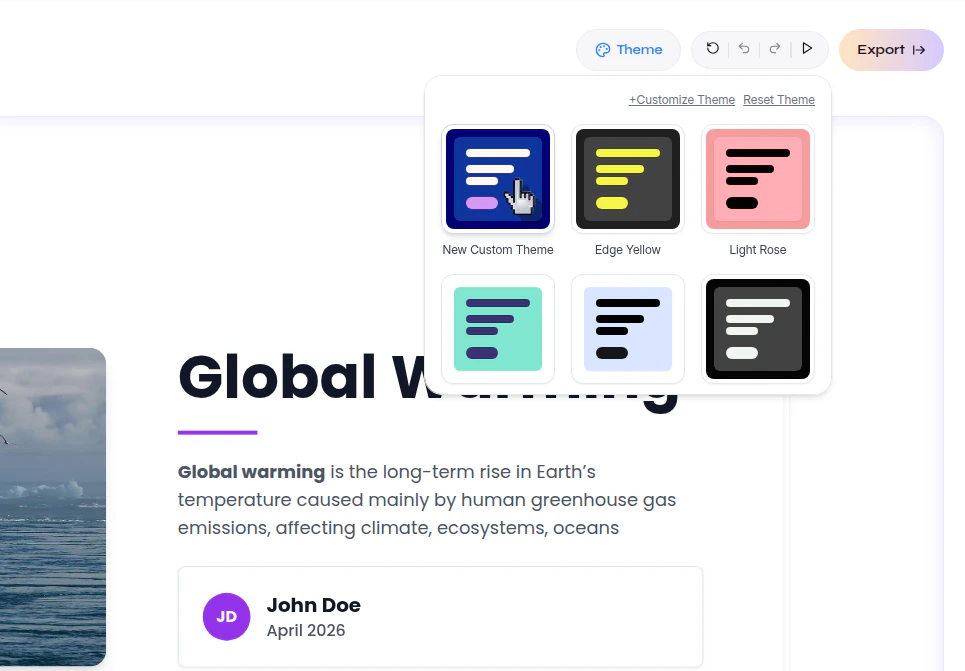
In the theme picker, choose the custom theme you created.
Presenton theme picker open in the presentation editor with the new custom theme visible among the available themes
3

Review the applied theme on the slides

Confirm that the presentation updates to the new colors, text styling, and branding.
Presenton presentation editor showing a presentation updated with the newly applied custom theme

Verify the result

The custom theme appears in your Themes list and can be applied from the editor’s theme picker to update the presentation styling.

Next steps

  • Apply the theme to a new presentation and check how it looks across multiple slide types.
  • Refine the colors or fonts if the presentation needs stronger contrast or different typography.
  • Create additional themes for different brands, clients, or presentation styles.