Get your Pixabay API key from the Pixabay API documentation when you need to connect Pixabay to Presenton or another image integration.

Before you start

  • Make sure you can sign in to your Pixabay account.
  • Use the account that should own the API access.
Treat the API key like a secret. Do not share it publicly or include it in unsecured documents or screenshots.

Get a Pixabay API key

1

Open Pixabay and sign in

On the Pixabay website, click Log in and sign in to your account if you are not already logged in.
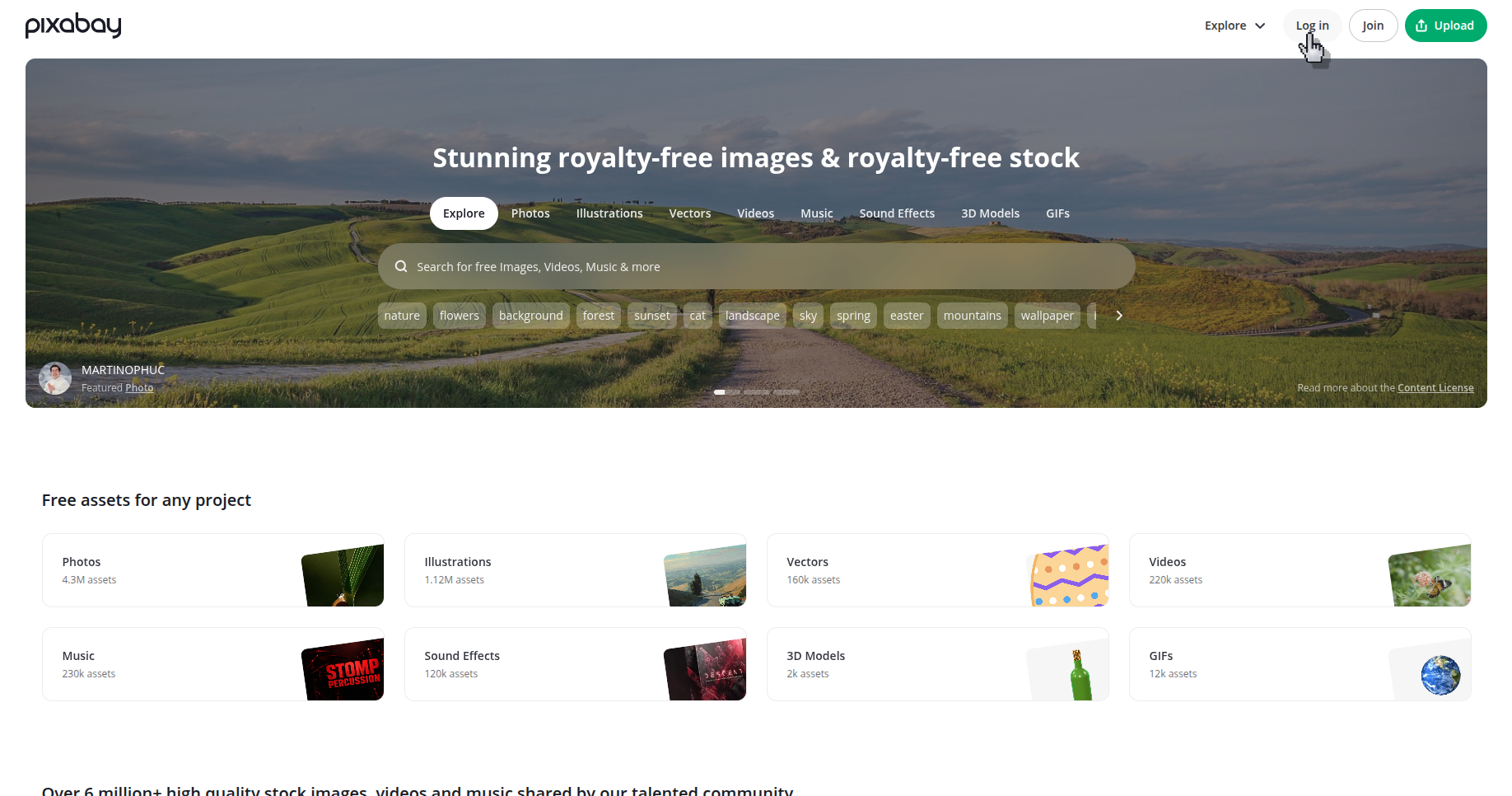
Pixabay home page with the Log in button visible in the top-right corner
2

Open the Pixabay API page

After signing in, click on Explore and open the site navigation menu and select API.
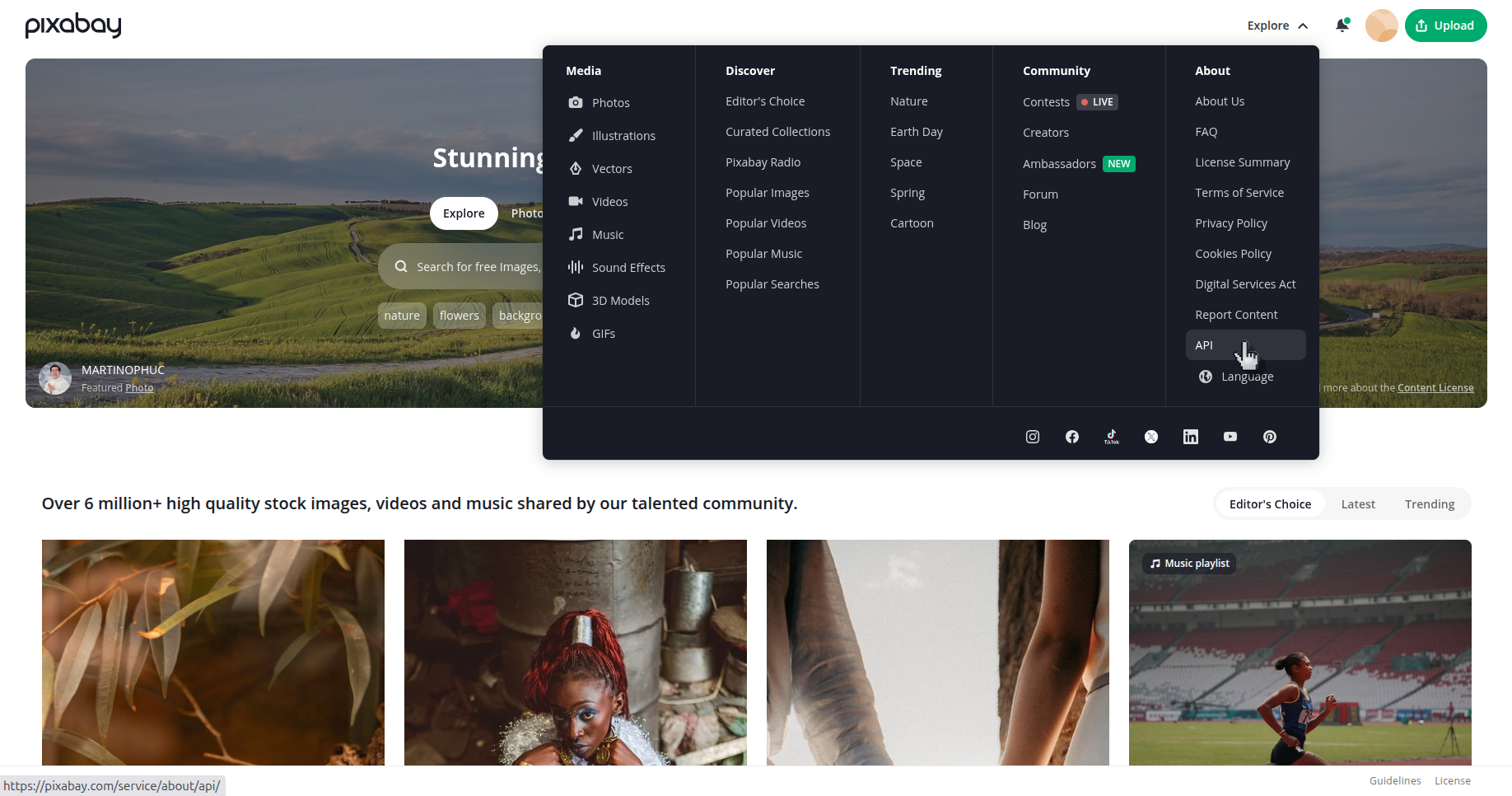
Pixabay navigation menu open with the API link visible in the About column
3

Open the API documentation

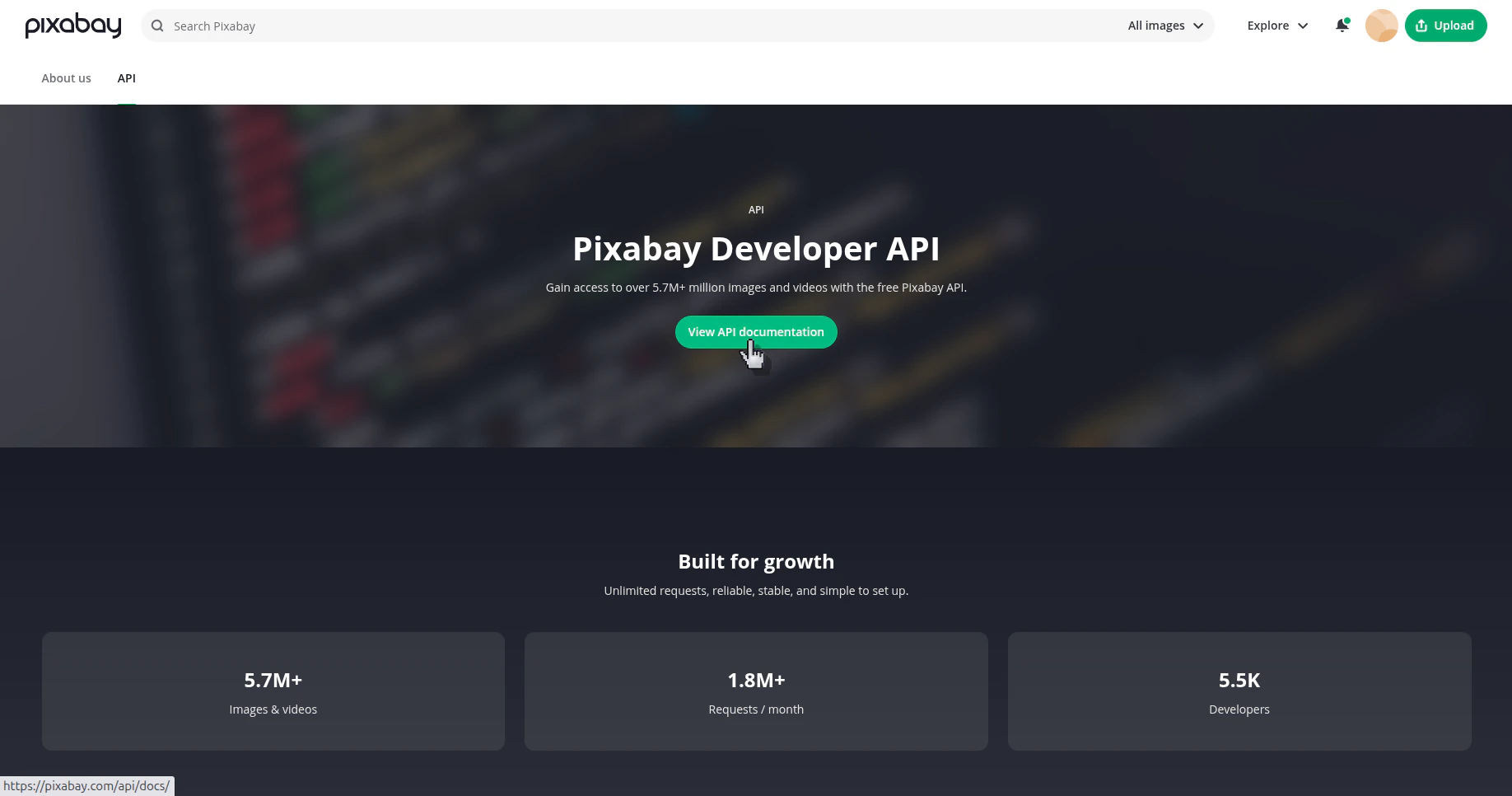
On the Pixabay Developer API page, click View API documentation.
Pixabay Developer API page with the View API documentation button visible
4

Scroll to the API reference and find the key parameter

In the documentation page, scroll down to the API reference section, then look for the Search Images endpoint and the required key parameter.
Pixabay API documentation scrolled to the Search Images reference showing the required key parameter and API key value
The API key reference is not at the top of the documentation page. You need to scroll down to the API reference area to reach the key field.

Verify the result

You can locate your Pixabay API key in the API documentation reference and use it where the integration asks for the key value.