

Before you start
You can start with just a topic, or add files and instructions if you want the generated slides to follow source material more closely.
Create a presentation
Enter your presentation topic/prompt
In the Content field, describe what the presentation should cover.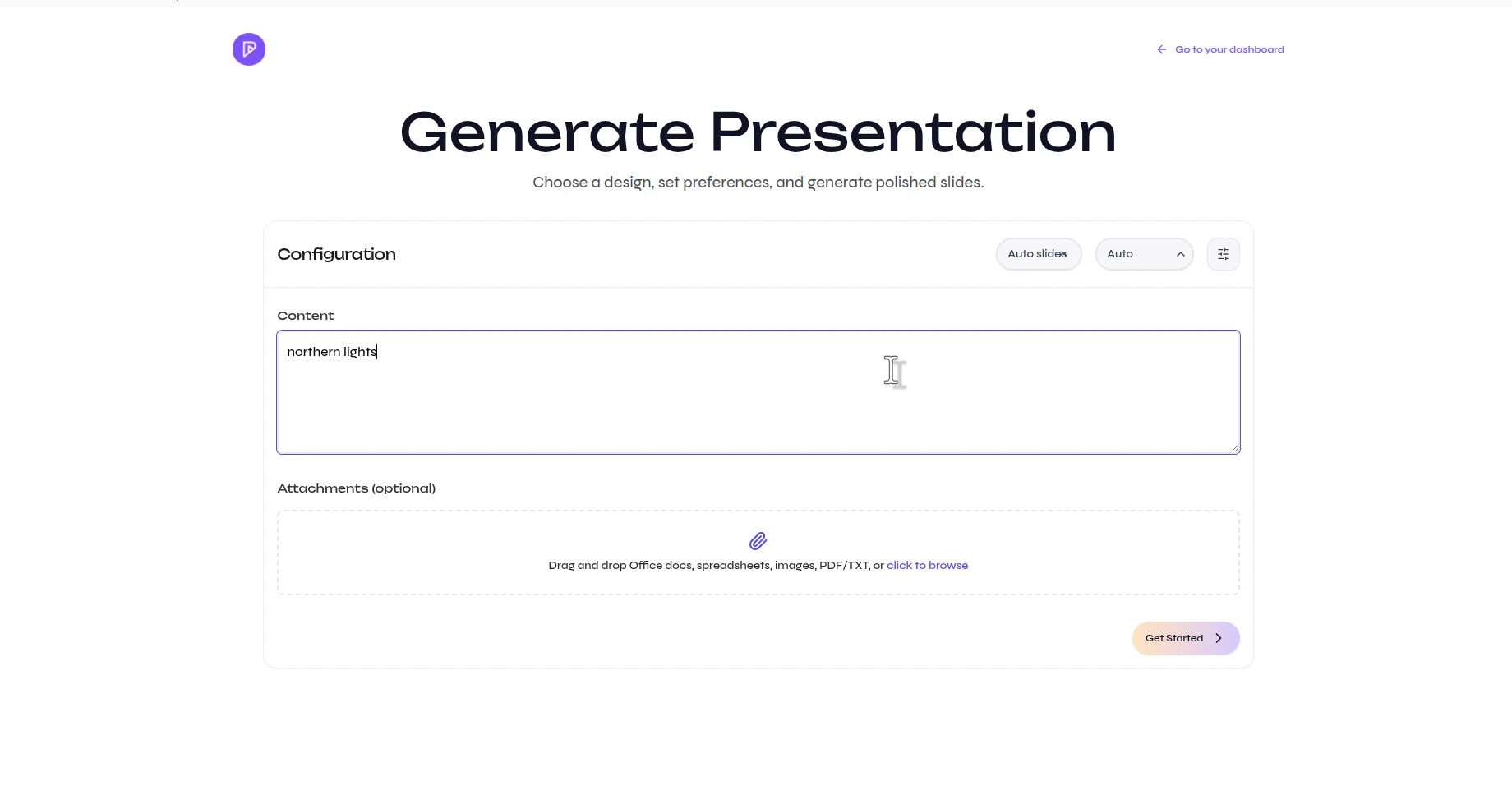
Choose how many slides to generate (Optional)
Open the slide count menu and select the number of slides you want in the presentation.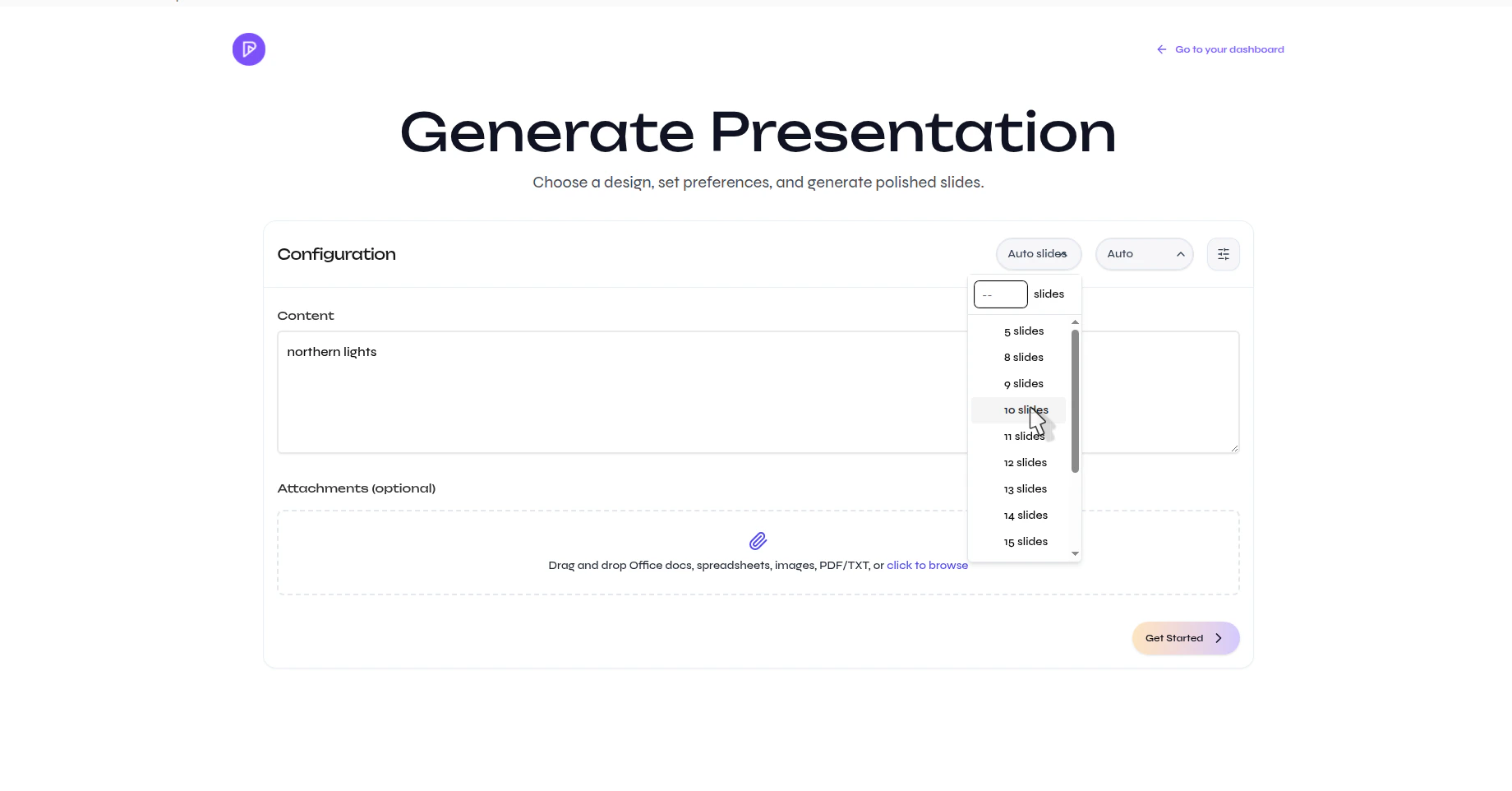
Choose the output language (Optional)
Open the language menu and select the language the presentation should use.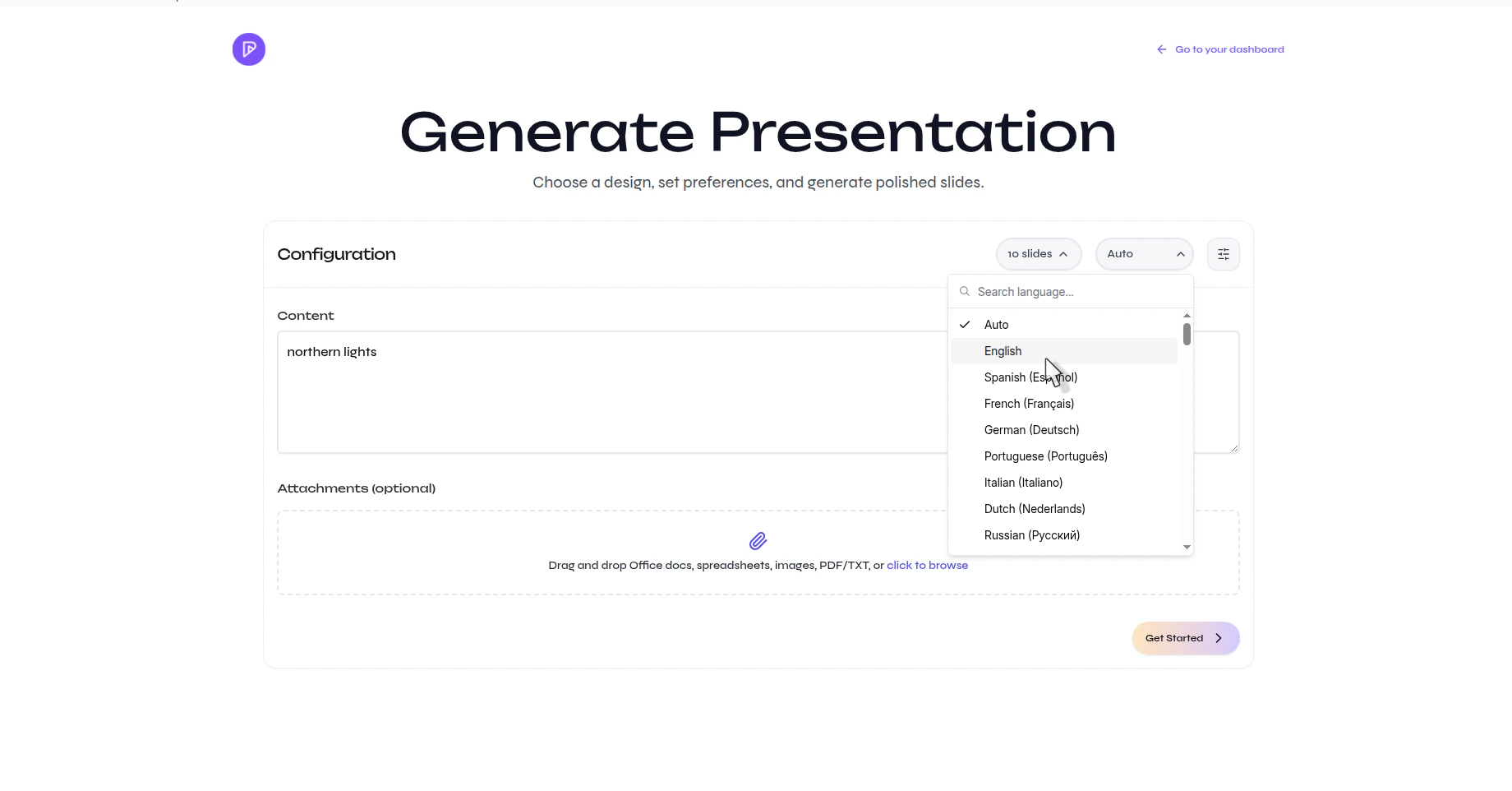
Adjust advanced settings if needed (Optional)
Select the settings icon to open Advanced settings, then update options such as tone, verbosity, table of contents, title slide, web search, or extra instructions.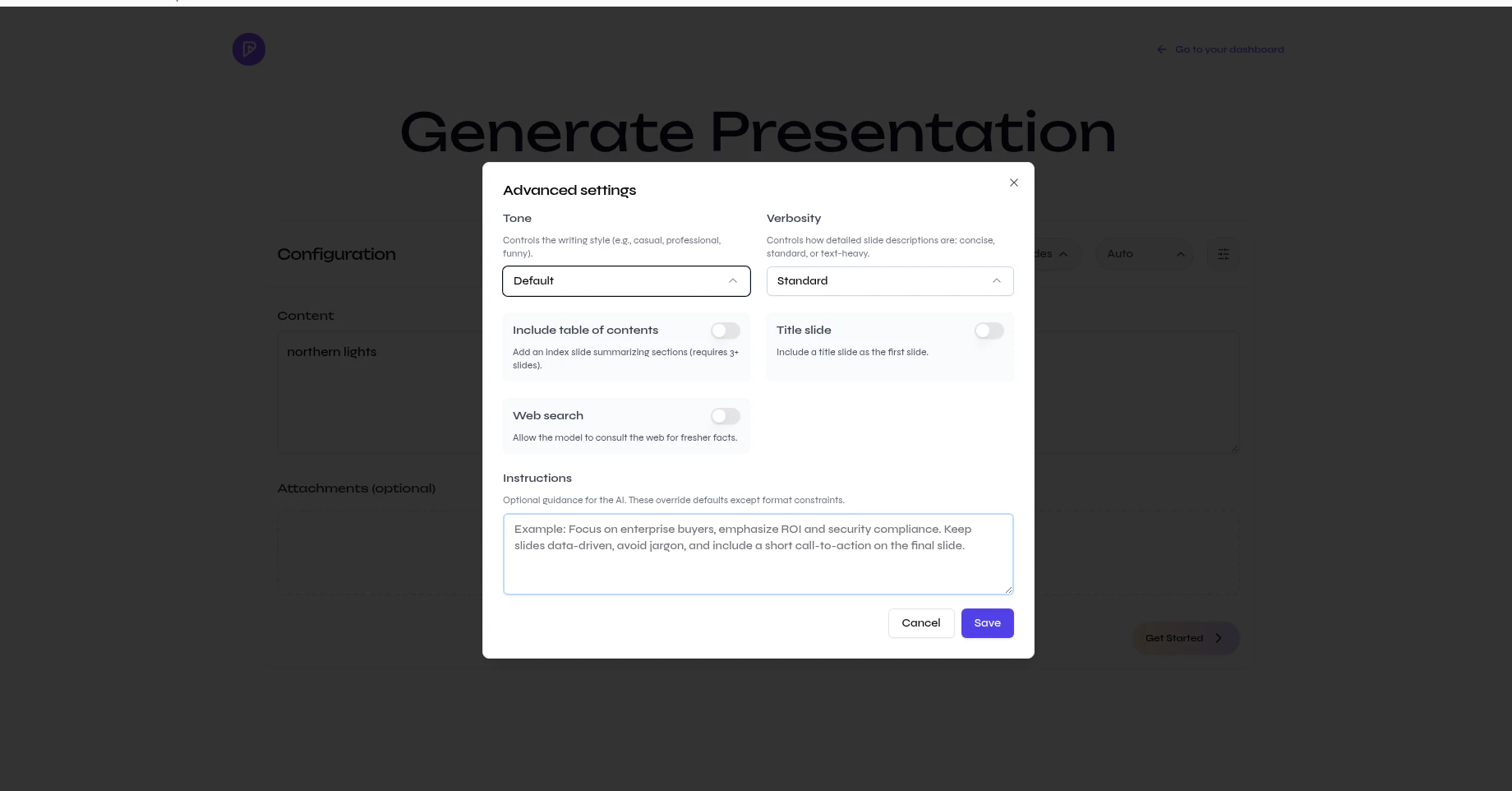
Add source files if you want to guide the content (optional)
In Attachments (optional), drag files into the upload area or browse for them manually.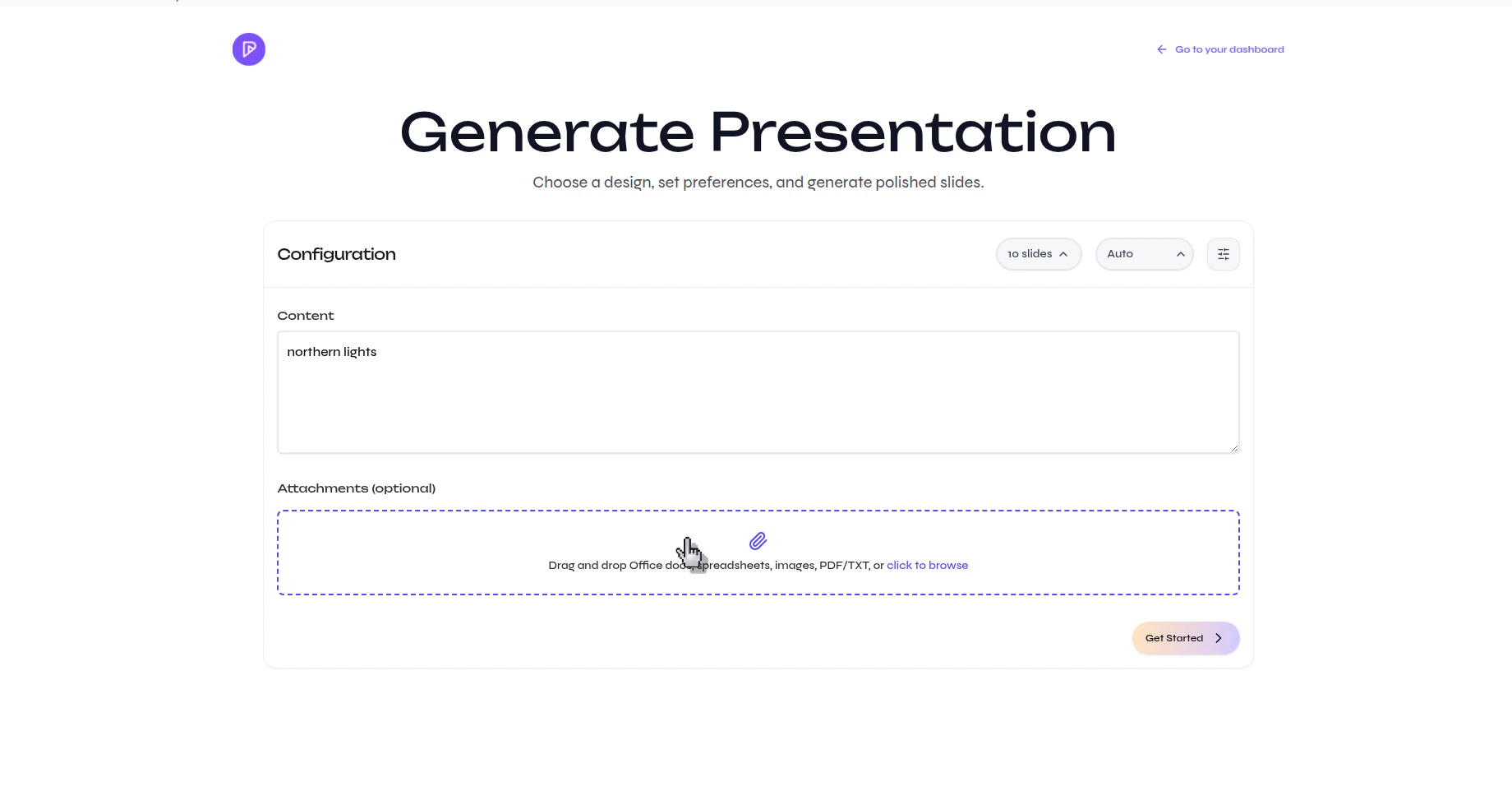
Generate the presentation outline
Click Get Started. Presenton generates the outline and slide content for the presentation.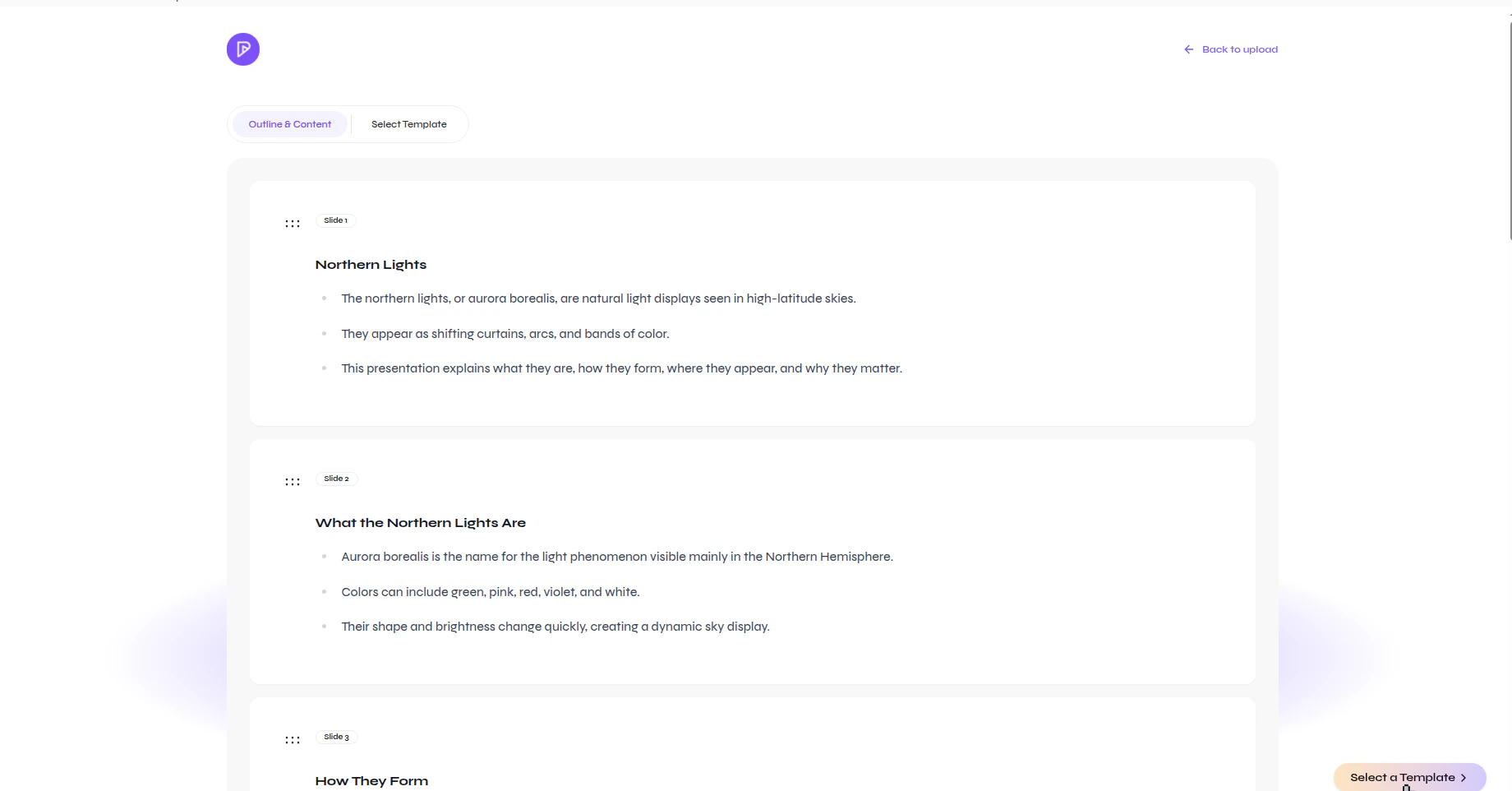
Open the template gallery
Select Select Template to switch from the outline view to the available presentation templates.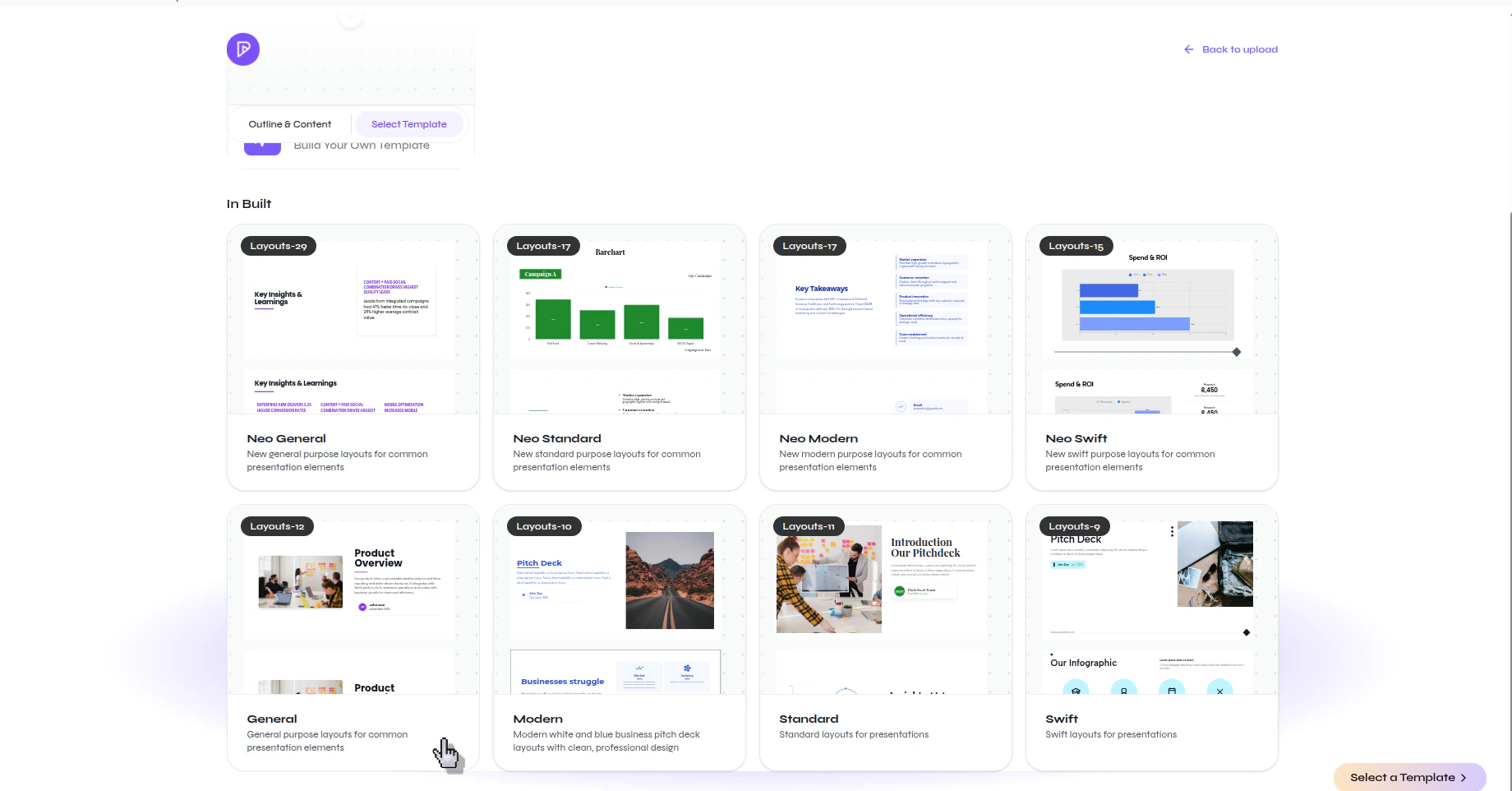
Confirm to generate presentation
Review the available templates, then click **Generate Presentation **to apply the design you want.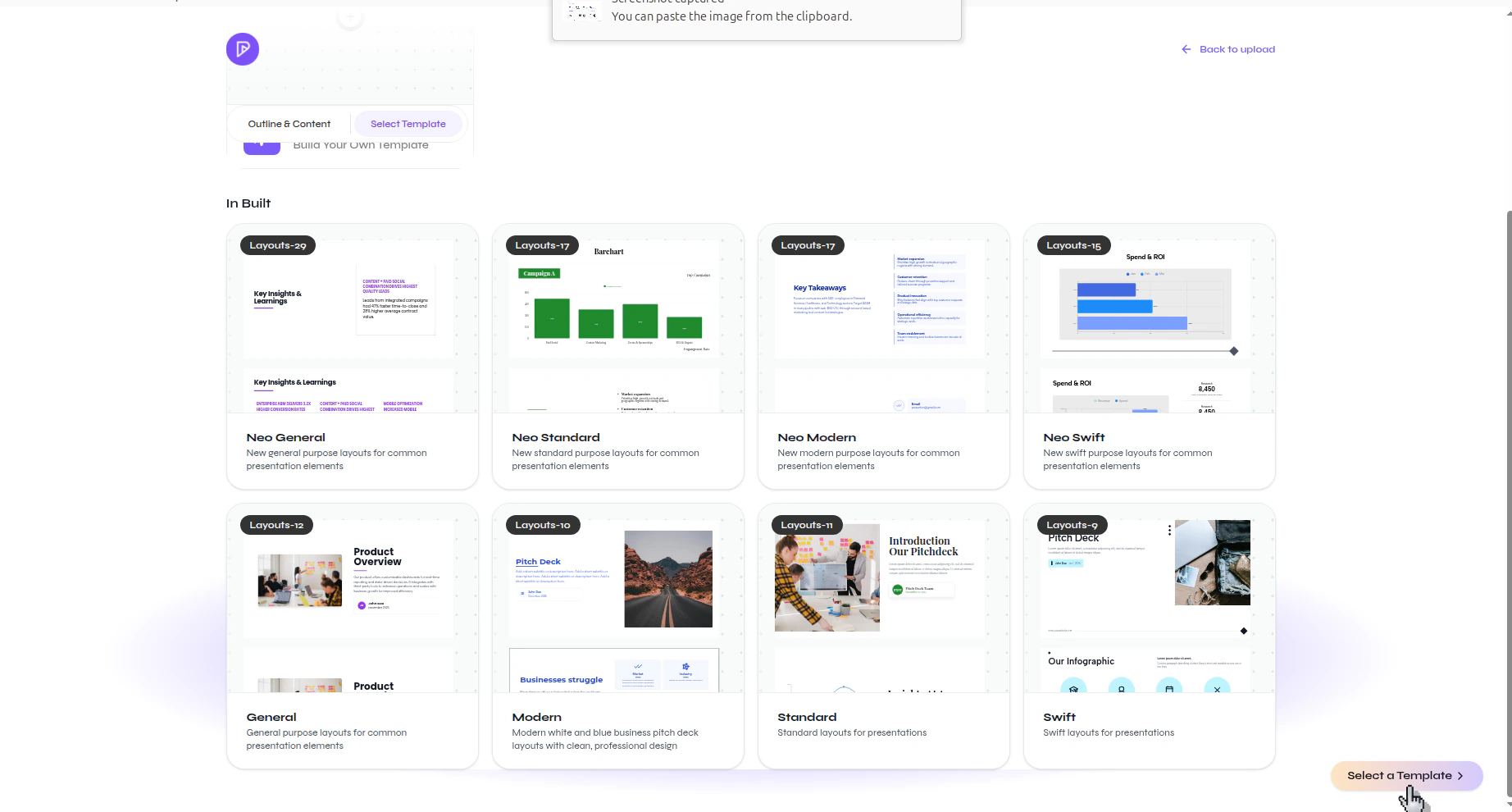
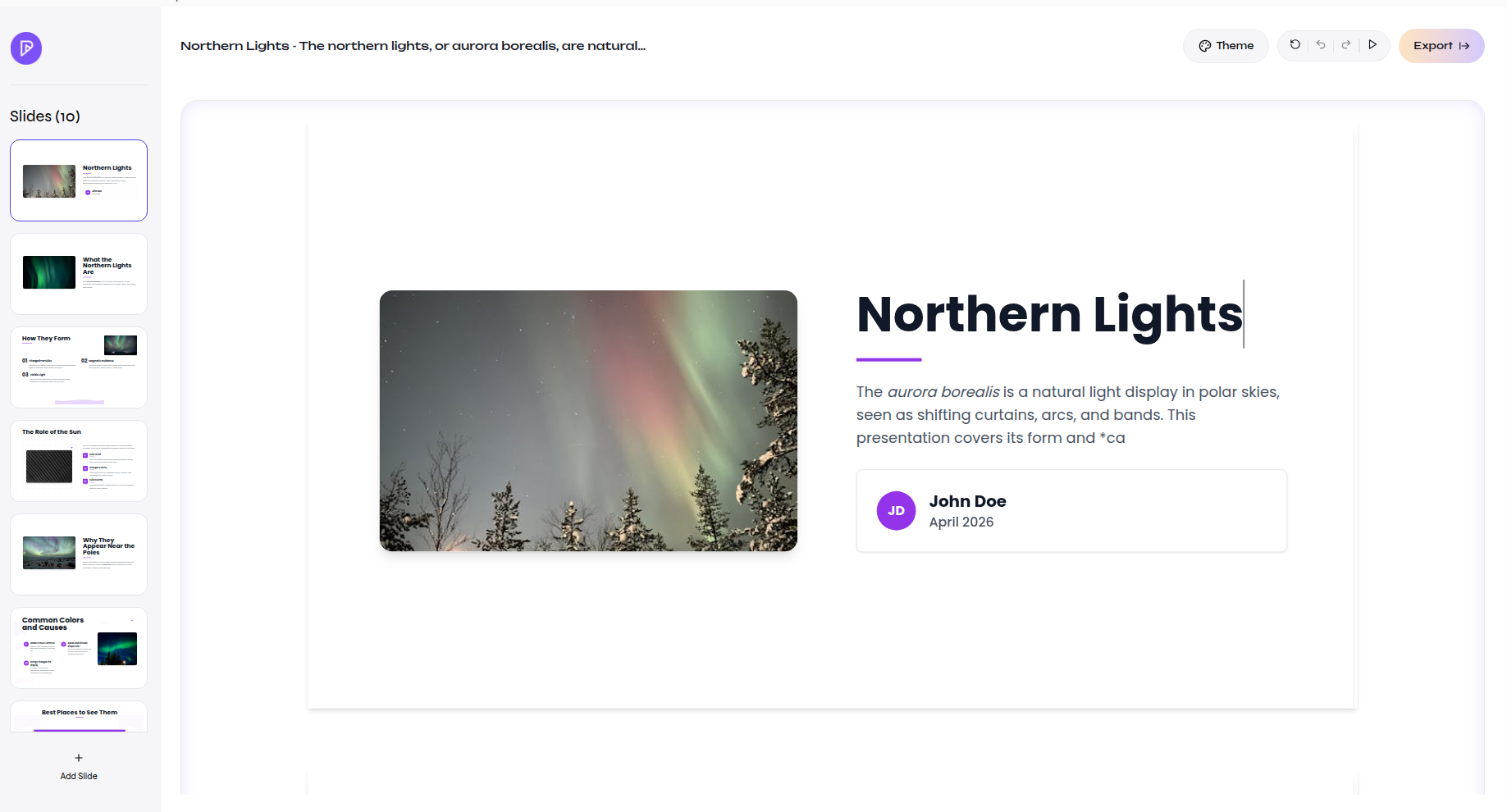
Verify the result
Your new presentation opens in the editor with generated slides, a selected design, and the slide list visible on the left.