Configure a custom theme
1
Name the brand
Add the brand or company information used to identify the saved theme.
2
Build the palette
Set background, card, primary, text, stroke, and graph colors. Use the palette generator where available, then inspect the preview rather than accepting colors blindly.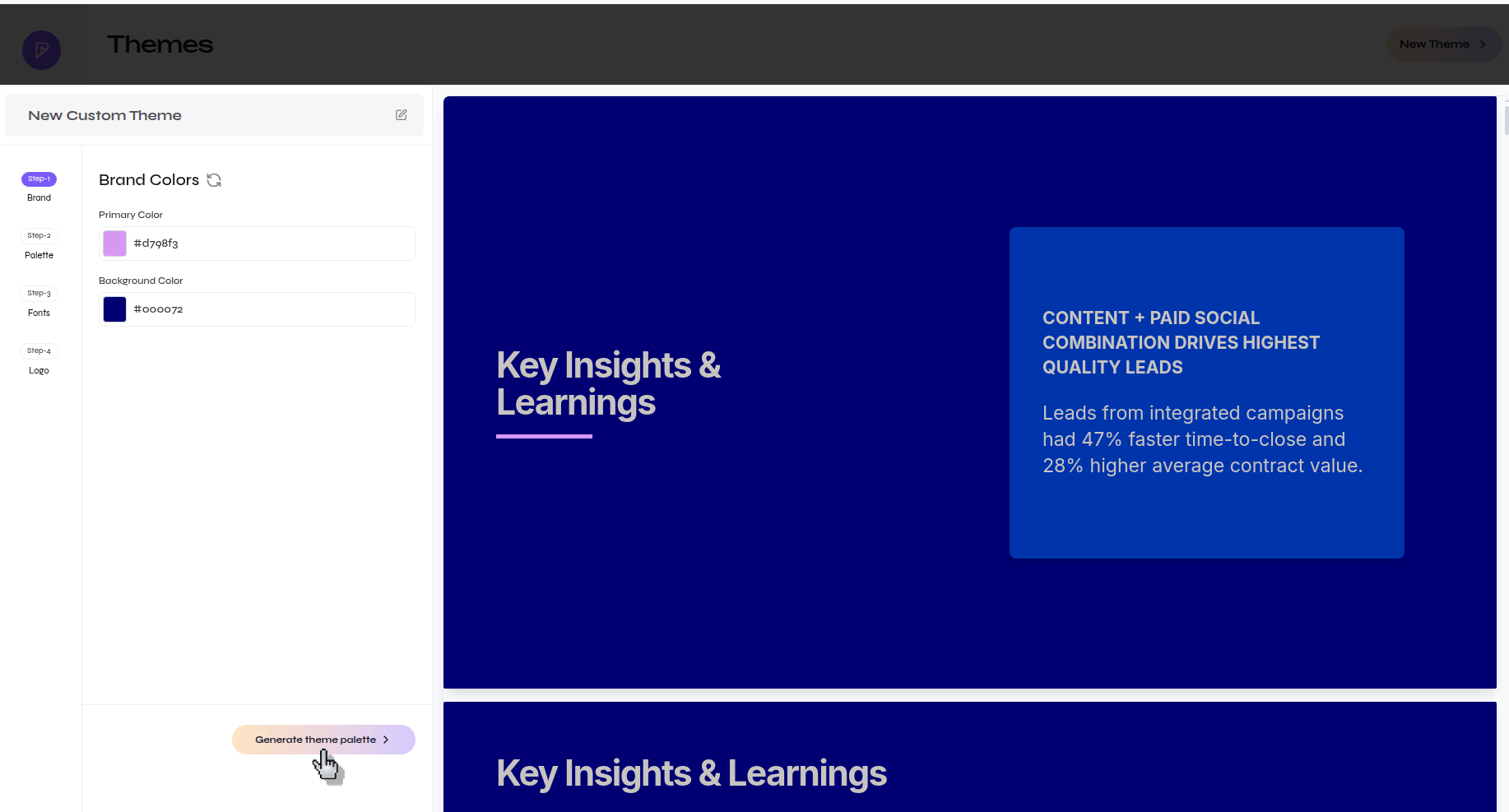
Generate and refine a brand palette
3
Choose or upload fonts
Select readable heading and body fonts. Upload a custom font when supported and confirm it loads before continuing.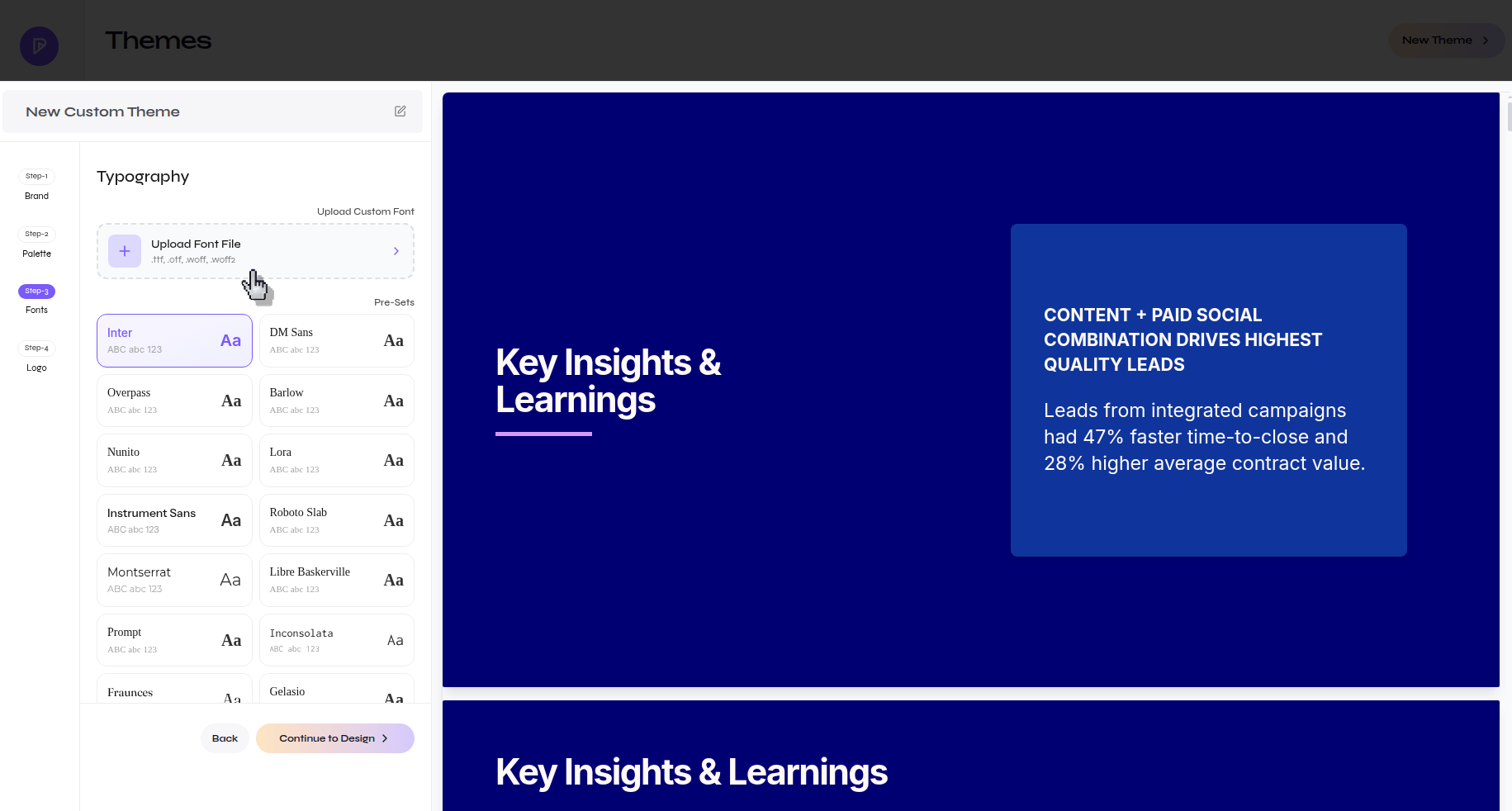
Upload a custom font for the theme
4
Add the logo and save
Upload a supported logo, inspect its contrast and spacing in the preview, then save the theme.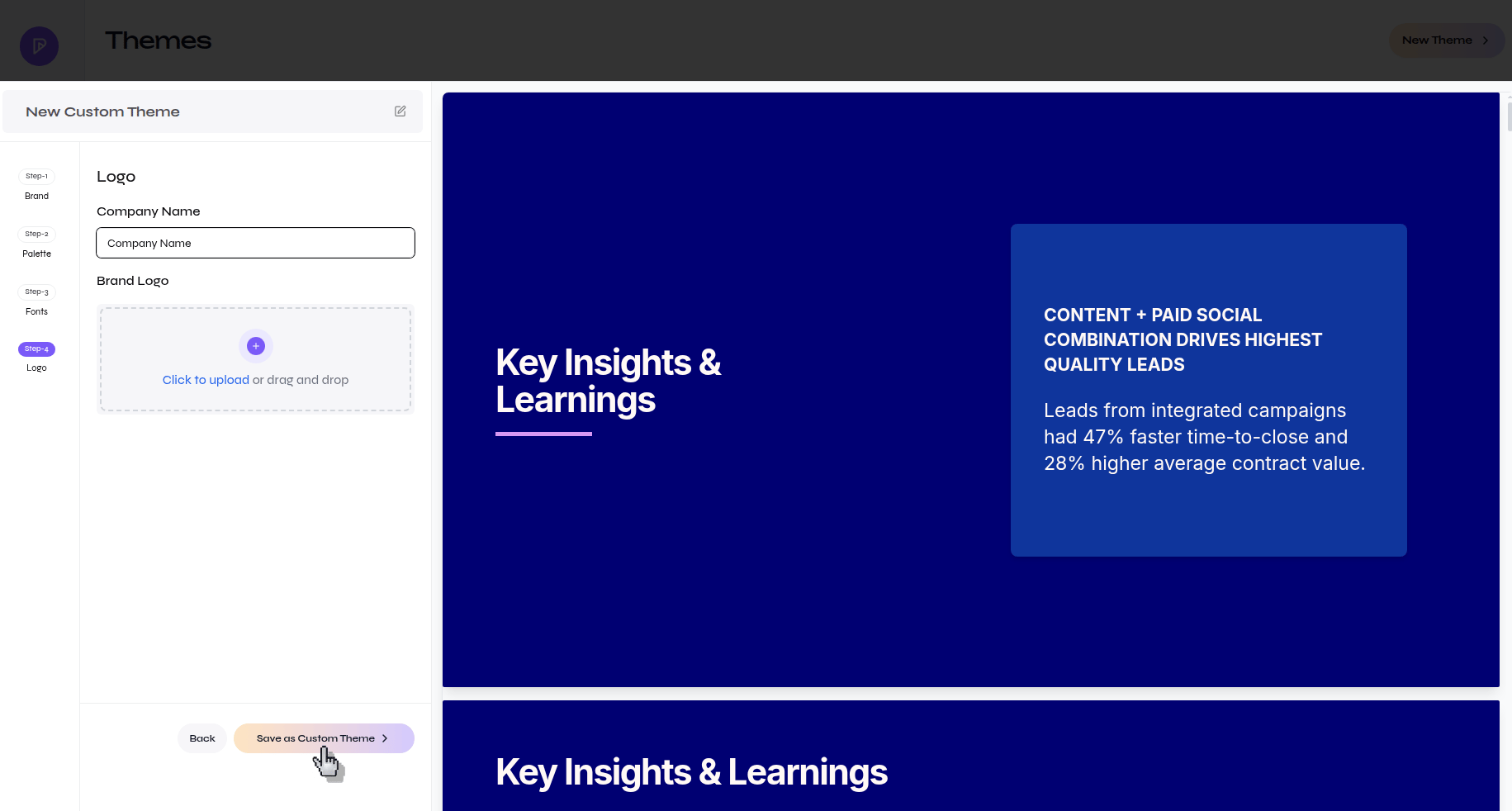
Logo step before saving a custom theme
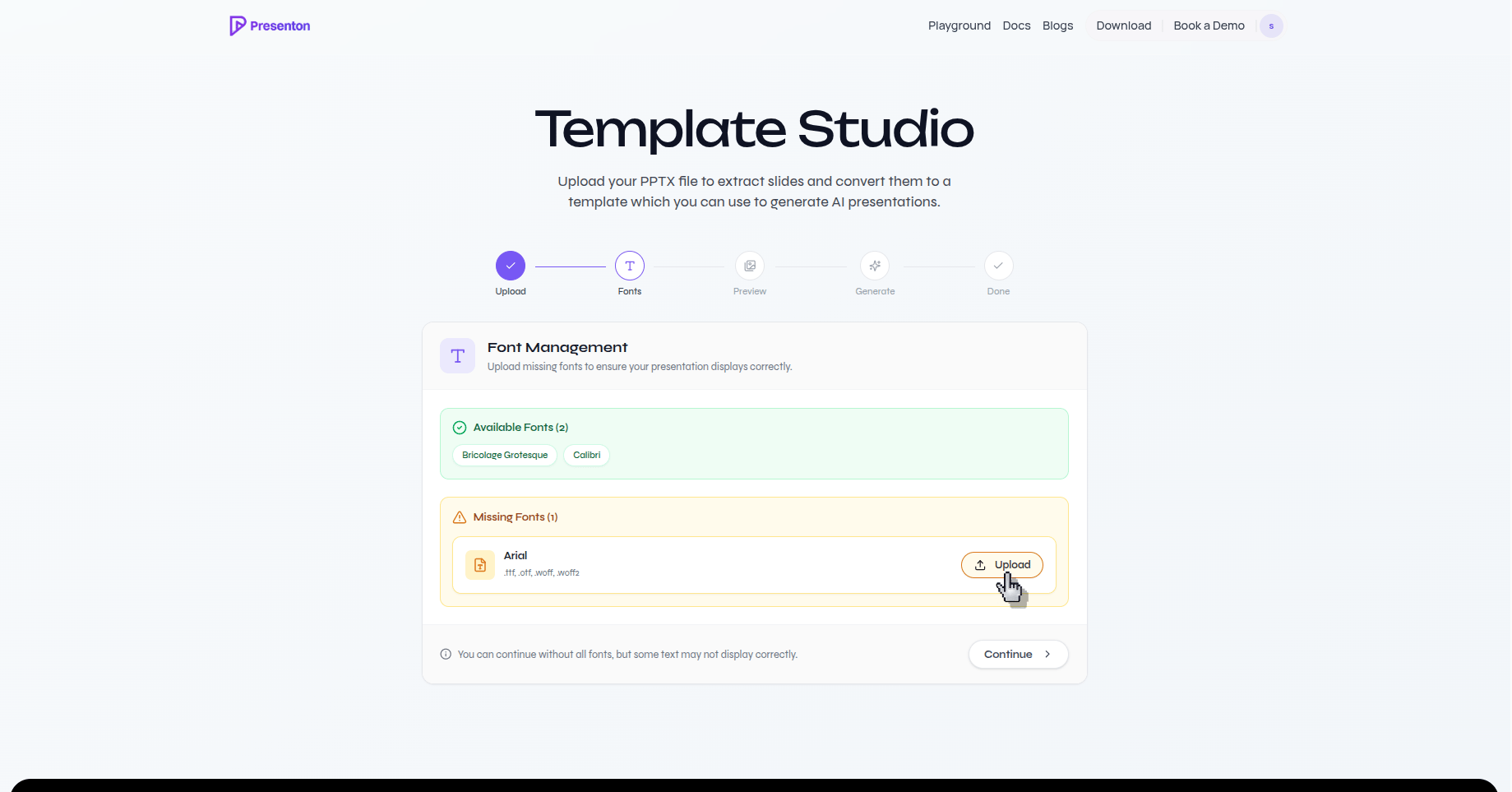
Resolve template fonts
When creating a custom template from PPTX, Presenton detects the fonts referenced by the source file. Upload missing font files before generating layouts so the preview, schemas, and final exports are based on correct text metrics.Resolve a missing template font