

Provider availability
The current self-hosted provider configuration includes stock providers such as Pexels and Pixabay, generated-image providers such as DALL-E 3, GPT Image 1.5, Gemini Flash, and NanoBanana Pro, and configurable options such as ComfyUI, Open WebUI, or a custom OpenAI-compatible image endpoint. Only use providers that are enabled in your product or deployment.
The provider setup differs, but image editing in the Standard presentation editor is shared.
- Cloud
- Open-source
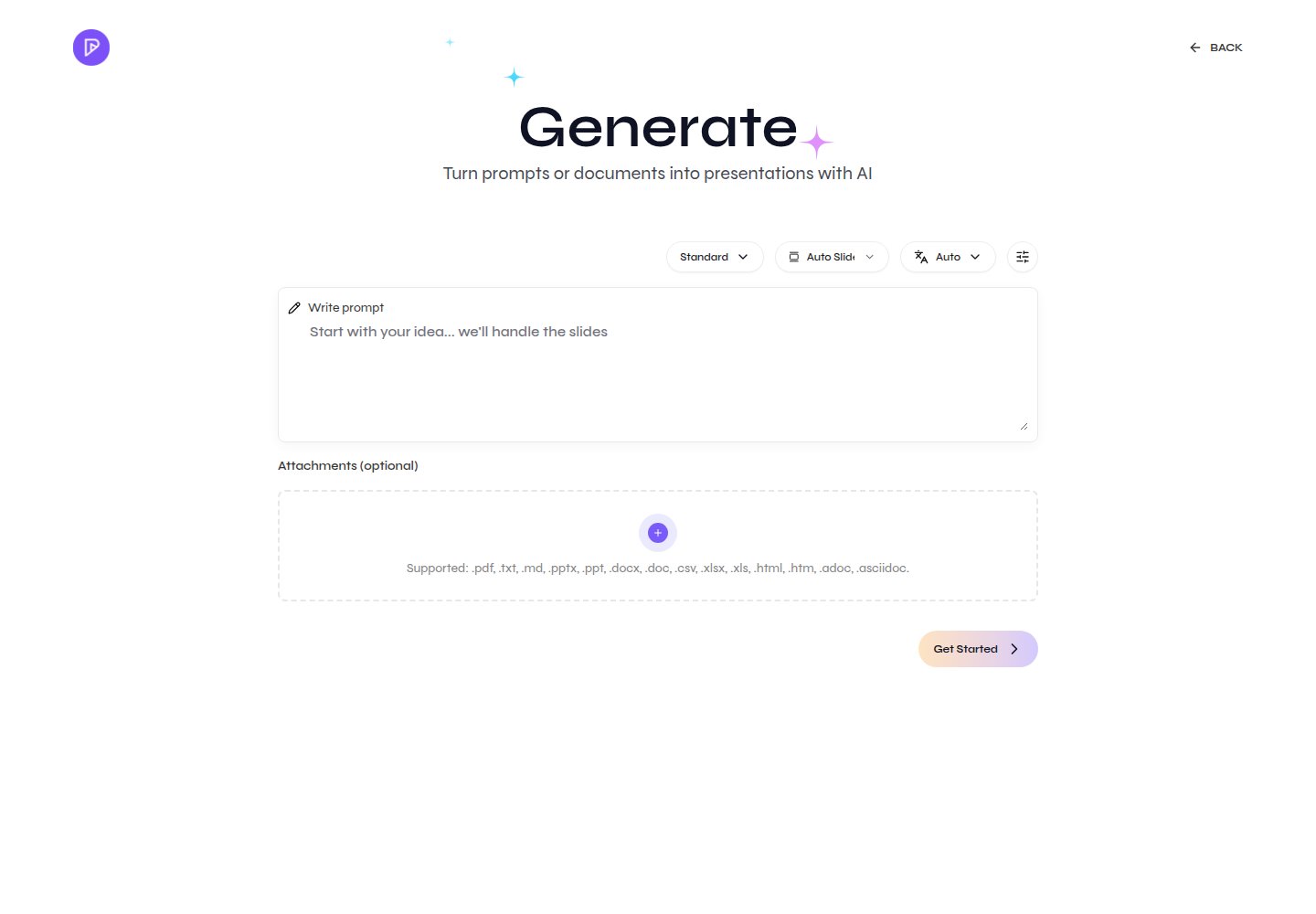
Add an image file as source material
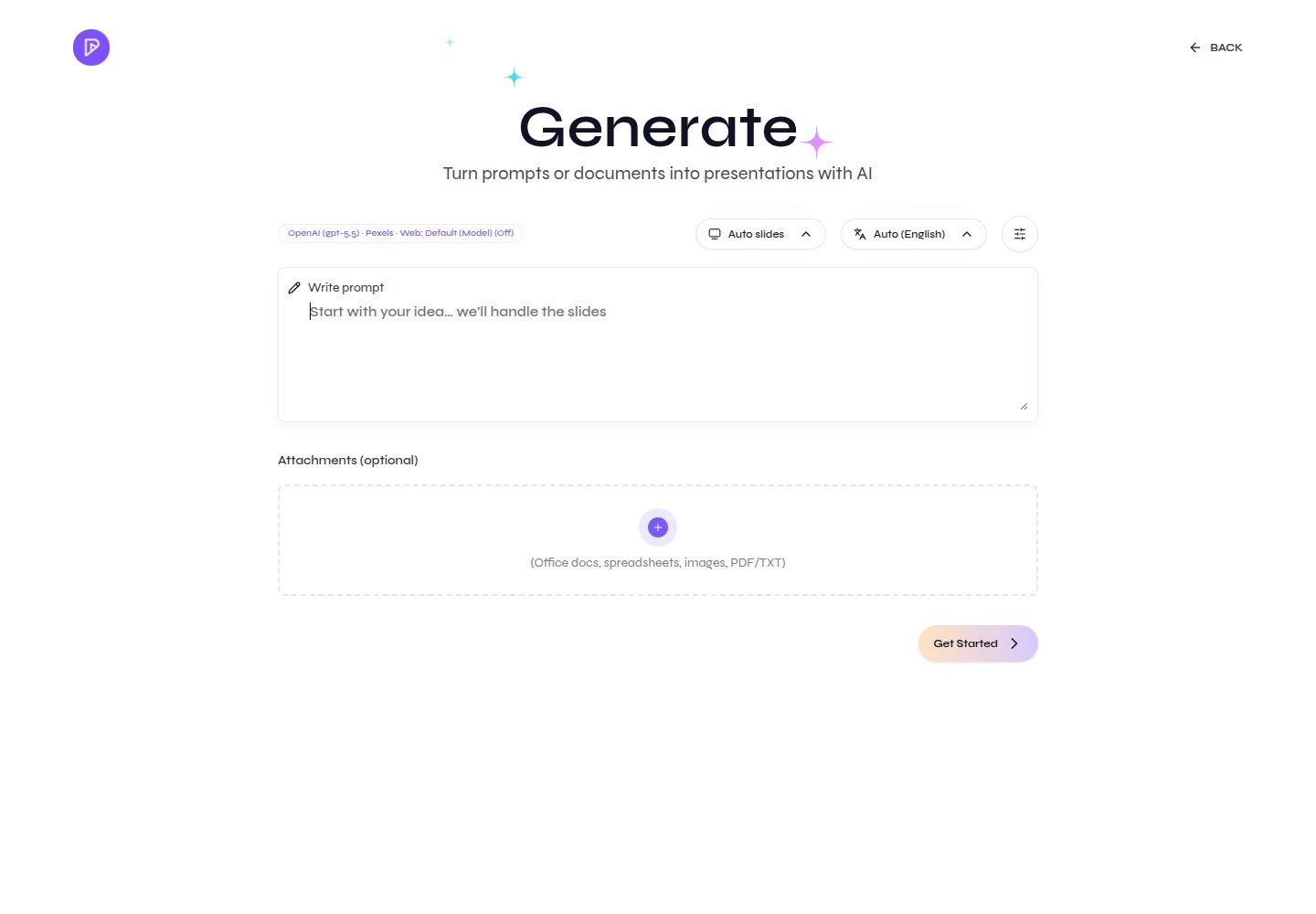
Edit images and icons
Enable Select Edit, then select the image or icon. Select the image again to open Update Image. The panel has three tabs:- Stock search or AI Generate: search Pexels/Pixabay when a stock provider is configured, or describe an image for the configured image-generation provider. Generated-image history can be available when stock search is not active.
- Upload: upload an image, choose it from the uploaded-image library, or delete an uploaded asset. The current editor upload limit is 5 MB per image.
- Edit: replace the image and choose Fill, Contain, or Stretch. Use Focus point to control which part remains visible when the image is fitted or cropped.
Configure image providers
Review provider, credential, endpoint, and image-generation settings for a self-hosted deployment.
Choose the right visual
Always check relevance, cropping, legibility, source rights, and exported fidelity.