

Turn a branded PowerPoint presentation into a reusable template
What a branded template preserves
A well-prepared custom template helps generated presentations reuse:- Branded slide layouts and composition
- Typography and text hierarchy
- Image, chart, table, and content regions
- Repeated visual elements and spacing
- Layouts for titles, sections, content, data, and closing slides
Prepare the source PowerPoint
Upload a filled.pptx that represents the brand and includes the slide types you want Presenton to reuse.
- Include real sample content instead of empty placeholders.
- Add one or more distinct examples of each required layout type.
- Remove obsolete, confidential, and duplicate slides.
- Keep custom font files available for upload.
- Check that logos, images, and other brand assets are clear and correctly positioned.
Create the branded template
1
Open Template Studio
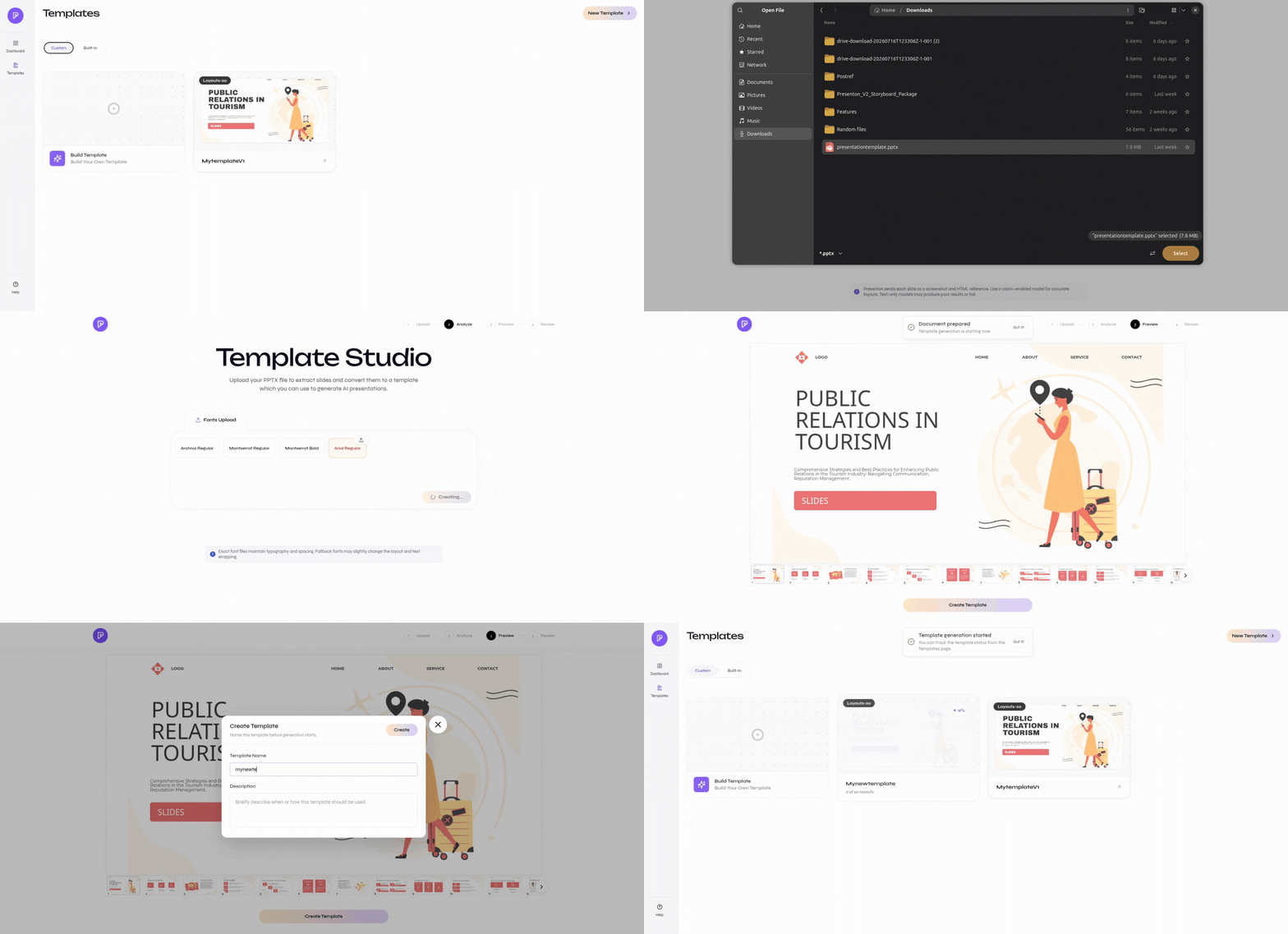
Open Templates, then select Build Template or New Template.
2
Upload the branded PPTX
Select Upload PPTX File, choose the source presentation, and wait for it to become Ready. Select Get Started.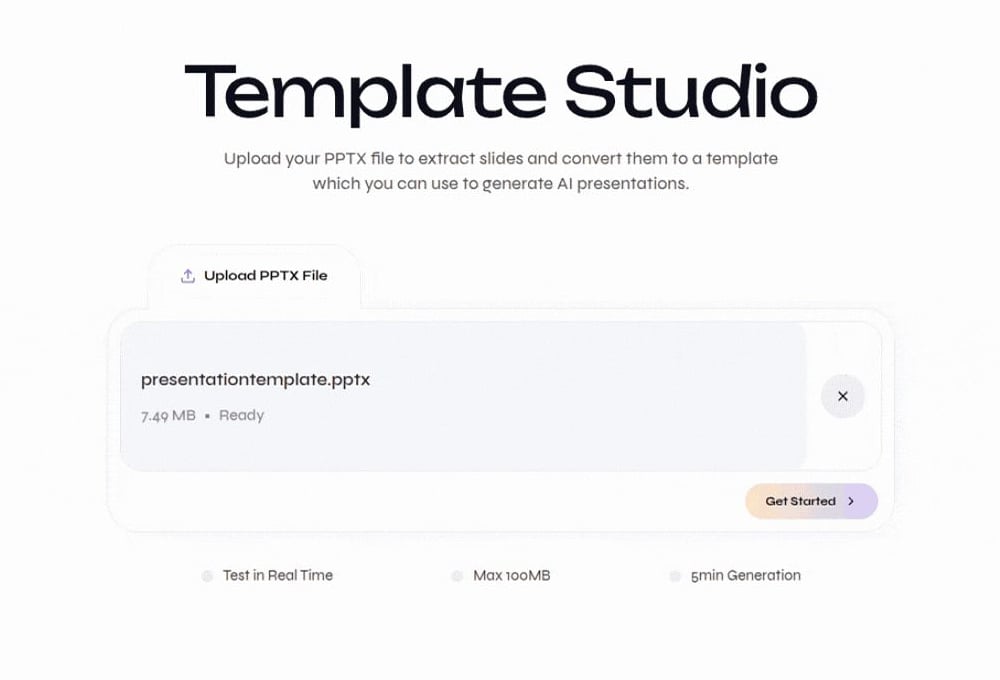
Upload a branded PowerPoint presentation
3
Resolve the presentation fonts
Review the detected fonts and upload any missing font files. Correct fonts are required for reliable text measurement, wrapping, and layout fidelity.
4
Review the source slides
Inspect the thumbnails and slide preview. Confirm that the deck contains the branded layouts you want to reuse, then select Create Template.
5
Name and describe the template
Use a recognizable brand and use-case name. Add a description that explains when the template should be selected, then select Create.
6
Wait for layout generation
The template appears in the Custom library while Presenton converts the source slides into reusable layouts. Wait for generation to finish before using or editing it.
Refine the generated layouts
After creation, open the template and review each generated layout in the Template Editor.- Edit sample text and confirm the intended typography.
- Set realistic minimum and maximum character limits in Schema.
- Test Low, Medium, and High content density.
- Use Re-Construct if a slide is blank, incomplete, or incorrectly constructed.
- Check layout names and descriptions under Layouts.
- Save after reviewing the edited slides and metadata.
Template creation
Follow the full Template Studio upload and creation workflow.
Template Editing
Refine schemas, text behavior, reconstruction, and layout metadata.
Validate the brand result
Before making the custom template the default choice for repeated work:- Generate a short Standard presentation with realistic content.
- Confirm Presenton selects appropriate layouts for different slide purposes.
- Check font rendering, text overflow, image placement, spacing, and logo treatment.
- Export both PPTX and PDF.
- Open the exports in the applications your audience will use.
Custom templates apply to Standard presentations. Cloud Smart presentations use Smart designs rather than Standard template layouts.