

Create a presentation
Choose Cloud for Presenton Cloud or Open-source for your local or self-hosted installation. Each tab follows the workflow from prompt to generated presentation.Watch the workflow
Generation essentials
- Cloud
- Open-source
1
Open Create new Presentation
Select Create new Presentation from the Cloud dashboard.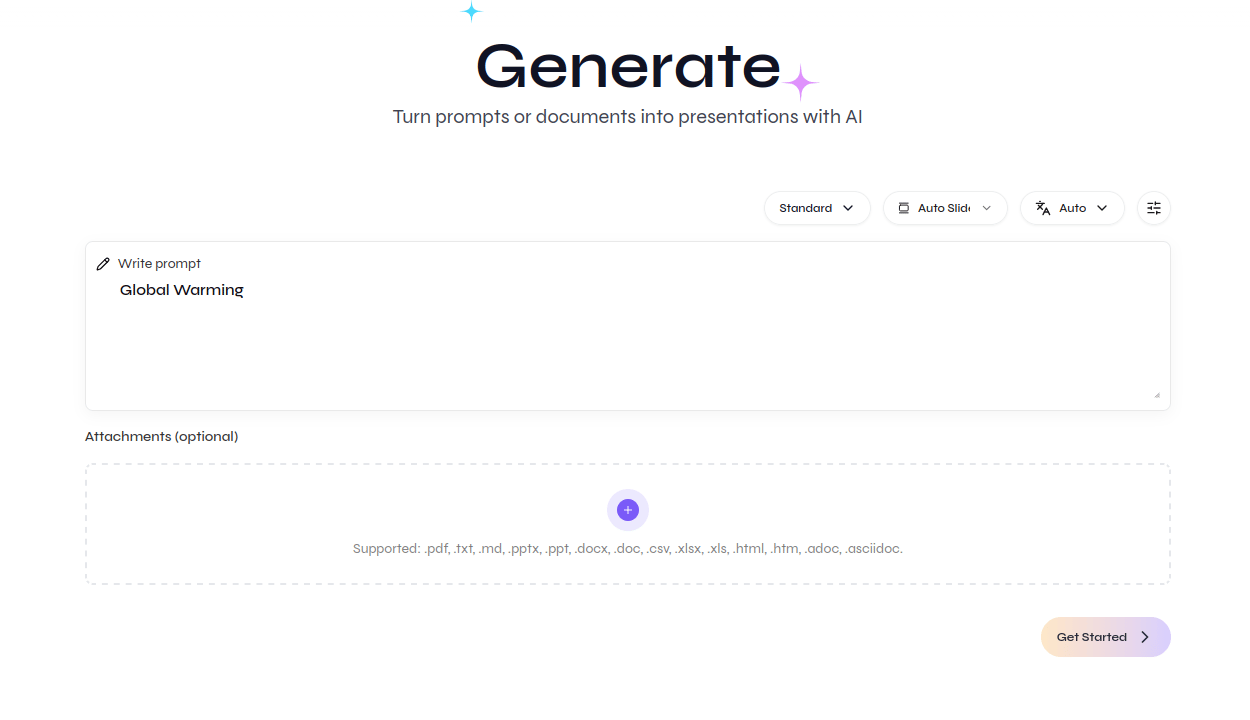
Open the Cloud generator
2
Choose Standard or Smart
Choose Standard for template-based layouts or Smart for content-driven composition.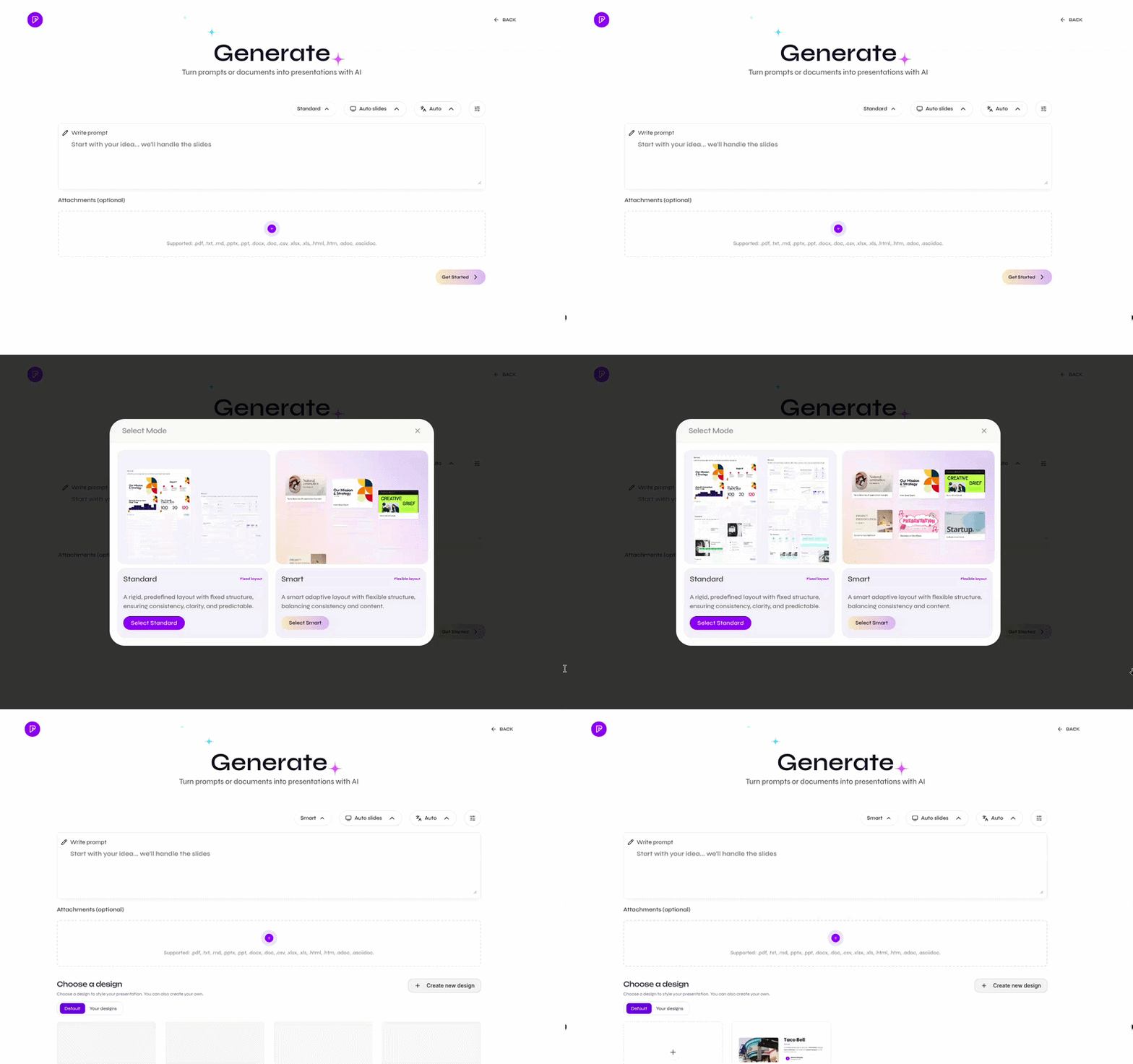
Switch between Standard and Smart
3
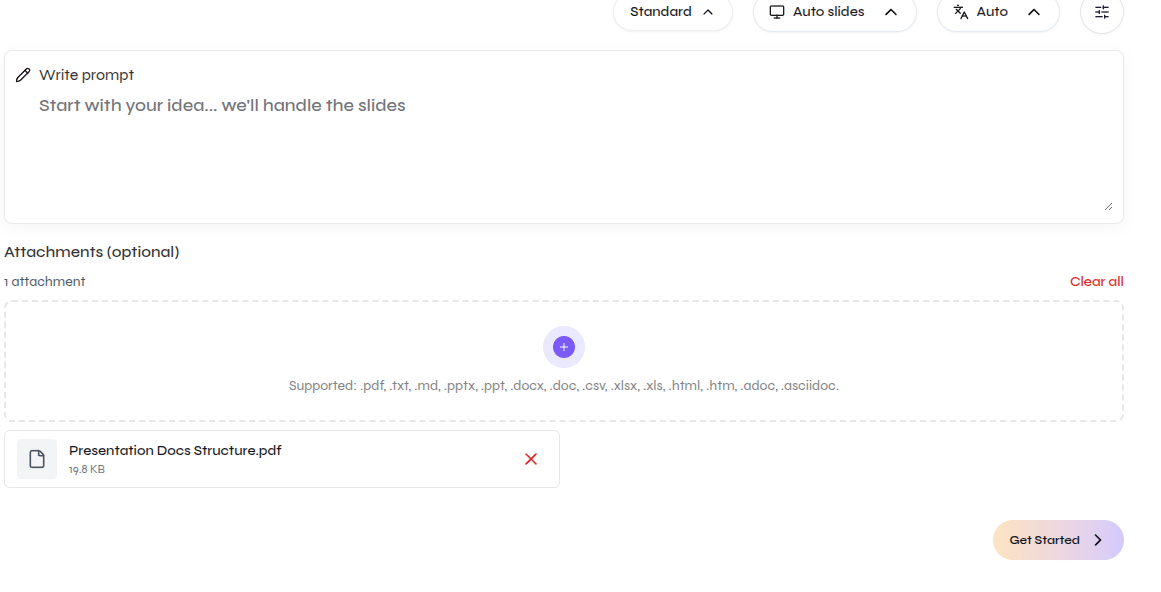
Set the slides and language
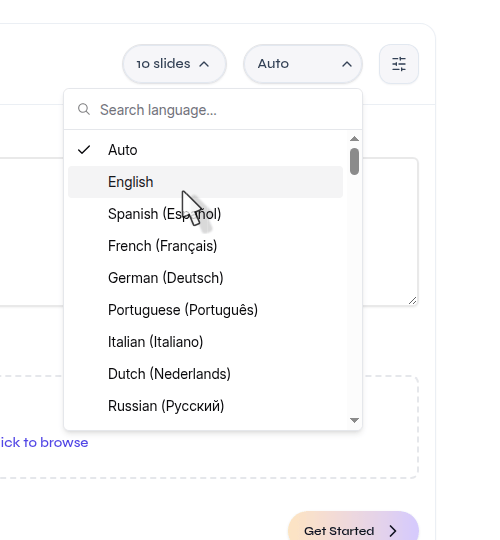
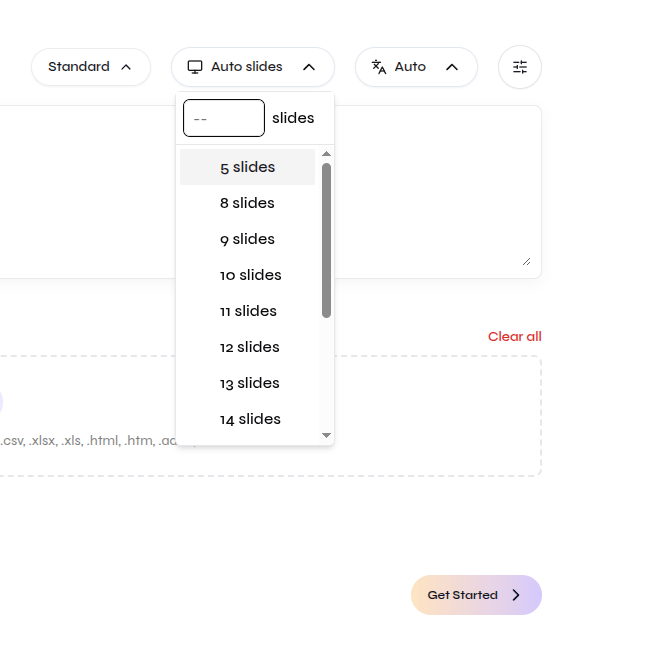
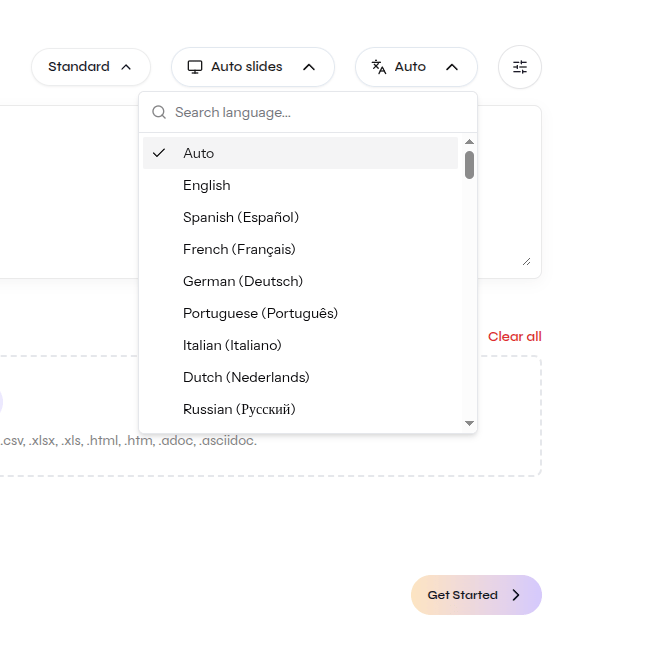
Choose Auto slides or a fixed count, then select the output language.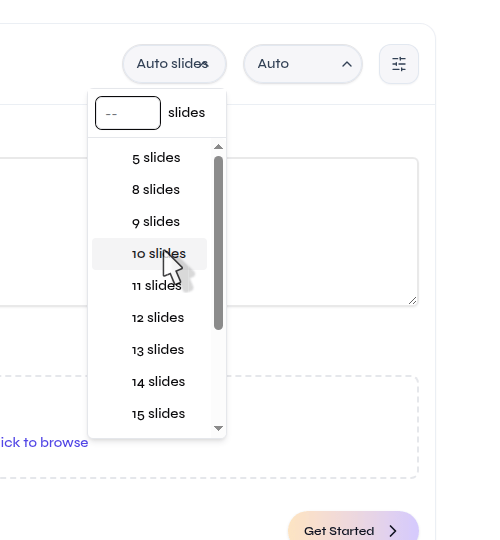
Choose Auto slides or a fixed slide count
Select the presentation language
4
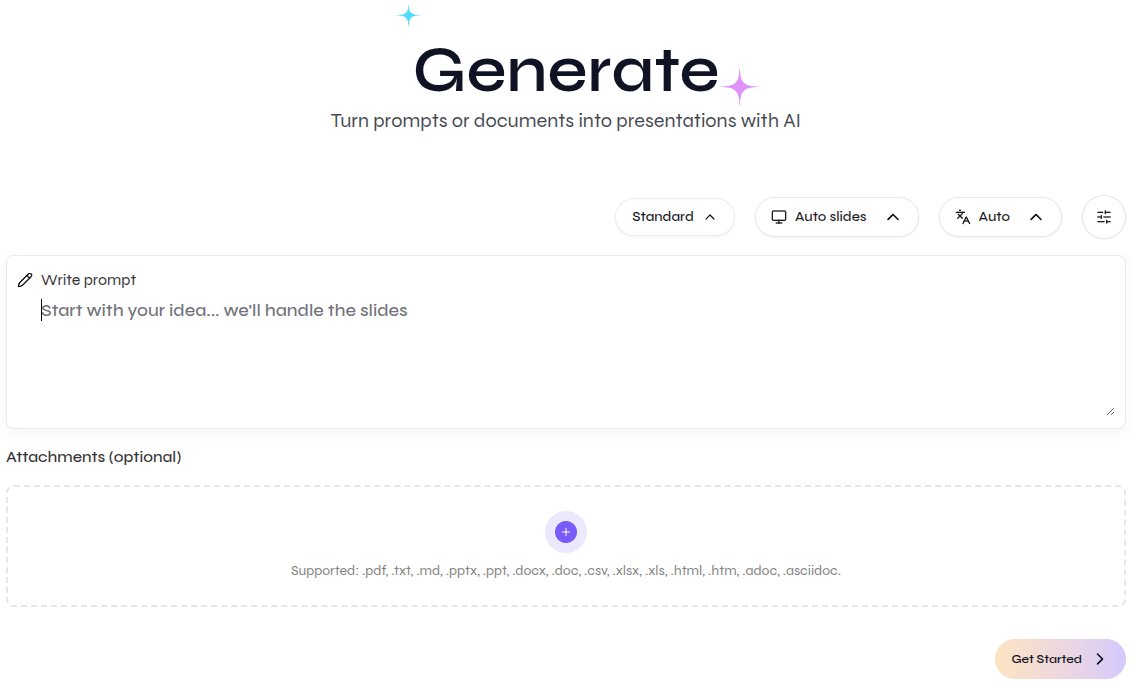
Add the prompt and files
Describe the presentation you want. Attach reference files when Presenton should use specific source material.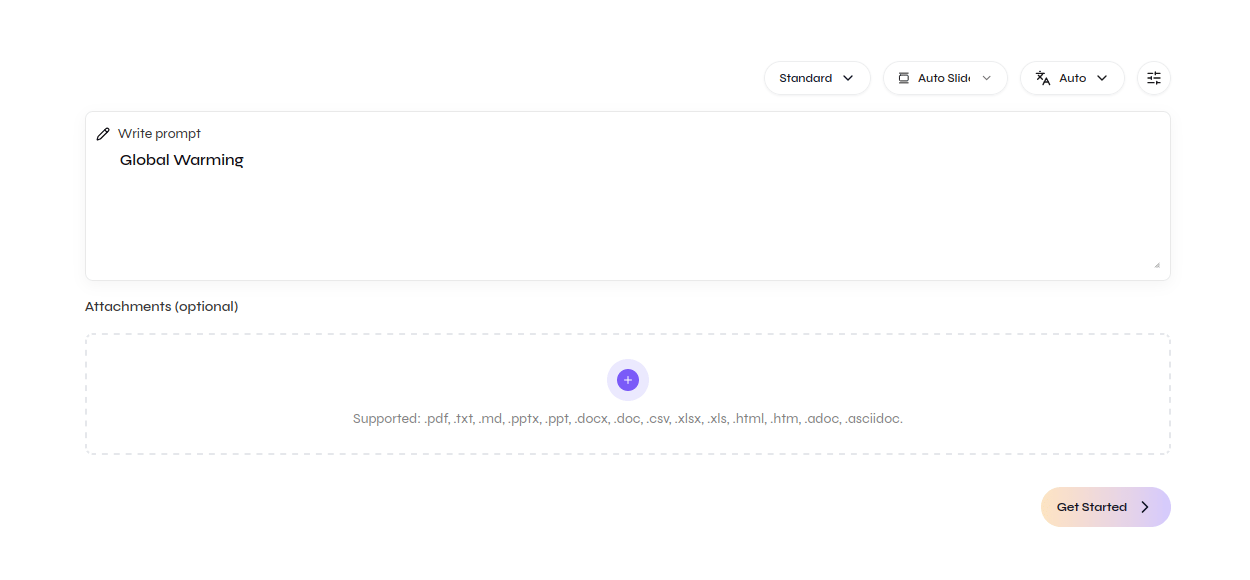
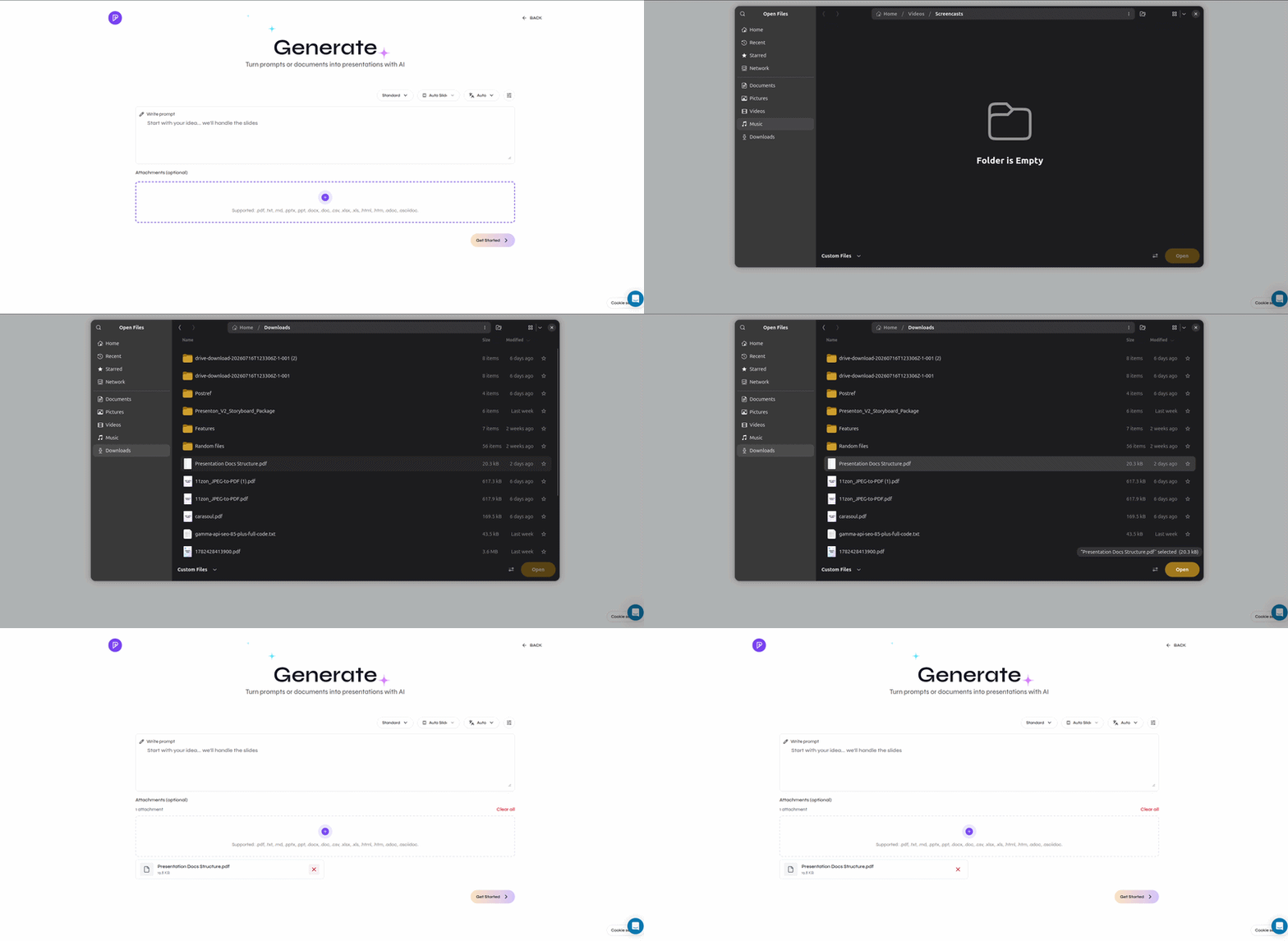
Describe the presentation you want
Attach files beside the prompt
5
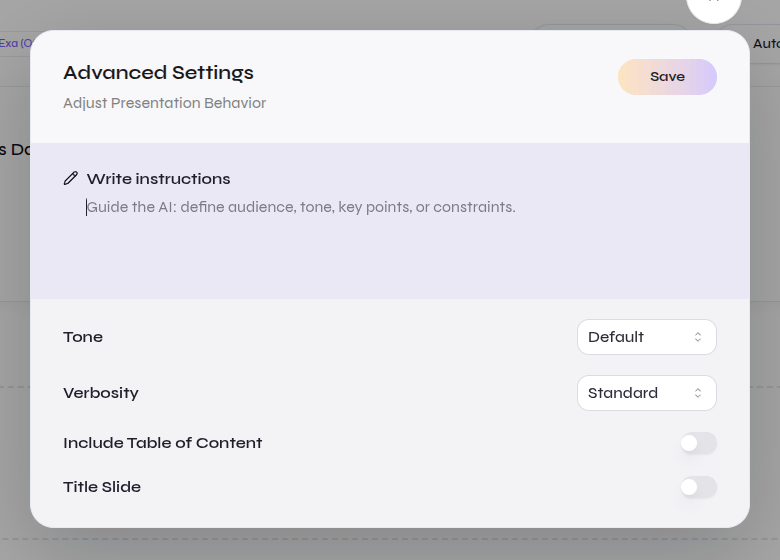
Review Advanced settings
Set tone, verbosity, title slide, table of contents, web search, or additional instructions when needed.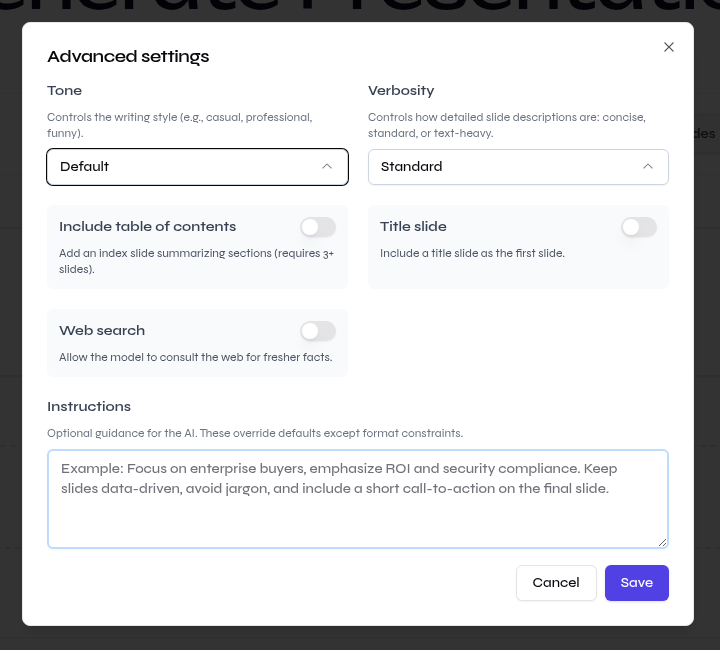
Adjust only the settings you need
6
Get started
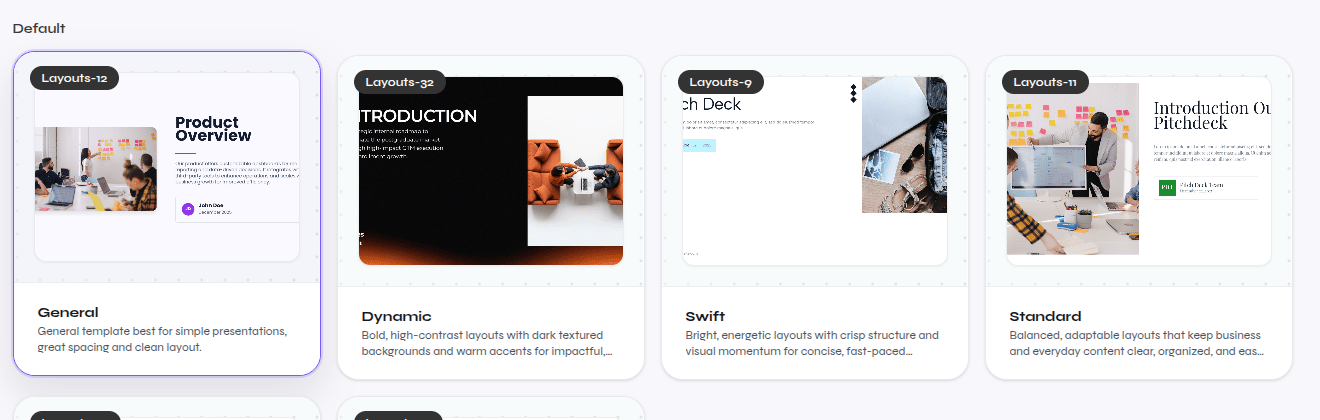
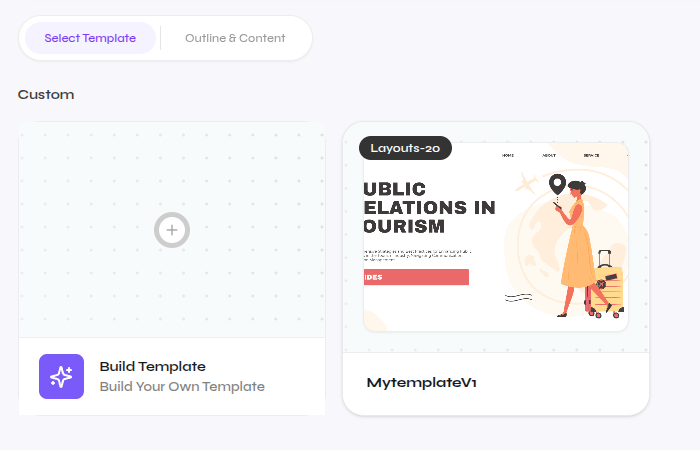
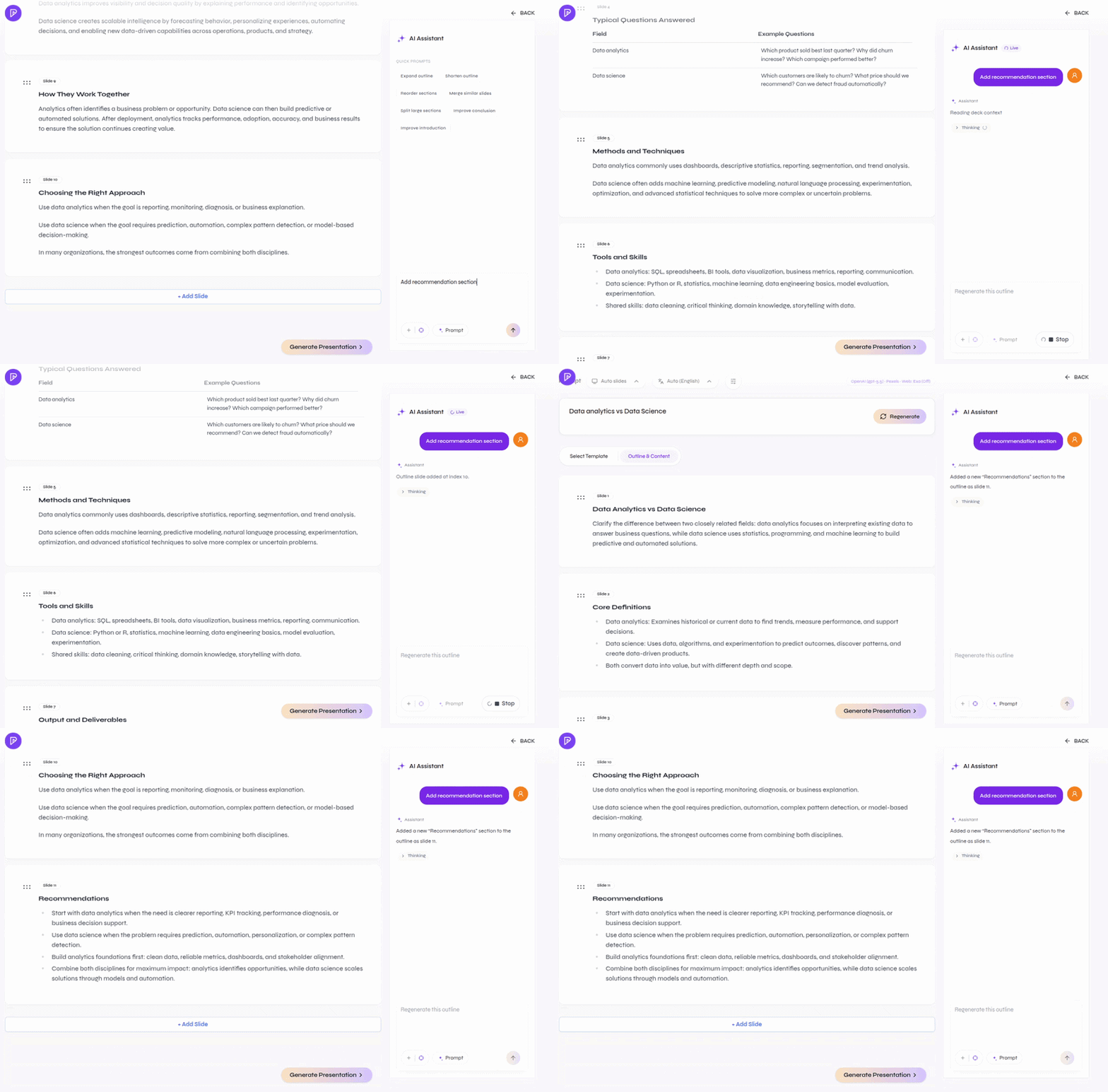
Select Get Started, review the outline, and choose the design before generating the presentation.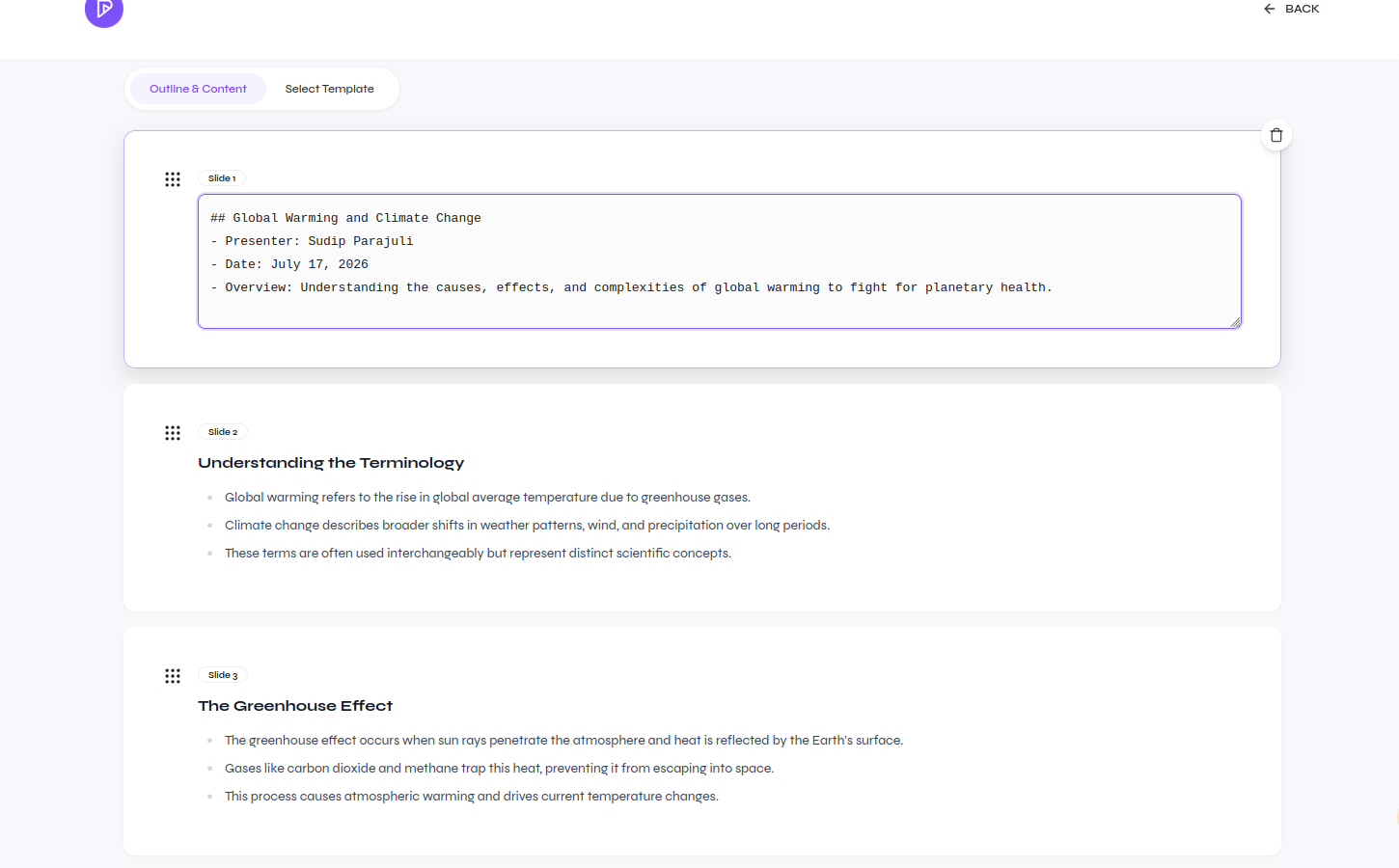
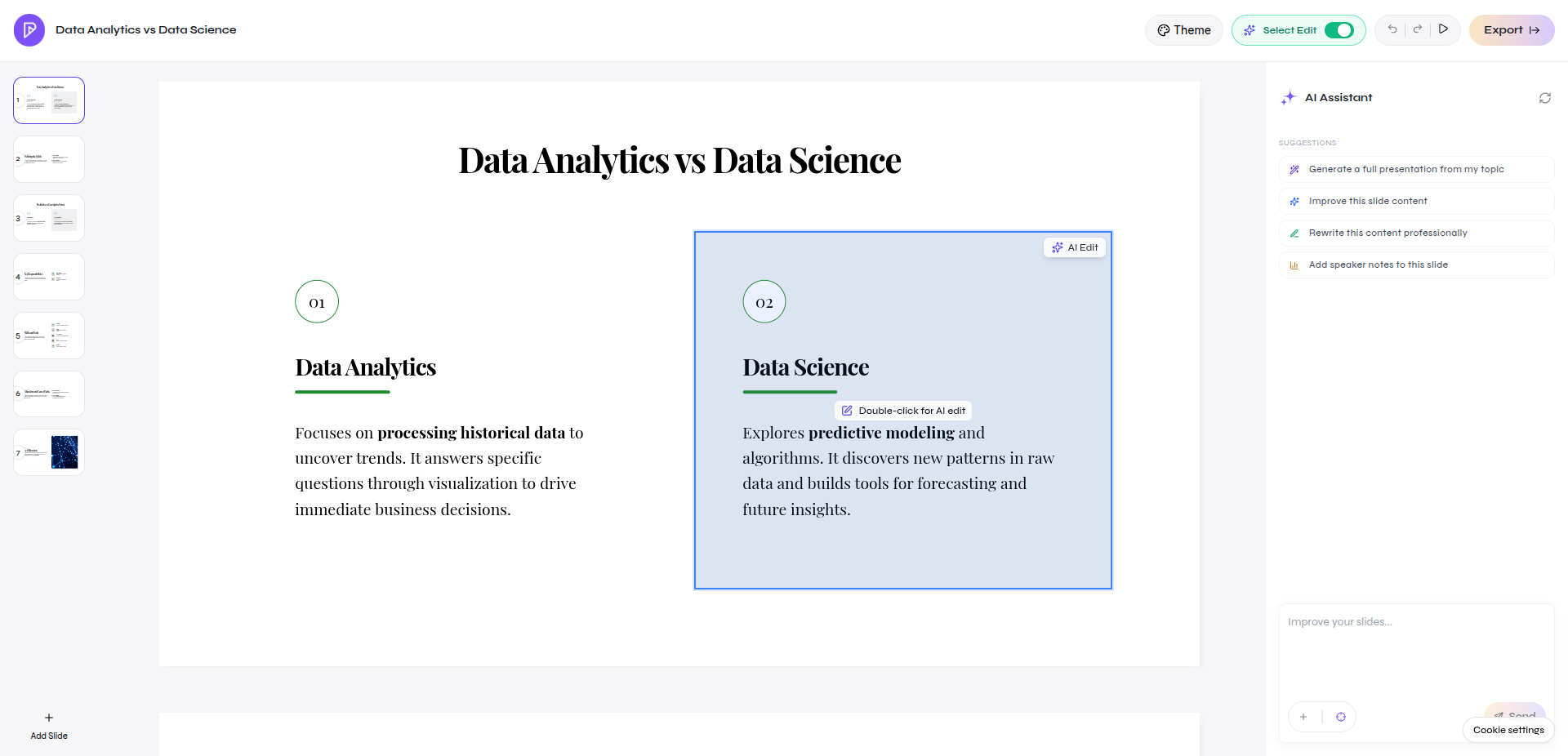
Review the outline before generating slides
Continue in the Presenton Editor

Verify source-based presentations
- Compare important names, dates, claims, and figures with the original files.
- Recalculate totals, percentages, and changes shown in tables or charts.
- Confirm units, reporting periods, category labels, and data sources.
- Review image relevance, cropping, and usage rights.
- Inspect the exported PPTX or PDF for overflow, clipping, and layout changes.
Refine the presentation
Choose direct Canvas editing or the AI assistant for the changes you still need.
Export the result
Download the verified presentation as PPTX or PDF.