- Slide rail: select the slide to edit.
- Canvas: review and edit the active slide.
- Editor rail: add blocks, text, charts, tables, images, elements, or open AI.
Watch the editing workflow
This narrated walkthrough shows how to select a slide, edit text and objects on the canvas, add content from the editor rail, use AI for a focused change, and review the result.Edit a presentation
1
Open the slide
Select a thumbnail from the slide rail.
2
Choose an editing path
Use the canvas for direct changes, AI for a focused request, or the slide rail to add a slide.
3
Make one change
Edit the selected content, then check the result before moving to another element.
4
Review and export
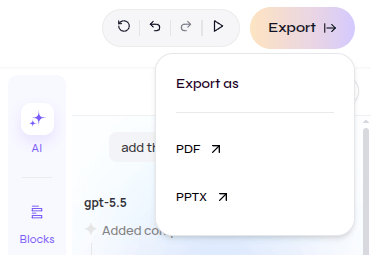
Confirm the slide sequence, content, and layout. Select Export, then choose PDF or PPTX.
Choose the right tool
Canvas editor
Add or directly edit blocks, text, images, shapes, tables, and charts.
AI assistant
Describe one focused change for the active slide.
Slide Editing
Select a slide or add a new one from the slide rail.
Template Editing
Refine schema behavior, reconstruction, and layout metadata in a saved template.
Export the result
Export options verified in the editor