

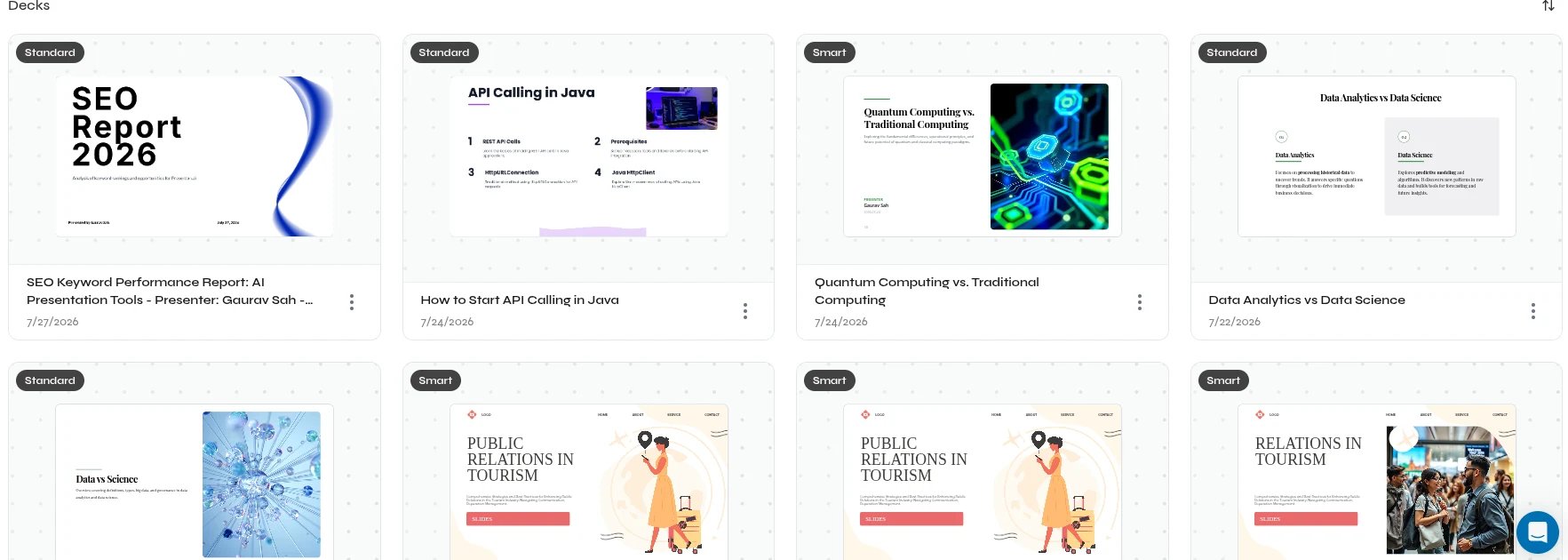
Saved presentation cards in the Decks section
Presentation card actions
Select the three-dot menu on a presentation card to open its available actions.Presentation card with preview, title, date, and actions menu

- Delete removes the selected presentation after confirmation.
Open and review a presentation
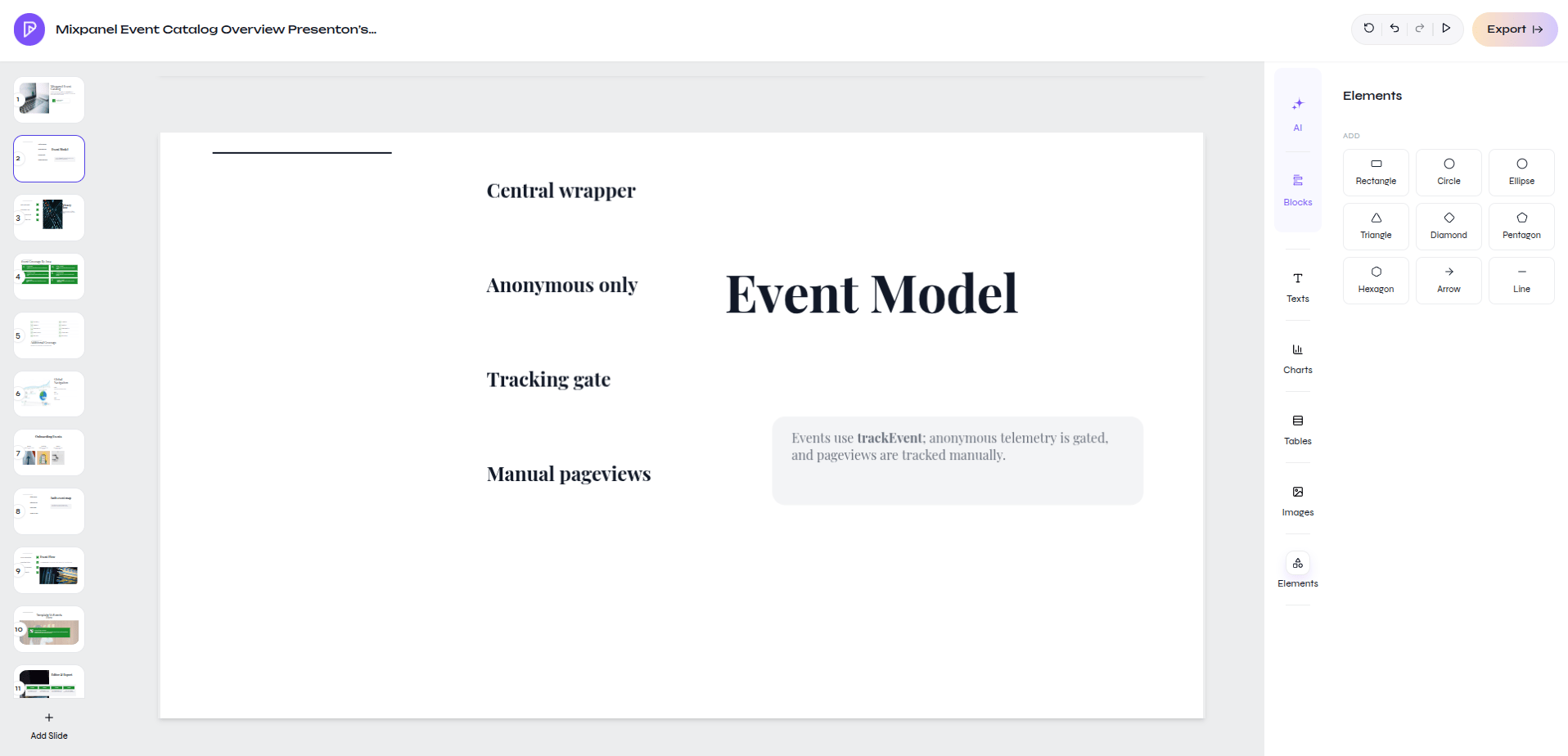
Select a presentation card to open its slides in the editor. Use the thumbnail rail to review the deck, then select Export when it is ready to download.Presentation opened from the dashboard
Naming pattern
Use a title that distinguishes purpose and version, for exampleQ3 Product Review - Leadership - Final. Keep draft status in the title only while it is useful, and rename the final deck before export.
If a presentation is hard to find
- Confirm you are using the same Presenton deployment and account where it was created.
- Look for the title and creation date shown on the card.
- Open likely matches and check the first-slide preview and slide contents.
- Rename important presentations before exporting them.