

Watch the slide-editing workflow
This walkthrough shows how to generate a slide with AI, apply a template, and open the slide actions menu.Add a slide
1
Choose where to add the slide
Select the slide that should come before the new slide. Its thumbnail is highlighted in the slide rail.
2
Choose how to create it
Use one of the controls below the active slide:
3
Review the new slide
Check the generated or selected layout, update its content, and confirm that it appears in the correct position in the slide rail.
Duplicate, reorder, or delete a slide
Open the three-dot menu below the active slide to access its management actions.Slide actions menu
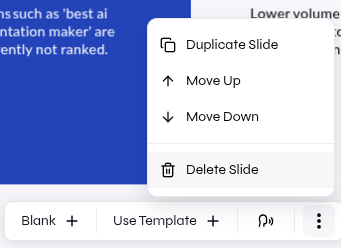
After moving or duplicating a slide, review the slide rail to confirm the sequence. After deleting a slide, confirm that the intended slide was removed before continuing.
Continue editing
Build slide content
Add and edit content directly on the slide.
Create content with AI
Request one focused change for the active slide.