

Configure and run a request
1
Open API Playground
Select API Playground from the Presenton Cloud dashboard.
2
Choose the content format
- Presentation Content
- Slide Specific Content
Use one prompt for the full presentation. Presenton decides how to divide the content across the selected number of slides.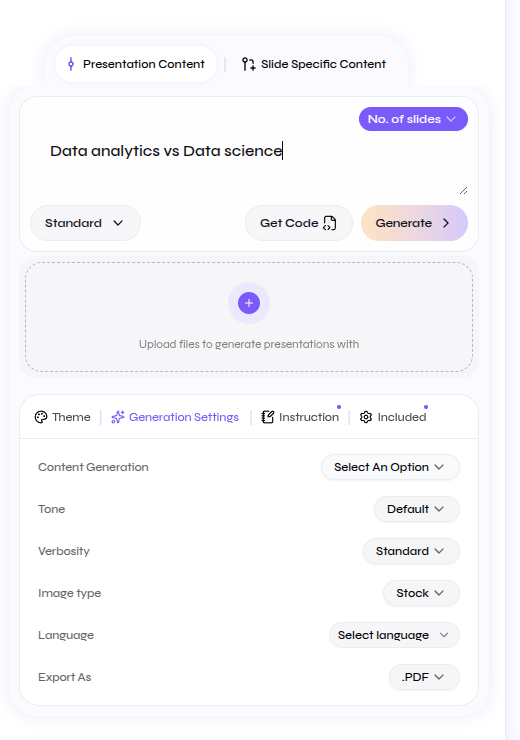
Write one prompt for the full deck
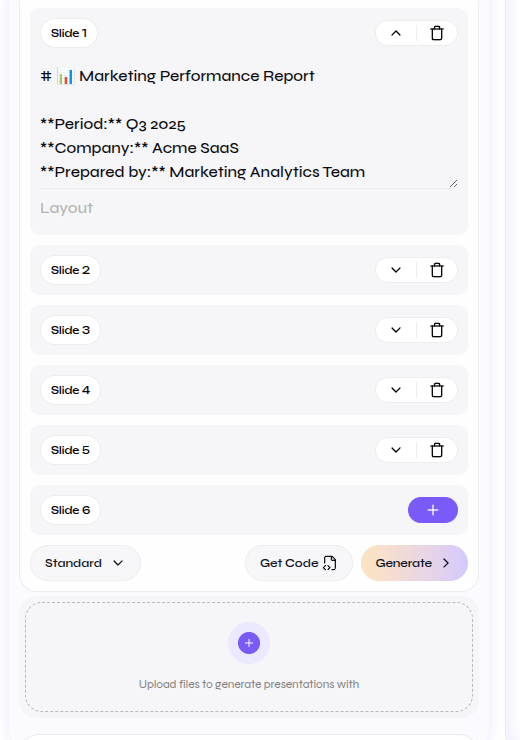
3
Add content and generation options
Enter the presentation prompt or add content to each slide. Upload reference files when the request should use source material.For Presentation Content, choose the number of slides. Then select Standard for template-based layouts or Smart for content-driven composition.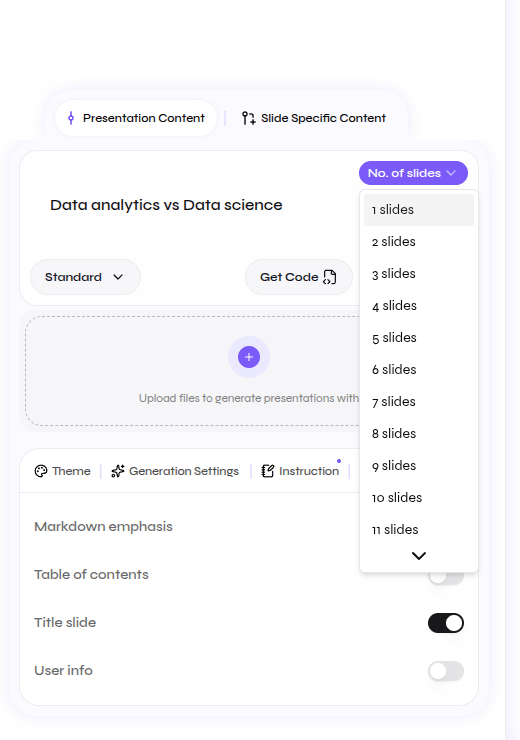
Choose the slide count for Presentation Content
4
Customize the request
Use only the settings required for the result you want.
Generation Settings
Generation Settings
Set content generation, tone, verbosity, image type, language, and export format.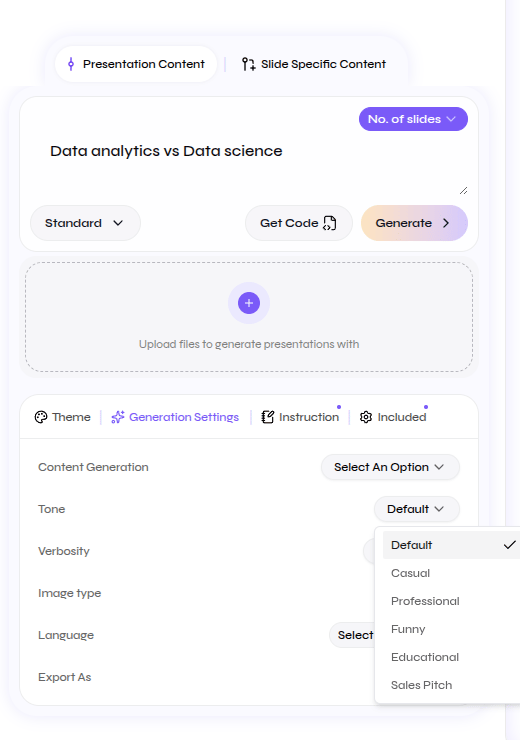
Set tone, verbosity, media, language, and export format
Instruction
Instruction
Choose an instruction preset or write custom instructions for the presentation.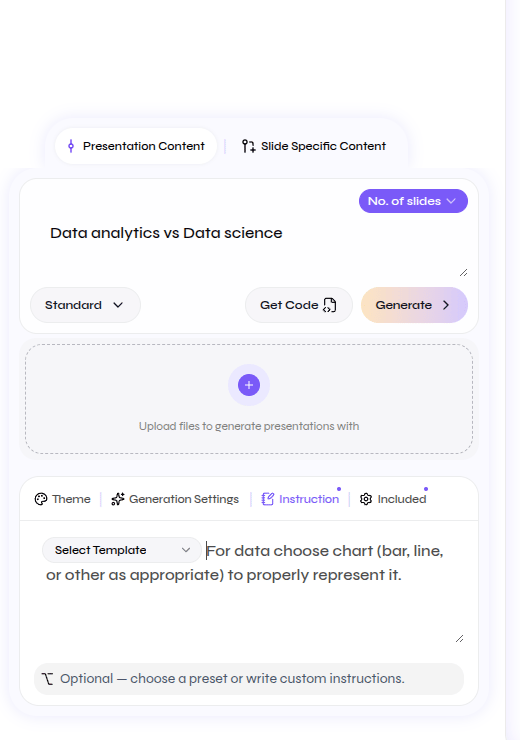
Add a preset or custom instruction
Included
Included
Choose whether to include Markdown emphasis, a table of contents, a title slide, and user information.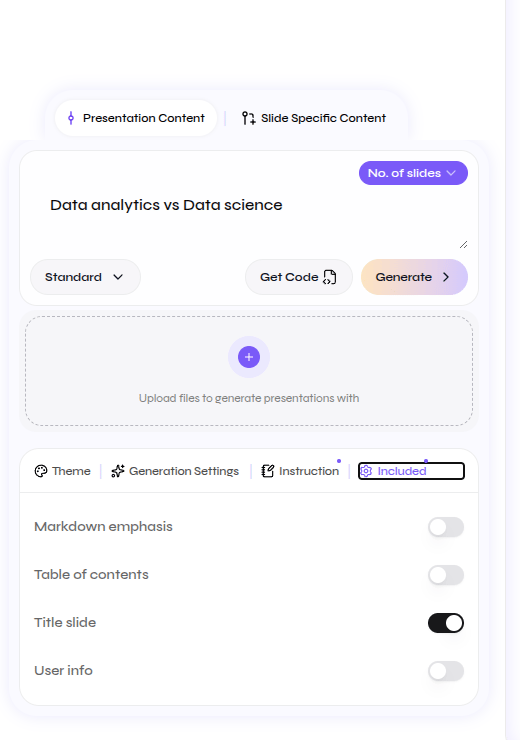
Choose the optional presentation sections
5
Generate or get code
Select Generate to run the request and review the presentation in Presenton.Select Get Code when the configuration is ready to use in your application or automation. Test with Generate first when you want to confirm the output before integrating it.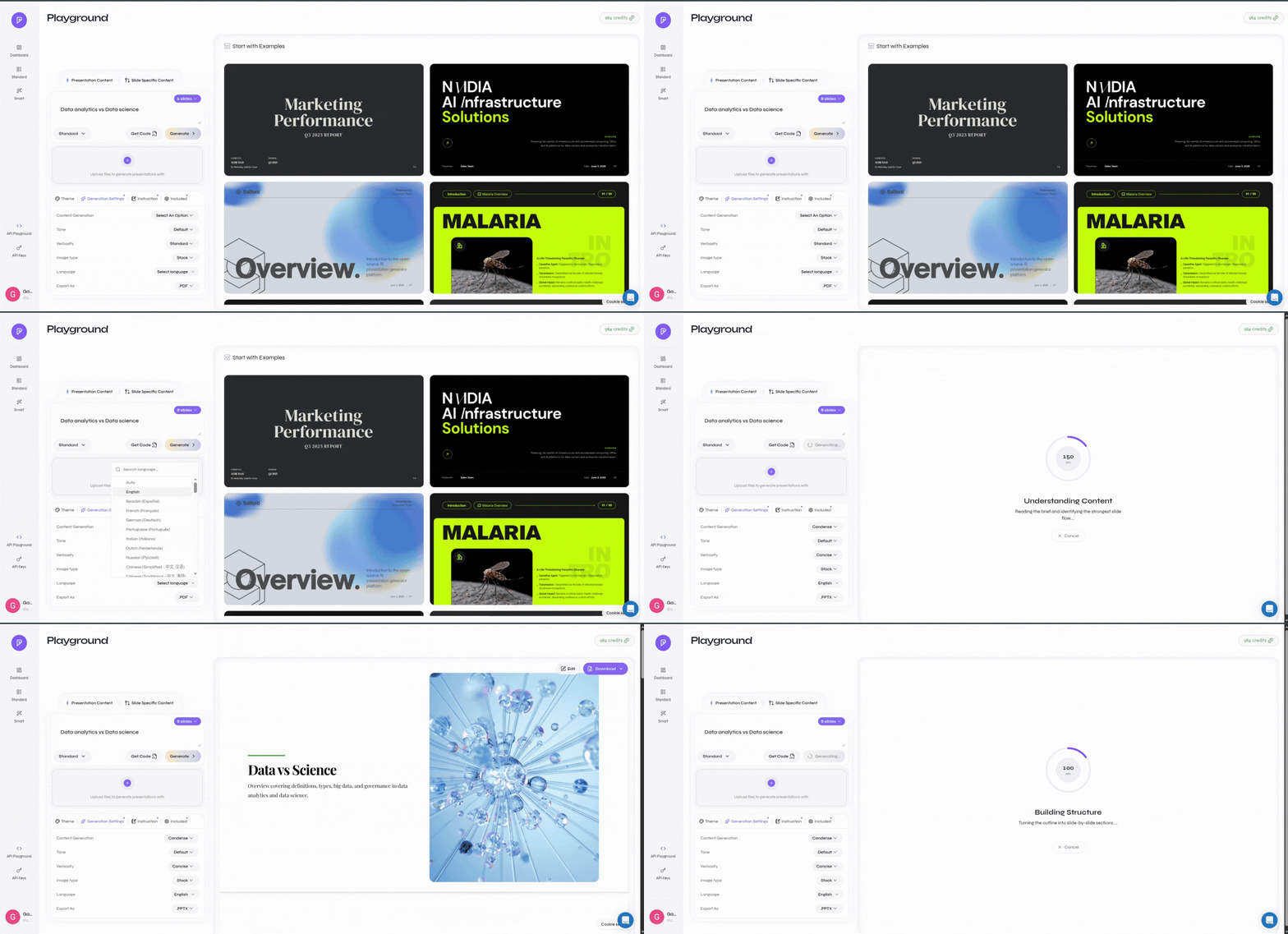
Follow the complete Playground workflow