

Watch the template-editing workflow
This narrated walkthrough covers editing template text and schema limits, reconstructing a slide, checking layout metadata, and saving the refined template.Editing workflow
1
Select a slide
Choose a template slide from the thumbnail rail.
2
Test its text behavior
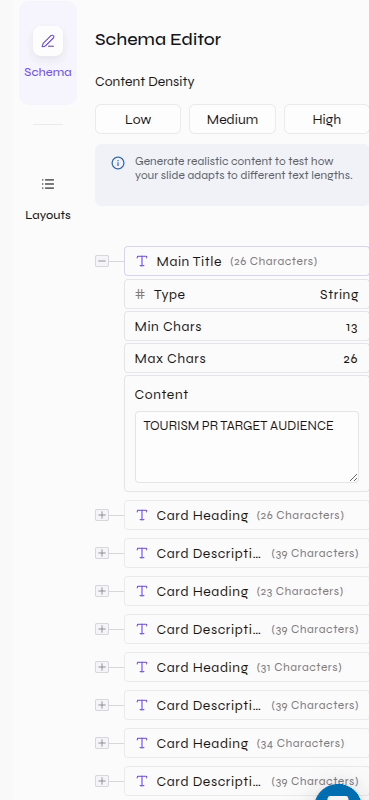
Edit text on the canvas or adjust its schema content and character limits.
3
Reconstruct when required
Rebuild a slide when its template construction or rendering is incomplete.
4
Review layout metadata
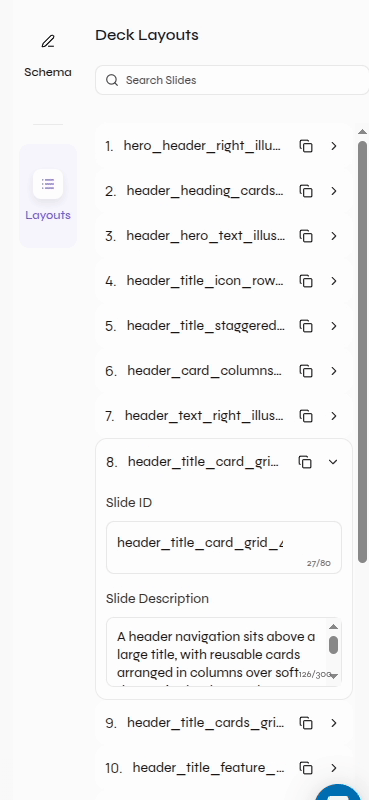
Open Layouts to inspect slide IDs and descriptions.
5
Save
Review the reconstructed slide and select Save.
Edit text and schema behavior
Select template slides, edit canvas text, and verify the schema beside the slide
- Canvas text
- Schema
- Select a text element on the template slide.
- Replace its sample content.
- Use the visible text toolbar when the template typography or text box needs adjustment.
- Check the updated slide at the expected content length.
Schema controls for content density, type, character bounds, and sample content
Reconstruct a slide
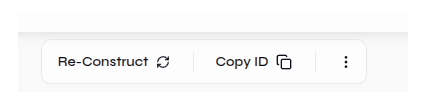
Use Re-Construct when a slide is blank, partially rendered, or has a template-construction issue.Slide actions
- Start reconstruction
- Review the result
Start Re-Construct and wait while the canvas rebuilds
Inspect Deck Layouts
Open Layouts to search the template’s reusable slide layouts.Open Deck Layouts, expand a layout, and inspect its ID and description
Deck Layouts list with search, copy controls, Slide ID, and Slide Description
- Confirm the Slide ID identifies the layout clearly.
- Confirm the Slide Description matches the visible structure and intended use.
- Use the copy control when the layout ID is needed elsewhere.
Save the template
Template-level actions

Template Creation
Return to the separate workflow for creating a template from an existing PPTX.